How to Block Someone on LinkedIn Without Them Knowing (2026)
LinkedIn allows you to block a user quietly, so the other person isn’t informed when it happens.
LinkedIn does not send notifications when you block someone. The blocked person will not receive any alert or message about your action.
LinkedIn allows you to block a user quietly, so the other person isn’t informed when it happens.
LinkedIn does not send notifications when you block someone. The blocked person will not receive any alert or message about your action.
TL;DR: Key Takeaways
- LinkedIn blocking is completely silent. No notifications are sent to the blocked person.
- The blocked user cannot view your profile, send messages, or see your posts after blocking.
- You must visit their profile to block them, but you can enable Private Mode first to hide your visit.
- Blocking automatically removes any existing connection between you.
- The only way they might suspect a block is if they manually search for your profile and find it unavailable.
Why LinkedIn Users Block Quietly in 2026
- You need to protect your professional reputation without creating conflict.
- Blocking discreetly prevents awkward confrontations, retaliation, or damage to your professional network.
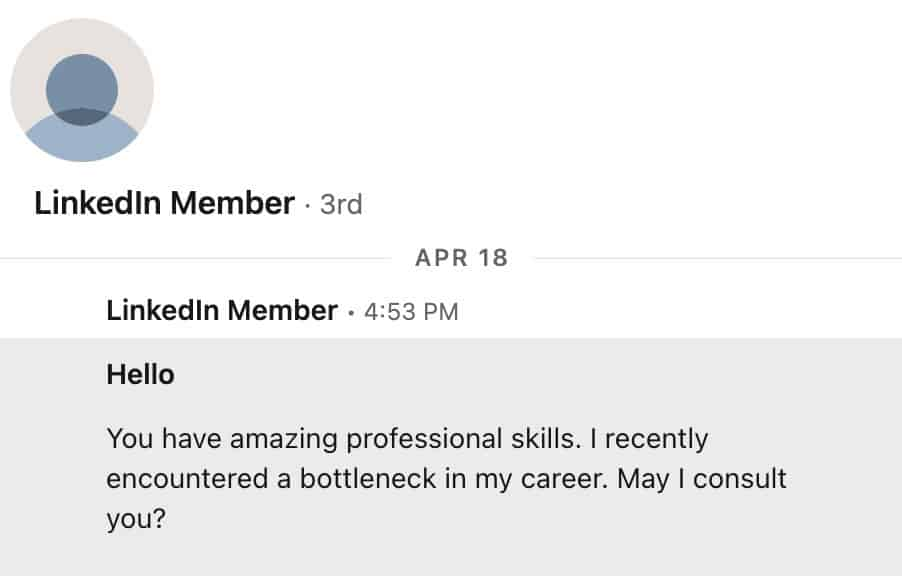
- LinkedIn's privacy features have evolved to prioritize user safety. In 2026, professionals block connections for several reasons: harassment, spam outreach, ex-colleagues, competitors monitoring activity, or unwanted sales pitches.
The platform understands that professional boundaries matter. That's why blocking remains private and unannounced.
What Happens When You Block Someone on LinkedIn
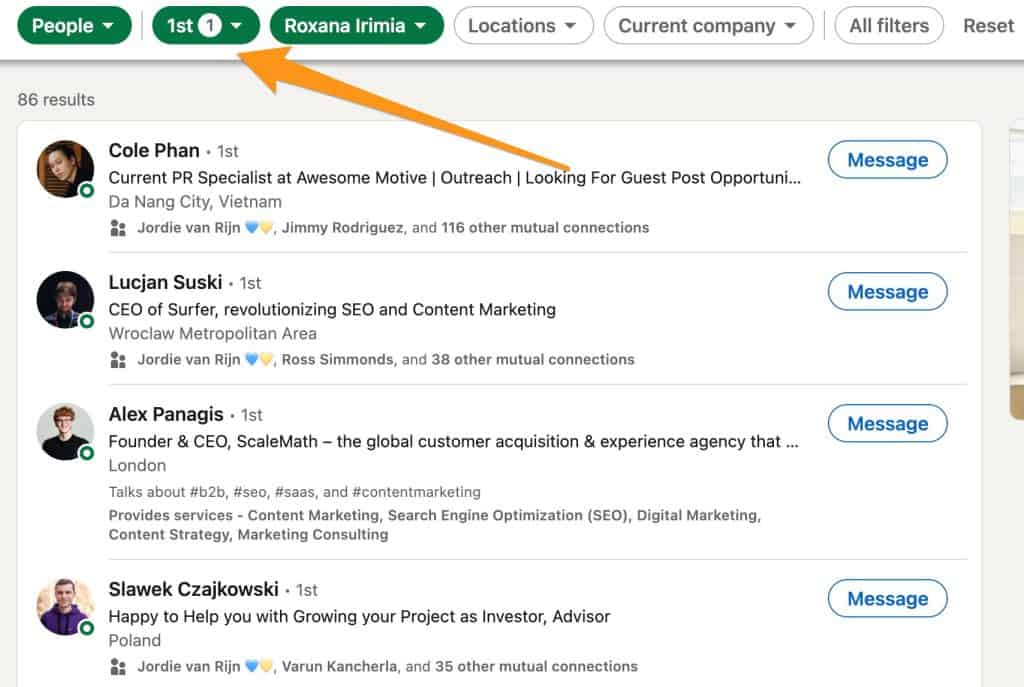
Blocking creates an immediate, invisible barrier between you and the other person.
Immediate Effects
- Their profile becomes completely inaccessible to you and yours to them.
- All previous connections are automatically severed.
- You cannot send messages to each other.
- Previous message history disappears from both inboxes.
- Any endorsements or recommendations exchanged are permanently removed.
Content Visibility Changes
- They cannot see your posts, articles, or comments anywhere on LinkedIn.
- You will not see their shared content in your feed.
- Neither of you can participate in the same LinkedIn events together.
- Profile visits from before the block may still show in your viewer count, but without identifying details.
Understanding how LinkedIn profile viewing works helps you manage privacy effectively.
Network Impact
- Your mutual connections remain unaffected. They will not be notified about your blocking action.
- However, if you previously shared a LinkedIn Recruiter account with the person you block, LinkedIn may notify them.
Step-by-Step Guide to Blocking a LinkedIn User Privately
1. Enable Private Mode First (Optional but Recommended)
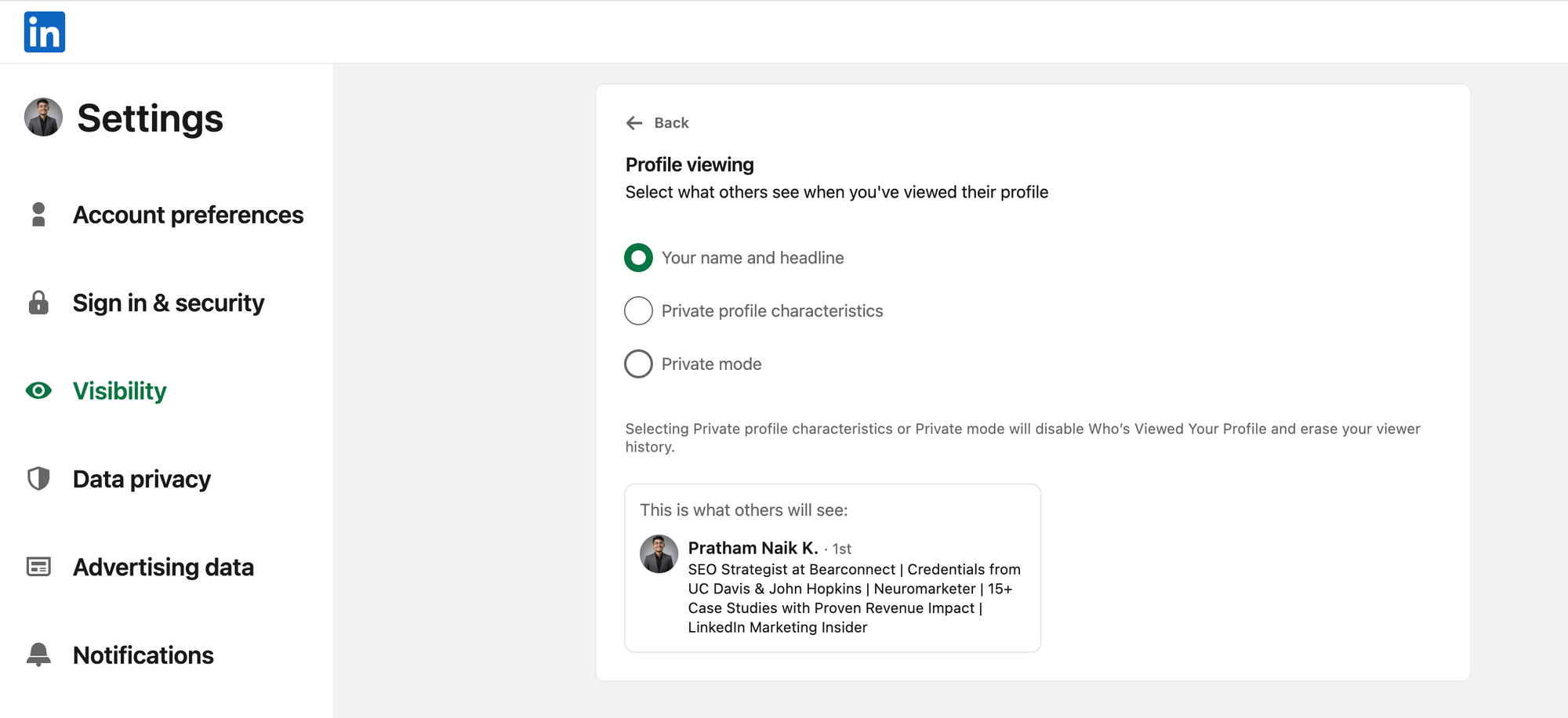
This step prevents them from seeing you visited their profile before blocking.
- Click your profile photo in the top right corner
- Select Settings & Privacy
- Navigate to Visibility section
- Click Profile viewing options
- Switch to Private Mode
Learn more about who can see your profile visits and LinkedIn's visibility settings.
Once enabled, you appear as "Anonymous LinkedIn Member" when viewing profiles.
2. Block Using Desktop
- Navigate to the person's profile using LinkedIn search
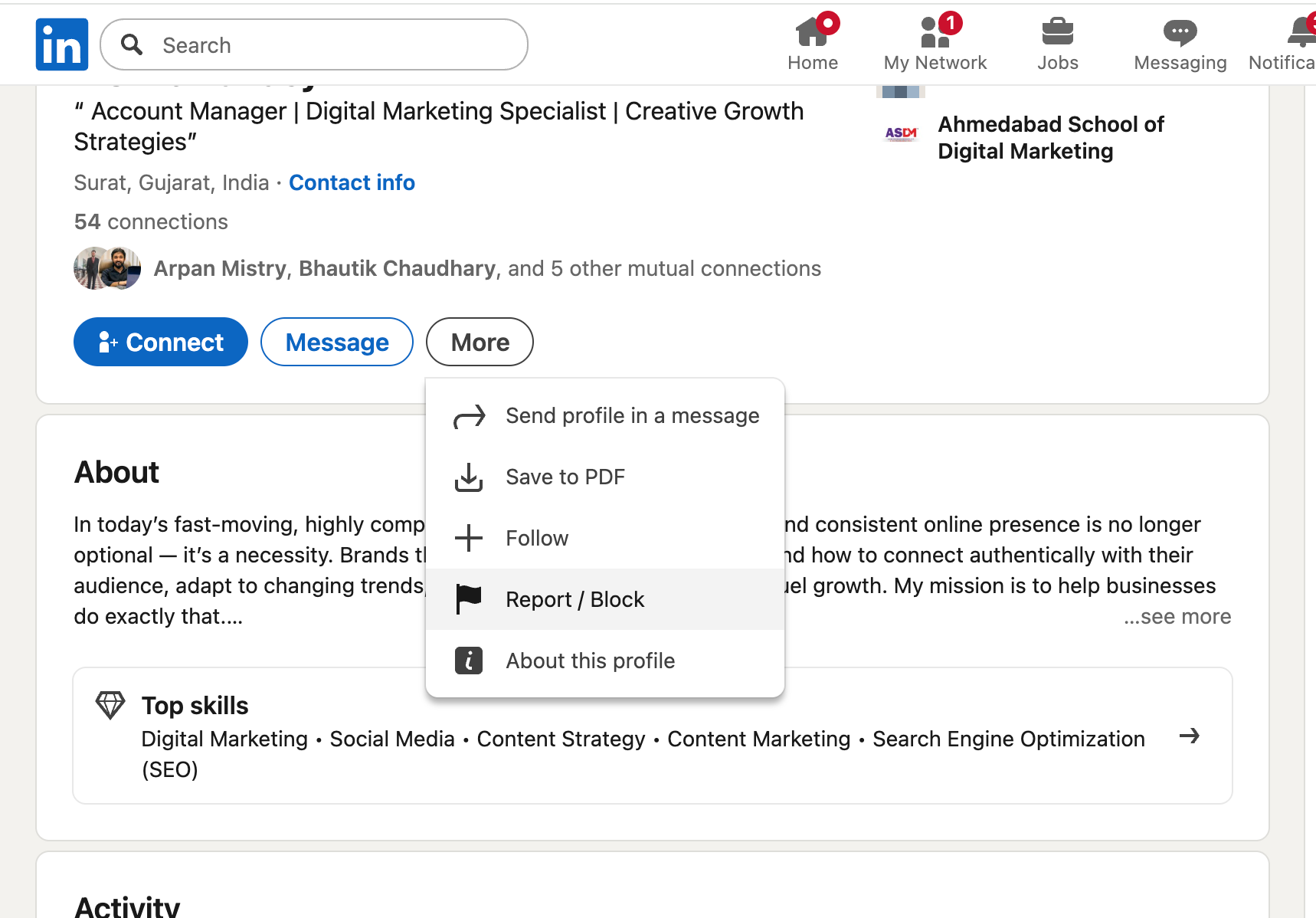
- Locate the More button (three dots) next to the Message button
- Select Report/Block from the dropdown menu
- Choose Block [Name] option
- Confirm your action by clicking Block in the popup
The block takes effect immediately. No reversible grace period exists.
3. Block Using Mobile App
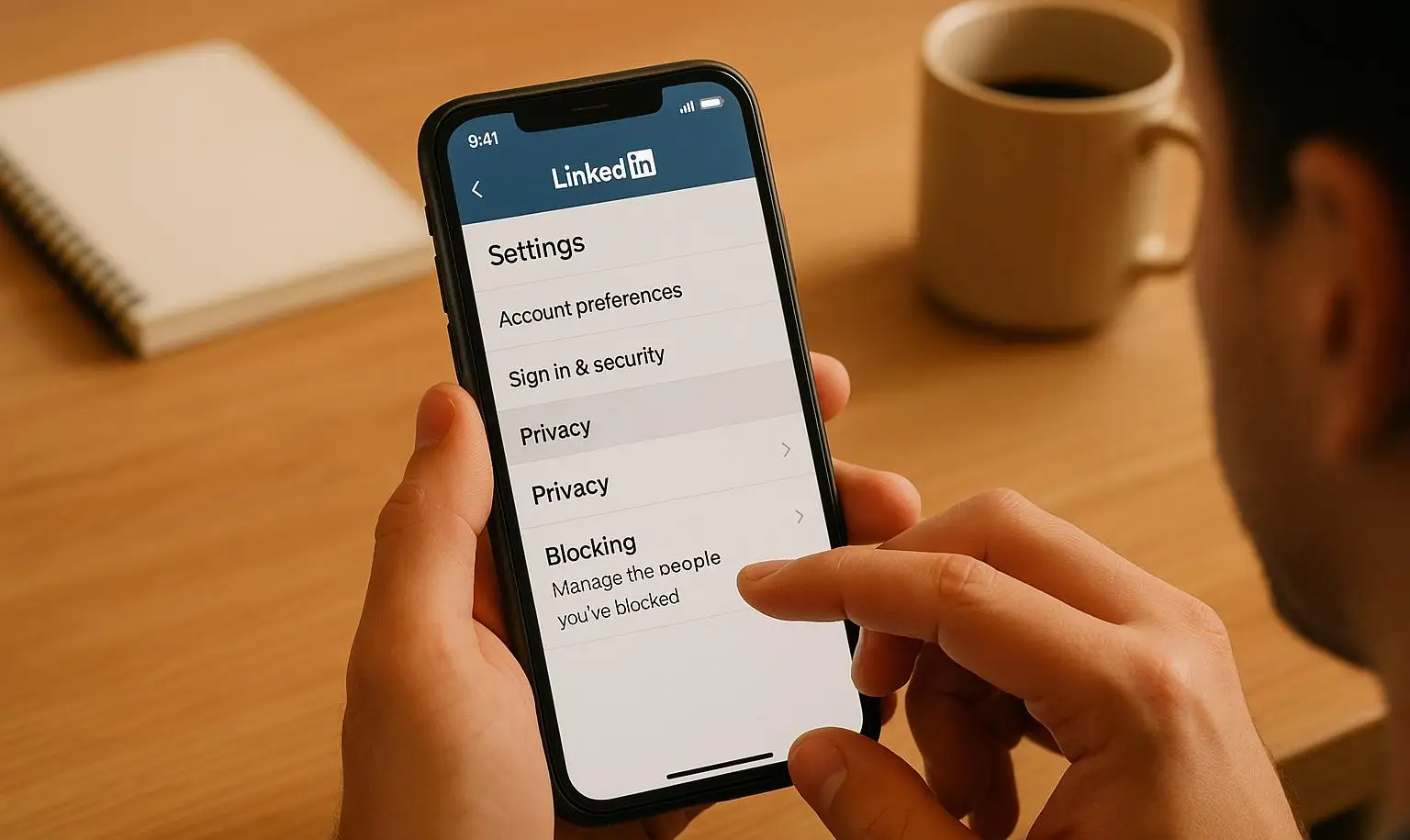
- Open the LinkedIn app on your phone
- Search for the person's profile
- Tap the three dots icon in the top right corner
- Select Report/Block
- Choose Block option
- Confirm the action
Mobile blocking follows the same silent process as desktop.
4. Block From a Message Conversation
If you received unwanted messages, you can block directly from your inbox.
- Open the message thread with the person
- Tap the three dots at the top of the conversation
- Select Report/Block
- Choose Block option
- Confirm
This method saves time if you don't want to navigate to their profile.
Will They Know You Blocked Them?
No direct notification goes out when you block someone. LinkedIn designed blocking to be discreet and non-confrontational.
How They Might Discover the Block
The blocked person can only discover your block through indirect signs.
- Searching for your profile returns "Profile unavailable" message
- Your name disappears from their connection list if you were connected
- Previous messages show as from a deleted or unavailable account
- They cannot find you in LinkedIn search results
What They Won't See
- No notification or alert about being blocked
- No indication of when the block occurred
- No explanation or reason for profile unavailability
- No way to distinguish between a block, deleted account, or privacy settings
Most blocked users assume you deleted your account or changed privacy settings rather than specifically blocking them.
Block vs. Other LinkedIn Privacy Options
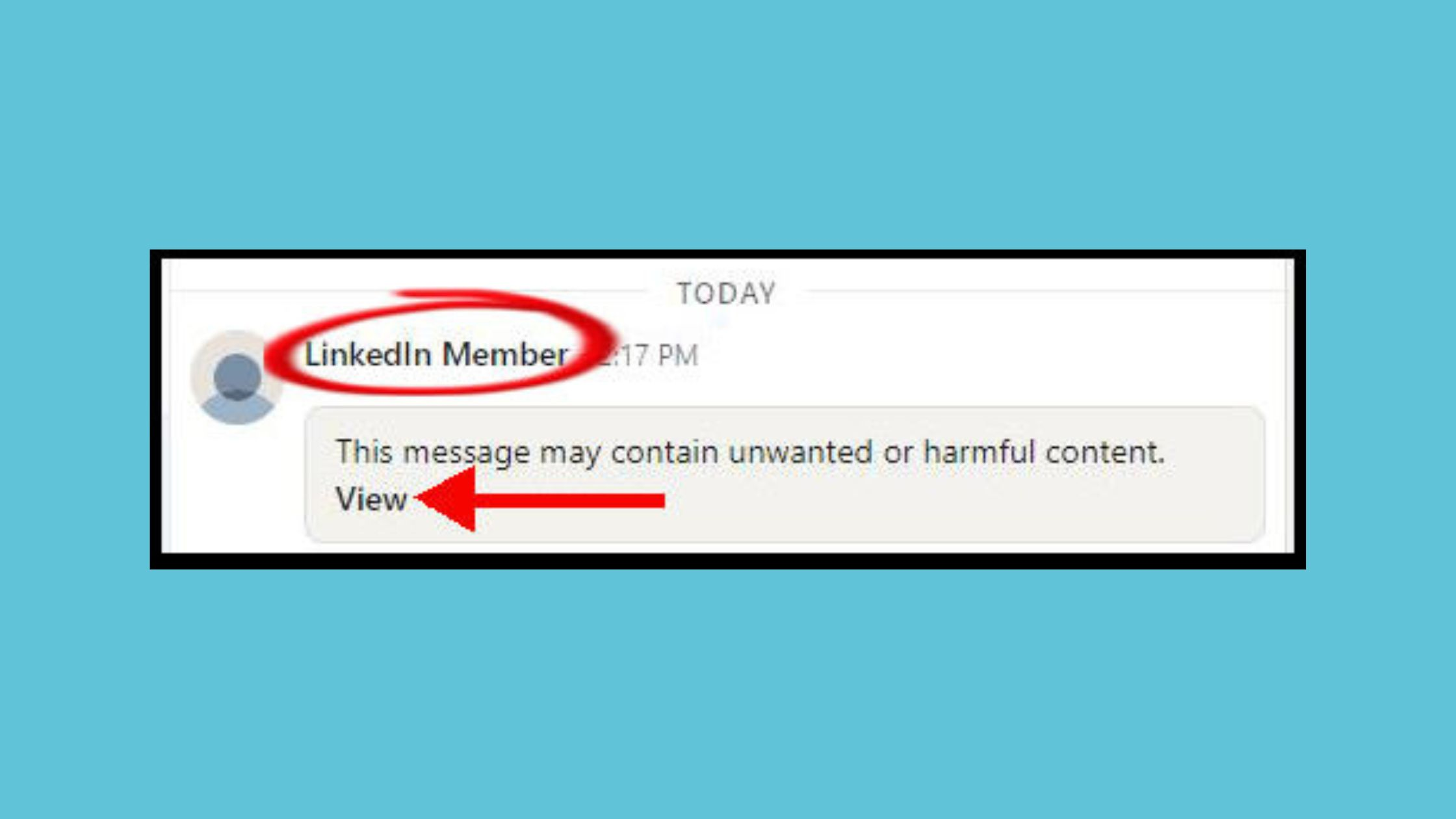
LinkedIn offers multiple ways to manage unwanted connections. Understanding the differences helps you choose the right action.
Unfollow
- Unfollowing stops their content from appearing in your feed while maintaining the connection.
- They will not be notified and can still view your profile and send messages.
- Use this for connections whose content you find irrelevant but who pose no threat.
Learn best practices for **managing LinkedIn connections** without blocking.
Remove Connection
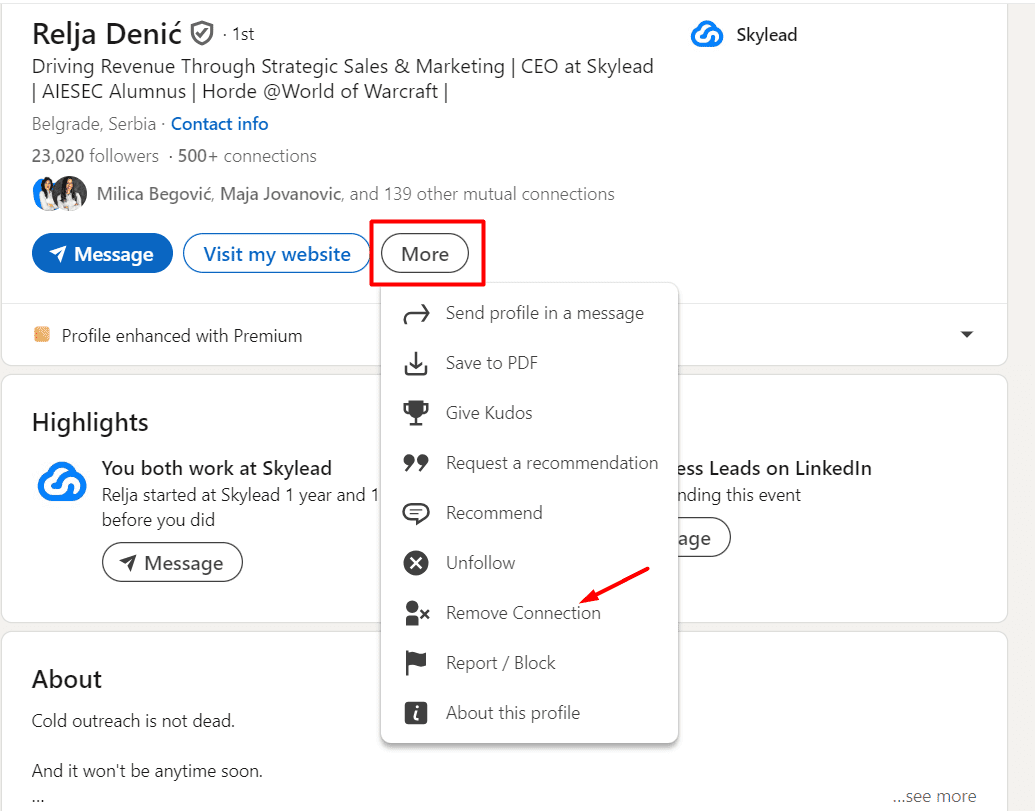
- Removing a connection severs the 1st-degree link. They become a 2nd or 3rd-degree connection depending on mutual contacts.
- They can still view your public profile and discover the disconnection by checking their connection list.
Block (Strongest Action)
- Blocking provides complete separation. The blocked person cannot access your profile, send messages, or interact with your content anywhere on LinkedIn.
- Use blocking for harassment, stalking, spam, or serious professional conflicts.
Common Blocking Scenarios in 2026
1. Blocking a Former Colleague or Manager
Career transitions sometimes require clean breaks. You may want to block a toxic former manager or colleague who monitors your job search activity.
Enable Private Mode before visiting their profile to block. This prevents them from seeing you checked their profile before disconnecting entirely.
2. Blocking Spam Outreach
Sales professionals and recruiters sometimes receive dozens of irrelevant pitches daily. Blocking persistent spammers protects your inbox and maintains your sanity.
LinkedIn's spam detection improved in 2026. However, blocking remains your most effective personal defense against unwanted outreach.
3. Blocking Competitors or Stalkers
If someone monitors your posts, comments, and professional moves obsessively, blocking stops their access immediately.
Your content strategy and business moves remain private. Competitors cannot track your activity or engagement patterns after blocking.
4. Blocking Personal Connections
Sometimes personal relationships end badly. Blocking an ex-partner or former friend on LinkedIn prevents professional overlap during emotionally difficult periods.
Your career advancement should not be complicated by personal history.
Managing Your Blocked List
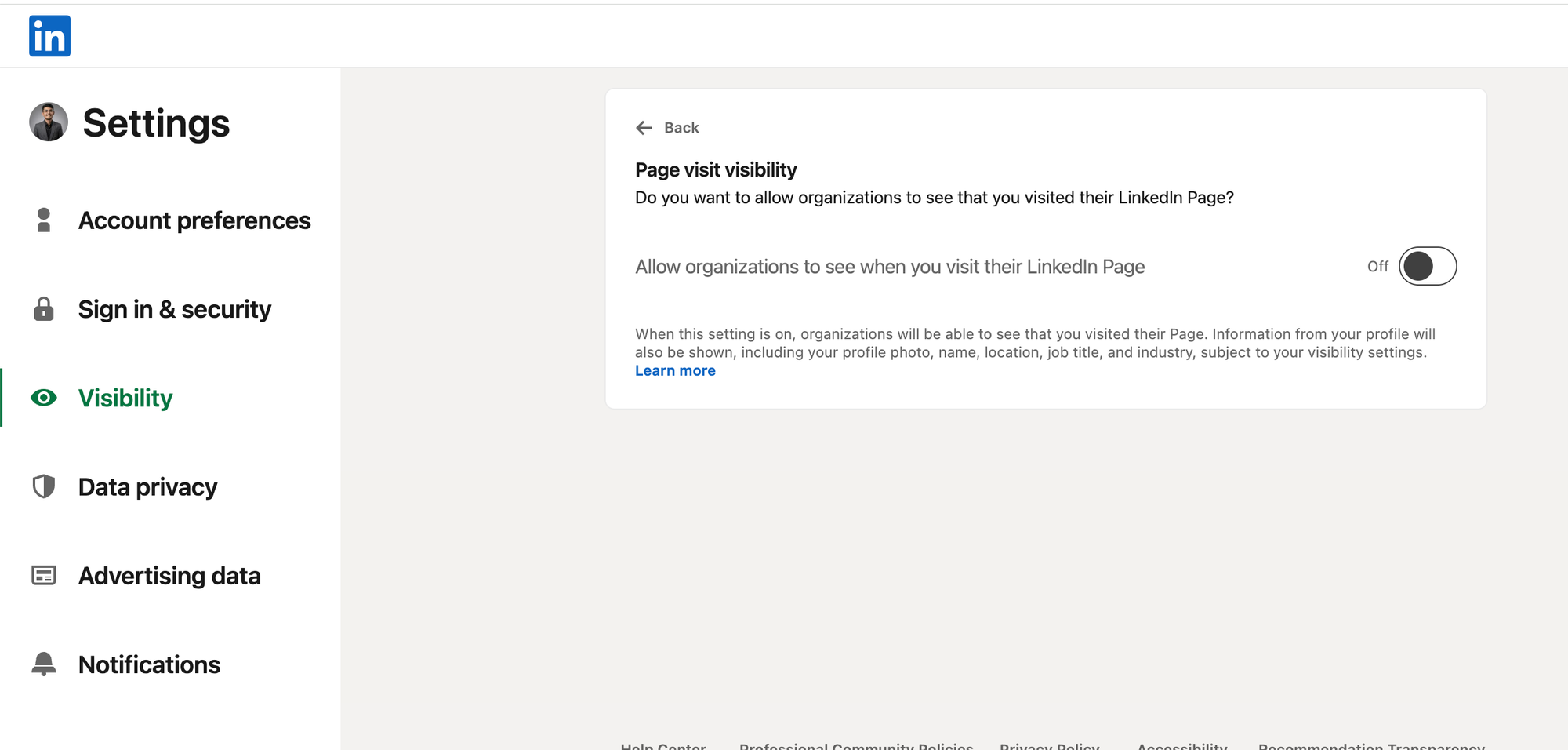
View Your Blocked Accounts
- Click your profile photo and select Settings & Privacy
- Navigate to Visibility section
- Click Blocking
- View your complete list of blocked users
This list helps you track who you've blocked over time.
Blocking is one part of managing your professional brand. Learn how to maintain a professional LinkedIn presence.
Unblock Someone (If Needed)
- Access Settings & Privacy
- Go to Visibility section
- Click Blocking
- Find the person in your blocked list
- Click Unblock next to their name
Important limitation: LinkedIn enforces a 48-hour waiting period before you can re-block someone after unblocking. This prevents manipulative blocking behavior.
Only unblock if you genuinely want to restore access. Repeated blocking and unblocking may trigger LinkedIn's attention.
Privacy Settings Beyond Blocking
1. Restrict Profile Visibility
Beyond blocking specific people, you can limit who sees your profile overall.
- Go to Settings & Privacy
- Select Visibility
- Adjust "Who can see your profile" settings
- Choose between public, network only, or private options
These settings work in combination with blocking to create layered privacy.
2. Control Connection Requests
You can limit who can send you connection requests.
- Navigate to Settings & Privacy
- Select Visibility
- Find "Who can send you invitations"
- Restrict to "Only people who know your email" if needed
Learn how to optimize your LinkedIn privacy settings for better control.
3. Manage Activity Broadcasting
Stop broadcasting profile updates and job changes.
- Access Settings & Privacy
- Go to Visibility section
- Disable profile update sharing from your account settings
- Toggle off "Notify connections when you're in the news"
These settings prevent unwanted attention during career transitions.
Automate Your LinkedIn Without Getting Blocked
Managing LinkedIn connections manually drains time. If you're blocking people due to overwhelming spam and unwanted messages, consider automation that respects boundaries.
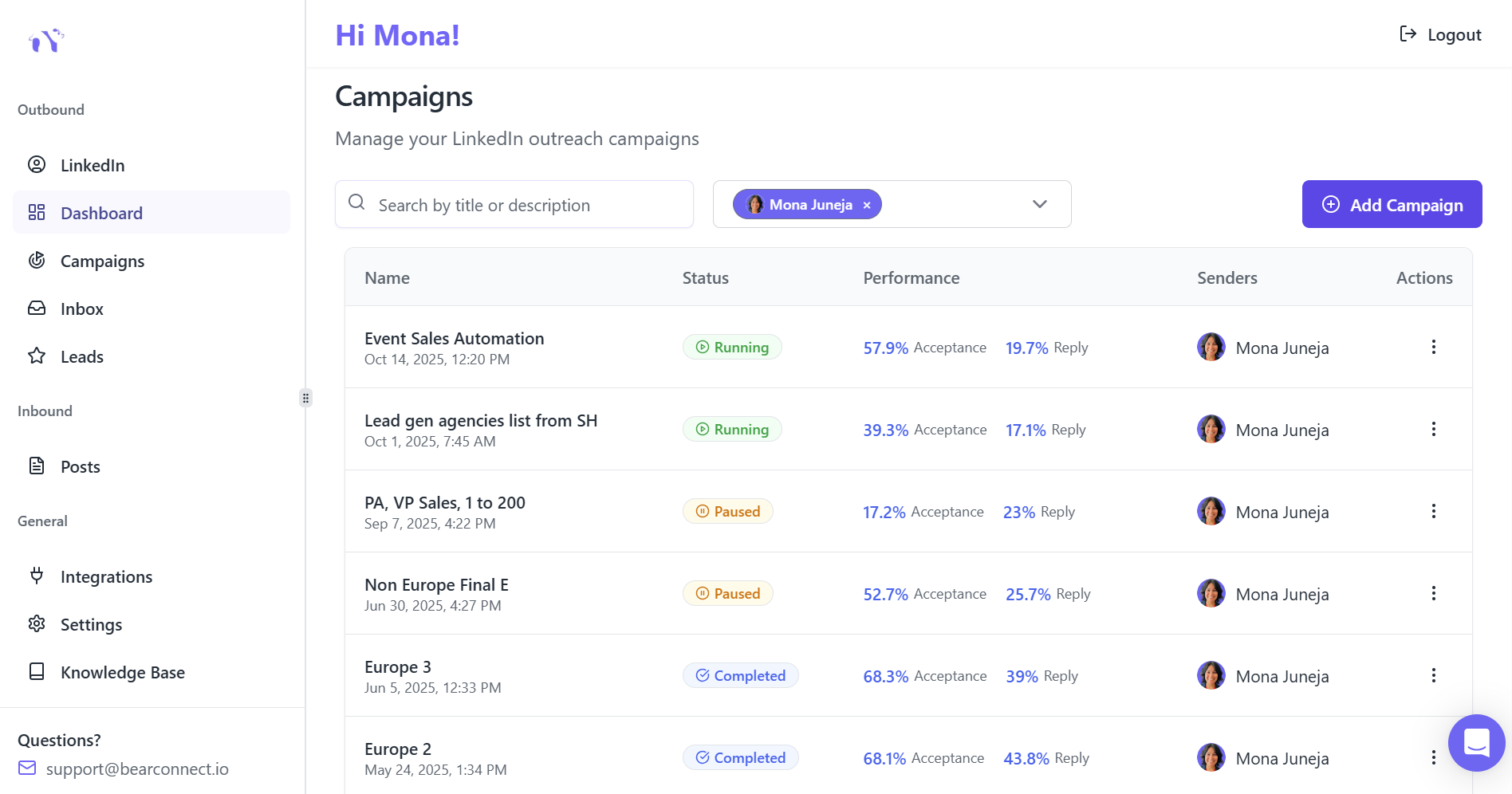
Bearconnect helps professionals manage LinkedIn outreach, content scheduling, and inbox organization without crossing into spam territory.
You can schedule posts, automate personalized campaigns, and filter connections based on criteria that matter to your business. The tool operates within LinkedIn's compliance guidelines to protect your account.
Pricing starts at $67 per month per LinkedIn account, or $57 per month per account when you connect 5 or more accounts.
Understanding LinkedIn automation safety helps you avoid account restrictions.
Frequently Asked Questions
1. Is it possible to block a LinkedIn user without opening their profile?
No, you must visit their profile to block them. However, you can enable Private Mode in your settings before visiting so they see "Anonymous LinkedIn Member" instead of your name in their profile viewers. This prevents them from knowing you checked their profile before blocking.
2. Does LinkedIn notify the person when I block them?
No, LinkedIn does not send any notification when you block someone. The blocked person will not receive alerts or messages about your action. They can only discover the block by manually searching for your profile and finding it unavailable.
3. What's the difference between blocking and removing a connection?
Blocking completely prevents all interaction and profile visibility. Removing a connection only severs the 1st-degree link while allowing them to still view your public profile and send connection requests again. Blocking is stronger and more private.
4. Can I see who blocked me on LinkedIn?
No, LinkedIn does not provide a feature to see who blocked you. If you suspect someone blocked you, try searching for their profile. If it appears unavailable and you previously had access, they may have blocked you. However, this could also mean they deleted their account or changed privacy settings.
5. How do I unblock someone I previously blocked on LinkedIn?
Go to Settings & Privacy, select Visibility, click Blocking, find the person in your blocked list, and click Unblock. LinkedIn enforces a 48-hour waiting period before you can re-block that person. Only unblock if you want to restore their access to your profile and content.
Ready to Transform Your LinkedIn Strategy?
Join thousands of professionals already using Bearconnect to automate their outreach and grow their network.
7-day free trial • Cancel anytime
Related Articles
How B2B Sales Teams Close More Deals by Automating LinkedIn Outreach?
Automate LinkedIn outreach to help B2B sales teams generate leads, start conversations, and close more deals faster with proven strategies.
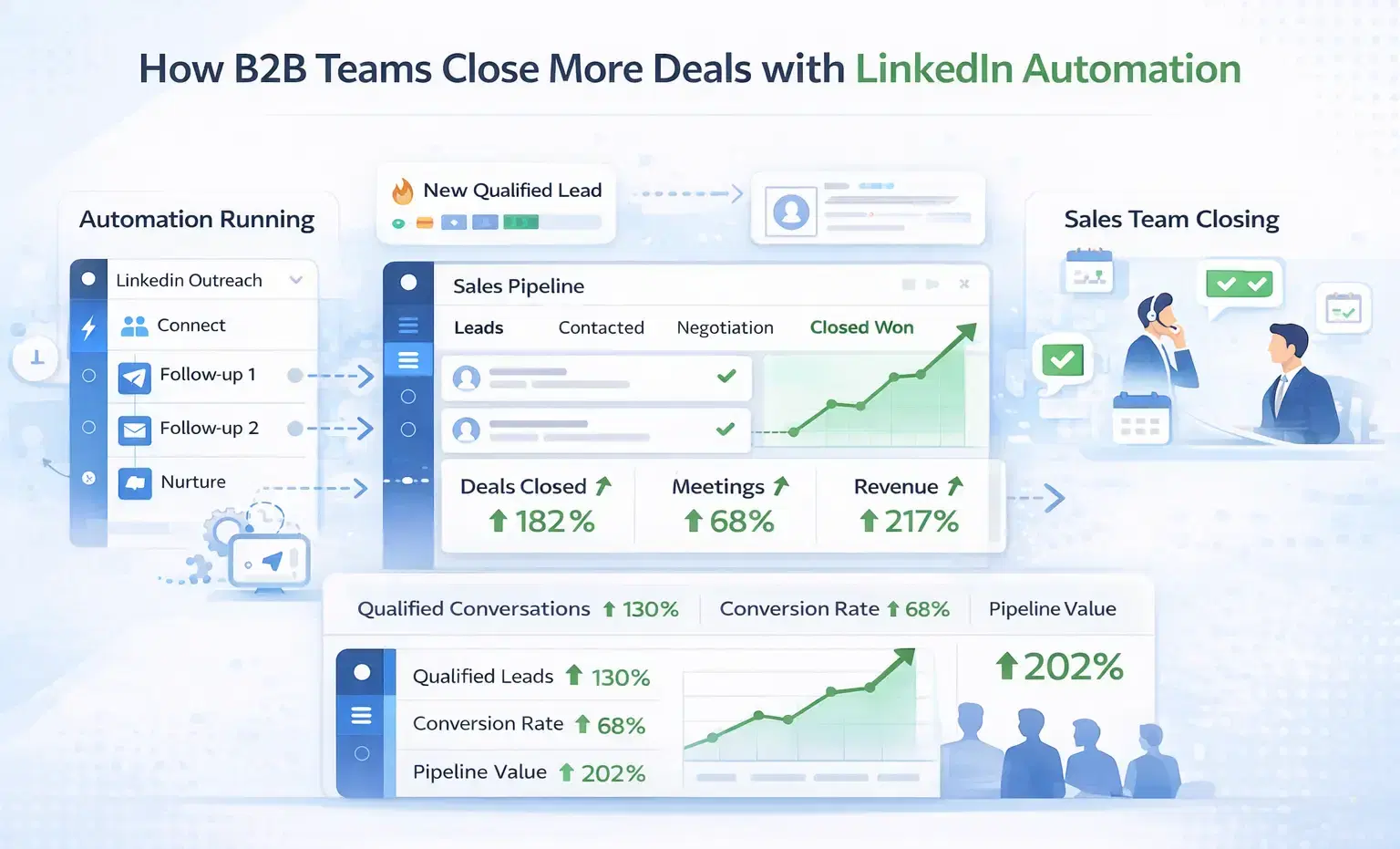
How B2B Sales Teams Close More Deals by Automating LinkedIn Outreach?
B2B sales teams waste hours on manual LinkedIn outreach. Automation fixes that more meetings, less grind, better conversions at scale.
How Can SDRs Book More Meetings Using LinkedIn Automation?
SDRs can book more meetings with LinkedIn automation by streamlining outreach, automating follow-ups, and scaling conversations without manual effort.