How to Delete LinkedIn Account: Complete Step-by-Step Guide (2026 Update)

To permanently delete your LinkedIn account, go to Settings & Privacy, select Account Preferences, scroll to Close Account, click Continue, choose your reason, and enter your password.
Your account will be hidden immediately and permanently deleted after 14 days if you don't log back in.
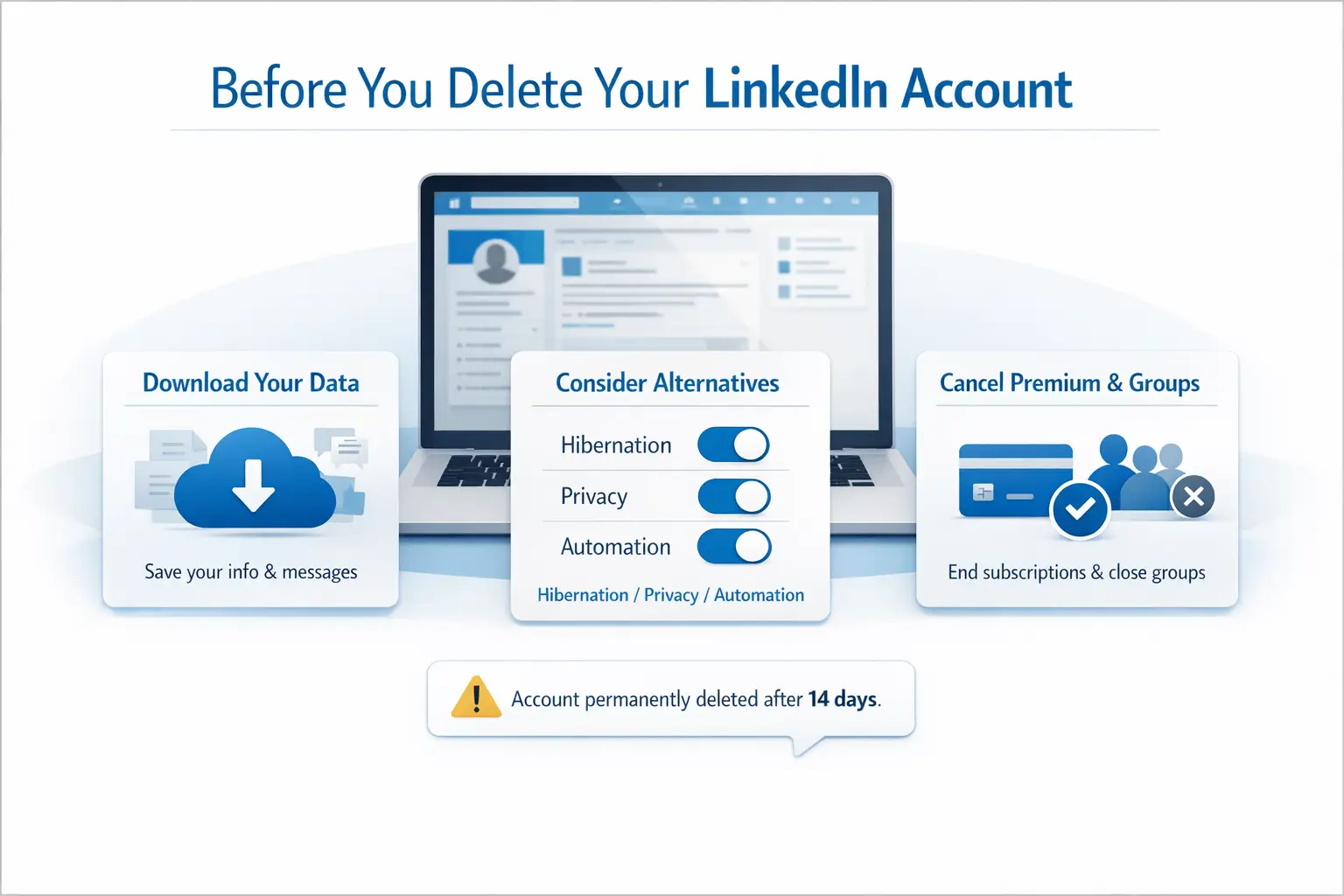
But before you delete, consider these three things:
TL;DR: Quick Summary
- LinkedIn deletion is permanent after 14 days with no recovery option
- Download your data before deletion as you'll lose all connections, messages, and endorsements
- Consider alternatives like privacy settings, hibernation, or automation tools before deleting
- Deletion removes your profile immediately from searches but cached Google results may persist temporarily
- Cancel Premium subscriptions and close managed groups before account deletion
Why This Guide Matters in 2026
After helping hundreds of professionals navigate LinkedIn account management, I compiled this guide using LinkedIn's latest policies updated through December 2025.
Whether you are rebranding, prioritizing privacy, or leaving the platform entirely, this guide provides clear steps that respect your time.
But Before You Delete: Should You Consider Alternatives First?
Why People Actually Delete LinkedIn
Before clicking that delete button, understand what's really frustrating you:
- Inbox flooded with spammy connection requests
- Hours wasted scrolling without business results
- Endless irrelevant notifications disrupting your day
- Manual outreach and follow-ups eating your time
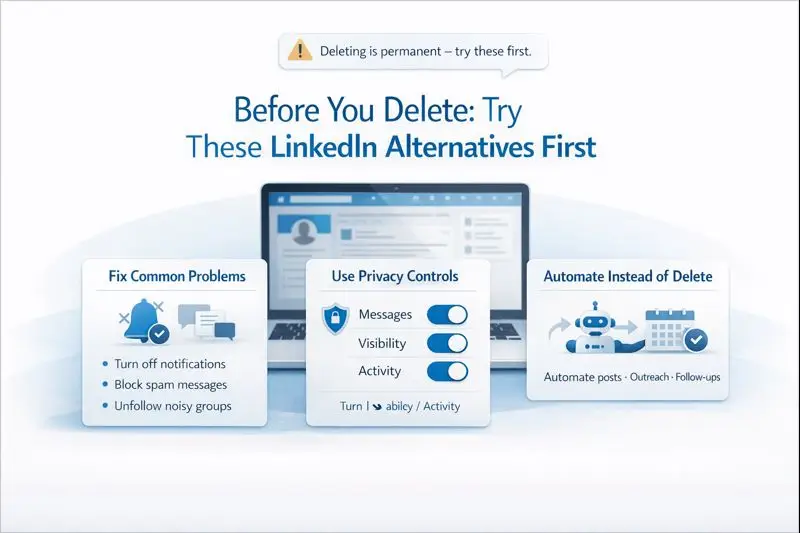
Try These Quick Fixes First
Before deleting, try these simple changes:
- Unfollow noisy groups
- Adjust privacy settings to block unwanted messages
- Turn off unnecessary notifications
Automate Instead of Delete
If time management is your issue, LinkedIn automation can help.
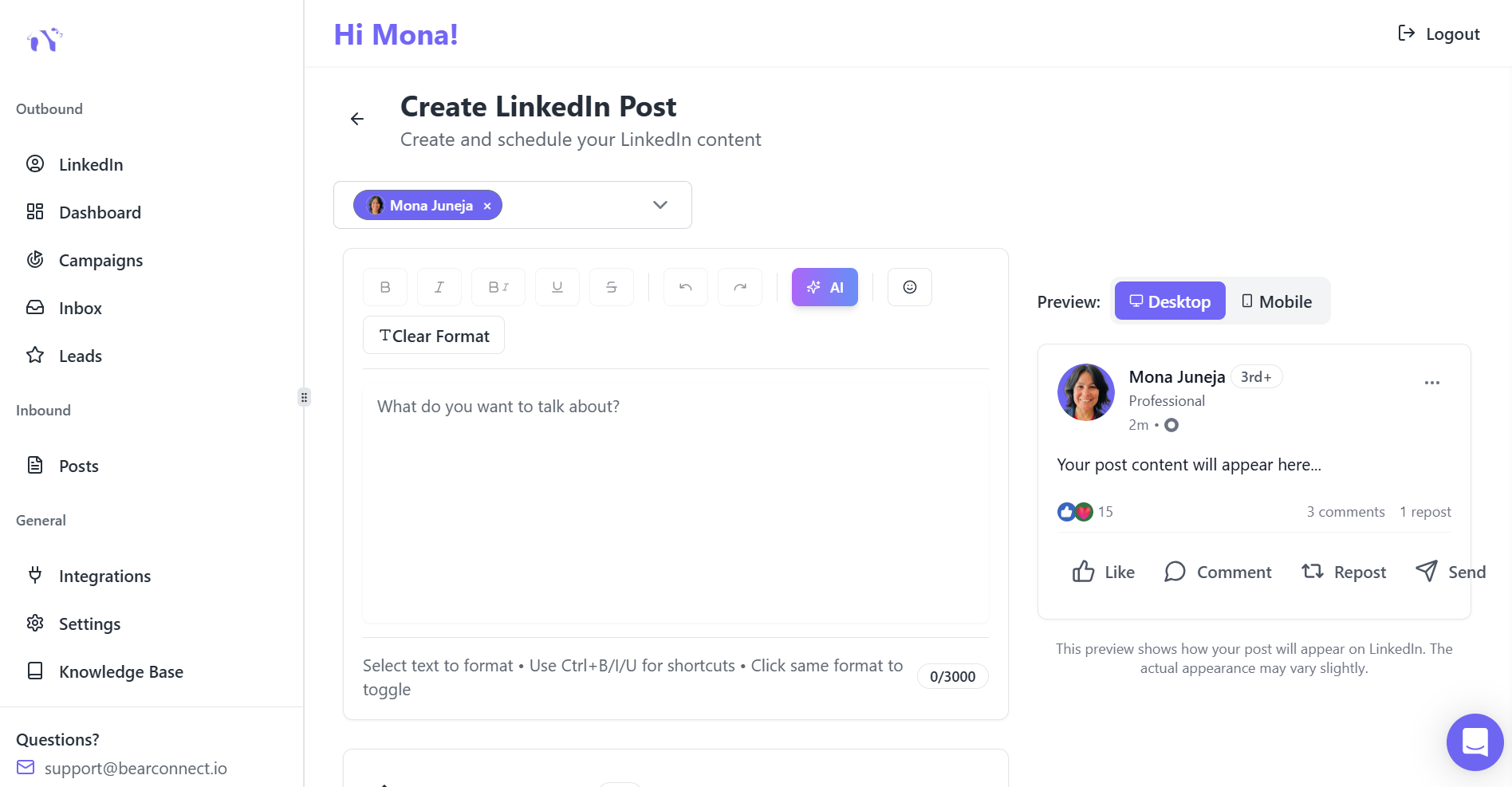
Tools like Bearconnect handle repetitive tasks automatically. Schedule posts, automate outreach campaigns, and follow up with prospects without manual work.
Using Bearconnect AI Content Writer, you can create posts and schedule them, while also getting the power of lead generation through drip campaigns.
When to Actually Delete
Delete if you:
- Don't need LinkedIn anymore
- Have serious data privacy concerns
- Are completely rebranding
- Want to leave the platform permanently
Don't delete just because you are frustrated. Delete when the platform truly doesn't serve your goals.
How to Delete Your LinkedIn Account: Desktop Method
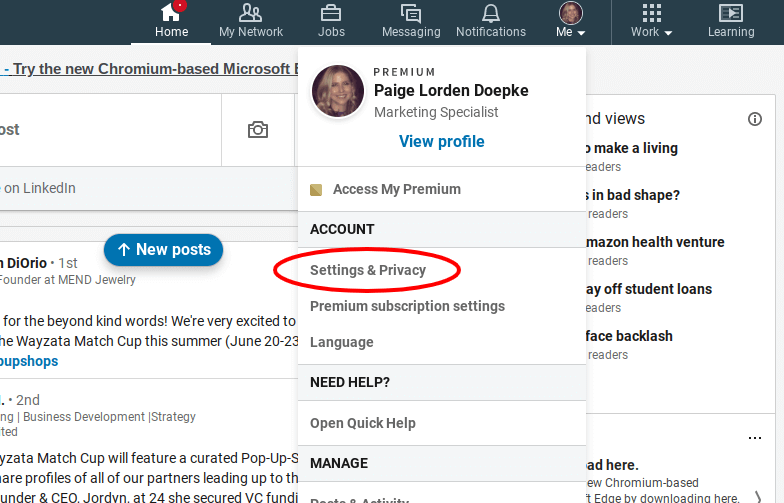
Step 1: Access Settings
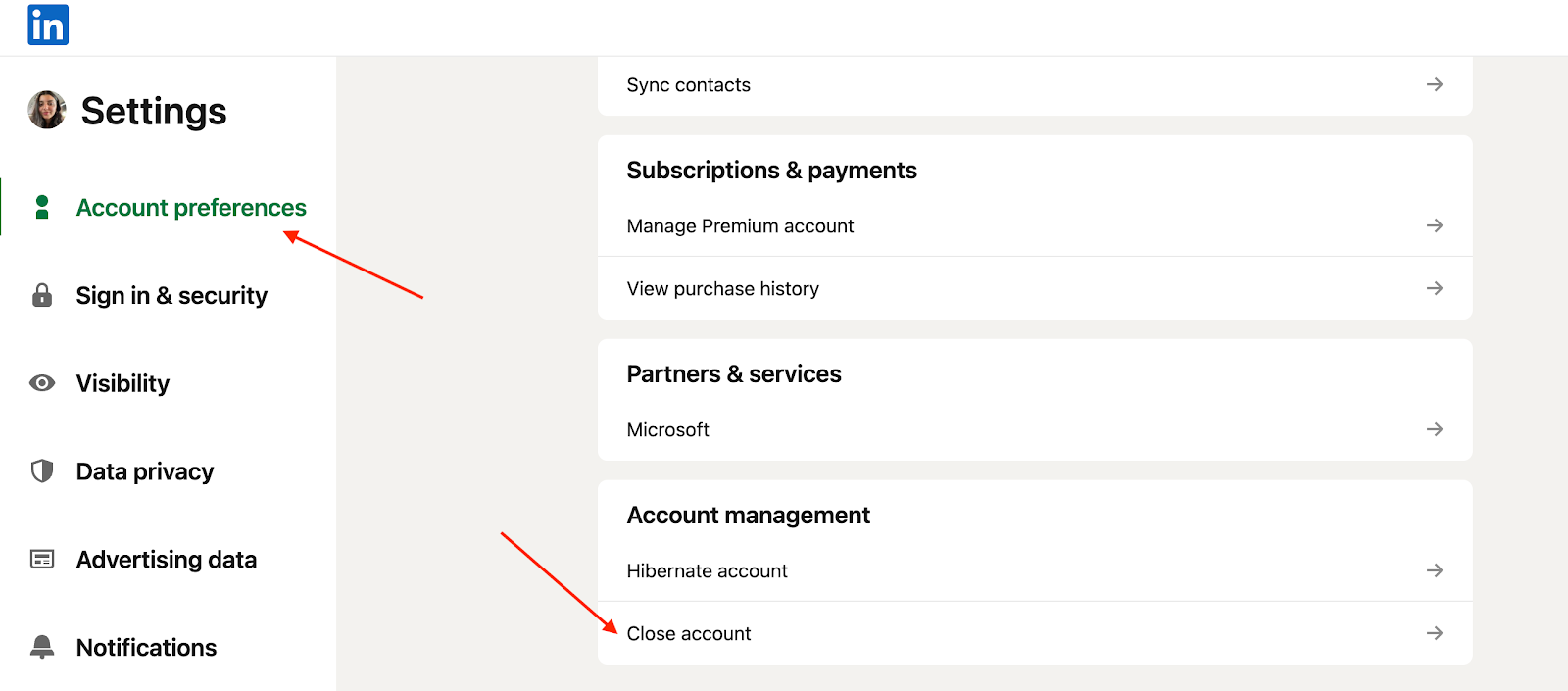
Log into LinkedIn on your computer. Click the Me icon at the top right, then select Settings & Privacy.
Step 2: Navigate to Account Preferences
On the left sidebar, click the Account Preferences tab.
Step 3: Locate Close Account
Scroll down to Account Management section. Click Close Account.
Step 4: Confirm Your Decision
LinkedIn displays a warning about what you'll lose. Review carefully, then click Continue.
Step 5: Select Your Reason
Choose why you're leaving. If none fit, select Other. Click Next.
Step 6: Final Verification
Enter your account password to confirm. Check the box to unsubscribe from LinkedIn emails. Click Done.
Your account is now scheduled for deletion.
How to Delete Your LinkedIn Account: Mobile Method
For iOS and Android Users
1. Launch the LinkedIn app and tap your profile picture.
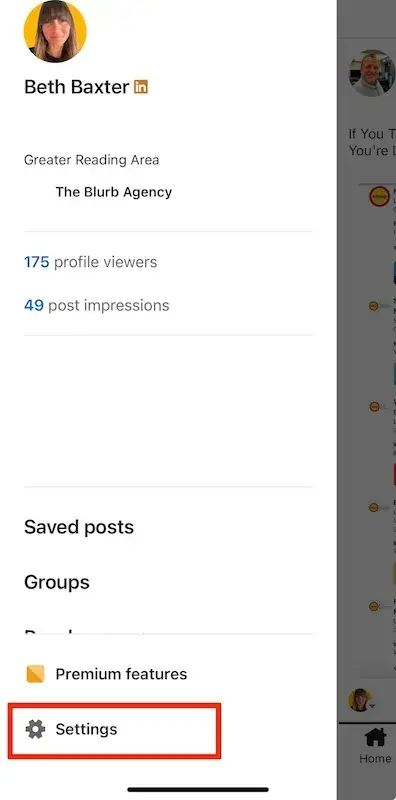
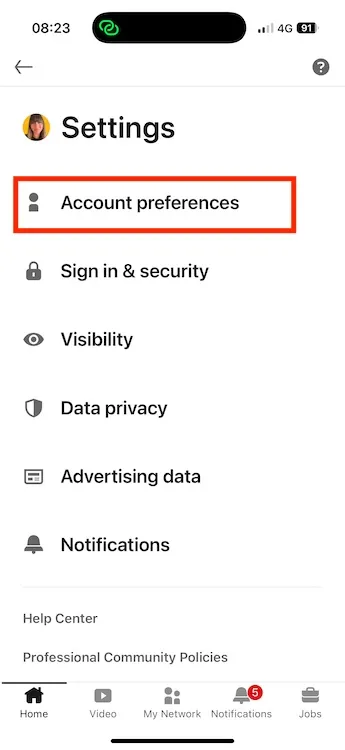
2. Select Settings, then Account preferences.
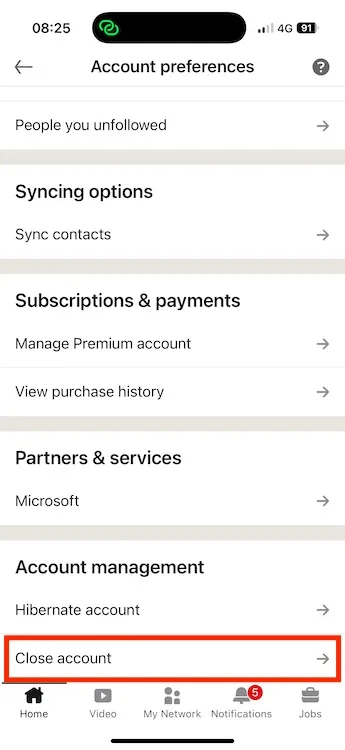
3. Scroll to the bottom and tap Close account under Account Management.
- Tap Continue, select your reason, and tap Next.
- Enter your LinkedIn password, check the email unsubscribe box, and tap Done.
But before deleting, consider this following steps first.
Download Your Data Before Deleting (Critical Step)
Why Data Export Matters
Your professional history belongs to you. Before deletion, secure it.
Head to Settings & Privacy, click Data Privacy, then select Get a copy of your data.
LinkedIn will email you a complete archive within 24-72 hours containing:
- All connections and their contact information
- Complete message history
- Posts, articles, and comments
- Profile data including work history and skills
- Endorsements and recommendations
Planning Your Next Move
If you plan to move your LinkedIn outreach to other platforms, email automation, or want to set up LinkedIn automation later, download your connections list first.
This data becomes your most valuable asset for rebuilding relationships elsewhere.
Understanding Delete vs Deactivate
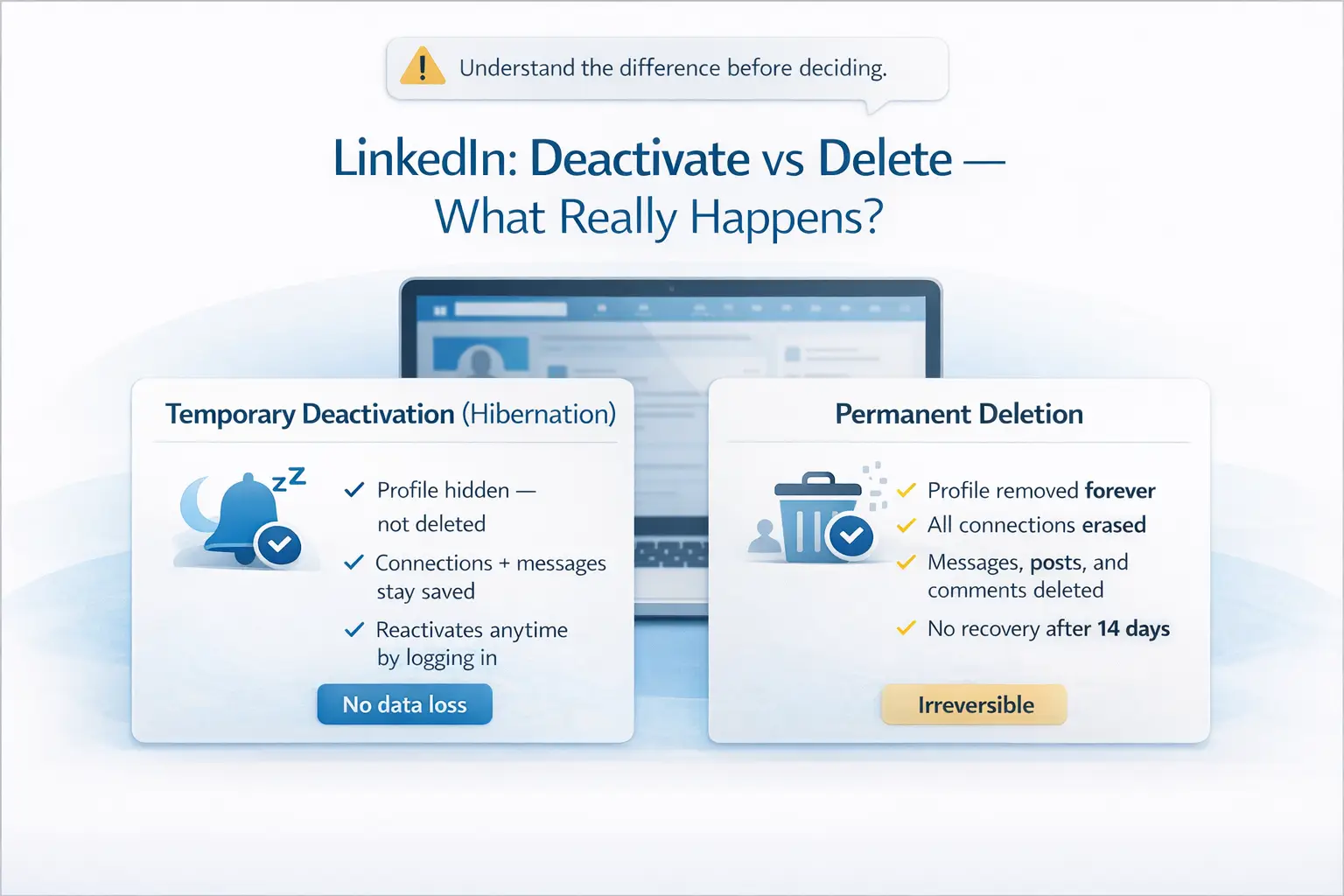
1. Temporary Deactivation (Hibernation)
Hibernation hides your profile without destroying your network. Your profile becomes invisible, and comments appear as from "LinkedIn Member".
Benefits:
- Connections, endorsements, and messages stay preserved
- Reactivate anytime by logging back in
- Zero data loss
- Perfect for digital detoxes or career transitions
2. Permanent Deletion
Deletion removes everything permanently after 14 days. No recovery possible.
What gets deleted:
- Your entire profile and work history
- All connections and networking relationships
- Messages, posts, articles, and comments
- Endorsements and recommendations
- Group memberships and follows
Before Deletion Checklist
Cancel Premium Subscriptions
Active Premium subscriptions continue billing even after deletion. Navigate to Account Management and cancel any paid memberships first.
Close Managed Groups
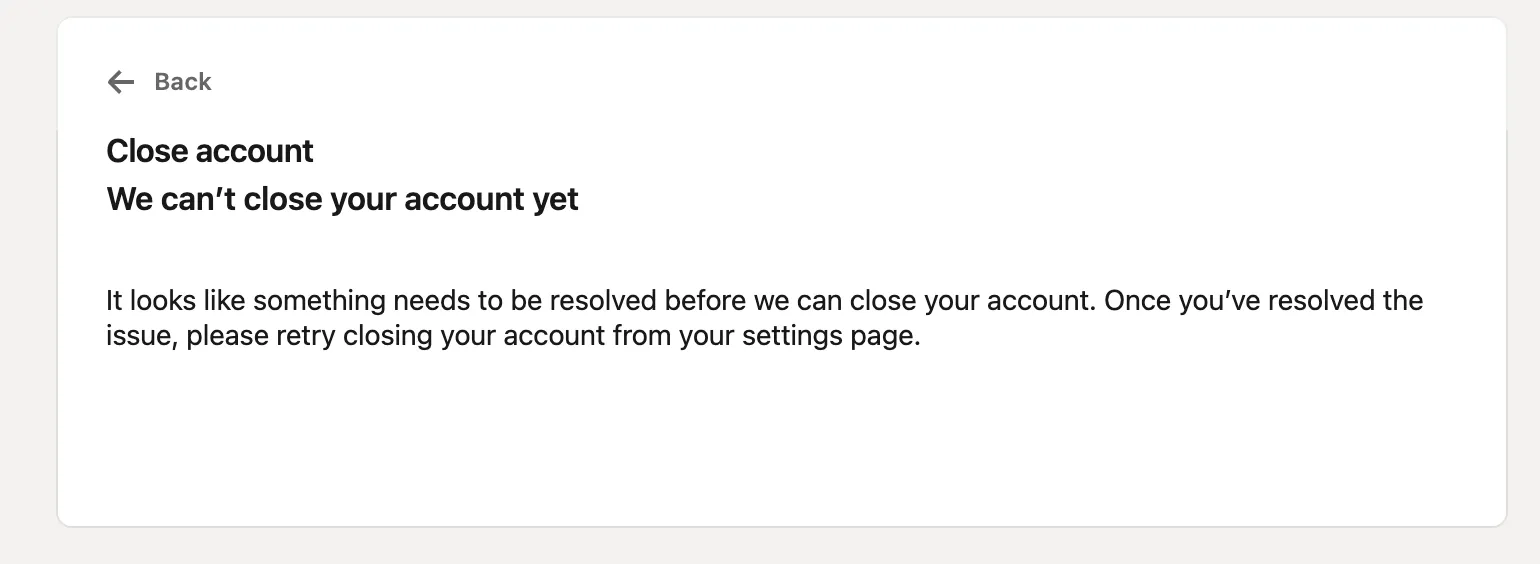
If you manage LinkedIn Groups, close them or transfer ownership. LinkedIn prevents deletion while you hold admin responsibilities.
For Multiple Account Managers
If you are an agency or growth team using multiple LinkedIn accounts, deleting duplicate or inactive accounts helps avoid risk and potential account bans.
Many teams consolidate to fewer accounts managed through automation tools to stay compliant while maintaining outreach efficiency.
How It Works
LinkedIn provides 14 days to change your mind. Simply log back in during this period to reactivate.
What Gets Restored
If you reactivate within 14 days:
- Profile information and work history
- Most connections and messages
- Content you created
What's Lost Forever
Even if you reactivate, some elements cannot be recovered:
- Group memberships and roles
- Endorsements from connections
- Recommendations you received
- Pending connection invitations
After 14 Days
Deletion becomes permanent and irreversible. LinkedIn erases your data from their servers with no recovery options.
What Happens After Deletion?

1. Immediate Changes
- Your profile disappears from LinkedIn searches instantly. Your name and photo vanish from others' connection lists.
- Posts, articles, and comments you created are removed.
2. Your Messages
Messages you sent remain visible in recipients' inboxes but display as from a deleted account.
3. Search Engine Considerations
Cached versions may temporarily appear in Google search results. These typically update within a few weeks as search engines refresh their indexes.
4. Long-Term Data Retention
LinkedIn deletes most personal information permanently after 14 days. Some information may be retained for legal compliance, but this doesn't include your public profile data.
Impact on Your Professional Visibility
Consider These Consequences
- Deleting removes you from recruiter searches entirely. If you're job hunting or open to opportunities, this significantly reduces visibility.
- Your professional network loses direct access to you. Former colleagues cannot reference or contact you through the platform.
- In many industries, LinkedIn serves as a digital business card. Absence may raise questions among peers and potential employers.
Creating a New Account After Deletion
Starting Fresh
- You can create a new LinkedIn account immediately after deleting your previous one.
- No waiting period required.
- Your new account begins with zero connections and blank history. You need to rebuild your network from scratch.
- You can reuse the same email address after the old account is fully deleted, or use a different email for separation.
Frequently Asked Questions
1. Can I recover my LinkedIn account after 14 days?
No, LinkedIn permanently deletes all data after the 14-day grace period with no recovery options. Only reactivation within those 14 days can restore your account.
2. Will my LinkedIn messages be deleted for other people?
Your sent messages remain visible in recipients' inboxes after deletion but display as from a deleted or removed account. The content stays but your profile link breaks.
3. How long does LinkedIn keep my data after deletion?
LinkedIn retains data for 14 days during the grace period, then permanently erases most personal information from their servers. Some data may be kept for legal compliance purposes.
4. What's the difference between closing and hibernating my LinkedIn account?
Closing permanently deletes everything after 14 days, while hibernating temporarily hides your profile without data loss and allows instant reactivation. Hibernation preserves your entire network.
5. Do I need to cancel LinkedIn Premium before deleting my account?
Yes, cancel Premium subscriptions separately as they continue billing even after account deletion. Navigate to Account Management to cancel before initiating deletion.
Final Thought
Deleting LinkedIn is a significant decision that impacts your professional network and visibility.
But if you are deleting because LinkedIn takes too much time without results?
Try Bearconnect for a 7-day free trial. Use the AI Content Writer to create and schedule posts automatically while managing lead generation through smart drip campaigns.
Make your LinkedIn life easy without the daily grind.
Ready to Transform Your LinkedIn Strategy?
Join thousands of professionals already using Bearconnect to automate their outreach and grow their network.
7-day free trial • Cancel anytime
Related Articles

How B2B Sales Teams Close More Deals by Automating LinkedIn Outreach?
Automate LinkedIn outreach to help B2B sales teams generate leads, start conversations, and close more deals faster with proven strategies.
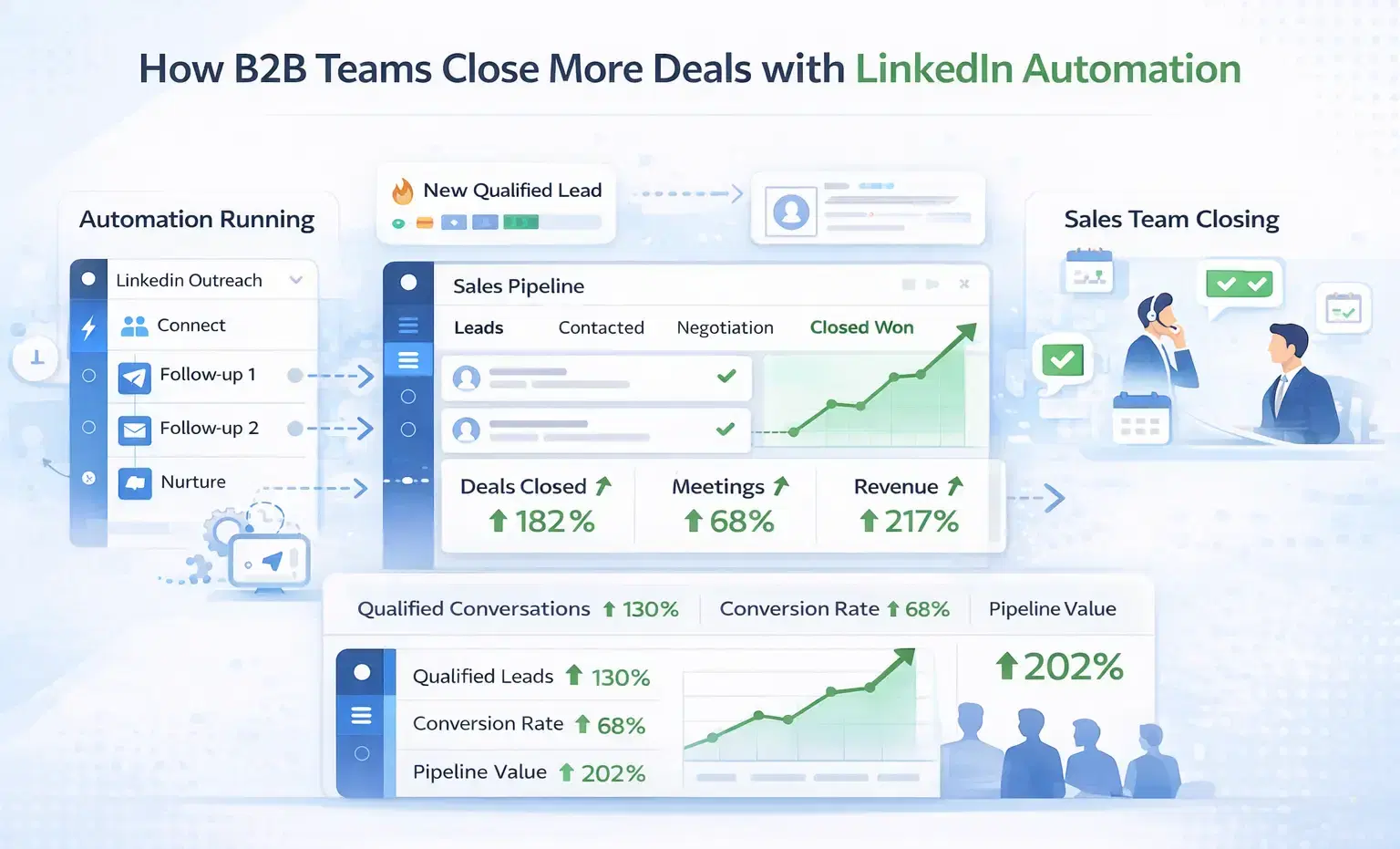
How B2B Sales Teams Close More Deals by Automating LinkedIn Outreach?
B2B sales teams waste hours on manual LinkedIn outreach. Automation fixes that more meetings, less grind, better conversions at scale.
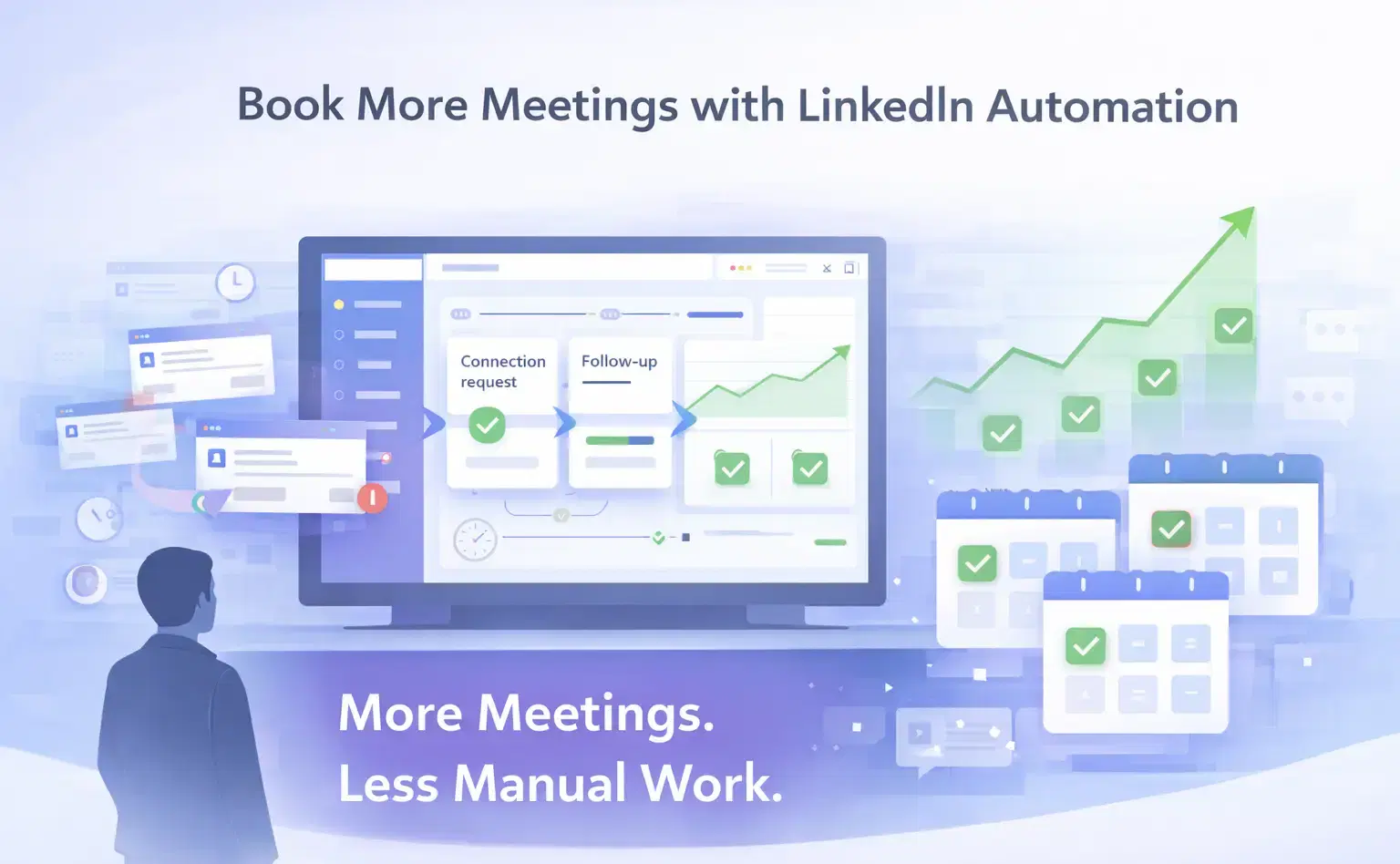
How Can SDRs Book More Meetings Using LinkedIn Automation?
SDRs can book more meetings with LinkedIn automation by streamlining outreach, automating follow-ups, and scaling conversations without manual effort.