How to Set Up n8n Integration in Bearconnect: Build Self-Hosted LinkedIn Lead Workflows Without Code
Connect Bearconnect to n8n using a Production webhook URL, map it to your outreach campaign, and every lead event will trigger your n8n workflow to route data across any system you control.
Whether that is a self-hosted CRM, internal database, Slack, or a multi-step enrichment pipeline.
TL;DR
- Connect n8n to Bearconnect using the Production URL from your n8n Webhook trigger node (not the Test URL)
- Every event triggers your n8n workflow automatically with a full payload
- n8n supports Header Auth and Basic Auth to secure your self-hosted webhook endpoint
- Use Switch and If nodes in n8n to route leads based on job title, company name, or event type
- n8n is the right choice when you want full data ownership, no per-task pricing limits, and complete workflow flexibility
Why n8n Is the Best Choice for Self-Hosted LinkedIn Automation
n8n gives you total control over your lead data in a way that Zapier and Make simply cannot.
Since you host n8n on your own infrastructure, lead data from Bearconnect goes directly to your server and never passes through a third-party automation platform.
This matters for three specific reasons:
- Data residency: Lead data stays within your network once received. No automation SaaS stores it.
- Compliance: Ideal for teams subject to GDPR, SOC 2, or internal data handling policies
- Cost efficiency: n8n has no per-task or per-operation pricing. You run unlimited workflows on your own server.
If your team values data control and wants scalable automation without subscription cost ceilings, n8n is the right fit alongside Bearconnect.
n8n vs Zapier vs Make: Which Should You Use?
Use n8n when data privacy, self-hosting, or unlimited workflow executions matter to you.
| Feature | n8n | Make | Zapier |
|---|---|---|---|
| Self-hosted option | Yes, primary use case | No | No |
| Data stored by platform | No (if self-hosted) | Yes | Yes |
| Per-task pricing | No (self-hosted) | Yes (operations) | Yes (tasks) |
| Visual workflow builder | Yes | Yes (better UI) | No |
| Conditional routing | Switch and If nodes | Router module | Paid filter step |
| Authentication options | Header Auth, Basic Auth | Custom headers | Custom headers |
| Best for | Data-sensitive, technical teams | Visual multi-step workflows | Simple single-step automations |
Choose n8n when your team needs self-hosted control, compliance requirements, or you are hitting cost limits on Zapier or Make.
What You Need Before Starting
You need three things ready before connecting n8n to Bearconnect.
- An active Bearconnect account with a subscription
- An n8n instance accessible over HTTPS, either cloud-hosted at n8n.io or self-hosted
- An n8n workflow with a Webhook trigger node already created
Important for self-hosted users: Your n8n instance must be accessible over HTTPS with a valid TLS certificate. Bearconnect does not accept HTTP URLs.
If you are running n8n behind a reverse proxy, set up Nginx, Caddy, or Traefik with a Let's Encrypt certificate before proceeding.
Production URL vs Test URL: The Most Critical Distinction
Bearconnect only accepts the Production URL from n8n. Using the Test URL is the most common setup mistake.
n8n gives you two webhook URL variants for every Webhook trigger node:
| Variant | URL Pattern | When It Works |
|---|---|---|
| Test URL | https://your-n8n.com/webhook-test/{uuid} |
Only while the workflow is open in the editor |
| Production URL | https://your-n8n.com/webhook/{uuid} |
Whenever the workflow is active |
If you paste a Test URL into Bearconnect, you will see this error:
"This appears to be an n8n TEST webhook URL (/webhook-test/). Please use the Production URL (/webhook/) instead."
How to Get the Production URL
- Open your workflow in the n8n editor
- Click on the Webhook trigger node
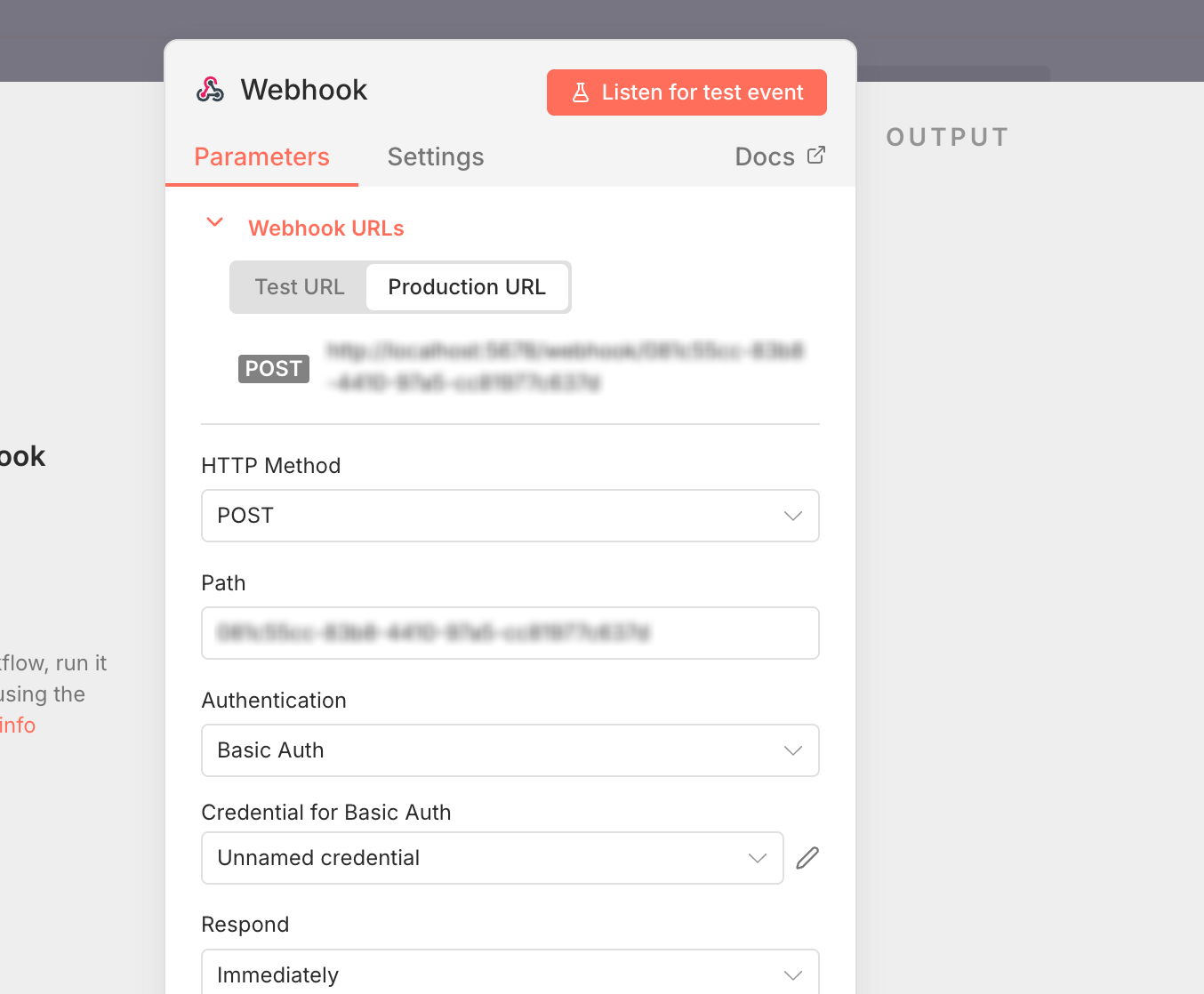
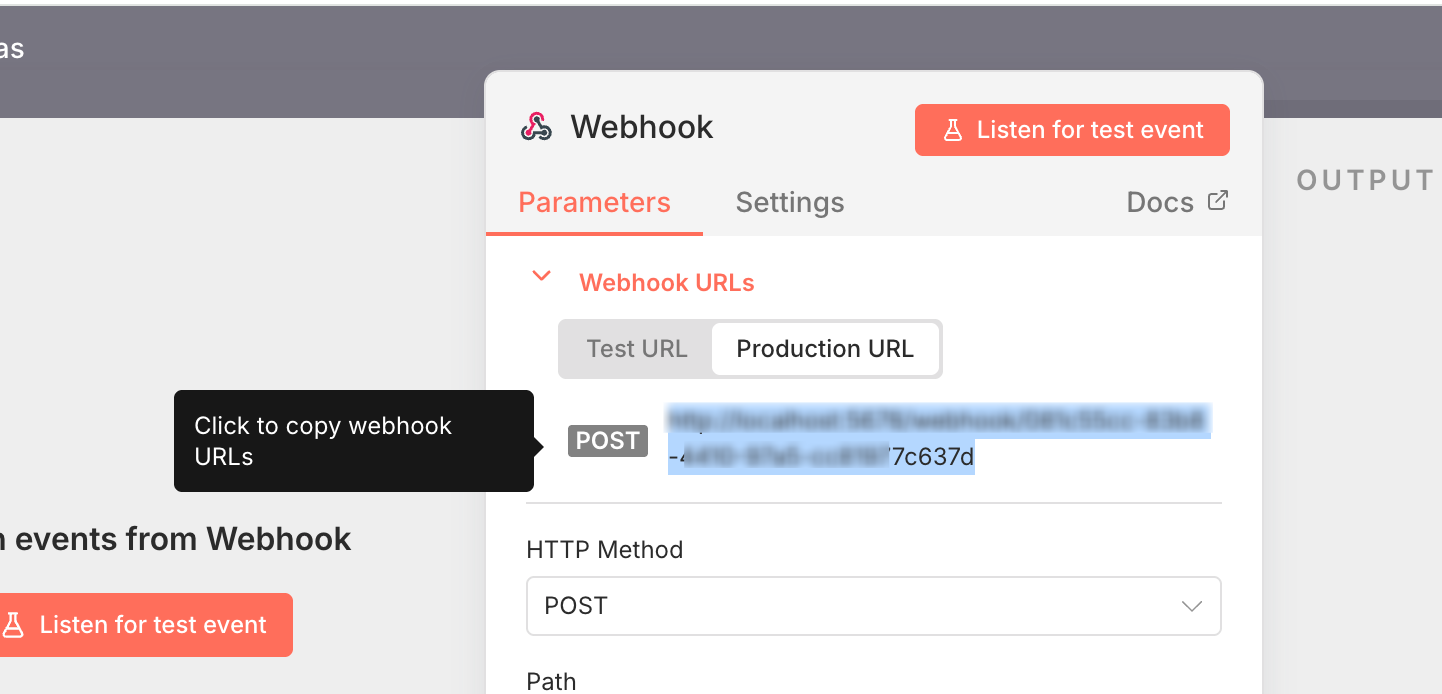
- In the node settings panel, switch to the Production tab
- Copy the Production URL (it contains
/webhook/, not/webhook-test/)
Keep this URL ready for the next step.
Step 1: Create Your n8n Webhook Workflow
Setting up the n8n side takes under 5 minutes and requires no code.
- Log in to your n8n instance
- Click Create a new workflow
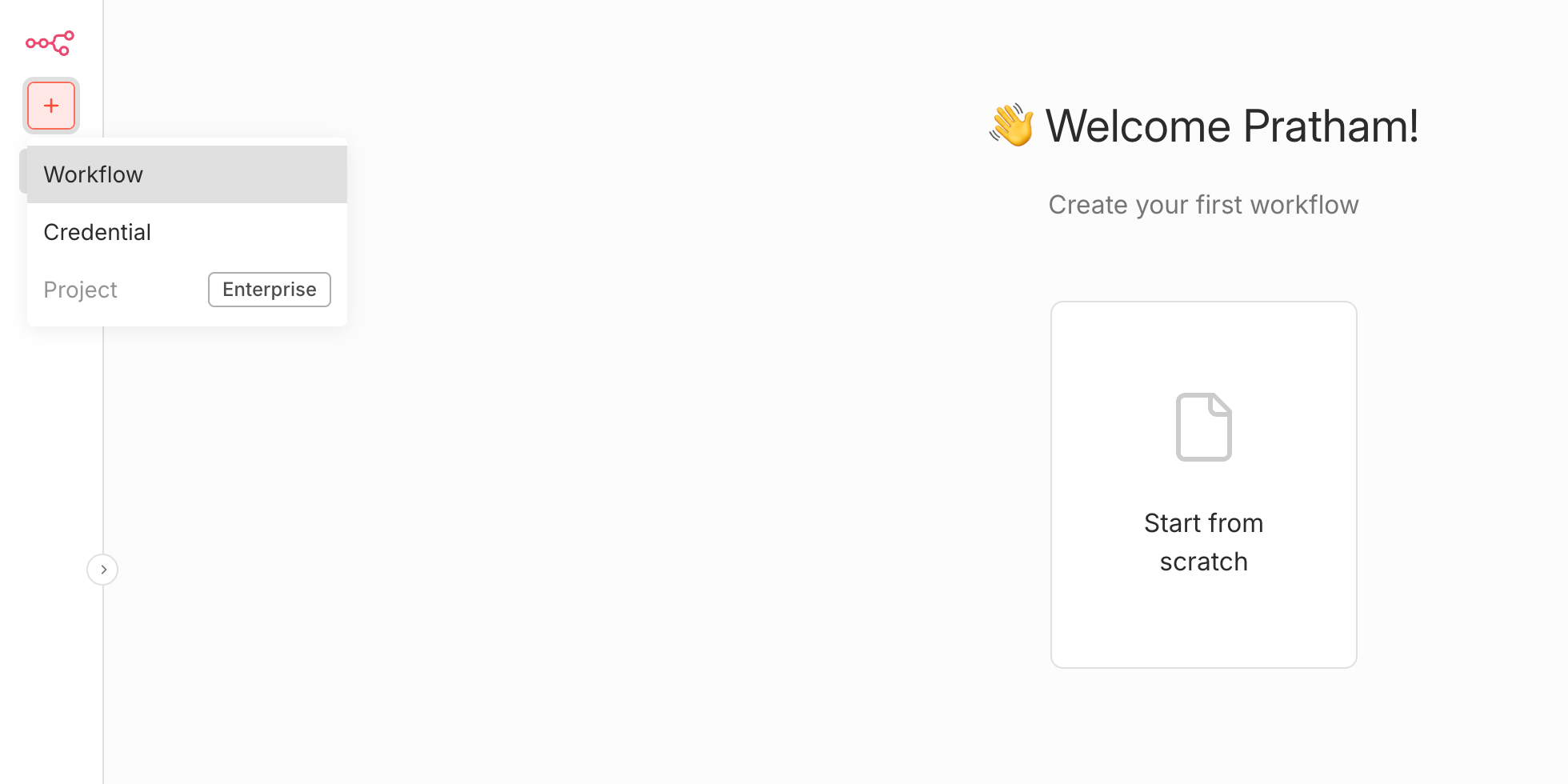
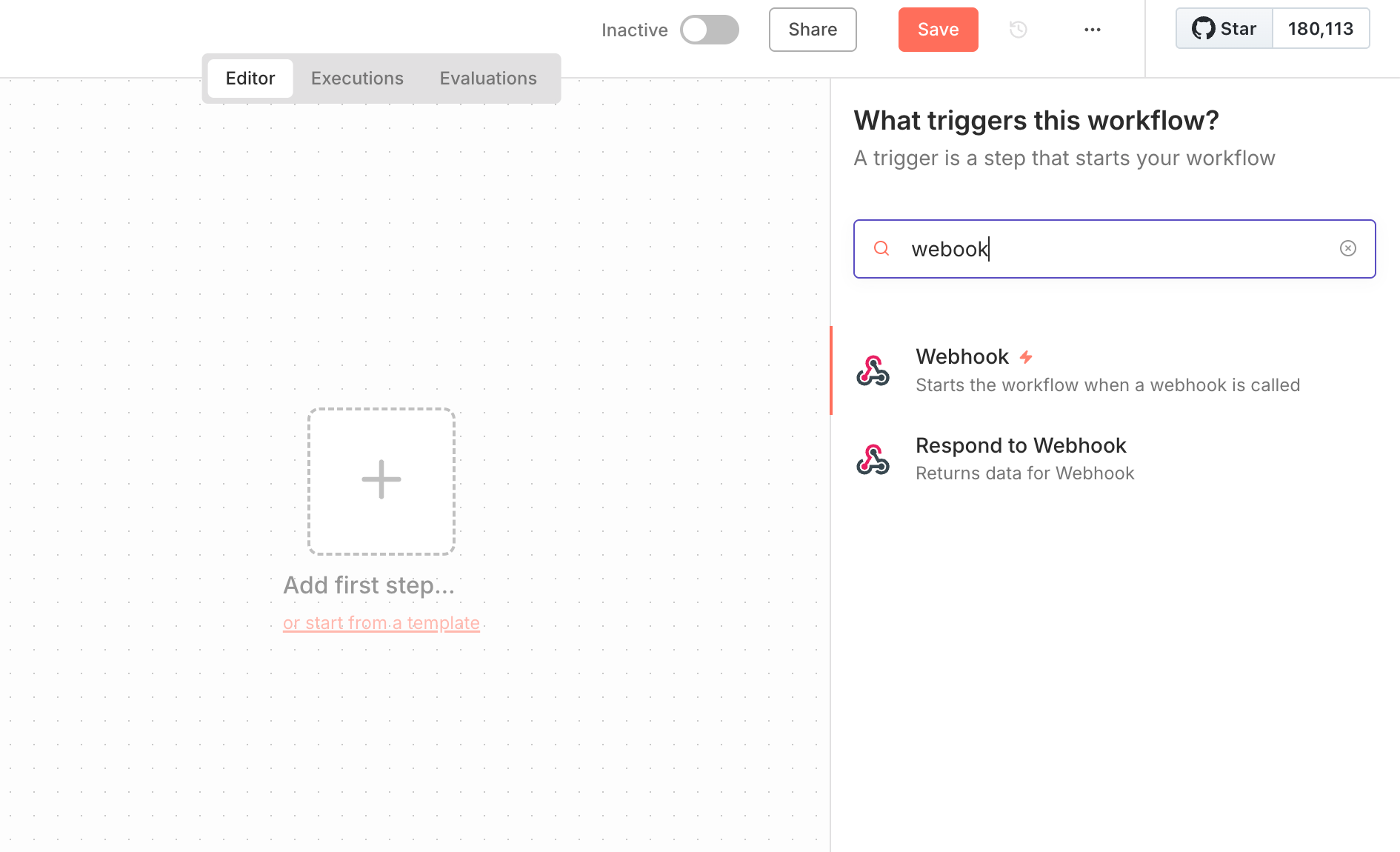
- Click Add first step
- Search for Webhook and select the Webhook node
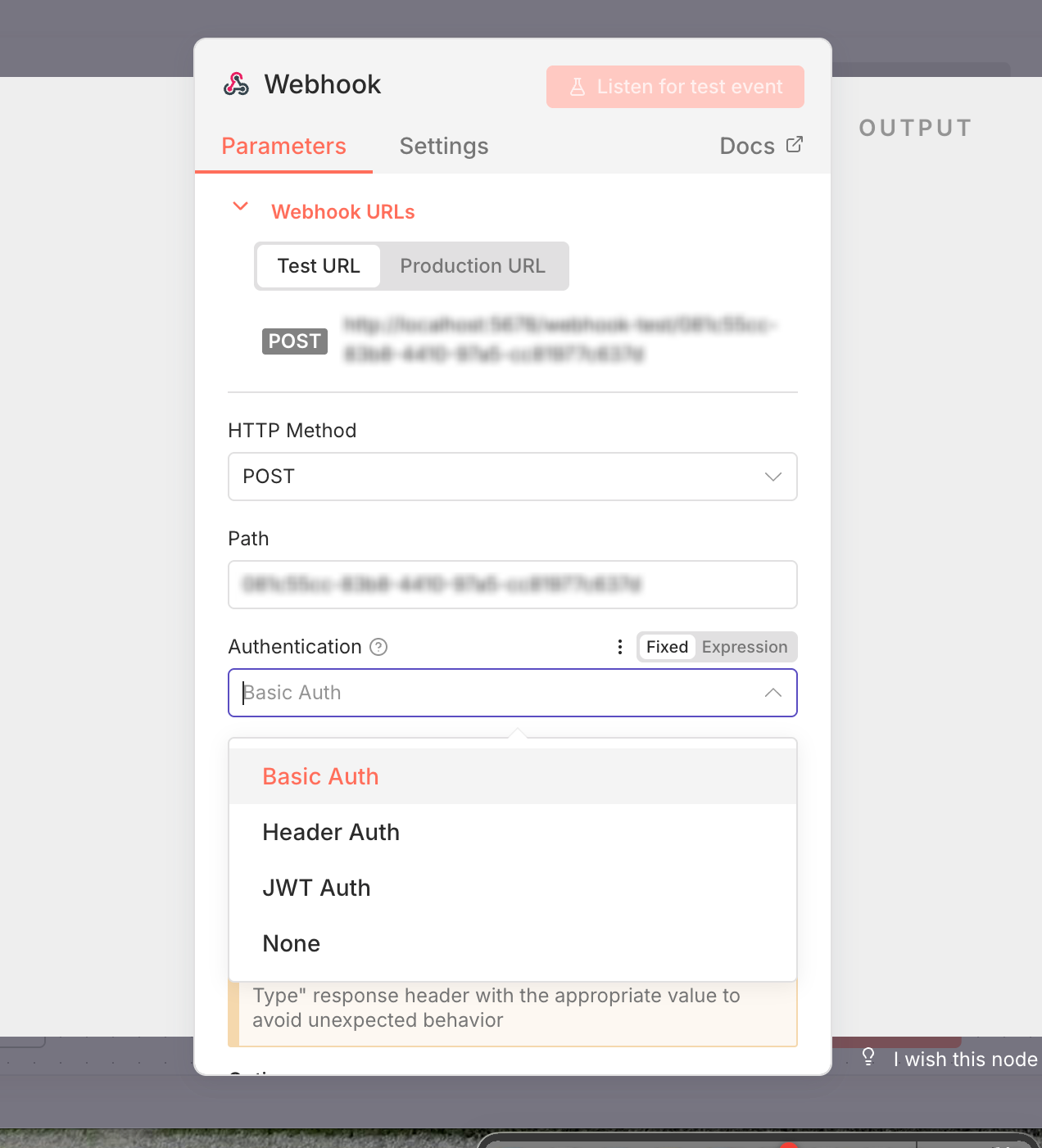
- Set the HTTP method to POST
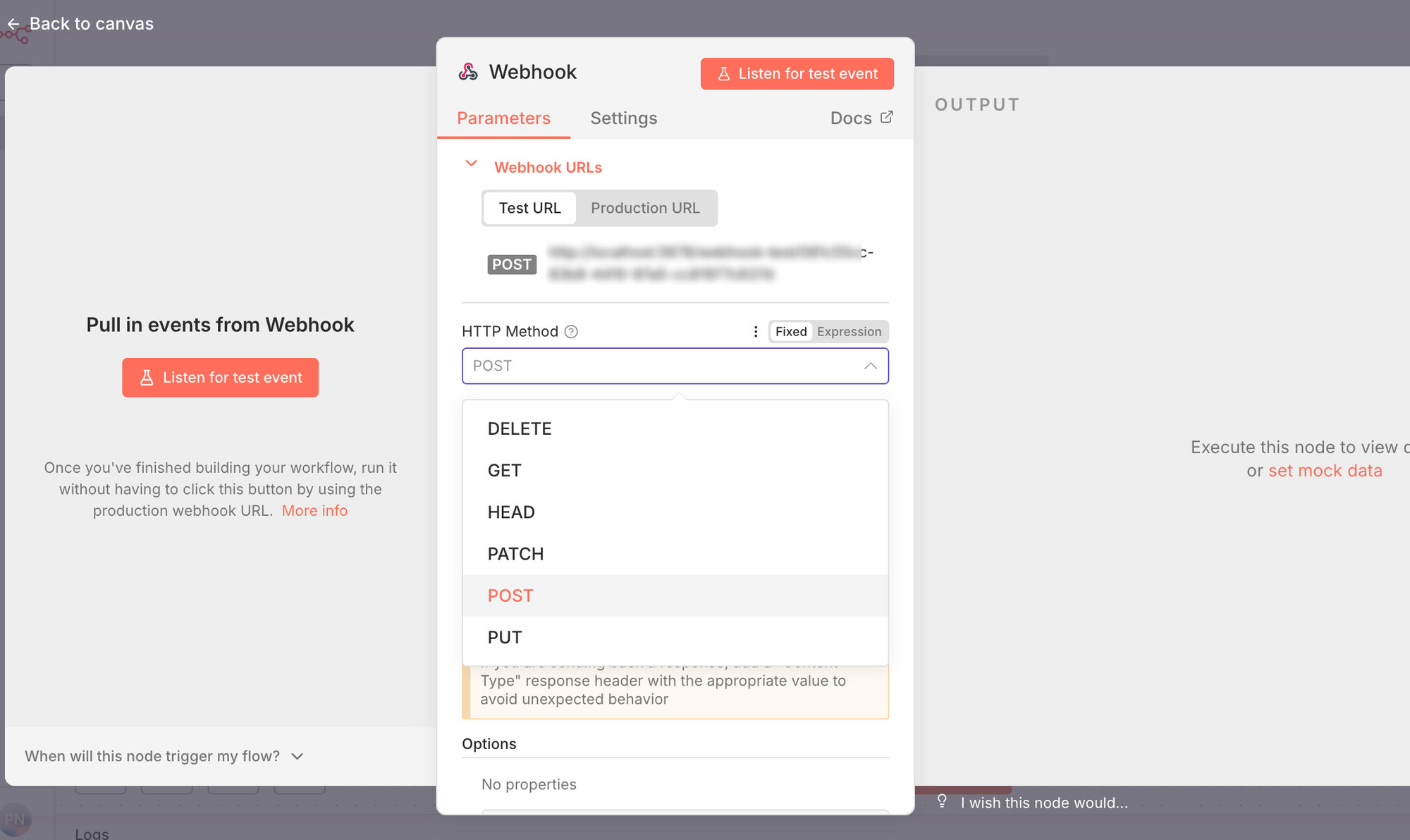
- If you want to secure the endpoint, configure authentication (Header Auth or Basic Auth) in the node settings
- Switch to the Production tab and copy the Production URL
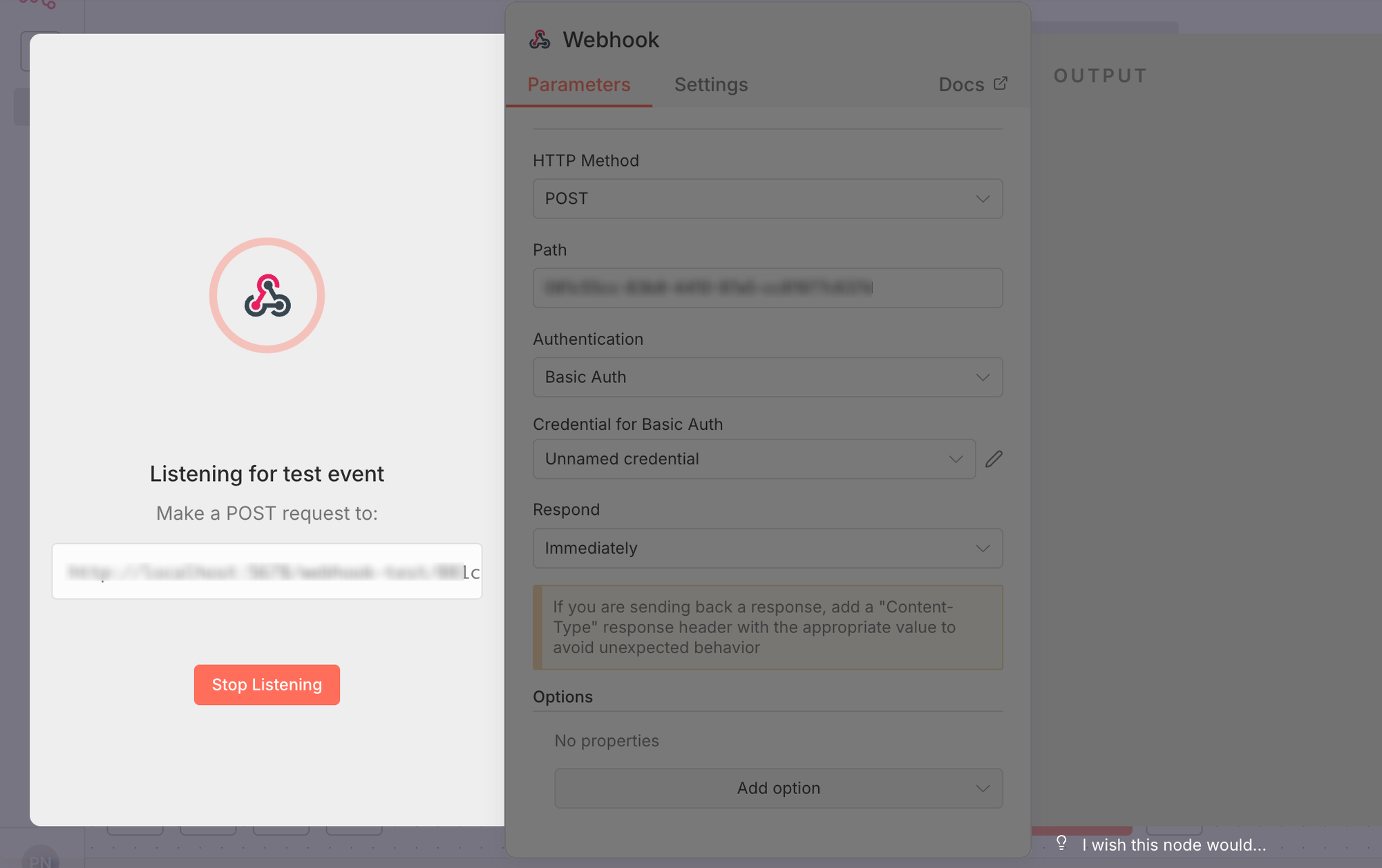
- Click the Active toggle in the top-right corner to activate the workflow
Critical: You must activate the workflow before connecting in Bearconnect. An inactive n8n workflow returns a 404 error on the Production URL, and Bearconnect will not be able to deliver any events.
Step 2: Connect n8n in Bearconnect
Connecting n8n to Bearconnect takes under 2 minutes once your workflow is active.
- Open your Bearconnect dashboard
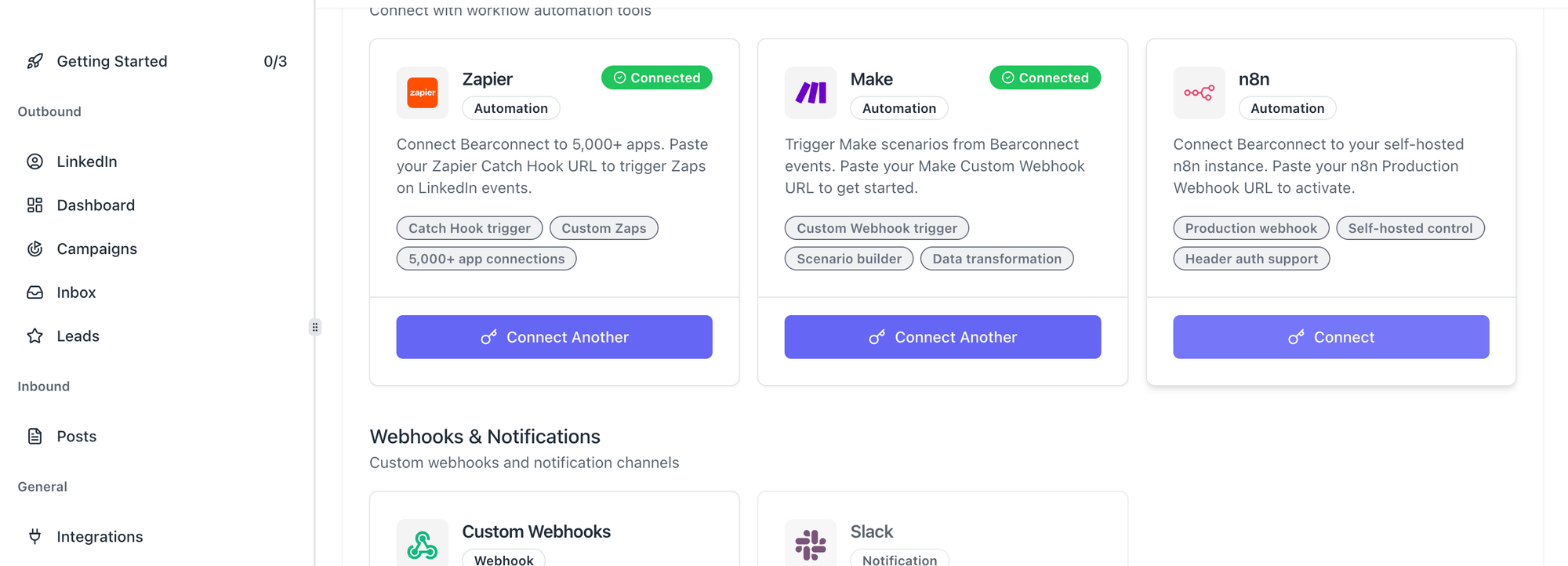
- Click Integrations in the left sidebar
- Find n8n in the Available Integrations section
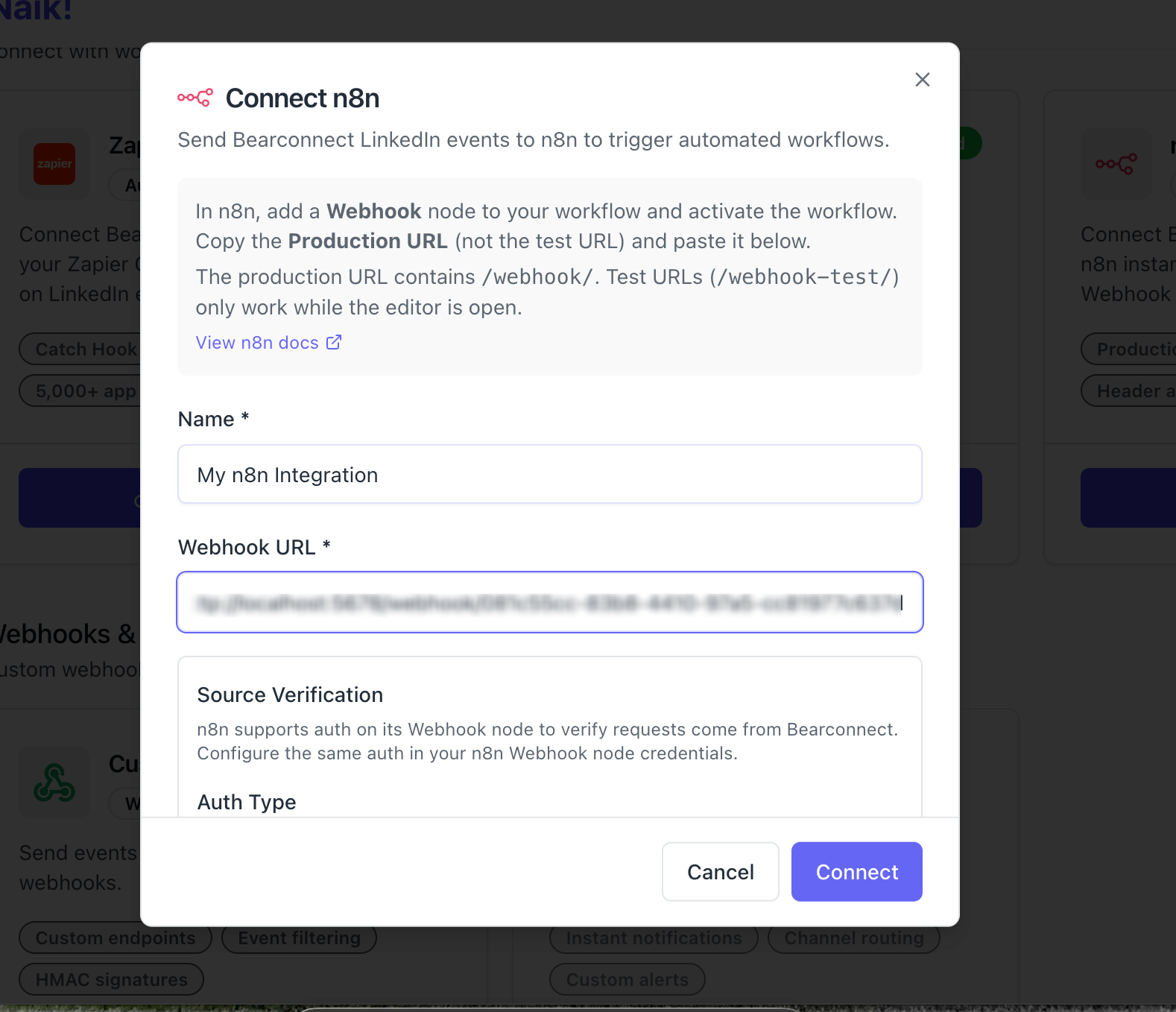
- Click Connect
- Fill in the required fields:
| Field | What to Enter |
|---|---|
| Name | A label for this connection, e.g. "n8n - Lead Processing" or "n8n - Client A Pipeline" |
| Webhook URL | Your n8n Production URL (must start with https:// and contain /webhook/) |
Authentication Options
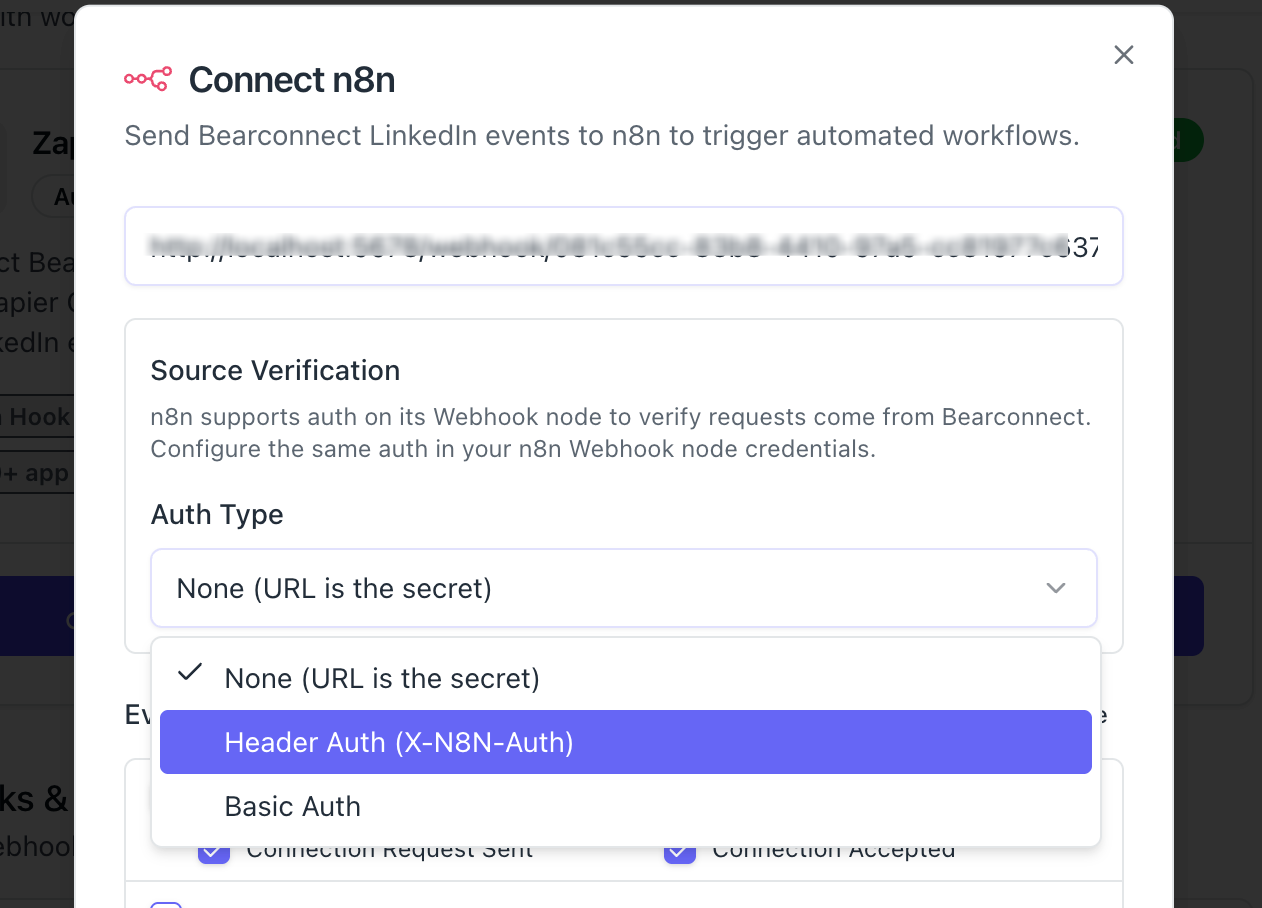
Bearconnect supports three authentication methods for securing your n8n webhook:
| Method | How It Works |
|---|---|
| None | No authentication. Suitable for trusted internal networks only |
| Header Auth | Bearconnect sends X-N8N-Auth: <token> with every request. Configure the same token in your n8n Webhook node. |
| Basic Auth | Bearconnect sends Authorization: Basic base64(user:pass). Configure the same credentials in your n8n Webhook node. |
Pro Tip: Always use Header Auth or Basic Auth when your n8n instance is publicly accessible over the internet. This prevents unauthorized payloads from triggering your workflows.
Choose which events this integration handles:
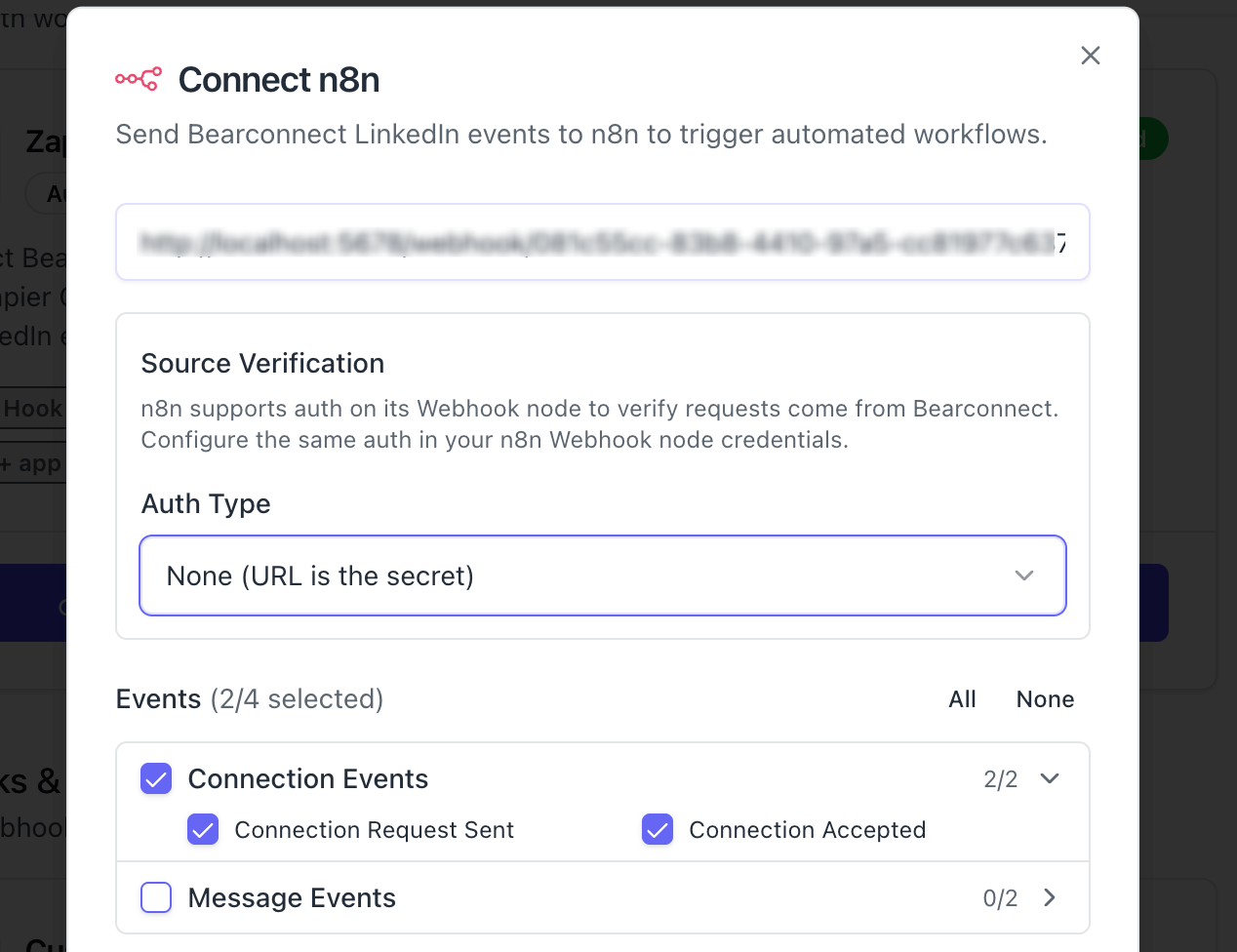
- Connection Events: Connection Request Sent, Connection Accepted
- Click Connect
Message Events: Message Sent, Message Replied
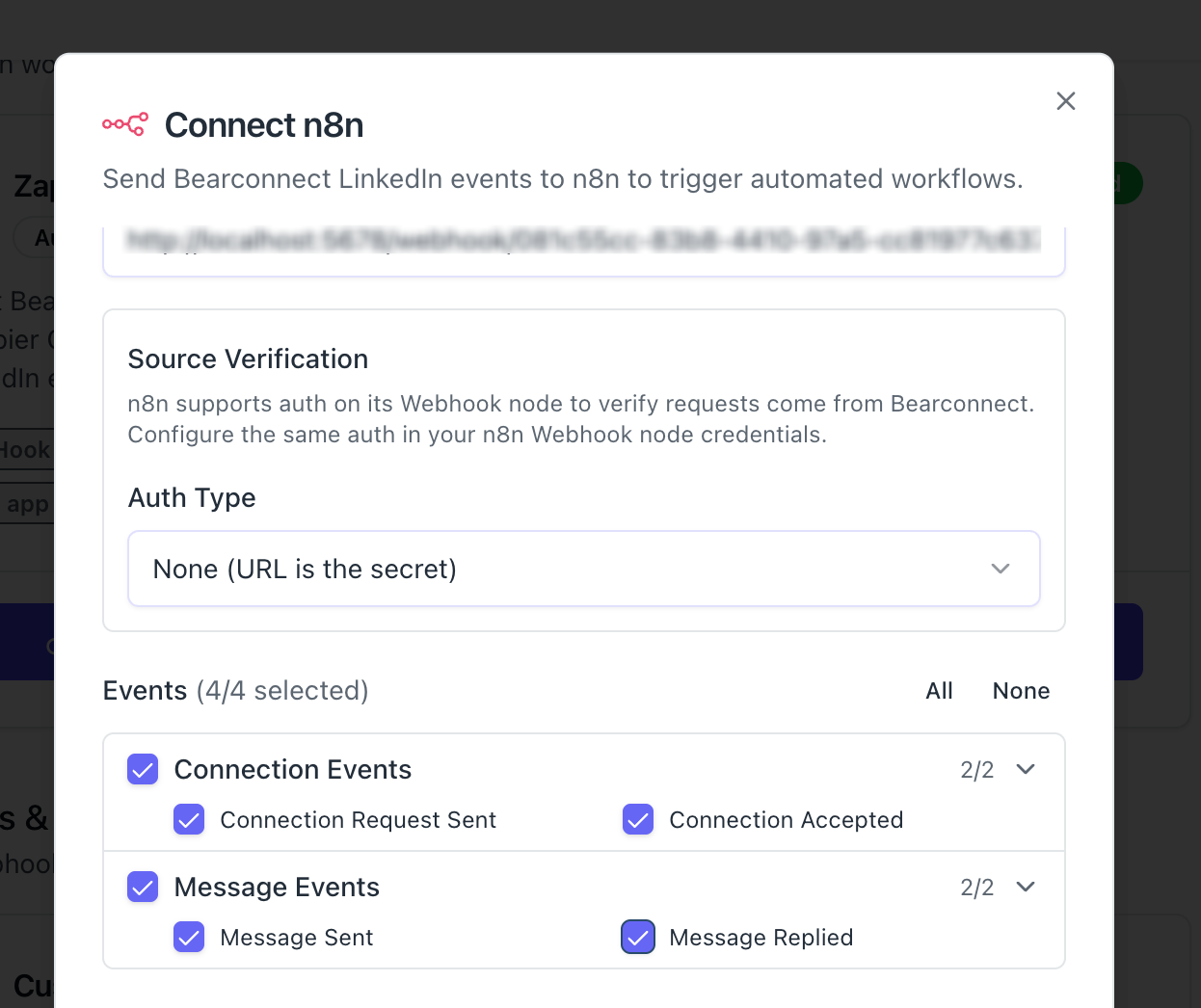
Optional: Advanced Settings
Click Advanced Settings if you need:
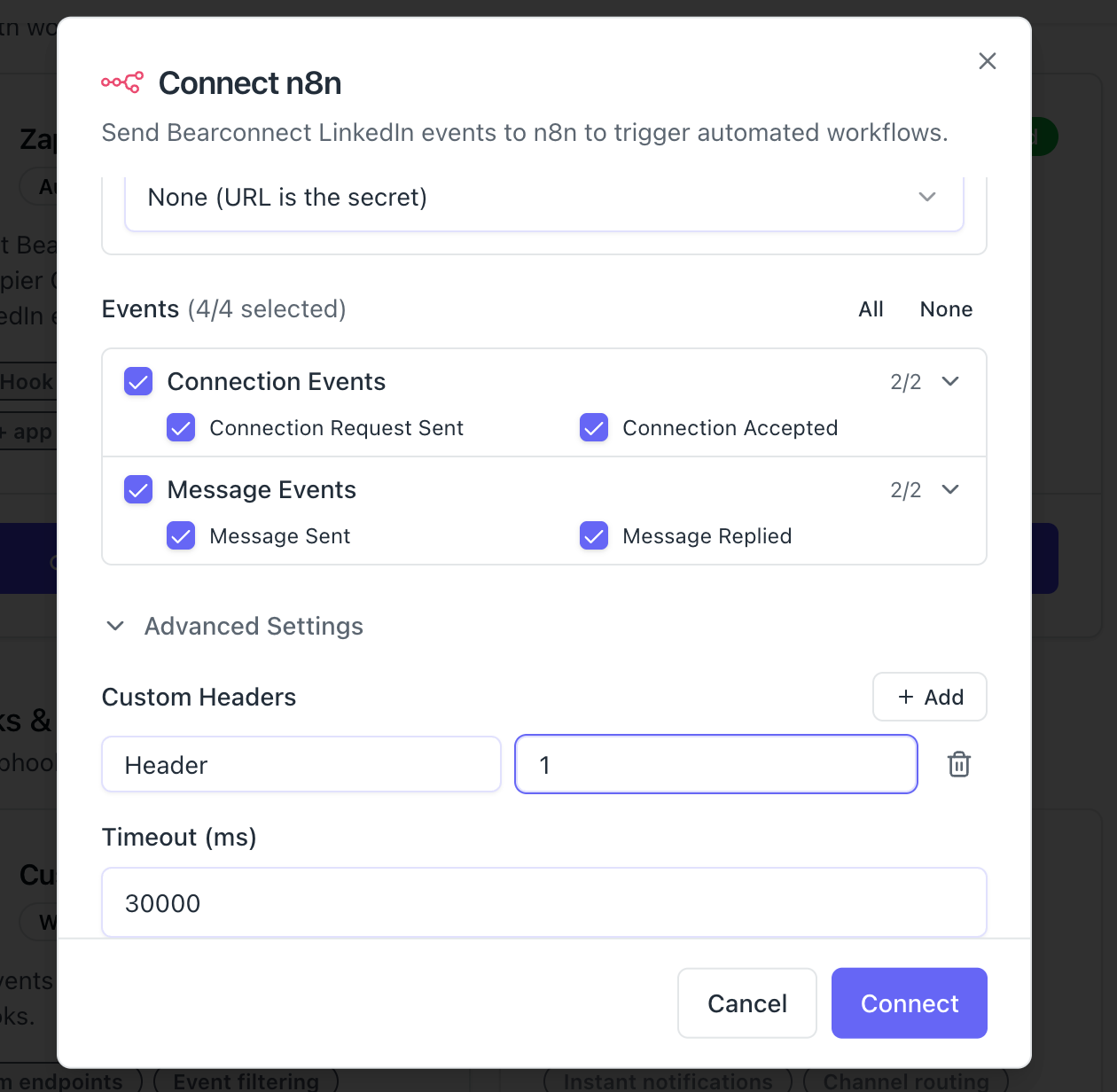
- Custom Headers: Add headers like
X-Source: bearconnectfor logging - Timeout: Default is 30 seconds. Increase to up to 60 seconds for complex workflows that take longer to process
What You See After Connecting
Your n8n integration tracks every delivery attempt from the moment it connects.
Click on your n8n integration in the Connected Integrations section to see:
- Status: Active or Error
- Delivered: Total successful payloads sent to n8n
- Failed: Total failed deliveries with error messages
- Last Delivery: Timestamp of the most recent event sent
- Webhook URL: Your configured Production URL (copyable)
If there is a delivery error, the specific error message appears in red in the panel. This is your first stop when debugging delivery issues.
Step 3: Map n8n to Your Outreach Campaign
The integration only fires for campaigns you explicitly connect it to.
- Open any campaign from your Bearconnect dashboard
- Go to the Integrations tab
- Click Connect Integration
- Select your n8n integration from the dropdown
- Choose which events to enable for this campaign
- Click Connect
Managing the Campaign Mapping
Once mapped, you get three controls on the campaign Integrations tab:
- Toggle switch: Pause or resume event forwarding without deleting the mapping
- Settings icon: Edit which events are active for this campaign
- Trash icon: Remove the mapping without deleting the n8n integration itself
You can map the same n8n integration to multiple campaigns. Each campaign can enable a different set of events.
Step 4: Test the Connection
Always test from Bearconnect before building out your workflow nodes.
- Go to Integrations in the left sidebar
- Click on your n8n integration
- Click Test Connection
- If successful, you will see "Test successful" with an HTTP 200 status code
Go back to n8n and open the workflow execution history (click the clock icon). You will see the test payload Bearconnect sent.
This is how n8n learns the data structure so you can reference fields in subsequent nodes.
What Data Bearconnect Sends to n8n
Every LinkedIn event sends a complete JSON payload you can reference with n8n expressions.
Here are the key fields and how to access them in n8n nodes:
| n8n Expression | Example Value | What It Is |
|---|---|---|
{{ $json.event }} |
connection_request_accepted | The event that triggered the workflow |
{{ $json.timestamp }} |
2026-02-13T10:30:00Z | When the event occurred |
{{ $json.data.lead.firstName }} |
Jane | Lead's first name |
{{ $json.data.lead.lastName }} |
Smith | Lead's last name |
{{ $json.data.lead.email }} |
jane@example.com | Lead's email |
{{ $json.data.lead.position }} |
VP of Sales | Lead's job title |
{{ $json.data.lead.companyName }} |
Acme Corp | Lead's company |
{{ $json.data.lead.profileUrl }} |
linkedin.com/in/janesmith | LinkedIn profile URL |
{{ $json.data.campaign.name }} |
Q1 Outreach | Campaign that fired the event |
{{ $json.metadata.eventId }} |
evt_abc123def456 | Unique event ID for deduplication |
1. Handling Nullable Fields
Only data.lead.id and data.lead.firstName are guaranteed to always have a value. All other fields may be null depending on the lead's LinkedIn profile.
2. Deduplication
Bearconnect retries failed deliveries automatically. Use {{ $json.metadata.eventId }} in an If node at the start of your workflow to detect and skip duplicate events.
How to Route LinkedIn Events in n8n Using Switch and If Nodes
n8n's Switch and If nodes let you send different event types down completely different workflow paths.
1. Routing by Event Type
Add a Switch node immediately after the Webhook trigger:
- Case 1:
{{ $json.event }}equalsconnection_request_acceptedthen route to CRM module - Case 2:
{{ $json.event }}equalsmessage_repliedthen route to Slack notification - Case 3:
{{ $json.event }}equalsmessage_sentthen route to Google Sheets logging
2. Routing by Job Title (Lead Qualification)
Add an If node after the Webhook trigger:
- True path:
{{ $json.data.lead.position }}contains "VP", "Director", or "C-level" then push to CRM with High Priority tag and send Slack alert - False path: All other leads go to a Google Sheet for batch review
3. Routing by Campaign Name
Add a Switch node and filter by {{ $json.data.campaign.name }}:
- Enterprise Outreach campaign: Route to Salesforce
- SMB Outreach campaign: Route to Pipedrive
- All other campaigns: Route to a shared Google Sheet
This level of conditional routing is not possible with basic Zapier setups and gives you full pipeline control without any code.
4 Real Automation Workflows You Can Build
These are practical, ready-to-build n8n workflows agencies and technical teams use with Bearconnect today.
Workflow 1: Multi-Step Lead Enrichment and CRM Sync
Best for: Getting complete contact data before creating a CRM record.
- Webhook trigger receives Connection Accepted event
- HTTP Request node calls Clearbit or Apollo API with
{{ $json.data.lead.email }} - HubSpot or Pipedrive node creates a contact using both Bearconnect and enriched data
- Slack node sends a team notification
Workflow 2: Enterprise Lead Qualification Pipeline
Best for: Automatically separating high-value leads from general contacts.
- Webhook trigger receives any event
- If node checks if
data.lead.positioncontains executive keywords - True path: CRM contact creation with "High Priority" tag, Slack alert to sales team
- False path: Google Sheets row creation for batch review
Workflow 3: Self-Hosted GDPR-Compliant Lead Processing
Best for: Teams with strict data residency requirements.
- Webhook trigger receives all four LinkedIn events
- PostgreSQL or MySQL node writes lead data directly to your own database
- Internal notification via self-hosted Mattermost or Slack-compatible tool
- No lead data ever leaves your infrastructure
Workflow 4: Reply-Based Deal Creation with Deduplication
Best for: Creating CRM deals only on warm leads, without duplicates.
- Webhook trigger receives Message Replied event
- If node checks
{{ $json.metadata.eventId }}against a database to skip duplicates - CRM node searches for existing contact by
data.lead.email - Deal creation node creates an open deal linked to the existing contact
How to Manually Export a Lead to n8n
You can push any individual lead into your n8n workflow directly from the Leads page.
- Go to the Leads page in Bearconnect
- Click the three-dot menu on the lead row
- Click Export
- Select your n8n integration
- Click Export
The lead data is sent immediately as a JSON payload to your n8n Production webhook URL. The event field in this payload is set to lead_added_to_campaign.
Troubleshooting Common Issues
Most n8n integration problems come from one of four root causes.
404 Error: Webhook Not Found
- Your workflow is not active. Open the workflow in n8n and toggle it to Active in the top-right corner.
- Also confirm you are using the Production URL (
/webhook/) not the Test URL (/webhook-test/).
401 Error: Authentication Failed
- The credentials in Bearconnect do not match what is configured in your n8n Webhook node.
- Check that both sides use the same authentication method and the token or username/password is identical.
HTTPS Error
Bearconnect requires HTTPS. For self-hosted n8n instances, set up a reverse proxy (Nginx, Caddy, or Traefik) with a valid TLS certificate from Let's Encrypt.
Confirm the URL starts with https:// before pasting into Bearconnect.Events Not Arriving in n8n
Check these four things in order:
- Workflow is set to Active in n8n
- Campaign mapping toggle is ON in Bearconnect
- The events you expect are enabled on both the integration and the campaign mapping
- Authentication credentials match on both sides
Frequently Asked Questions
Q1: Can I use n8n cloud instead of a self-hosted instance?
Yes. n8n cloud works with Bearconnect the same way as a self-hosted instance. The main difference is that with n8n cloud, your lead data passes through n8n's servers. If data residency is a requirement, use self-hosted n8n so data stays within your own infrastructure.
Q2: Why does Bearconnect reject my n8n webhook URL?
The two most common reasons are: you pasted the Test URL (/webhook-test/) instead of the Production URL (/webhook/), or your self-hosted n8n instance is not accessible over HTTPS. Fix the URL or set up HTTPS on your server and try again.
Q3: Can I connect multiple n8n workflows to one Bearconnect campaign?
You can create multiple n8n integrations in Bearconnect, each pointing to a different Production webhook URL. However, each campaign mapping connects to one integration at a time. To send the same campaign events to multiple n8n workflows, create separate Bearconnect integrations pointing to separate webhook URLs.
Q4: How do I prevent duplicate events from breaking my n8n workflow?
Use {{ $json.metadata.eventId }} at the start of your workflow in an If node. Check if that event ID has already been processed in your database or a Set node. If it has, stop the workflow. Bearconnect retries failed deliveries, so the same event may arrive more than once.
Q5: What happens to my n8n workflow data if I delete the integration in Bearconnect?
Deleting the integration in Bearconnect stops all event forwarding and removes campaign mappings. Your n8n workflow itself is not affected. All data that was already processed by your workflow and stored in connected systems remains intact.
Start Building Your Own LinkedIn Lead Automation Infrastructure Today
If you are running LinkedIn outreach and want to own your automation stack completely, without per-task pricing or third-party data storage, n8n and Bearconnect is the combination built for that.
Connect your n8n instance, activate your workflow, and your LinkedIn leads start flowing directly into your infrastructure the moment they respond.
New to Bearconnect? Start your 7-day free trial and connect n8n in under 10 minutes.
Already a Bearconnect user? Head to Integrations in your dashboard and connect n8n right now.
Explore More Bearconnect Integrations
n8n is one of several integration options available in Bearconnect. Here is the full list of available and upcoming guides to help you build your complete LinkedIn automation stack.
CRM Integrations
- HubSpot Integration - Sync LinkedIn leads into HubSpot, log activities, and automate contact management.
- Pipedrive Integration - Auto-sync LinkedIn leads to Pipedrive and create deals the moment leads reply.
Automation and Webhook Integrations
- Zapier Integration - Send LinkedIn lead events to thousands of apps using Zapier triggers and actions.
- Make (Integromat) Integration - Build visual multi-step workflows connecting LinkedIn leads to any tool.
- Custom Webhook Integration - Send Bearconnect LinkedIn events to any external system in real time.
Browse all integrations: Bearconnect Integrations Overview
Related Reading
Ready to Transform Your LinkedIn Strategy?
Join thousands of professionals already using Bearconnect to automate their outreach and grow their network.
7-day free trial • Cancel anytime
Related Articles
How to Set Up Make Integration in Bearconnect: Build Visual Lead Workflows Across Any App Without Code
Connect Bearconnect with Make to build visual LinkedIn lead workflows across your CRM, Slack, and other tools without code. Automate lead capture, streamline processes, and sync data seamlessly in real time.
How to Set Up Zapier Integration in Bearconnect: Auto-Send Leads to Your CRM, Slack, or Google Sheets
Connect Bearconnect with Zapier to automatically send LinkedIn leads to your CRM, Slack, or Google Sheets. This step-by-step guide helps you streamline workflows, reduce manual work, and capture leads in real time.
How to Set Up Pipedrive Integration in Bearconnect: Auto-Sync Leads and Create Deals When They Reply
Connect Pipedrive with Bearconnect to automatically sync LinkedIn leads and create deals when prospects reply. This step-by-step guide shows how to automate your outreach workflow, eliminate manual tracking, and close deals faster using CRM integration.