How to Set Up Pipedrive Integration in Bearconnect: Auto-Sync Leads and Create Deals When They Reply

Connect Pipedrive to Bearconnect using your Personal API Token, map it to your outreach campaign, and every reply will automatically create an open deal in your Pipedrive pipeline.
No manual data entry. No missed follow-ups.
TL;DR
- Connect Pipedrive to Bearconnect in under 5 minutes using your API token
- Map the integration to any outreach campaign in Bearconnect
- Every reply triggers an automatic deal creation in Pipedrive
- All outreach activities (connection sent, message sent, reply received) are logged as completed tasks in Pipedrive
- Smart deduplication prevents duplicate contacts from cluttering your CRM
Why This Integration Matters for Agencies and B2B Sales Teams
Manual lead tracking kills pipeline velocity. If you are running LinkedIn outreach and logging contacts manually into Pipedrive, you are losing time and missing warm leads.
The Bearconnect and Pipedrive integration solves this directly:
- Leads sync to Pipedrive the moment they accept your connection
- Deals are created the moment they reply to your message
- Every LinkedIn touchpoint is logged as a completed activity in Pipedrive, giving you a full outreach timeline per contact
This is not just a data sync. It is an automated sales pipeline that runs while you focus on closing.
What You Need Before You Start
You need three things ready before connecting.
- An active Bearconnect account with a subscription
- A Pipedrive account (any plan: Essential, Advanced, Professional, Power, or Enterprise)
- Admin permissions on your Pipedrive account to access the API token
If you manage multiple clients as an agency, note that Bearconnect supports multiple Pipedrive connections.
Each connection runs independently with its own credentials and campaign mappings.
Step 1: Get Your Pipedrive Personal API Token
Your API token is the only credential you need to connect Pipedrive.
Here is how to find it:
- Log in to your Pipedrive account at app.pipedrive.com
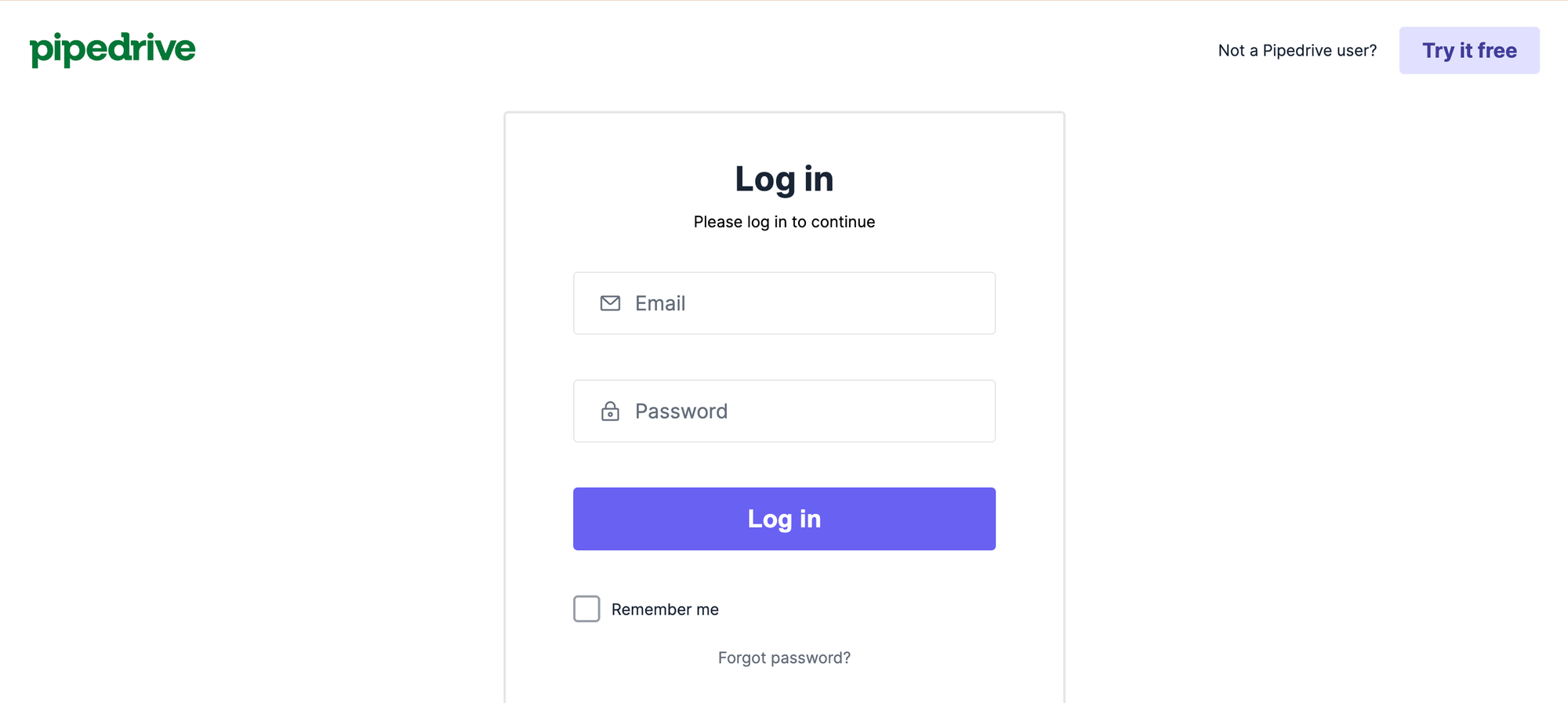
- Click your profile icon in the top-right corner
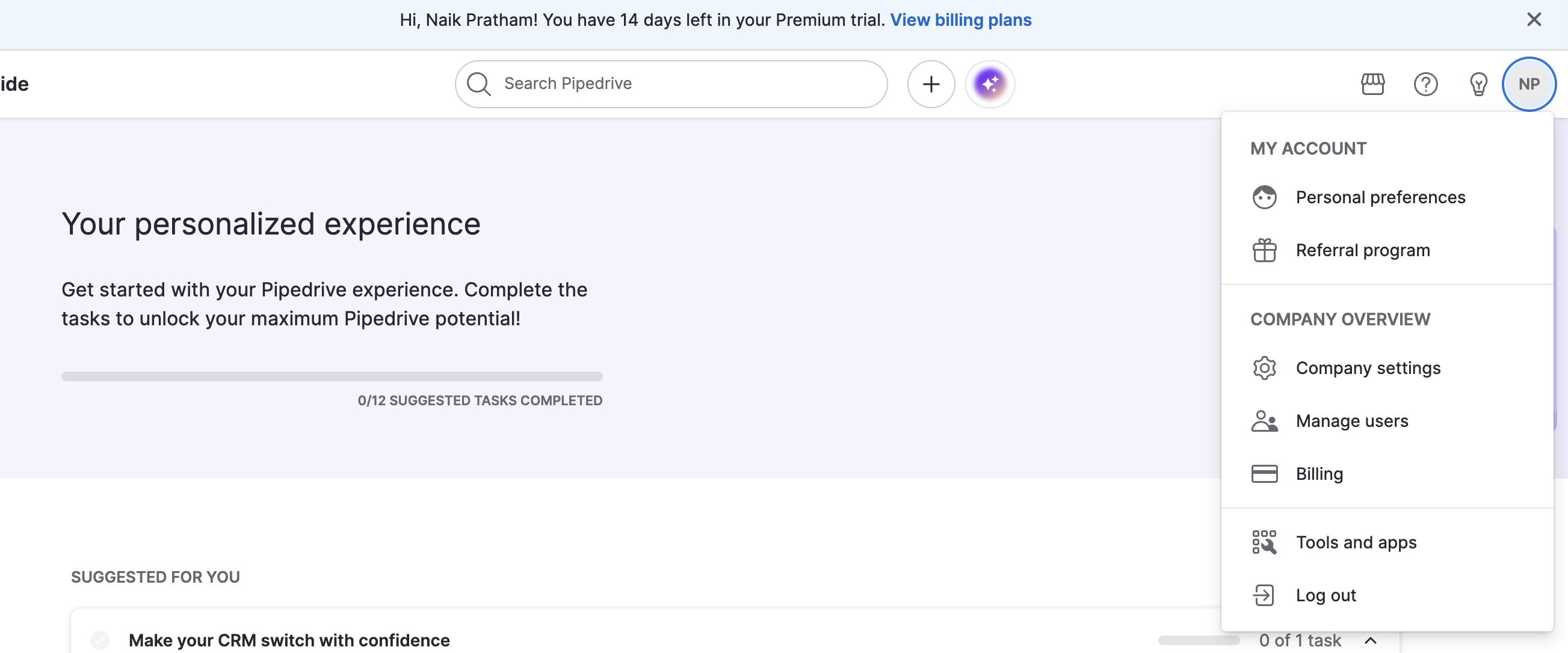
- Go to Settings then Personal preferences, click the API tab

Copy your Personal API Token
Keep this token ready. You will paste it into Bearconnect in the next step.
Pro Tip: If you regenerate your API token in Pipedrive at any point, your Bearconnect integration will break. You will need to disconnect and reconnect using the new token.
Step 2: Connect Pipedrive in Bearconnect
Connecting takes less than 2 minutes once you have your API token.
Follow these steps:
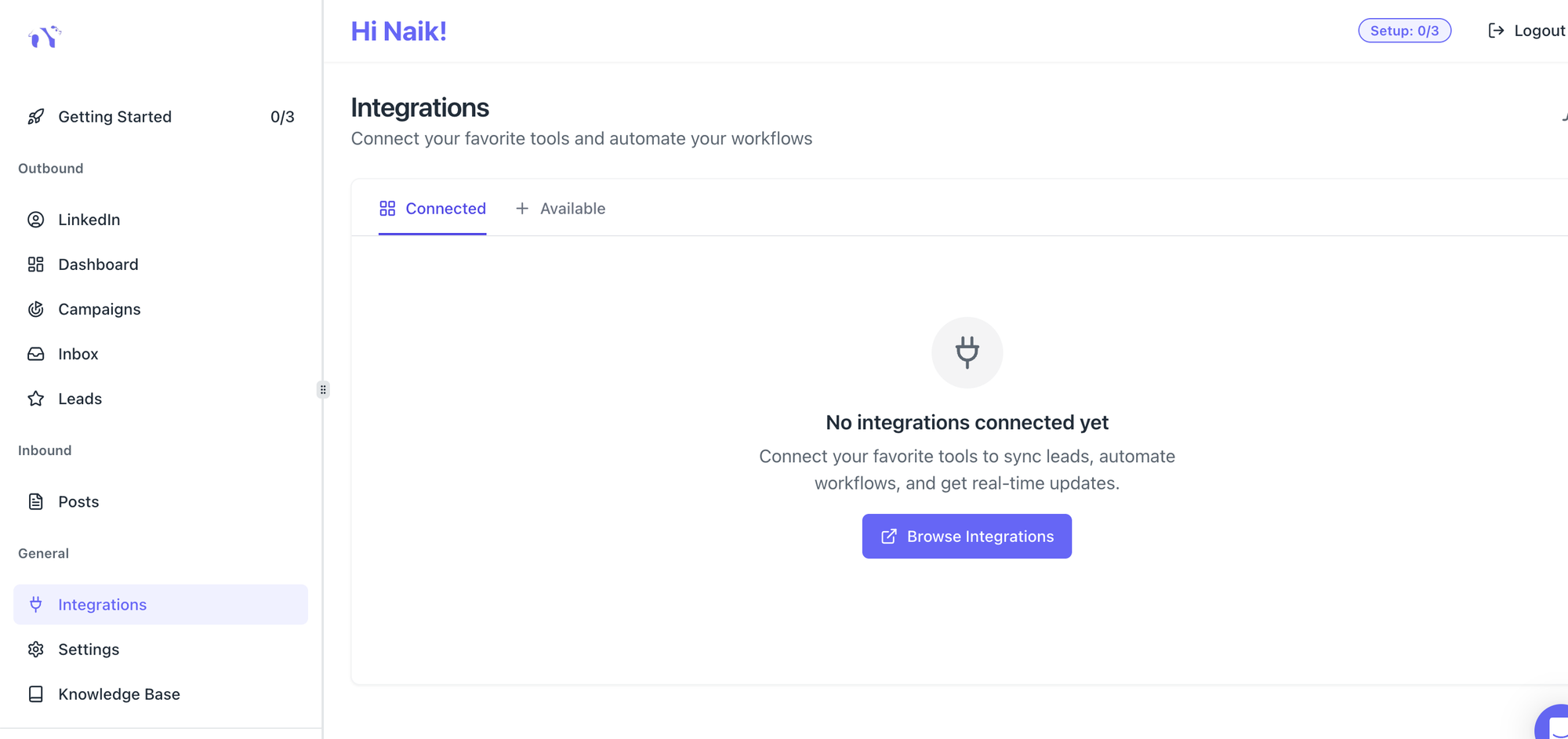
- Open your Bearconnect dashboard
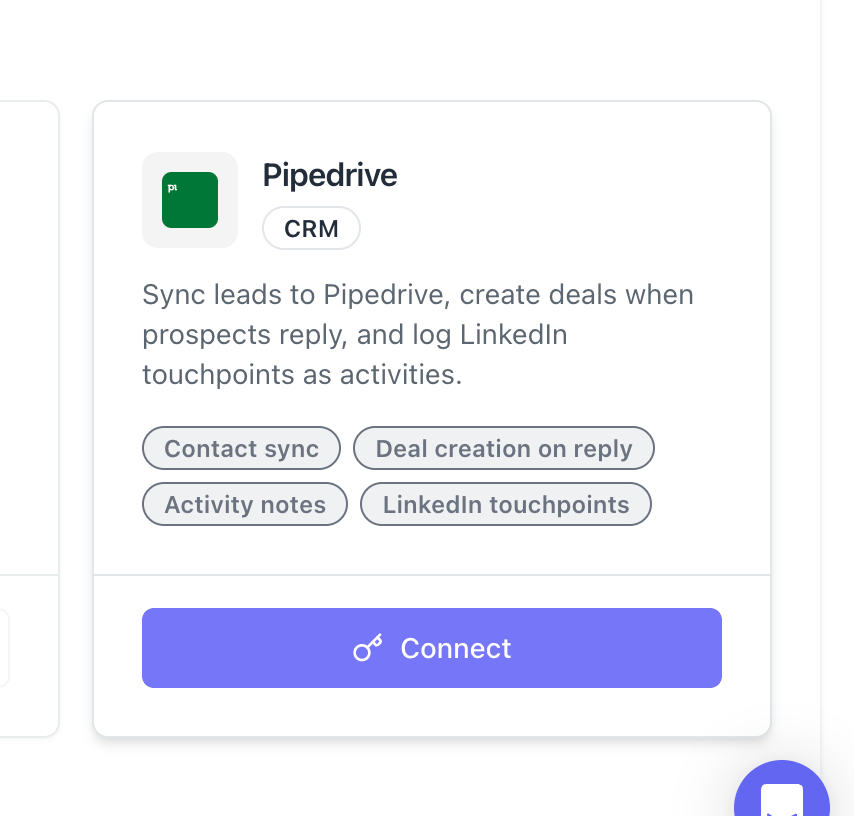
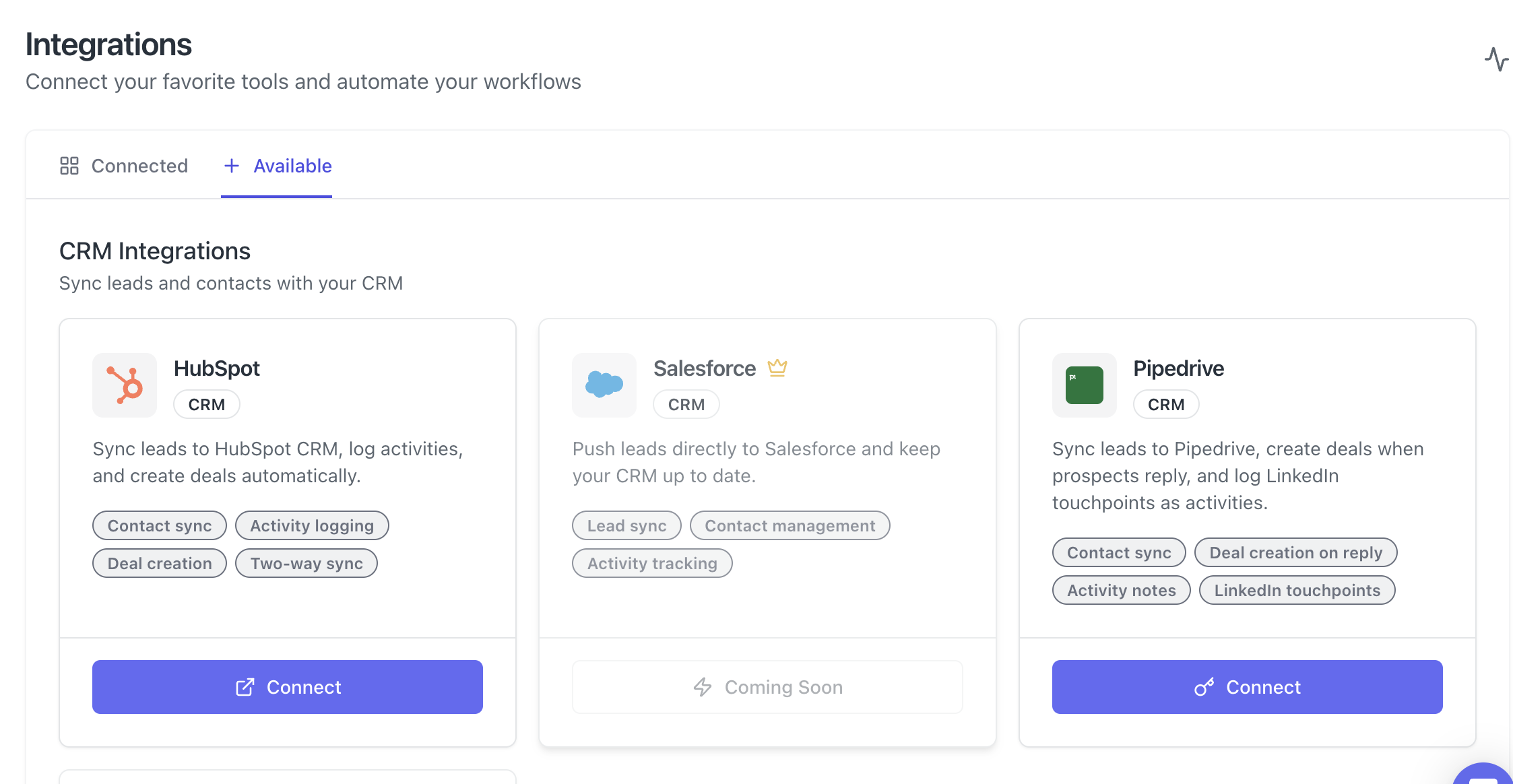
- Find Pipedrive in the Available Integrations section
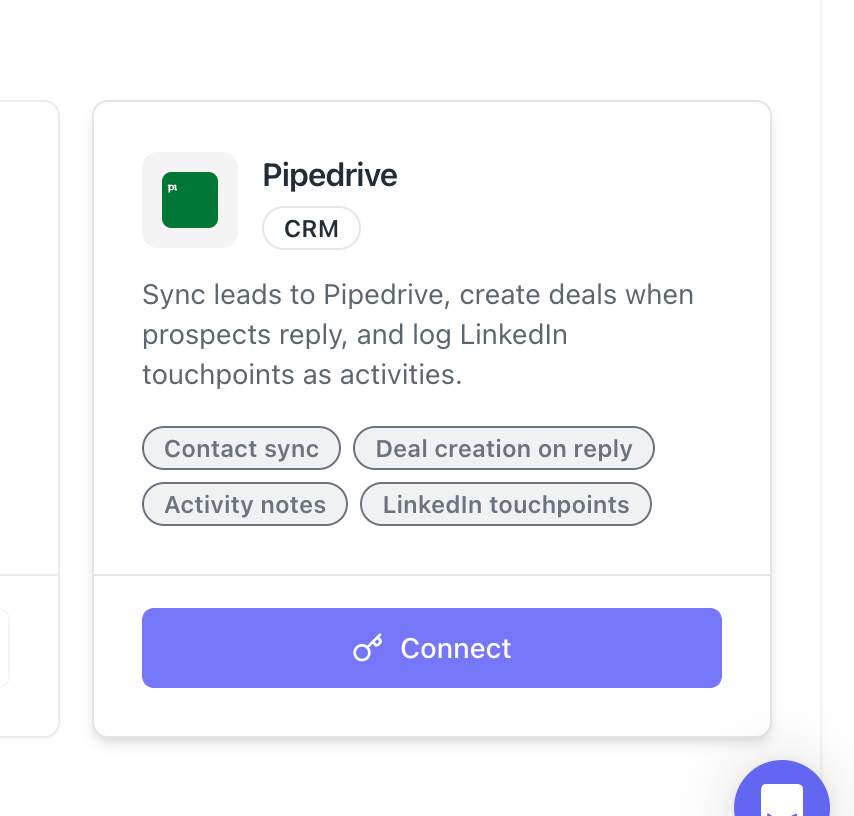
- Click Connect
- Paste your API token into the API Token field
- Click Connect
- Enter a name for this connection, for example "Client A Pipedrive"
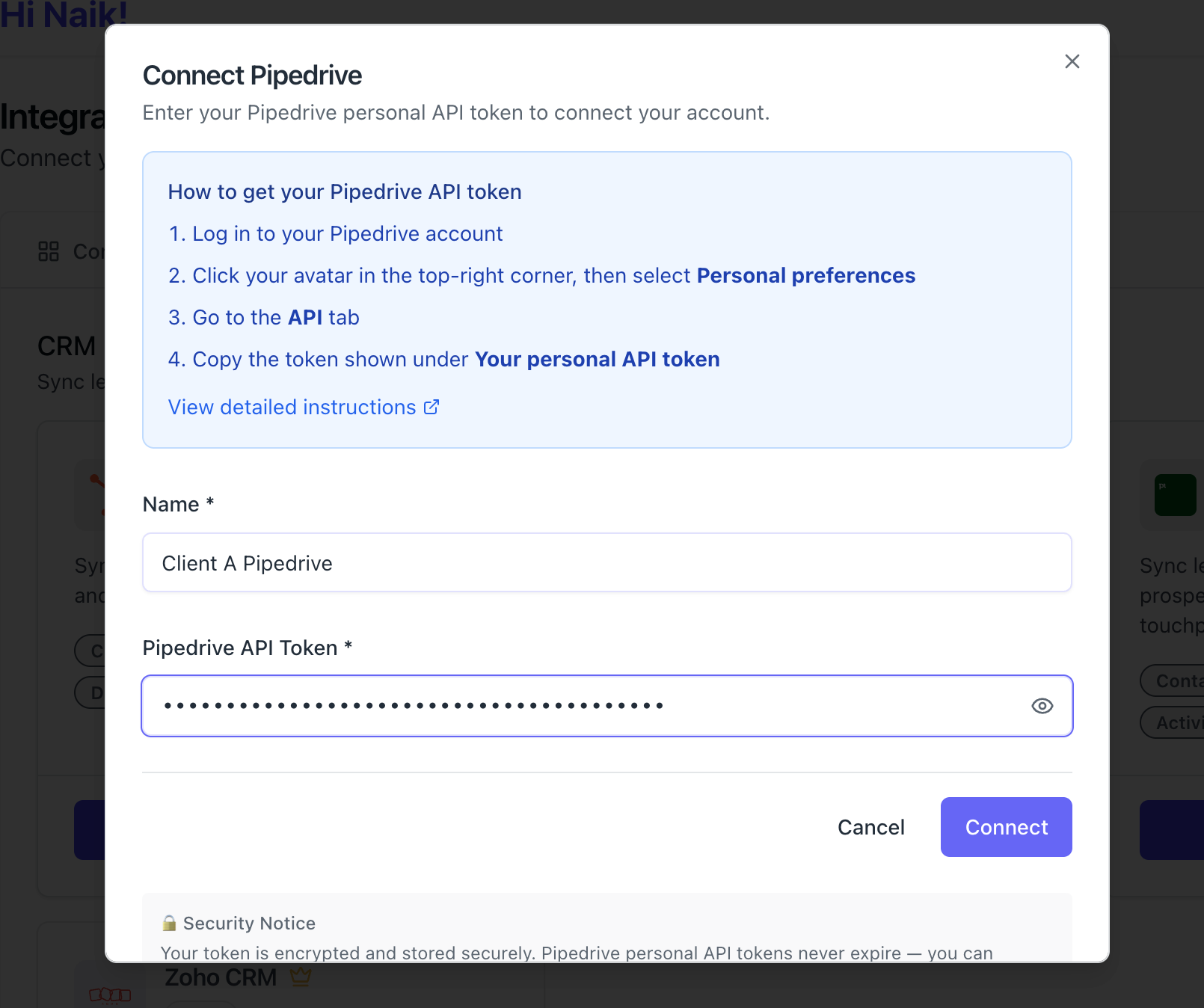
- Paste your API token into the API Token field
- Click Connect
Once connected, Bearconnect automatically validates the connection by querying your Pipedrive account. It also pre-selects all currently available events as allowed events.
What You See After Connecting
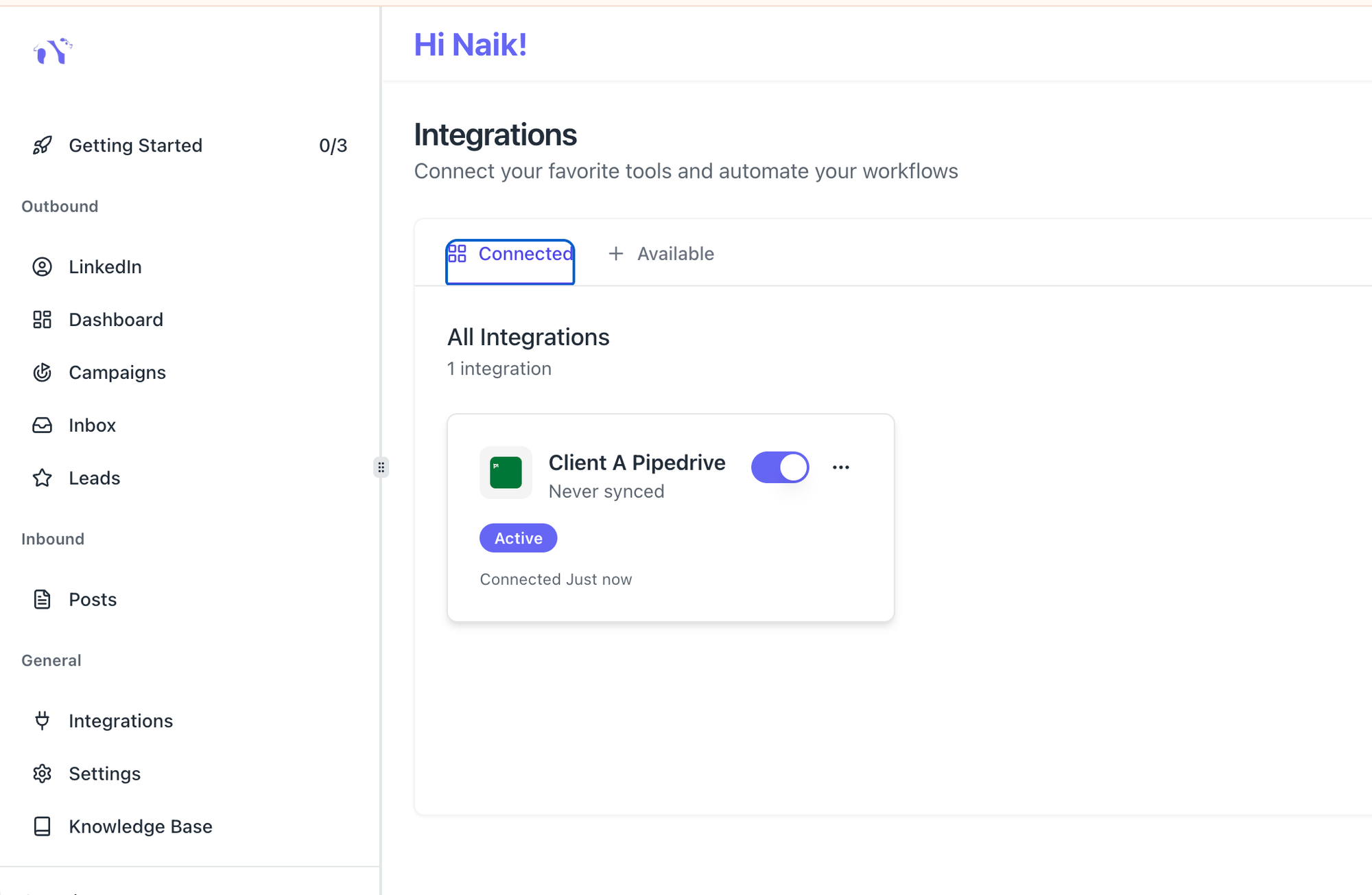
Your Pipedrive integration now appears in the Connected Integrations section. Click on it to see:
- Connection Status: Active, Error, or Disconnected
- Sync Statistics: Persons synced, sync errors, last sync time
- Features Enabled: Person Sync, Activity Logging, Deal Creation
Step 3: Map Pipedrive to Your Outreach Campaign
The integration only fires events for campaigns you explicitly map it to.
This gives you control. You can run some campaigns without CRM sync and others with full automation. Here is how to set it up:
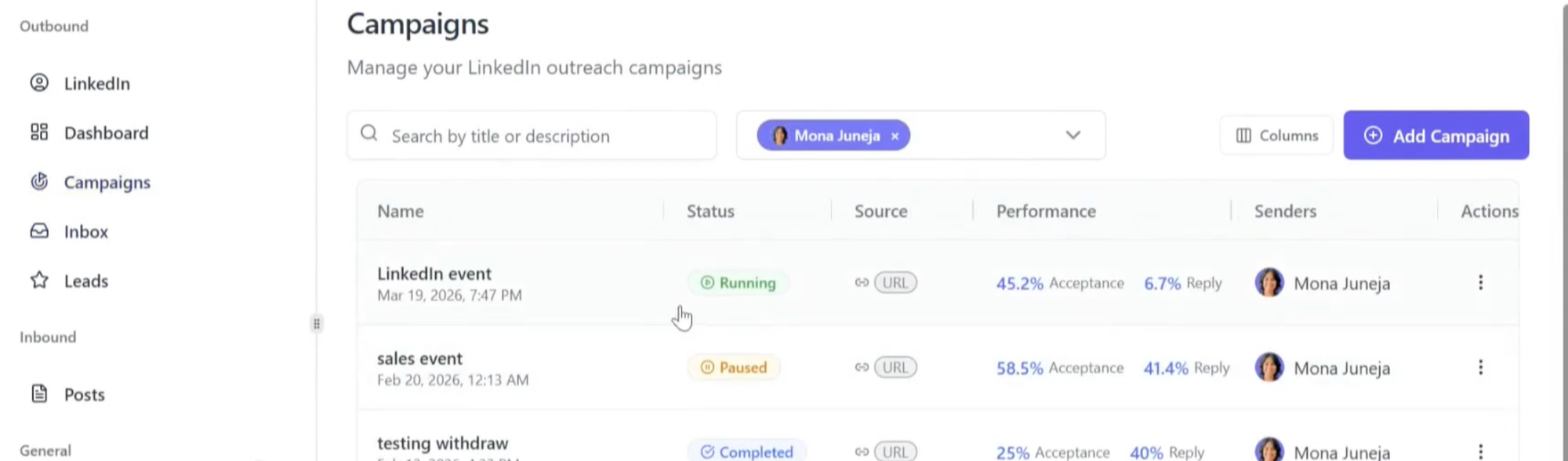
- Open the campaign from your dashboard
- Go to the Integrations tab
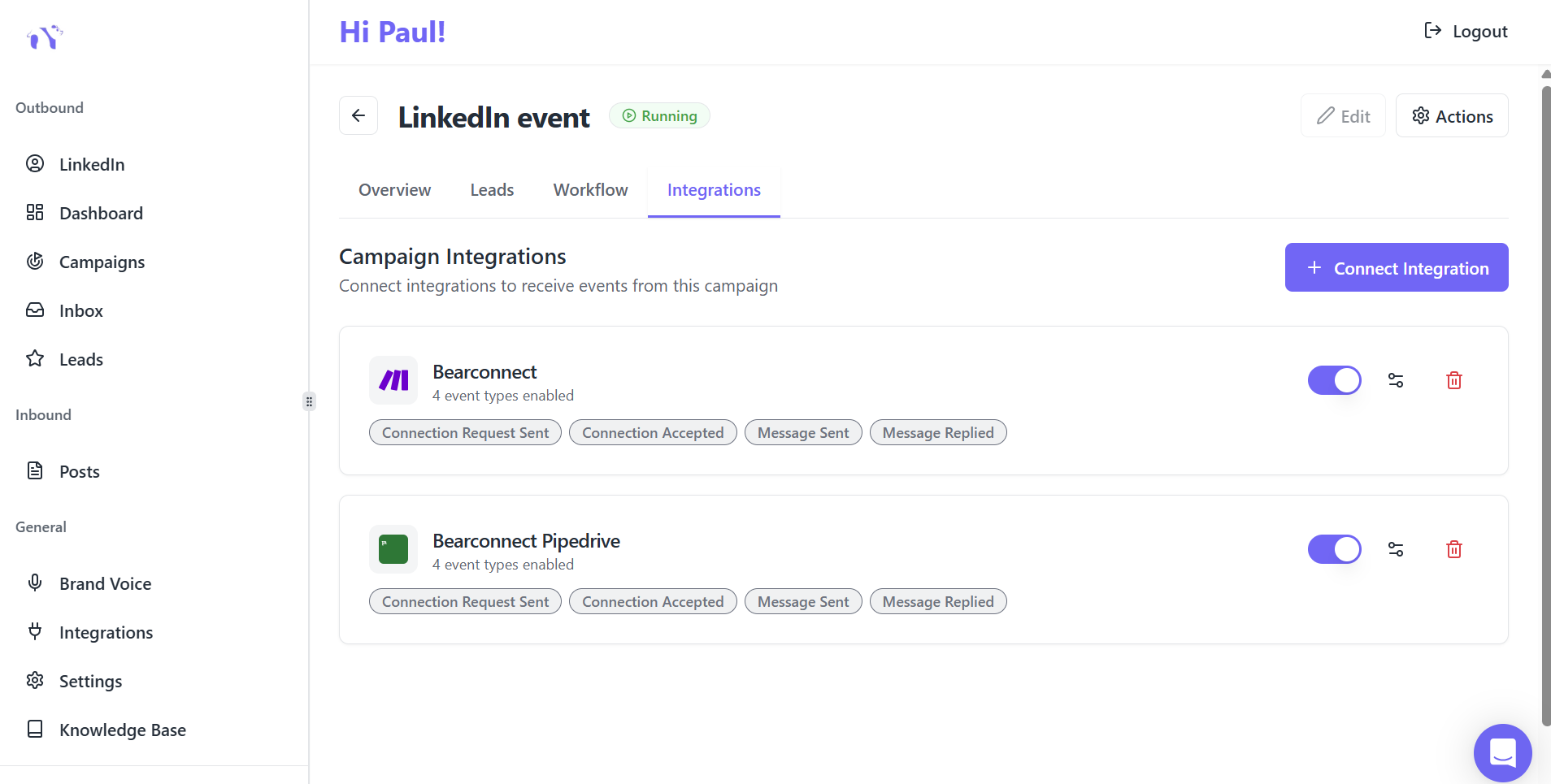
- Click Connect Integration
- Select your Pipedrive connection from the dropdown
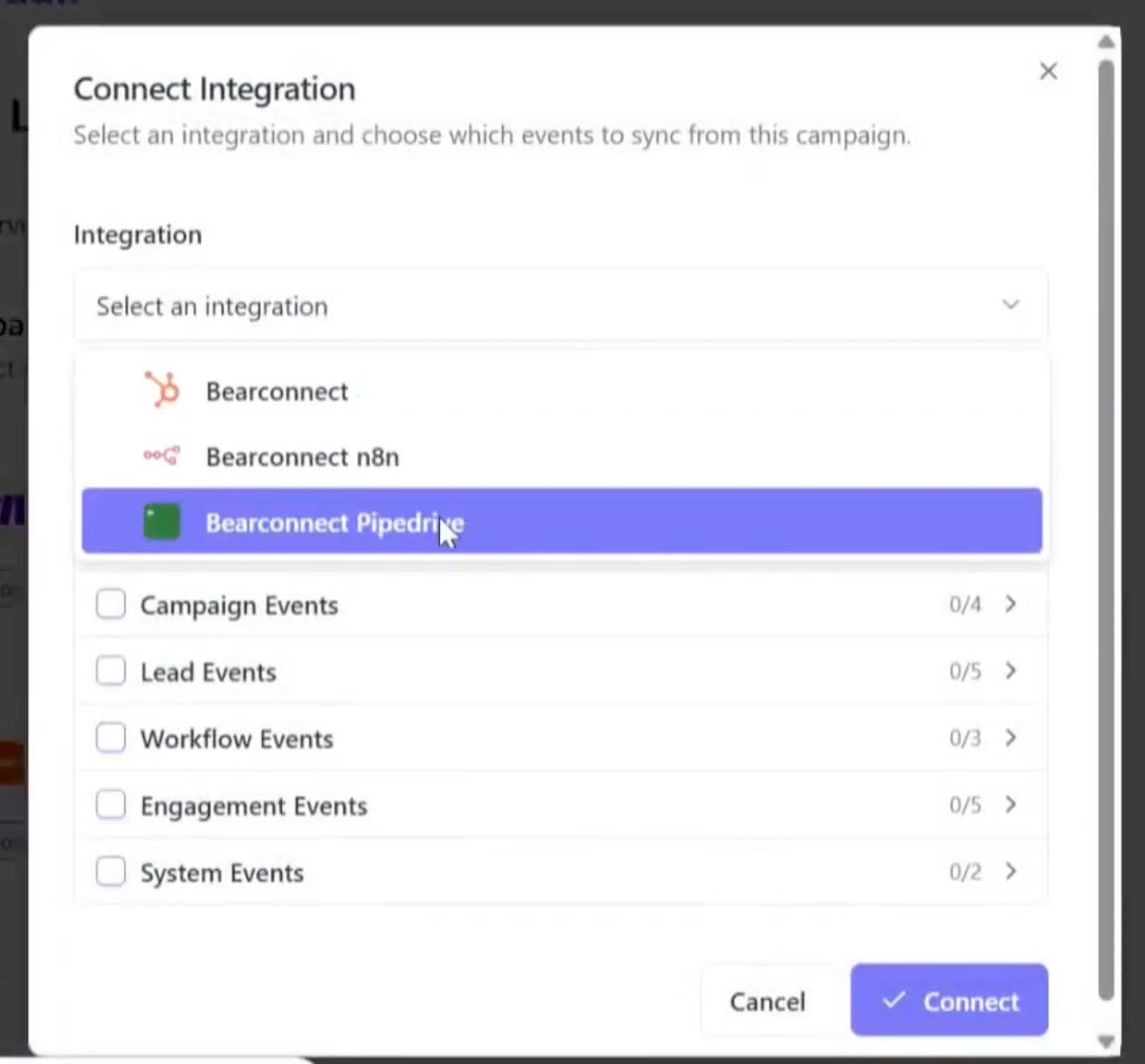
- Choose which events to enable (see the full event list below)
- Set your Record Type, Owner, and optional Labels
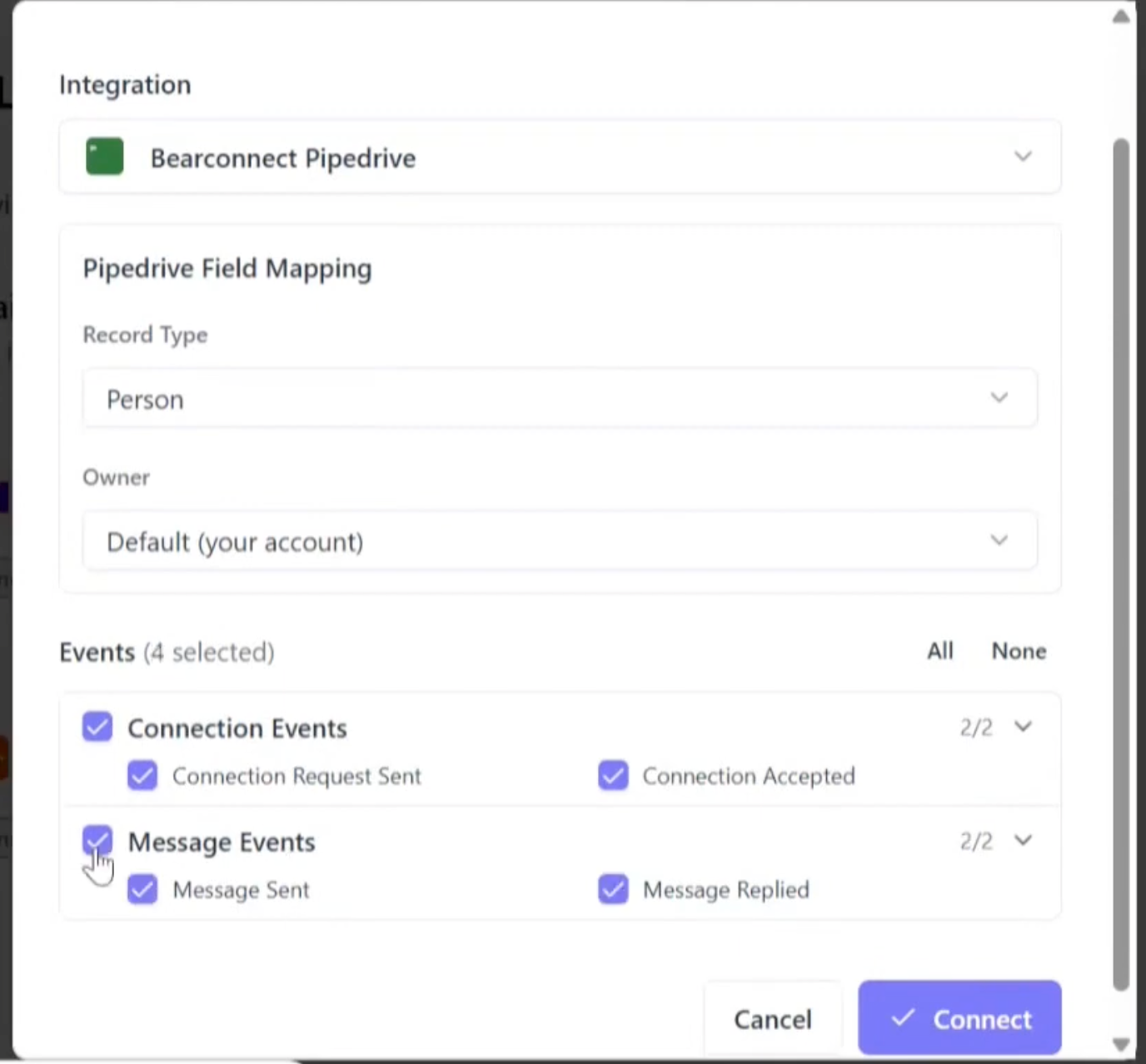
- Click Connect
Events You Can Enable Per Campaign
| Event | What Triggers It |
|---|---|
| Connection Request Sent | You send a connection request to a lead |
| Connection Accepted | Lead accepts your connection request |
| Message Sent | You send a message to a lead |
| Message Replied | Lead replies to your message |
Pro Tip: Enable all four events from day one. This gives you a complete activity timeline in Pipedrive from the very first touchpoint, not just after a reply.
What Happens in Pipedrive on Each LinkedIn Event
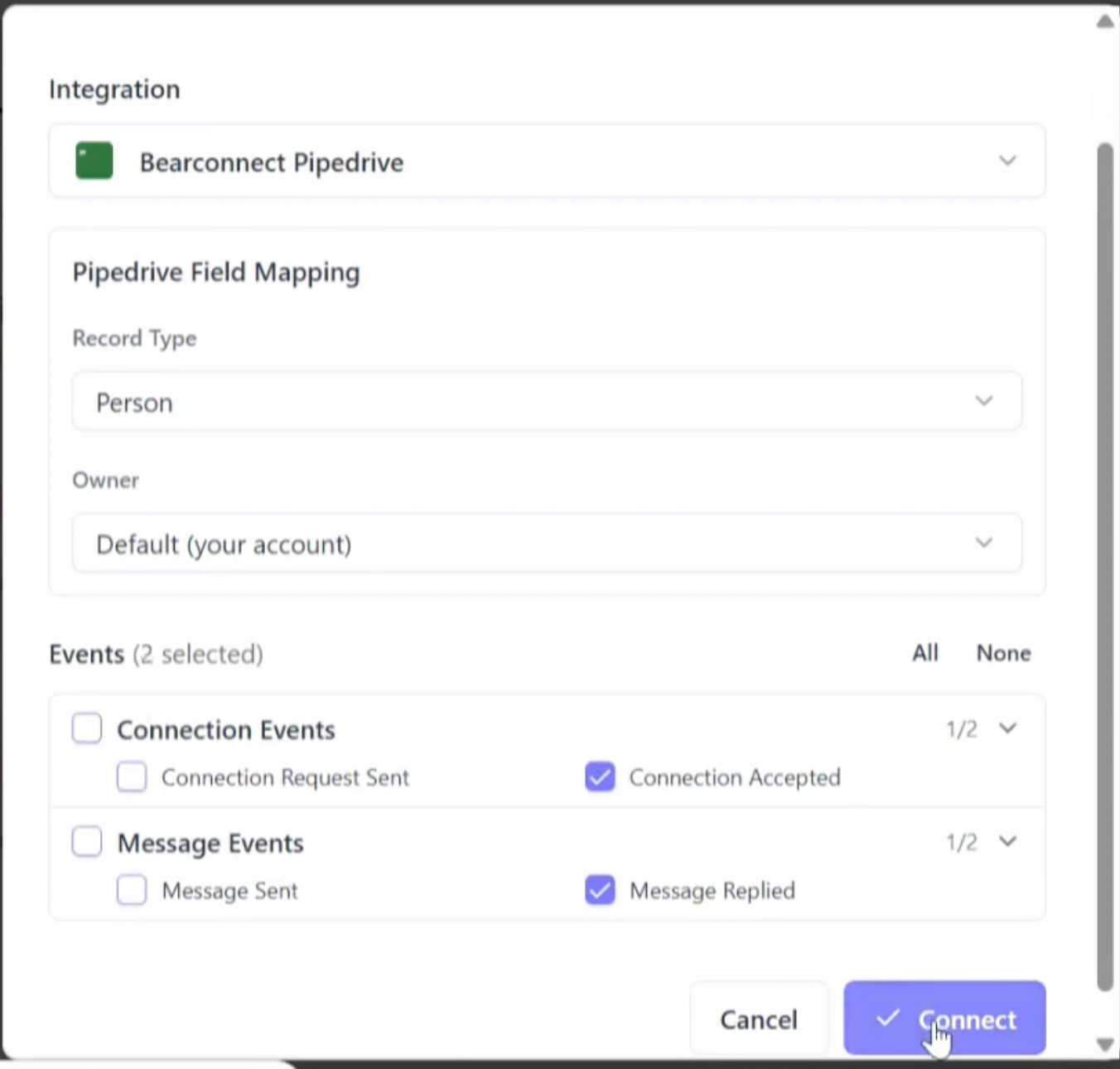
Every event maps to a specific action in Pipedrive. Here is the exact workflow.
1. Connection Request Sent
Bearconnect logs an activity in Pipedrive. If no Person record exists yet, one is created automatically so the activity has somewhere to attach.
2. Connection Accepted
Bearconnect upserts the Person record (creates it or updates an existing match) and logs an activity. If you selected Lead as the record type, a Lead linked to that Person is also created.
3. Message Sent
Bearconnect logs an activity. Again, if no Person exists yet, one is auto-created.
4. Message Replied
This is the key trigger. Bearconnect does three things:
- Upserts the Person record
- Creates an open Deal linked to that Person
- Logs an activity
This is the moment a lead becomes a tracked opportunity in your Pipedrive pipeline automatically.
How Deal Creation Works
When a lead replies to your LinkedIn message, Bearconnect creates a deal in Pipedrive instantly.
Deal details created automatically:
- Title: First Name + Last Name + "LinkedIn Reply" (example: "Jane Doe - LinkedIn Reply")
- Status: Always set to Open
- Linked Person: Connected automatically via the Person record
You can then move the deal to any stage or pipeline inside Pipedrive.
Important Notes on Deal Creation
- Deal creation is non-blocking. If it fails (for example, due to an API rate limit), the activity is still logged. The failure does not affect the rest of the event.
- Deal creation currently triggers on Message Replied events. InMail Replied deal creation is coming in a future release.
- Reply events always create Person records and Deals regardless of your record type setting.
Person vs Lead: Which Record Type Should You Use?
Use Person for most cases. Use Lead only if you want to qualify contacts before adding them to your main contacts list.
Here is how to decide:
| Use Case | Recommended Record Type |
|---|---|
| Standard B2B outreach | Person |
| Agency managing multiple client pipelines | Person |
| High-volume prospecting where you want to separate unqualified contacts | Lead |
How the Lead Record Type Works
When you select Lead, Bearconnect does not skip Person creation. It:
- Creates or finds the matching Person first (a Person is always the anchor record)
- Creates a Lead linked to that Person
- Applies your configured Owner and Labels to the Lead
Pro Tip: Even if you choose Lead as the record type, reply events will always create a full Person record and Deal. The Lead type only changes how connection acceptance and initial sync events are handled.
How LinkedIn Activities Are Logged in Pipedrive
Every LinkedIn touchpoint from your campaign is logged as a completed task in Pipedrive.
Each activity includes:
- Subject: Campaign name plus event type (example: "LinkedIn connection request sent via Q1 Outreach")
- Note: Campaign name, timestamp, and event type
- Status: Marked as completed
This gives your sales team a full LinkedIn interaction history inside each Person record in Pipedrive. No switching between tools to understand what happened with a lead.
How to Manually Export Leads to Pipedrive
You can export any individual lead to Pipedrive directly from the Leads page.
Steps:
- Go to the Leads page in Bearconnect
- Find the lead you want to export
- Click the three-dot action menu on that row
- Click Export
- Select your Pipedrive integration
- Set Record Type, Owner, and Labels
- Click Export
What Data Gets Synced to Pipedrive
| Bearconnect Field | Pipedrive Field |
|---|---|
| First Name + Last Name | name |
| emails (primary, work) | |
| Phone | phones (primary, work) |
| Position / Job Title | job_title |
Fields like profile URL, headline, company name, location, and education are included in the activity notes but are not mapped to Pipedrive Person fields directly.
How Deduplication Works
Bearconnect checks for existing records before creating a new one:
- Email match (primary check): Exact email match updates the existing Person
- Name match (fallback): If no email, matches by full name
- Create new: If no match found, a new Person is created
Pro Tip: Always ensure your leads in Bearconnect have email addresses populated. Name-only matching is less reliable since multiple people can share the same name.
Sync Settings You Should Configure
Get these three settings right to avoid delays or missed syncs.
Go to Integrations in the left sidebar, click your Pipedrive integration, then click Settings.
| Setting | Options | Recommendation |
|---|---|---|
| Automatic Sync | On / Off | Keep this On |
| Sync Mode | Real-time, Batch (15 min), Manual Only | Use Real-time for active campaigns |
| Sync Direction | Outbound Only, Inbound Only, Bidirectional | Start with Outbound Only |
For most outreach campaigns, Real-time sync with Outbound Only is the right setup. It pushes data to Pipedrive the moment an event fires with no delays.
Troubleshooting Common Issues
Most integration problems come from one of three causes: token issues, sync settings, or deduplication gaps.
1. Connection Failed
- Verify the API token in Pipedrive under Settings, Personal preferences, API
- Make sure your Pipedrive account is active and in good standing
2. Activities Not Appearing in Pipedrive
- Check that the integration shows Active status in Bearconnect
- Confirm the campaign mapping toggle is turned on
- Verify Automatic Sync is enabled in Pipedrive Settings
- If you are on Batch mode, wait up to 15 minutes
3. Token Expired Error
- Go to Pipedrive, Settings, Personal preferences, API and check if the token is still valid
- If regenerated, disconnect the Bearconnect integration and reconnect with the new token
4. Duplicate Persons in Pipedrive
- Add email addresses to your leads in Bearconnect
- Without an email, matching falls back to name only, which is less reliable
5. Lead Export Shows "Skipped"
This is not an error. It means the contact already exists in Pipedrive and no new data was needed. Your CRM is already up to date for that lead.
Frequently Asked Questions
Q1: Does Bearconnect create duplicate contacts in Pipedrive?
No. Bearconnect checks for existing Persons by email first, then by full name as a fallback. If a match is found, the existing record is updated. A new Person is only created when no match exists. To keep deduplication reliable, make sure your leads have email addresses in Bearconnect.
Q2: Can I connect multiple Pipedrive accounts to Bearconnect?
Yes. Bearconnect supports multiple Pipedrive connections. Each connection has its own API token, campaign mappings, and sync settings. This is useful for agencies managing separate Pipedrive accounts for different clients.
Q3: What happens to my Pipedrive data if I disconnect the integration?
Your existing Persons, Leads, Deals, and Activities in Pipedrive are not deleted or changed. Only the campaign mappings are removed and event forwarding stops. You can reconnect at any time without losing historical data.
Q4: Can I choose which events trigger a sync to Pipedrive?
Yes. When you map Pipedrive to a campaign, you choose exactly which events to enable: Connection Request Sent, Connection Accepted, Message Sent, and Message Replied. You can also turn the entire mapping on or off using a toggle without deleting the configuration.
Q5: Will Bearconnect create an Organization record in Pipedrive from the company name on a lead?
No. Pipedrive's API requires an existing Organization ID to link records. Bearconnect cannot auto-create Organizations from a company name. The company name is available in activity notes, where you can use Pipedrive's own automations to create and link Organizations manually if needed.
Start Automating Your LinkedIn Pipeline Today
If you are running LinkedIn outreach without a CRM sync, you are leaving warm leads untracked and slowing down your entire sales process.
Connect Pipedrive to Bearconnect, map it to your active campaigns, and your pipeline starts filling itself the moment a lead replies.
Ready to set it up? Start your 7-day free trial on Bearconnect and connect Pipedrive in under 5 minutes.
Already a Bearconnect user? Head to Integrations in your dashboard and connect Pipedrive right now.
Explore More Bearconnect Integrations
Pipedrive is one of many CRMs and automation tools you can connect with Bearconnect. Here are all available and upcoming integration guides to help you build your full LinkedIn outreach stack.
CRM Integrations
- HubSpot Integration - Sync LinkedIn leads directly into HubSpot, log activities, and automate your contact management.
Automation and Workflow Integrations
- Zapier Integration - Connect Bearconnect to 6,000+ apps using Zapier triggers and actions.
- Make Integration - Build advanced multi-step workflows between Bearconnect and your existing tools using Make.
- n8n Integration - Set up self-hosted automation workflows that connect Bearconnect with your internal systems.
Webhook Integration
- Custom Webhook Integration - Send Bearconnect LinkedIn events to any external system in real time using custom webhooks.
Browse all integrations: Bearconnect Integrations Overview
Ready to Transform Your LinkedIn Strategy?
Join thousands of professionals already using Bearconnect to automate their outreach and grow their network.
7-day free trial • Cancel anytime
Related Articles
How to Set Up n8n Integration in Bearconnect: Build Self-Hosted LinkedIn Lead Workflows Without Code
Connect Bearconnect with n8n to automate LinkedIn lead workflows using flexible, self-hosted automation. Sync data across your CRM and tools, build custom workflows, and gain full control over your automation setup.
How to Set Up Make Integration in Bearconnect: Build Visual Lead Workflows Across Any App Without Code
Connect Bearconnect with Make to build visual LinkedIn lead workflows across your CRM, Slack, and other tools without code. Automate lead capture, streamline processes, and sync data seamlessly in real time.
How to Set Up Zapier Integration in Bearconnect: Auto-Send Leads to Your CRM, Slack, or Google Sheets
Connect Bearconnect with Zapier to automatically send LinkedIn leads to your CRM, Slack, or Google Sheets. This step-by-step guide helps you streamline workflows, reduce manual work, and capture leads in real time.