Bearconnect Webhook Integration: Complete Setup to Send LinkedIn Campaign Data Securely
Set up webhooks in Bearconnect by navigating to Integrations, clicking Custom Webhooks, entering your HTTPS endpoint URL, configuring event types.
Optionally enabling HMAC signature verification for secure payload delivery to any system that accepts HTTP POST requests.
TL;DR
- Webhooks send Bearconnect events to any HTTP endpoint you control
- Setup takes 5 minutes (faster than CRM-specific integrations)
- Works with Zapier, Make, n8n, or custom internal systems
- Supports HMAC-SHA256 signature verification for security
- Automatic retries (up to 3 attempts) for failed deliveries
Why Webhooks Matter for Your LinkedIn Automation
Not everyone uses HubSpot.
- Your tech stack might include Salesforce, Pipedrive, Zoho, or custom internal tools.
- Webhooks connect Bearconnect to any system that accepts HTTP requests.
- This gives you complete flexibility.
- Send LinkedIn events to automation platforms like Zapier. Trigger workflows in Make or n8n. Log data to internal databases. The possibilities are unlimited.
Webhooks work alongside Bearconnect's LinkedIn automation platform to extend functionality.
Whether you are just starting with LinkedIn automation or scaling existing campaigns, setting up your first lead generation workflow takes only minutes with Bearconnect.
What Webhooks Actually Do
1. Core Functionality
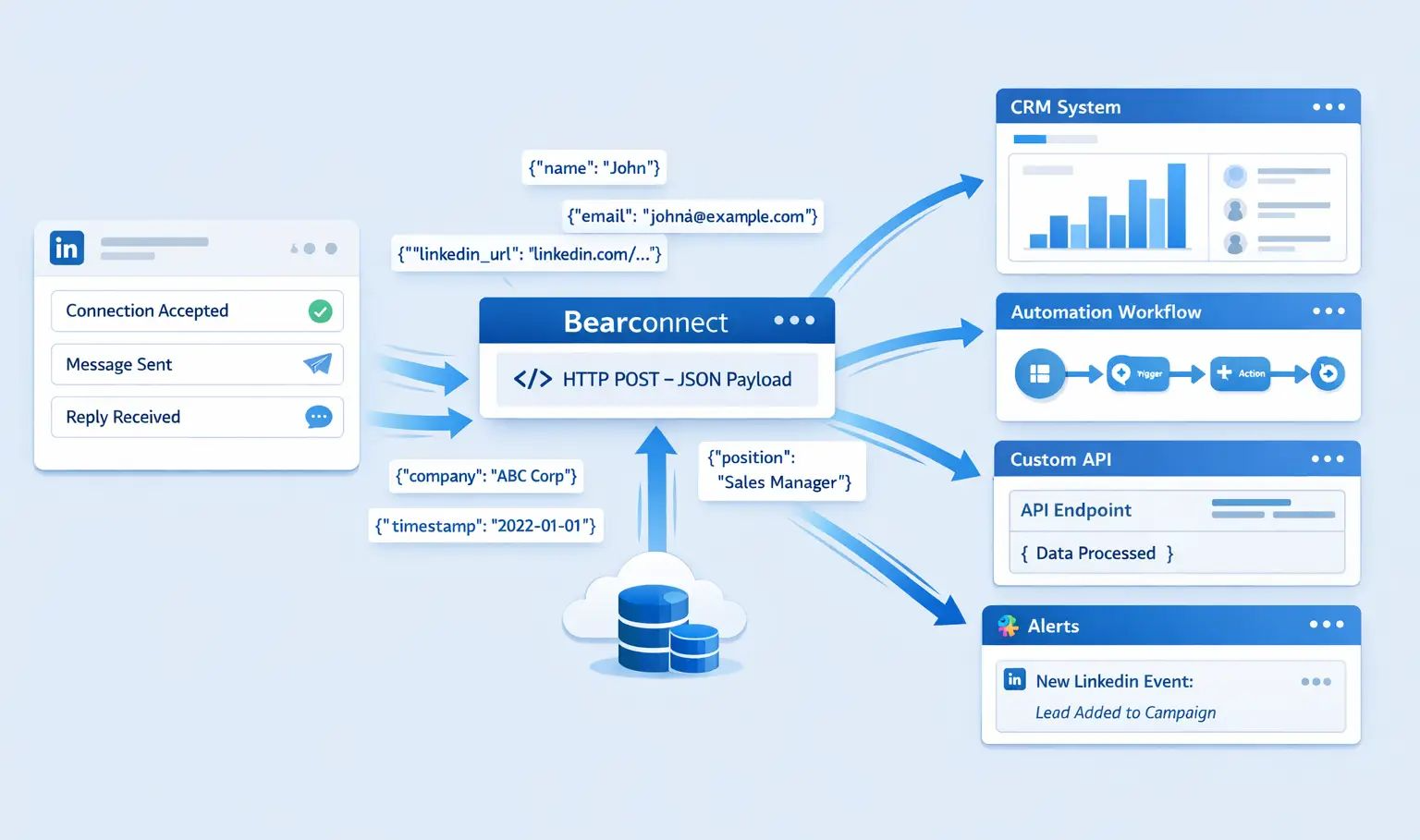
Webhooks deliver real-time event data from Bearconnect to any URL you specify.
When a LinkedIn event occurs (connection accepted, message sent, reply received), Bearconnect sends an HTTP POST request to your endpoint with a JSON payload containing full event details.
Your system receives:
- Event type and timestamp
- Complete lead data (name, email, LinkedIn URL, company, position)
- Campaign information
- LinkedIn account details
- Event metadata
This real-time data helps you understand exactly how your LinkedIn automation campaigns perform and where leads drop off in your funnel.
Common Use Cases
1. Connect to Non-HubSpot CRMs
Send LinkedIn activities to Salesforce, Pipedrive, Zoho CRM, or any CRM with webhook support.
2. Automation Platforms
- Trigger Zapier Zaps, Make scenarios, or n8n workflows based on LinkedIn engagement.
- Perfect for teams following the dos and don'ts of LinkedIn automation while scaling safely.
3. Custom Workflows
Build internal automation that responds to LinkedIn events in real time.
4. Database Logging
Store LinkedIn activity in your data warehouse for custom reporting and analysis.
5. Multi-Tool Synchronization
Send the same event to multiple systems simultaneously by creating multiple webhook integrations.
Track which LinkedIn campaigns generate the most qualified leads and optimize your lead generation strategy based on webhook event data
Prerequisites for Webhook Setup
You need two things:
1. An HTTPS Endpoint
Your server must accept POST requests over HTTPS. HTTP (non-secure) endpoints are not supported for security reasons.
2. Ability to Handle JSON Payloads
Your endpoint must parse JSON request bodies and respond with 2xx status codes.
Your webhook endpoint must be ready to receive LinkedIn event data from your active Bearconnect campaigns.
Step-by-Step Webhook Integration Setup
Step 1: Access Webhook Settings
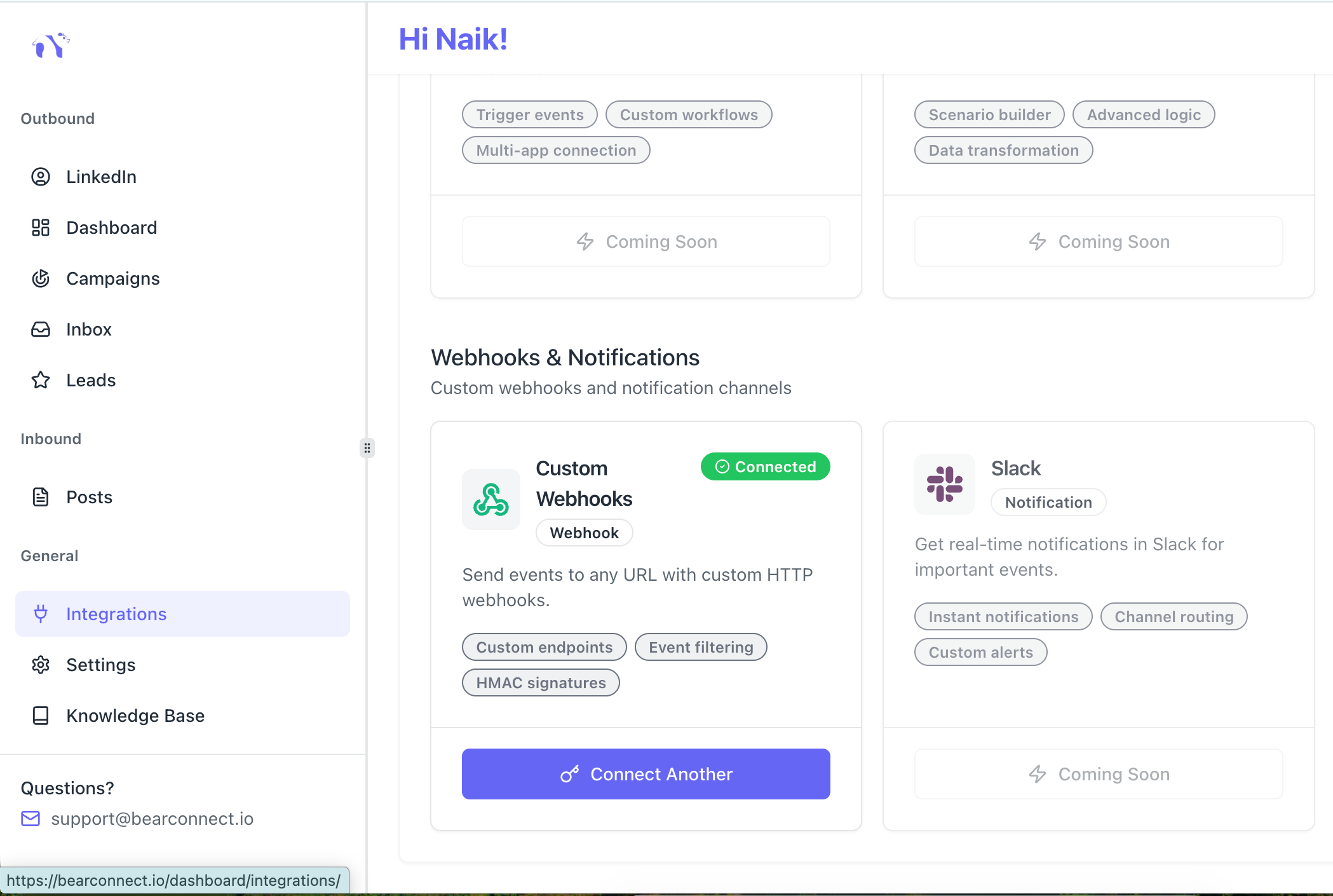
Log into your Bearconnect dashboard.
Navigation steps:
- Go to Integrations in the left sidebar
- Find Custom Webhooks in the Available Integrations section
- Click Connect
A configuration dialog opens.
Step 2: Configure Basic Settings
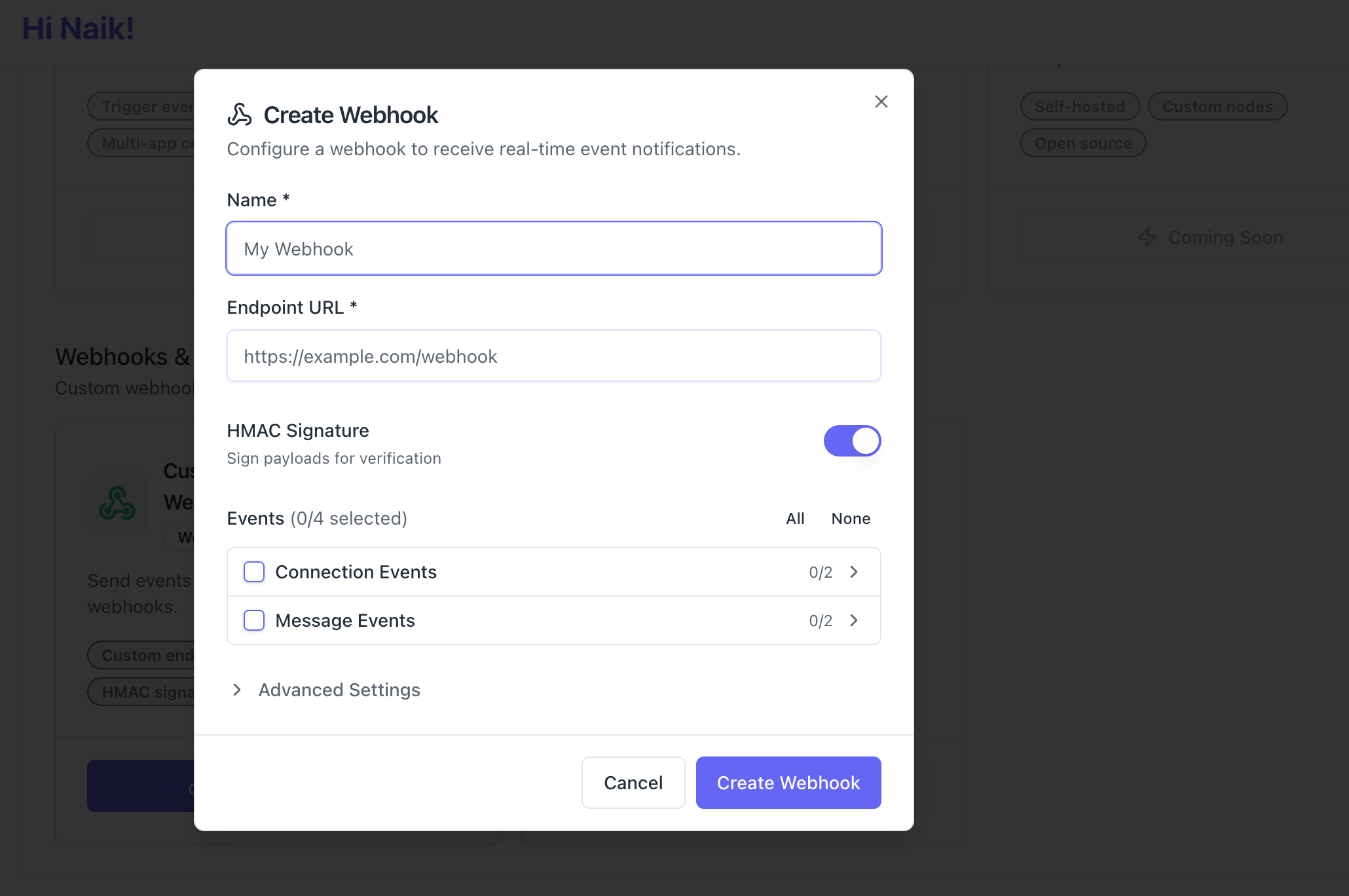
Name Your Webhook
- Enter a descriptive label like "CRM Sync Webhook" or "Slack Lead Notifier".
- You'll see this name in your integrations list and campaign mappings.
Enter Your Endpoint URL
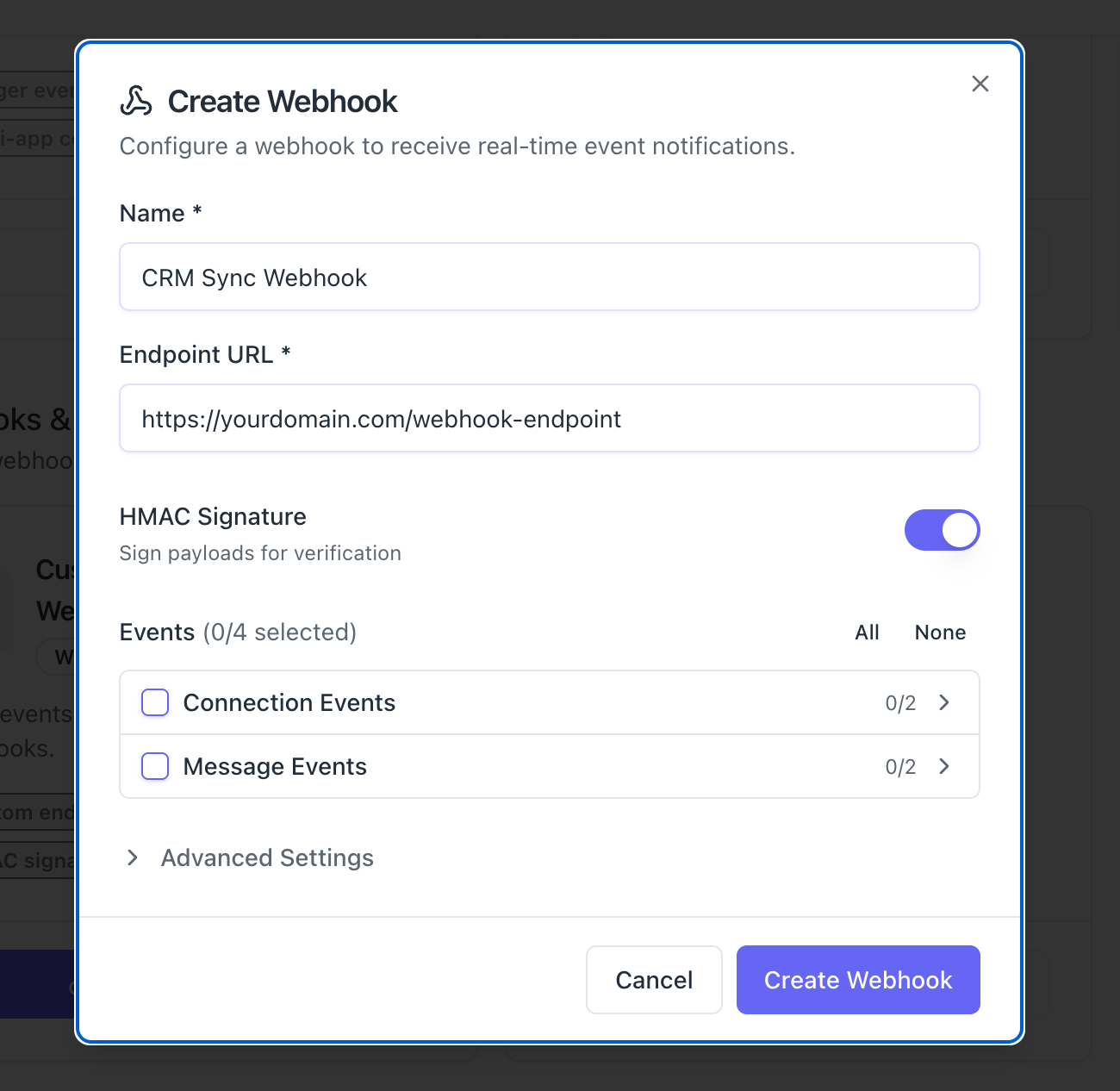
Paste the full HTTPS URL that will receive events.
Bearconnect validates the URL format. You'll see an error if the URL is malformed or uses HTTP instead of HTTPS.
Step 3: Configure HMAC Signature (Optional but Recommended)
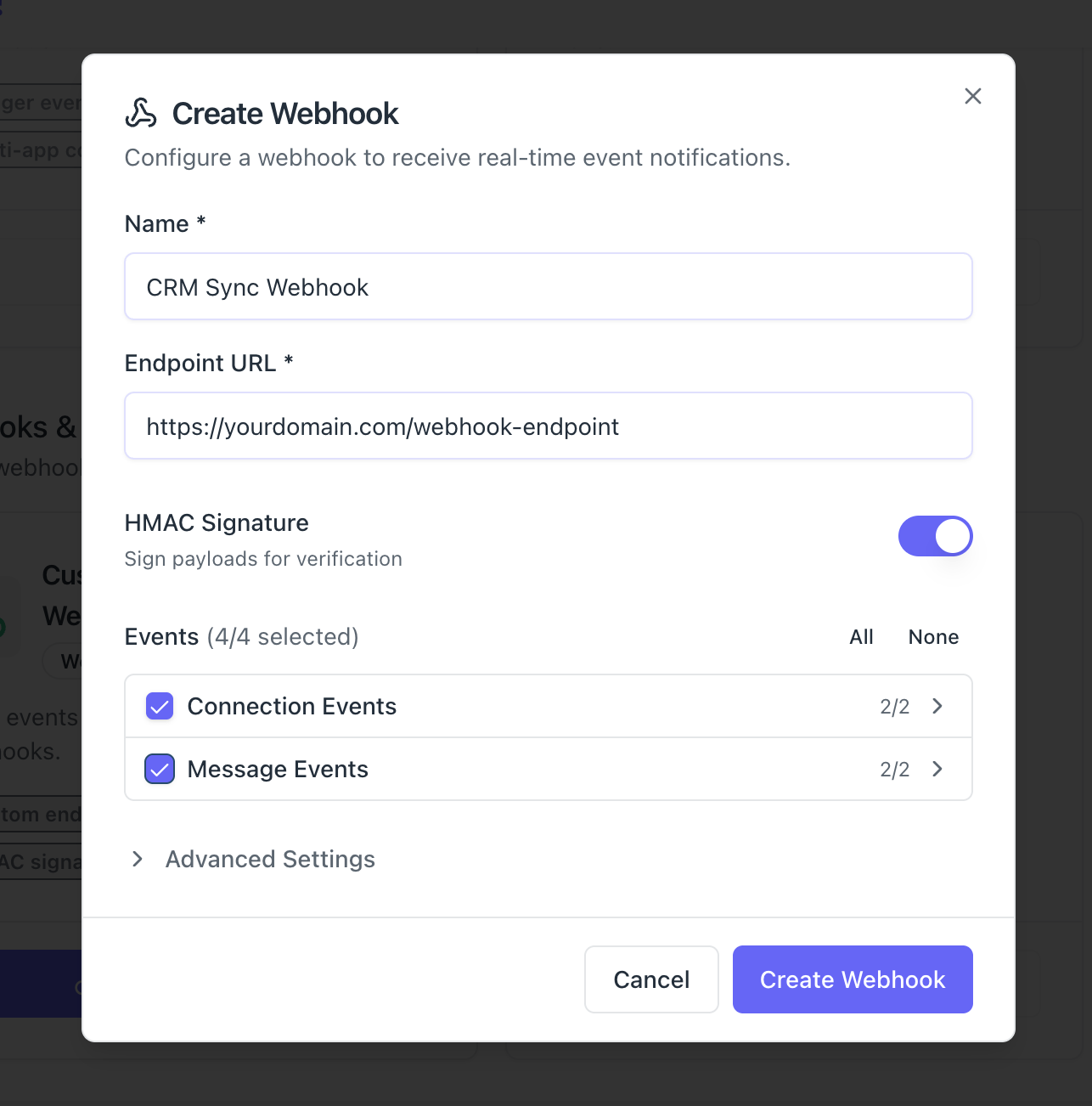
Toggle HMAC Signature on.
Bearconnect generates a signing secret automatically.
Why Enable Signatures
- Payload verification: Confirm requests genuinely come from Bearconnect
- Tamper detection: Ensure data wasn't modified in transit
- Security compliance: Meet security requirements for sensitive systems
How It Works
- Bearconnect computes an HMAC-SHA256 hash of the raw request body using your signing secret.
- The hash appears in the X-Webhook-Signature header. Your server computes the same hash and compares.
If they match, the payload is authentic and unmodified.
Step 4: Select Event Types
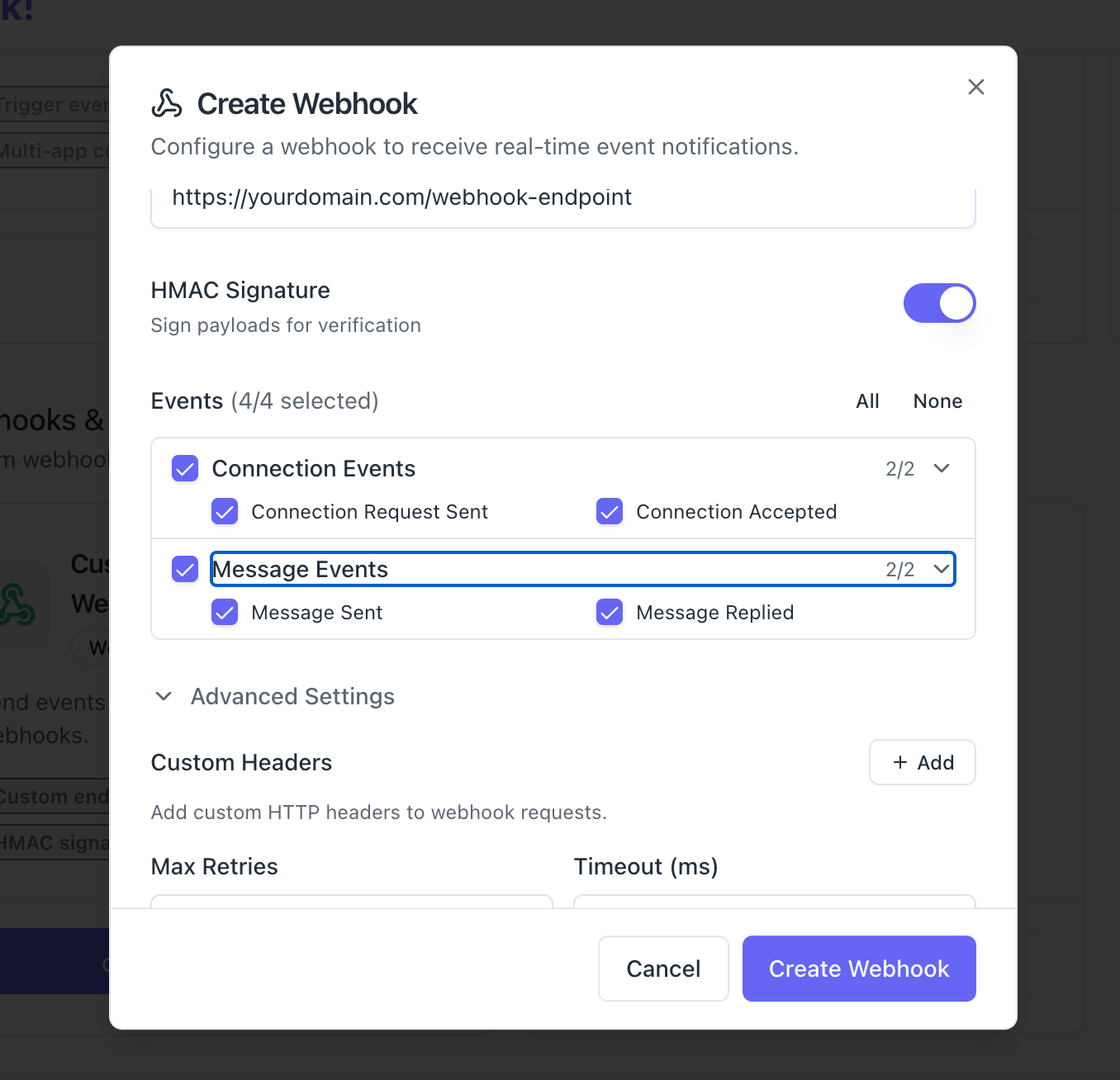
Choose which LinkedIn events this webhook should handle.
Available Event Categories
Connection Events
- Connection Request Sent
- Connection Accepted
Message Events
- Message Sent
- Message Replied
Selection Shortcuts
- Click All to select every event
- Click None to clear all selections
- Expand a category and click the category checkbox to toggle all events in that category
- Select individual events by checking specific boxes
Pro Tip: Start with 2-3 event types for testing. Expand to all events once you verify everything works.
Step 5: Advanced Settings (Optional)
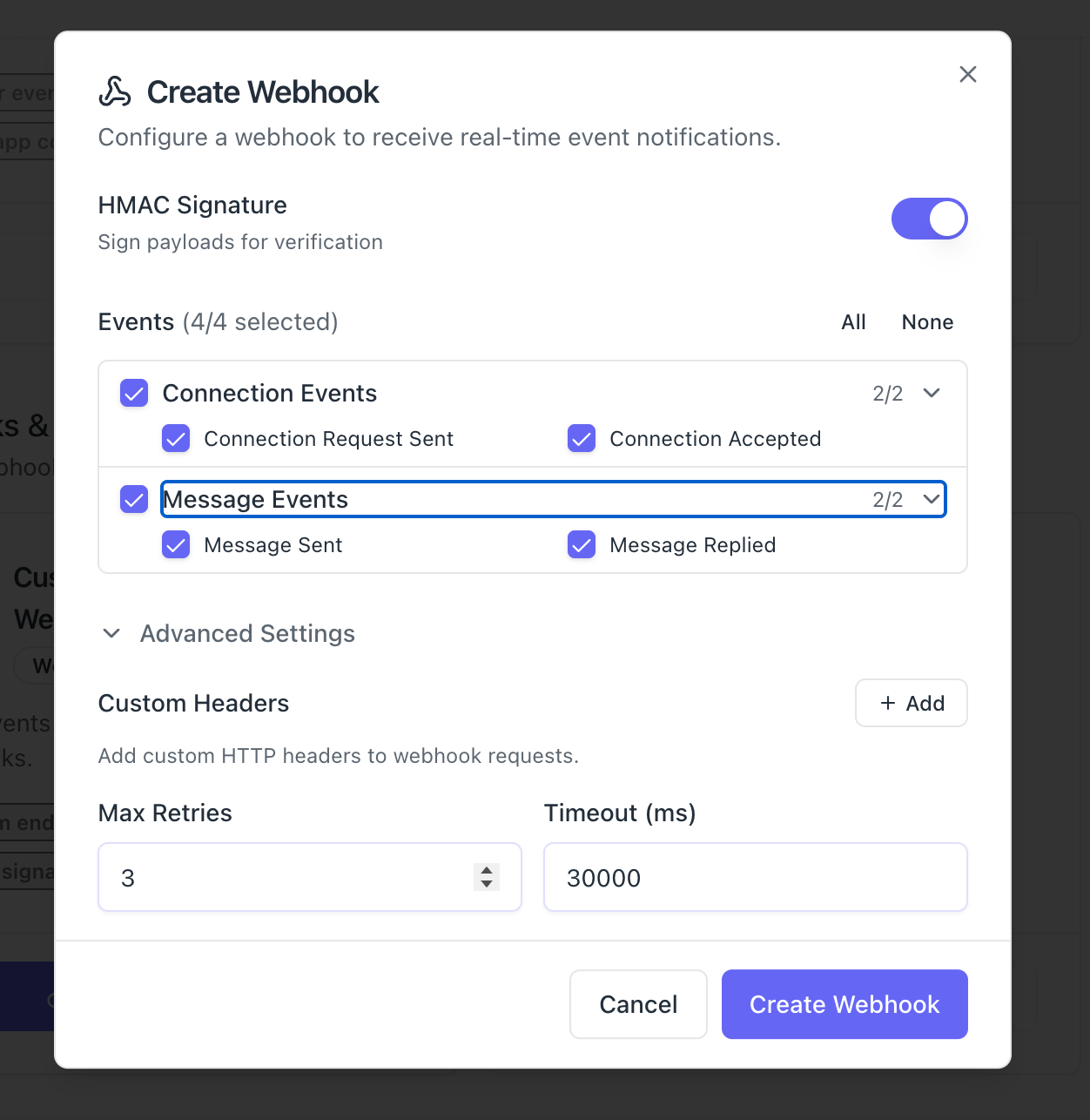
Click Advanced Settings to reveal additional options.
Custom Headers
Add HTTP headers to every webhook request.
- Common use case: Authorization tokens for secure endpoints.
- Example: Authorization: Bearer your-api-token
Max Retries (1-5)
Default is 3 retries.
How many times Bearconnect attempts delivery before marking as permanently failed.
- Increase for unreliable endpoints
- Decrease to fail fast
Timeout (5000-60000 milliseconds)
Default is 30000 (30 seconds).
How long Bearconnect waits for your server to respond before marking the delivery as failed.
- Increase for slow endpoints
- Decrease to fail fast
Advanced webhook configurations work particularly well for agencies managing multiple LinkedIn accounts or sales teams running complex outreach sequences.
Step 6: Create the Webhook
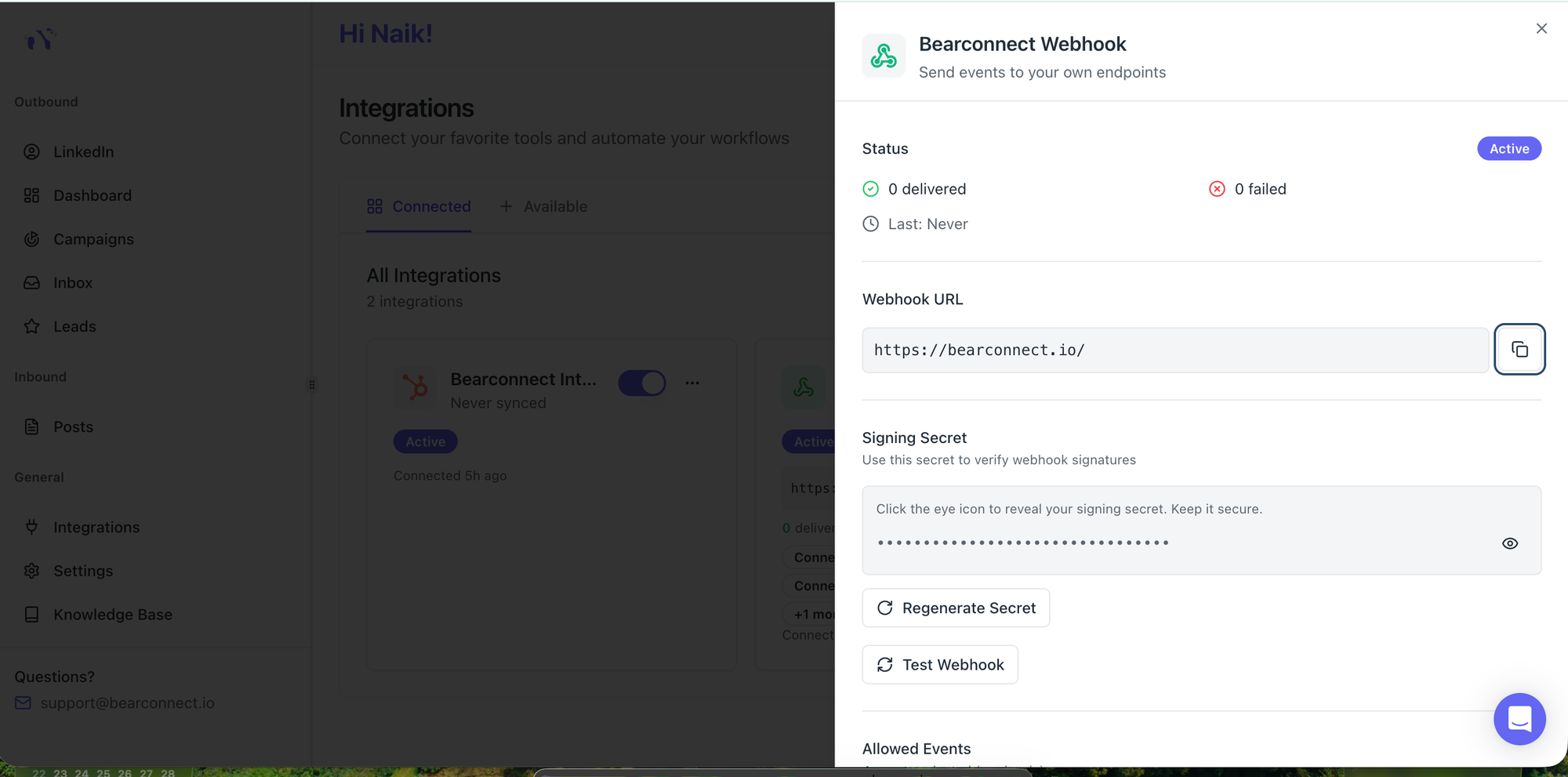
Click Create Webhook.
Bearconnect validates your configuration and creates the integration.
Your webhook appears in Connected Integrations.
Testing Your Webhook Connection
Before using your webhook in production, test it.
How to Test
Steps:
- Go to Integrations in your Bearconnect dashboard
- Click on your webhook integration
- Click Test Webhook in the detail panel
- Bearconnect sends a sample payload to your endpoint
What Happens
Your server should respond with a 2xx status code (200, 201, 202, etc.).
If successful: You'll see "Test successful" with the HTTP status code.
If it fails, the error message indicates the problem:
- Connection timeout: Your server didn't respond within the timeout period
- Connection refused: Your endpoint isn't accessible
- Non-2xx status: Your server returned an error status code
Check your server logs to debug issues.
Manually Exporting Leads via Webhook
Export individual leads on demand.
How to Export
Steps:
- Go to your Leads page
- Find the lead you want to export
- Click the three-dot action menu
- Click Export and select your webhook
The lead data sends immediately as a JSON payload to your endpoint.
Unlike HubSpot, there's no field mapping step. The full lead object sends as-is.
Managing Your Webhooks
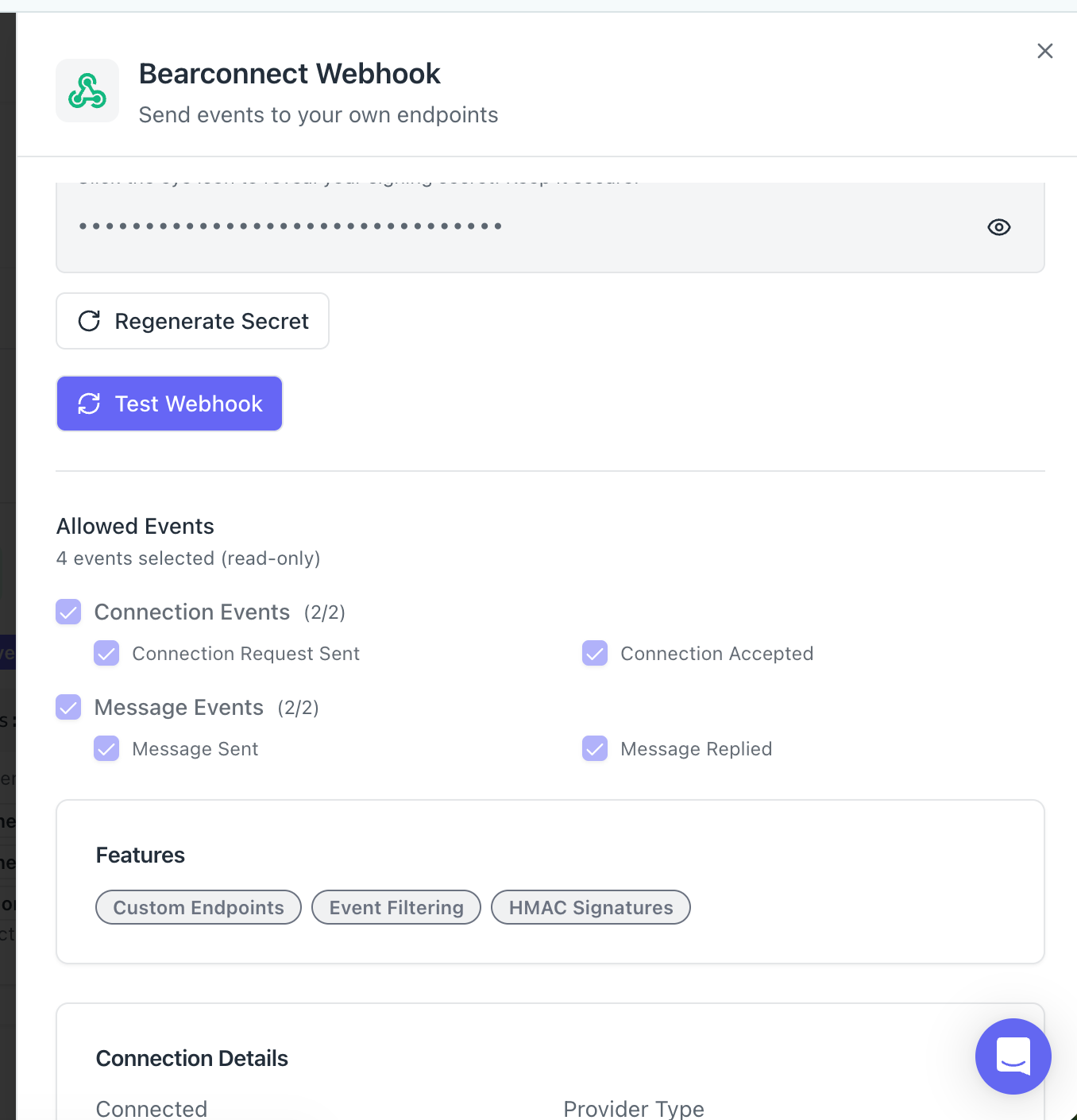
Editing Webhook Settings
Steps:
- Click your webhook in the Connected Integrations list
- Modify any setting (name, URL, events, headers, retries, timeout)
- Click Save to update
Note: Changing the URL immediately affects all future deliveries. Test the new URL before saving.
Regenerating the Signing Secret
If your secret is compromised:
Steps:
- Open the webhook detail panel
- In the Signing Secret section, click Regenerate Secret
- Confirm the action
Important: The old secret stops working immediately. Copy the new secret and update your server before regenerating.
Deleting a Webhook
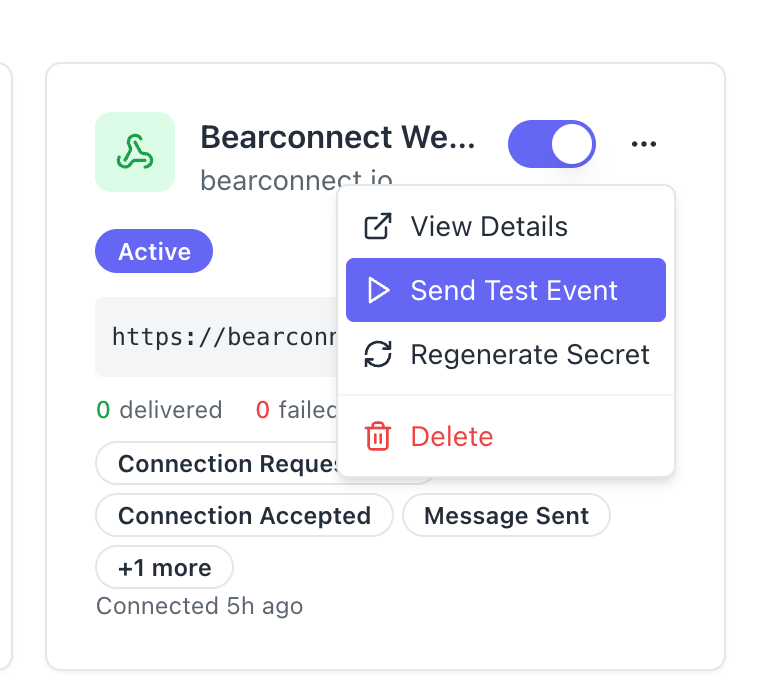
Steps:
- Click your webhook in the integrations list
- Click Delete and confirm
What happens:
- All campaign mappings using this webhook are removed
- Event forwarding stops immediately
- Delivery history is no longer tracked
- The webhook cannot be restored (you must create a new one)
Monitoring Webhook Performance
The webhook detail panel shows real-time statistics:
- Status: Active or Error
- Delivered: Total successful deliveries
- Failed: Total failed deliveries
- Last Delivery: Timestamp of most recent delivery
If there's a recent error, the error message displays in red.
Pro Tip: Check your webhook status weekly. Catch delivery failures early before they impact your workflow.
Troubleshooting Common Webhook Issues
"Test Failed" or Events Not Delivering
1. Check Your URL
Verify it's correct, uses HTTPS, and is publicly accessible (not behind a firewall without proper routing).
2. Check Your Server
Confirm it's running and responding. Use curl to test your endpoint manually.
3. Check Response Codes
Your server must return 2xx status codes. 4xx or 5xx marks the delivery as failed.
4. Check Timeout
If your server takes longer than the configured timeout to respond, increase the timeout in Advanced Settings.
Events Arriving for Wrong Event Types
Steps to fix:
- Open the campaign's Integrations tab
- Click the settings icon on your webhook mapping
- Verify only desired events are enabled
Remember: The webhook's allowed events (set during creation) determine the maximum set. Campaign enabled events must be a subset.
Deliveries Showing as "Failed" with Retries
Bearconnect retries failed deliveries automatically with exponential backoff (default 3 retries).
If all retries fail, the delivery is permanently failed.
Common causes:
- Server temporarily unavailable
- Rate limiting on your endpoint
- Server returning non-2xx status codes
Check the error message in the webhook detail panel for specifics.
FAQs
Q: Can I create multiple webhooks in Bearconnect?
Yes. Create as many webhooks as you need. Send the same events to multiple endpoints by creating multiple webhook integrations and mapping them to the same campaign.
Q: Are webhook deliveries guaranteed?
Bearconnect retries failed deliveries up to 3 times with exponential backoff. If your server is temporarily down, events retry automatically. Permanent failures are logged in the integration status panel.
Q: What happens if my webhook endpoint is down?
Bearconnect attempts delivery 3 times (configurable). If all attempts fail, the event is marked as permanently failed and appears in your error count. No automatic redelivery after final failure.
Get Started with Webhook Integration Today
Webhooks unlock unlimited integration possibilities.
Connect Bearconnect to any system in your tech stack in 5 minutes.
Ready to set up webhooks? Go to your Bearconnect integrations dashboard and create your first webhook.
Need help with implementation? Our support team responds within 24 hours at support@bearconnect.io.
Learn more about LinkedIn outreach automation and how integrations fit into your workflow.
Ready to Transform Your LinkedIn Strategy?
Join thousands of professionals already using Bearconnect to automate their outreach and grow their network.
7-day free trial • Cancel anytime
Related Articles
How to Set Up n8n Integration in Bearconnect: Build Self-Hosted LinkedIn Lead Workflows Without Code
Connect Bearconnect with n8n to automate LinkedIn lead workflows using flexible, self-hosted automation. Sync data across your CRM and tools, build custom workflows, and gain full control over your automation setup.
How to Set Up Make Integration in Bearconnect: Build Visual Lead Workflows Across Any App Without Code
Connect Bearconnect with Make to build visual LinkedIn lead workflows across your CRM, Slack, and other tools without code. Automate lead capture, streamline processes, and sync data seamlessly in real time.
How to Set Up Zapier Integration in Bearconnect: Auto-Send Leads to Your CRM, Slack, or Google Sheets
Connect Bearconnect with Zapier to automatically send LinkedIn leads to your CRM, Slack, or Google Sheets. This step-by-step guide helps you streamline workflows, reduce manual work, and capture leads in real time.