How Do I Automatically Withdraw Pending LinkedIn Connection Requests in Bearconnect?
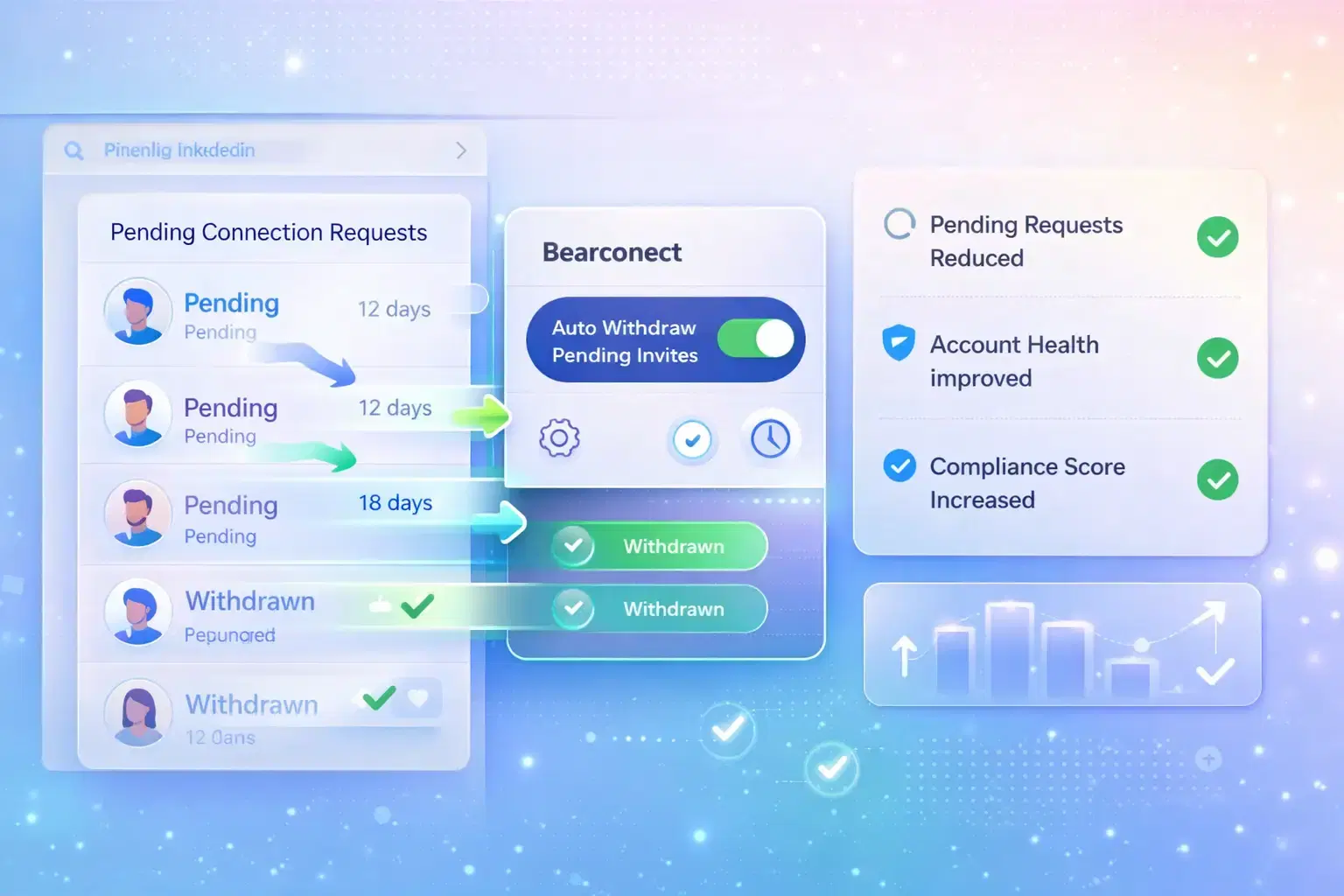
Enable automatic connection request withdrawal in Bearconnect by opening your campaign, going to the Workflow section, toggling on the Withdraw Invite option.
Setting your desired timeframe (7, 14, or 21 days), and saving your workflow to keep your LinkedIn account limits healthy.
TL;DR
- LinkedIn limits pending connection requests (typically 3,000-5,000 per account)
- Automatic withdrawal frees up space for new outreach
- Enable in Workflow section of any Bearconnect campaign
- Choose withdrawal timeframe (7, 14, or 21 days recommended)
- Keeps your account efficient without manual work
Why LinkedIn Limits Pending Connection Requests
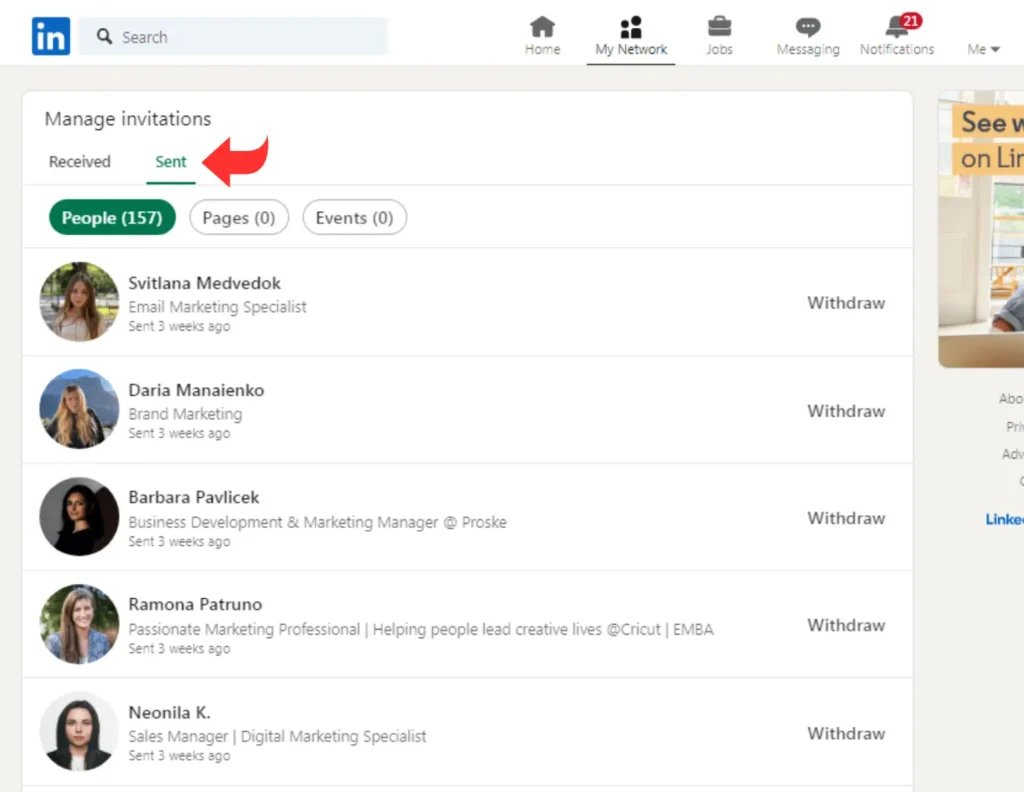
LinkedIn restricts how many pending connection requests your account can have simultaneously.
The exact limit varies by account age, activity level, and history. Most accounts can have 3,000 to 5,000 pending invites.
What happens when you hit the limit:
- You can't send new connection requests.
- Your outreach stops completely.
- You must manually withdraw old requests one by one.
- Your campaign performance drops to zero.
Understanding LinkedIn automation safety limits prevents this bottleneck entirely and this bottleneck kills LinkedIn automation efficiency.
The Manual Withdrawal Problem
Before automatic withdrawal, you had two bad options:
Option 1: Let requests pile up
Your pending invite count grows until you hit LinkedIn's limit. Then your outreach stops.
Option 2: Manually withdraw requests
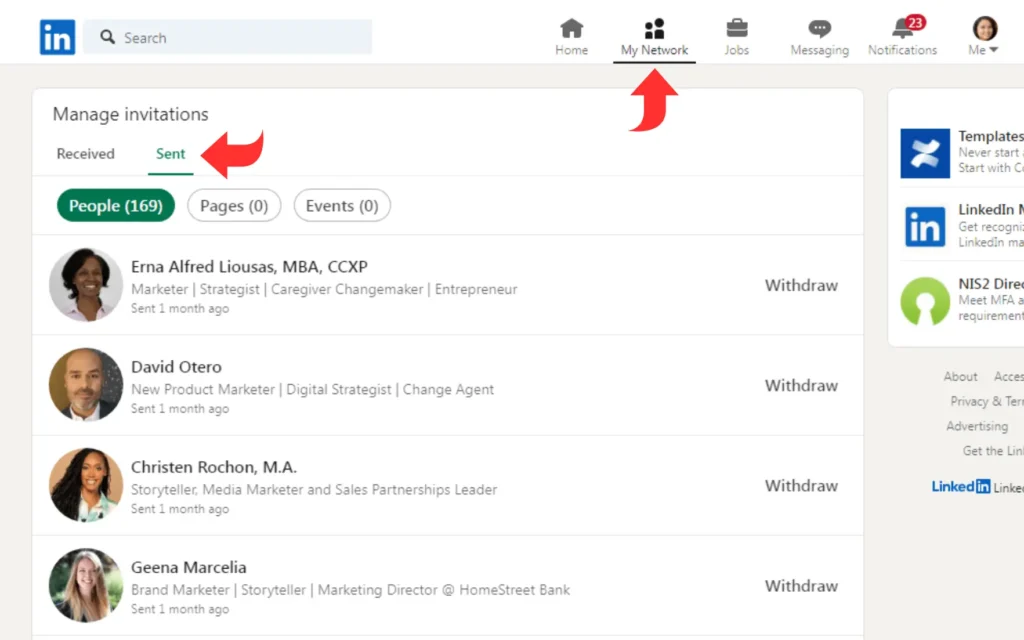
- Log into LinkedIn, go to My Network, filter pending invites, and withdraw them one by one.
- This takes 30-60 minutes weekly.
- Neither option scales.
- Bearconnect's automatic withdrawal solves this permanently.
This manual work consumes time you could spend on actual sales conversations. LinkedIn automation saves 10-15 hours weekly when configured properly.
How Automatic Withdrawal Works
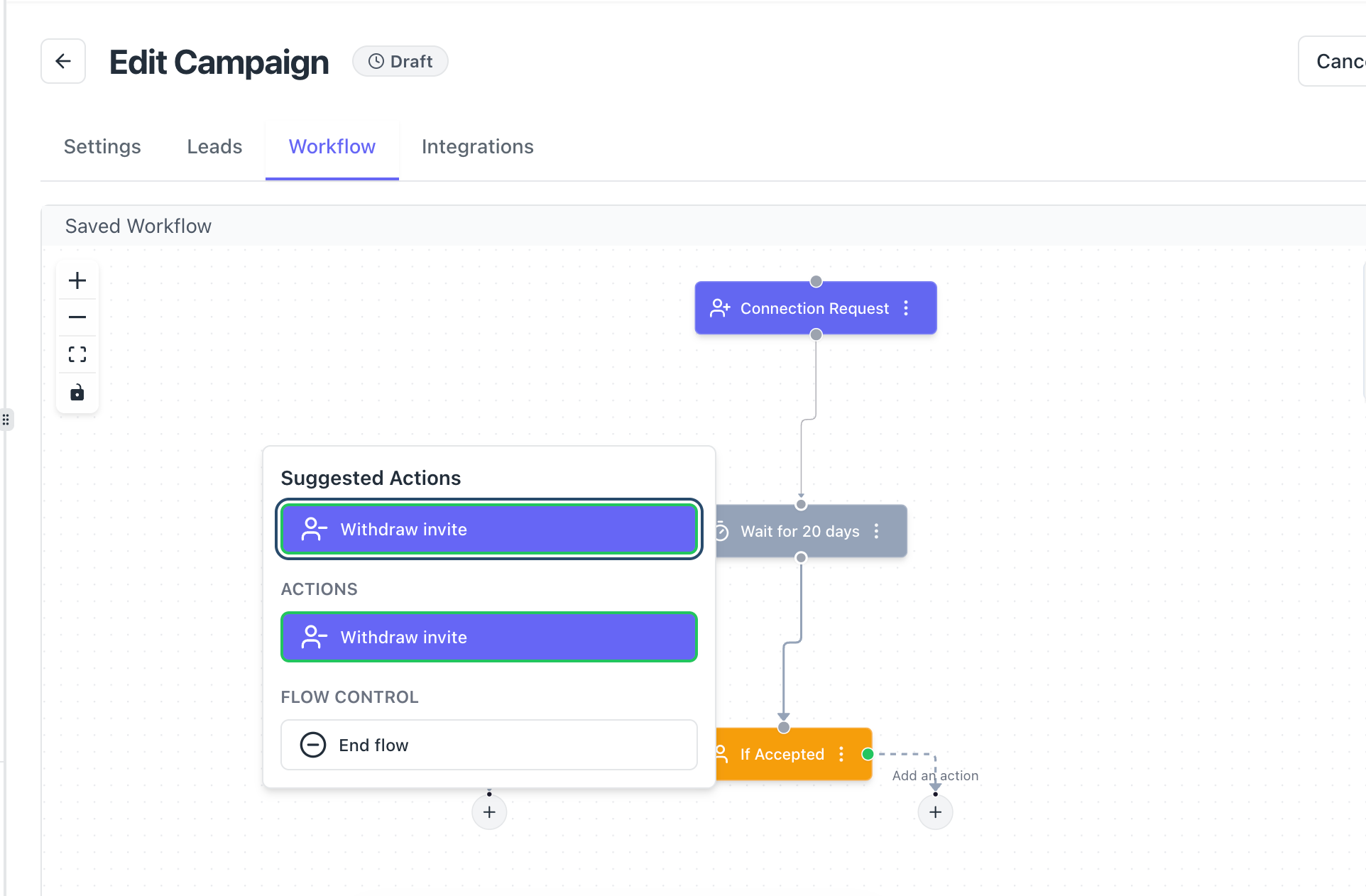
Bearconnect monitors every connection request you send through the platform.
If someone doesn't accept within your specified timeframe, Bearconnect automatically withdraws the request.
The process:
- You send a connection request through a Bearconnect campaign
- Bearconnect tracks the request and starts a timer
- If the prospect accepts, the timer stops (no withdrawal)
- If your timeframe passes without acceptance, Bearconnect withdraws the request automatically
- Your pending invite count decreases
- You can send new connection requests
This happens in the background. No manual work required.
This feature is essential when scaling your LinkedIn automation over 90 days across multiple campaigns.
Step-by-Step Setup Guide
Step 1: Open Your Campaign
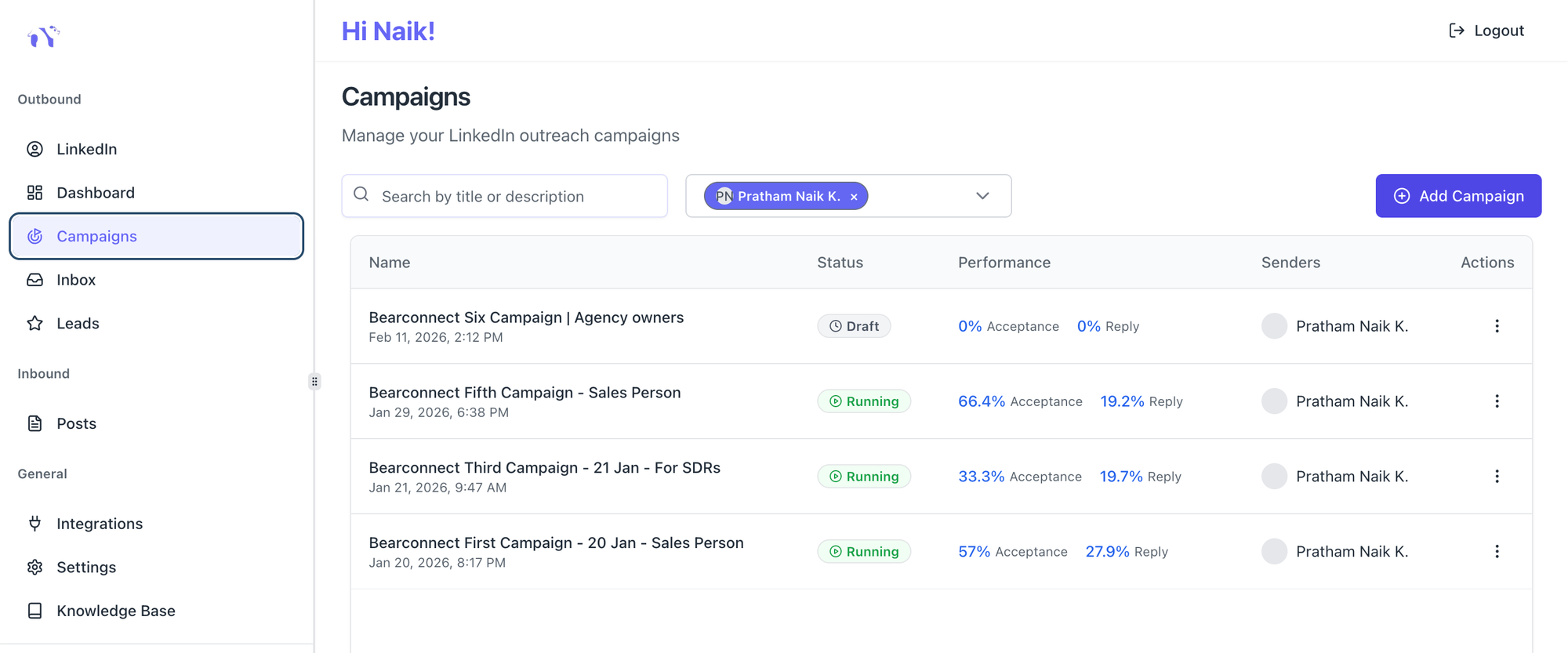
- Log into your Bearconnect dashboard.
- Navigate to your Campaigns page.
- Click on the campaign where you want to enable automatic withdrawal.
Pro Tip: Enable this feature on all active campaigns. Consistent account management prevents limit issues.
New to campaigns? Follow our 9-step guide to setting up LinkedIn automation for B2B lead generation before enabling advanced features.
Step 2: Access Workflow Settings
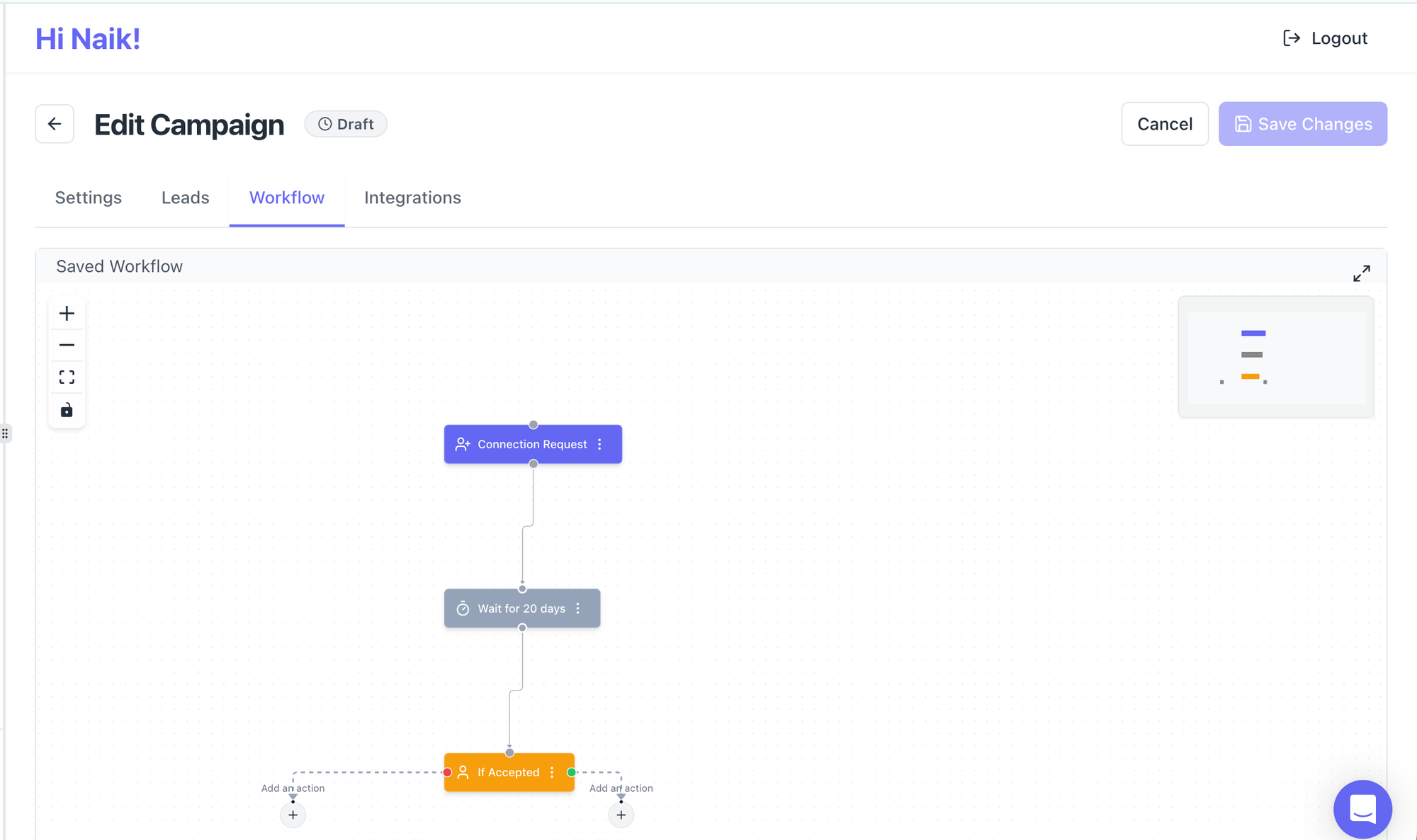
- Inside your campaign, click on the Workflow tab.
- This is where you configure your campaign's automation sequence.
You'll see your existing workflow steps (connection request, follow-up messages, delays, etc.).
Step 3: Enable Withdraw Invite
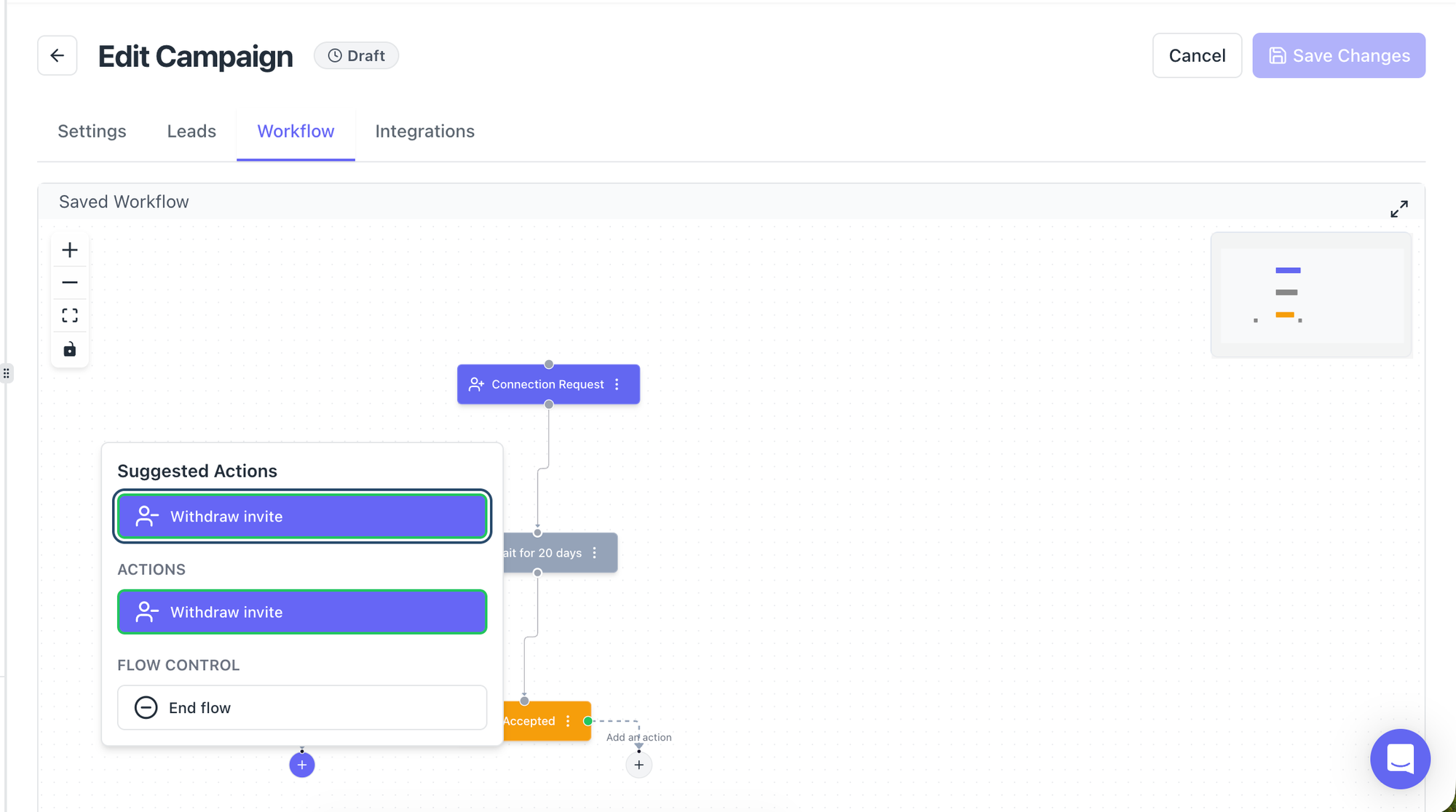
- Scroll through your workflow steps.
- Find the Withdraw Invite option.
- Toggle it on.
The option appears as a switch or checkbox depending on your interface.
Step 4: Set Your Timeframe
A timeframe selector appears when you enable withdrawal.
Common timeframe options:
- 7 days: Aggressive withdrawal (good for high-volume campaigns)
- 14 days: Balanced approach (recommended for most users)
- 21 days: Conservative withdrawal (gives maximum response time)
- 30 days: Extended timeframe (for slow-response industries)
Choosing the right timeframe:
- Consider your industry. B2B executives may take longer to respond than mid-level professionals.
- Check your campaign stats. If most acceptances happen within 10 days, 14 days is safe.
- Start conservative (21 days), then shorten as you gather data.
Step 5: Save Your Workflow
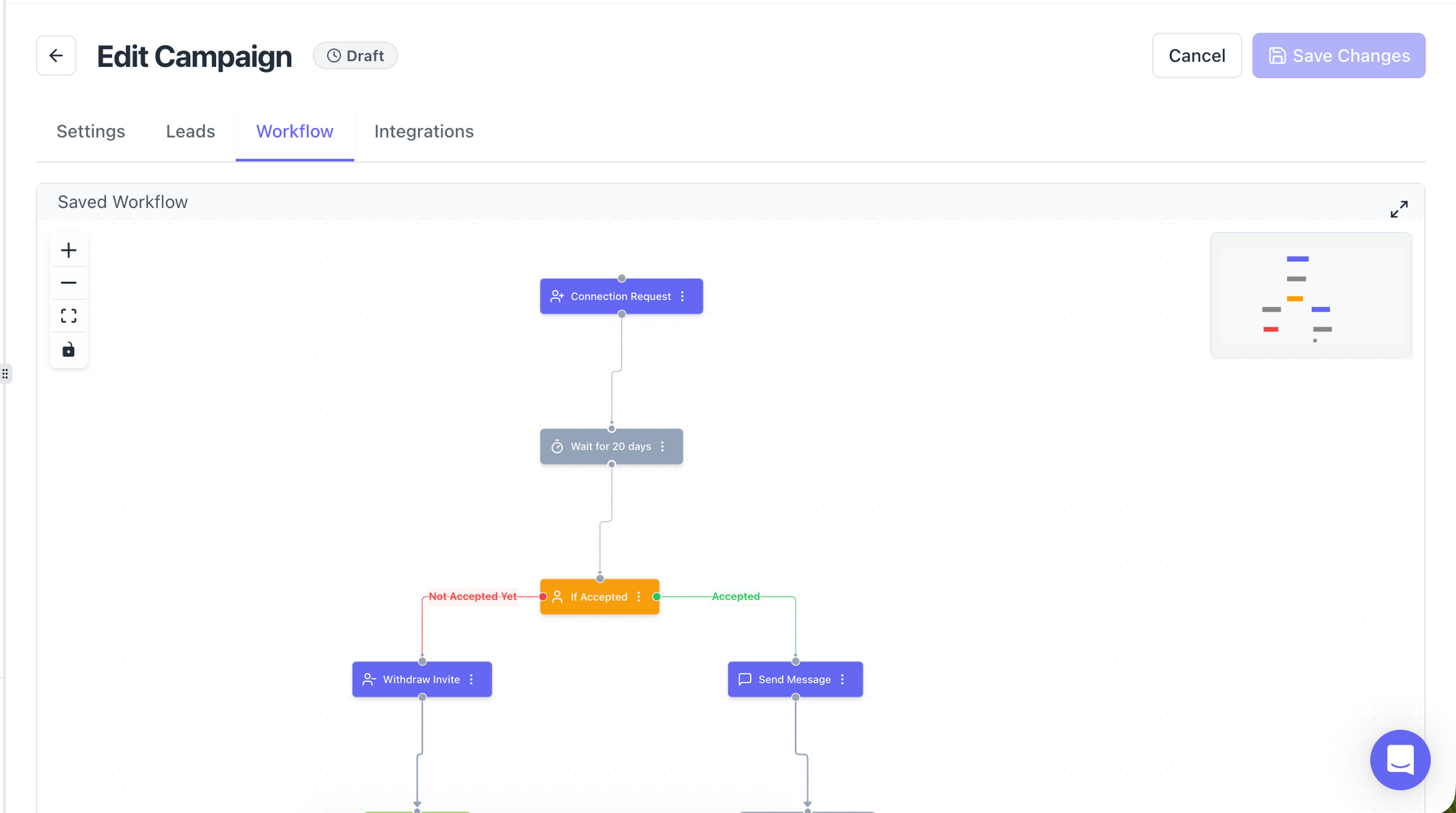
Click Save or Update Workflow.
The withdrawal automation activates immediately for new connection requests.
Important: Automatic withdrawal only affects connection requests sent after you enable the feature. Existing pending requests from before you enabled it are not affected.
What Happens to Withdrawn Invites
For You
- Your pending invite count decreases: LinkedIn subtracts the withdrawn request from your total pending invites.
- You free up capacity: You can send new connection requests to replace the withdrawn ones.
- Your account stays healthy: You never hit LinkedIn's pending invite limit.
- You can re-engage later: Withdrawing a request doesn't permanently block you from connecting with that person.
For the Prospect
1. The connection request disappears
Your connection request no longer appears in their pending invites.
2. They don't receive a notification
LinkedIn doesn't notify them that you withdrew the request.
3. You can send a new request later
If you want to re-engage, send a new connection request. LinkedIn doesn't penalize this.
Use personalized connection requests when you re-engage to improve acceptance rates.
Choosing the Right Withdrawal Timeframe
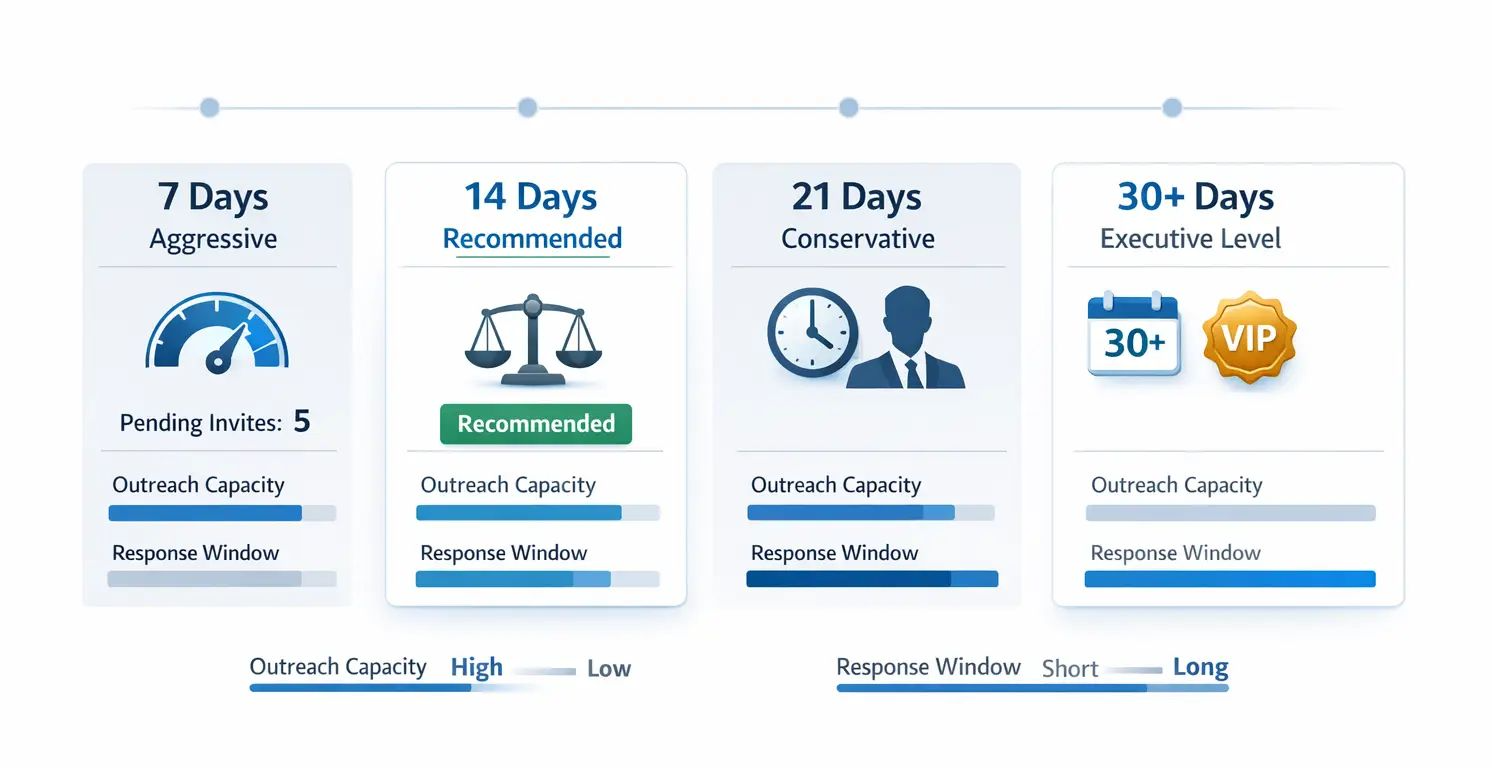
7-Day Withdrawal
Best for:
- High-volume outreach campaigns
- Industries with quick response times (tech, startups, marketing)
- Campaigns targeting active LinkedIn users
Pros:
- Keeps pending invite count very low
- Maximizes outreach capacity
- Fast iteration on non-responsive prospects
Cons:
- May withdraw before busy professionals see the request
- Shorter window for acceptance
14-Day Withdrawal (Recommended)
Best for:
- Most B2B outreach campaigns
- Balanced approach between capacity and response time
- General sales prospecting
Pros:
- Gives prospects reasonable time to respond
- Still keeps pending invite count manageable
- Works well for most industries
Cons:
- Not as aggressive as 7-day withdrawal
Why 14 days works:
Most LinkedIn users check their inbox weekly. 14 days provides two check-in opportunities.
21-Day Withdrawal
Best for:
- Executive-level outreach
- Industries with slower response times (finance, healthcare, government)
- Campaigns targeting busy decision-makers
Pros:
- Maximum response window
- Accounts for vacation and busy periods
- Conservative approach minimizes missed opportunities
Cons:
- Pending invite count stays higher
- Slower campaign optimization
30+ Day Withdrawal
Best for:
- Very high-level executive outreach
- Highly selective campaigns (not high volume)
- Industries with extremely slow response times
Pros:
- Nearly eliminates risk of premature withdrawal
Cons:
- Pending invites accumulate quickly
- May still hit LinkedIn limits on high-volume campaigns
This timeframe aligns perfectly with standard LinkedIn outreach sequences used by sales teams.
Optimizing Your Withdrawal Strategy
Start Conservative, Then Optimize
- Begin with 21-day withdrawal for your first 2 weeks.
- Monitor your campaign stats. Check when most acceptances occur.
- If 90% of acceptances happen within 10 days, shorten to 14 days.
- If acceptances continue past 14 days, keep 21-day timeframe.
Segment by Campaign Type
Use different timeframes for different campaigns:
- Cold outreach to mid-level professionals: 14 days
- Cold outreach to executives: 21 days
- Warm prospecting (mutual connections): 7 days
- Event-based outreach: 7-14 days
Different audiences require different approaches. Learn how LinkedIn automation works across different industries to set optimal timeframes.
Monitor Your Pending Invite Count
Check your LinkedIn pending invite count weekly.
If it's growing despite auto-withdrawal:
- Shorten your withdrawal timeframe
- Reduce your daily connection request volume
- Check if campaigns are running on multiple tools
If it's staying very low (under 100):
- You can safely increase daily connection request volume
- Your withdrawal timeframe is working well
Combining Auto-Withdrawal with Other Features
1. With Campaign Stats
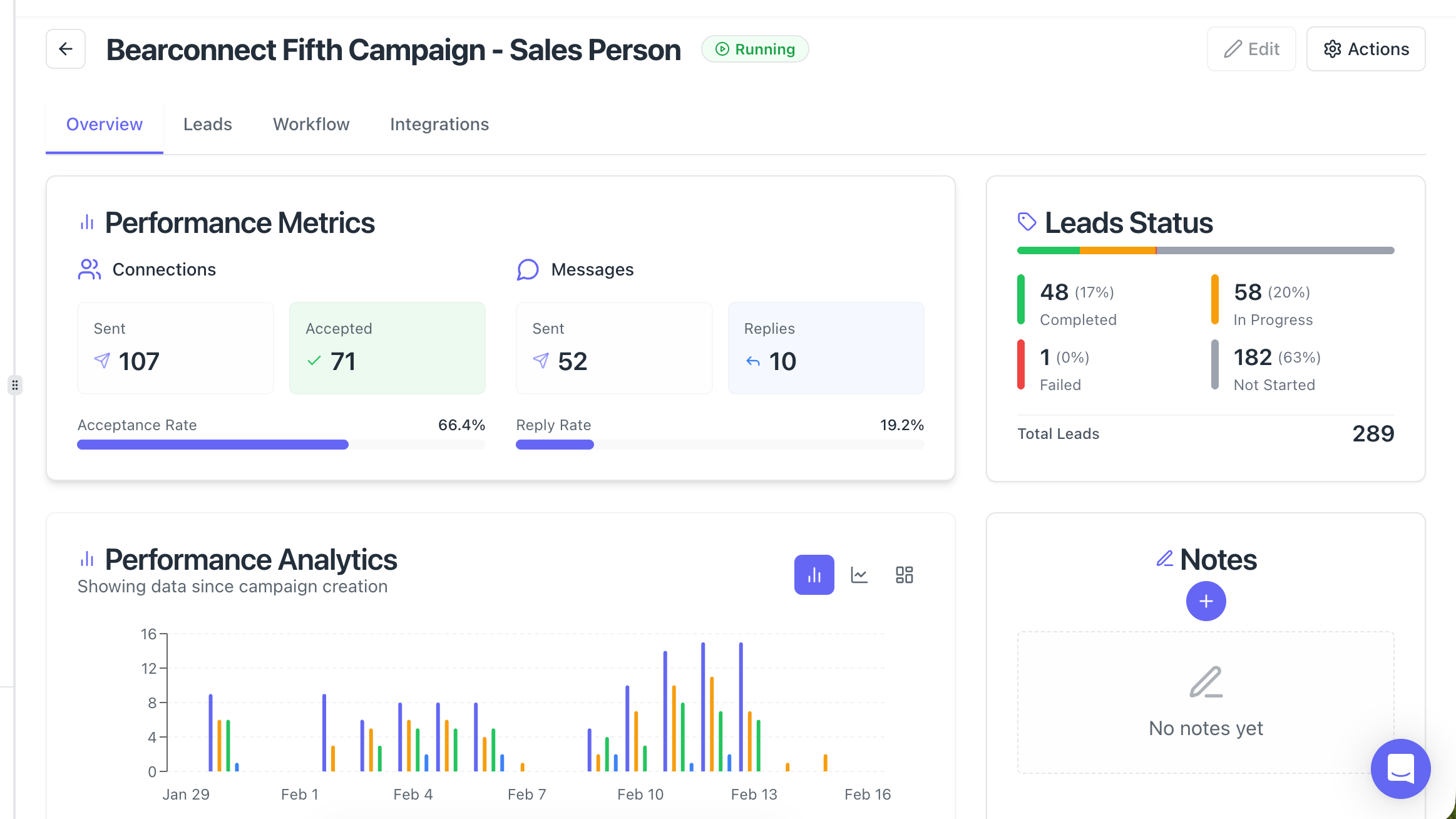
Use Bearconnect's improved campaign stats to identify:
- Which prospects accepted (keep engaging)
- Which prospects replied (priority follow-up)
- Which prospects were withdrawn (potential re-engagement list)
Track everything in your unified inbox for centralized management.
2. With HubSpot Integration
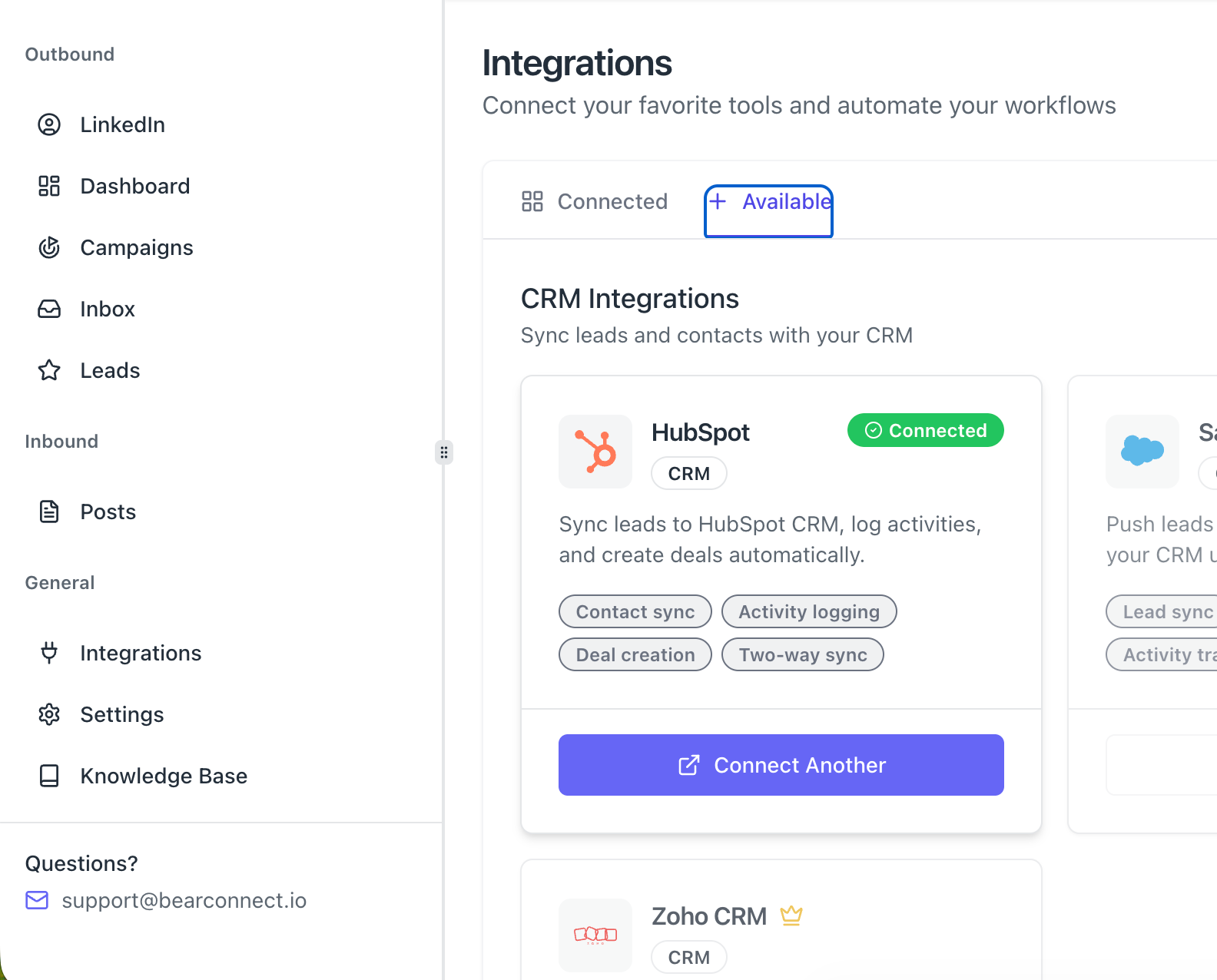
Track withdrawn requests in your CRM.
When auto-withdrawal occurs, log it in HubSpot as a specific event.
Create follow-up workflows for withdrawn prospects (re-engage in 60-90 days with different messaging).
Common Misconceptions About Withdrawal
"Withdrawing requests will hurt my LinkedIn reputation"
False. LinkedIn doesn't penalize accounts for withdrawing connection requests.
Withdrawal is a standard feature built into LinkedIn. Using it doesn't trigger any account restrictions.
"Withdrawn prospects can never connect with me"
False. Withdrawing a request simply removes it from their inbox.
You can send a new request later. They can also find your profile and send you a request.
"I should never withdraw because they might still accept"
Partially false. While some acceptances happen after 21+ days, data shows 85-90% of acceptances occur within 14 days.
Holding pending requests for months risks hitting LinkedIn limits and stopping all outreach.
"Automatic withdrawal is the same as LinkedIn's built-in feature"
Partially true. LinkedIn has a native withdrawal feature, but it's manual and time-consuming.
Bearconnect automates the process based on your rules, saving hours weekly.
Best practices for safe automation
Keep your daily connection request volume within LinkedIn's limits (typically 20-25 per day depending on account age).
Use personalized messages for better engagement.
Don't send requests to profiles outside your target audience.
Monitor your acceptance rate. If it drops below 20%, improve targeting or messaging before scaling volume.
Learn more about LinkedIn automation safety.
Troubleshooting Auto-Withdrawal Issues
"Requests aren't being withdrawn automatically"
Check these four things:
- The Withdraw Invite toggle is turned on in your workflow
- Your campaign is active (not paused)
- The timeframe has actually passed since the request was sent
- The request wasn't accepted or withdrawn manually
If all four check out and withdrawal still isn't happening, contact support.
"Withdrawal is happening too quickly"
Double-check your timeframe setting in the workflow.
If you set 7 days but meant 14 days, update it and save.
Changes apply to future connection requests, not retroactively.
"My pending invite count is still growing"
You may be sending requests from multiple sources (Bearconnect plus manual LinkedIn activity or another tool).
Auto-withdrawal only manages requests sent through Bearconnect campaigns.
Check your other outreach channels.
"I want to withdraw old requests sent before I enabled this feature"
Automatic withdrawal doesn't apply retroactively.
For existing pending requests, you have two options:
- Manually withdraw them in LinkedIn (My Network, Manage Invitations)
- Wait for them to age out or get accepted naturally
Going forward, all new requests sent through Bearconnect campaigns will use auto-withdrawal.
Pro Tips for Maximum Effectiveness
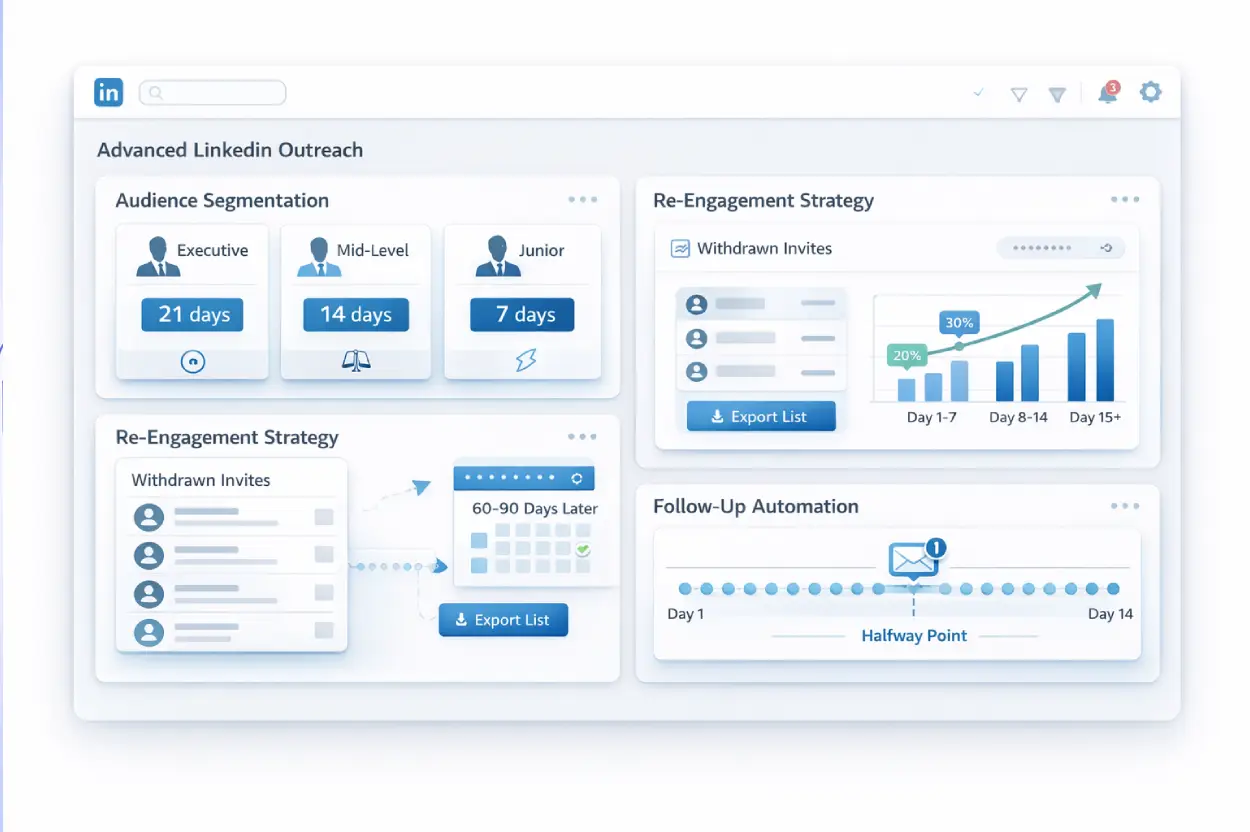
Tip 1: Set different timeframes for different audience segments
Executives get 21 days. Mid-level professionals get 14 days. Junior staff get 7 days.
Tip 2: Re-engage withdrawn prospects strategically
Export your withdrawn prospect list monthly. Re-engage in 60-90 days with completely different messaging that doesn't get ignored.
Tip 3: Monitor acceptance rates by timeframe
Track what percentage of acceptances happen in days 1-7, 8-14, and 15+. Optimize your timeframe based on data.
Tip 4: Combine with follow-up messages
Send a follow-up message at the halfway point of your withdrawal timeframe. Example: If using 14-day withdrawal, send a follow-up on day 7.
FAQs
Q: Will automatic withdrawal hurt my connection acceptance rate?
No. Withdrawing old pending requests actually improves your account health and lets you focus on fresh, engaged prospects who are more likely to accept.
Q: Can I manually withdraw specific requests even with auto-withdrawal enabled?
Yes. Auto-withdrawal doesn't prevent manual withdrawal. You can still manually withdraw any connection request through LinkedIn or Bearconnect.
Q: What happens if someone accepts the request right before auto-withdrawal was scheduled?
The acceptance happens first. Bearconnect only withdraws requests that are still pending when the timeframe expires.
Q: Does automatic withdrawal work for connection requests sent outside of Bearconnect?
No. Auto-withdrawal only manages requests sent through Bearconnect campaigns. Requests sent manually through LinkedIn or other tools are not affected.
Q: Can I change the withdrawal timeframe after enabling it?
Yes. Update the timeframe in your workflow settings anytime. The new timeframe applies to connection requests sent after you save the change.
Get Started with Automatic Withdrawal Today
Stop manually managing pending connection requests. Let Bearconnect handle it automatically. Ready to optimize your LinkedIn account health?
Log into your Bearconnect dashboard, open any campaign, and enable auto-withdrawal in the Workflow section.
Questions? Our support team responds within 24 hours at support@bearconnect.io.
Ready to Transform Your LinkedIn Strategy?
Join thousands of professionals already using Bearconnect to automate their outreach and grow their network.
7-day free trial • Cancel anytime
Related Articles

How B2B Sales Teams Close More Deals by Automating LinkedIn Outreach?
Automate LinkedIn outreach to help B2B sales teams generate leads, start conversations, and close more deals faster with proven strategies.
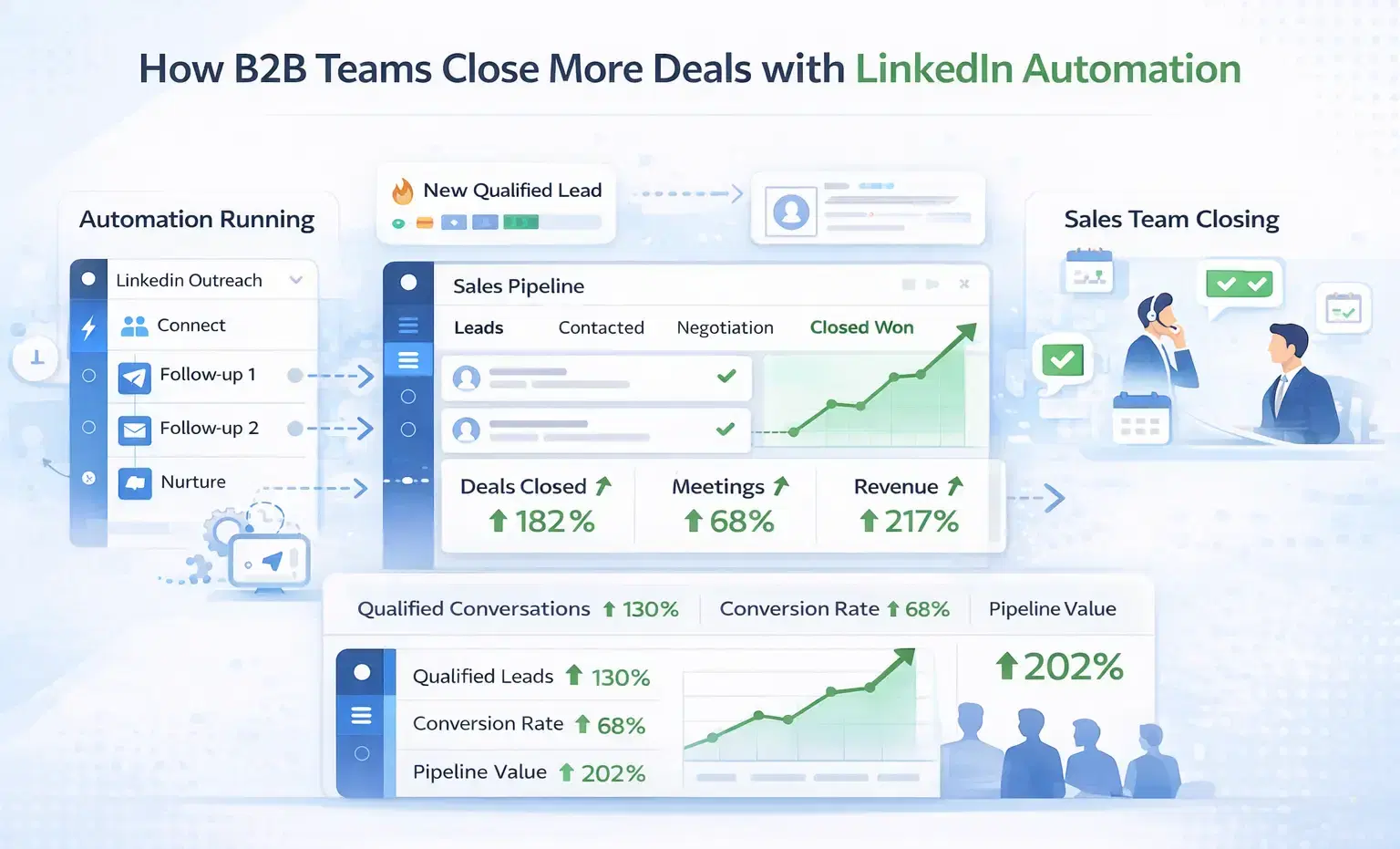
How B2B Sales Teams Close More Deals by Automating LinkedIn Outreach?
B2B sales teams waste hours on manual LinkedIn outreach. Automation fixes that more meetings, less grind, better conversions at scale.
How Can SDRs Book More Meetings Using LinkedIn Automation?
SDRs can book more meetings with LinkedIn automation by streamlining outreach, automating follow-ups, and scaling conversations without manual effort.