How to Add Promotion on LinkedIn: Complete Guide + Best Practices (2026)
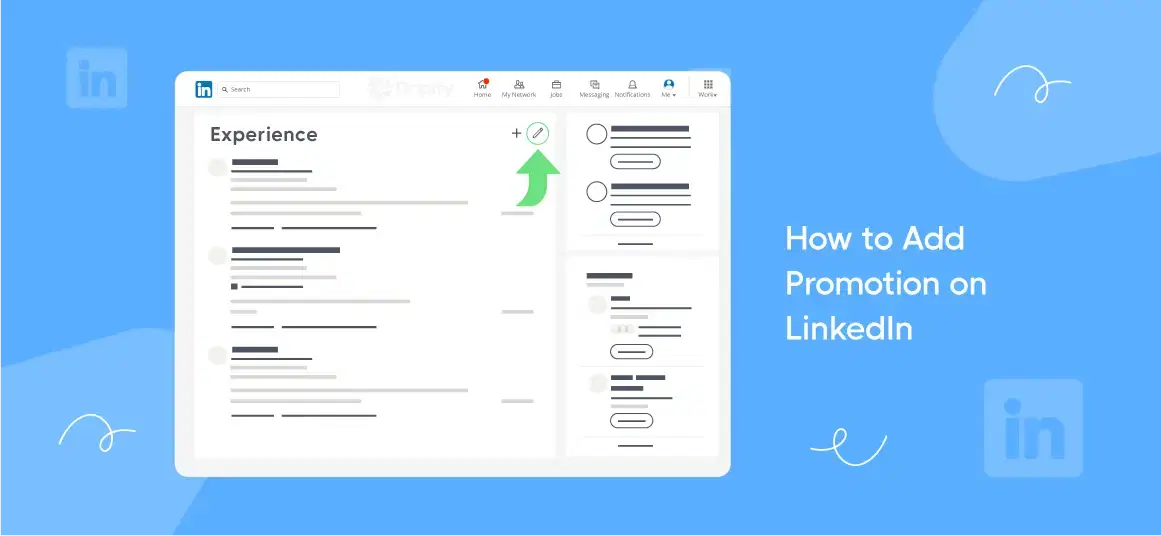
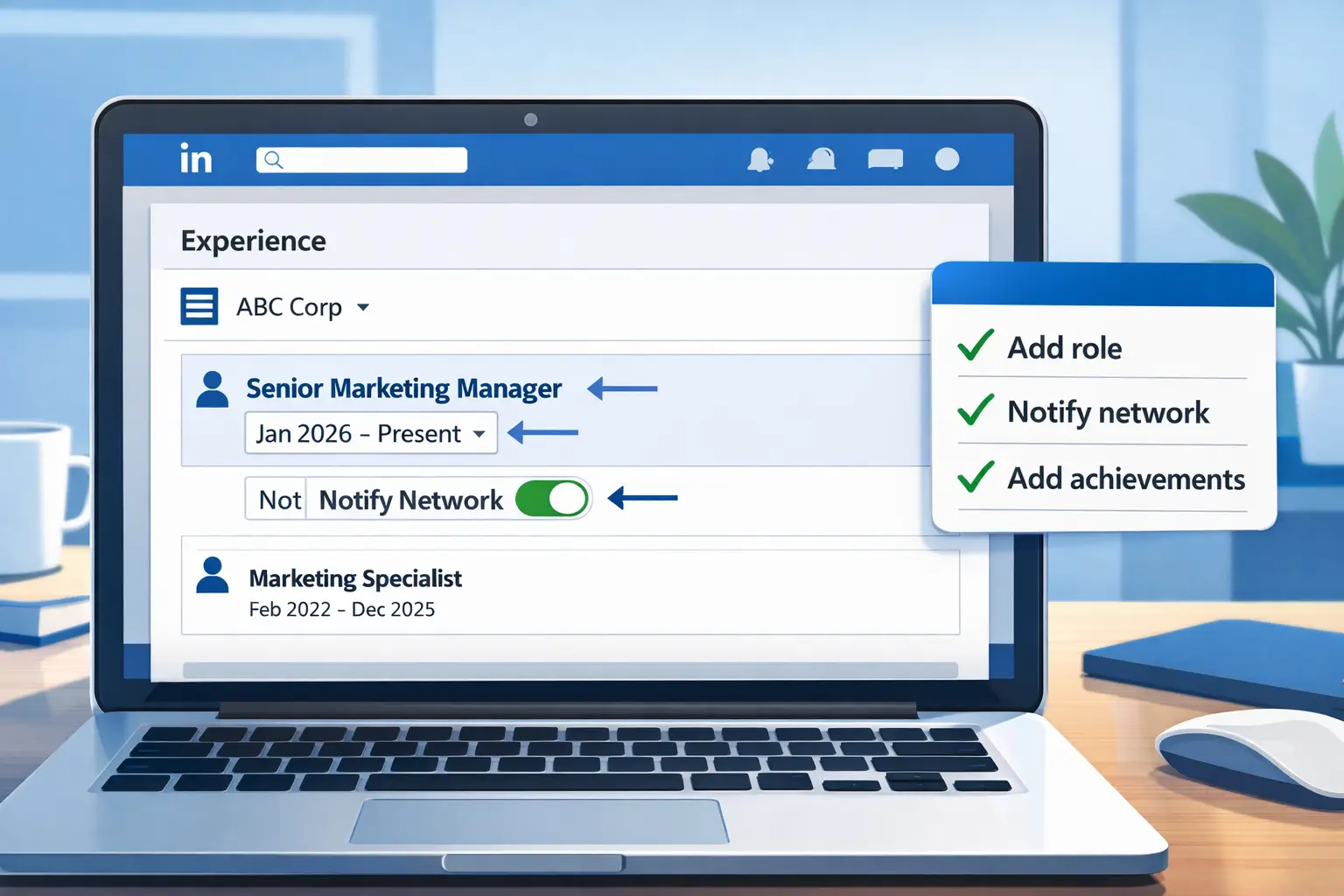
You can add a promotion by editing your experience section, updating your job title, and enabling "Notify network".
Then optimize the description so it highlights growth, not just a new title.
TL;DR Summary
Adding a promotion on LinkedIn requires strategic action beyond simply updating your title. Here's the quick version:
- Update your Experience section by adding a new role or marking it as a promotion
- Turn on "Notify network" so followers see the update in their feeds
- Write a short, achievement-focused description with measurable results
- Add media like metrics, portfolio pieces, or certificates to increase engagement
- Share a separate post explaining the promotion story for more reach
What Counts as a "Promotion" on LinkedIn?
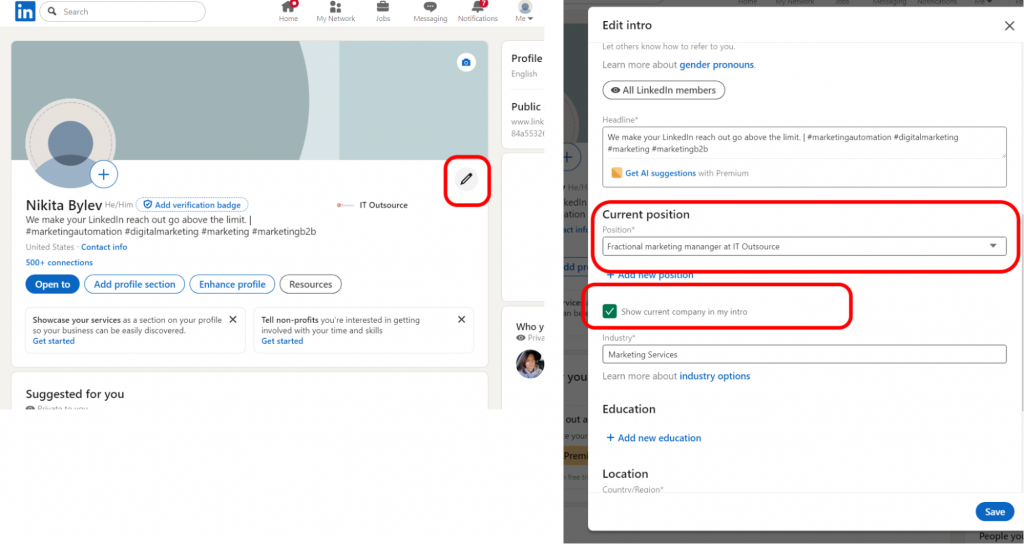
Not every job change qualifies as a promotion. LinkedIn recognizes specific career moves that demonstrate growth.
Your update counts as a promotion when:
- Your title changes within the same company
- Your responsibilities expand or you begin leading a team
- You transition from contract to full-time employment
- Internal lateral moves include higher impact or strategic responsibilities
Understanding this distinction helps you decide whether to update your profile or wait for a more significant change.
Should You Add a Promotion as a New Role or Edit the Old One?
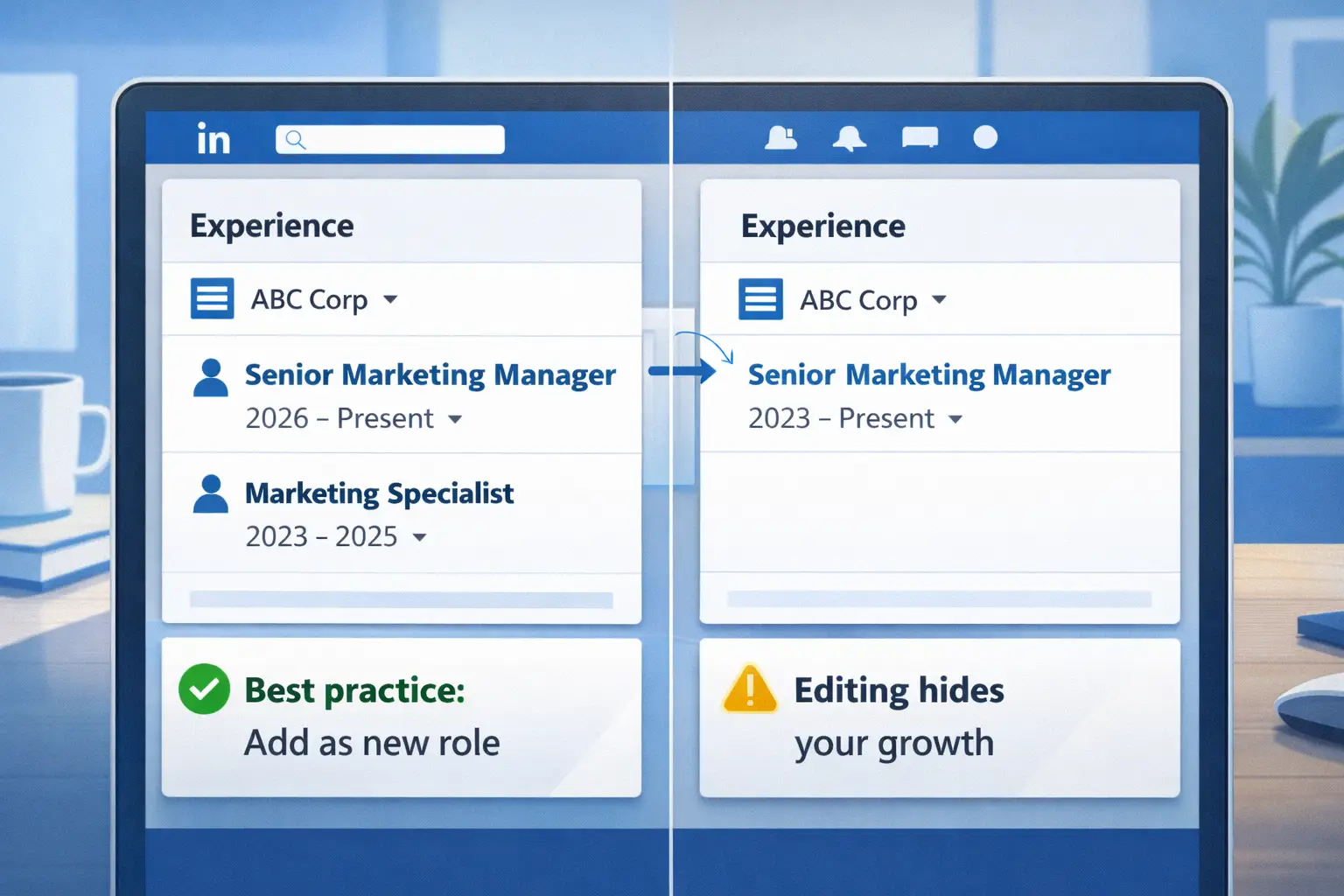
- Short answer: Add it as a new position under the same company, not as an edit.
Why it matters:
It shows your growth path and timeline clearly. LinkedIn groups positions automatically under the same company name, creating a visual progression that recruiters love.
When to Create a New Position
- Title change (e.g., Executive to Manager)
- Salary band change
- Scope expansion with new responsibilities
- Department or team leadership shifts
When Editing the Same Role Is Fine
- Minor title wording adjustments
- Clarifying job function only
- Adding forgotten details to existing role
Creating separate entries maintains authenticity and showcases your career trajectory better than editing.
Step-by-Step: How to Add a Promotion on LinkedIn (Desktop)
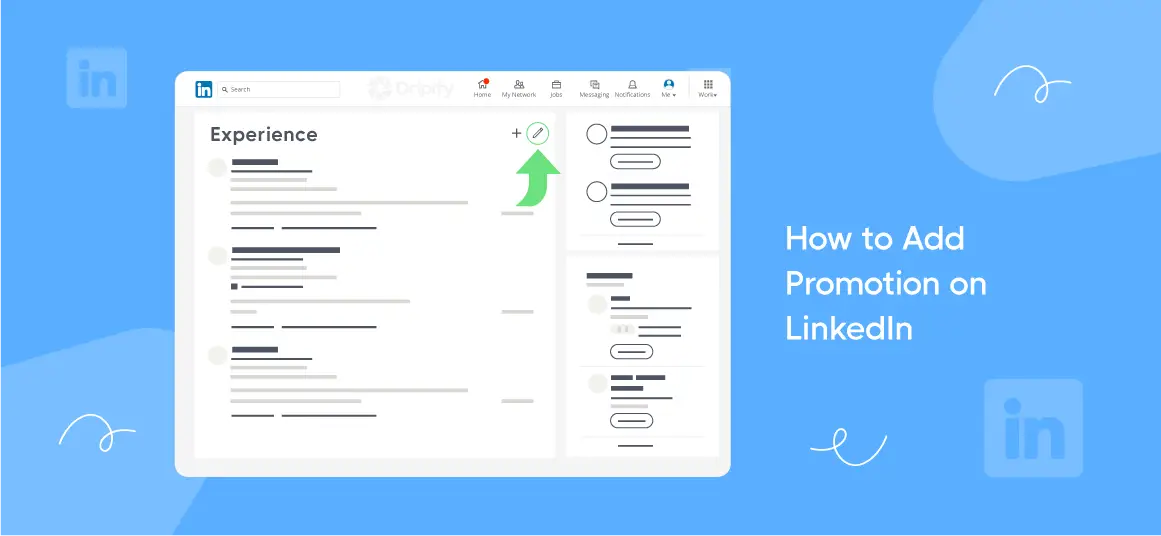
Step 1: Go to Experience Section
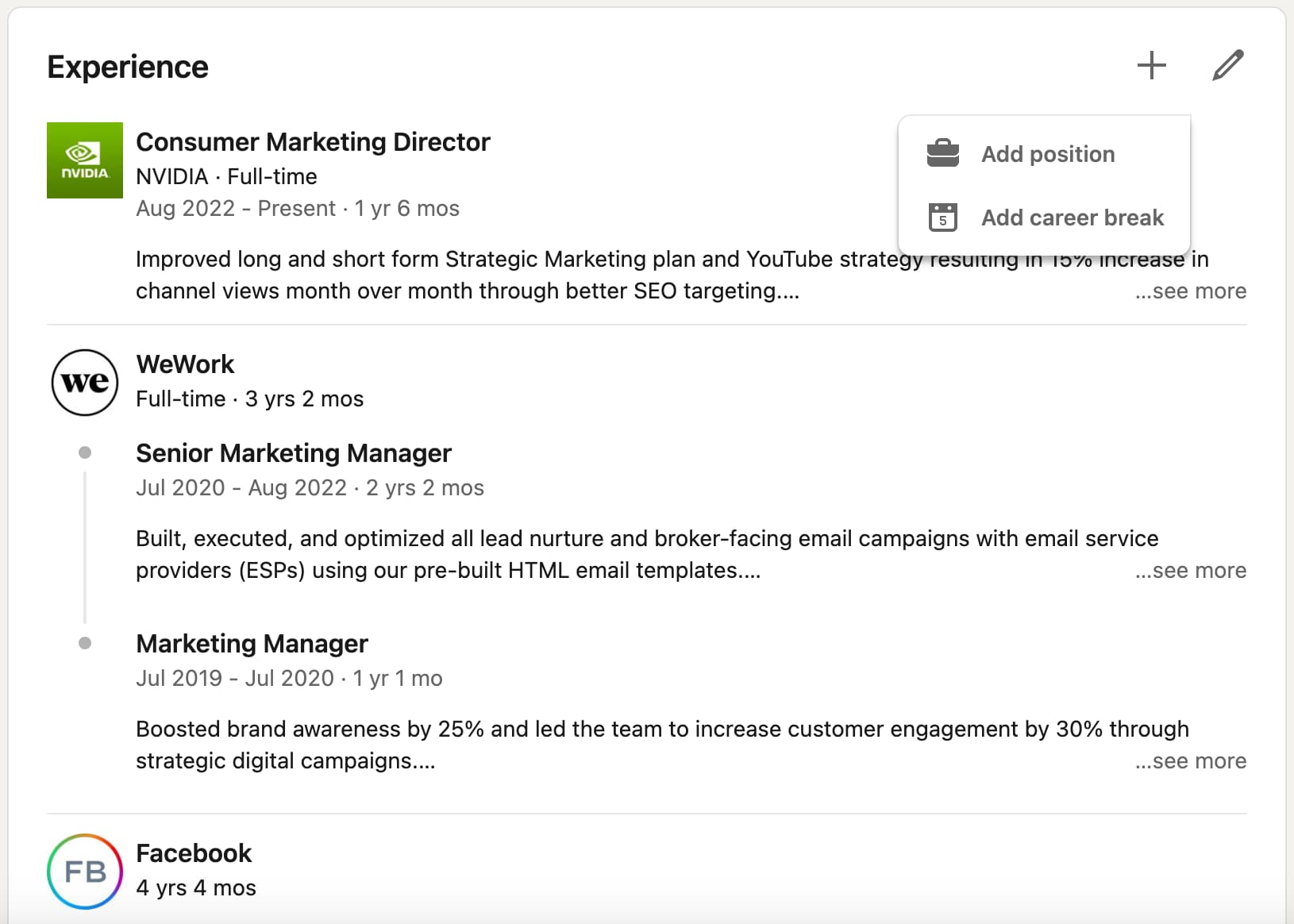
- Click your profile icon, then "View Profile."
- Scroll to the Experience section and locate the plus icon.
Step 2: Click "Add Position" Under the Same Company
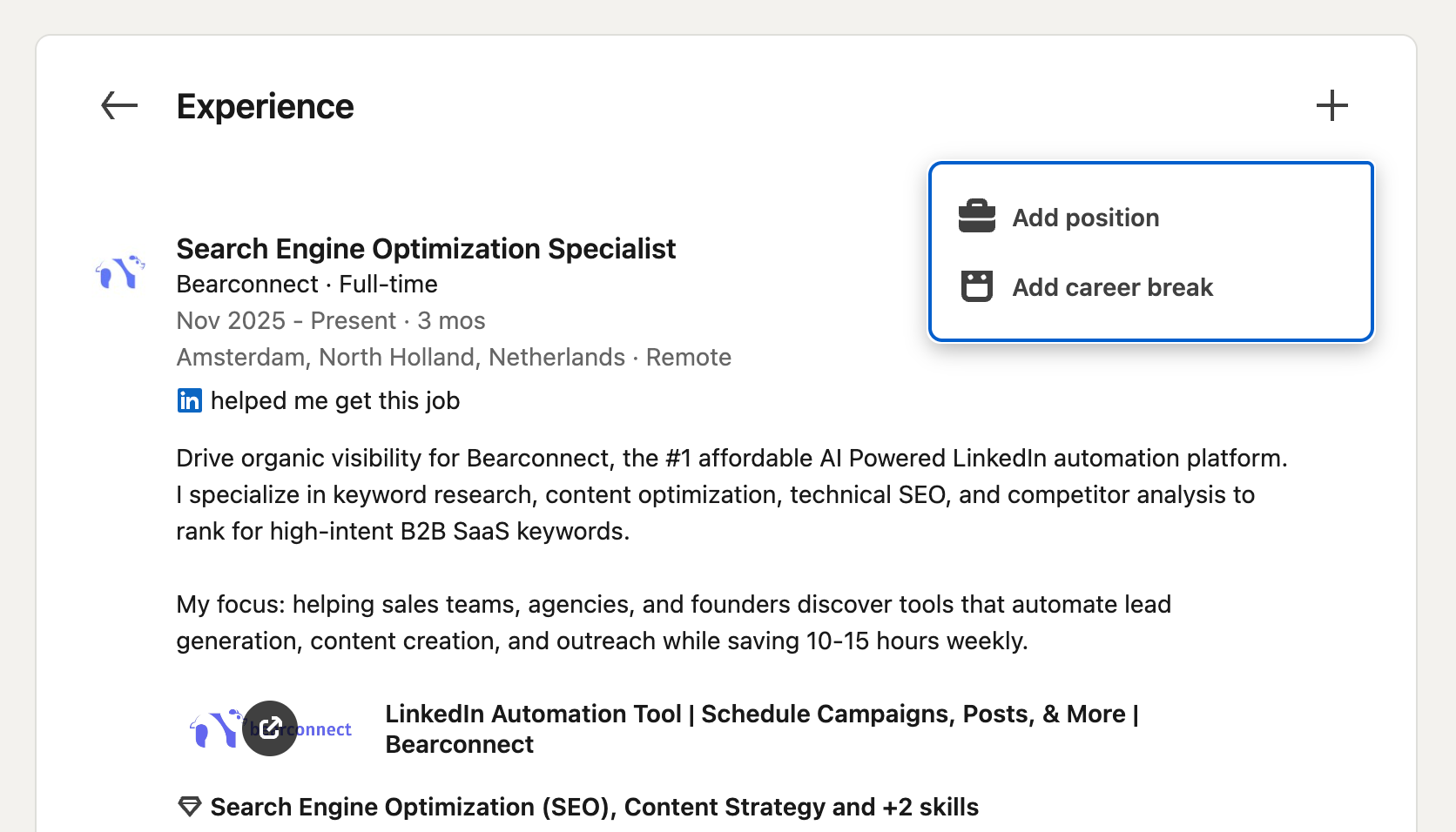
LinkedIn automatically groups positions when you use the identical company name. This creates the stacked effect showing internal growth.
Step 3: Enter Promotion Details
Fill in the following fields carefully:
- New title (exact wording matters for search)
- Updated dates (promotion effective date)
- Same company name (must match exactly)
- Location (optional but recommended)
Step 4: Toggle "Notify Network" ON
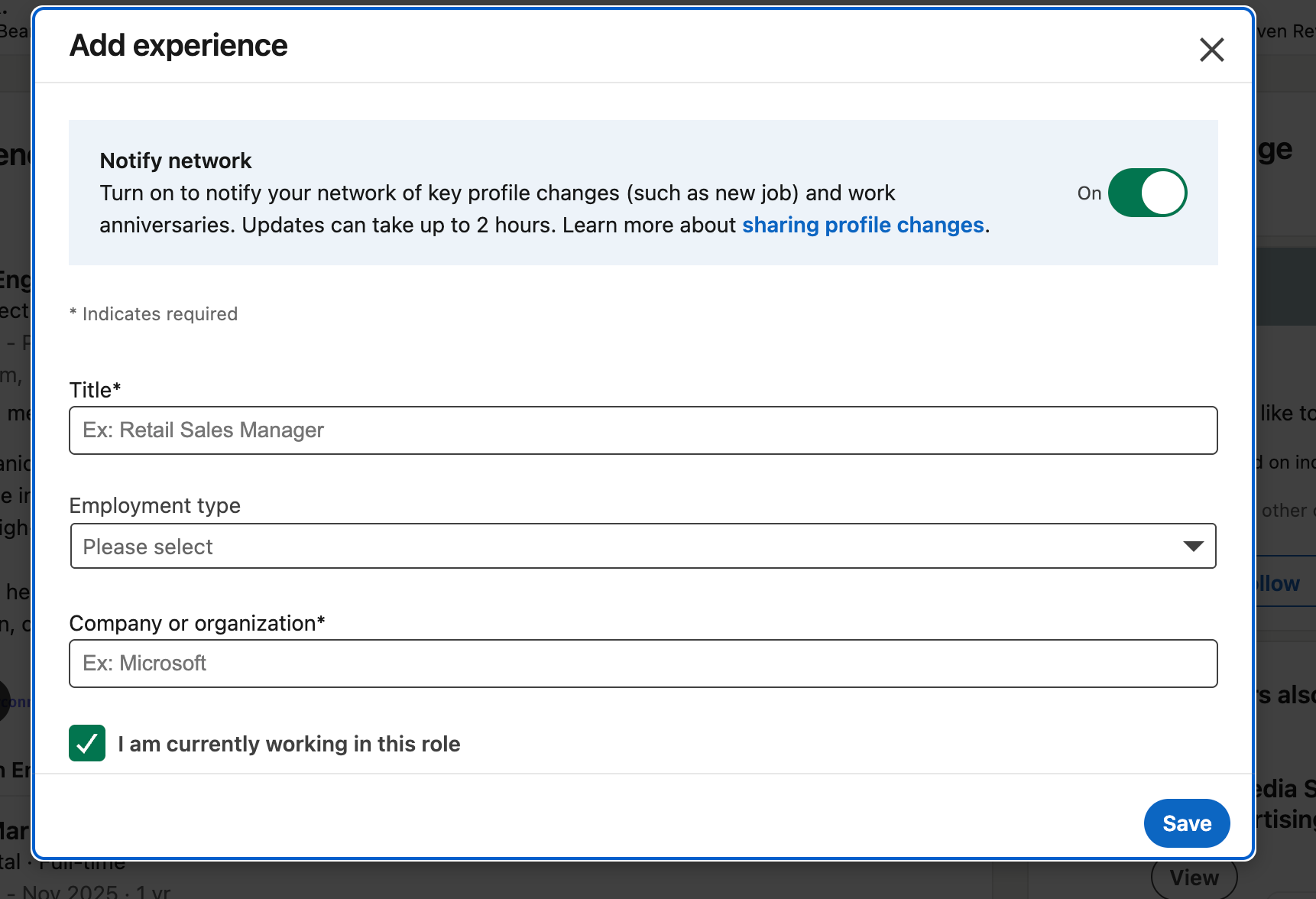
This setting triggers the announcement that appears in your connections' feeds. Without it, your update lives only on your profile with minimal visibility.
Step 5: Add Impact-Based Description
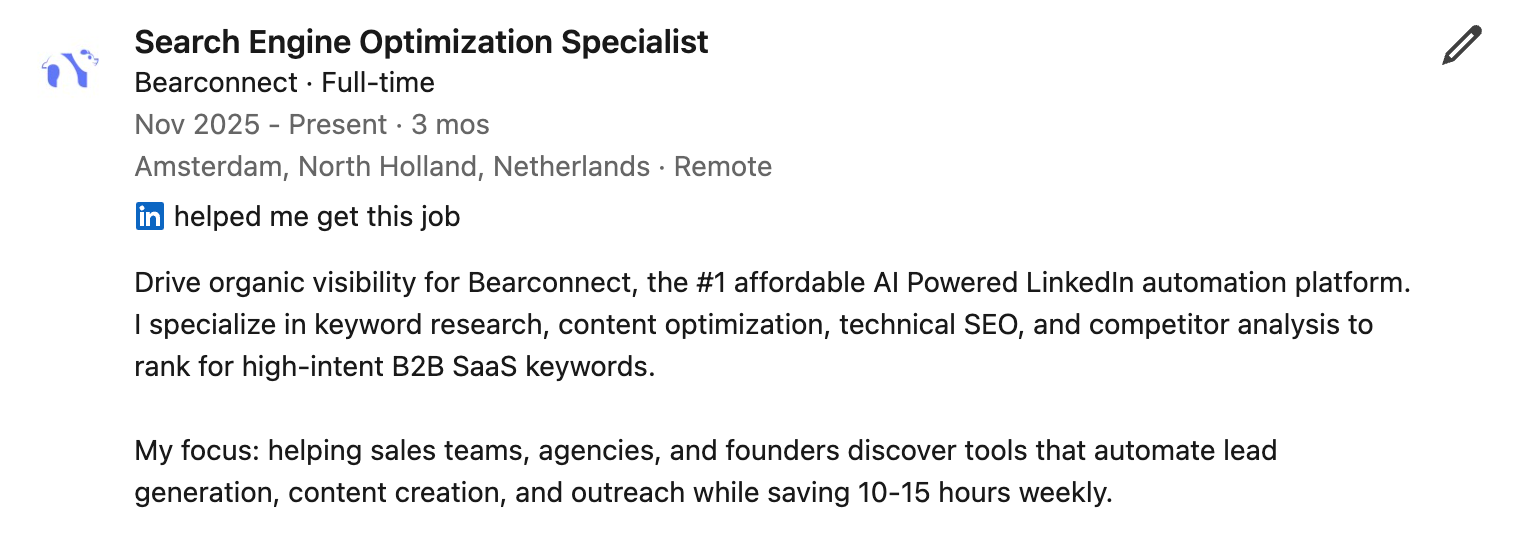
Use this simple format that works:
- 1 line: Role mission or primary focus
- 2-3 bullet points: Key achievements
- 1 measurable outcome: Numbers that prove impact
Example bullets:
- Led a team of 6 on product launch initiative
- Reduced campaign costs by 32% through process optimization
- Built workflow that improved response time by 48%
This structure keeps descriptions scannable while showcasing results.
How to Add a Promotion on LinkedIn (Mobile)
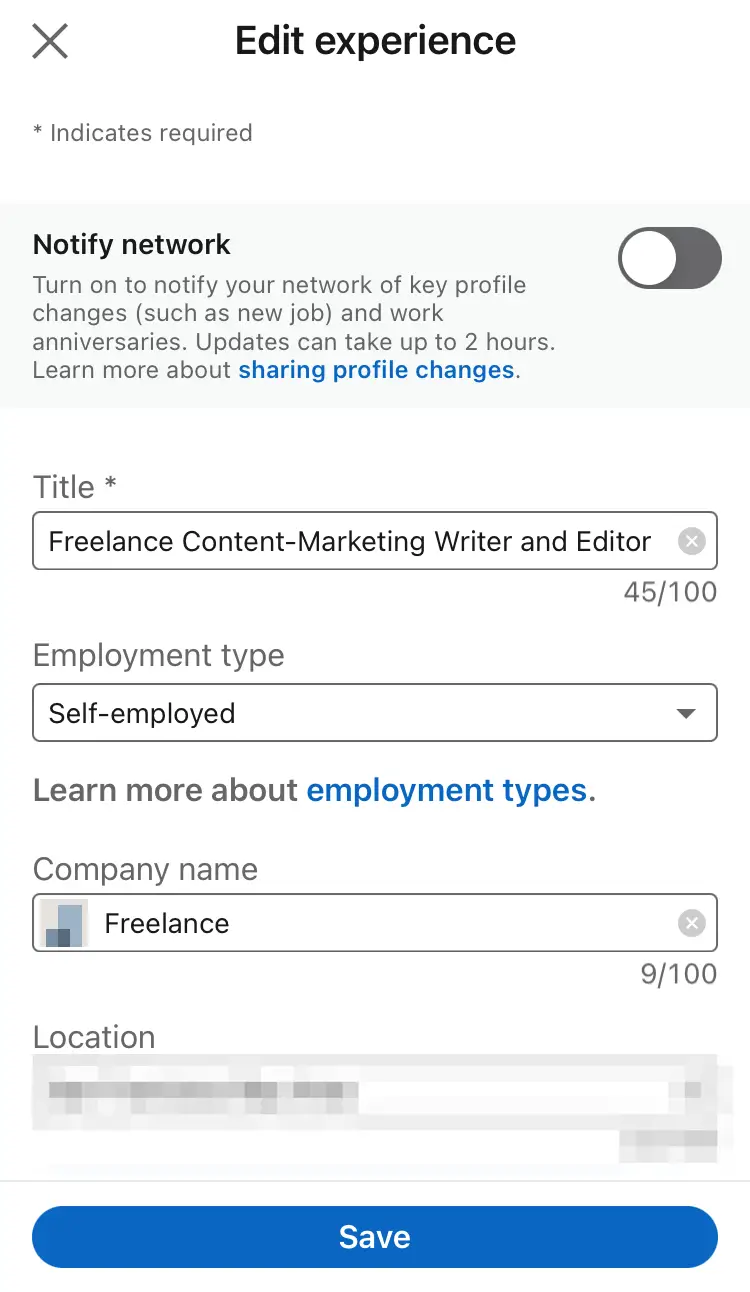
The mobile process is streamlined for quick updates:
- Open LinkedIn app and tap Profile
- Scroll to Experience and tap the plus icon
- Select "Add position"
- Fill title, dates, and company name
- Toggle "Share with network" switch
- Tap Save
Keep descriptions shorter on mobile. Most users skim quickly, so front-load the most impressive details.
Should You Notify Your Network?
Best practice: Yes, if the promotion is meaningful and public-facing.
Turn Notifications ON When:
- Accepting leadership roles
- Moving to new departments
- Taking on new market responsibilities
- Company milestone positions
Consider Notifications OFF When:
- Very small title changes
- Sensitive industries with confidentiality concerns
- Stealth projects not yet announced
- Personal preference for privacy
People who interact with promotion posts often re-engage later, improving your profile visibility organically through LinkedIn's algorithm.
How to Write a Great Promotion Description (Without Sounding Braggy)
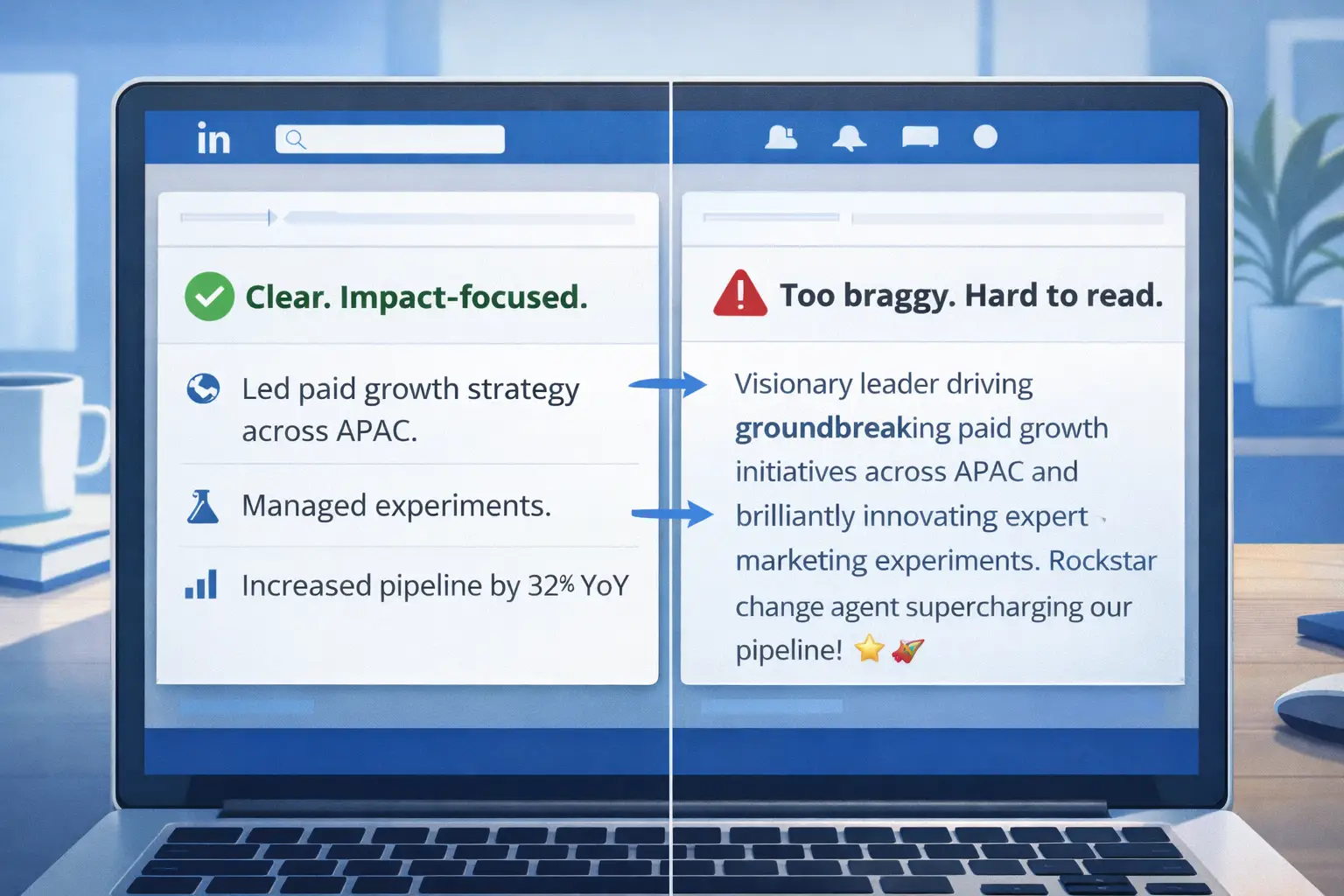
The formula that works without sounding arrogant:
Role upgrade + Responsibility growth + Impact
Example:
"Promoted to oversee paid growth strategy across APAC, managing budgets, experiments, and partner campaigns that drive pipeline growth."
What to Avoid
- Over-hyped language and excessive adjectives
- Long paragraphs that lose reader attention
- Buzzwords like "visionary leader" or "rockstar"
Keep it factual, specific, and outcome-focused. Apply the same principle when reaching out to new connections using proven LinkedIn message templates
Should You Also Create a Promotion Post?
Yes, if you want maximum visibility.
Profile updates alone reach only a fraction of your network. A dedicated post amplifies your announcement significantly.
What to Include in the Post
- Gratitude: Thank managers, team members, or mentors
- Lesson learned: Share one insight from your journey
- Future focus: What you're excited to work on next
- Optional tag: Manager, team members, or company page
Post Example Angles
- "What changed after moving to a manager role"
- "3 lessons that helped me earn this promotion"
- "Why I'm excited about this new chapter"
Posts drive comments. Comments drive algorithmic reach. To maintain consistency after your promotion announcement, schedule LinkedIn posts strategically without losing engagement.
Why Some Promotion Updates Go Viral
Scenario comparison:
- Person A: Only updates profile
- Person B: Updates profile + publishes thoughtful post + replies to comments
- Result: Person B gets 10 to 20 times more engagement, profile views, and recruiter messages.
- Reason: Engagement triggers LinkedIn's feed ranking system. Activity shows relevance and credibility, not just a profile change.
The algorithm rewards interaction, pushing your content to wider audiences.
After your promotion announcement, focus on how to grow your LinkedIn followers organically to amplify future updates.
Best Practices When Adding a Promotion (2026)
Follow these guidelines for maximum impact:
- Keep job title simple and searchable (avoid internal jargon)
- Add outcomes, not duties (results matter more than tasks)
- Use numbers whenever possible (percentages, team sizes, revenue)
- Upload supporting media (slides, portfolio links, certificates)
- Check consistency between resume and LinkedIn
- Update skills to match your new role requirements
Recruiters search by skills more than titles, so alignment matters. Learn how to optimize your complete LinkedIn profile for better visibility.
Common Mistakes to Avoid
These errors reduce visibility and credibility:
- Editing the same role instead of adding a new one
- Forgetting to toggle "Notify Network" on
- Writing only a single empty line with no details
- Stuffing keywords unnaturally into descriptions
- Posting "humble brag" essays that feel rehearsed
Avoiding these mistakes ensures your promotion update follows LinkedIn automation best practices that keep your account safe and visible.
How Long Does It Take for the Promotion Announcement to Show?
Timing varies based on LinkedIn's systems:
- Profile update: Usually instant and visible immediately
- Feed announcement: May appear within 24 to 72 hours
- Engagement timing: Depends on your network's activity patterns
Peak engagement happens Tuesday through Thursday during business hours.
Track engagement metrics with analytics to understand when your network is most active.
Promotion Update vs Job Change: What's the Difference?
| Aspect | Promotion | Job Change |
|---|---|---|
| Company | Same company | New company |
| Signal | Shows internal growth | Signals career move |
| Recruiter view | Higher trust factor | Requires explanation |
| Network impact | Celebrates progress | Announces transition |
Both updates are valuable, but promotions demonstrate employer confidence and career momentum.
Checklist Before Hitting Save
Use this final review before publishing:
- [ ] New role added as separate entry
- [ ] Description shows responsibilities plus impact
- [ ] "Notify network" setting configured correctly
- [ ] Skills section updated to match new role
- [ ] Optional media or portfolio items added
- [ ] Spelling and grammar checked
- [ ] Company name matches exactly for grouping
Need help completing this checklist?
Follow these 7 LinkedIn profile optimization steps to ensure every section is promotion-ready.
FAQs: LinkedIn Promotion Questions
1. Can I add a promotion without notifying my employer?
Yes, toggle the notification setting OFF. The update still appears on your profile, but it won't broadcast to your network or trigger feed announcements.
2. Will recruiters see my promotion if I don't post about it?
Yes, recruiters searching for candidates will see your updated profile. However, engagement from a post helps you rank higher in search results and increases overall visibility.
3. Can I list multiple promotions at the same company?
Absolutely. LinkedIn automatically groups them under the company name, creating a clear progression timeline that showcases your growth path.
4. How do I make my promotion announcement stand out?
Include specific metrics, tag relevant people thoughtfully, and respond to every comment quickly. Engagement within the first 2 hours significantly impacts algorithmic reach. Use your increased visibility to craft LinkedIn connection requests that don't get ignored.
5. Should I update my headline when I get promoted?
Yes, your headline appears in search results and connection requests. Update it immediately to reflect your new position and responsibilities for maximum search visibility.
Want to Make Your LinkedIn Profile Work Harder?
Now that you've added your promotion correctly, consider how automation can help you leverage this visibility.
Your promotion positions you as a decision-maker earn how to find qualified leads on LinkedIn to leverage your new authority.
Tools like Bearconnect help professionals manage LinkedIn outreach, content scheduling, and engagement at scale while staying within platform guidelines.
Ready to amplify your LinkedIn presence?
Ready to Transform Your LinkedIn Strategy?
Join thousands of professionals already using Bearconnect to automate their outreach and grow their network.
7-day free trial • Cancel anytime
Related Articles

How B2B Sales Teams Close More Deals by Automating LinkedIn Outreach?
Automate LinkedIn outreach to help B2B sales teams generate leads, start conversations, and close more deals faster with proven strategies.
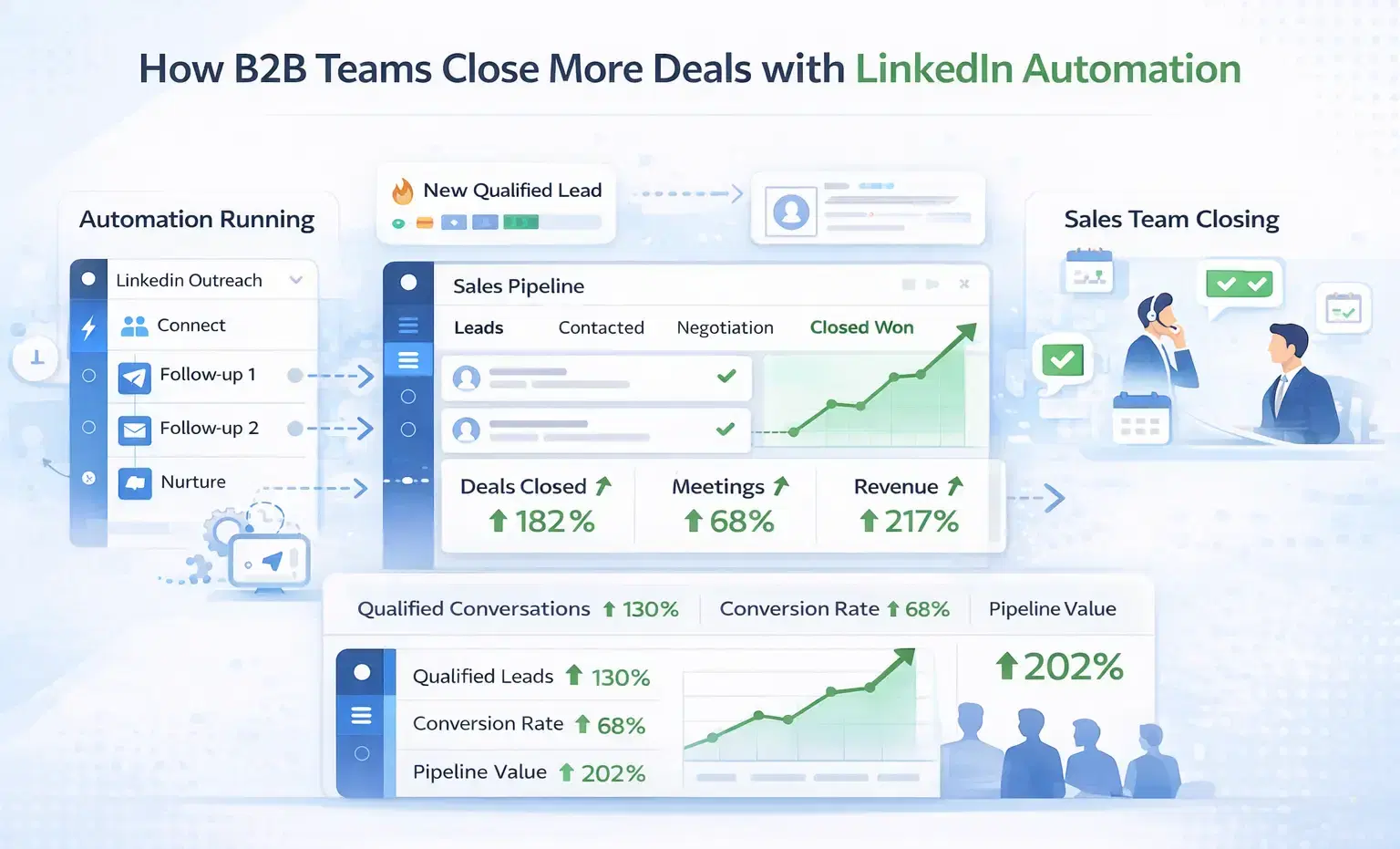
How B2B Sales Teams Close More Deals by Automating LinkedIn Outreach?
B2B sales teams waste hours on manual LinkedIn outreach. Automation fixes that more meetings, less grind, better conversions at scale.
How Can SDRs Book More Meetings Using LinkedIn Automation?
SDRs can book more meetings with LinkedIn automation by streamlining outreach, automating follow-ups, and scaling conversations without manual effort.