How to Automate LinkedIn Messages Without Getting Banned
LinkedIn just flagged your account. Again.
You were only trying to scale your outreach, but now you are staring at a restriction notice, wondering if your entire network is about to disappear.
Here's the truth: 43% of LinkedIn automation users make preventable mistakes that trigger bans.
This guide shows you exactly how to automate LinkedIn messages safely in 2026, stay within platform limits, and scale outreach without risking your account.
Why LinkedIn Bans Automation (And How It Detects You)
1. LinkedIn's Detection System
LinkedIn monitors three key behavior patterns that signal automation abuse:
- Volume spikes: Sudden increases in connection requests or messages
- Timing patterns: Activity outside normal working hours or constant 24/7 engagement
- Generic messaging: Copy-paste templates sent to hundreds of prospects
- Browser extensions: Third-party tools running directly in LinkedIn's interface
Think of LinkedIn's algorithm as a vigilant security guard. Read LinkedIn's official automated activity policy to understand what the platform monitors.
Understanding how LinkedIn automation works behind the scenes helps you stay compliant.
What Triggers Instant Restrictions
High-risk activities that get accounts banned:
- Sending 100+ connection requests daily
- Using browser extensions instead of cloud-based tools
- Mass messaging with zero personalization
- Profile scraping beyond permitted limits
- Creating fake accounts or hiding true identity
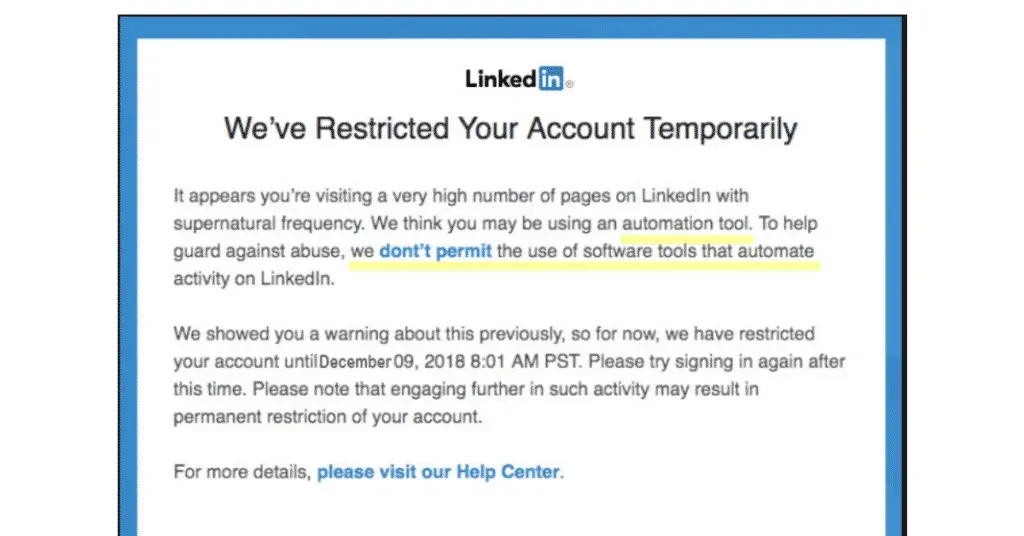
The consequences escalate fast. First warning restricts features temporarily. Second violation adds longer restrictions. Third offense often results in permanent account suspension.
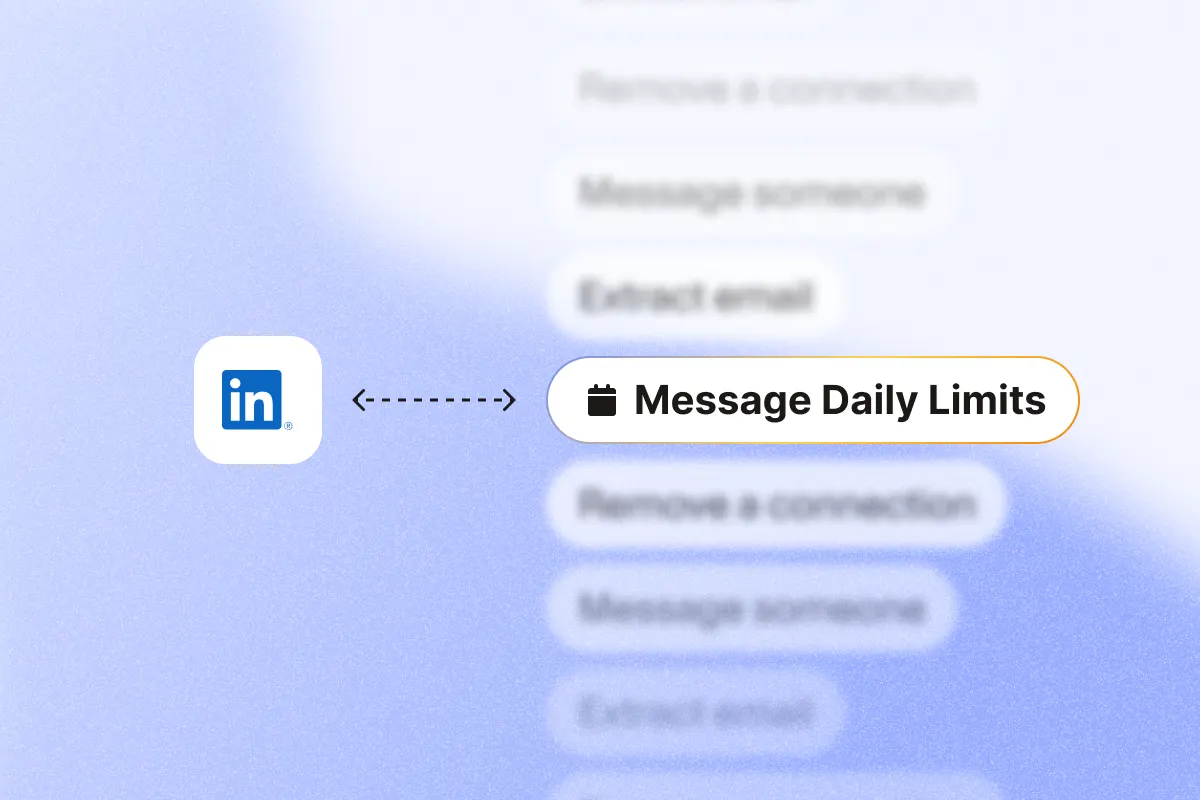
LinkedIn's Safe Message Limits for 2026
1. Daily Activity Thresholds
Connection Requests:
- New accounts (0-3 months): 5-10 per day maximum
- Established accounts (3-12 months): 10-15 per day
- Premium/Sales Navigator: 15-25 per day safe limit, Learn whether you need Sales Navigator for automation
- Weekly cap: 100-150 total regardless of account type
Messages to Existing Connections:
- Free accounts: 80-100 messages per week
- Premium/Sales Navigator accounts: 100-150 messages per week
Profile Views:
- Free accounts: 50-80 views per day
- Premium accounts: 80-150-200 views per day
Critical insight: These limits aren't just suggestions. LinkedIn's algorithm tracks your activity in real-time and compares it against these thresholds.
2. Account Age Matters
Your account's history significantly impacts safe automation limits:
SSI Score-Based Limits:
| SSI Score | Safe Daily Actions | Warmup Period |
|---|---|---|
| 10-20 | 10 actions/day | 2-3 weeks |
| 21-30 | 15 actions/day | 1-2 weeks |
| 31-40 | 20 actions/day | Monitor acceptance rate |
| 41-50 | 30 actions/day | Check pending invites |
| 51-60 | 40 actions/day max | Maintain quality metrics |
What is SSI? LinkedIn's Social Selling Index measures profile completeness, engagement quality, relationship building, and network growth. Higher SSI scores signal trustworthy accounts, allowing slightly higher automation limits.
For a founder specific checklist, see the do’s and don’ts of LinkedIn automation every founder must know.
Cloud-Based vs. Browser Extension Safety
1. Why Browser Extensions Get Banned
Browser extensions like older Linked Helper versions operate directly inside LinkedIn's interface, making detection trivial.
Red flags LinkedIn spots instantly:
- Scripts running in browser console
- Automated mouse movements and clicks
- Same IP address for all automated actions
2. How Cloud-Based Tools Stay Safe
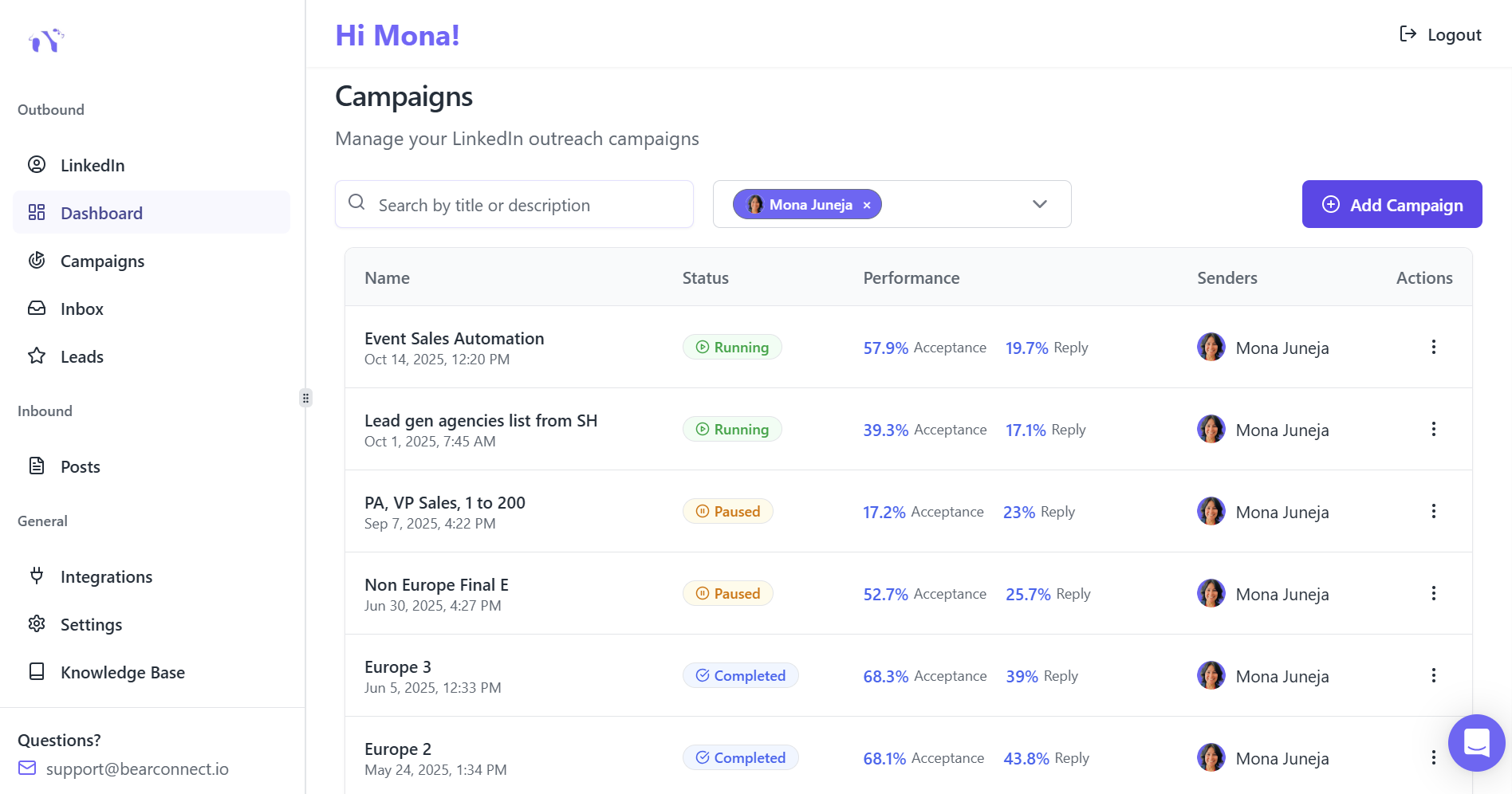
Professional automation platforms like Bearconnect operate outside LinkedIn's ecosystem entirely:
Safety mechanisms:
- Local IP assignment: Each account gets unique IP addresses mimicking organic locations
- Human behavior simulation: Random delays between actions (2-15 minutes)
- Activity distribution: Spreads actions across working hours naturally
- Gradual ramping: Slowly increases daily volumes over weeks
Cloud-based tools don't touch LinkedIn's interface. They use API connections and simulate natural browser behavior from external servers, making detection nearly impossible when used correctly.
Step-by-Step Safe Automation Setup
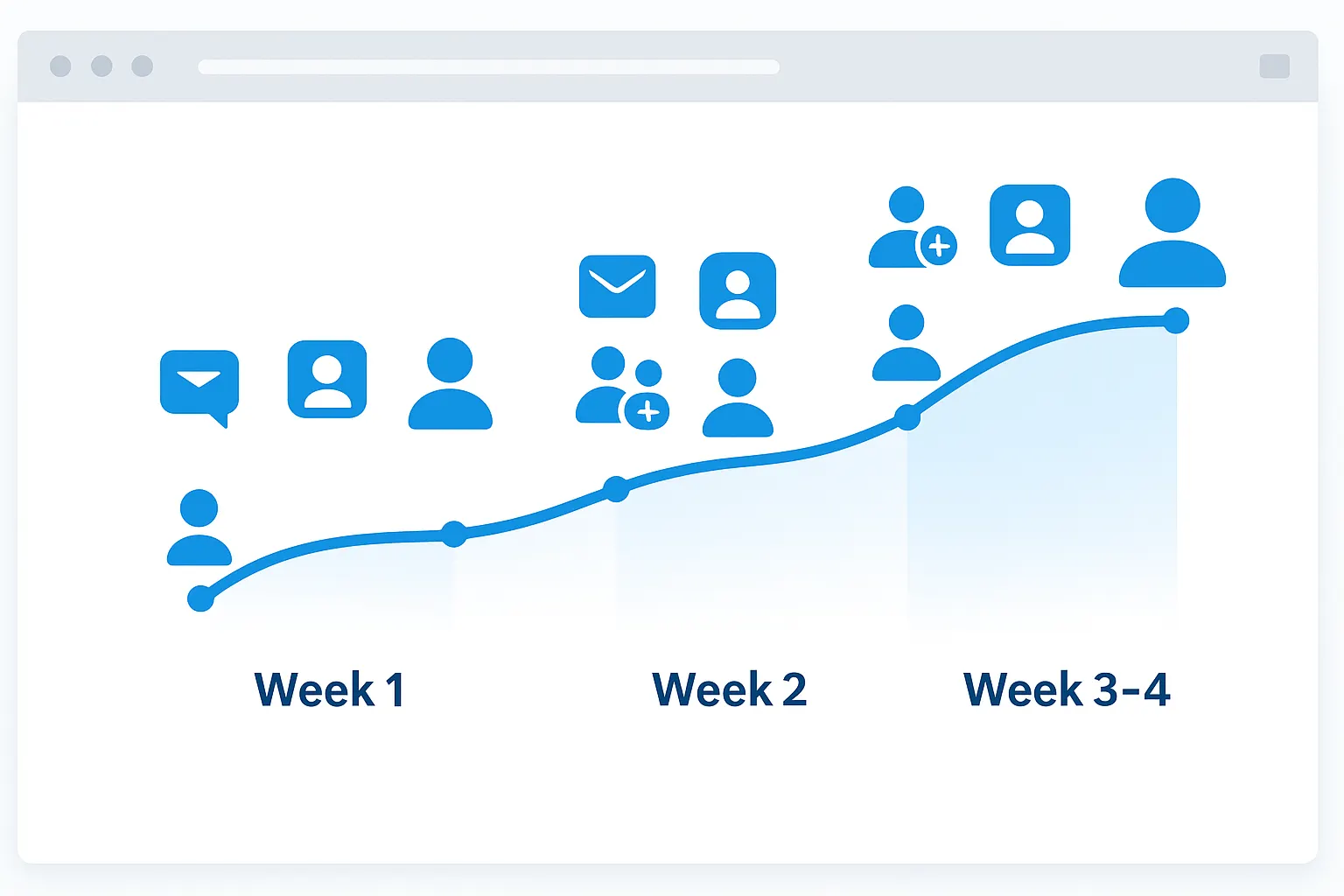
Week 1: Account Warmup Protocol
Never launch automation at full capacity immediately. LinkedIn flags sudden activity changes.
Day 1-3: Manual Activity Baseline
- Log in during your normal working hours
- Visit 10-15 profiles manually
- Send 5-7 personalized connection requests
- Engage with 3-5 posts (likes, comments)
Day 4-7: Conservative Automation Start
- Enable automation for 5-10 connection requests daily
- Send 10-20 messages to existing connections
- Keep profile visits under 30 per day
- Monitor acceptance rates closely
Week 2: Gradual Scaling
Daily activity increases by small increments:
- Connection requests: Increase to 15-20 daily
- Messages: Scale to 20-25 daily
- Profile views: Expand to 30-40 daily
- Maintain 9 AM to 6 PM activity window
Critical checkpoints:
- Connection acceptance rate stays above 25%
- Response rate remains above 10%
- Zero warning messages from LinkedIn
Week 3-4: Optimal Capacity
Maximum safe automation volumes:
- 20-25 connection requests daily (established accounts)
- 20-25 messages daily to connections
- 40-50 profile views daily
- Continue monitoring metrics weekly
Pro tip: Never exceed these limits even if LinkedIn doesn't immediately flag you. Consistent borderline behavior builds negative account history that triggers restrictions later.
Message Personalization Requirements
Generic messages are automation death sentences. LinkedIn's algorithm detects copy-paste templates through pattern matching.
Minimum Personalization Standards
Every automated message must include:
- Recipient's first name (dynamic field)
- Company name reference
- Job title or role mention
- Specific reason for connecting
- Clear, non-salesy value proposition
Template example that passes LinkedIn's filters:
Hi {{FirstName}},

Noticed you're leading {{Department}} at {{CompanyName}}. We're helping similar {{Industry}} companies solve {{SpecificProblem}}.

Would love to share how {{CompetitorName}} achieved {{SpecificResult}}.

Worth a quick chat?
Why this works: Five personalization fields make each message unique. LinkedIn's duplicate detection algorithm sees variations, not spam.
Advanced Personalization Tactics
Reference recent activity:
- Job changes or promotions (32% higher response rates)
- Company news or funding rounds
- LinkedIn posts or articles they published
- Mutual connections or shared groups
Warning Signs Your Account Is Flagged
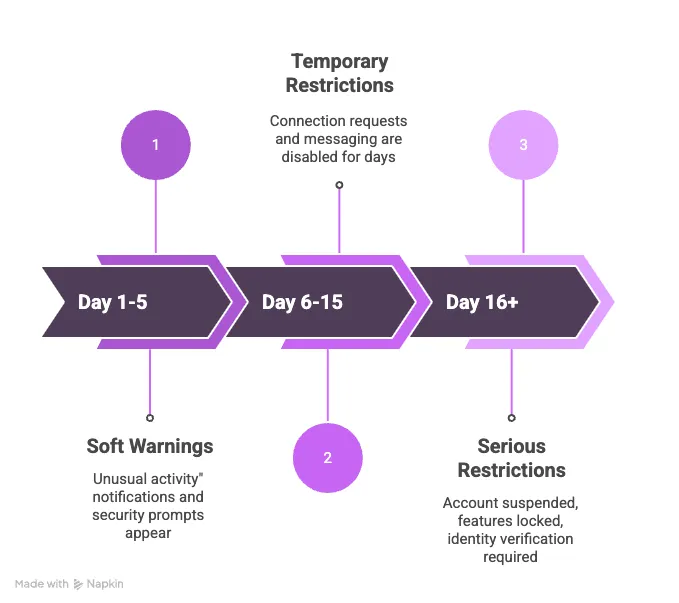
LinkedIn rarely bans accounts instantly. Watch for these escalating warning signals:
Level 1: Soft Warnings
- "We noticed unusual activity" notification
- Security verification prompts increase
- Connection requests pending for review
- Slightly delayed message delivery
Action required: Pause automation for 3-5 days. Resume at 50% previous volume.
Level 2: Temporary Restrictions
- Connection request button grayed out
- "Weekly invitation limit reached" despite being under 100
- Messaging disabled for 24-72 hours
- Profile visit tracking stops working
Action required: Stop all automation for 7-10 days. Review tool settings and reduce daily limits by 40-60% when resuming.
Level 3: Serious Restrictions
- Account temporarily suspended
- Features locked for weeks
- Required identity verification
- "Violation of User Agreement" warnings
Action required: Cease automation entirely for 30+ days. Switch tools if using browser extensions. Focus on manual, high-quality engagement.
Choosing Safe Automation Tools
Essential Safety Features Checklist
Before selecting any LinkedIn automation platform, verify:
- Cloud-based operation (not browser extension)
- Built-in daily limit controls
- Local IP assignment for each account
- Random delay settings between actions
- Account warmup protocols included
- Real-time compliance monitoring
- Gradual activity ramping features
Why Bearconnect Prioritizes Safety
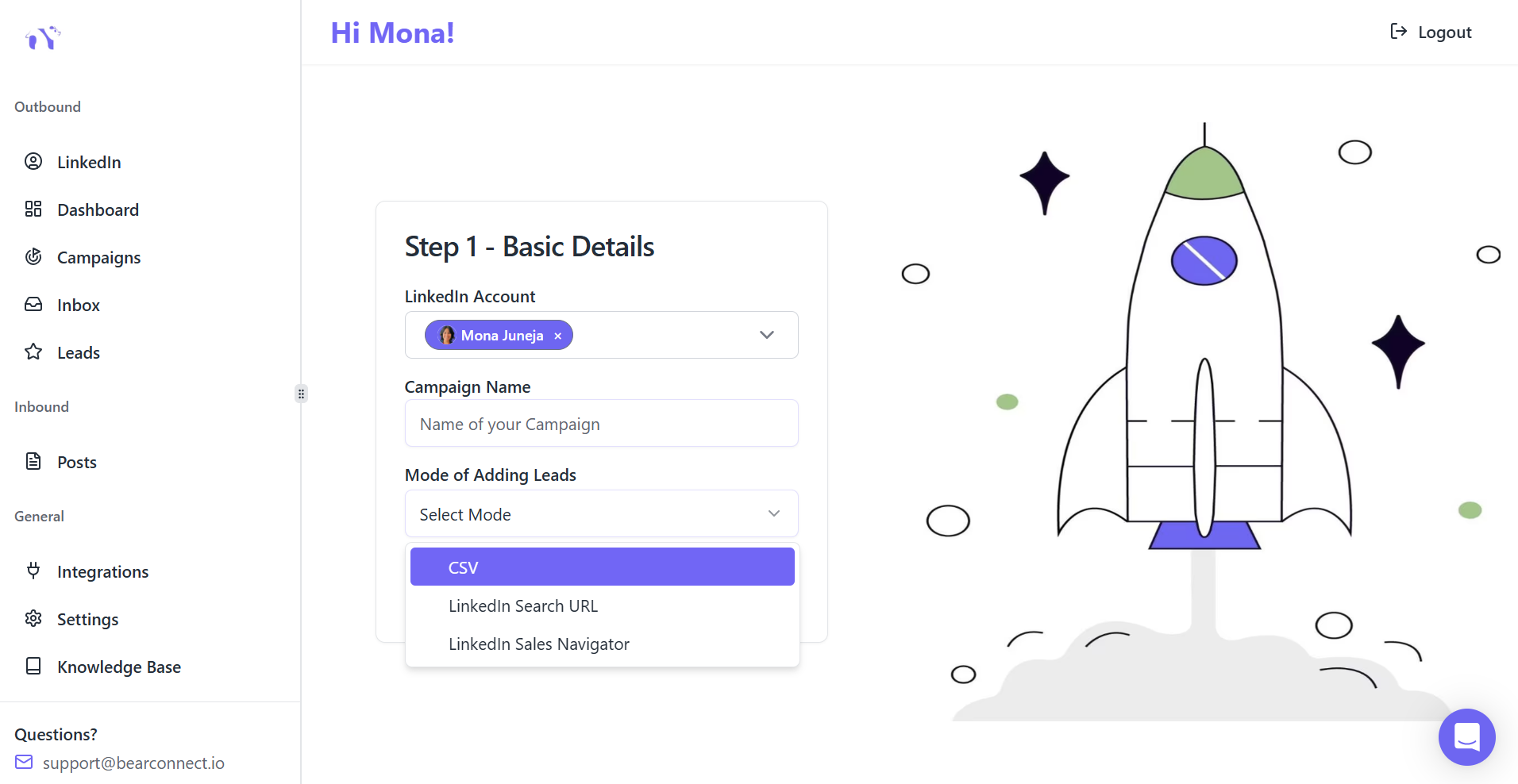
Bearconnect builds compliance directly into its core platform:
Safety architecture:
- Unique IP addresses per LinkedIn account prevent cross-contamination
- Automatic daily limit enforcement stops users from exceeding safe thresholds
- Behavior randomization mimics natural human activity patterns
- Unlimited account connections with separate safety protocols for each
- $67/month per LinkedIn account with all safety features included
Real-world safety performance: Users report 95%+ account safety rates when following recommended limits, compared to 60-70% for browser-based tools.
Best Practices for Long-Term Safety
1. Quality Over Quantity Always
High-quality signals LinkedIn rewards:
- 30%+ connection acceptance rates
- 15%+ message response rates
- Regular content engagement (likes, comments, shares)
- Profile completeness above 90%
- Active participation in relevant groups
Volume metrics that trigger scrutiny:
- Below 20% acceptance rate (targeting too broad)
- Under 5% response rate (messages too generic)
- 400+ pending connection requests (poor targeting)
- Zero profile engagement outside of outreach
2. Schedule Natural Activity Patterns
Configure automation to match your normal workday:
- Monday-Friday operation only
- 9 AM to 6 PM local time zone
- Occasional weekend pauses
- No activity during holidays
Sudden 24/7 activity or messages sent at 3 AM your local time scream "automation bot" to LinkedIn's algorithm.
3. Monitor Performance Weekly
Track these KPIs every Monday:
- Connection acceptance rate trend
- Message response rate changes
- Pending invitation count
- Profile SSI score movement
- Any LinkedIn notification alerts
If any metric drops 20%+ week-over-week, immediately pause automation and diagnose the issue before LinkedIn notices.
Recovery Strategy If You Get Restricted
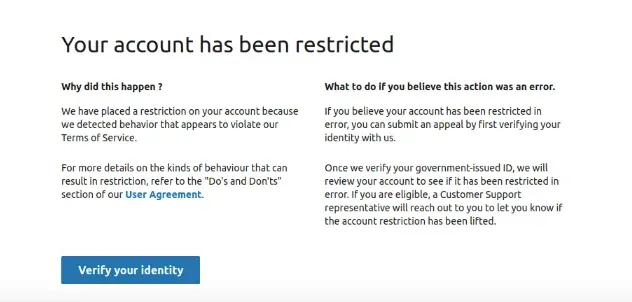
1. Immediate Actions
If LinkedIn restricts your account:
- Disable all automation immediately
- Document the restriction notice (screenshot for records)
- Review recent activity logs in your automation tool
- Identify likely trigger (volume spike, generic messages, browser extension)
- Plan 30-day manual activity period
2. Rebuilding Trust
Resume automation only after:
- 30+ days of manual, compliant activity
- Restriction fully lifted by LinkedIn
- SSI score recovers to previous levels
- Switching to cloud-based tool if using browser extension
- Reducing daily limits by 50% from pre-restriction volumes
Pro insight: Accounts that get restricted once are monitored more closely forever. Conservative limits become permanent requirements.
The Bottom Line
LinkedIn message automation works safely when you respect platform limits, use cloud-based tools, and prioritize personalization over volume.
The difference between successful automation and account bans comes down to three factors: staying within 20-25 daily connection requests, personalizing every message with dynamic fields, and using professional tools that mimic human behavior.
Start conservative, scale gradually, and monitor constantly.
Most restrictions happen to users who ignore early warning signs or try to maximize volume instead of optimizing quality.
Ready to Automate Safely?
Bearconnect helps sales teams automate LinkedIn messaging at $67 per month per LinkedIn account with built-in safety limits, local IP protection, and compliance monitoring.
Start your 7-day free trial to scale outreach safely without risking your LinkedIn account.
Frequently Asked Questions
1. How long does the account warmup period take before full automation?
The complete warmup period takes 3-4 weeks minimum before reaching optimal automation capacity. Week 1 focuses on manual baseline activity (5-10 actions daily), Week 2 introduces conservative automation (15-20 daily actions), and Weeks 3-4 scale to maximum safe volumes of 20-25 connection requests and 20-25 messages daily. Skipping warmup is the #1 cause of instant account restrictions.
2. Can I use a free LinkedIn account for message automation, or do I need Premium?
Free LinkedIn accounts work perfectly for automation if you're targeting 100-400 prospects monthly. Premium or Sales Navigator only becomes necessary when you need advanced search filters (40+ criteria vs. 7 basic), want to send InMail to non-connections, or are targeting 500+ prospects monthly.
3. What should I do if I accidentally exceed LinkedIn's daily limits?
Stop all automation immediately for 3-5 days if you notice soft warnings like security verification prompts or delayed message delivery. If LinkedIn restricts features (grayed-out connection button or messaging disabled), pause automation for 7-10 days and reduce future daily limits by 40-60%.
4. How can I tell if my automated messages are too generic and might trigger spam detection?
Your messages pass LinkedIn's uniqueness check if they include at least 3 dynamic personalization fields like {{FirstName}}, {{CompanyName}}, {{JobTitle}} and {{Location}}. Monitor your connection acceptance rate (should stay above 25%) and response rate (target 10%+) weekly as quality indicators.
Ready to Transform Your LinkedIn Strategy?
Join thousands of professionals already using Bearconnect to automate their outreach and grow their network.
7-day free trial • Cancel anytime
Related Articles
How to Generate High-Quality LinkedIn Leads (Not Just More Leads)
Learn how to generate high-quality LinkedIn leads using strict ICP targeting, layered qualification, and personalized outreach strategies that convert connections into real B2B revenue.
How Agencies Manage Multiple LinkedIn Accounts Without Switching Tabs
Learn how agencies manage multiple LinkedIn accounts without switching tabs using a centralized system that saves time, reduces errors, and scales outreach efficiently.
How Do Agencies Book 40+ Qualified Client Demos Per Month Using LinkedIn Automation?
Most agencies struggle to book consistent demos. This guide reveals the LinkedIn automation strategy agencies use to generate 40+ qualified client meetings every month.