How to Tag Someone on LinkedIn: Posts, Comments & Articles Explained
To tag someone on LinkedIn, type the @ symbol followed by their name in any post, comment, or article.
A dropdown menu appears with matching profiles select the correct person, and they will receive a notification when you publish.
TL;DR
- Type @ followed by a person's name to tag them in any LinkedIn content
- Tagged users receive instant notifications via email and in-app alerts
- Limit tags to 5 or fewer people per post to avoid appearing spammy
- Tags work in original posts, comments, and published articles
- Only tag relevant people who add value to the conversation
Why This Guide Matters in 2026
LinkedIn's algorithm now penalizes excessive tagging and rewards authentic engagement over visibility hacks.
With stricter spam detection rolling out in early 2026, understanding proper tagging etiquette protects your account while maximizing reach.
This guide reflects the latest platform updates and real-world testing from marketing professionals managing high-engagement LinkedIn accounts.
What Is LinkedIn Tagging?
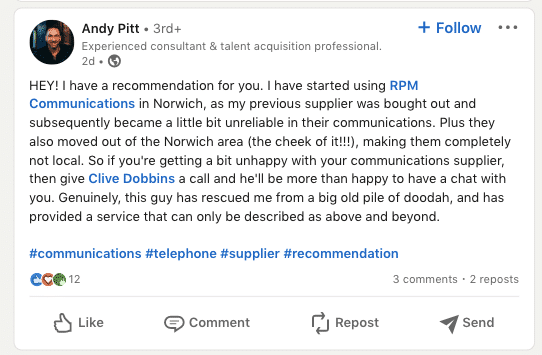
LinkedIn tagging is a mention feature that allows you to reference specific people or companies in your content using the @ symbol.
When you tag someone, their name becomes a clickable link to their profile, and they receive a notification about your post or comment.
This feature serves multiple purposes for professional networking:
- Giving credit to collaborators or thought leaders
- Drawing attention to relevant conversations
- Increasing post visibility through tagged users' networks
- Starting meaningful discussions with industry experts
LinkedIn processes tags differently than other social platforms. The algorithm monitors tagging patterns to identify genuine engagement versus spam behavior.
How to Tag People in a LinkedIn Post (Step-by-Step)
Step 1: Start Creating Your Post
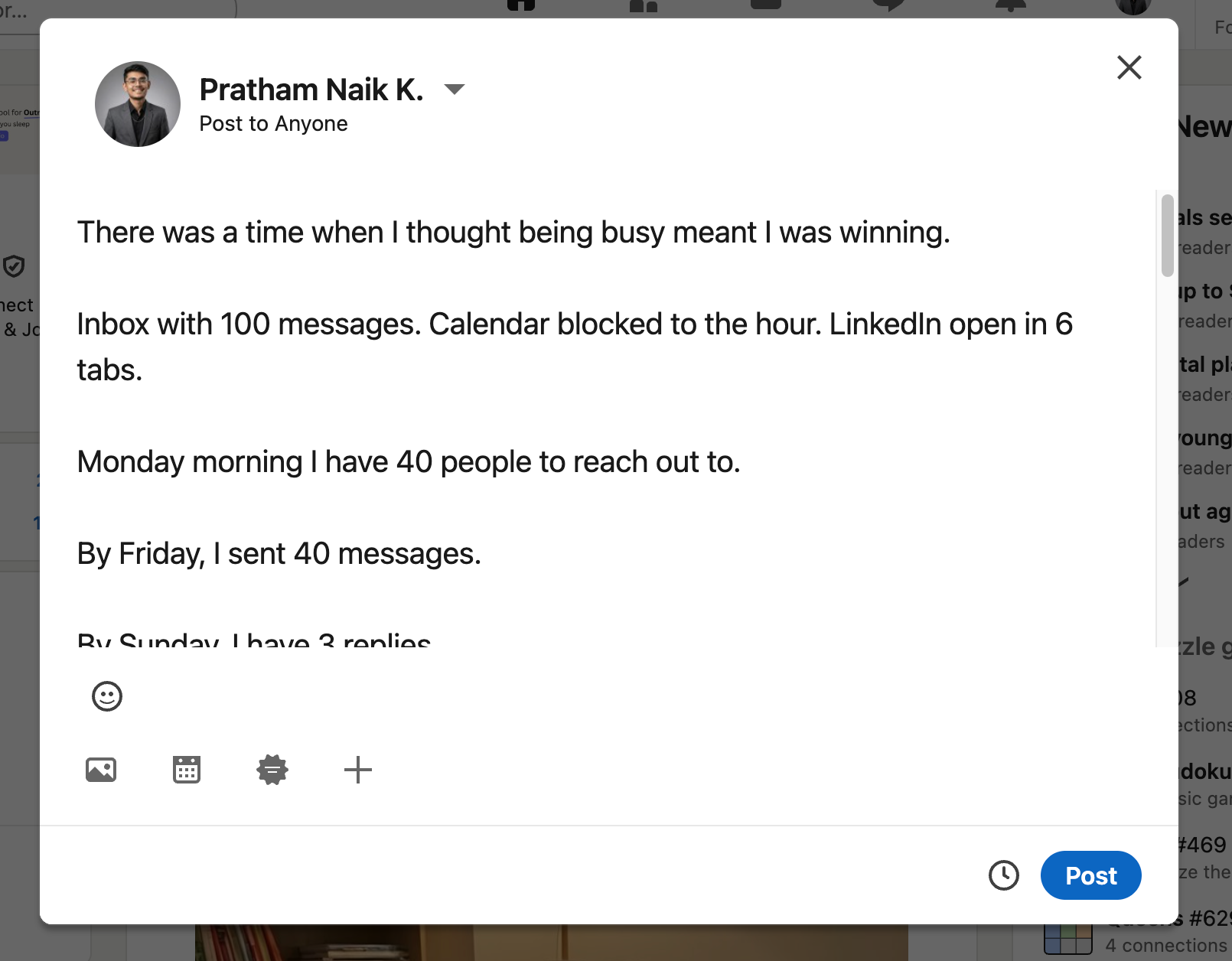
From your LinkedIn home feed, click “Start a post.” Position your cursor where you want the tag to appear within your post text.
Step 2: Type the @ Symbol
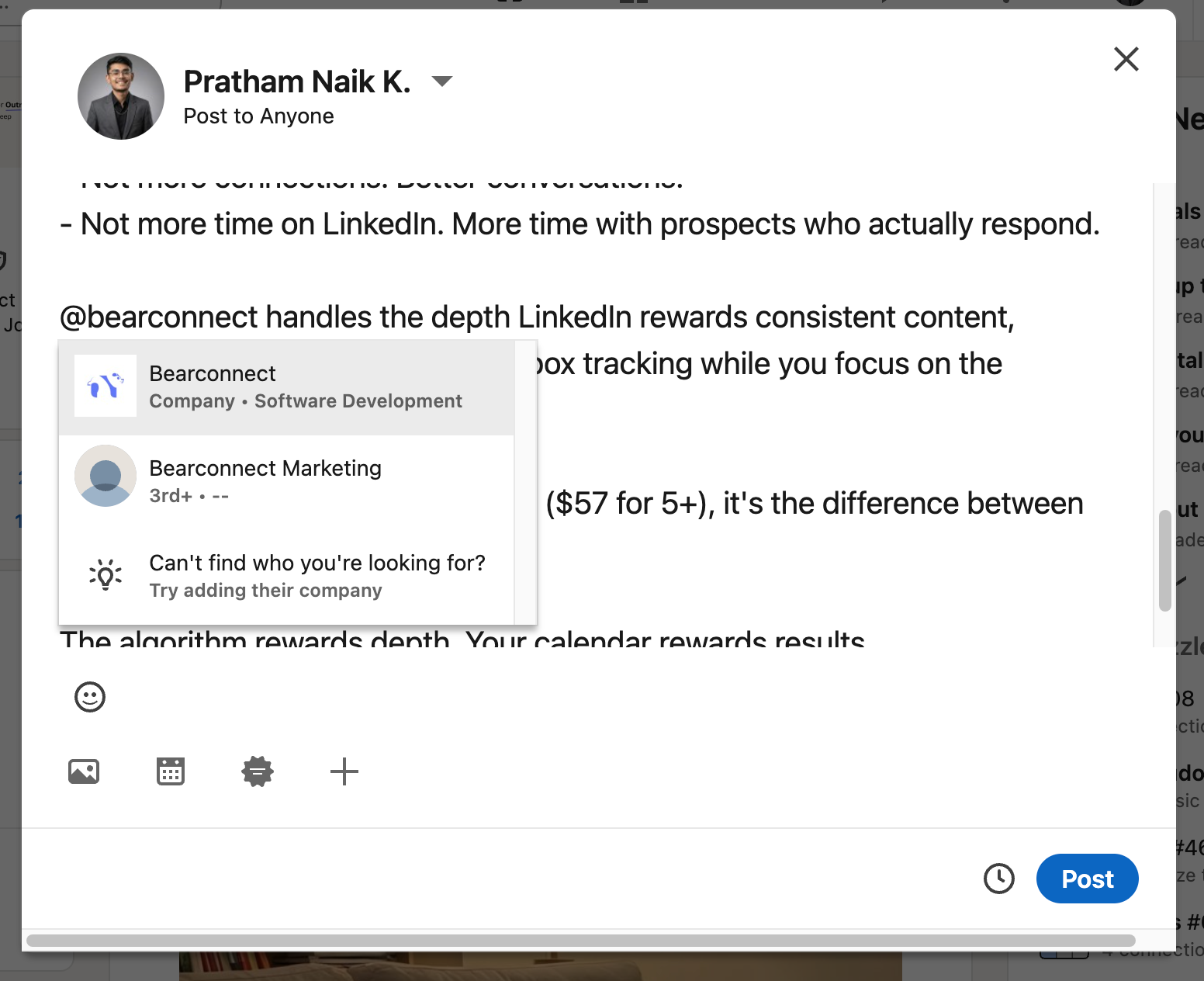
Enter the @ symbol without any space before it. LinkedIn's tagging system activates automatically when you type this character.
Step 3: Enter the Person's Name
Type the first few letters of their name to search. LinkedIn displays a dropdown list showing matching profiles from your connections and the broader network.
Step 4: Select the Correct Profile
Click on the right person from the suggestions list. Their name transforms into a bold, clickable link in your post draft. On mobile devices, tap the suggestion to confirm your selection.
Step 5: Complete and Publish Your Post
Continue writing the rest of your message. The tagged name remains highlighted as a clickable link. Review your post and click "Post" to publish.
The tagged person receives a notification immediately after you publish.
How to Tag Someone in LinkedIn Comments
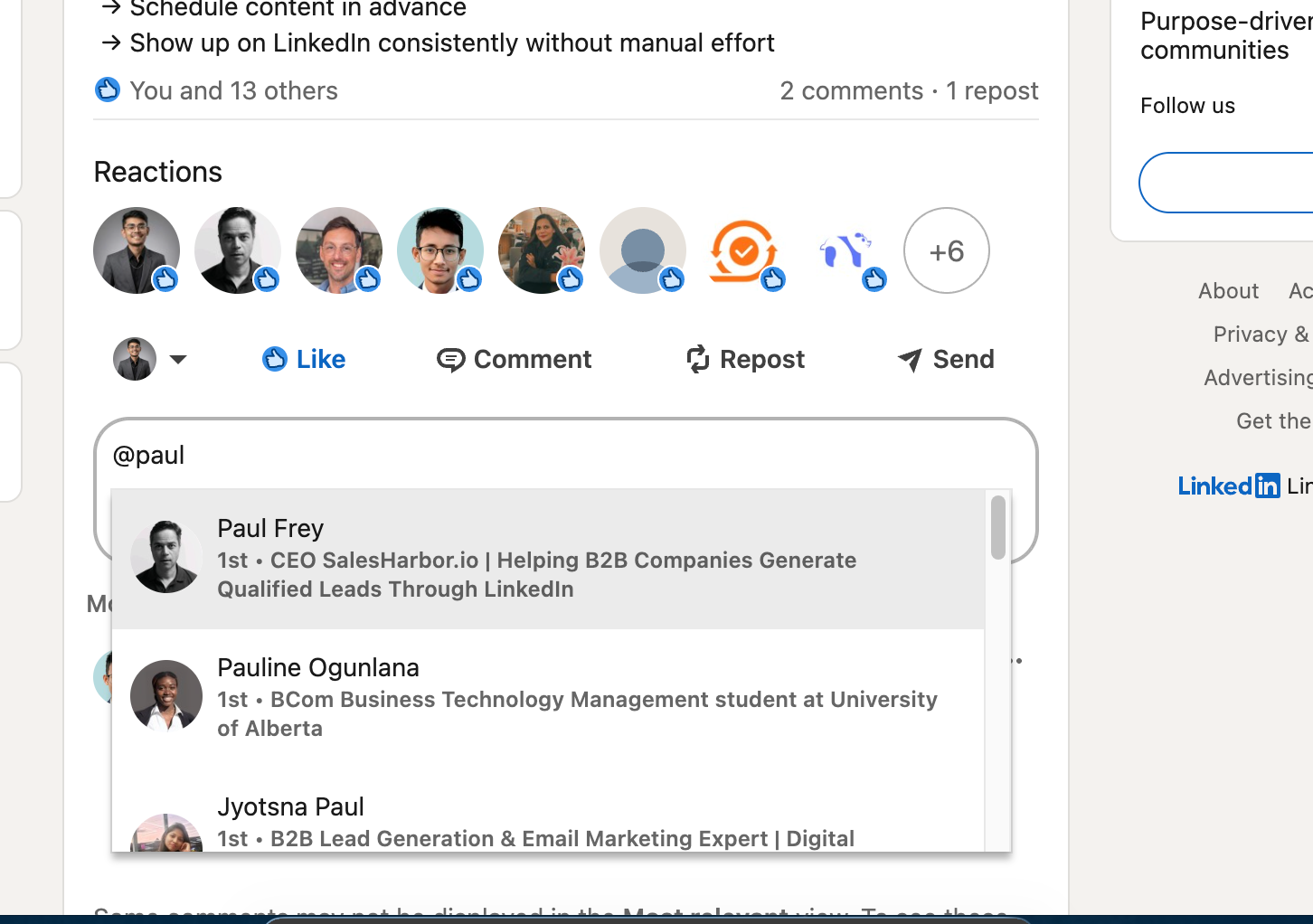
Tagging in comments works identically to tagging in posts but serves different strategic purposes. Use comment tags to bring specific people into ongoing discussions or acknowledge their expertise on a topic.
Comment Tagging Process
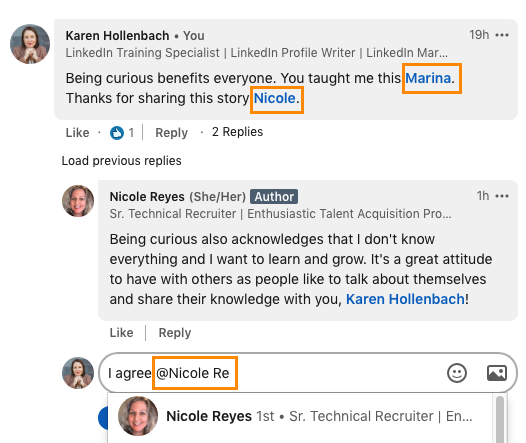
Find the post where you want to comment and click in the comment section. Type @ followed by the person's name, select their profile from the dropdown, and submit your comment.
Comment tags are particularly effective for:
- Asking experts to share their perspective on a discussion
- Thanking someone who provided valuable information
- Bringing a colleague's attention to relevant industry news
Comment Tag Notifications
Everyone tagged in a comment receives a notification based on their individual LinkedIn settings. Users can manage these notifications to receive alerts for all messages or only when mentioned.
How to Tag Someone in LinkedIn Articles
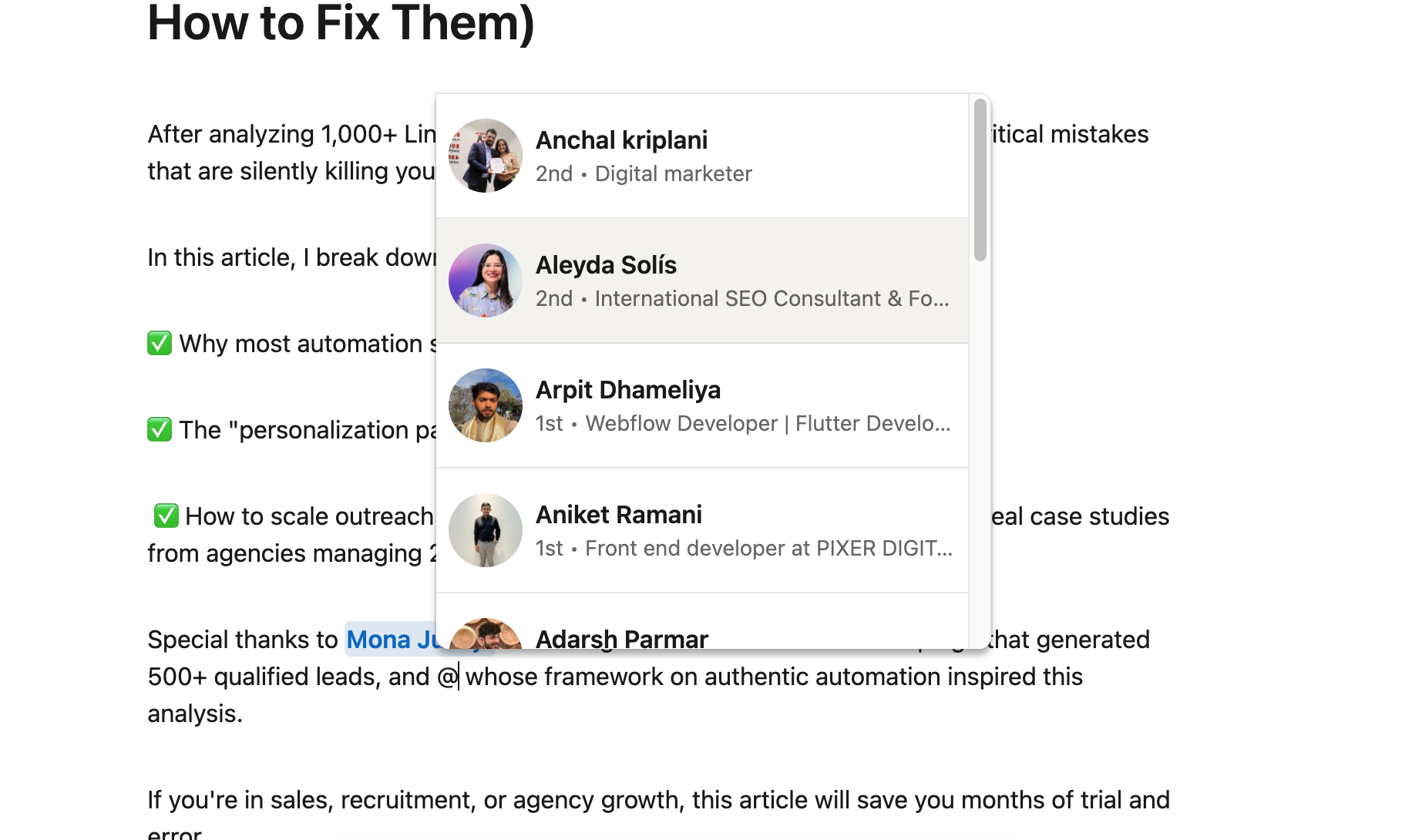
LinkedIn articles support the same @ mention system as posts and comments.
You can mention people inside the article content or tag them in the text when sharing the article.
Article Tagging Best Practices
- Place tags where they make contextual sense within your article content. Avoid clustering all tags at the beginning or end without explanation.
- When sharing articles, add relevant tags in your sharing post along with a brief description.
- This approach gives tagged users context about why you're mentioning them and increases the likelihood they will engage.
What to Do When You Can't Find Someone to Tag
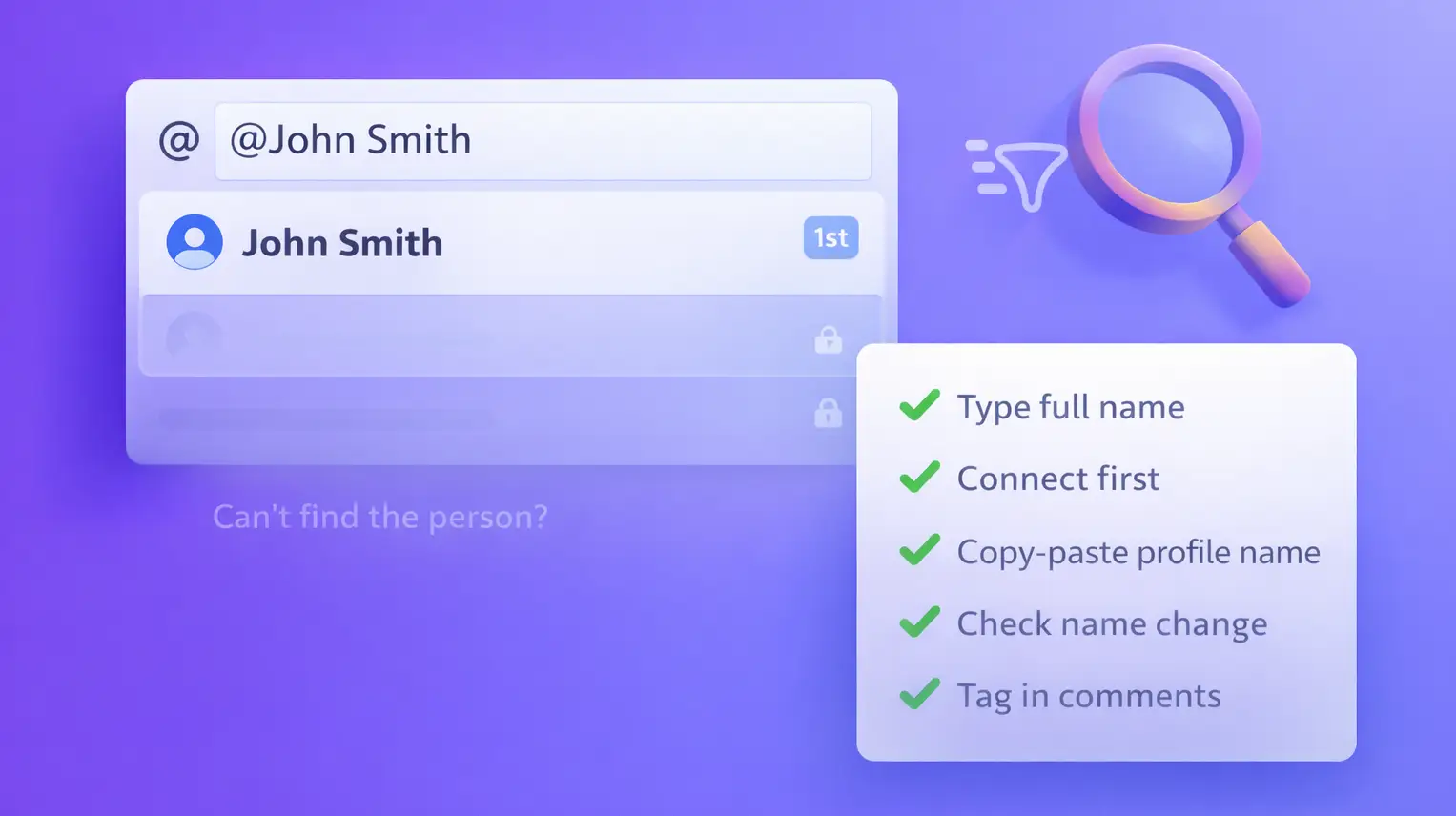
Many users struggle to find the right person when typing @ in their posts. Here's how to solve the most common tagging search issues.
Why People Don't Appear in Search
1. Connection level matters most
LinkedIn prioritizes 1st-degree connections in the dropdown menu. If someone isn't in your network, they may not appear even when you type their exact name.
2. Privacy settings block tagging
Some users disable the ability for non-connections to tag them through their privacy settings. You can't override this restriction.
Solutions That Actually Work
- Type their complete, exact name
- Send a connection request first
- Copy-paste from their profile
- Check if they changed their name
- Tag them in comments instead
LinkedIn Tagging Etiquette: What You Must Know
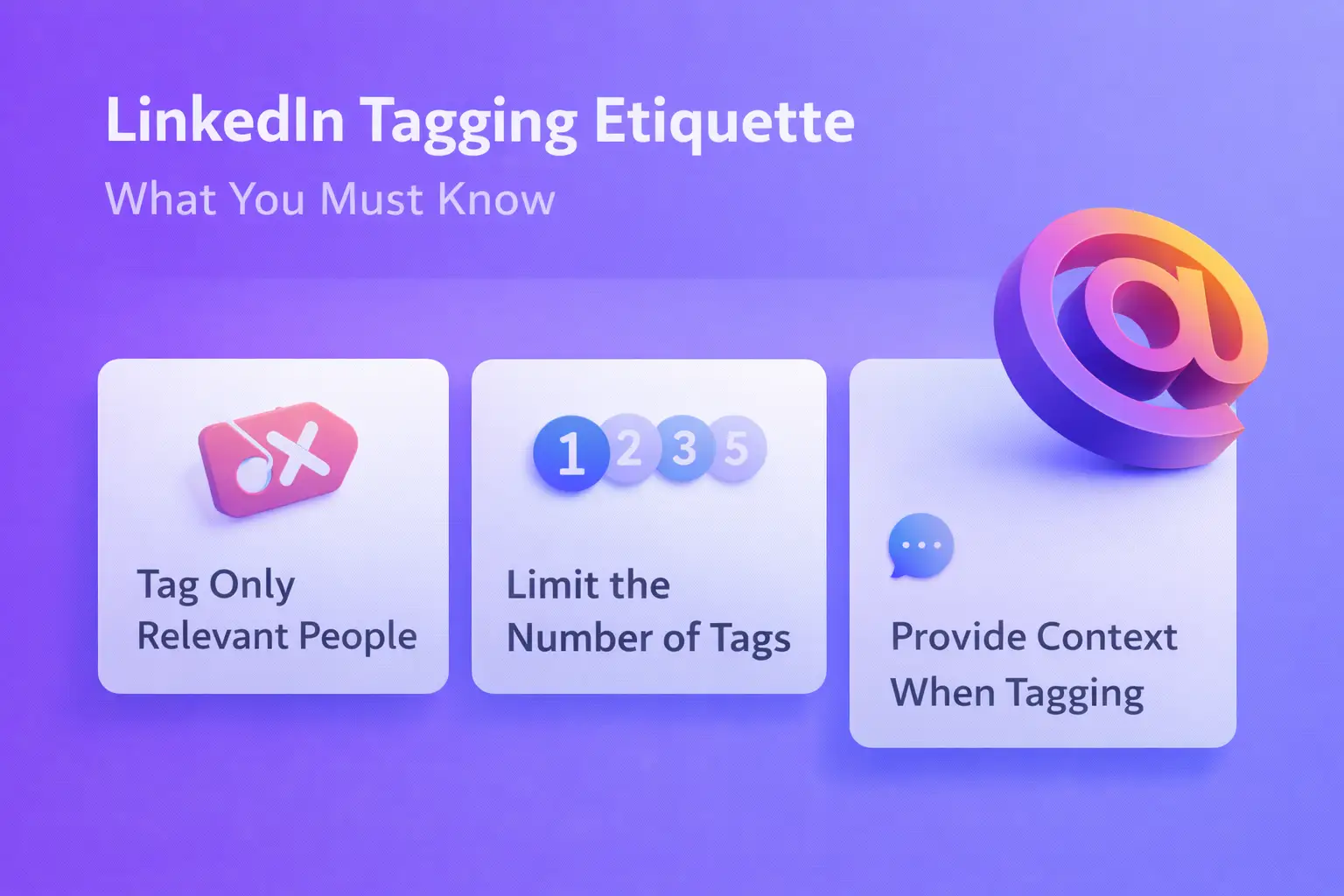
Tag Only Relevant People
- Every tag should serve a clear purpose in your content.
- Good reasons to tag include crediting someone's work, acknowledging their contribution, or inviting their expertise into a discussion.
- Poor reasons include hoping they will share your post to their audience or tagging random people for attention.
Limit the Number of Tags
- LinkedIn recommends tagging no more than 5 people per post to avoid triggering spam signals.
- Professional LinkedIn users often limit tags to just 1-2 highly relevant individuals.
- Posts with excessive tags experience algorithmic penalties that reduce reach by 30-50%.
- The platform actively monitors tagging patterns to identify low-quality engagement tactics.
Provide Context When Tagging
Never tag people without explaining why. When you mention someone, include a brief note about their contribution or why their perspective matters.
Example with context: "Really appreciated [Name]'s insight on this topic during our recent team call".
Example without context: Simply tagging 10 names with no explanation.
Ask Permission for Sensitive Topics
- If you're uncertain whether someone wants to be associated with a particular discussion, ask first before tagging them.
- This is especially important for controversial topics, company announcements, or personal matters.
Common LinkedIn Tagging Mistakes to Avoid
1. Mass Tagging for Visibility
Tagging dozens of people hoping to boost impressions backfires on LinkedIn.
When tagged users don't engage with your post or untag themselves, LinkedIn's algorithm penalizes your content by reducing its distribution.
This tactic signals low-quality content to LinkedIn's system.
2. Tagging Without a Real Connection
Avoid tagging people you've never interacted with or don't have a genuine reason to mention. Random tags from strangers often result in users untagging themselves and reporting content as spam.
3. Ignoring Mobile Experience
On mobile devices, the tag selection process requires an extra tap to confirm. Always preview your post before publishing to ensure tags appear correctly as clickable links.
4. Forgetting Company Tags
You can also tag companies and brands using the same @ mention system. This is valuable when discussing industry news, sharing case studies, or highlighting business partnerships.
Advanced Tagging Strategies for 2026
Tag to Build Thought Leadership
Reference industry experts when sharing insights related to their work. This positions you within professional conversations and can lead to valuable connections.
Always add unique commentary rather than just tagging someone with their own content.
Combine Tags with Other Engagement Tactics
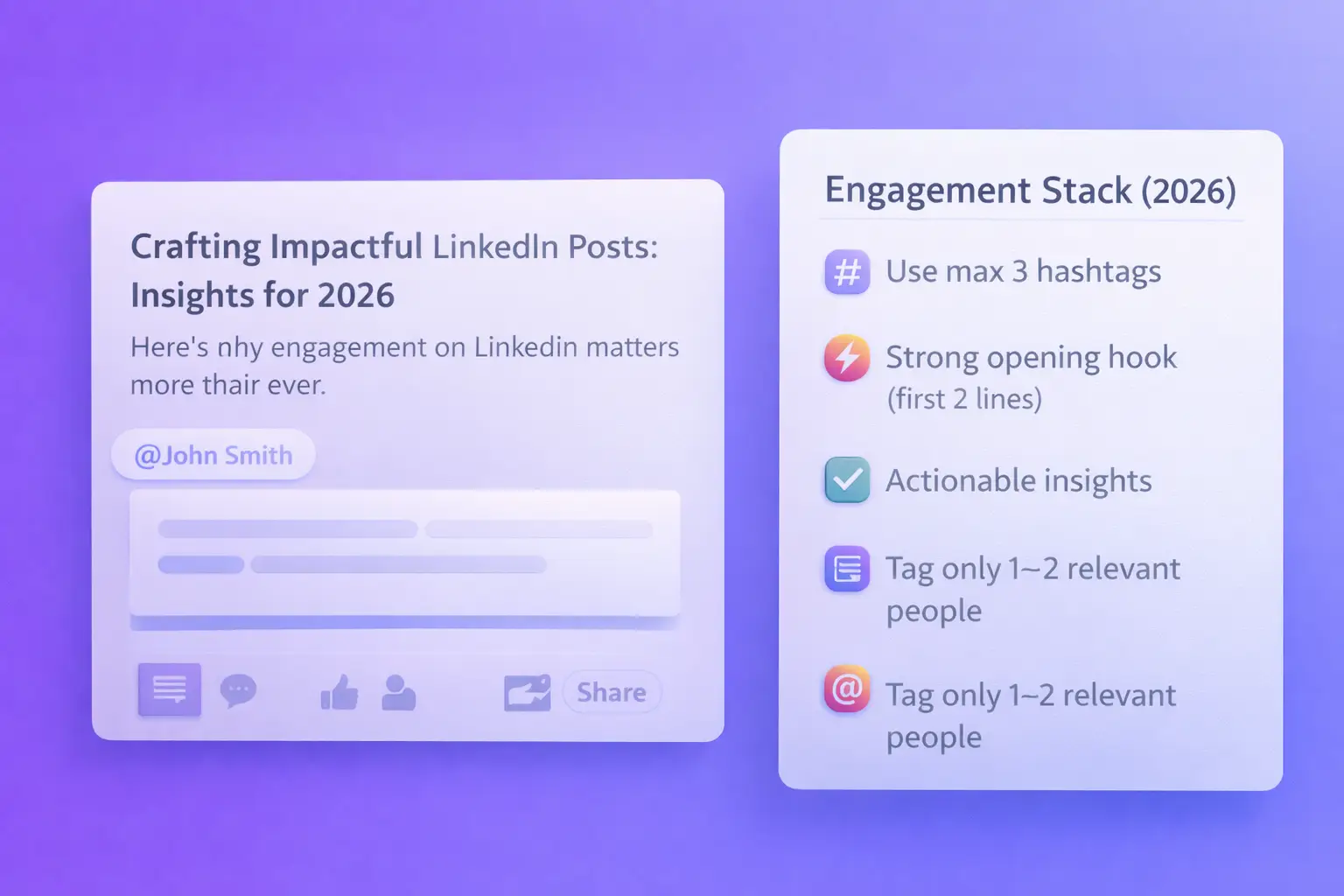
Tags alone won't maximize your reach. Combine them with a complete engagement strategy for 2026:
- Use 3 hashtags maximum per post
- Lead with strong opening hooks (first 2 lines matter most)
- Provide actionable insights, not just opinions
- Tag only 1-2 highly relevant people
This multi-layered approach signals quality content to LinkedIn's algorithm and drives authentic engagement.
Track Tag Performance
Don't tag blindly. Monitor what actually works.
Key metrics to track:
- Comment quality from tagged users
- Response rates to your posts
- Connection requests received after tagging
- Profile views from tagged mentions
Adjust your tagging strategy based on these results rather than guessing what resonates.
Pro tip: LinkedIn automation tools track these engagement metrics automatically when managing multiple accounts or campaigns.
How Tagging Fits into Your LinkedIn Strategy
Strategic tagging isn't a standalone tactic. It works best when combined with your broader LinkedIn goals:
- Lead generation and prospecting
- Personal brand building
- Network expansion
Automation Makes Tagging Scalable
- Managing multiple outreach campaigns manually becomes overwhelming fast.
- Automation tools handle tagging within personalized message sequences while maintaining authentic engagement.
- This approach lets you scale high-volume networking without losing the personal touch.
Unified Inbox Management
- Track all tagged conversations across multiple accounts in one centralized dashboard.
- This prevents missed replies and ensures you respond quickly when someone engages with your tagged posts.
- Timely responses to tagged mentions build stronger professional relationships and increase future engagement rates
FAQs
1. Can I tag someone who isn't in my connections?
Yes, you can tag any LinkedIn user regardless of connection status by typing their full name. However, 1st-degree connections appear faster in dropdown suggestions, and tagging people you don't know risks being perceived as spam.
2. How many people should I tag in one post?
Limit tags to 5 or fewer people per post to maintain credibility and avoid algorithmic penalties. Most successful LinkedIn users tag only 1-2 highly relevant individuals per post to keep engagement authentic.
3. Do tags in comments work the same as tags in posts?
Yes, the technical process is identical using the @ symbol. However, comment tags serve different purposes like bringing specific people into existing discussions or acknowledging expertise on a topic.
4. Will tagging increase my post reach?
Strategic tagging of relevant people can increase reach when those individuals engage with your content. However, mass tagging or irrelevant tags typically reduce reach because LinkedIn's algorithm penalizes spam-like behavior.
5. Can I tag companies or only individuals?
You can tag both individuals and company pages using the @ symbol. Type @ followed by the company name, and LinkedIn displays matching business pages in the dropdown menu.
Scale Your LinkedIn Presence with Smart Automation
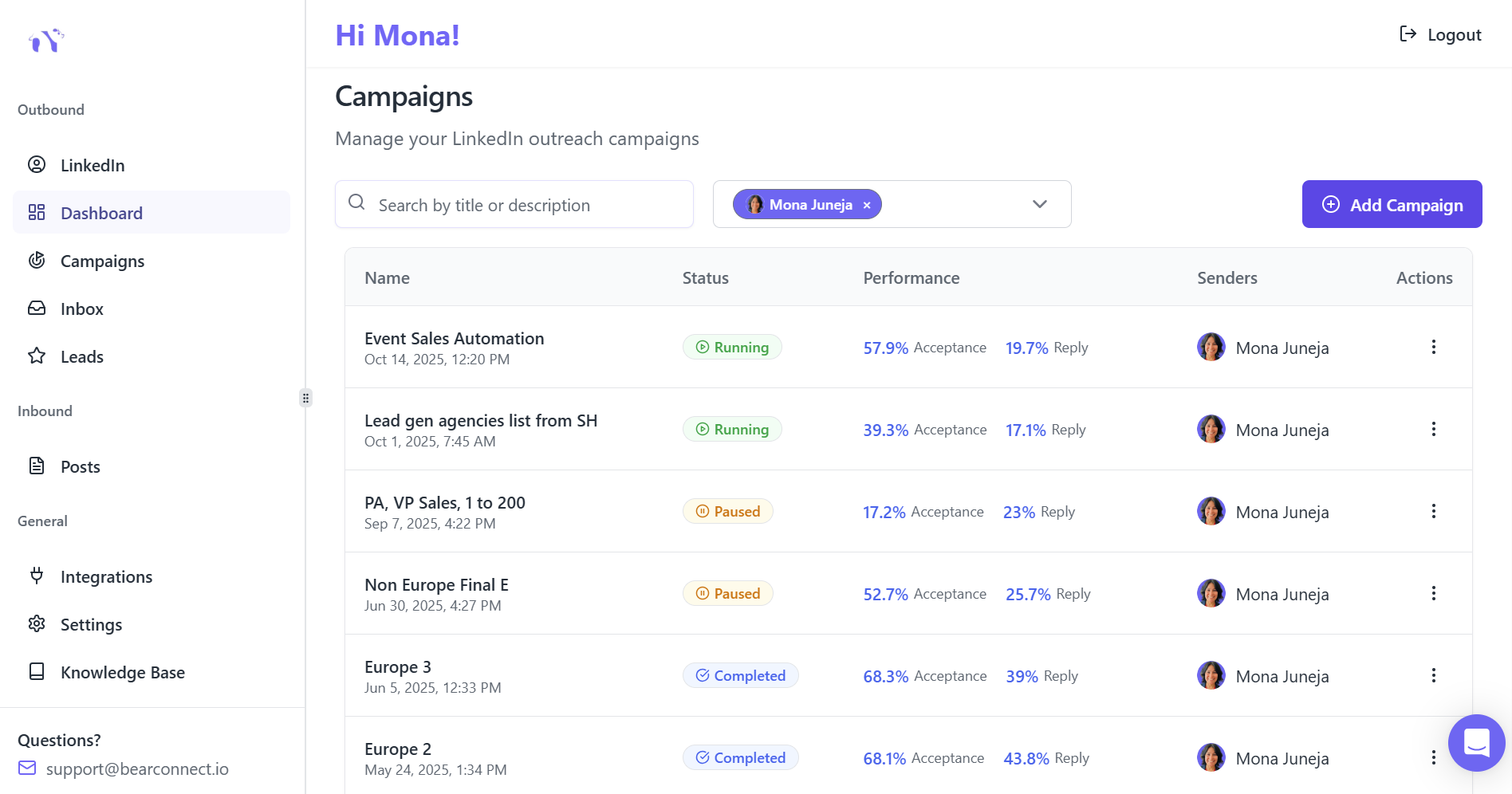
Strategic tagging works best when combined with consistent outreach and engagement.
Bearconnect automates your LinkedIn networking across multiple accounts while maintaining authentic engagement.
The platform handles connection requests, follow-ups, and message management so you can focus on building real relationships.
Ready to automate your LinkedIn growth? Start your free trial with Bearconnect and turn your profile into a 24/7 lead generation machine
Ready to Transform Your LinkedIn Strategy?
Join thousands of professionals already using Bearconnect to automate their outreach and grow their network.
7-day free trial • Cancel anytime
Related Articles

How B2B Sales Teams Close More Deals by Automating LinkedIn Outreach?
Automate LinkedIn outreach to help B2B sales teams generate leads, start conversations, and close more deals faster with proven strategies.
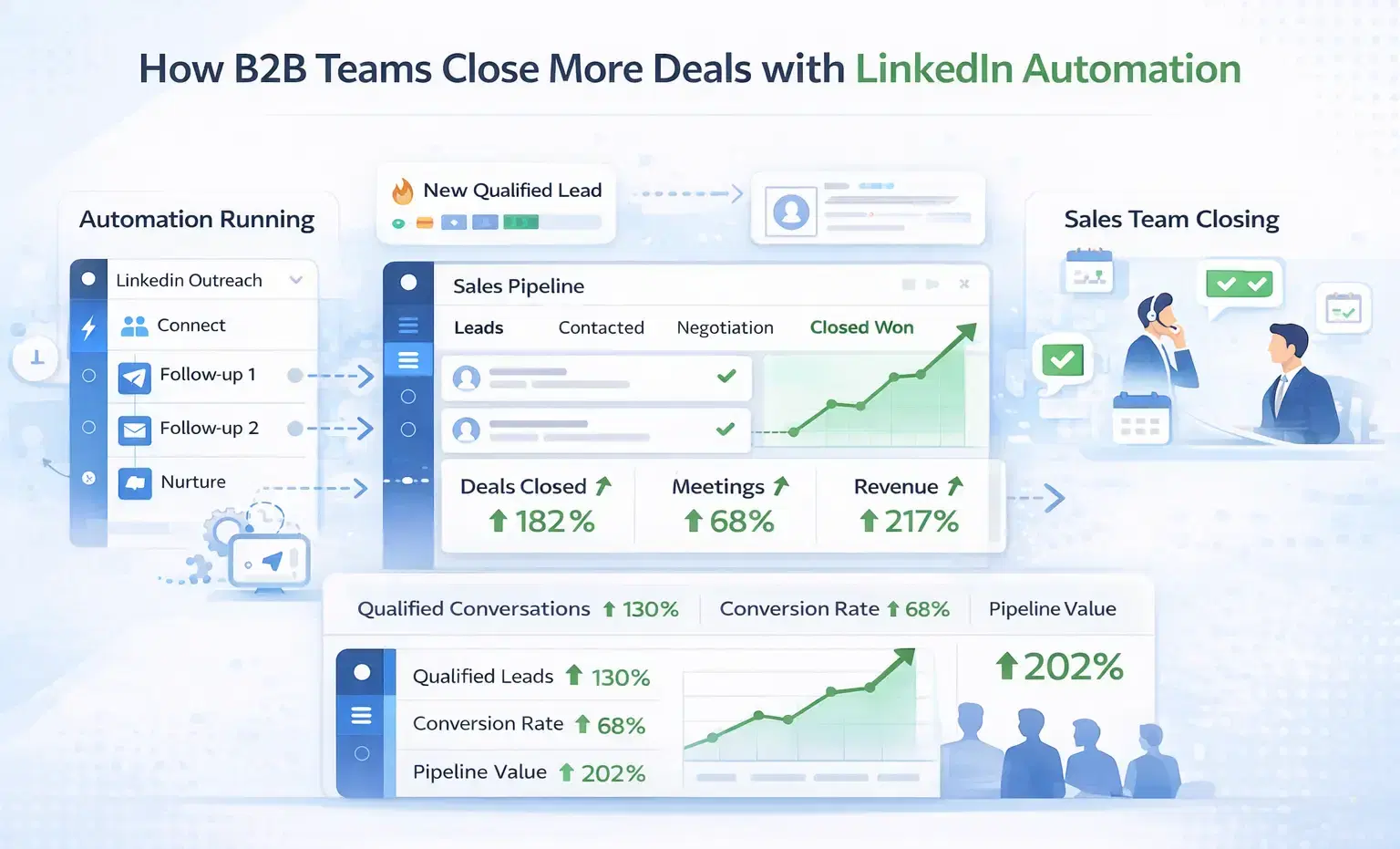
How B2B Sales Teams Close More Deals by Automating LinkedIn Outreach?
B2B sales teams waste hours on manual LinkedIn outreach. Automation fixes that more meetings, less grind, better conversions at scale.
How Can SDRs Book More Meetings Using LinkedIn Automation?
SDRs can book more meetings with LinkedIn automation by streamlining outreach, automating follow-ups, and scaling conversations without manual effort.