How to Auto-Reply to LinkedIn Comments Using Post Magnet in Bearconnect
You can auto-reply to LinkedIn comments using Bearconnect's Post Magnet feature, which detects specific trigger keywords in comments and sends an automatic reply or direct message instantly, without you being online.
TL;DR
- Post Magnet lives inside Bearconnect's Write Post section and activates keyword-triggered auto-replies on your LinkedIn posts.
- You set trigger keywords (example: "guide"), and Bearconnect auto-replies to any comment containing that word.
- You choose between two reply modes: reply publicly to the comment or send a private DM to the commenter.
- You control limits: up to 100 max replies and auto-expiry up to 30 days (default 14 days).
- The "Add First Comment" feature lets you publish a pinned comment with your post automatically.
What Is Post Magnet in Bearconnect?
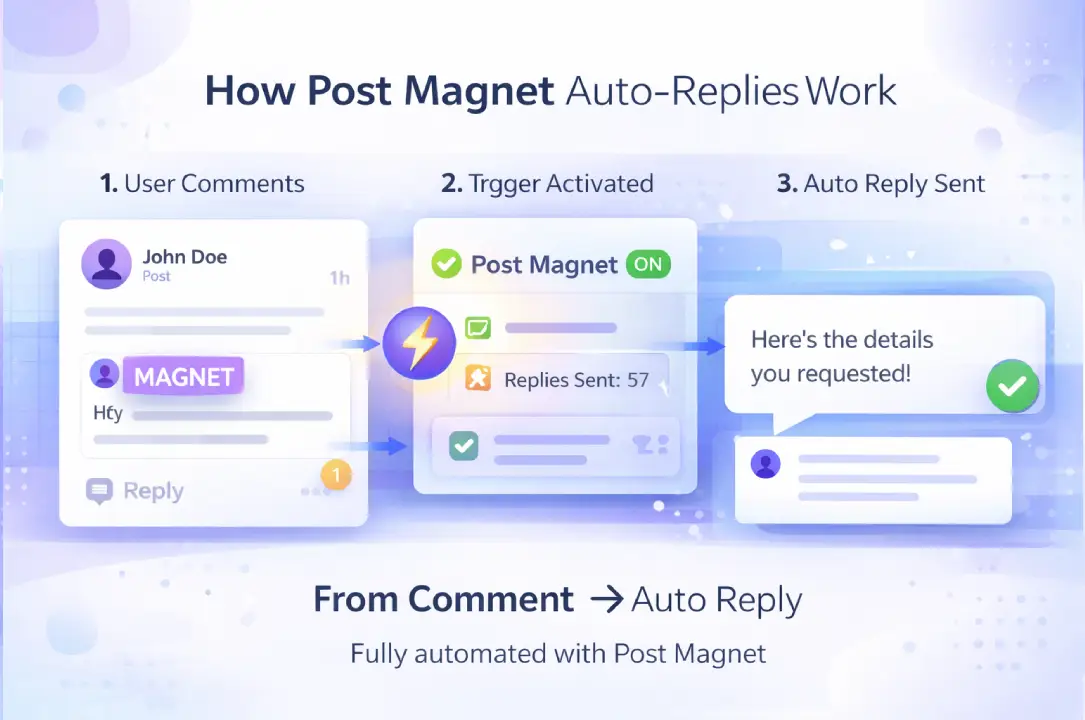
Post Magnet is Bearconnect's keyword-triggered comment automation feature built directly into the Write Post workflow.
It monitors your LinkedIn post for comments containing specific words and fires a pre-written reply or DM automatically.
This is not a generic auto-responder. You define the exact keywords that trigger it. That means you stay in full control of who gets a response and what that response says.
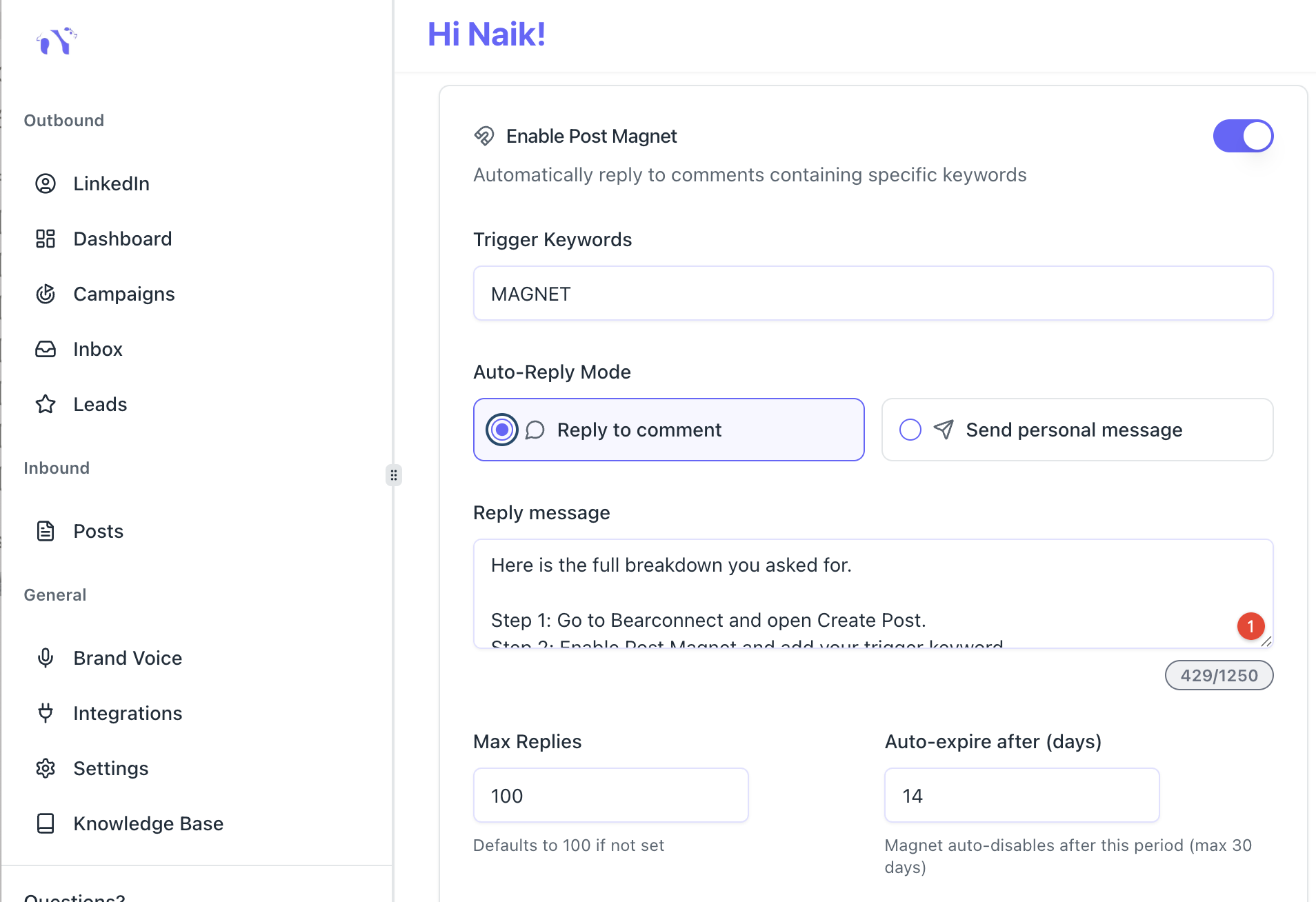
Where to find it: Create Post section inside your Bearconnect dashboard. Look for the "Enable Post Magnet" toggle.
Why Manual Comment Replies Are Costing You Leads
Every unanswered LinkedIn comment from a prospect is a warm lead that cooled off. Most LinkedIn creators reply to the first 10 to 15 comments, then life takes over.
- Meetings, calls, client work. The remaining 30 to 40 comments sit unanswered for days.
- Here is the real problem: LinkedIn's algorithm rewards early engagement. Late or missing replies reduce your post's reach in the next 24 to 48 hours.
- And for sales-driven profiles, every missed comment reply is a missed conversation starter.
- Post Magnet solves this by removing the dependency on you being online at the right moment.
- If you want a full breakdown on converting LinkedIn activity into pipeline, read this guide on how to generate LinkedIn leads.
How Post Magnet Works: The Core Mechanism
Post Magnet works by matching comments against your pre-set trigger keywords and firing a response automatically.
Here is the exact logic:
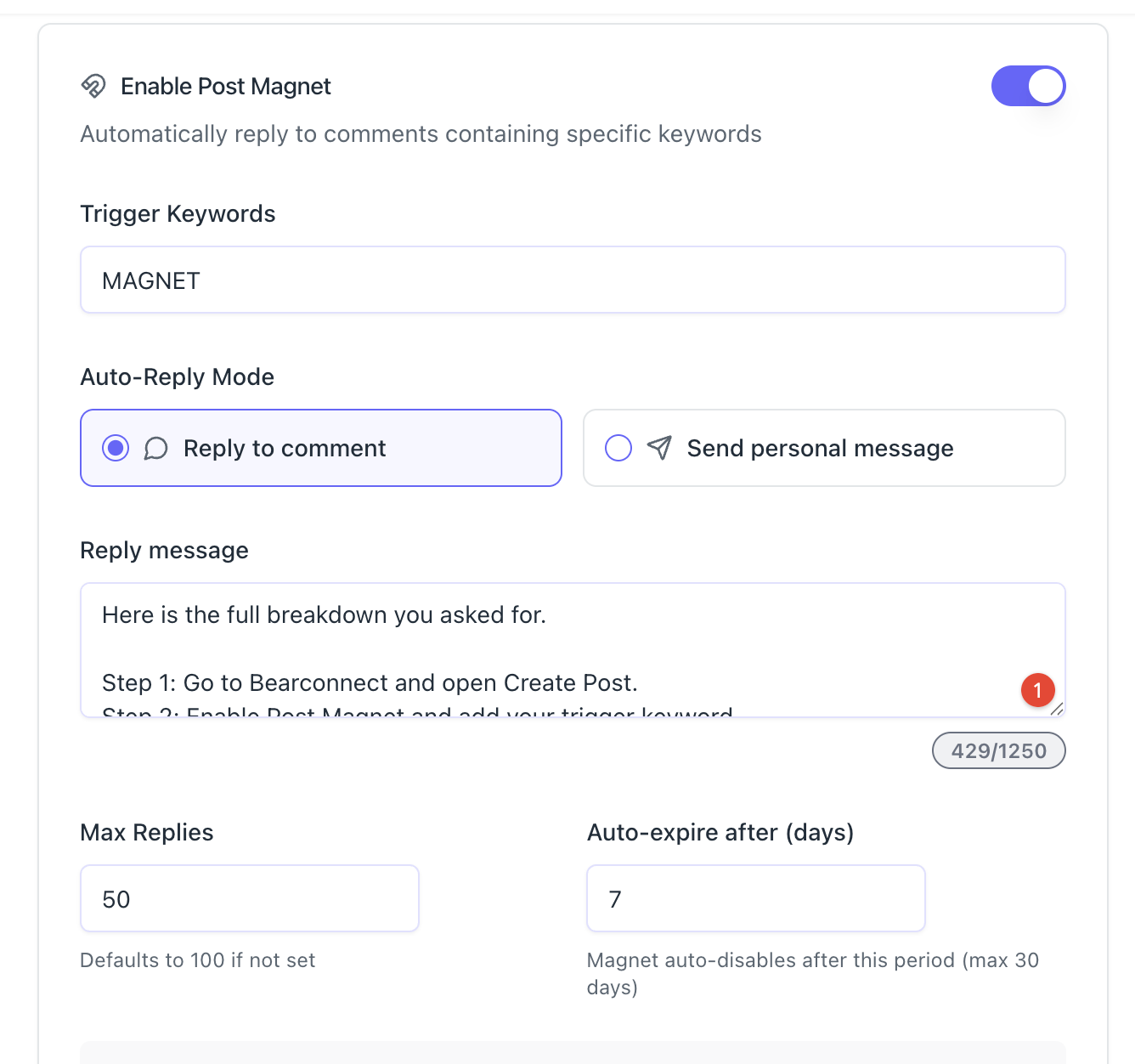
- You publish a LinkedIn post through Bearconnect with Post Magnet enabled.
- Someone comments on that post.
- Bearconnect scans the comment for your trigger keyword.
- If the keyword matches, it triggers your pre-written response.
- The response goes out as either a public comment reply or a private DM.
Example scenario: You post a LinkedIn insight about B2B lead generation. In the post, you write: "Comment 'LinkedIn guide' and I'll send you the full checklist."
Anyone who comments that phrase gets your message automatically, within seconds.
This works 24/7 without you touching your phone or laptop.
Before you automate replies, it helps to know what CFBR means and when to use it, so your comment section looks helpful instead of spammy.
Step-by-Step: Setting Up Post Magnet in Bearconnect
Step 1: Open the Create Post Section
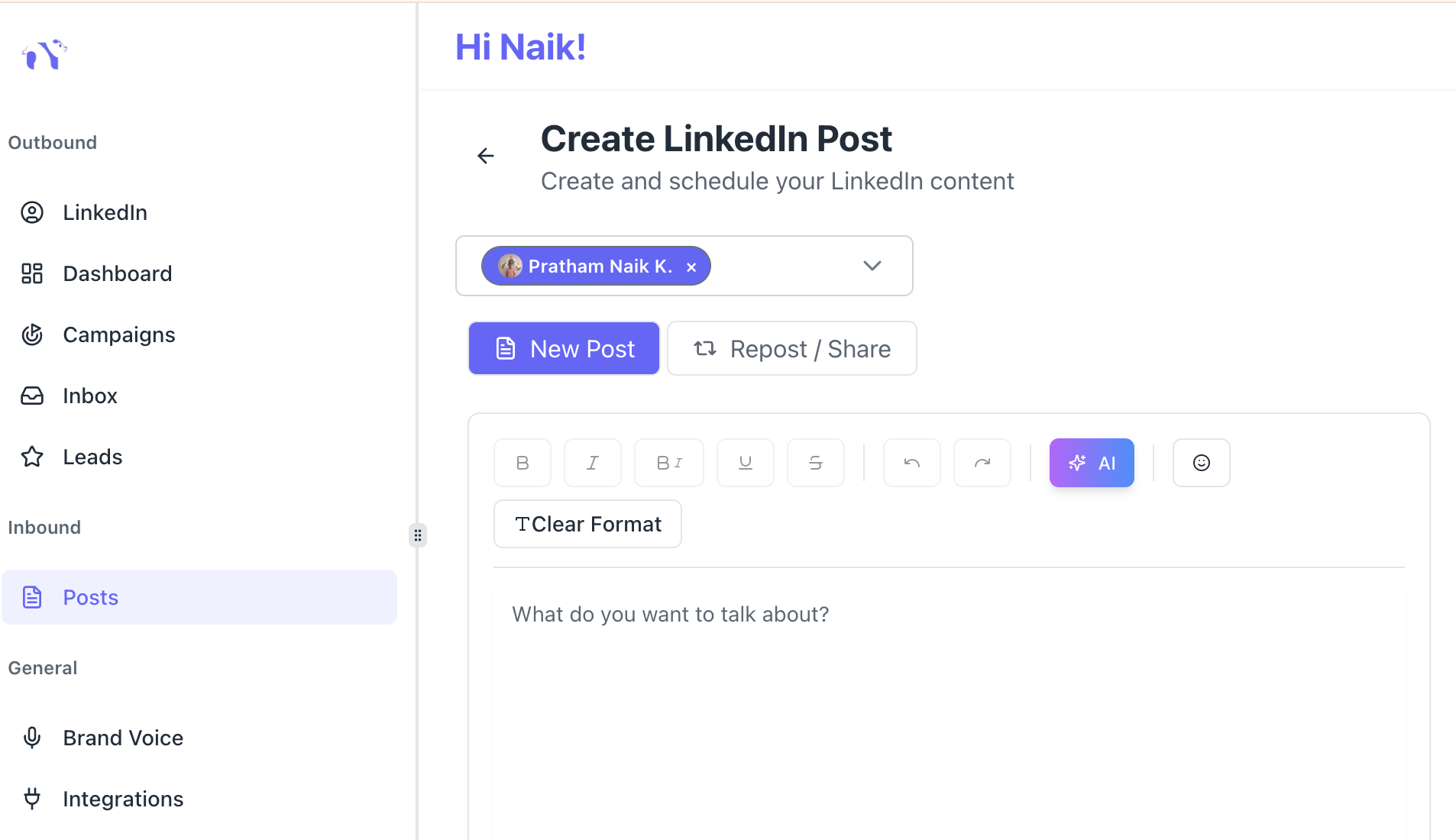
Log into your Bearconnect dashboard and go to the Create Post module. Write or generate your LinkedIn post using the AI post tool.
Step 2: Enable Post Magnet
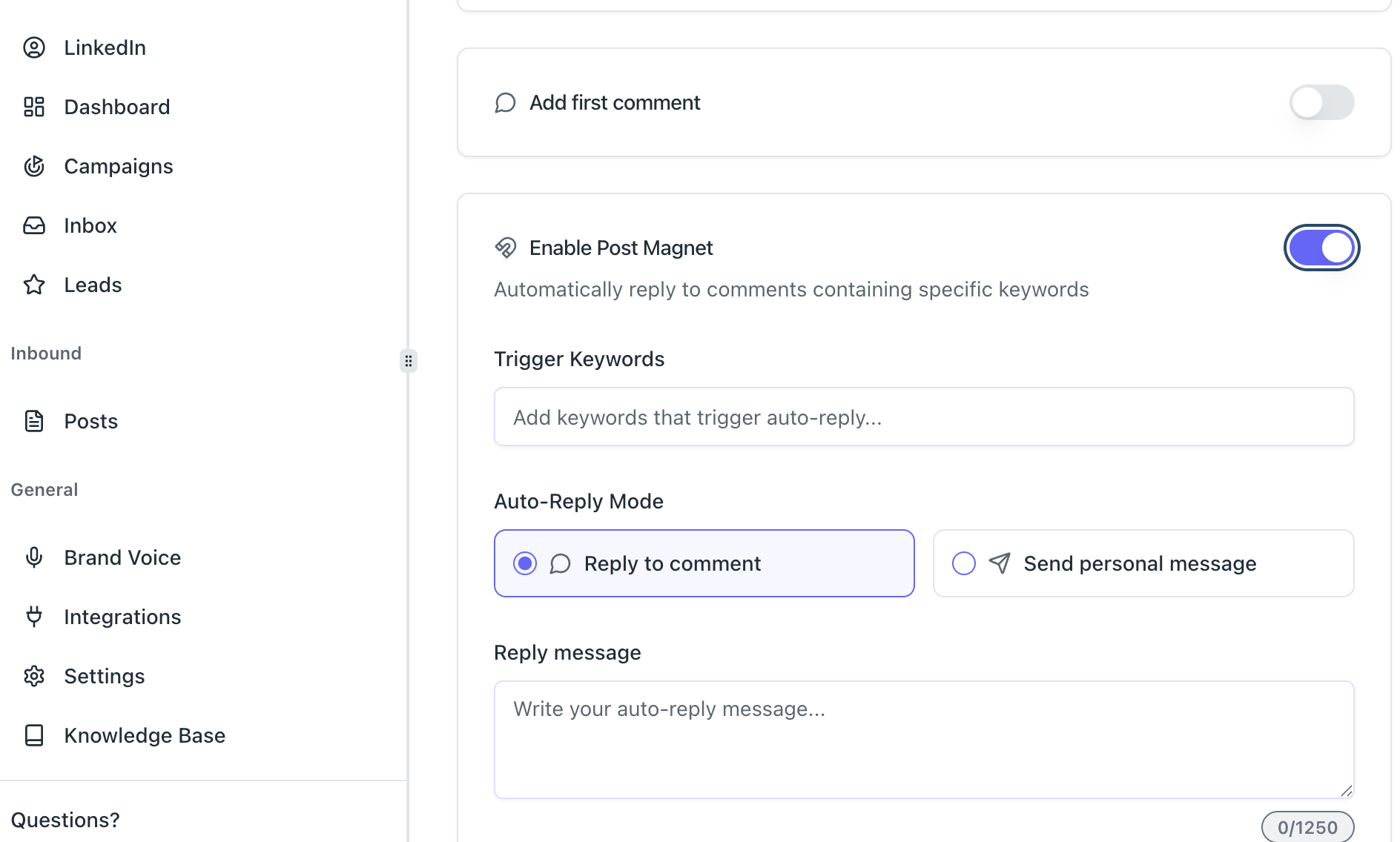
Scroll down to the Post Magnet section inside the post editor. Toggle on "Enable Post Magnet." This activates the keyword detection engine for that specific post.
Step 3: Add Your Trigger Keywords
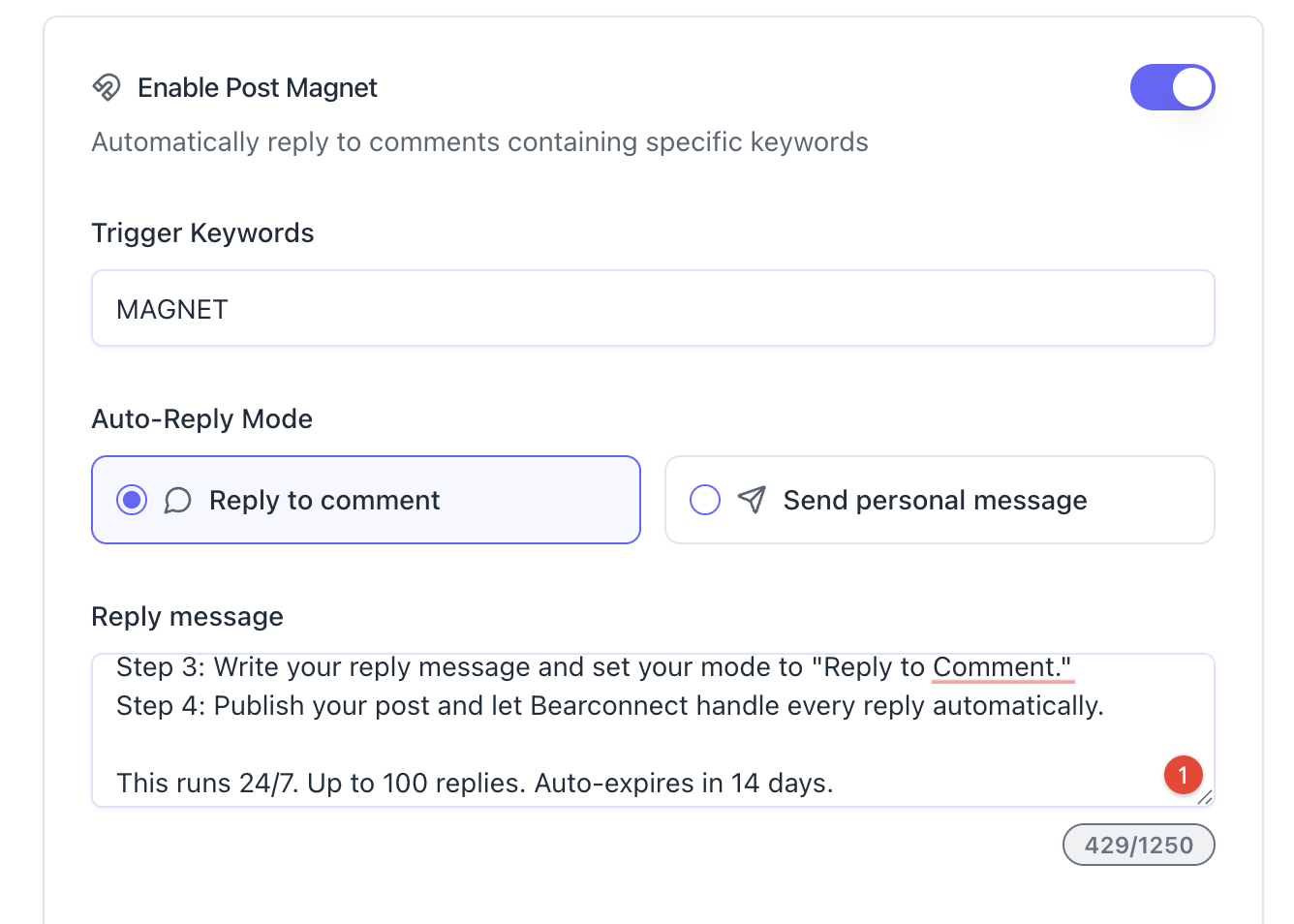
Type in the keywords you want to monitor. Keep them specific and mention them directly in your post so readers know what to comment.
Good trigger keyword examples:
- "guide"
- "checklist"
- "template"
- "interested"
- "send it"
Pro Tip: Use a single, clear keyword per campaign. The simpler the keyword, the higher the comment rate. "Comment 'guide'" outperforms "Comment 'send me the full LinkedIn lead generation guide'".
For more ready-to-use message frameworks, check out these LinkedIn message templates for automation.
Step 4: Choose Your Auto-Reply Mode
Bearconnect gives you two reply modes. Pick one based on your goal.
Mode 1: Reply to Comment
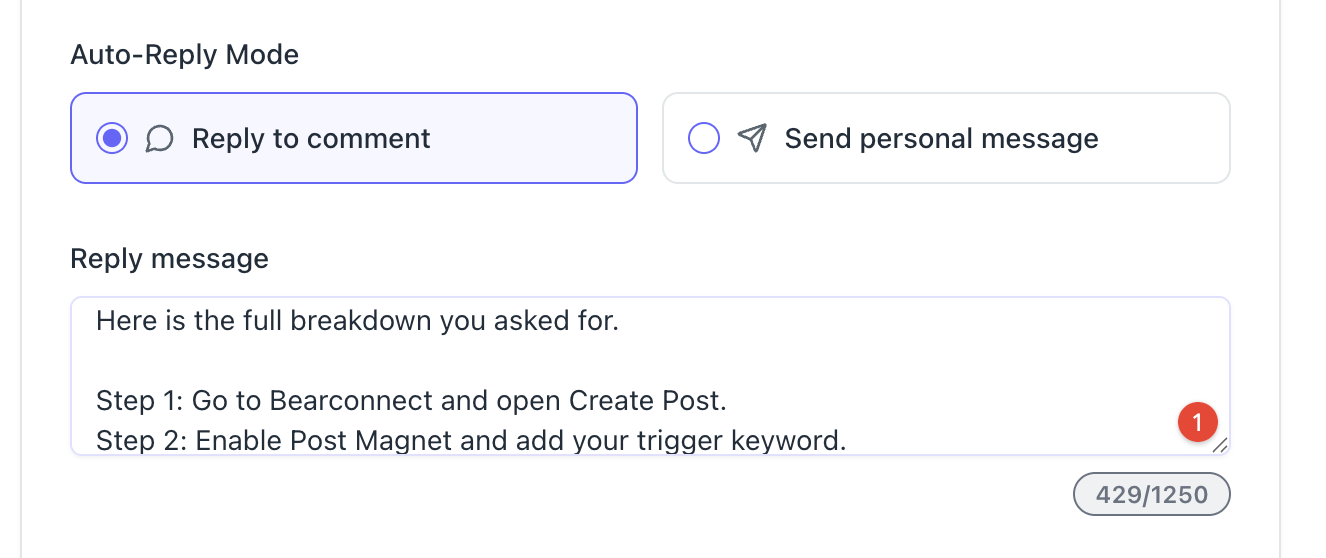
- Bearconnect posts a public reply under the commenter's comment.
- Visible to everyone who reads the post.
- Good for social proof: other readers see the replies and engage more.
- Character limit: 1,250 characters.
Mode 2: Send Personal Message (DM)
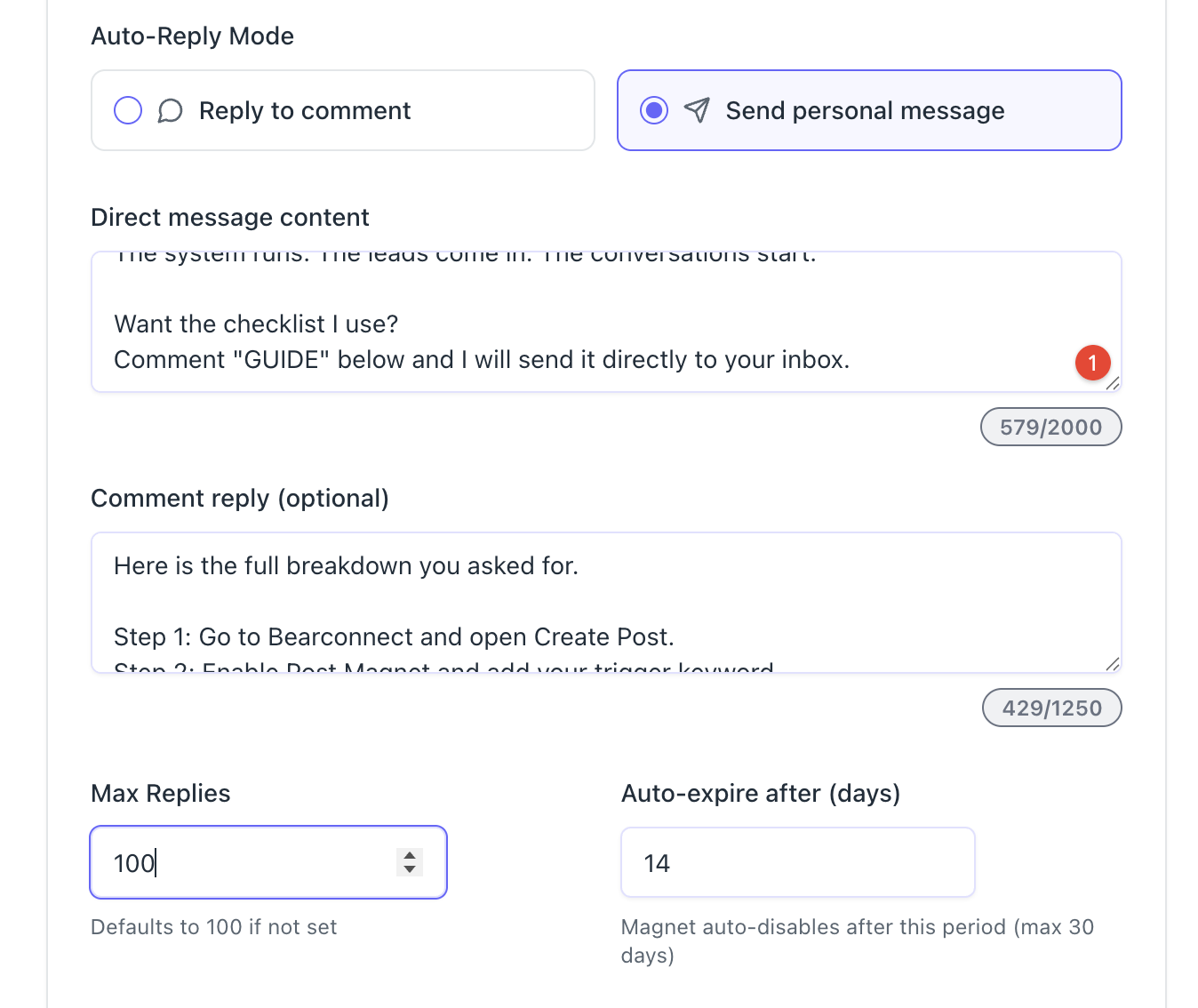
- Bearconnect sends a direct message to the commenter's LinkedIn inbox.
- Private, personal, and direct.
- Best for sharing links, resources, or starting a sales conversation.
- Character limit: 2,000 characters for the DM, plus an optional 1,250-character public comment reply.
- Learn more about how LinkedIn DM tools for outreach automation work at scale.
When to use which mode:
| Goal | Recommended Mode |
|---|---|
| Share a link or resource | Send Personal Message |
| Build social proof on the post | Reply to Comment |
| Start a sales conversation | Send Personal Message |
| Increase comment engagement | Reply to Comment |
| Deliver a lead magnet | Send Personal Message |
Step 5: Write Your Reply Message
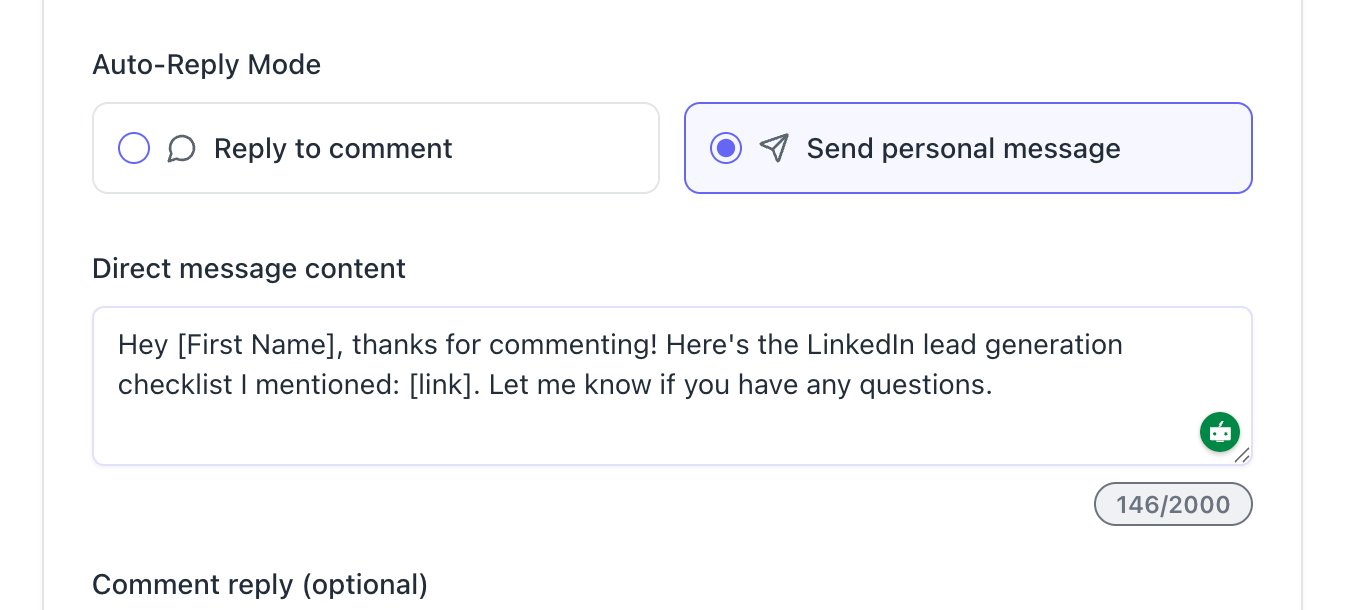
Write the message Bearconnect will send when the keyword triggers. Keep it conversational and on-brand.
Example DM message:
"Hey [First Name], thanks for commenting! Here's the LinkedIn lead generation checklist I mentioned: [link]. Let me know if you have any questions."
Pro Tip: Use Bearconnect's Brand Voice feature to configure your tone, vocabulary, and style. This ensures every automated reply sounds like you wrote it manually, not like a template.
Step 6: Set Max Replies and Auto-Expiry
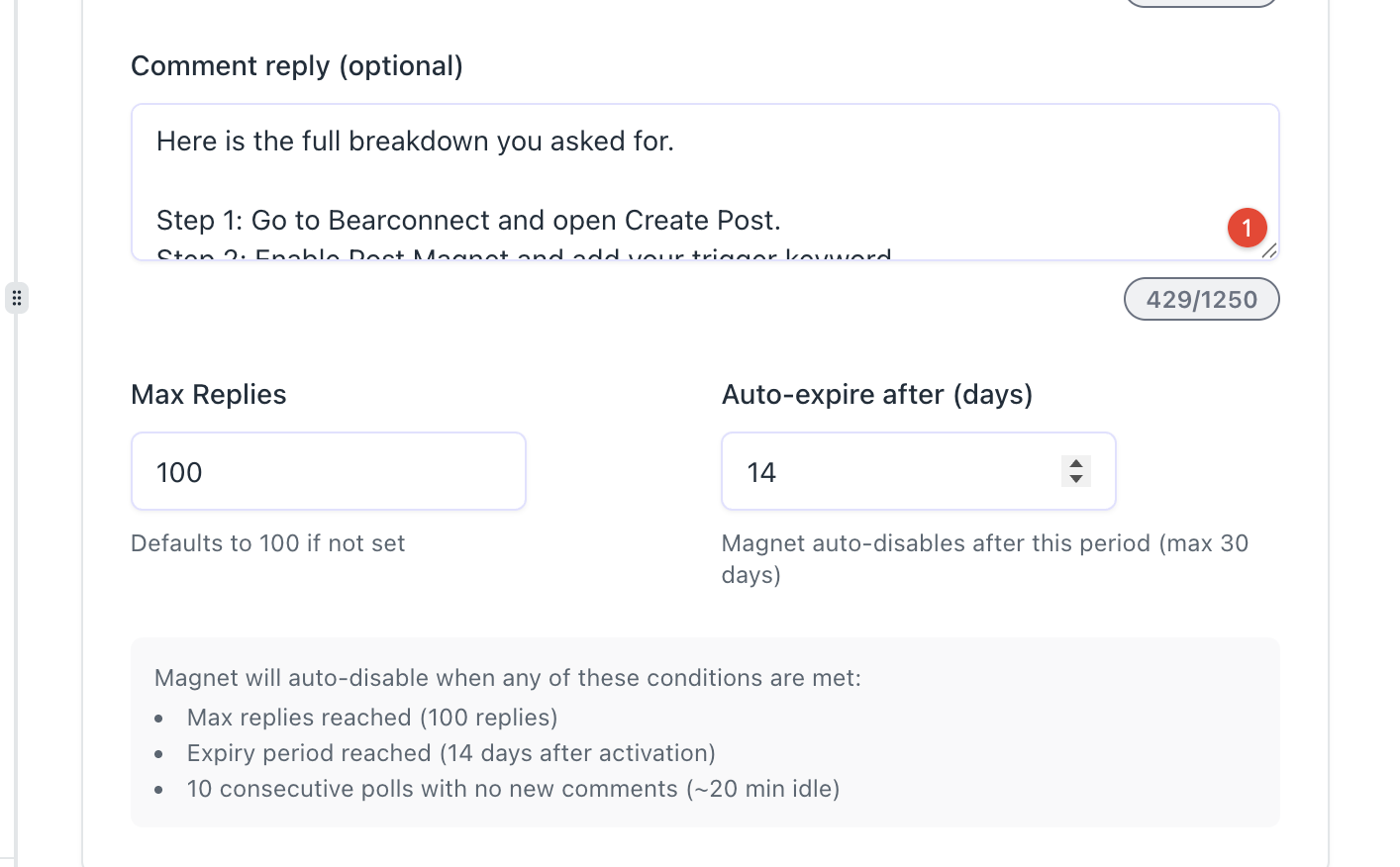
- Max Replies: Default is 100. This is the maximum number of people who will receive the auto-reply. Once reached, the magnet stops. You can set this lower if you want to create scarcity ("only first 20 people get this").
0 Auto-expire after (days): Default is 14 days. Maximum is 30 days. After this period, the magnet auto-disables. This prevents old posts from triggering replies long after the context is gone.
Post Magnet auto-disables when any of these conditions are met:
- Max replies reached (default: 100 replies)
- Expiry period reached (default: 14 days after activation)
- 10 consecutive polls with no new comments (approximately 20 minutes of idle time)
Step 7: Add First Comment (Optional but Recommended)
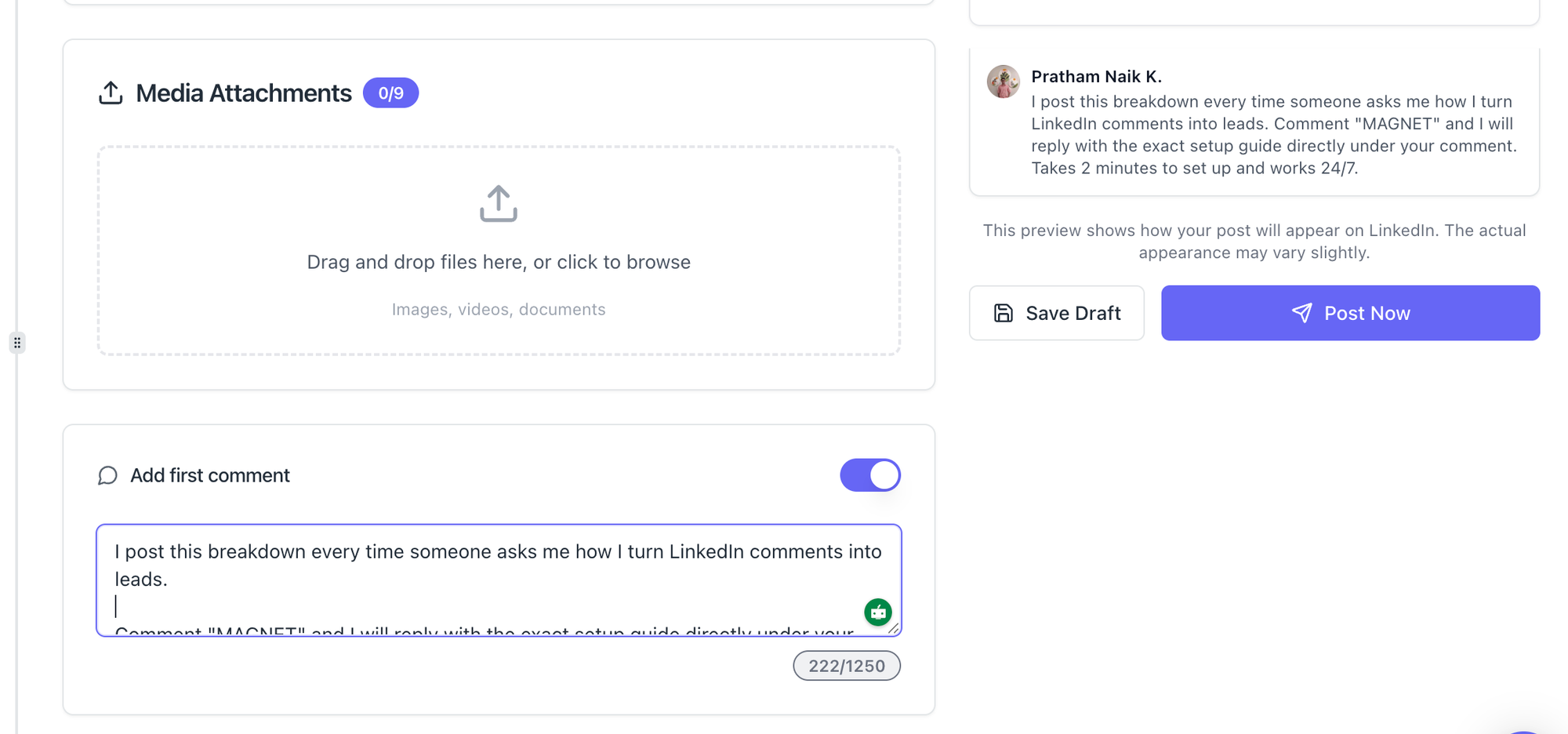
Bearconnect includes an "Add First Comment" feature that publishes a comment automatically the moment your post goes live.
This works seamlessly alongside the post scheduling feature so both your post and first comment go live at the exact right time.
Why this matters:
- The first comment on any LinkedIn post gets the most visibility.
- You can use it to add the CTA your main post did not include.
- It keeps the main post clean while the first comment drives action.
Example first comment:
"Found this useful? Comment 'guide' below and I'll send you the full step-by-step checklist directly."
This turns your first comment into the trigger mechanism for Post Magnet. Clean, effective, and fully automated.
Real-World Use Cases for Post Magnet
Use Case 1: Founder Sharing Thought Leadership
- A SaaS founder posts a tactical LinkedIn breakdown on cold outreach. They add "Comment 'template'" in the post.
- Post Magnet sends the outreach template via DM to every commenter automatically. The founder is in back-to-back product meetings all day and misses zero leads.
- Need ideas for what to post? Here are LinkedIn post ideas that actually grow followers and drive comments.
Use Case 2: Sales Rep Running Warm Outreach
- An SDR posts industry insights every week. They use Post Magnet with a "guide" trigger. Every commenter receives a DM with a relevant case study.
- The SDR's manager sees a 40% increase in warm conversations that week without any additional manual work.
Use Case 3: Agency Managing 10 Client Accounts
- An agency runs Post Magnet across 8 client LinkedIn profiles simultaneously from one Bearconnect dashboard. Each client has a separate Brand Voice profile.
- Every auto-reply sounds like the individual client, not a template. The agency handles comment engagement for all 10 accounts without adding a team member.
- Bearconnect is purpose-built for this use case. See how agencies manage multiple LinkedIn accounts from a single dashboard.
Use Case 4: Content Creator Managing High Comment Volume
- A LinkedIn creator gets 80 comments on a viral post. They physically cannot reply to everyone within the engagement window.
- Post Magnet handles the first 100 replies automatically.
- The creator focuses on producing the next post rather than spending two hours in the comments section.
A reply that mentions the commenter works the same way as tagging someone in a LinkedIn comment, and it notifies them directly.
Post Magnet and LinkedIn Safety
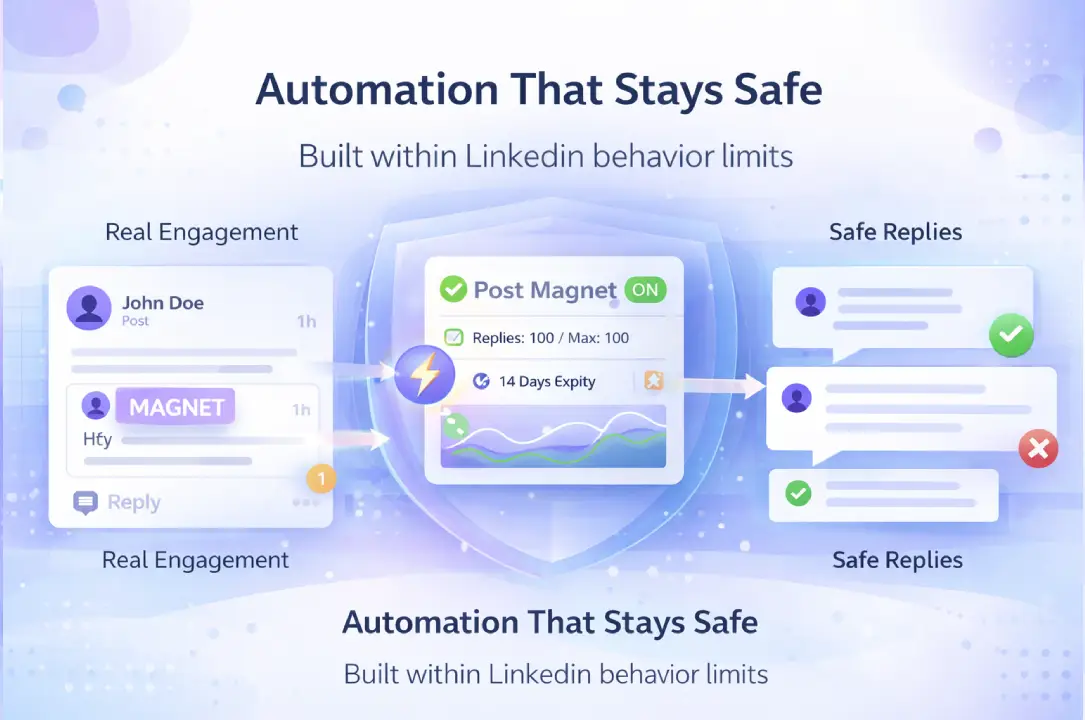
Bearconnect is built to operate within LinkedIn's behavioral limits. Post Magnet specifically targets comment-triggered responses, which are a natural interaction pattern on LinkedIn.
The system uses smart throttling and behavior mimicry to keep activity patterns indistinguishable from manual engagement.
Key safety design points:
- Bearconnect does not blast generic messages to random users.
- Every reply is triggered by a real person who actively commented.
- The 100-reply cap and 14-day expiry prevent spam-like volume bursts.
- The idle detection (10 consecutive polls with no comments) stops the magnet from running unnecessarily.
For a full breakdown on staying within LinkedIn's limits while using automation, read this guide on how to avoid LinkedIn jail and automation restrictions.
Pricing Context: What Post Magnet Costs You
Post Magnet is included in Bearconnect's standard plan. There is no separate add-on fee. See the full Bearconnect pricing page for details.
Bearconnect charges $67 per month per LinkedIn account. If you connect 5 or more LinkedIn accounts, the price drops to $57 per month per LinkedIn account.
Agency comparison:
| Accounts Connected | Bearconnect Monthly Cost | Typical Competitor Cost |
|---|---|---|
| 1 account | $67/month | $150 to $500/month |
| 5 accounts | $285/month ($57 each) | $750 to $2,500/month |
| 10 accounts | $570/month ($57 each) | $1,500 to $5,000/month |
For agencies managing multiple client profiles, Bearconnect's volume pricing makes Post Magnet a near-zero marginal cost feature per additional account.
See the dedicated Bearconnect for agencies page for the full agency workflow.
Start Automating Your LinkedIn Comment Replies Today
If you post on LinkedIn regularly and leave comments unanswered, you are leaving warm leads and engagement on the table every single day. Post Magnet in Bearconnect fixes that with a five-minute setup.
What to do next:
- Start your free 7-day trial at bearconnect.io
- Set up your first Post Magnet campaign on your next LinkedIn post
- Use the "Add First Comment" feature to plant your keyword CTA automatically
- Watch your comment-to-conversation rate climb without touching your phone
The setup takes less time than manually replying to 10 comments. Do it once, and it runs every time you post.
About the Author
Mona Juneja is the founder of Bearconnect and a B2B sales professional with 20+ years of experience at Microsoft, Oracle, and Dell.
After two decades of watching lead generation stay manual and broken for most businesses, she built Bearconnect in May 2024, an AI-powered LinkedIn automation platform that handles outreach, messaging, and content scheduling from one place.
Connect on LinkedIn: Mona Juneja
Ready to Transform Your LinkedIn Strategy?
Join thousands of professionals already using Bearconnect to automate their outreach and grow their network.
7-day free trial • Cancel anytime
Related Articles

LinkedIn Automation: The Complete Guide for 2026
What LinkedIn automation is, how it works, what LinkedIn allows, safe limits, how to choose a tool and how to run your first campaign.

How to Remove a Connection on LinkedIn (Do They Get Notified?)
Removing a LinkedIn connection takes a few clicks, but most people want to know one thing first: does the other person get notified? This guide covers the steps on desktop and mobile, and what changes afterward.
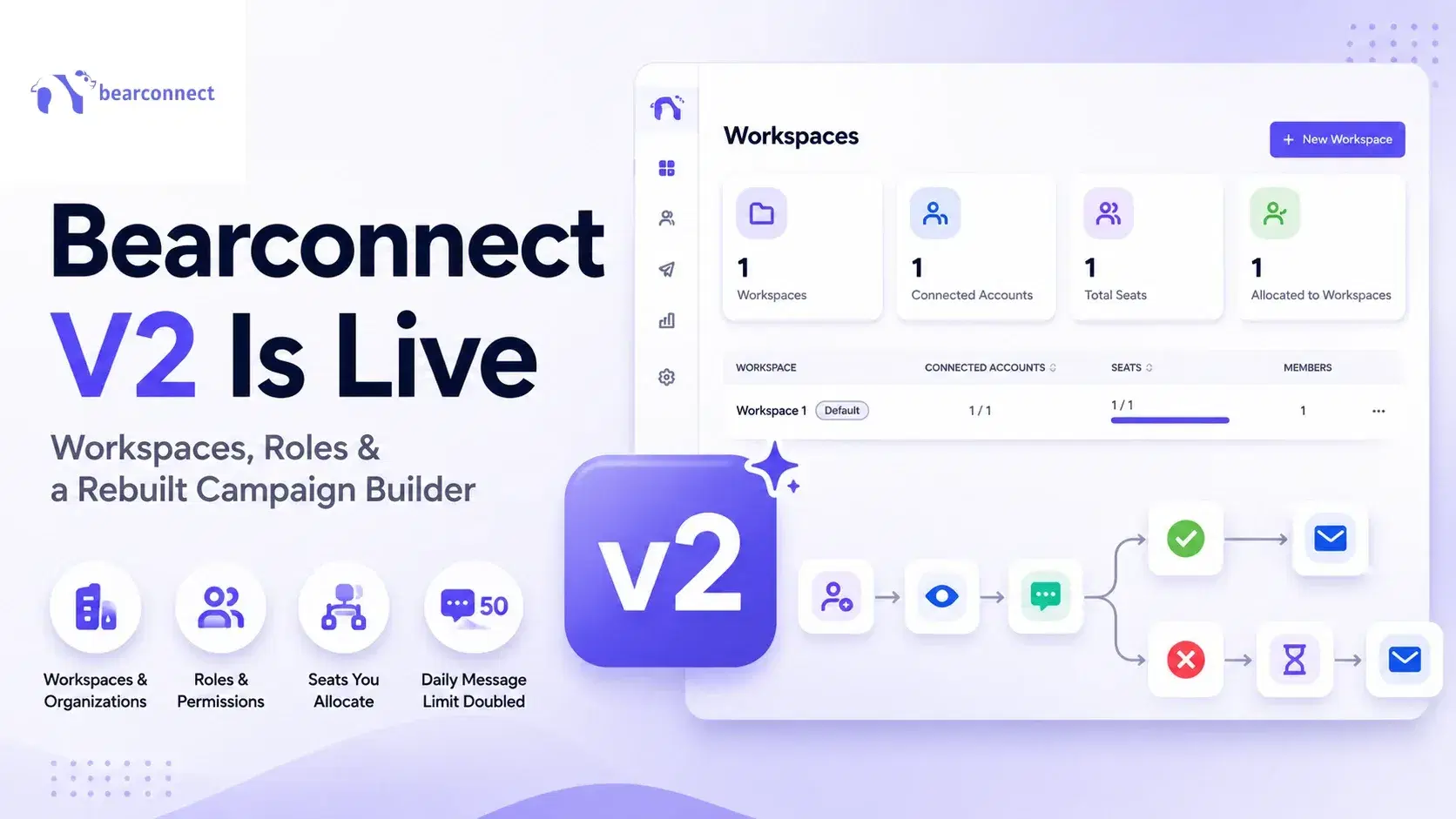
Bearconnect V2 Is Live: Workspaces, Roles and a Rebuilt Campaign Builder
Bearconnect V2 introduces dedicated workspaces, flexible roles, and a rebuilt campaign builder, giving agencies and sales teams more control over every LinkedIn account they manage.