Bearconnect V2 Is Live: Workspaces, Roles and a Rebuilt Campaign Builder
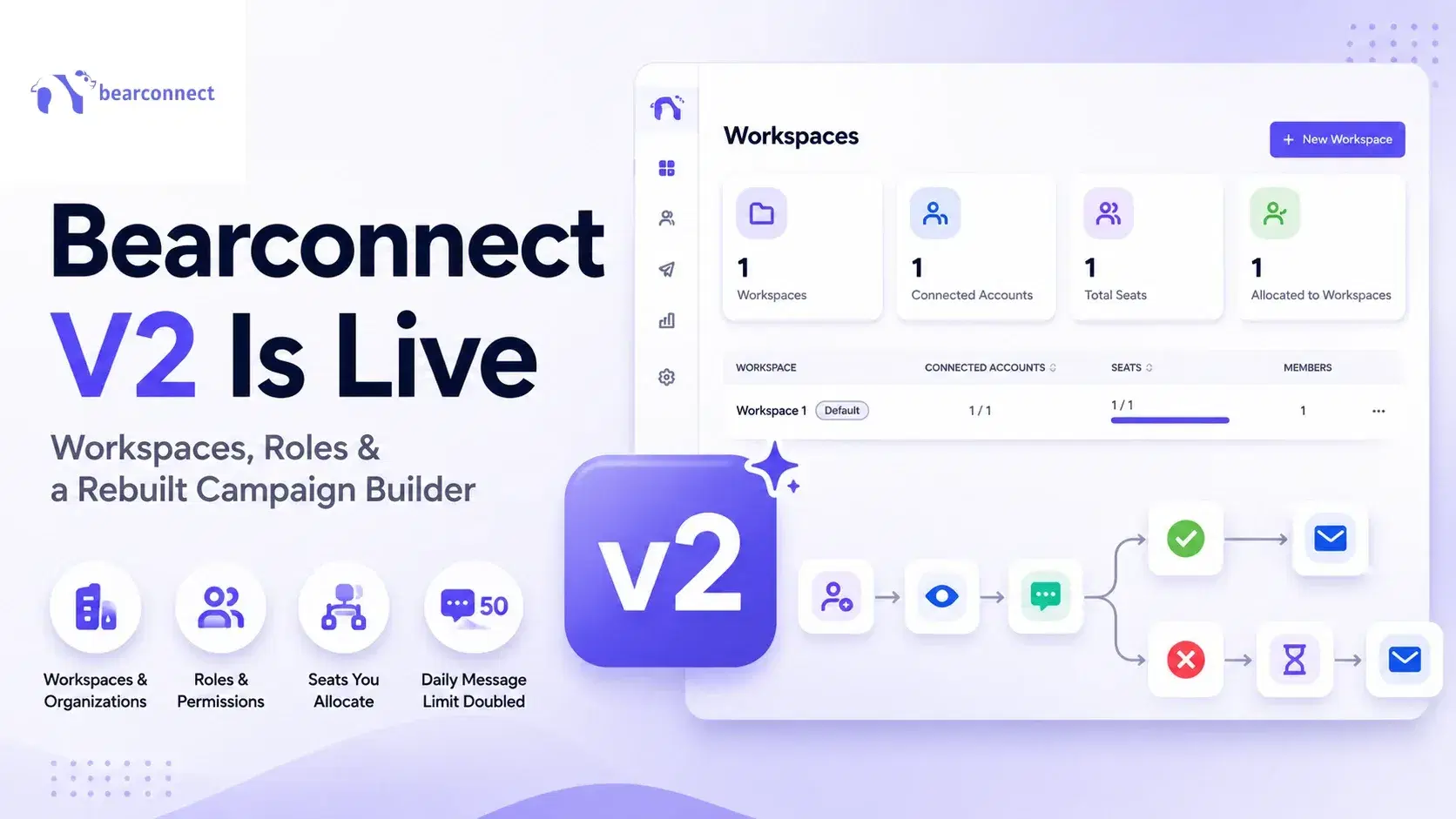
The new Bearconnect features in v2 are workspaces and organizations, role based team access, seats you allocate yourself, a daily message limit that doubles from 25 to 50, and a rebuilt campaign builder with warm up actions and branching logic.
If you run Bearconnect solo today, nothing breaks and you do not have to change anything.
Ever handed your LinkedIn login to a virtual assistant and felt genuinely relaxed about it?
Me neither. Here is why v2 matters.
I have run outreach across multiple LinkedIn accounts long enough to know exactly where v1 pinched.
One flat campaign list. A sequence builder that knew two moves, connect and message. v2 addresses all three, and I walked through every screen before writing this.
TL;DR: The New Bearconnect Features at a Glance
- Workspaces and organizations → each workspace carries its own LinkedIn account, campaigns and inbox, so client data stops mixing
- Roles and permissions → invite a teammate or VA by email with Owner, Admin, Member, Viewer or a custom role, no password sharing
- Seats → one seat equals one connectable LinkedIn account, and you allocate seats per workspace
- Daily message limit → 25 messages a day in v1 becomes 50 a day in v2
- Rebuilt campaign builder → warm up, view profile, follow, like a post, endorse skills and InMail, plus branching on accepted vs ignored
What Changed Between v1 and v2?
v2 is a structural release, not a cosmetic one. The tool went from single user software to team software.
Here is the honest side by side:
| Area | v1 | v2 |
|---|---|---|
| Team structure | One shared account | Organization plus separate workspaces |
| Team access | Share your login | Email invites with role based permissions |
| Daily messages | 25 per day | 50 per day |
| Sequence actions | Connection request and message | Warm up, view, follow, like, connect, message, endorse skills, InMail |
| Lead import | CSV, classic URL, Navigator | CSV, classic URL, Navigator, LinkedIn Group |
| Post analytics | Publish only | Likes, comments and impressions per post |
| Campaign UI | Separate actions screen | One screen for sequence, leads, timing and integrations |
Read that table again if you manage more than one account. Every row in it used to be a workaround.
What Is a Workspace in LinkedIn Automation, and Why Does It Matter?
A workspace is an isolated environment inside your account that holds its own LinkedIn account, campaigns and inbox. It is the single biggest change in v2.
The founder's framing is the clearest one I have heard: your organization is the house, and each workspace is a room in that house.
How workspaces actually work
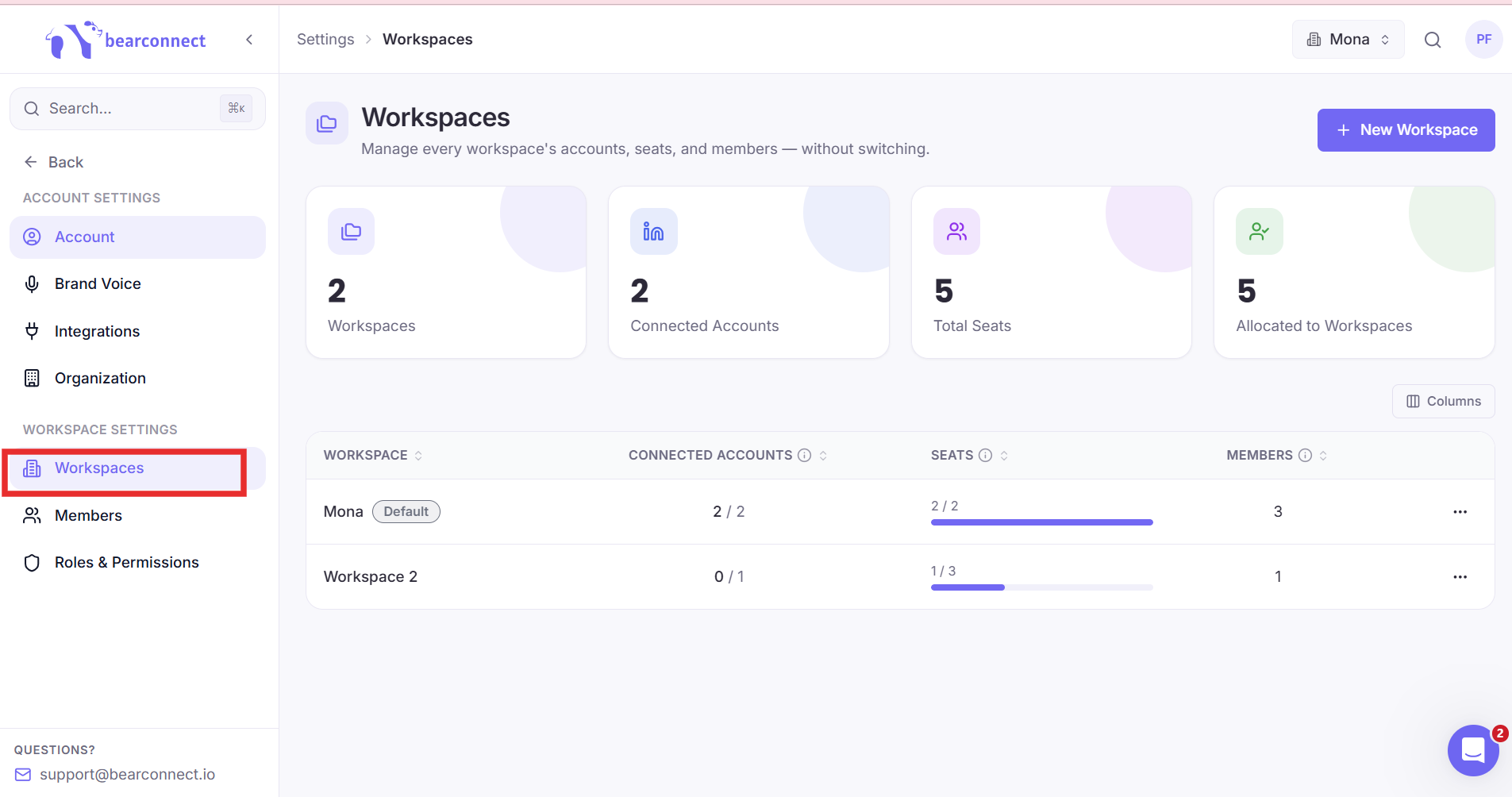
- One organization sits on top and owns billing and global settings
- Each workspace holds its own LinkedIn account, campaigns and inbox
- Nothing bleeds between workspaces unless you allow it
- You switch between workspaces from the top bar in one click
→ Client A in one workspace + Client B in another = zero chance of replying to the wrong prospect from the wrong brand.
Two ways teams are already using this
- A sales team with five reps. The owner creates five workspaces, one per rep. Each rep sees their own campaigns and inbox and nothing else. The manager still sees everything from the organization level.
- An agency with a VA. Instead of sending login credentials over chat, the owner invites the VA by email and picks what that person can touch.
Here is a scenario I see constantly. An agency runs four clients from one profile, and every Monday someone spends twenty minutes untangling which thread belongs to which client.
In v2 that twenty minutes disappears, because the inbox is already split.
What happens to your existing account
Nothing, by default.
- Bearconnect assigns you an organization and one default workspace, and drops all your existing seats into it automatically.
- You can ignore workspaces entirely and keep working the way you did in v1.
- That is the part most existing users worry about, and it is the part that needs no action.
Pro tip: Even as a solo operator, create one workspace per client from day one, because nothing needs rebuilding later when you hire.
How Do Roles and Permissions Work in Bearconnect v2?
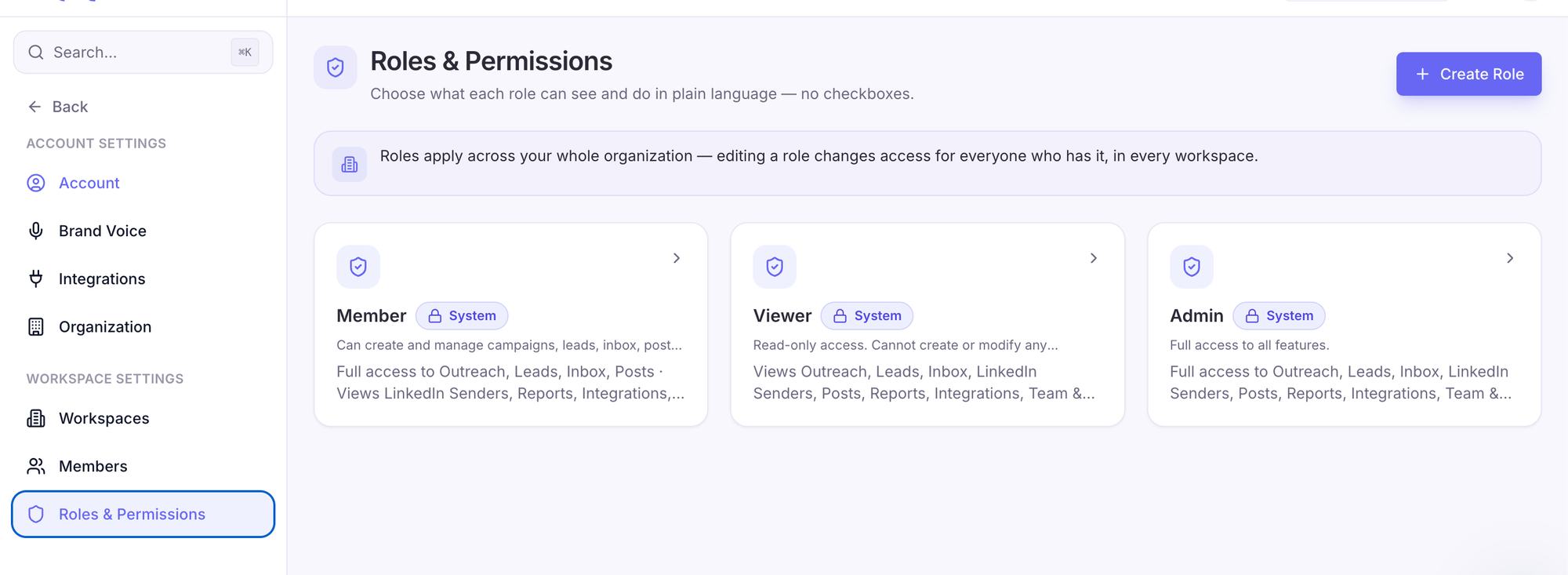
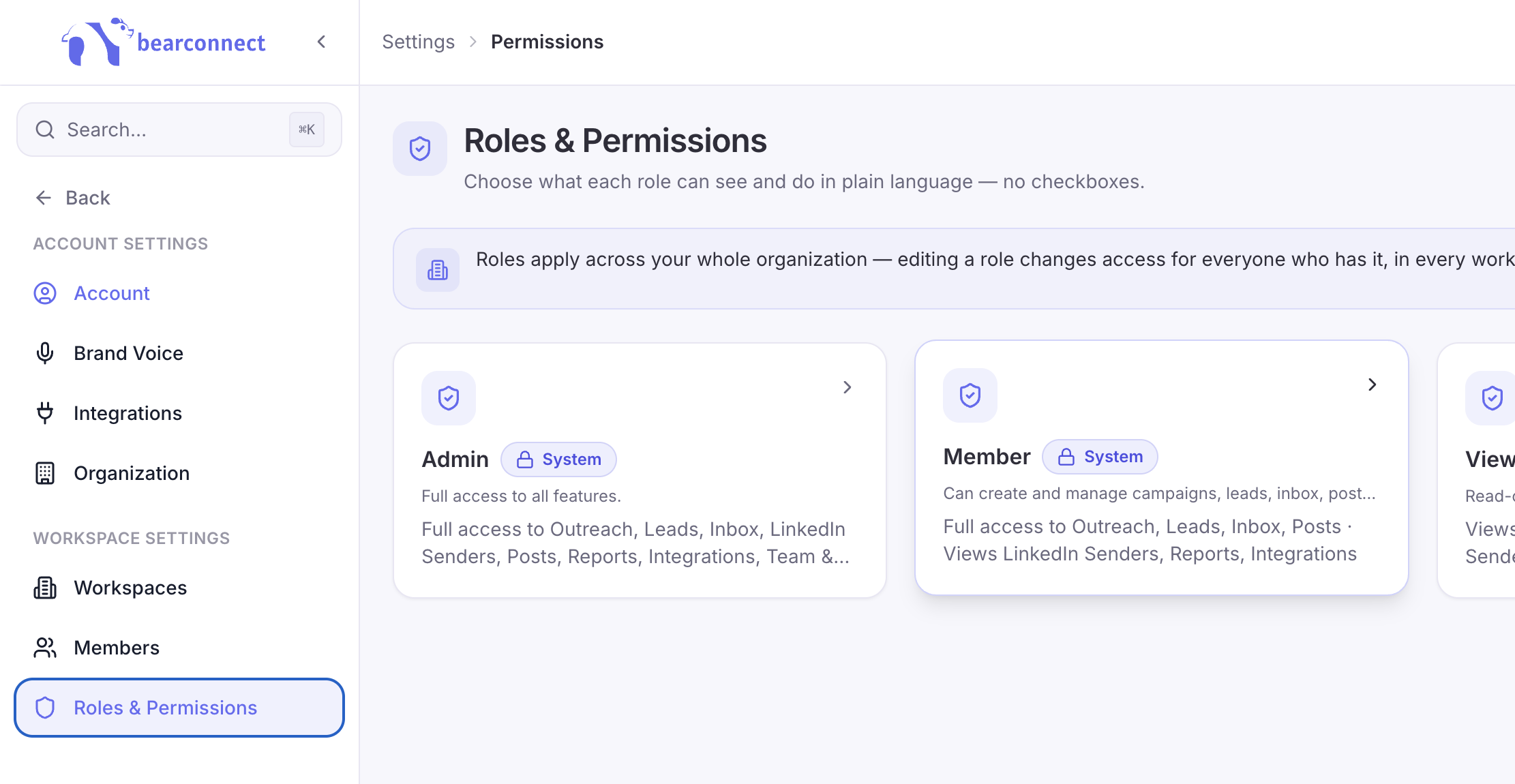
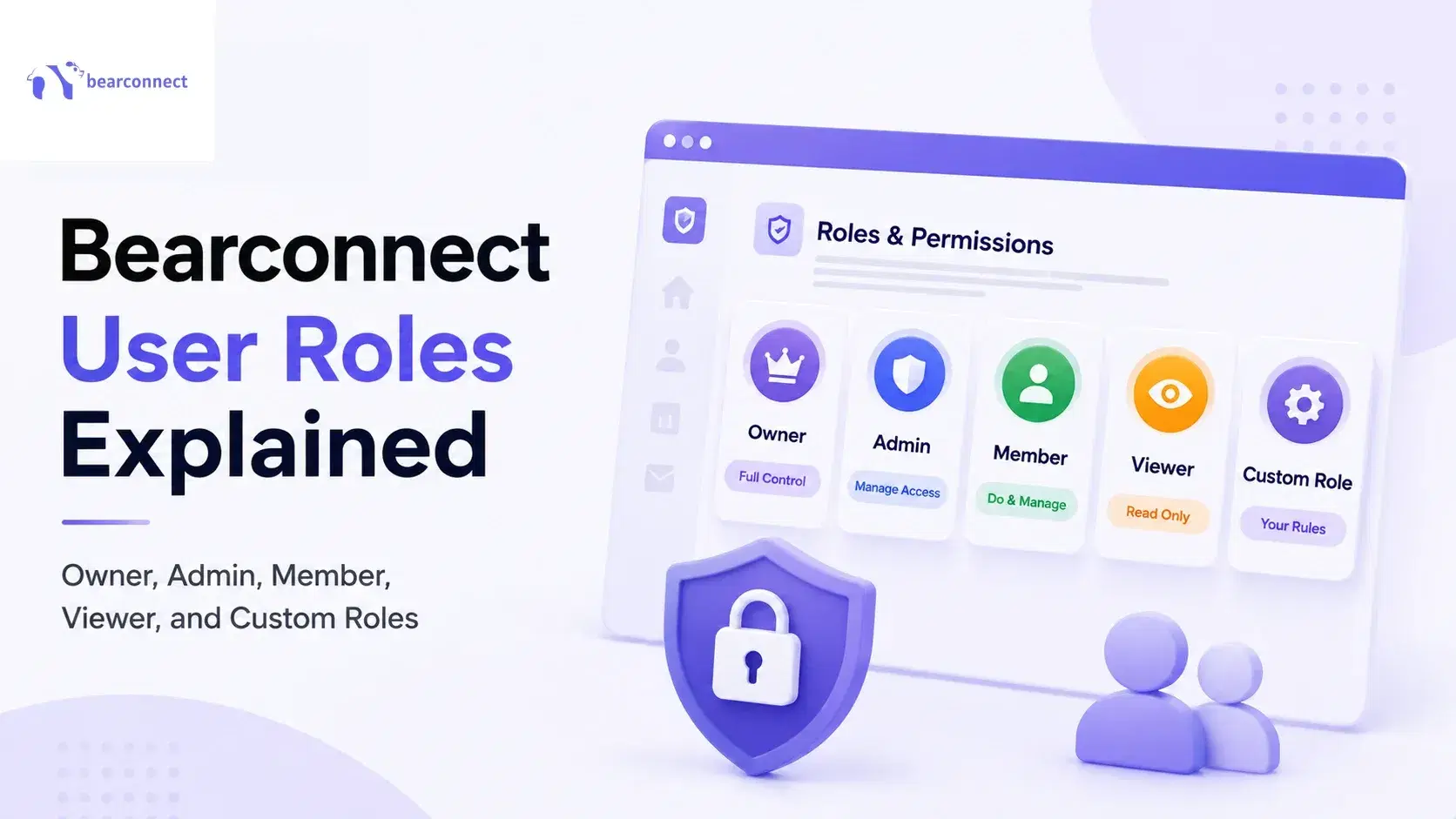
Roles let you hand over outreach work without handing over your password or your billing details. There are four system roles plus custom roles you build yourself.
Owner, Admin, Member and Viewer explained
| Role | Add LinkedIn account | Create campaigns | Manage workspaces | Billing |
|---|---|---|---|---|
| Owner | Yes | Yes | Yes | Yes |
| Admin | Yes | Yes | Yes | No |
| Member | Yes | Yes | No | No |
| Viewer | View only | View only | No | No |
The Viewer role is quietly the most useful one for agencies. You give a client read only access to their own campaign results and stop scheduling screen shares to show a dashboard.
Building a custom role
System roles cannot be edited, so v2 lets you create your own instead.
- Clone Admin, Member or Viewer, or start empty
- Toggle what the role can read and what it can write
- Name the role anything that makes sense to your team
A real example from the walkthrough: a role that can run outreach but cannot reply to messages, cannot add LinkedIn accounts, and never sees billing. That is exactly the shape of a junior SDR or a freelance lead gen contractor.
How to invite a team member
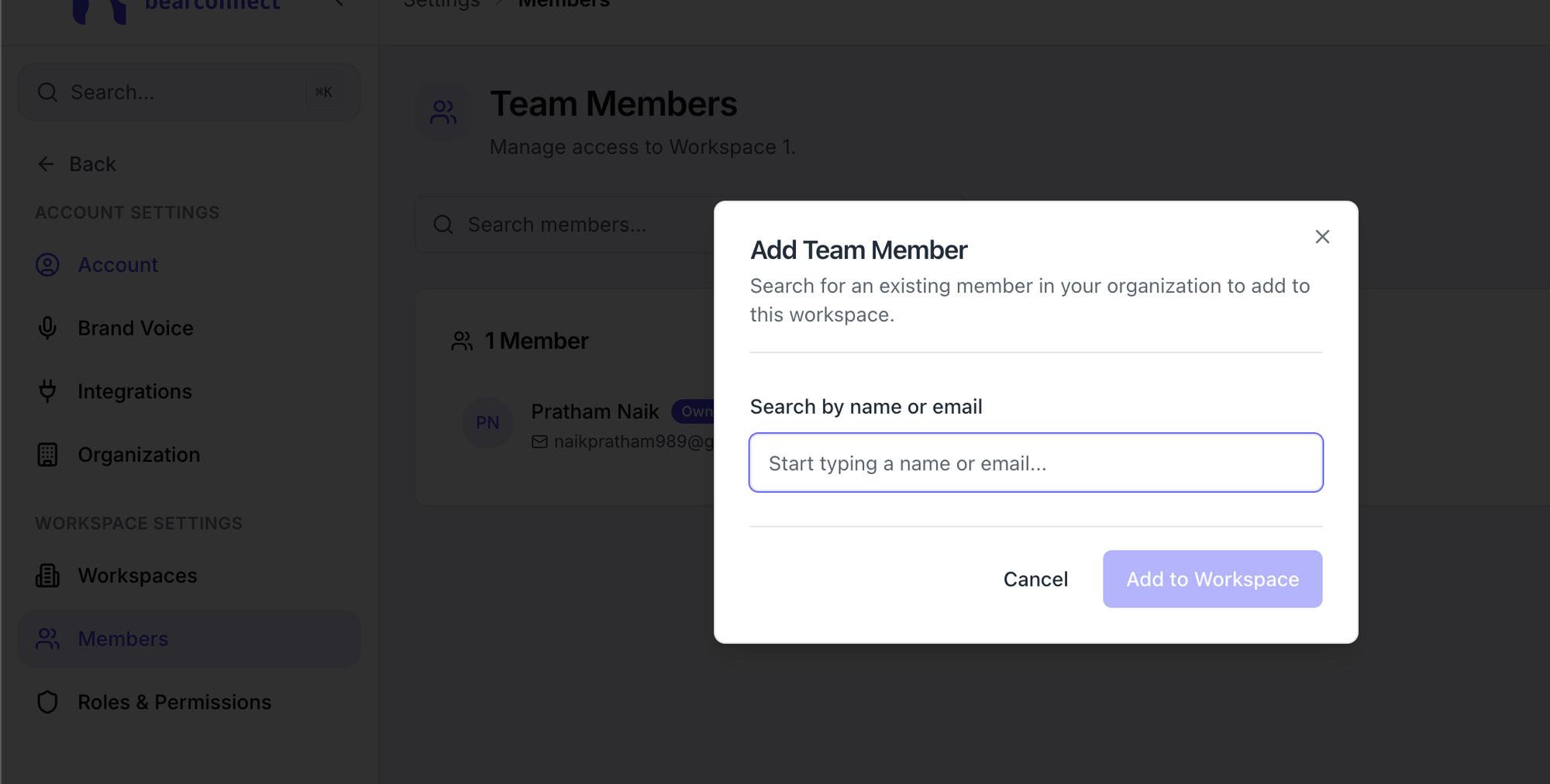
- Enter their email address and send the invite
- They accept from their inbox
- They appear in your member list, and you can change their role later
- Create or pick the role you want that person to have
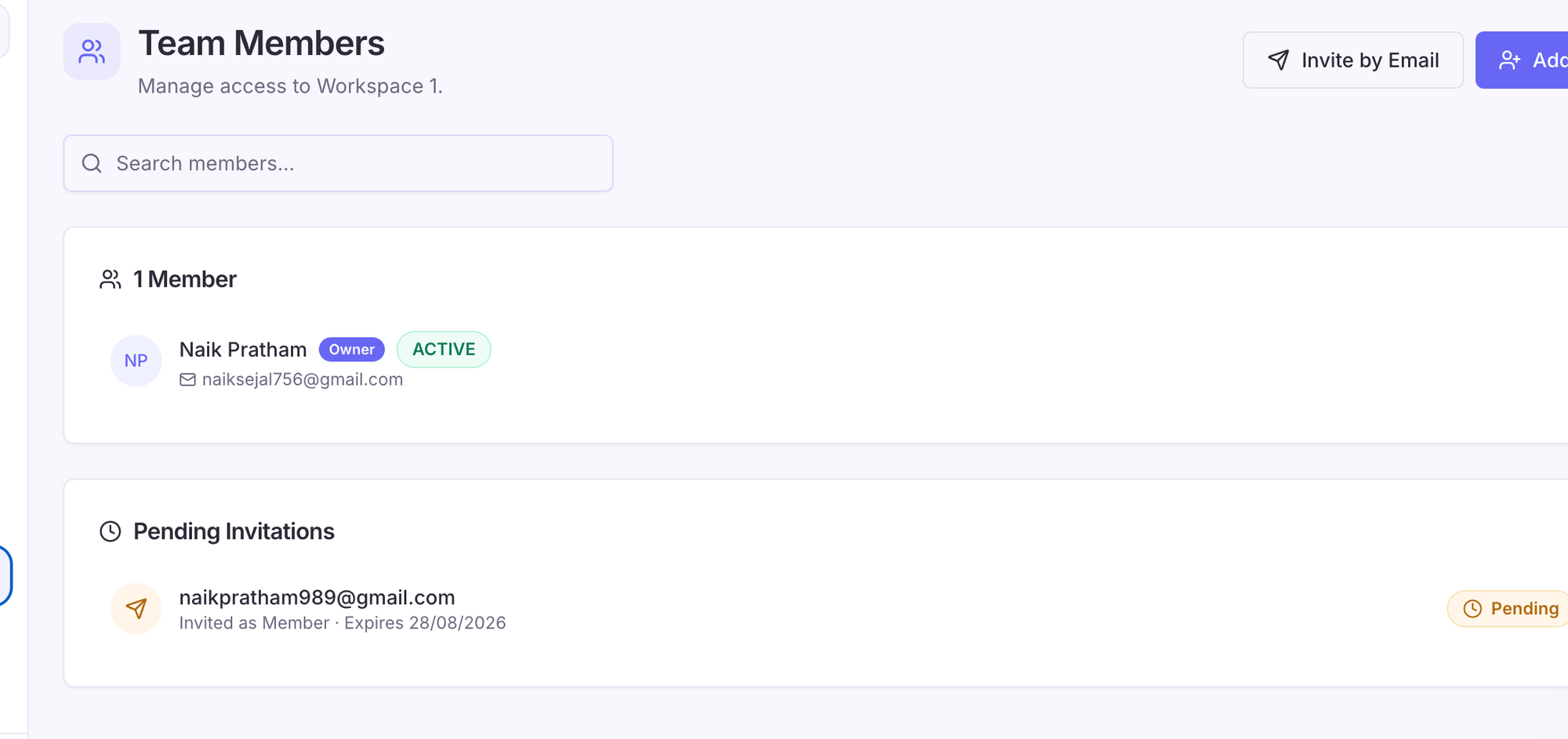
I switched a test member from Viewer to Admin mid demo. Campaign creation, posting and workspace visibility unlocked immediately, no re invite needed.
Stop sharing your LinkedIn password
with every teammate.
Bearconnect v2 lets you invite your team or VA by email, with roles that control exactly what they can touch.
Your workspace. Your rules.
How Do Seats Work, and What Do They Cost?
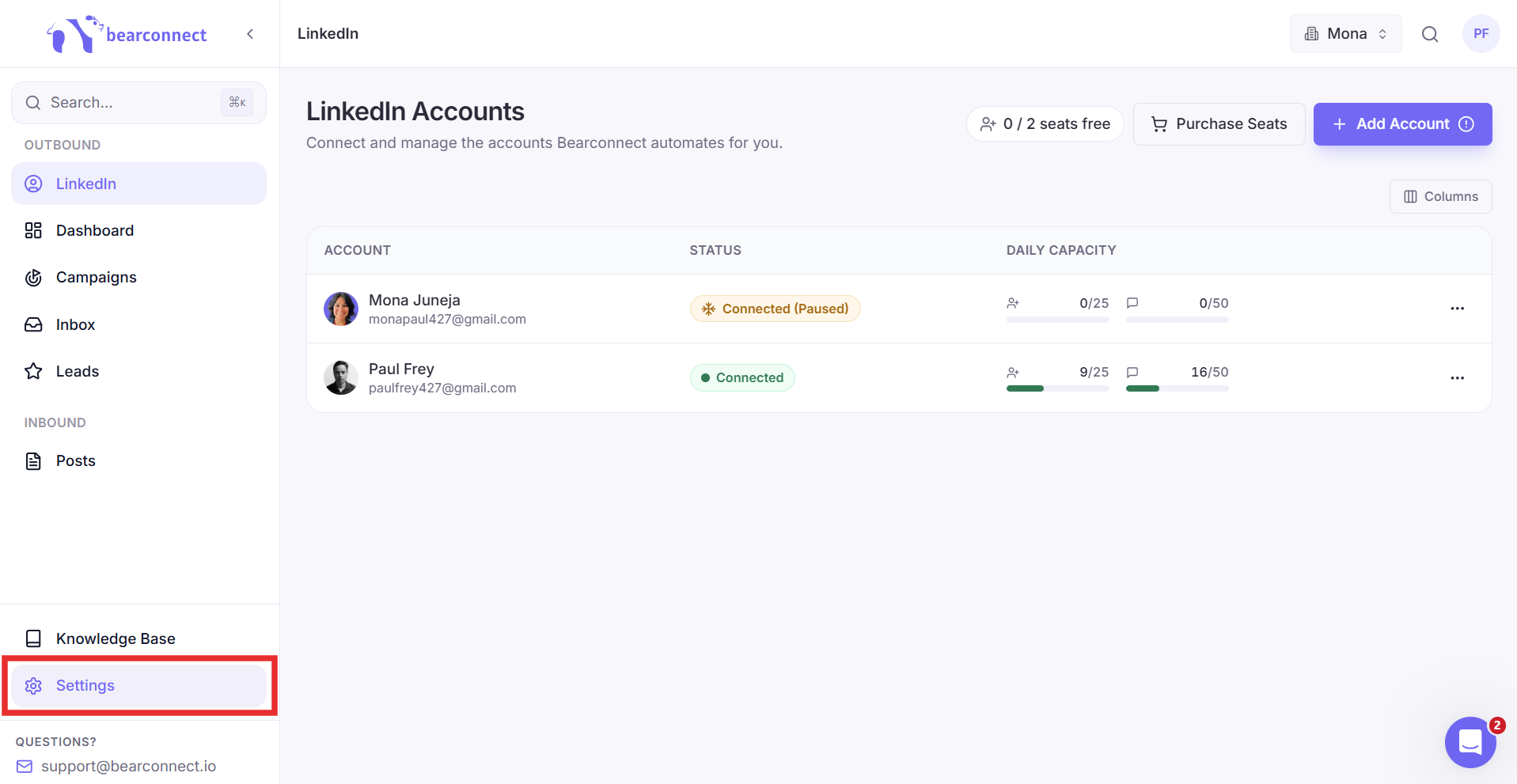
One seat equals one LinkedIn account you can connect, and you buy seats at the account level then allocate them to workspaces. Seats track accounts, not people.
What a seat is and how allocation works
- Buy seats from Purchase Seats, then split them across workspaces
- A workspace with zero seats allocated cannot connect a LinkedIn account, even when seats sit free elsewhere
- Deleting a workspace returns its seats to your pool
- Free seats do nothing until you allocate them, which trips up almost everyone the first time
The pricing math, shown properly
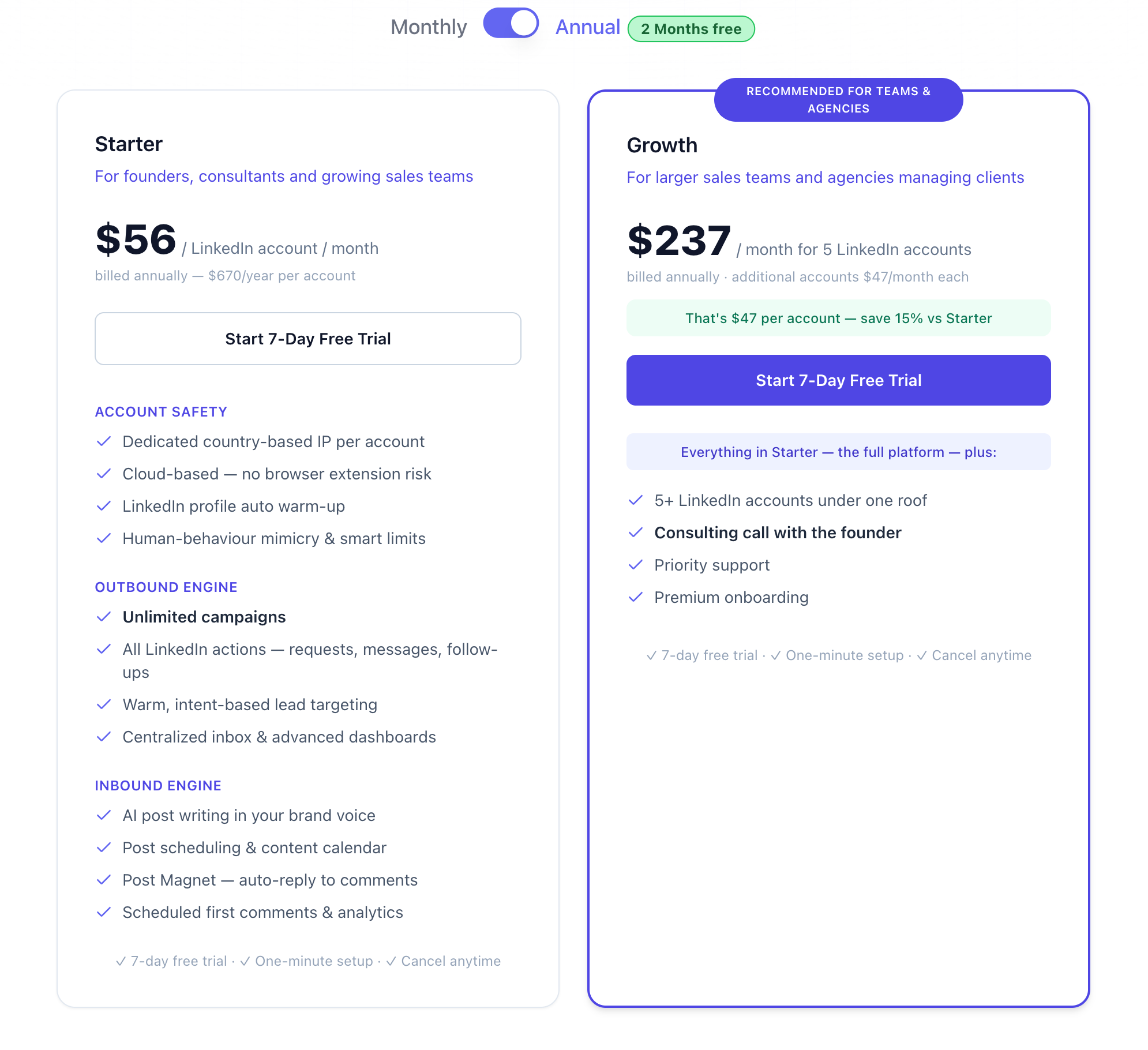
Bearconnect bills per connected LinkedIn account, never as a flat fee for the whole product.
| Plan | 1 to 4 accounts | 5+ accounts |
|---|---|---|
| Monthly | $67 per account | $57 per account |
| Annual | $56 per account | $47 per account |
Worked examples so nobody guesses:
- 3 accounts monthly = 3 × $67 = $201 per month
- 5 accounts monthly = 5 × $57 = $285 per month
Adding a teammate to a workspace does not multiply that bill. Accounts drive the price, headcount does not.
Wait, You Might Be Thinking: Is This Just More Admin Work?
Fair objection, and my answer is no, because the setup is optional.
If you connect one LinkedIn account and work alone, you never open the workspace screen. The moment you add a second account or a second human, the ten minutes of setup saves you the weekly untangling.
Can I Really Send 50 Messages a Day Now?
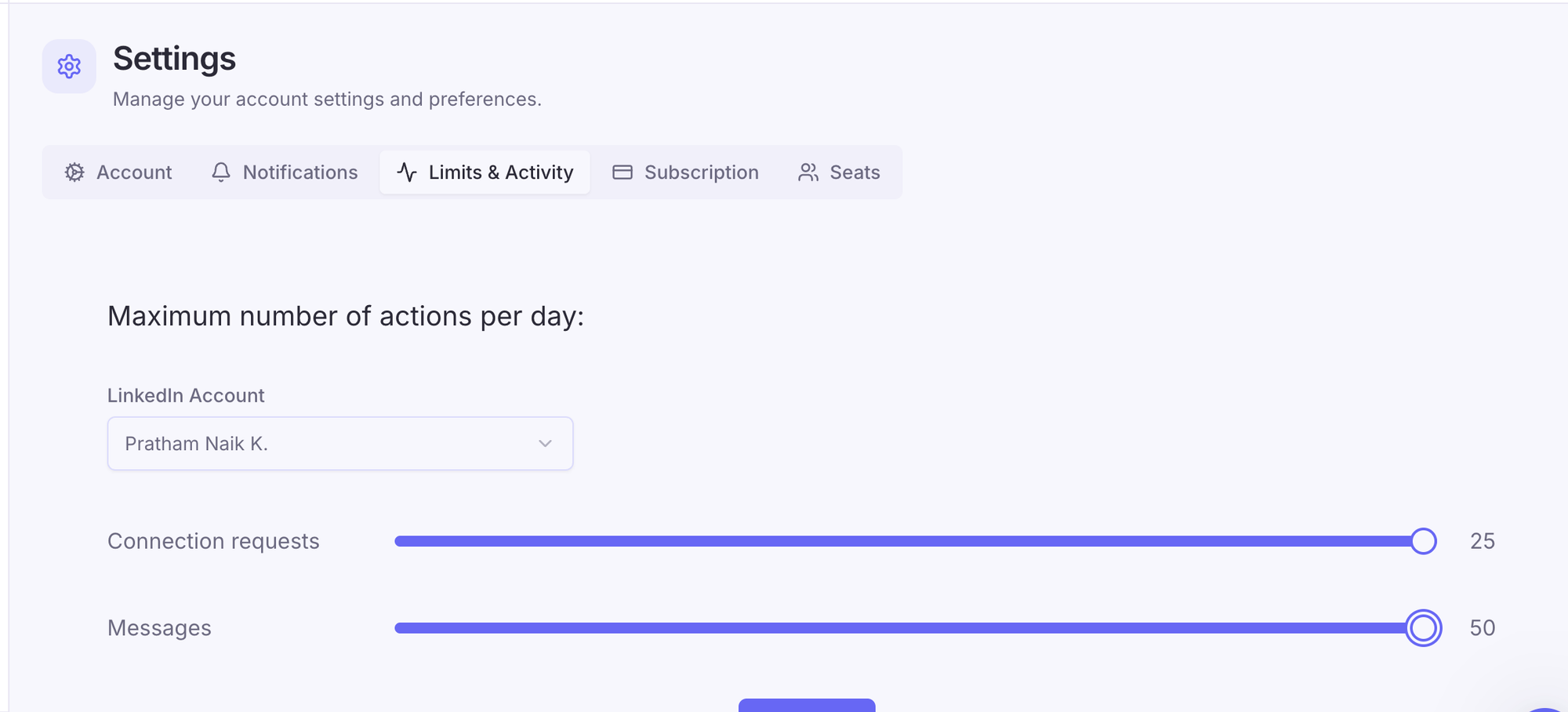
Yes. The daily message ceiling inside Bearconnect moves from 25 in v1 to 50 in v2.
Two things worth keeping straight:
- This is the messaging limit, not the connection request limit
- A higher ceiling is permission, not instruction, so ramp up gradually instead of jumping straight to the top
My own approach: raise volume by roughly ten a week and watch reply quality, not just reply count. Doubling sends and halving reply rate is not progress.
What Is New in the LinkedIn Campaign Builder?
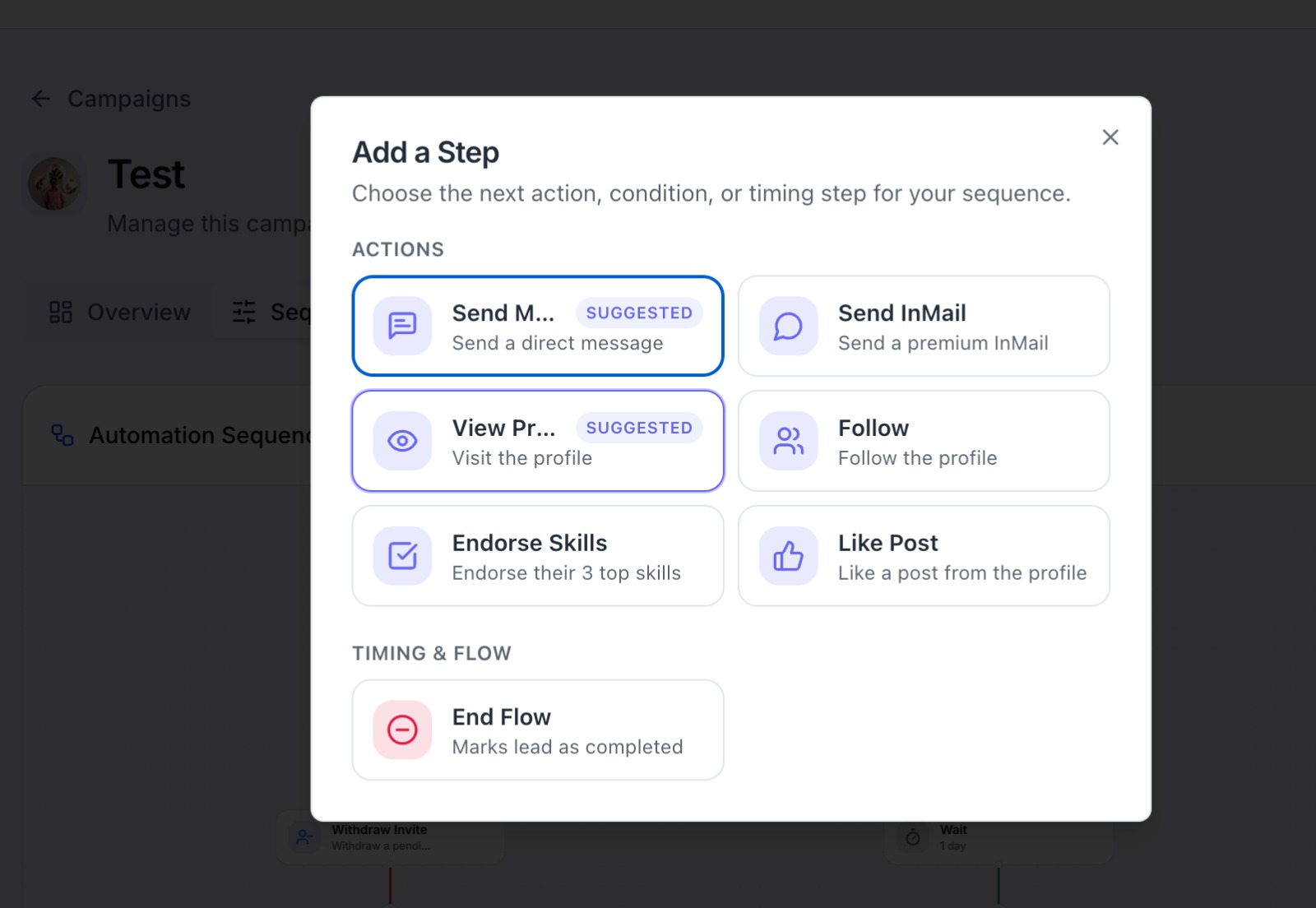
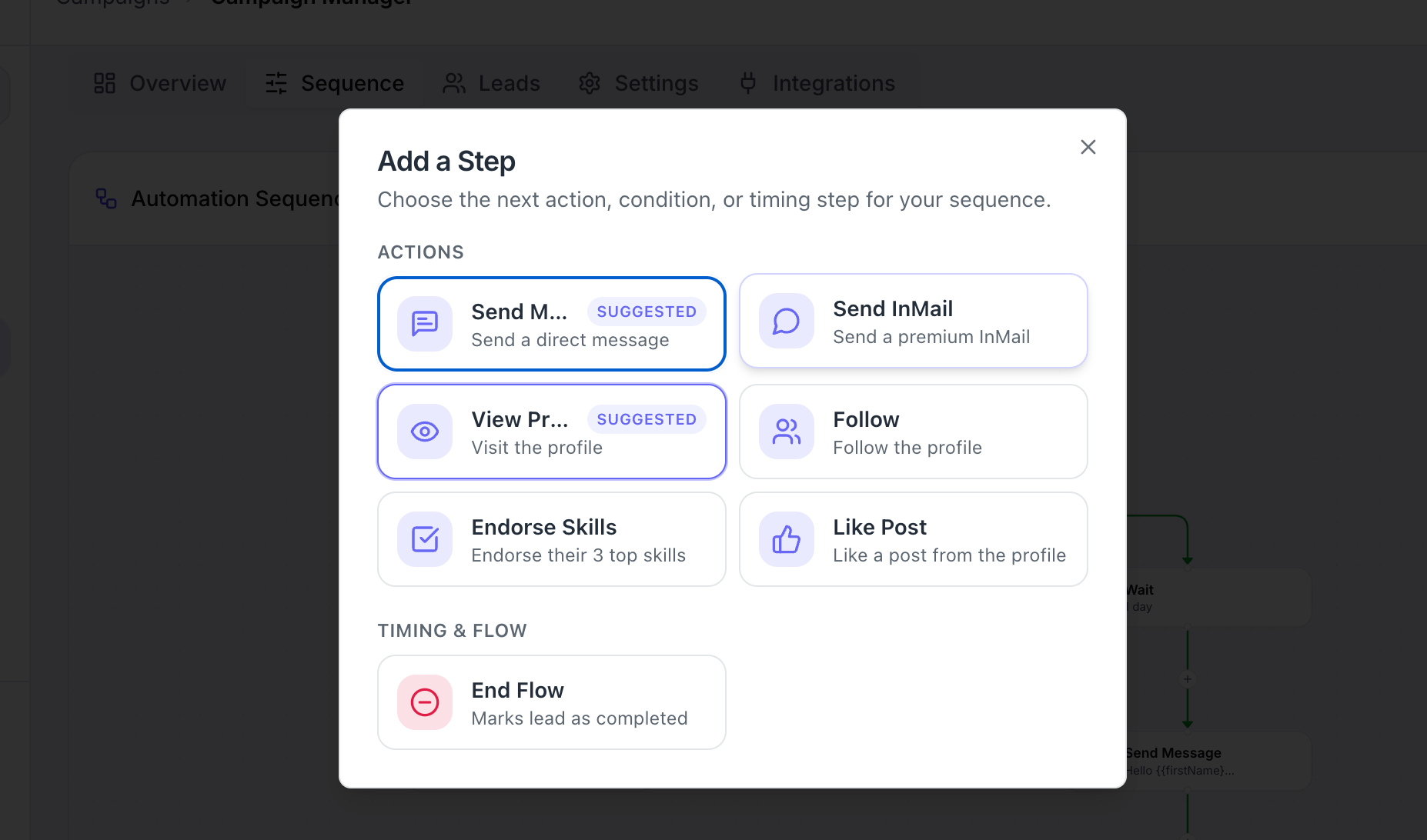
The campaign builder is rebuilt around a visual branching sequence with a much wider action library. In v1 you had one shape of campaign. In v2 you design the shape.
New actions you can sequence
- Warm up profile
- View profile
- Follow profile
- Like a post
- Send connection request
- Send message
- Endorse skills
- Send InMail, which needs a Sales Navigator account
Those soft actions matter because they arrive as notifications before you ask for anything. Someone who has seen your name three times reads your request differently than a stranger does.
The branching sequence, step by step
- View the profile, which triggers a profile view notification
- Wait, and every delay is editable from days down to hours
- Follow the profile
- Wait again
- Send the connection request
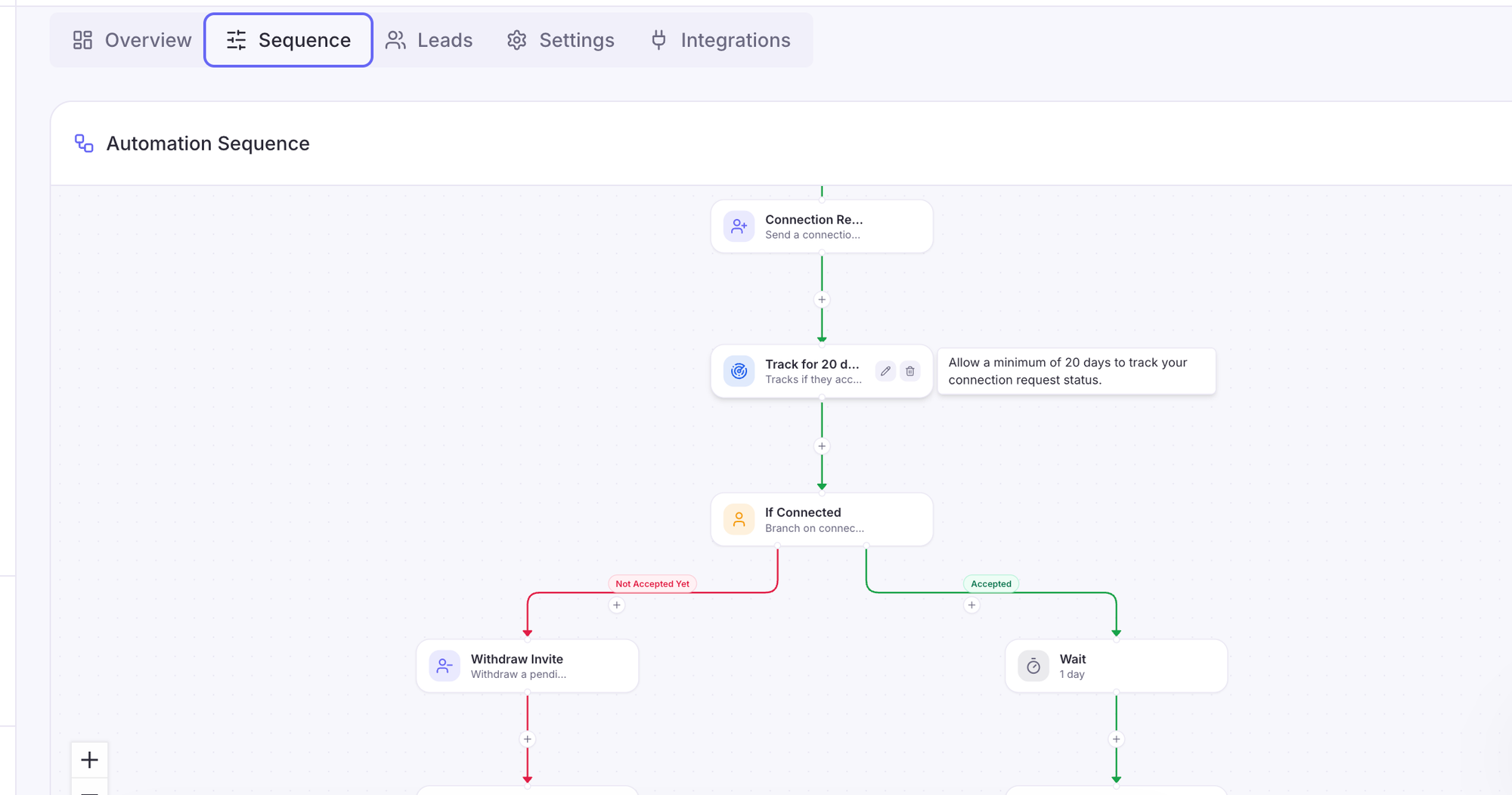
- Track for around 20 days to see whether it gets accepted
- Branch on the outcome:
- Not accepted → withdraw the invite automatically, then optionally send an InMail
- Accepted → wait, then send message one, and continue to messages two, three and four only while there is no reply
If the person replies, automation stops for that person. That single rule prevents the worst automation failure, which is a bot following up on a live conversation.
One recommendation from the founder that runs against common advice: skip the note on the connection request, because acceptance rates tend to be higher without one.
Pro tip: Always write a fallback message with no variables in it, so a missing first name never ships as an empty bracket.
A simpler, one screen campaign view
v2 removes the separate actions screen from v1. Sequence, leads with their current stage, timing and integrations now live on one screen per campaign.
Fewer clicks. Same control.
Can I Import Leads From LinkedIn Groups Now?
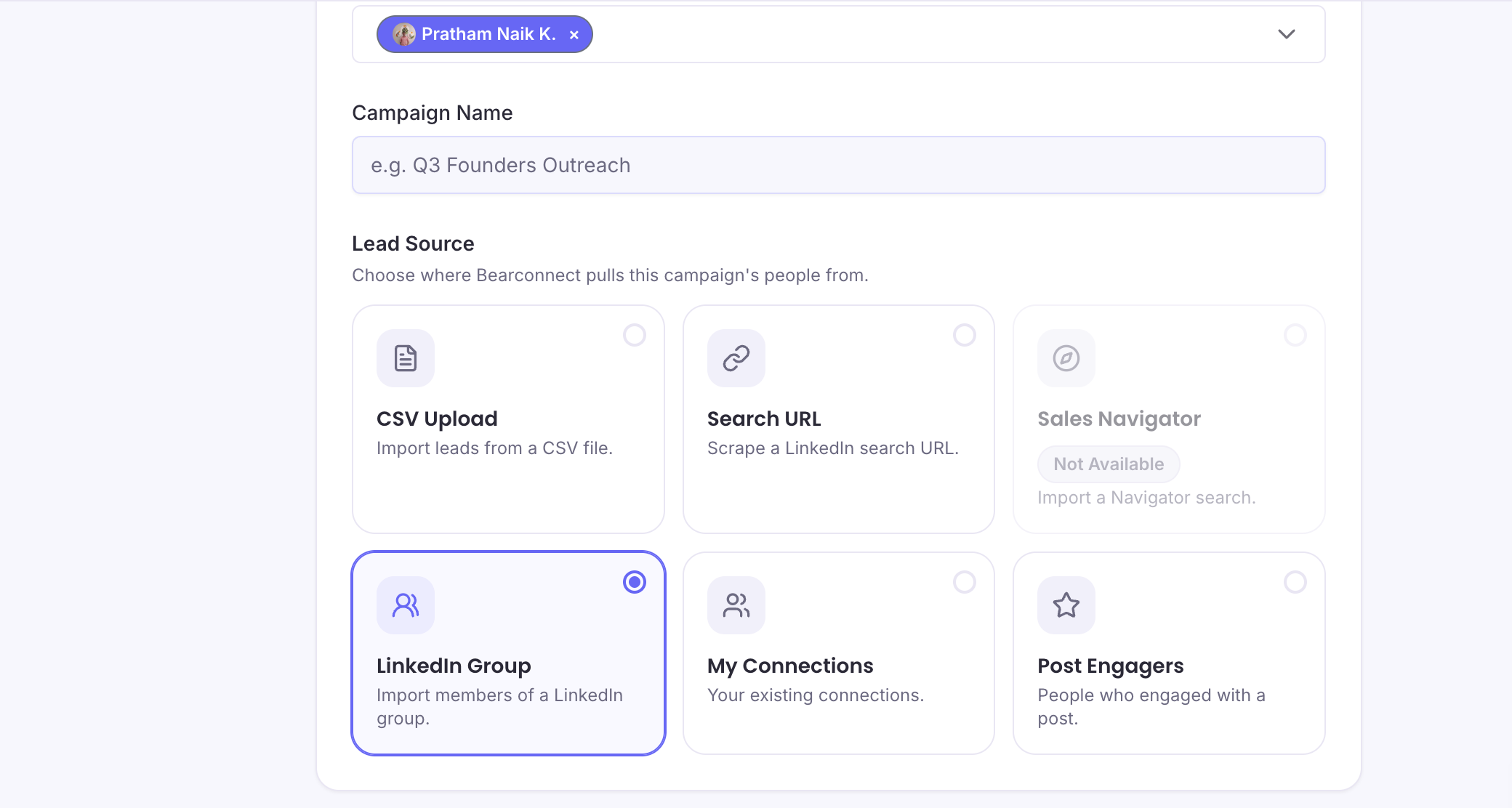
Yes, LinkedIn Group is a new import source alongside CSV, classic search URL and Navigator search.
This is the most underrated feature in the release. Group members share context with you already, which gives your first line something real to reference.
- Join a group your buyers actually sit in
- Import members as a lead list
- Warm up before connecting, since shared group membership plus a profile view beats a cold ask
What Do the New Post Analytics Show?
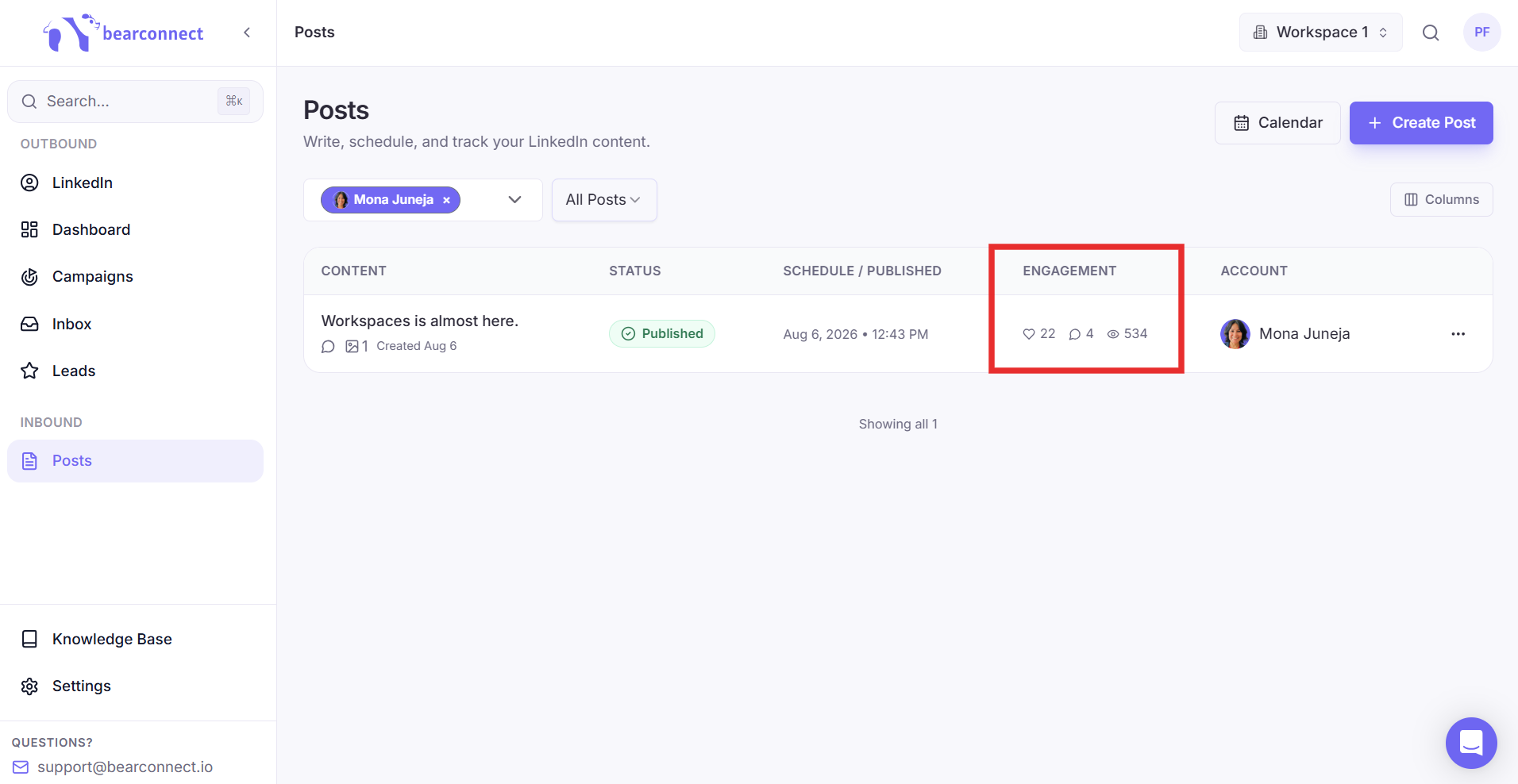
v2 shows likes, comments and impressions for each post you publish through Bearconnect. v1 published posts but showed you nothing after that.
How I use those three numbers:
- Impressions → did distribution work
- Likes → did the hook work
- Comments → did the topic actually touch a nerve
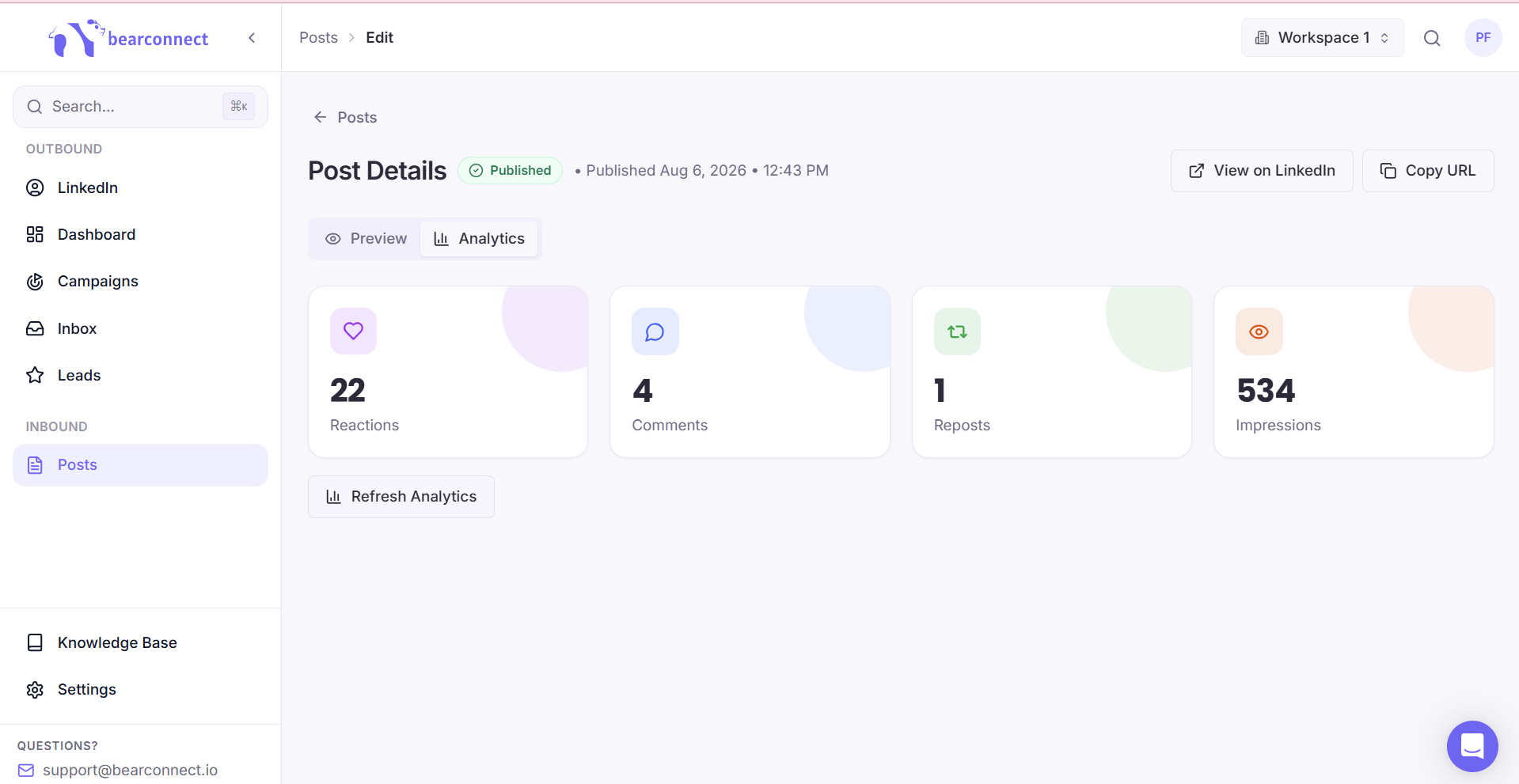
Comments per impression is the metric I trust most for deciding what to write next. High impressions with no comments usually means the post was pleasant and forgettable.
What Should I Actually Do If I Already Use Bearconnect?
Nothing is required. Here is the sequence I would follow anyway.
Nothing breaks by default
Your organization, default workspace, seats, campaigns and connected accounts carry over. Log in, look around, keep working.
When setting up a workspace is worth it
Set one up if any of these describe you:
- You manage two or more clients or brands
- You have a VA or teammate who needs access
- You want a client to see results without editing anything
- You run different LinkedIn accounts for different products or regions
A sane first week: create one workspace per client, allocate seats, invite your VA as a custom role with no billing access, then rebuild one campaign in the new branching builder before migrating the rest.
FAQ
1. Do I have to create a workspace in v2?
No. Bearconnect assigns you an organization and one default workspace automatically, with your existing seats already inside it. Create more only when you add clients or teammates.
2. What happens to my current LinkedIn accounts and campaigns?
They move into your default workspace and keep running. Nothing is deleted or reset during the upgrade.
3. Is v2 more expensive than v1?
Pricing still runs per connected LinkedIn account, not per team member. Monthly is $67 per account for 1 to 4 accounts, so 5 accounts works out to 5 × $57 = $285 per month.
4. Can I give a client access without letting them change anything?
Yes. Invite them as a Viewer, which is read only. They can monitor campaign results and never touch campaigns or billing.
5. Do I need Sales Navigator to use the new actions?
Only for InMail. Warm up, view, follow, like, connect, message and endorse skills all work without a Navigator subscription.
Final Thought
v2 turns Bearconnect from a tool one person operates into a system a team can run. Workspaces separate the work, roles control the access, and the rebuilt builder finally lets you warm someone up before you ask for anything.
Start with one workspace and one migrated campaign. Judge it on reply quality after two weeks.
Everything above, running
on your account today.
Bearconnect helps founders, SDRs, and recruiters stay consistent on LinkedIn without spending hours doing manual outreach.
More conversations. Less clicking.
Ready to Transform Your LinkedIn Strategy?
Join thousands of professionals already using Bearconnect to automate their outreach and grow their network.
7-day free trial • Cancel anytime
Related Articles

LinkedIn Automation: The Complete Guide for 2026
What LinkedIn automation is, how it works, what LinkedIn allows, safe limits, how to choose a tool and how to run your first campaign.
How to Remove a Connection on LinkedIn (Do They Get Notified?)
Removing a LinkedIn connection takes a few clicks, but most people want to know one thing first: does the other person get notified? This guide covers the steps on desktop and mobile, and what changes afterward.
Bearconnect User Roles Explained: Owner, Admin, Member, Viewer, and custom roles
Bearconnect gives you four built-in roles, Owner, Admin, Member and Viewer, plus custom roles you build yourself. This guide breaks down exactly what each role can access,