How to Auto Connect on LinkedIn and Book More Meetings Without Bans
You can auto connect on LinkedIn safely by staying within platform limits, sending personalized connection notes, and running a structured follow-up sequence that converts accepted connections into booked meetings.
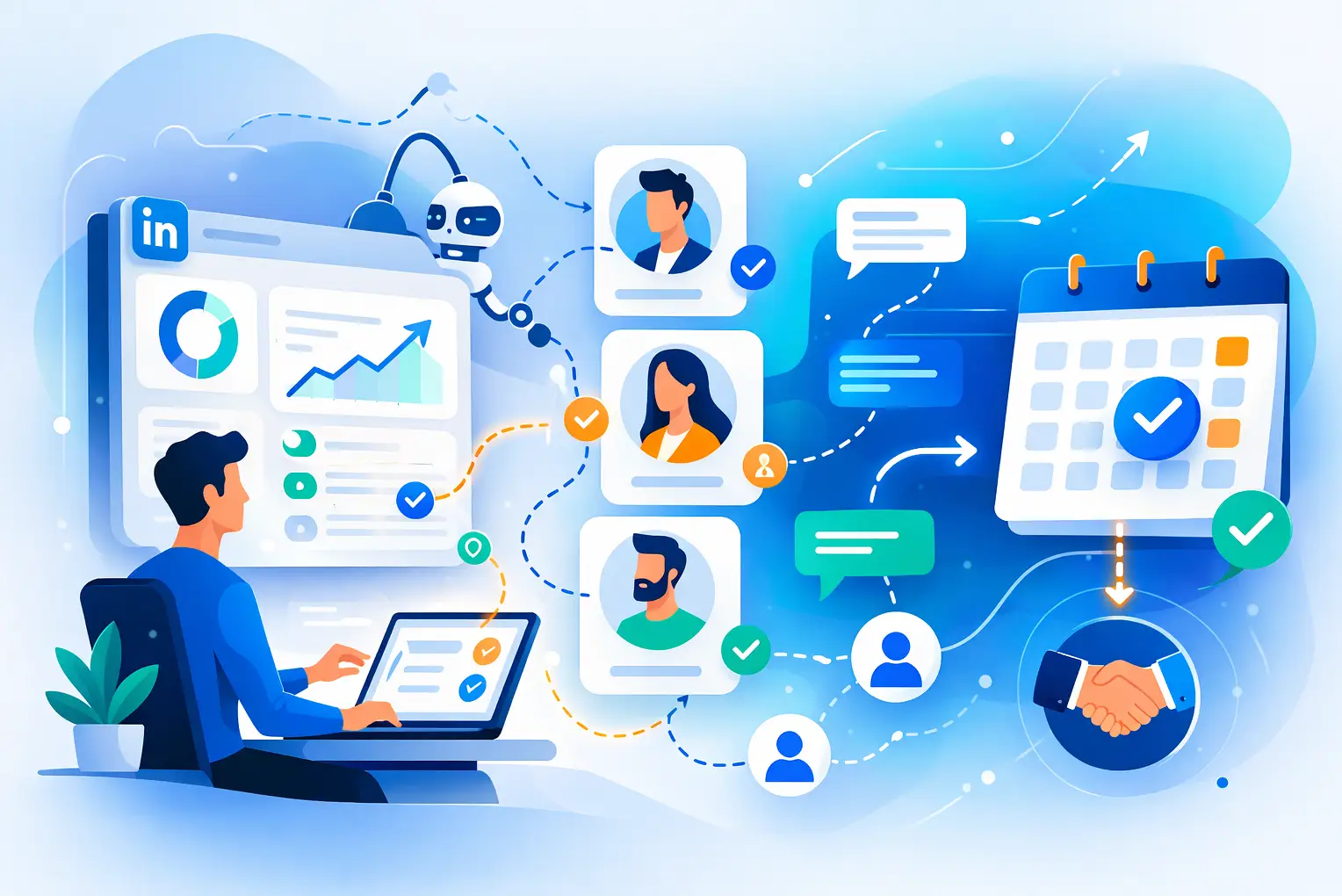
Most guides stop at "send requests safely." This one shows you the complete pipeline, from your first automated invite to a confirmed meeting on your calendar.
TL;DR
- LinkedIn allows roughly 80 to 100 connection requests per week for standard accounts; crossing this triggers restrictions
- Cloud-based tools are safer than browser extensions because they mimic human behavior more accurately
- A personalized connection note improves acceptance rates compared to blank invites
- Auto connecting is only Step 1; the meeting gets booked in the follow-up sequence
- Bearconnect handles auto connect, follow-up messages, and reply management in one platform so no lead slips through
What Is LinkedIn Auto Connect and Why Most People Do It Wrong
LinkedIn auto connect means using automation software to send connection requests to a targeted list of prospects without doing it manually one by one.
- Most people use it wrong. They blast connection requests with no message, no targeting, and no follow-up plan.
- They hit LinkedIn's limits within days and wonder why their account gets restricted.
The right approach treats auto connect as Step 1 of a meeting-booking system, not the entire strategy.
How LinkedIn Connection Automation Works
LinkedIn auto connect tools automate the "Connect" button click on a list of prospect profiles you define.
There are two main types of tools:
1. Cloud-Based Tools
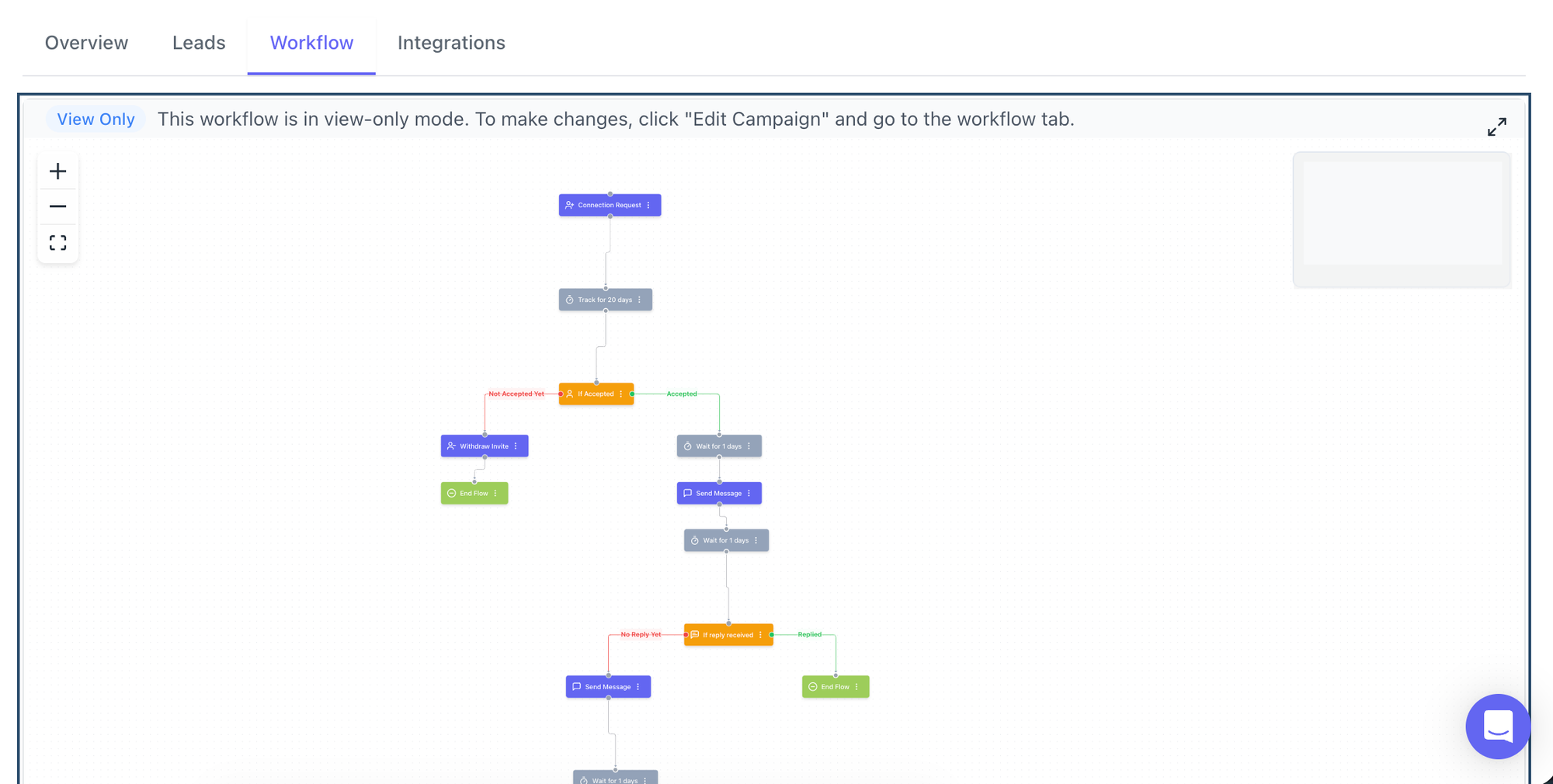
- Run on remote servers, not your browser
- Operate within human-like activity windows
- Safer because LinkedIn cannot detect unusual browser behavior
- Examples: Bearconnect, Expandi, Dripify
2. Browser Extension Tools
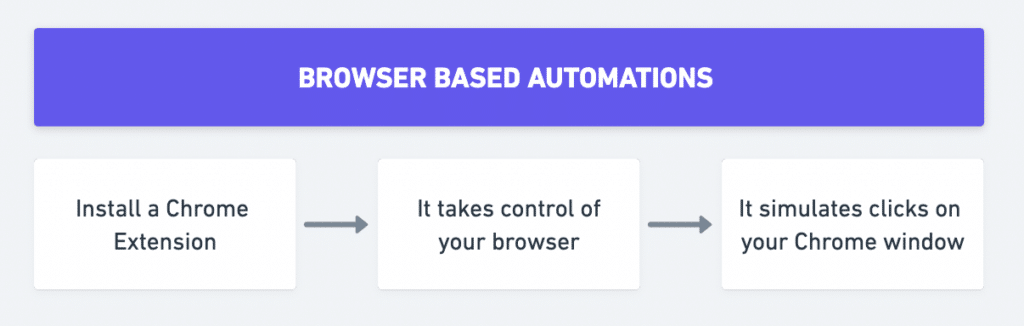
- Run directly inside your Chrome or Firefox browser
- Easier for LinkedIn's algorithm to detect
- Higher restriction risk at scale
- Examples: Dux-Soup, LinkedHelper (desktop version)
Pro Tip: Always choose a cloud-based tool when running campaigns at scale. Browser extensions work for low-volume testing but not for consistent daily outreach.
LinkedIn Connection Request Limits You Must Know in 2026
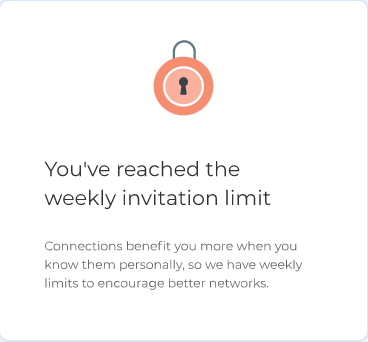
Ignoring LinkedIn's weekly limits is the fastest way to get your account restricted.
Weekly Invite Limits by Account Type
| Account Type | Safe Weekly Limit |
|---|---|
| New account (under 3 months old) | 20 to 30 per week |
| Standard LinkedIn account | 80 to 100 per week |
| LinkedIn Sales Navigator | 100 to 150 per week |
| LinkedIn Premium | 100 to 150 per week |
These are safe operating ranges, not hard caps. LinkedIn's algorithm also tracks your acceptance rate and flags accounts where too many invites go unanswered.
Acceptance Rate Benchmarks
- Below 20%: High restriction risk
- 20% to 35%: Normal operating range
- Above 35%: Strong targeting and messaging quality
Pro Tip: If your acceptance rate sits below 20%, fix your targeting and connection note before increasing volume. Sending more invites with poor targeting accelerates the problem.
How to Auto Connect on LinkedIn Safely: Step by Step
Safe LinkedIn outreach automation follows a clear, repeatable process. Here are the exact steps that protect your account while generating consistent pipeline.
Step 1: Build a Tightly Targeted Prospect List
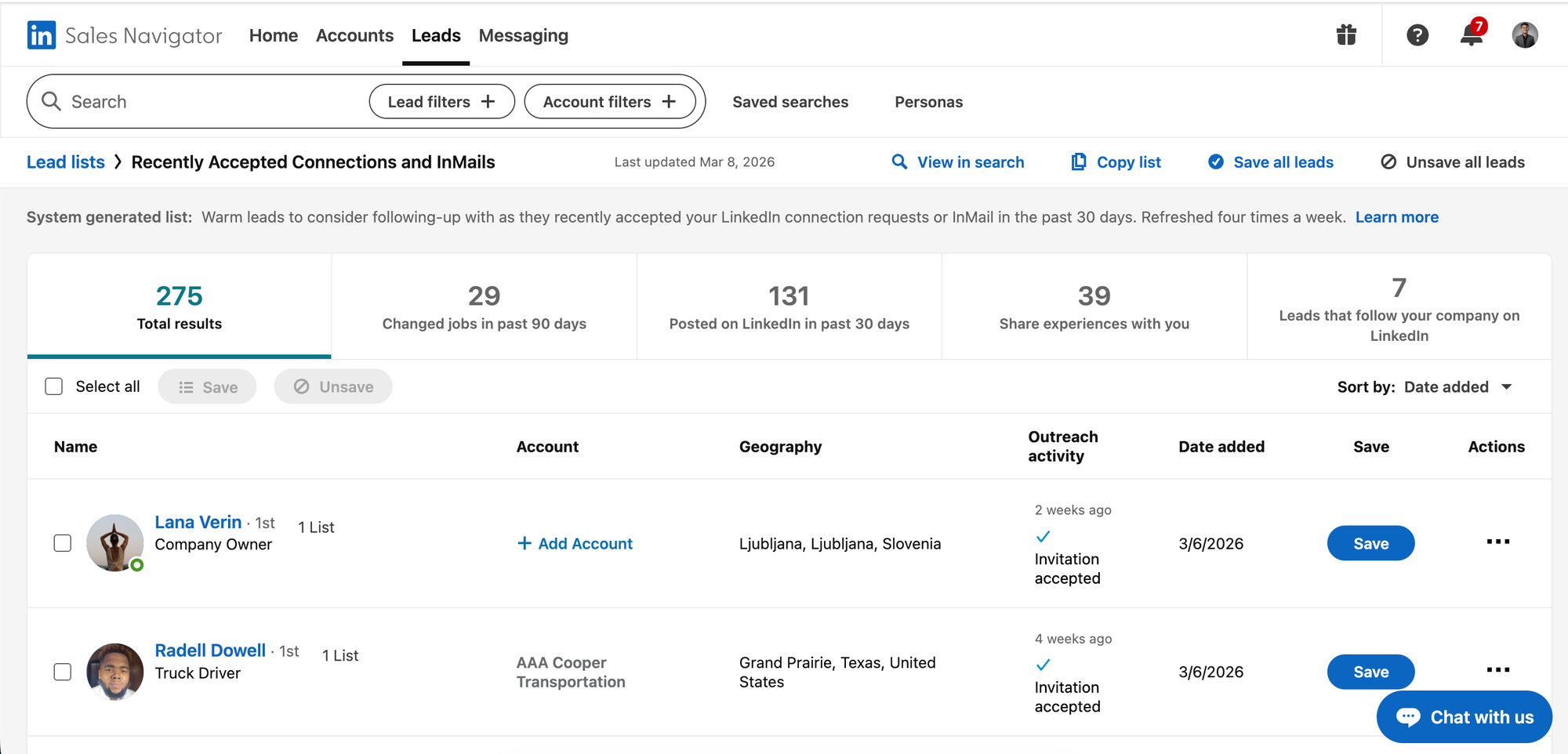
Your targeting quality directly determines your acceptance rate.
Use LinkedIn Sales Navigator filters to narrow your list:
- Job title (e.g., "Head of Sales," "Founder," "Marketing Director")
- Company size (e.g., 10 to 200 employees for SMB outreach)
- Industry (e.g., SaaS, Consulting, Recruiting)
- Geography (your target market or region)
- Seniority level
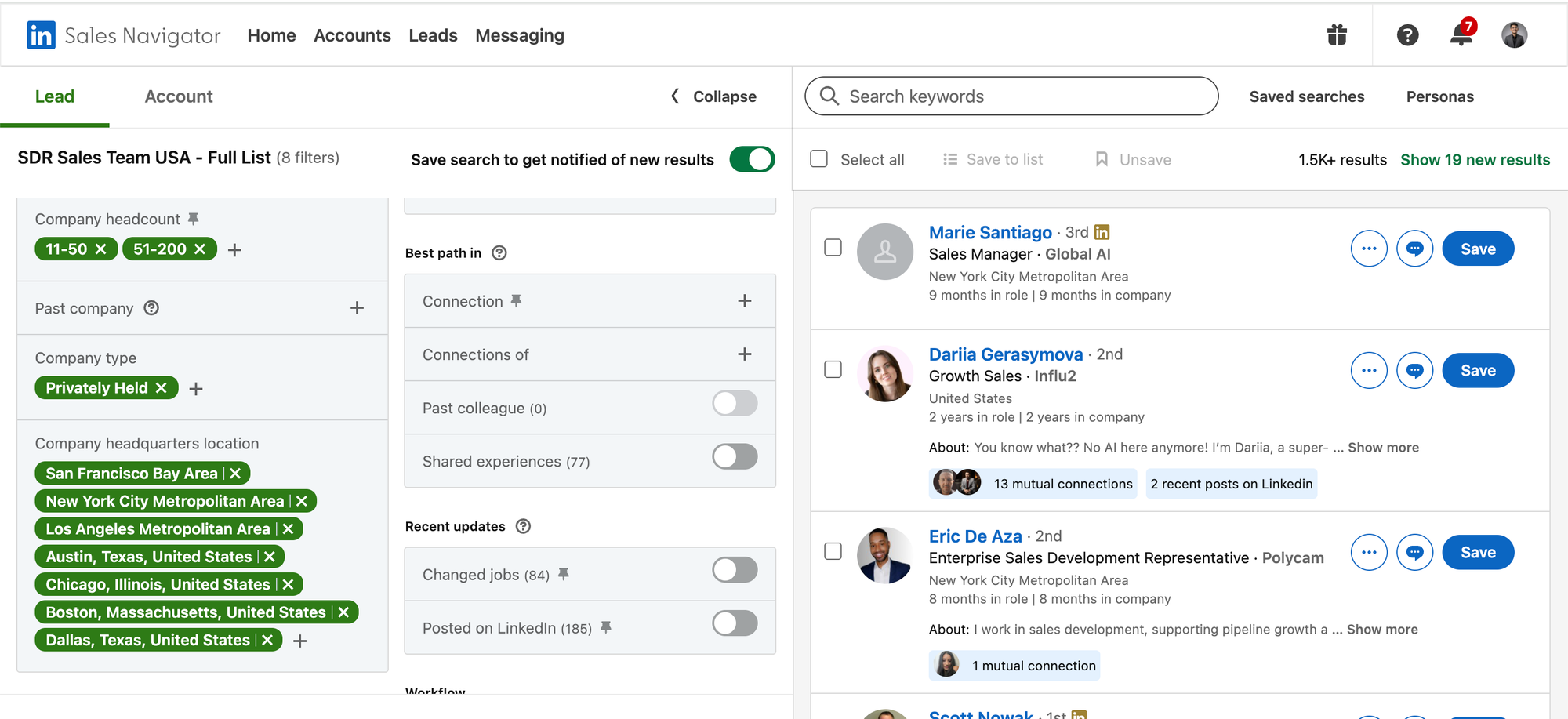
Example: A SaaS founder targeting B2B consultants should filter by "Consultant OR Founder," 1 to 10 employee companies, Consulting industry, and a specific geography.
This produces a clean, relevant list rather than a broad, unfocused one.
Step 2: Write a Short, Personalized Connection Note
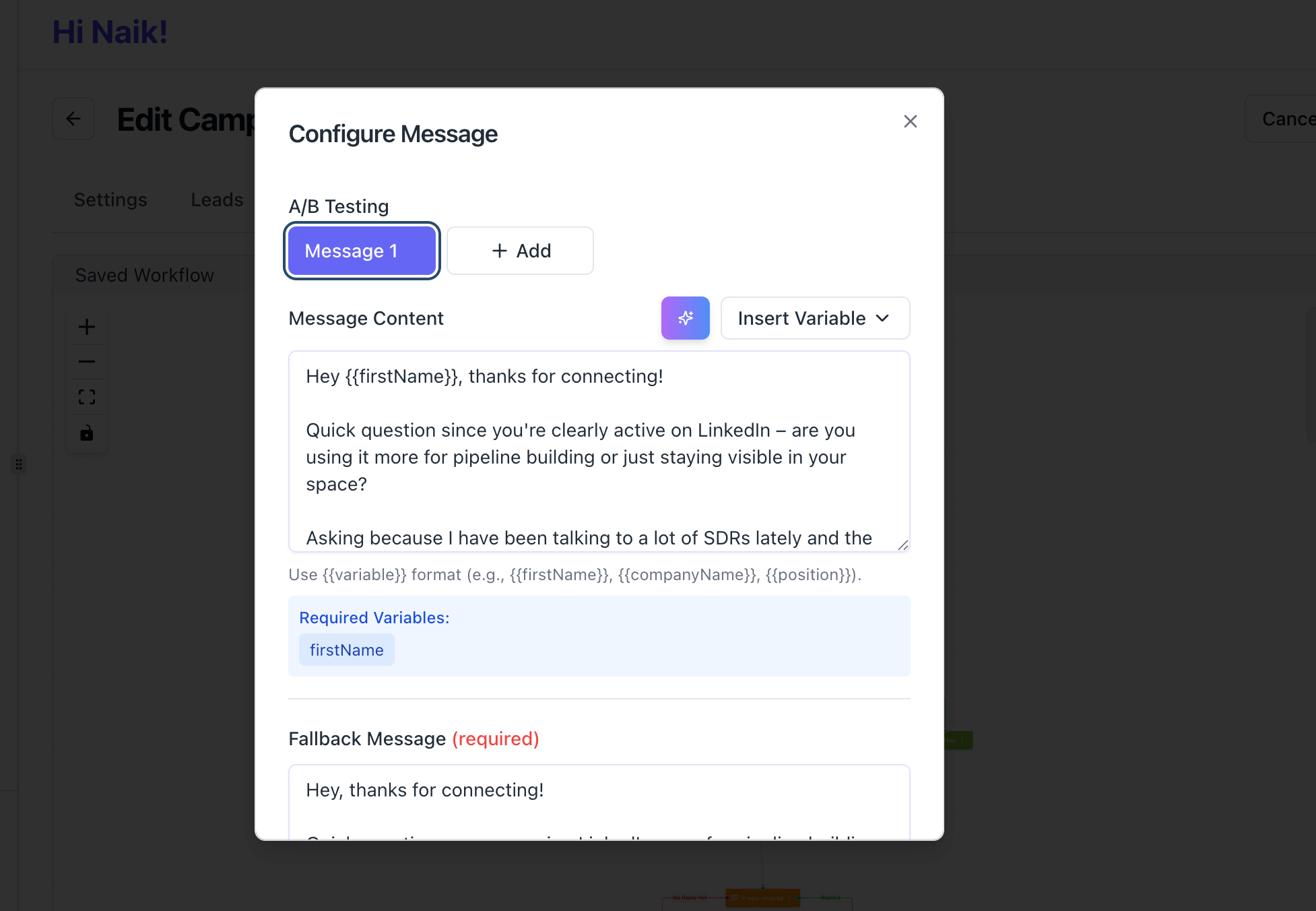
A personalized connection note consistently outperforms a blank invite in acceptance rates.
LinkedIn limits connection notes to 300 characters. Use this simple formula:
[Specific reason for connecting] + [What you do] + [Low-friction statement]
Good Example:
"Hi [Name], saw your post on outbound strategy. I help SaaS founders build LinkedIn outreach systems. Would love to connect and swap ideas."
What to avoid:
- Pitching your product before they accept
- Generic lines like "I'd love to connect with professionals like you"
- Copying the same note word for word for every prospect
Pro Tip: Reference something specific, their recent content, company milestone, or role change. One personalized detail lifts acceptance rates noticeably and reduces spam reports.
Step 3: Set Safe Daily and Weekly Send Volumes
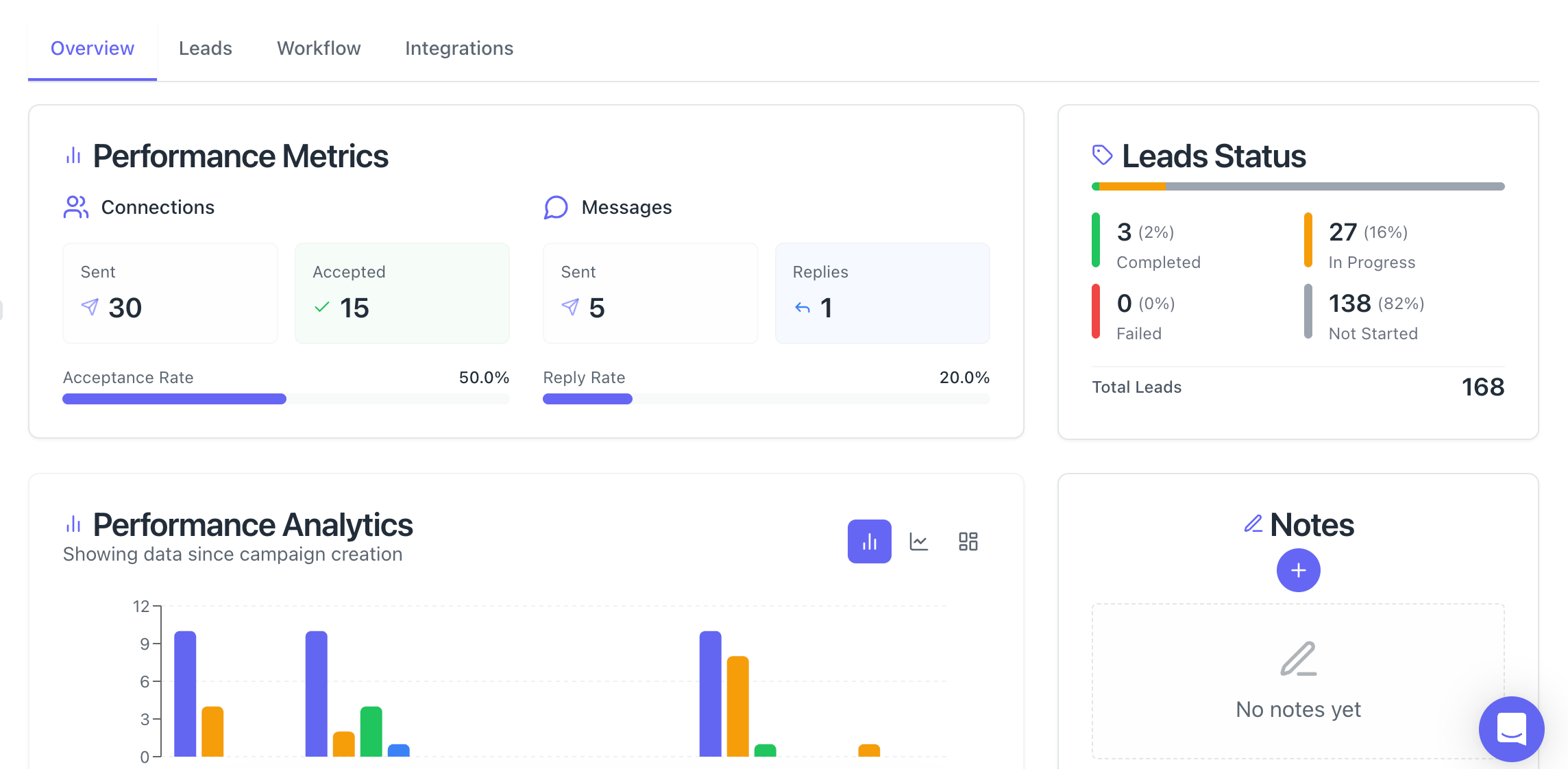
Control your send cadence to stay within platform thresholds.
Recommended daily send limits:
- Week 1 to 2 (account warm-up): 10 to 15 invites per day
- Week 3 to 4: 15 to 20 invites per day
- Steady state: 20 to 25 invites per day, capped at roughly 100 per week
Never send all your weekly invites in a single day. Spread them across Monday to Friday with natural gaps between sends.
Step 4: Warm Up Your Account Before Running Campaigns
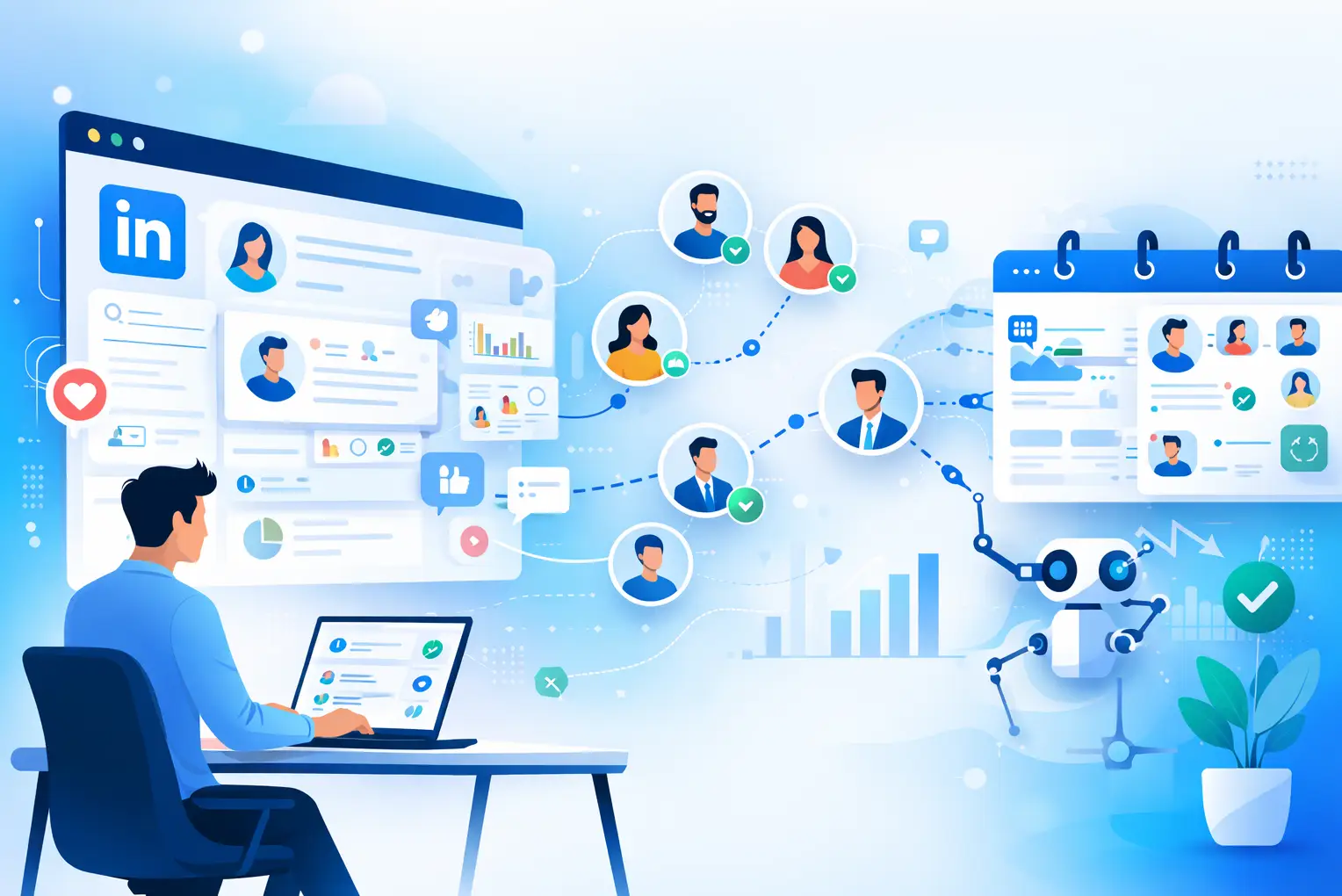
A new or dormant LinkedIn account needs a warm-up period before running automation.
Warm-up checklist before launching campaigns:
- Complete your profile: photo, headline, about section, and experience
- Post or engage with content for 2 to 3 weeks before starting outreach
- Start with 10 to 15 manual connections before switching to a tool
- Build your Social Selling Index (SSI) above 50
Pro Tip: LinkedIn's algorithm trusts accounts with consistent organic activity. Posting once a week and commenting on others' posts before automating significantly lowers your detection risk.
The Step Every Guide Skips: Converting Connections Into Meetings
Auto connecting is Step 1. The meeting gets booked in the follow-up sequence that comes after.
- This is the part every other LinkedIn auto connect guide ignores. Sending 100 connection requests and waiting for replies is not a strategy.
- You need a structured sequence that moves accepted connections toward a real conversation.
Step 5: Send a Follow-Up Message Sequence After Acceptance
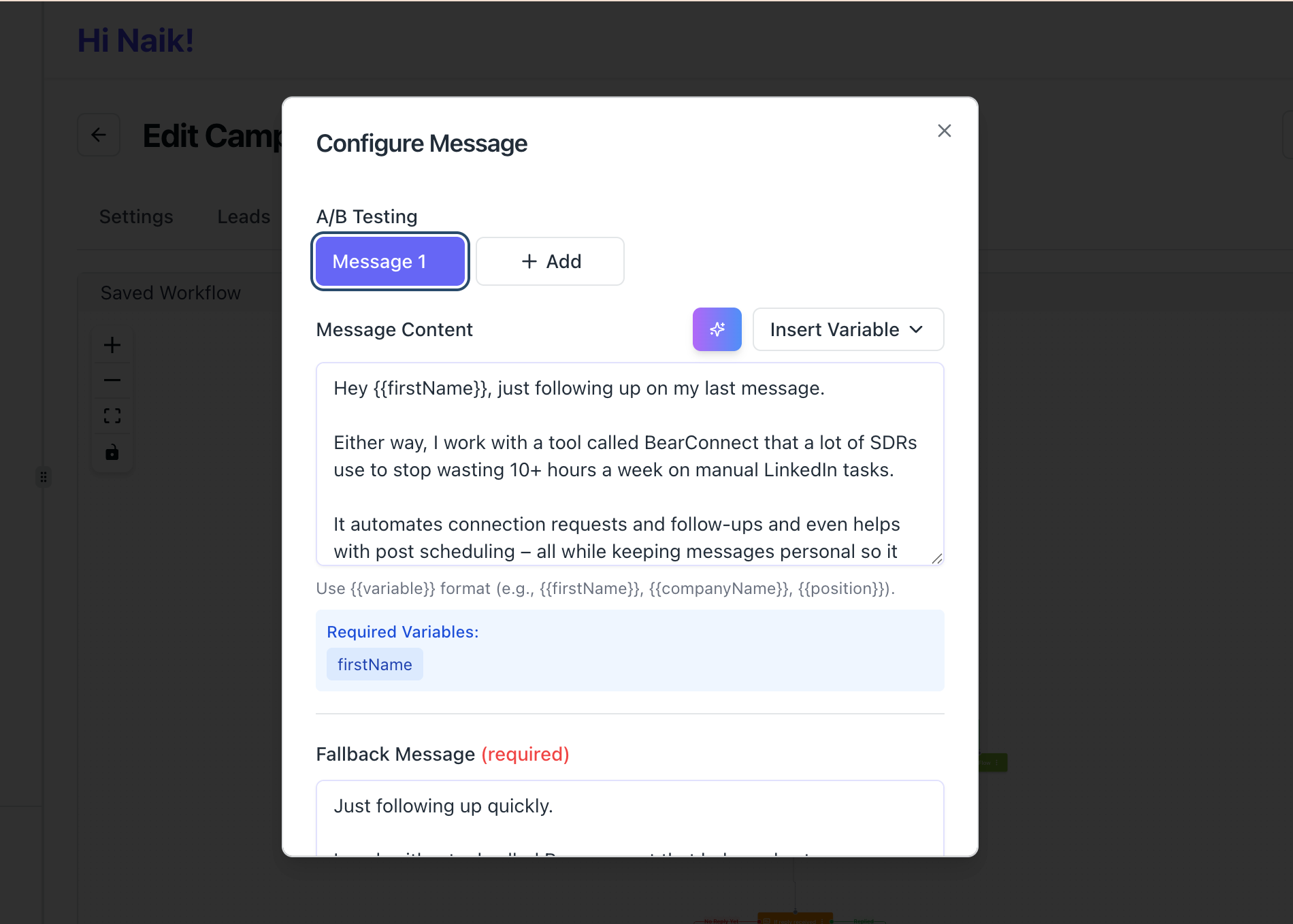
Once a prospect accepts your request, trigger a follow-up sequence within 24 to 48 hours.
A simple 3-message sequence that consistently produces replies:
Message 1: Day 1 after acceptance (Soft intro)
"Thanks for connecting, [Name]. I noticed you're focused on [specific thing]. I help [ICP description] with [outcome]. Happy to share what's been working if it would be useful to you."
Message 2: Day 4 to 5 (Value add)
"Hey [Name], I put together a short breakdown of [relevant topic] that a few [job titles] found useful recently. Want me to send it over?"
Message 3: Day 8 to 10 (Soft meeting ask)
"[Name], based on what you're working on, I think there's a real fit here. Worth a 20-minute call this week to see if we can help?"
Rules for every follow-up message:
- Never pitch in Message 1
- Give value before asking for time
- Keep every message under 5 sentences
- Personalize at least one line per message
Pro Tip: Accounts that run a 3-touch follow-up sequence consistently outperform single-message outreach by a wide margin. Most meetings do not book on the first message.
Step 6: Manage All Replies in a Unified Inbox
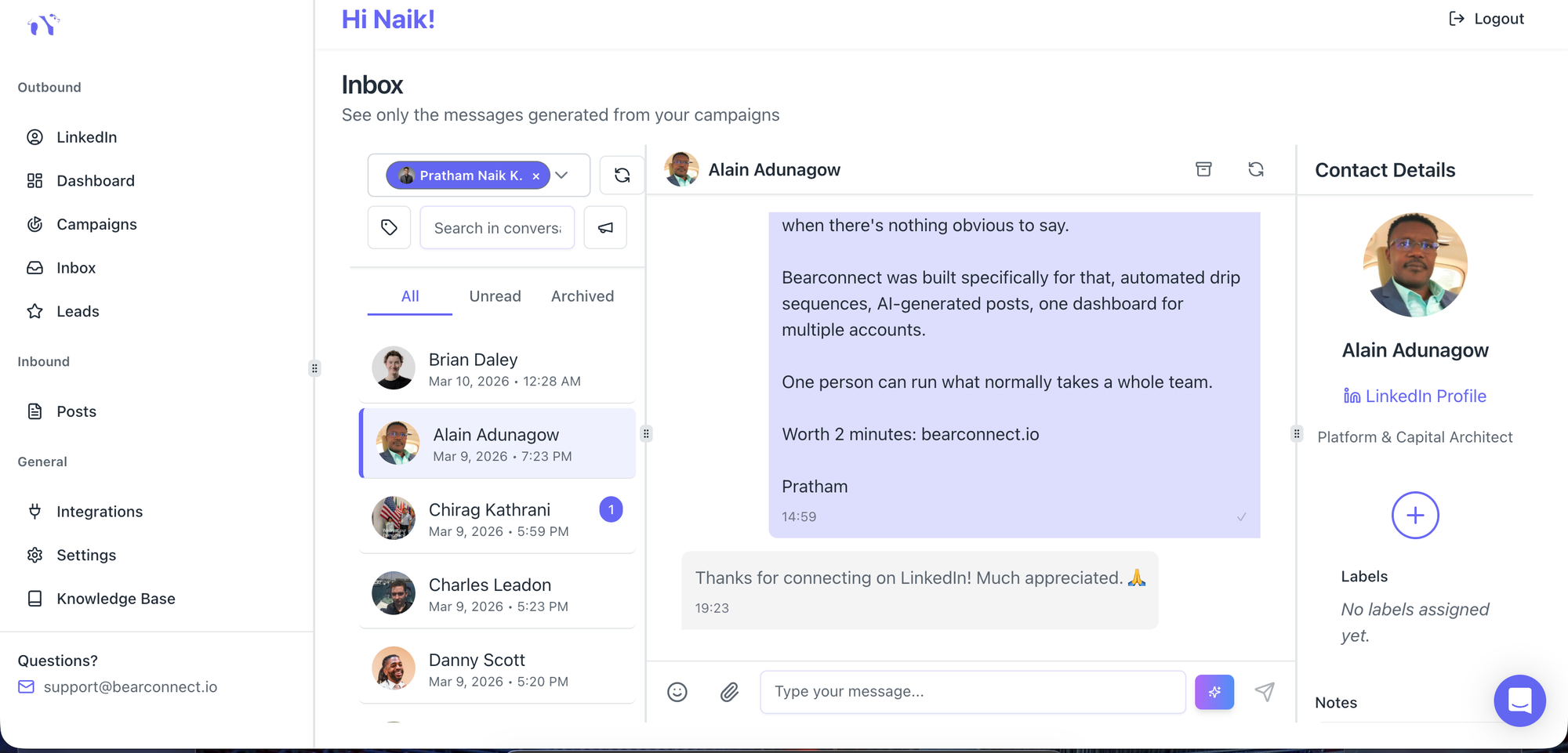
High-volume outreach creates high-volume replies. Missing a reply means losing a meeting.
This is where most SDR teams and agency founders fail at scale. They run campaigns across multiple LinkedIn accounts with no central view of who replied, who needs a follow-up, and who is ready to book.
Bearconnect's Unified Inbox pulls all replies from every connected LinkedIn account into one dashboard. No tab-switching. No missed conversations.
With Bearconnect's unified inbox, your team can:
- View all incoming replies across accounts in real time
- Label conversations by stage (interested, not now, booked, follow-up needed)
- Assign conversations to specific team members for faster response
- Eliminate the risk of a warm lead sitting unread in a secondary account
Step 7: Book the Meeting Without Friction
Move the conversation to a meeting the moment you see a buying signal.
Buying signals to watch for:
- "Tell me more"
- "How does this work?"
- "What does it cost?"
- "Can we jump on a quick call?"
When you see these, respond within 1 hour. Send a direct booking link immediately. Do not ask "What time works for you?" and create scheduling friction. Give them a direct Calendly or meeting link and let them pick a slot.
Pro Tip: Add your booking link to the Featured section of your LinkedIn profile. Some prospects will book directly after accepting your connection without ever sending a message.
The Full Meeting-Booking Pipeline: End to End
Here is the complete system in one view:
- Build a targeted list using Sales Navigator filters
- Auto connect with a personalized note using a cloud-based tool
- Send a 3-message follow-up sequence over 10 days after acceptance
- Monitor all replies in a unified inbox across every account
- Identify buying signals and respond within 1 hour
- Send a direct meeting link and confirm the call
Competitors cover Steps 1 and 2. Steps 3 through 6 are where the meetings actually come from.
Bearconnect covers the entire pipeline, from auto connect campaigns and personalized follow-up sequences to unified reply management, in one platform built for LinkedIn outreach at scale.
Common Mistakes That Get LinkedIn Accounts Restricted
Most LinkedIn account restrictions are completely avoidable. Eliminate these mistakes before launching any campaign.
Mistake 1: Sending too many invites too fast
Jumping from 0 to 100 invites per week overnight is the most common trigger for account restriction. Always ramp up gradually.
Mistake 2: Using browser extensions for high-volume campaigns
Browser extensions leave detectable automation signatures. Cloud-based tools with human-like scheduling patterns are significantly safer.
Mistake 3: Not withdrawing old pending invites
LinkedIn penalizes accounts with hundreds of unanswered pending invites. Withdraw invites that have been pending for more than 3 weeks.
Mistake 4: Using identical message templates for every prospect
LinkedIn's spam detection looks for repetitive message patterns. Rotate at least 3 variants of your connection note and follow-up messages across your campaigns.
Why Bearconnect Is Built for This Exact Workflow
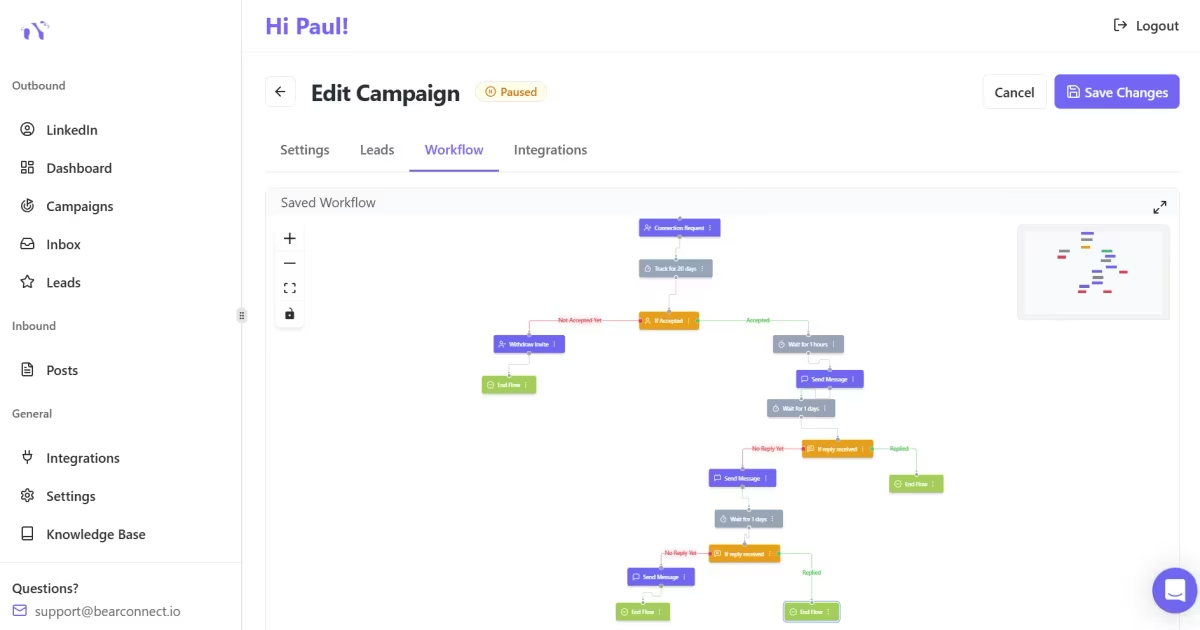
Bearconnect is a LinkedIn outreach automation platform built for B2B teams who need a complete system, not a single-function tool.
What Bearconnect covers in one platform:
- Auto connect campaigns with safe send limits and smart daily scheduling
- Personalized connection notes with dynamic variable fields for each prospect
- Automated follow-up sequences triggered immediately on connection acceptance
- Unified Inbox for managing replies across multiple LinkedIn accounts in one view
- Analytics dashboard to track acceptance rates, reply rates, and meeting conversions
Bearconnect starts at $67 per month per LinkedIn account. For teams connecting 5 or more LinkedIn accounts, the price drops to $57 per month per account, making it cost-effective for agencies and SDR teams running multi-account outreach at scale.
There is no need to stitch together 3 or 4 separate tools. Bearconnect handles the full workflow from connection request to booked meeting.
Frequently Asked Questions
Q1: How many LinkedIn connection requests can I safely send per week?
Most standard LinkedIn accounts can safely send 80 to 100 connection requests per week. New accounts should stay under 30 per week during the first month. Sales Navigator and Premium accounts have slightly higher safe thresholds of 100 to 150 per week.
Q2: Can LinkedIn ban your account for using auto connect tools?
Yes, LinkedIn can restrict or permanently ban accounts for aggressive or detectable automation. Using cloud-based tools with human-like activity patterns, staying within weekly limits, and maintaining an acceptance rate above 20% significantly reduces your restriction risk. Never use browser extensions on accounts you cannot afford to lose.
Q3: What should I write in a LinkedIn connection request note?
Keep your note under 300 characters. Mention a specific reason for connecting, briefly state what you do, and close with a low-friction statement. Never pitch your product or ask for a meeting in the connection note. Save the pitch for your follow-up sequence after they accept.
Q4: What is the best type of LinkedIn auto connect tool to use?
Cloud-based tools are the safest and most effective option for consistent outreach. They operate on remote servers, simulate human behavior patterns, and do not leave browser fingerprints. Avoid browser extensions for any campaign above 20 to 30 invites per week.
Q5: How long does it take to start booking meetings from LinkedIn auto connect campaigns?
Most well-structured campaigns start generating replies in Week 2 and meetings in Week 3 to 4. Results depend on targeting quality, acceptance rate, and follow-up sequence consistency. Accounts with above 25% acceptance rates and a 3-touch follow-up sequence book meetings faster than those relying on a single connection request.
Ready to Build Your LinkedIn Meeting Pipeline?
Auto connecting on LinkedIn works when it is part of a system, not a standalone tactic.
The full pipeline covers targeting, safe automation, personalized messaging, follow-up sequences, reply management, and meeting booking. Each step builds directly on the last.
If you want to run this entire workflow from one platform, try Bearconnect and see how B2B teams use it to turn LinkedIn outreach into a predictable meeting pipeline.
Ready to Transform Your LinkedIn Strategy?
Join thousands of professionals already using Bearconnect to automate their outreach and grow their network.
7-day free trial • Cancel anytime
Related Articles
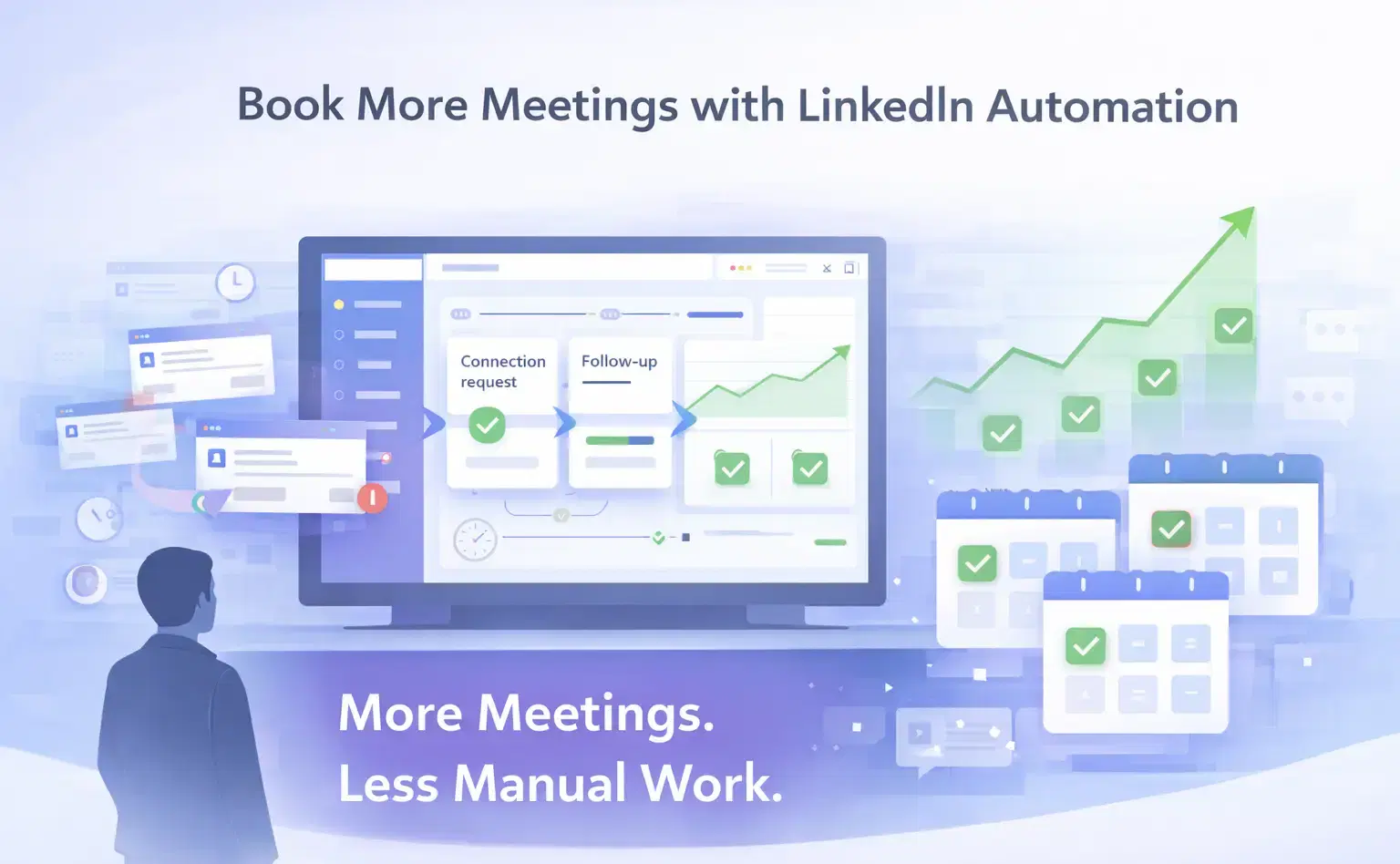
How Can SDRs Book More Meetings Using LinkedIn Automation?
SDRs can book more meetings with LinkedIn automation by streamlining outreach, automating follow-ups, and scaling conversations without manual effort.
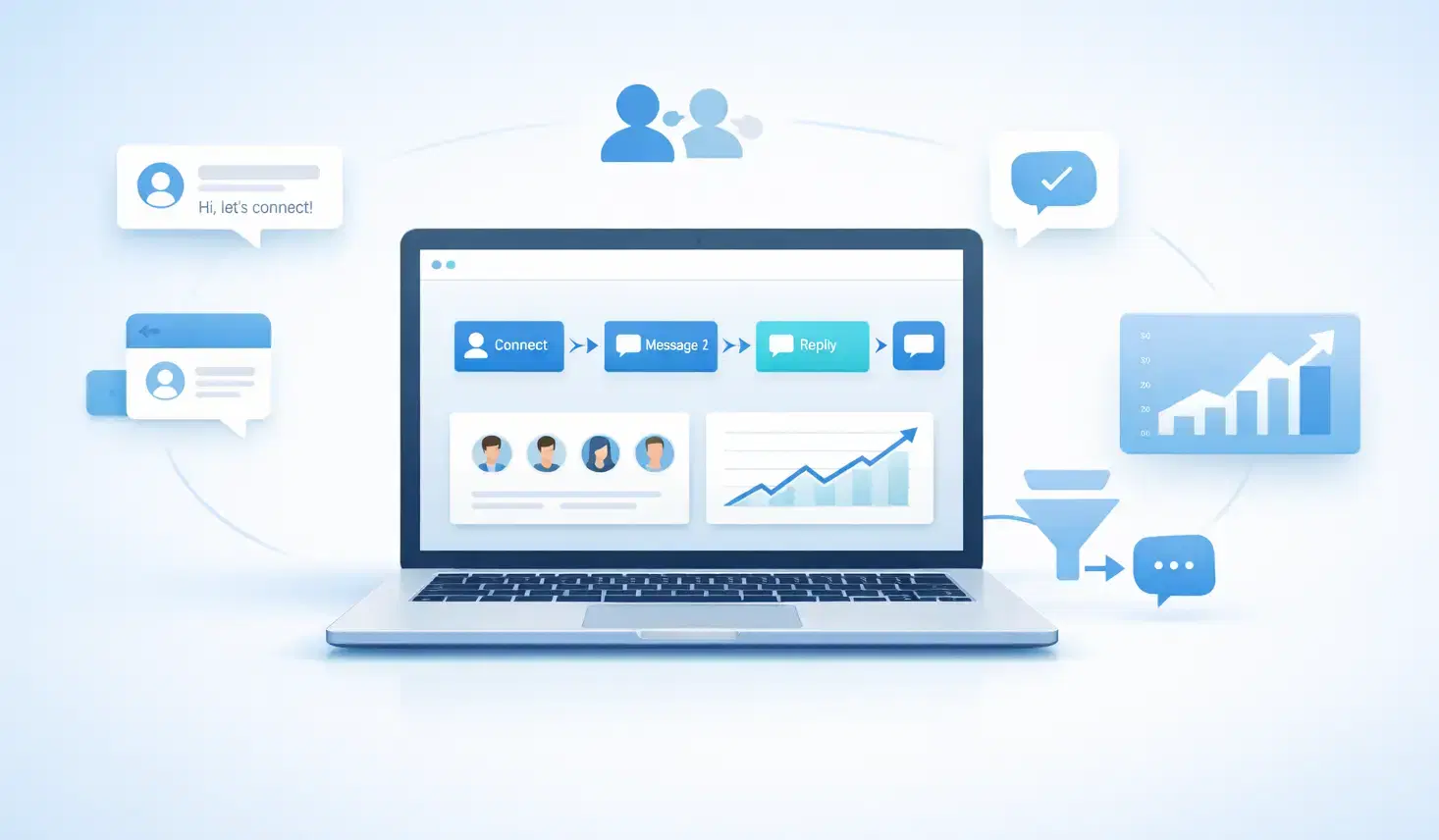
7 Best LinkedIn DM Tools for Outreach Automation in 2026
Looking for best LinkedIn DM tools in 2026? This guide compares top outreach automation tools by features, pricing, safety, and use cases so you can scale B2B lead generation with less manual work.
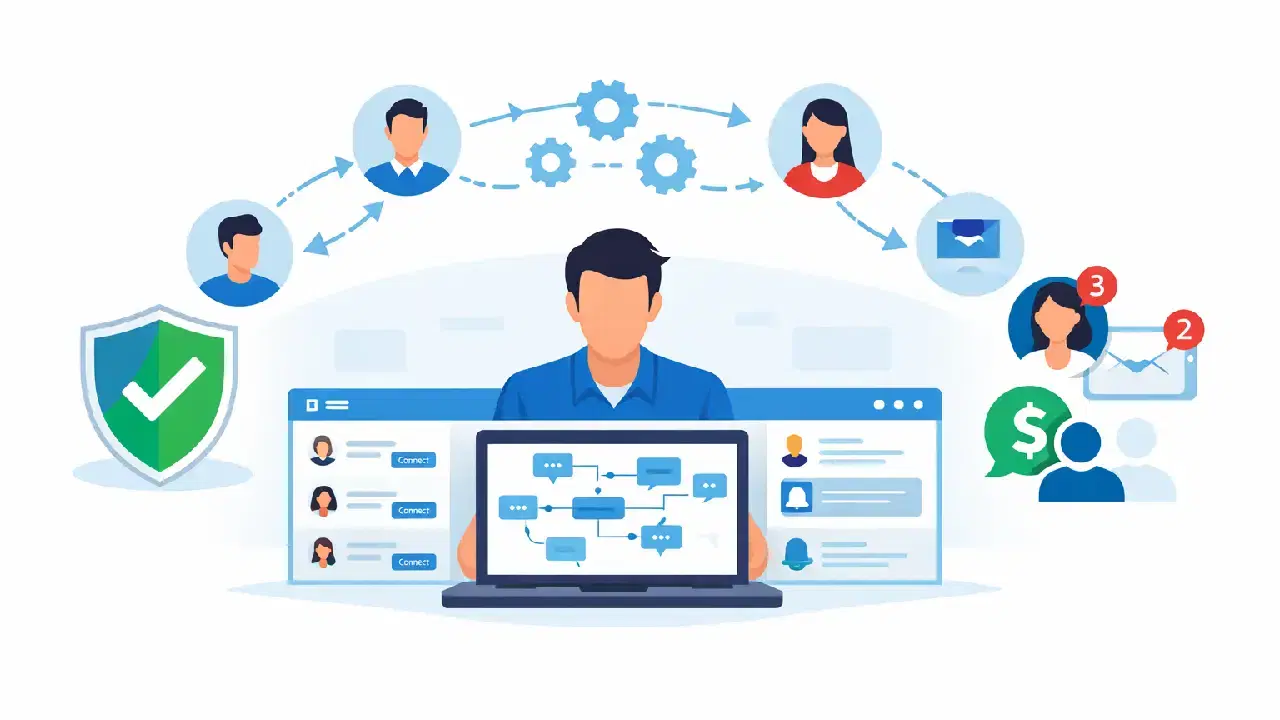
How to Automate Your Agency's LinkedIn Outreach (Without Getting Banned)
Learn how agencies automate LinkedIn outreach safely using smart limits, personalization, and automation tools to scale prospecting without risking account bans.