How to Hibernate Your LinkedIn Account Without Losing Connections
You can hibernate your LinkedIn account temporarily and your connections, messages, and profile data stay fully intact.
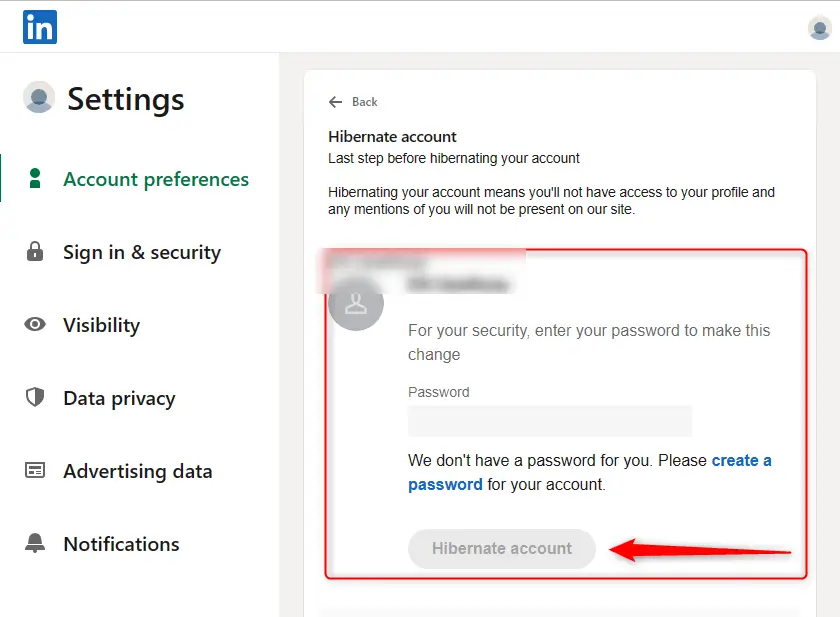
Hibernation hides your profile from search and pauses your activity, but it does not delete anything.
TL;DR
- Hibernating your LinkedIn account makes your profile invisible, but does NOT delete your connections
- You can reactivate at any time and everything returns to normal
- You cannot hibernate if you are a LinkedIn Page admin or have an active LinkedIn Premium subscription (cancel first)
- Hibernation is available on desktop only, not the mobile app
- If you manage active outreach or lead generation, consider a smarter alternative before going dark
What Does Hibernating a LinkedIn Account Actually Mean?
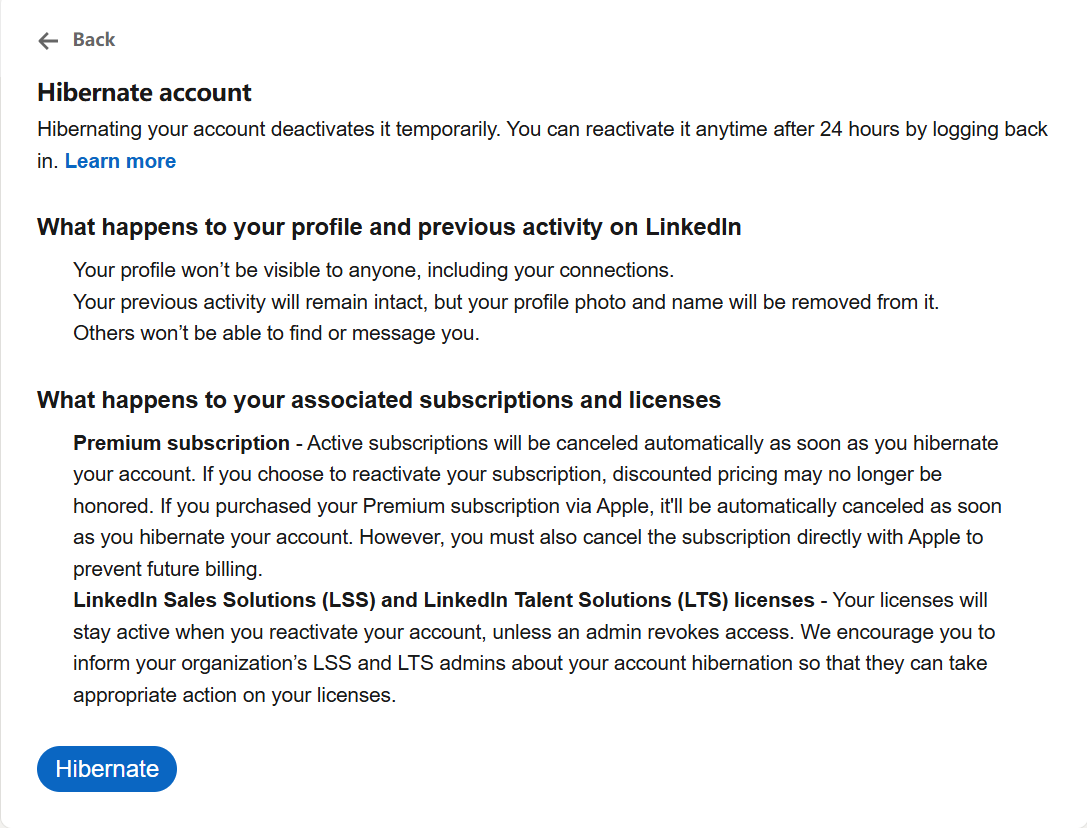
Hibernating your LinkedIn account puts your profile into a temporary invisible state.
Your profile disappears from search results, your connections cannot find you, and your activity stops showing up in feeds.
Think of it as a pause, not a stop.
LinkedIn introduced this feature specifically for users who want a break without the permanent consequence of deleting their account. You keep every connection, every message thread, and every endorsement exactly as it was.
What changes during hibernation:
- Your profile is hidden from LinkedIn search
- People cannot view your profile or send you new connection requests
- Your posts and comments become invisible temporarily
- You cannot use LinkedIn at all while hibernated
What stays the same:
- All your connections remain connected
- Your messages and conversation history are preserved
- Your profile content, recommendations, and skills are saved
- Your follower count stays intact
Sometimes you do not need to hibernate the whole account. You can simply cut off problem users using this guide on blocking someone on LinkedIn quietly.
div style="background: linear-gradient(135deg, #6a71f0 0%, #525ceb 100%); padding: 40px 32px; border-radius: 16px; font-family: -apple-system, BlinkMacSystemFont, 'Inter', 'Segoe UI', Roboto, Helvetica, Arial, sans-serif; max-width: 650px; margin: 40px auto; box-shadow: 0 16px 32px rgba(82, 92, 235, 0.15); text-align: center; color: #ffffff !important;">
Your prospects are already sending buying signals.
Most teams miss them.
Bearconnect helps you identify those signals, automate LinkedIn outreach, and turn more prospects into conversations.
Turn signals into pipeline.
What Happens to Your Connections When You Hibernate?
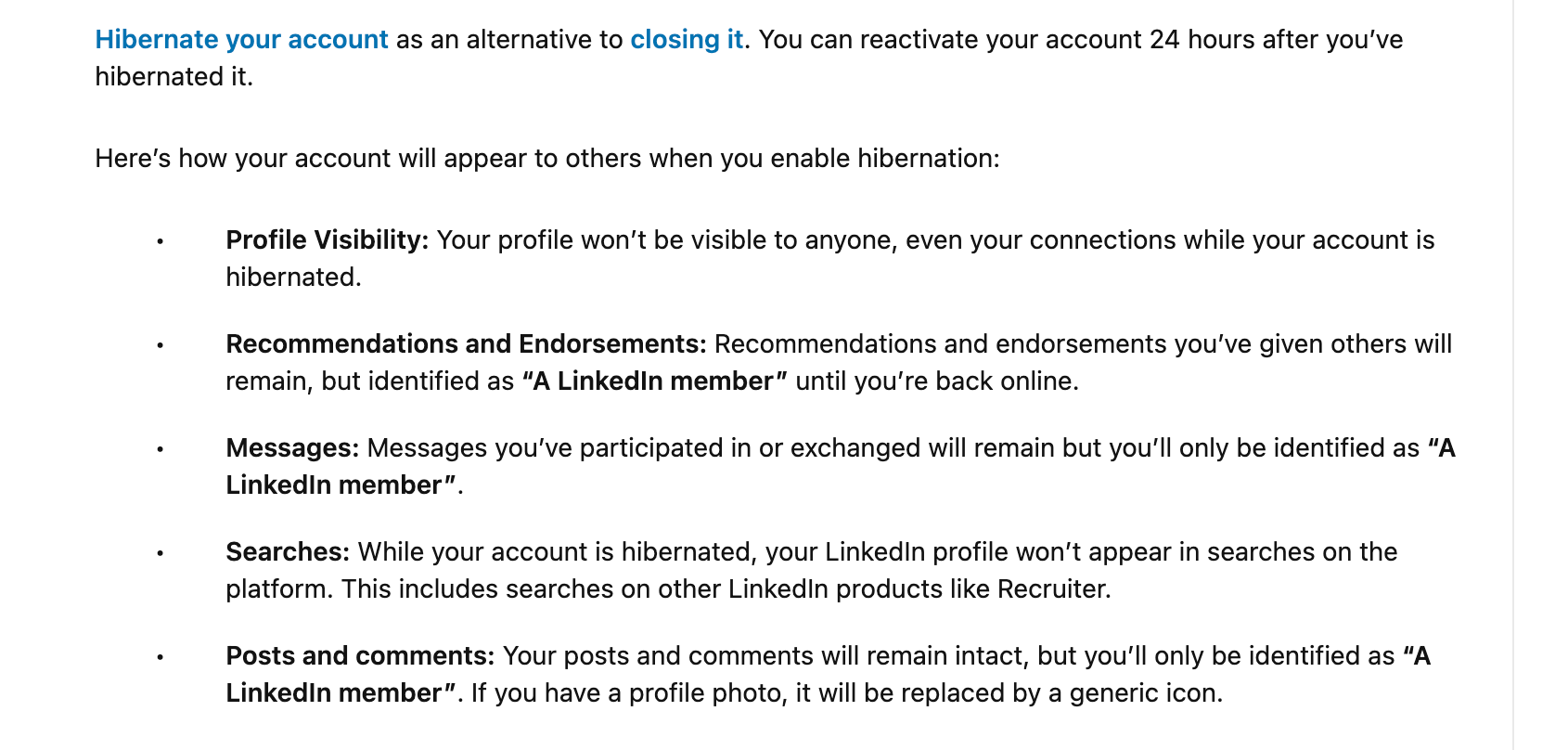
Your connections do not get removed and they do not receive any notification. This is one of the most common fears, and the answer is straightforward: nothing happens to your network.
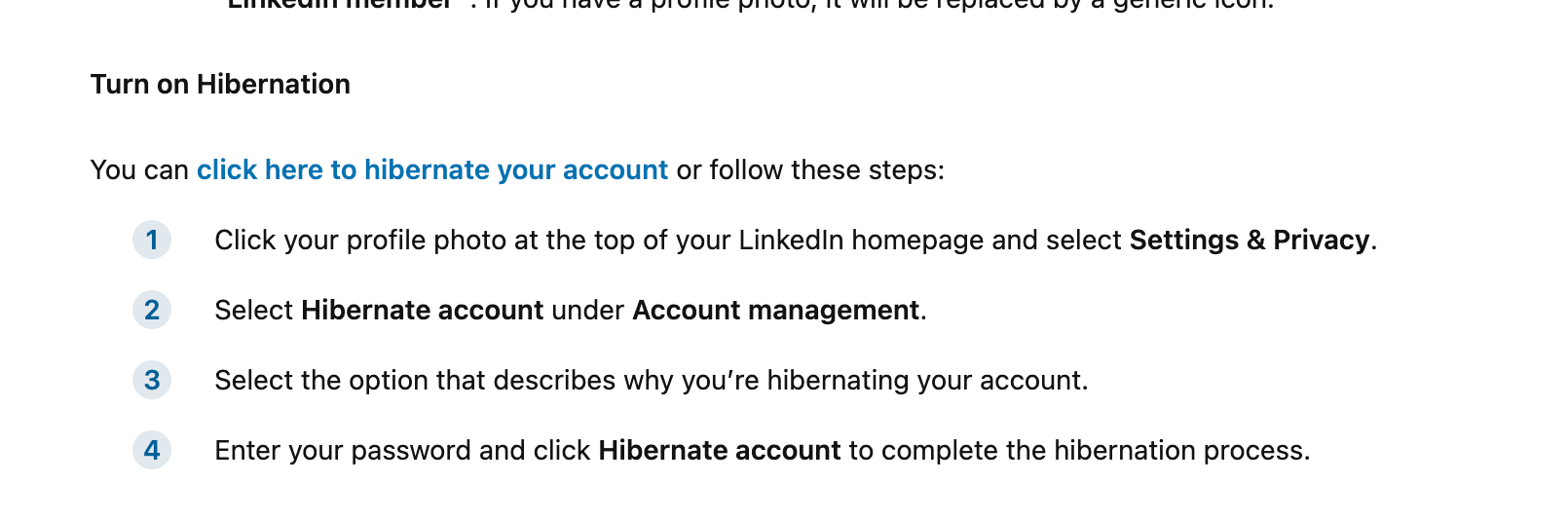
- Your connections simply will not be able to find your profile while you are hibernated. If they search your name, you will not appear.
- If they visit your profile URL directly, they will see that the account is inactive.
- The moment you reactivate, your profile comes back exactly as it was before.
Who Cannot Hibernate Their LinkedIn Account?
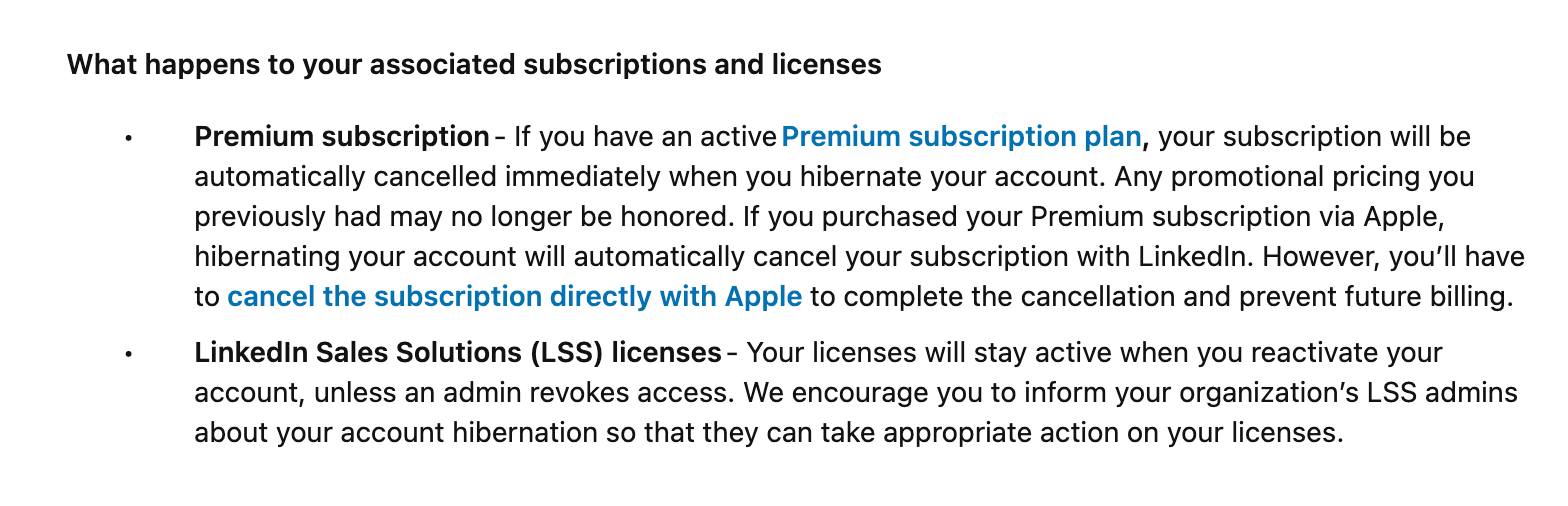
Not everyone can use this feature immediately. LinkedIn blocks hibernation in two specific situations.
You cannot hibernate if:
- You are an admin of a LinkedIn Company Page (you must remove yourself or transfer the role first)
- You have an active LinkedIn Premium, Sales Navigator, or Recruiter subscription (cancel or let it expire first)
You are a contract worker or freelancer with an active LinkedIn Service Page
Pro Tip: If you have LinkedIn Premium, cancel it before initiating hibernation. If you cancel mid-cycle, you still get access until the billing period ends. Plan your hibernation date accordingly so you do not lose paid time.
How to Hibernate Your LinkedIn Account (Step-by-Step)
LinkedIn only allows hibernation from a desktop browser. The mobile app does not support this feature.
Step 1: Open Account Settings
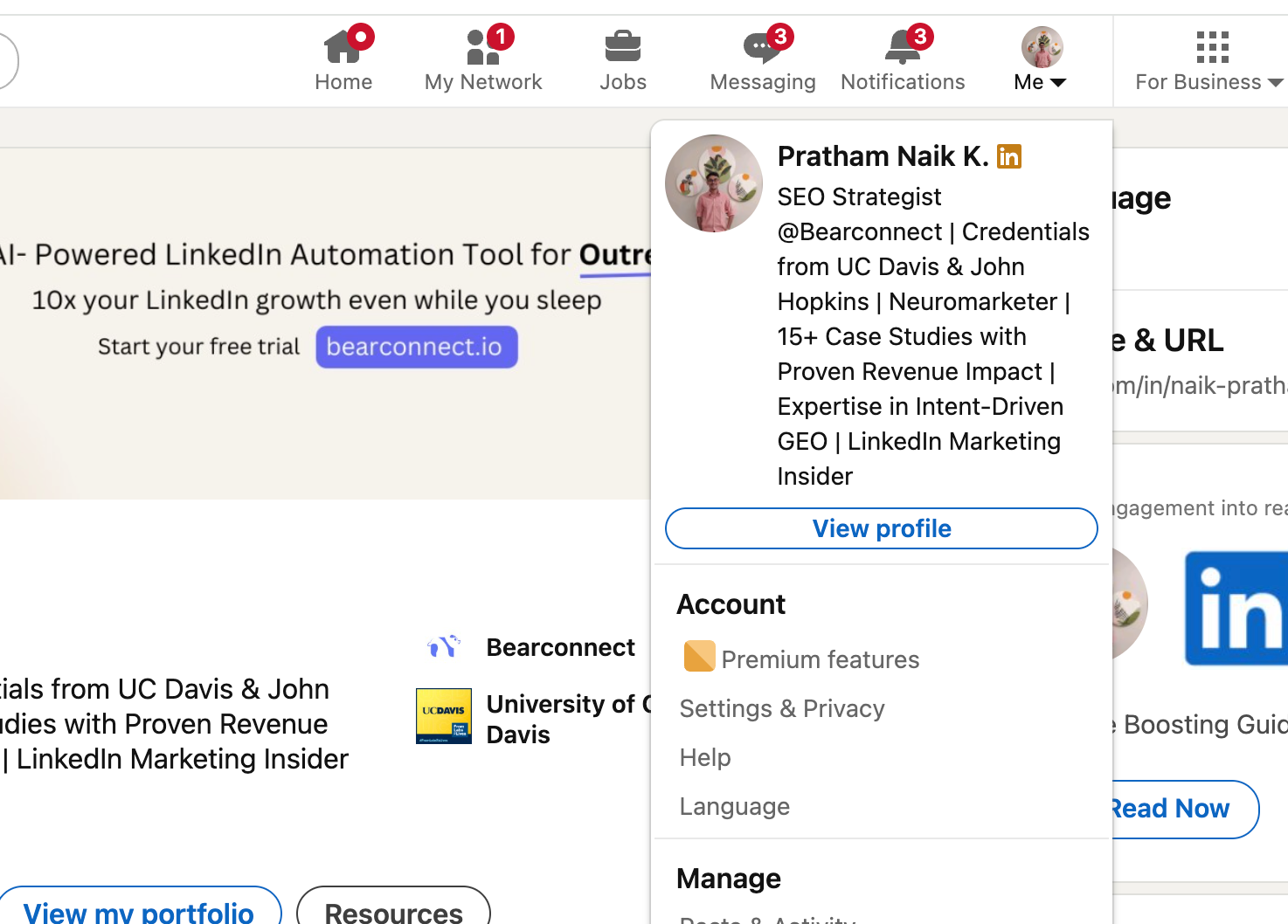
- Log in to LinkedIn on a desktop browser
- Click your profile photo in the top right corner
- Select Settings and Privacy from the dropdown
Step 2: Navigate to Account Management
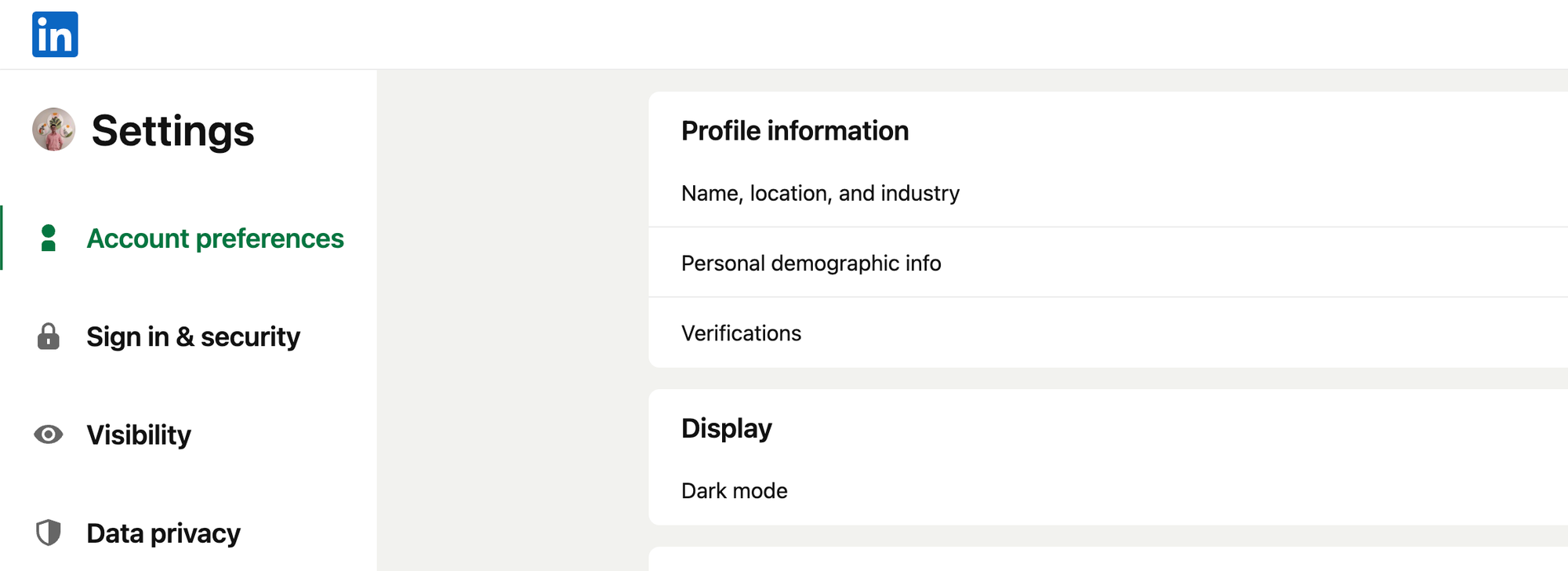
- In the left sidebar, click Account preferences
- Scroll down to find Account management
- Click Hibernate account
Step 3: Select Your Hibernation Reason
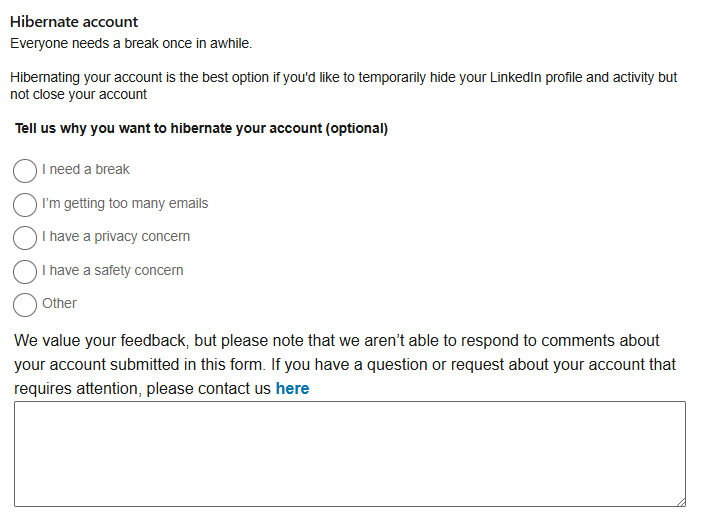
LinkedIn will ask you to select a reason for hibernating. Choose the option that best fits your situation. This is for LinkedIn's internal data only and does not affect your account.
Step 4: Confirm Hibernation
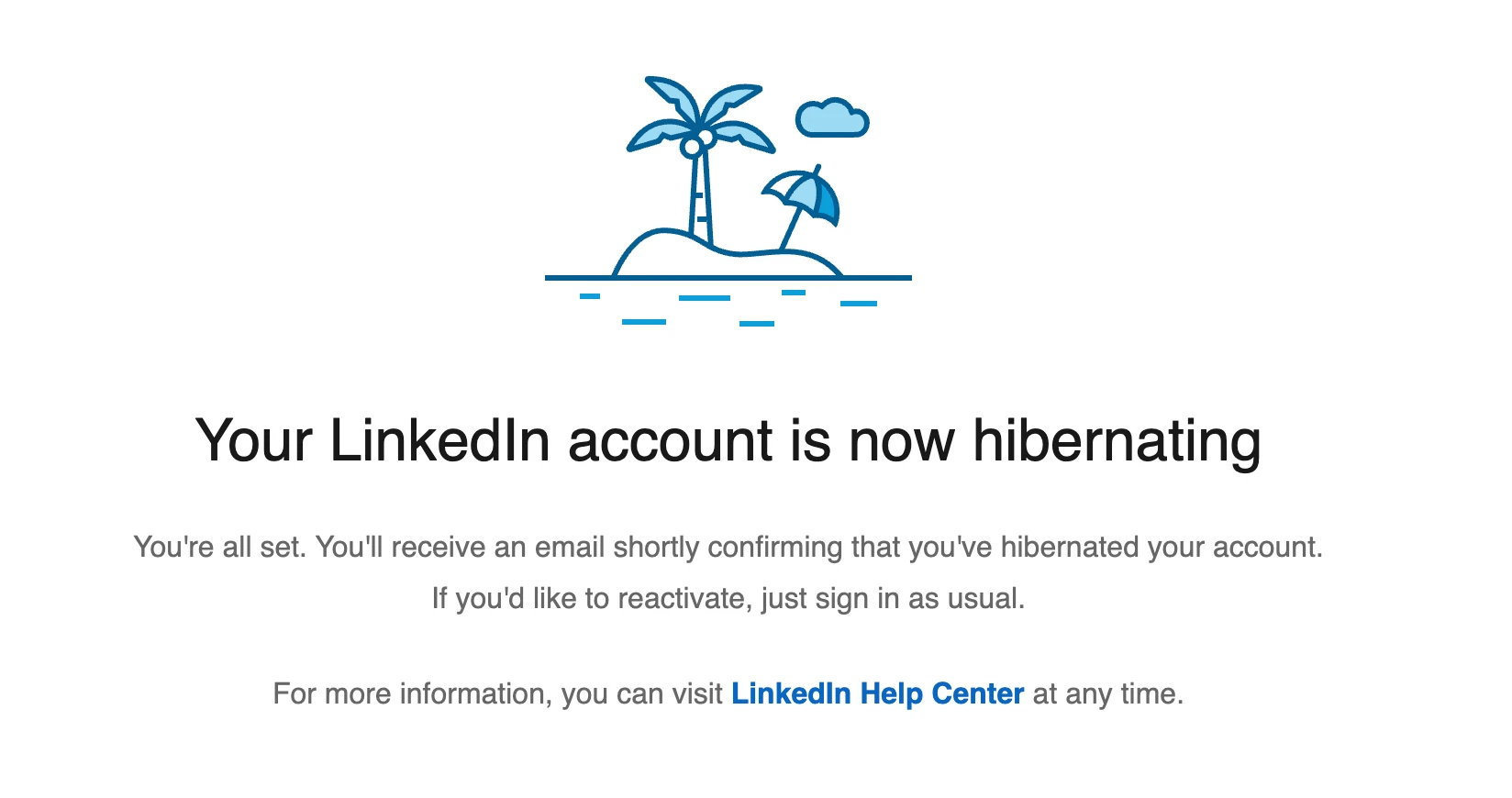
- Review what hibernation means on the confirmation screen
- Enter your LinkedIn password when prompted
- Click Hibernate to confirm
Your profile goes into hibernation mode immediately.
Pro Tip: Take a screenshot of your current connection count, active campaigns, and any pending messages before you hibernate. This gives you a clean baseline when you return. If you use automated LinkedIn connections, pause your sequences before hibernating to avoid sending requests from an inactive account.
How to Reactivate Your LinkedIn Account After Hibernation
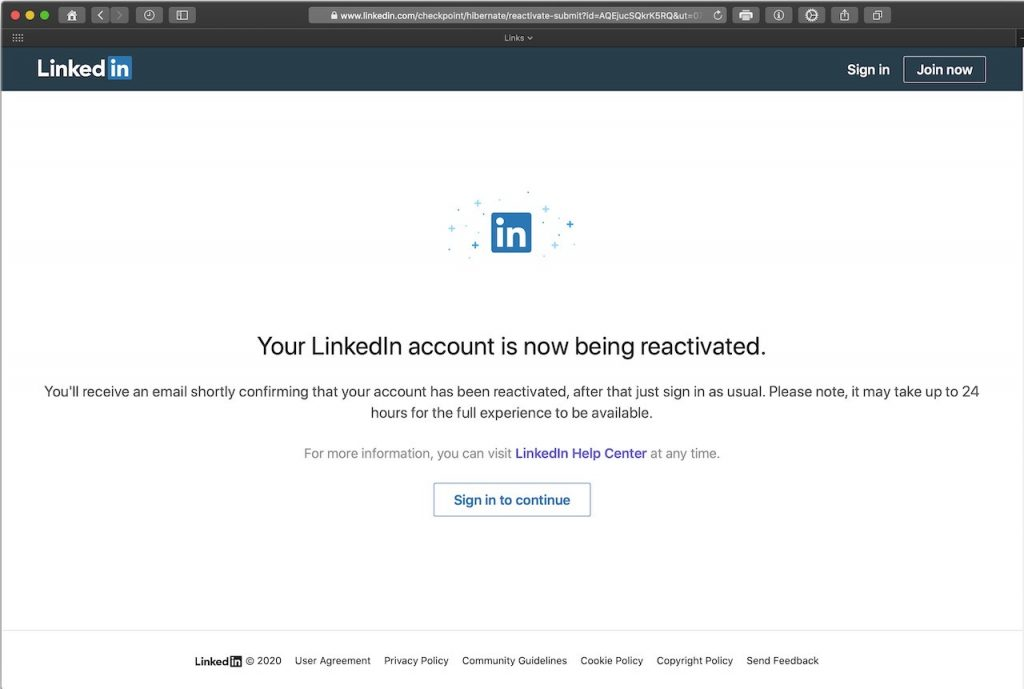
Reactivating is simple and takes less than 60 seconds.
- Go to LinkedIn.com and enter your login credentials
- LinkedIn will detect that your account is hibernated and show a reactivation prompt
- Click Reactivate Account
- Confirm with your password
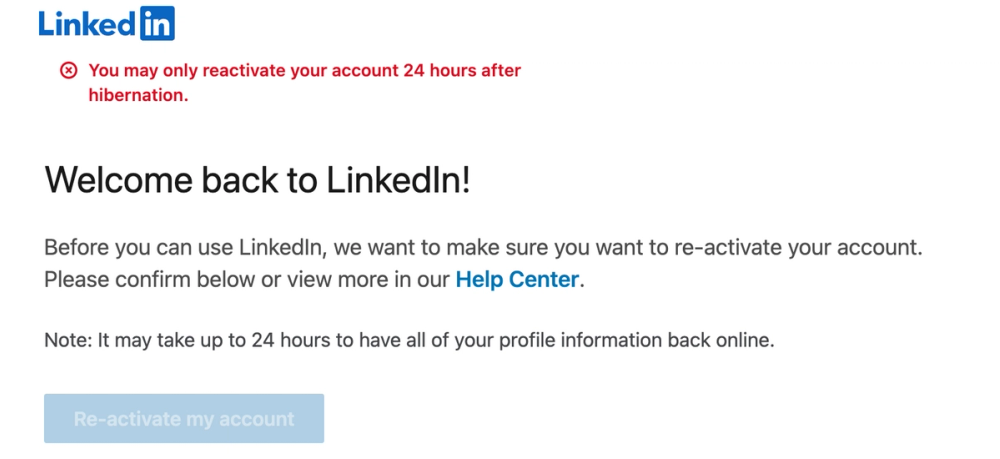
Your profile becomes visible again immediately. All your connections, messages, and content are restored exactly as you left them.
Important: There is no set time limit for hibernation. LinkedIn does not auto-delete hibernated accounts after a specific period, but keeping an account hibernated for more than 12 months may reduce its algorithmic standing once reactivated.
Hibernate vs Delete: What Is the Real Difference?
This is the most important decision to understand before you act.
| Factor | Hibernate | Delete |
|---|---|---|
| Connections | Kept | Permanently lost |
| Messages | Preserved | Permanently lost |
| Profile content | Saved | Permanently deleted |
| Reactivation | Yes, anytime | No, you start over |
| Search visibility | Hidden | Gone |
| Time to restore | Instant | Not possible |
The rule is simple: If there is any chance you will return to LinkedIn, hibernate. Only delete if you are 100% certain you never want to use LinkedIn again. If you are unsure, read our full guide on how to delete your LinkedIn account before making a permanent decision.
The Hidden Cost of Hibernating When You Run LinkedIn Outreach
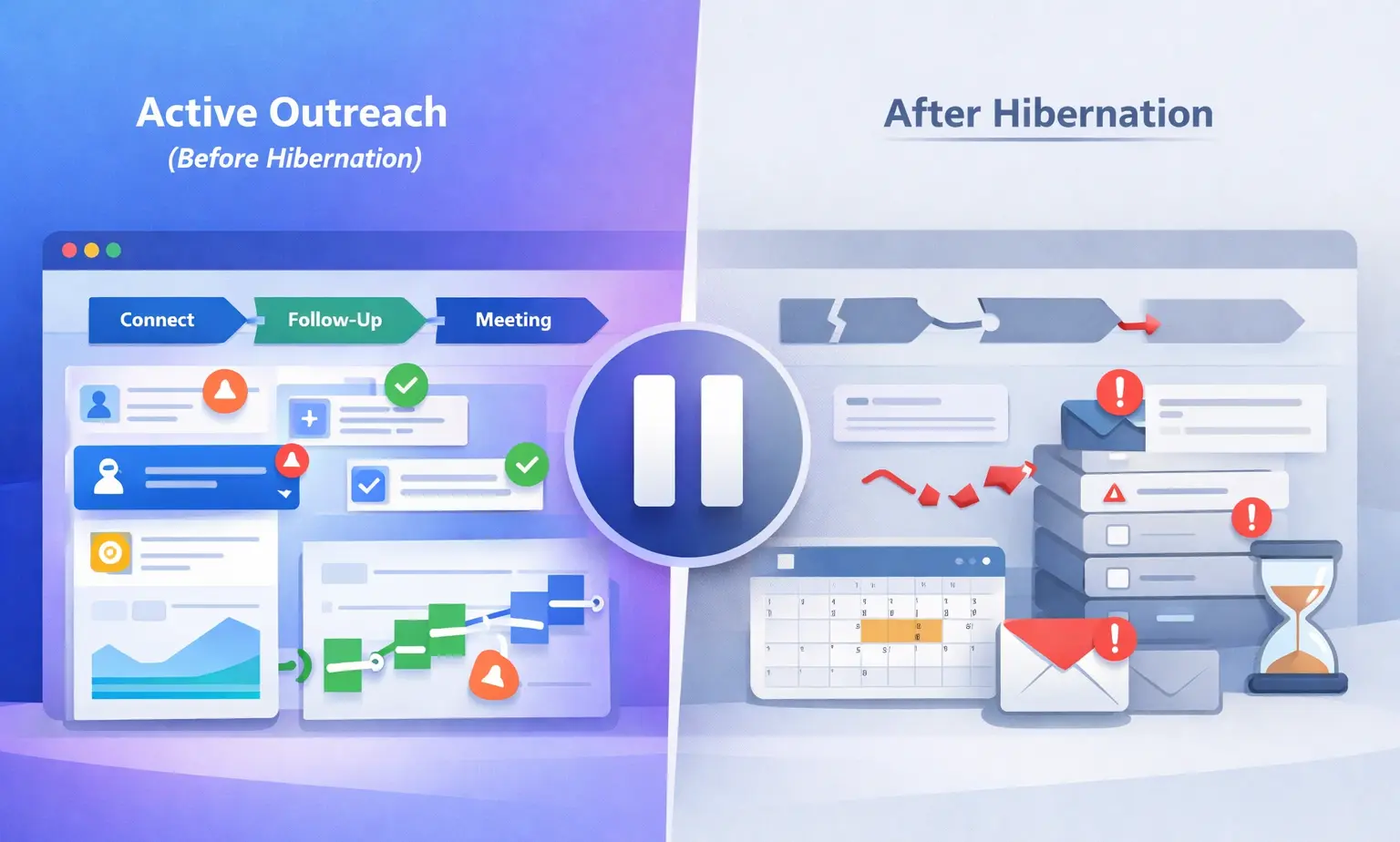
Here is the scenario most guides ignore entirely.
You run active LinkedIn outreach. You have campaigns running, leads in the pipeline, and conversations in progress. You are burned out and want a break. So you hibernate.
What actually happens:
- Your active campaigns stop cold
- Prospects who were in a follow-up sequence get no response
- New LinkedIn connection requests you had queued up go nowhere
- Your account loses its warm-up momentum, which affects reply rates after reactivation
- You return to a cold inbox with weeks of catching up to do
For most professionals managing LinkedIn manually, this is a real problem. The burnout is not from LinkedIn itself.
It is from doing everything manually: writing posts, sending connection requests, following up on messages, managing replies across accounts.
That is a tooling problem, not a LinkedIn problem.
A Smarter Alternative to Hibernating If You Manage Outreach
Before you hibernate, ask yourself: am I burned out from LinkedIn or from the manual work of running LinkedIn?
If the answer is the second one, you do not need to go dark. You need automation.
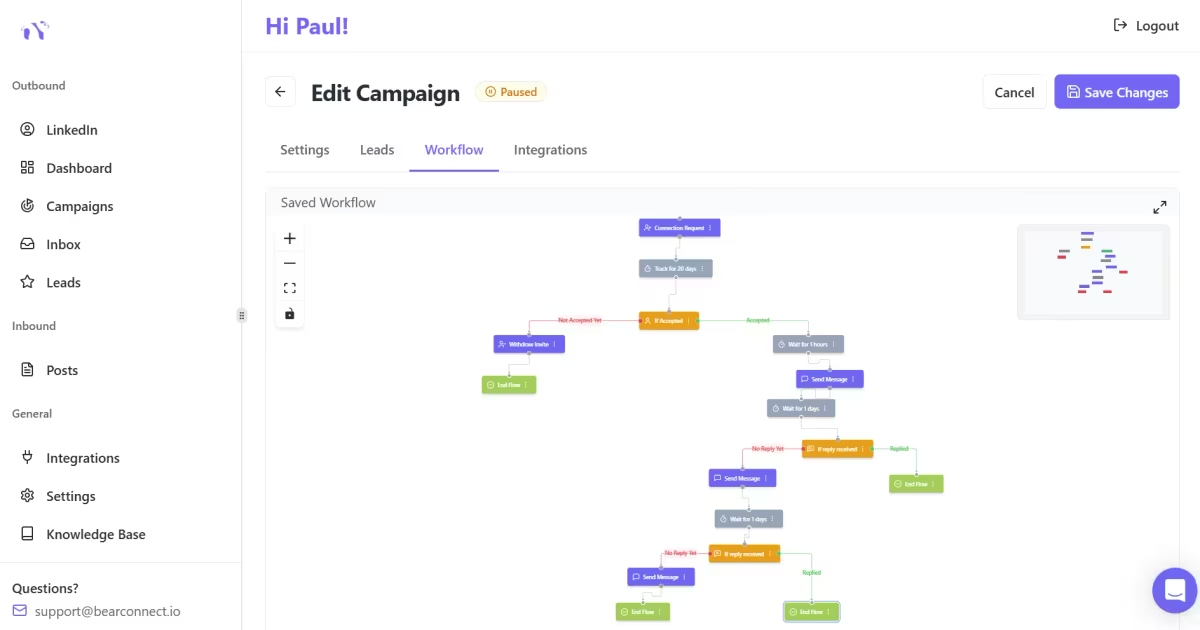
Bearconnect handles the work that burns people out. It automates connection requests, follow-up messages, and post scheduling across multiple LinkedIn accounts from one dashboard.
You step back from the manual grind while your profile keeps running, stays visible, and keeps generating leads.
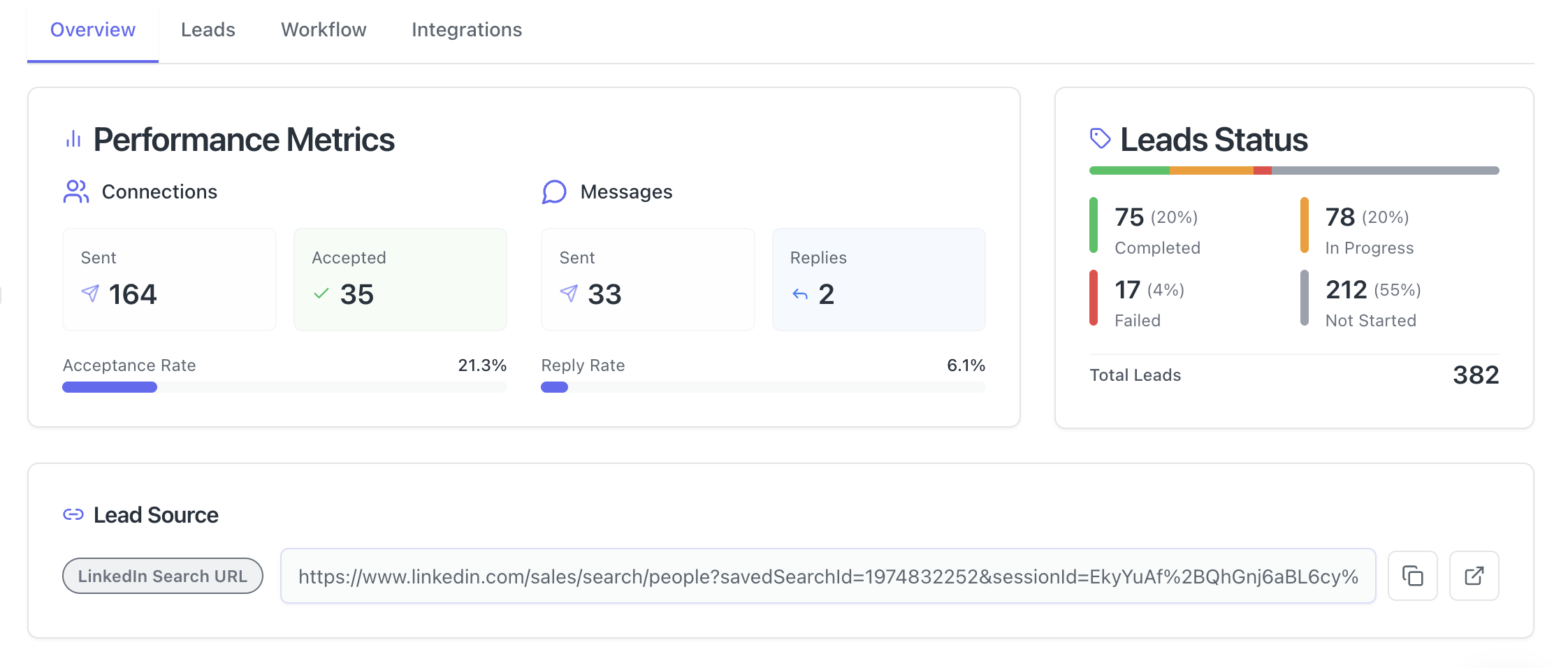
What Bearconnect does while you "take a break":
- Sends personalized connection requests on autopilot — learn how in our auto-connect guide
- Follows up with leads based on your set sequences, similar to how agencies run LinkedIn outreach for clients
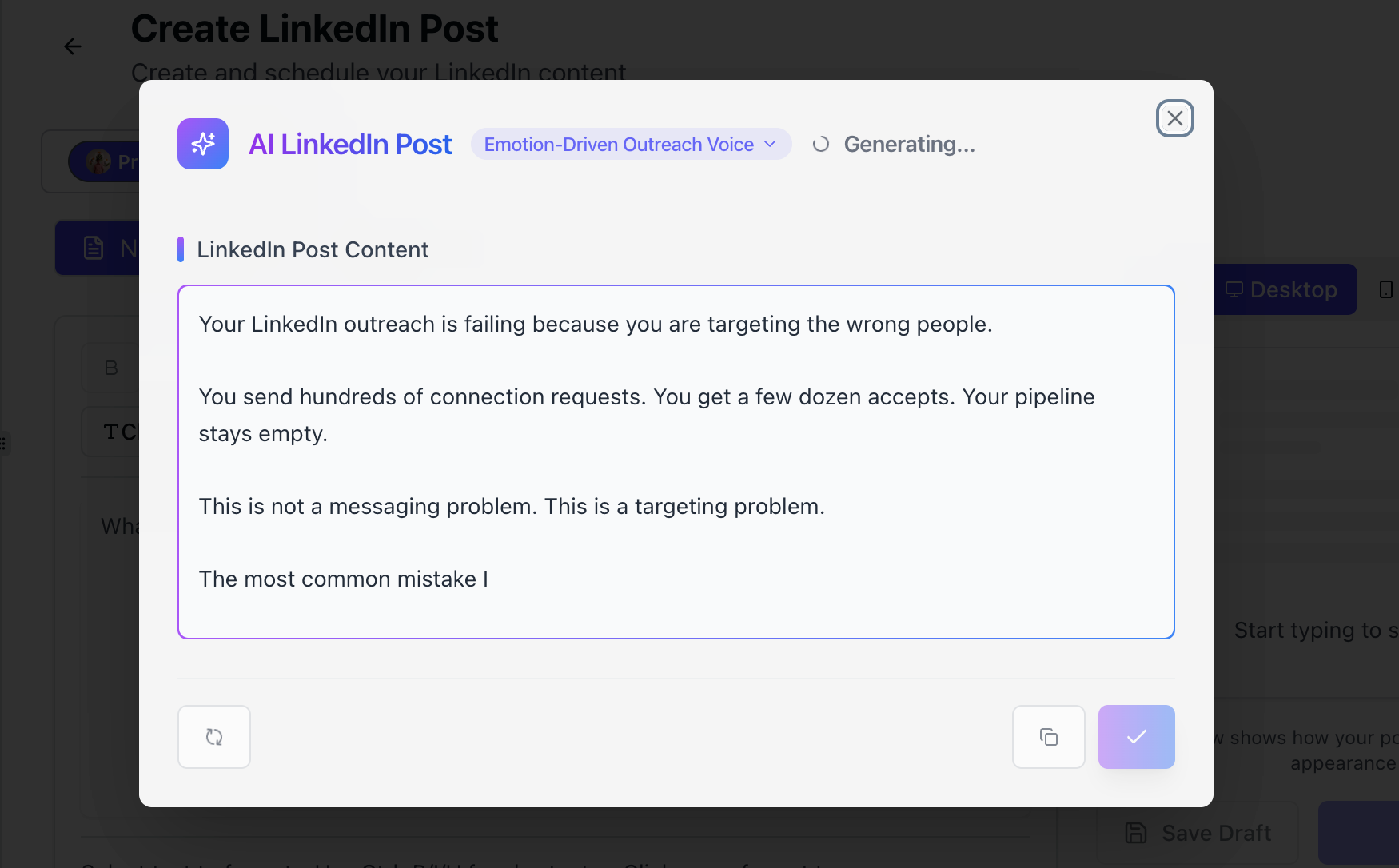
- Schedules and publishes LinkedIn posts on your behalf using its AI post writing feature
- Manages all replies in a Unified Inbox so nothing falls through the cracks
- Keeps your account warm with human-like activity patterns, protecting you from LinkedIn jail and automation restrictions
This is the middle path no other guide talks about. You do not have to choose between burning out manually or going completely dark. You can step back from the work while staying present on LinkedIn.
Pro Tip: If you manage outreach for clients or run a sales team across multiple accounts, check out how agencies manage multiple LinkedIn accounts at scale. Bearconnect's Growth plan covers 5 LinkedIn accounts at $57/month per account.
You stay active on every account without touching any of them manually.
When Hibernation Is Actually the Right Choice
Hibernation is the right move in these specific situations:
- You are going through a career transition and do not want recruiters or employers seeing profile activity
- You have serious privacy concerns and want your profile completely invisible for a period
- You are dealing with harassment or unwanted contact on LinkedIn - you may also want to read how to block someone on LinkedIn as a first step
- You are shutting down a freelance or consulting practice and want to step away professionally
- You are taking a long sabbatical and have no plans to maintain any professional presence online
In these cases, hibernate without hesitation. Your data is safe. Your connections wait for you. Your return is one login away.
Every missed follow-up is a
missed opportunity.
Bearconnect helps founders, SDRs, and recruiters stay consistent on LinkedIn without spending hours doing manual outreach.
More conversations. Less clicking.
5 FAQs About Hibernating Your LinkedIn Account
Q1: Will my connections know I hibernated my account?
No. LinkedIn does not notify your connections when you hibernate. Your profile simply disappears from search and becomes inaccessible. No announcement, no alert, no notification is sent to anyone.
Q2: Can I still receive LinkedIn emails while hibernated?
Yes. LinkedIn can still send you emails to your registered email address during hibernation. However, you cannot log in or interact with the platform until you reactivate.
Q3: Does hibernating my LinkedIn account cancel my Premium subscription?
No, hibernation does not cancel Premium. You must manually cancel your subscription before hibernating. If you hibernate without cancelling, you will continue to be charged.
Q4: How long can I keep my LinkedIn account hibernated?
LinkedIn does not impose a strict time limit on hibernation. However, keeping your account inactive for extended periods (beyond 12 months) may affect how quickly your profile regains visibility once you return.
Q5: Can I hibernate my LinkedIn account from the mobile app?
No. As of now, LinkedIn only supports account hibernation through a desktop browser. Open LinkedIn on your computer, go to Settings and Privacy, then Account preferences to find the hibernation option.
Ready to Stay Active Without the Burnout?
If you are considering hibernation because LinkedIn feels like too much work, the problem is likely the process, not the platform.
Try Bearconnect free for 7 days and see how much of your LinkedIn activity can run on autopilot while you focus on what actually matters.
Start your free trial at bearconnect.io
Want to go deeper? Read our LinkedIn automation beginner guide to understand how to set up your outreach system properly from day one.
Ready to Transform Your LinkedIn Strategy?
Join thousands of professionals already using Bearconnect to automate their outreach and grow their network.
7-day free trial • Cancel anytime
Related Articles

LinkedIn Automation: The Complete Guide for 2026
What LinkedIn automation is, how it works, what LinkedIn allows, safe limits, how to choose a tool and how to run your first campaign.
How to Remove a Connection on LinkedIn (Do They Get Notified?)
Removing a LinkedIn connection takes a few clicks, but most people want to know one thing first: does the other person get notified? This guide covers the steps on desktop and mobile, and what changes afterward.
Bearconnect V2 Is Live: Workspaces, Roles and a Rebuilt Campaign Builder
Bearconnect V2 introduces dedicated workspaces, flexible roles, and a rebuilt campaign builder, giving agencies and sales teams more control over every LinkedIn account they manage.