How To Find And Share Your LinkedIn Profile URL On Desktop, Mobile, And Email
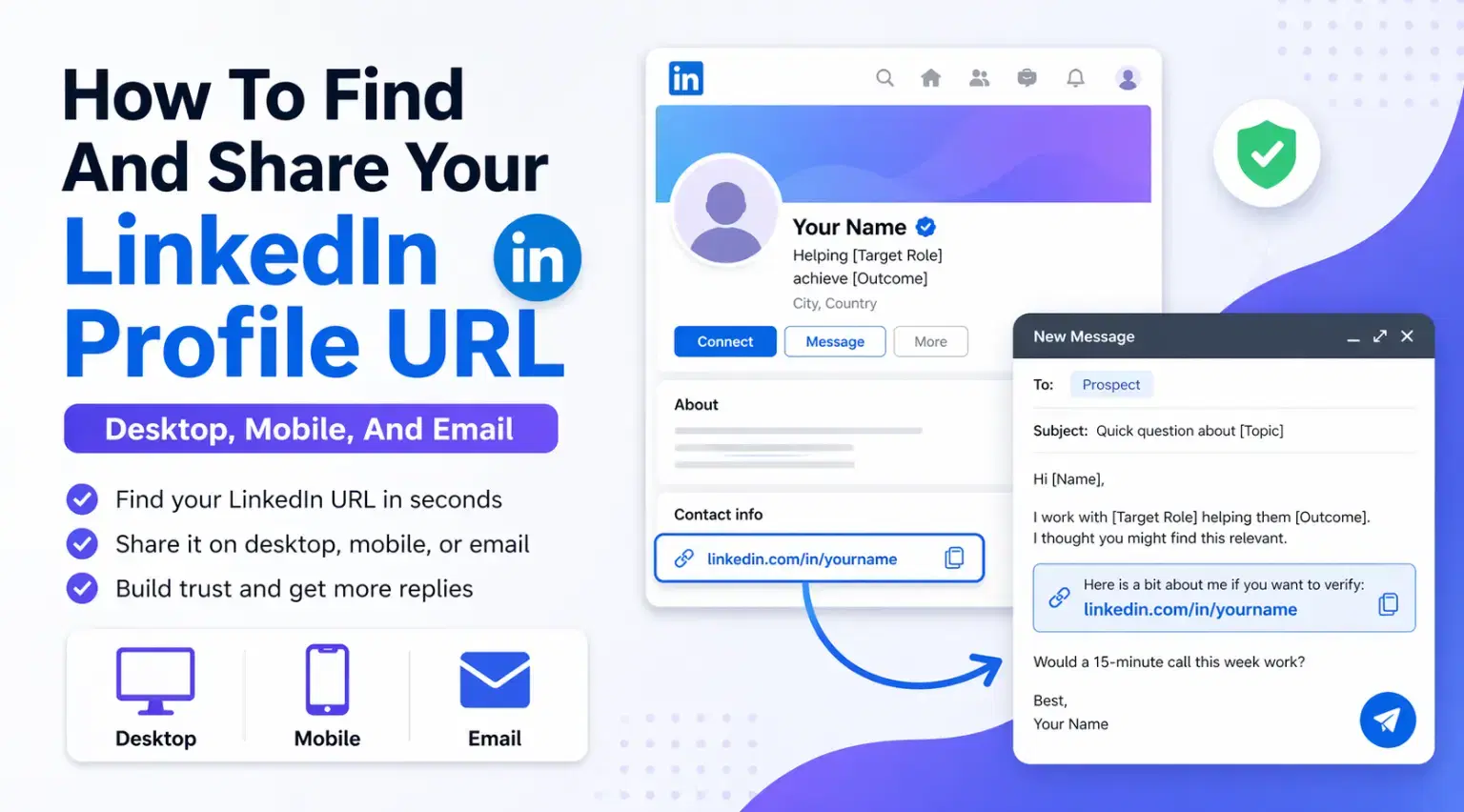
Your LinkedIn profile URL is stored in your profile settings, and you can copy it in under 30 seconds on either desktop or mobile.
Once you have it, you can share it on a resume, in an email signature, in outreach messages, or anywhere you want to direct people to your profile.
TL;DR
- Your LinkedIn URL lives under Me > View Profile > Edit public profile & URL on desktop
- On mobile, go to your profile, tap More, then Contact info
- Your default URL looks like
linkedin.com/in/firstname-lastname-numbers - You can customize it to something clean like
linkedin.com/in/yourname - A clean, custom URL looks more professional in email signatures, resumes, and outreach
What Is a LinkedIn Profile URL?
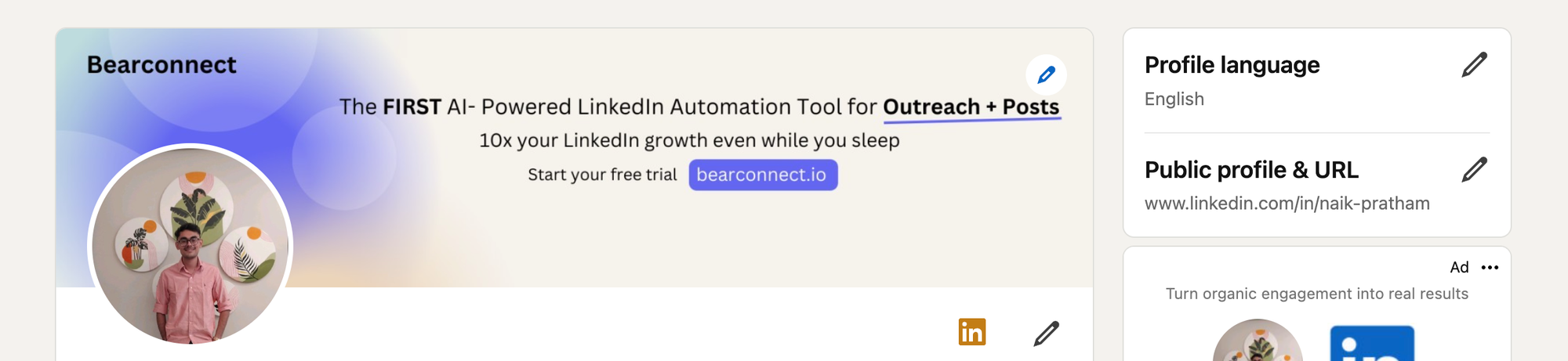
Your LinkedIn profile URL is the unique web address that points directly to your public LinkedIn profile. It follows this format:
<https://www.linkedin.com/in/your-name>
Every LinkedIn account gets one automatically. By default, LinkedIn assigns a URL with your name plus a string of random numbers,
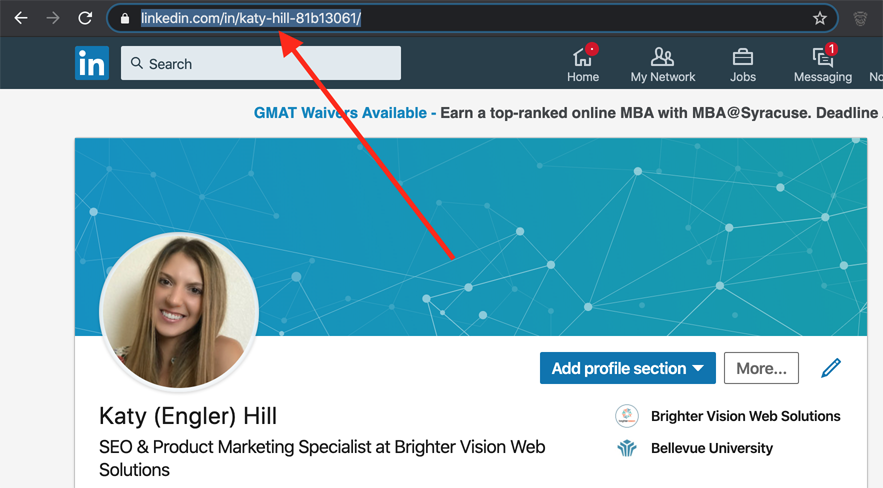
for example linkedin.com/in/john-smith-3a8b72. You can clean this up into a custom URL, which we cover below.
Important: Your public profile URL only works if your LinkedIn profile visibility is set to public. If your profile is private, the link will not show your profile to people outside your network.
How To Find Your LinkedIn Profile URL on Desktop
On desktop, your LinkedIn URL is two clicks away from your homepage.
Here are the exact steps:
- Log in to LinkedIn at Linkedin.com
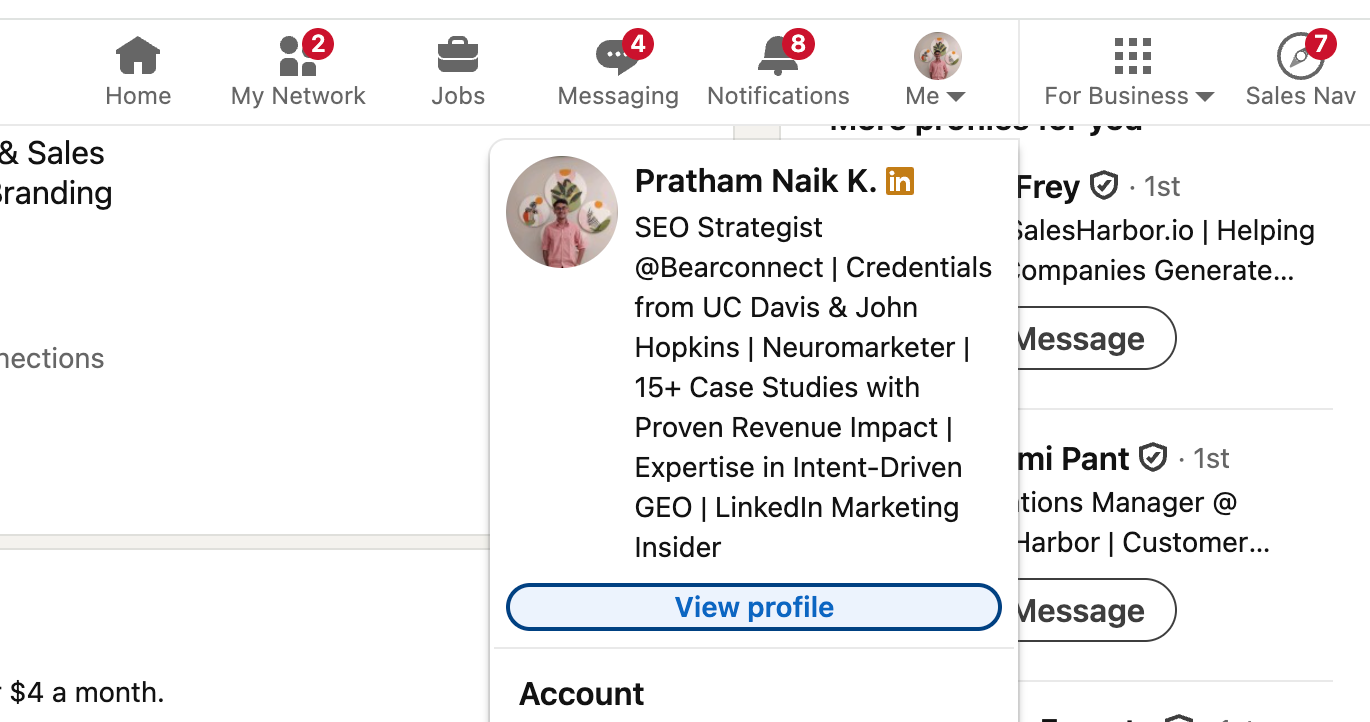
- Click your profile photo or Me in the top navigation bar
- Click View Profile
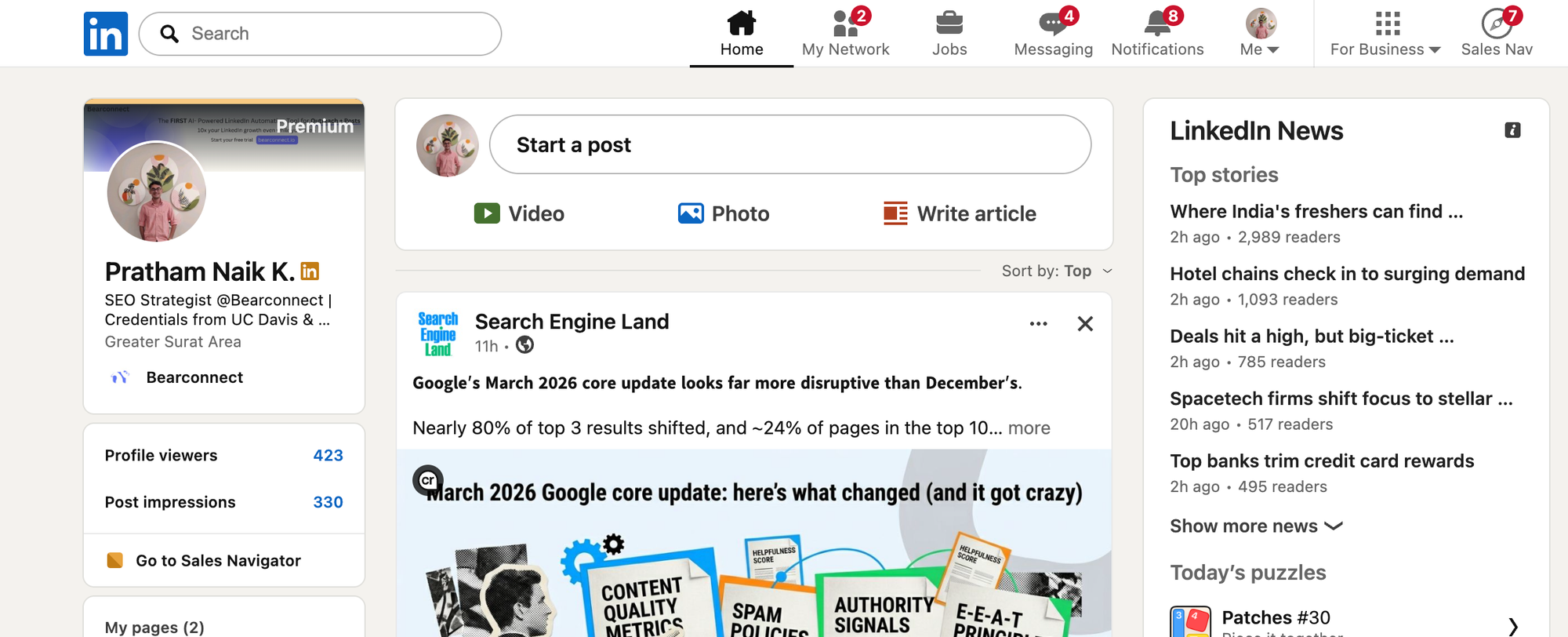
- Look to the right side of the page under your profile intro section
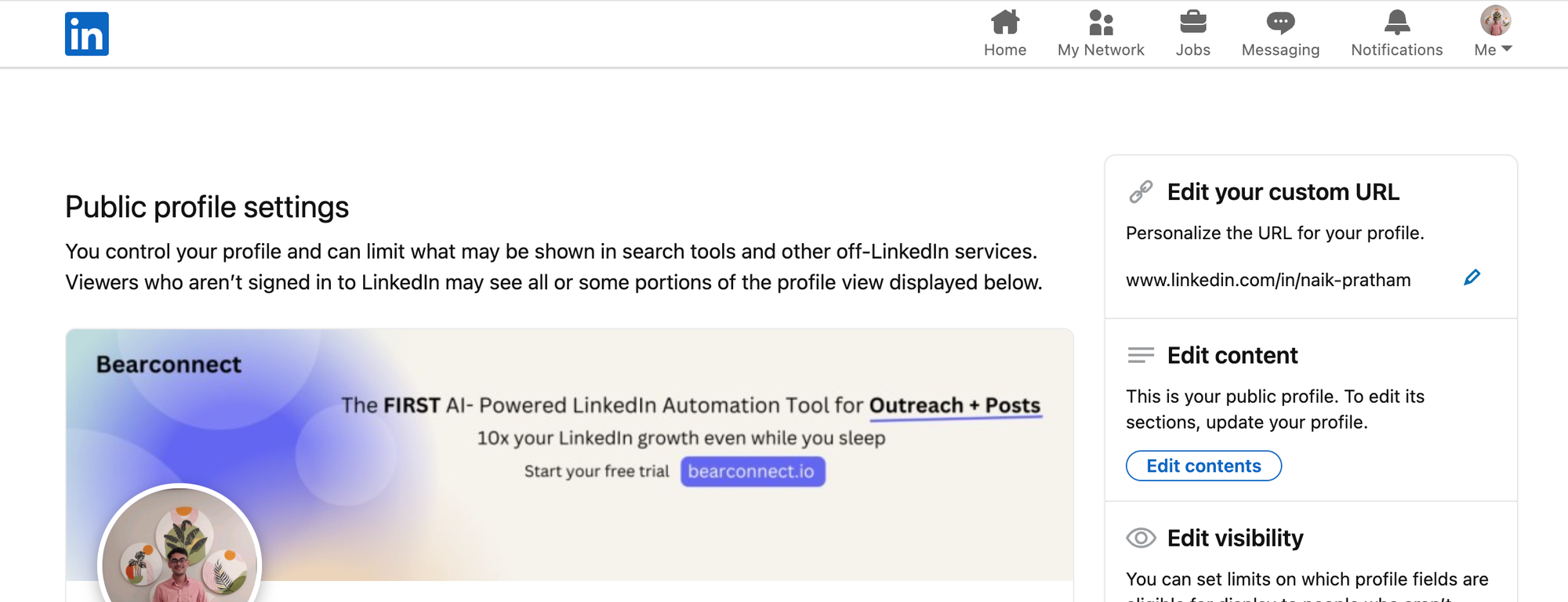
- Click Edit public profile & URL (top right corner)
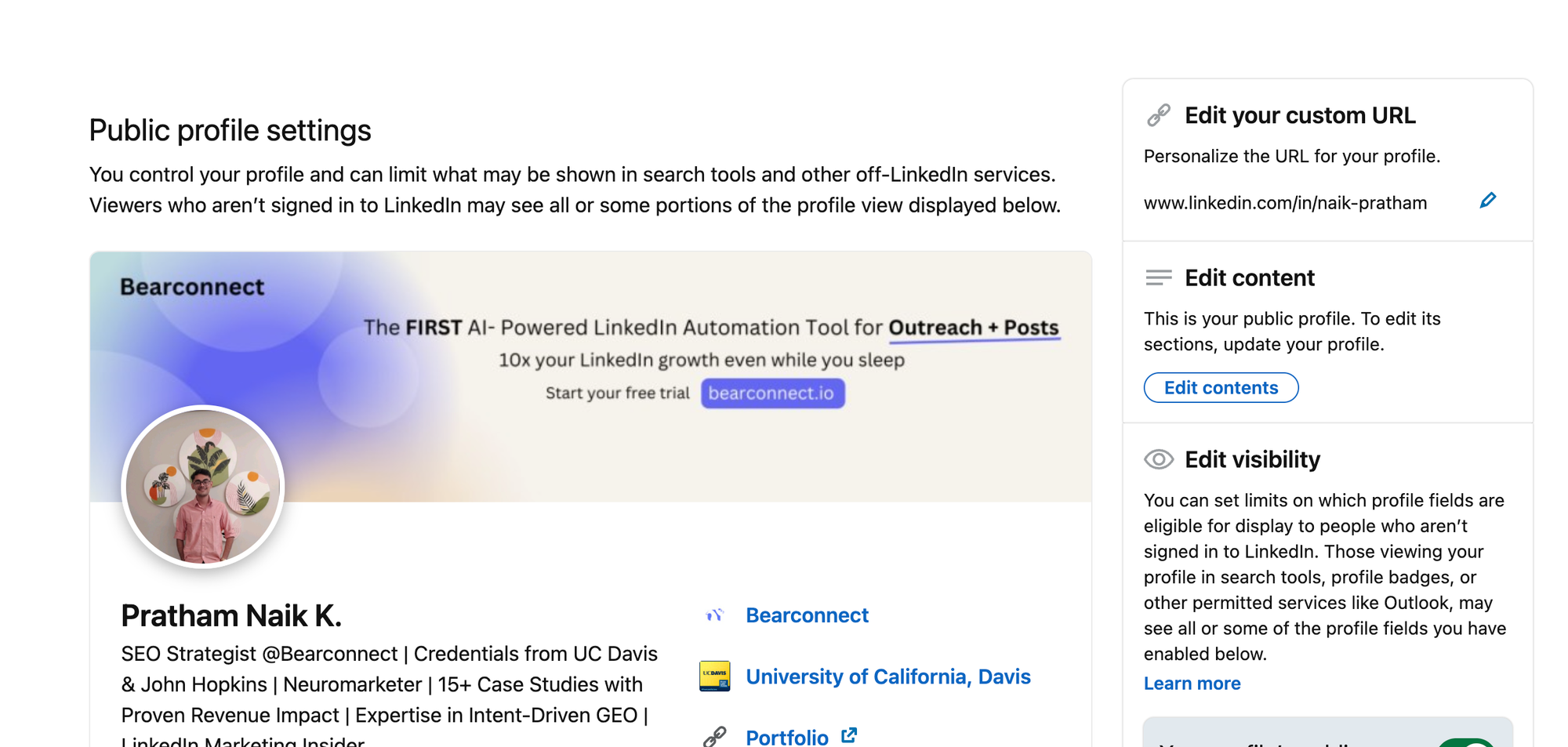
- Your public profile URL appears on the right side panel under Edit your custom URL
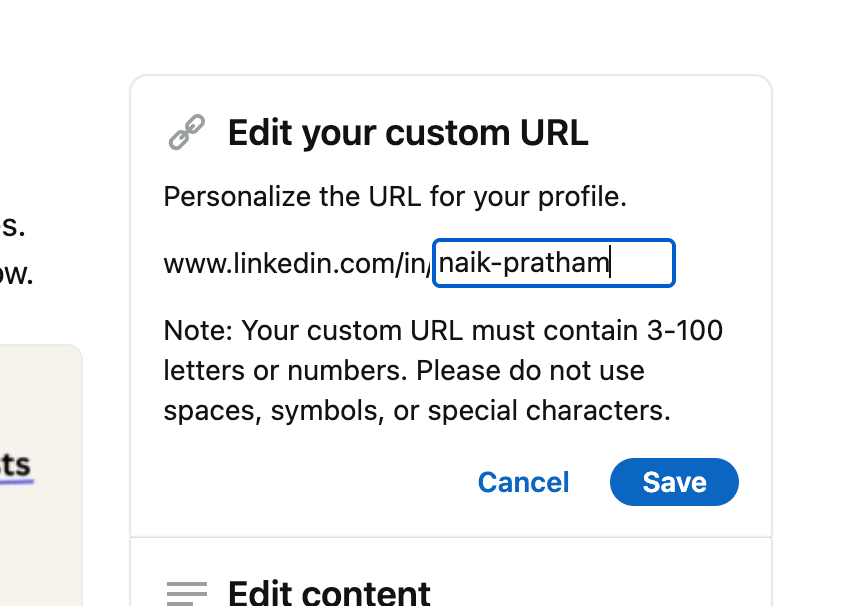
- Copy the full URL from the browser address bar or from that panel
Pro Tip: The URL shown in the right panel is your clean public URL. The URL in the browser address bar when you visit your own profile sometimes includes extra tracking parameters.
Always copy from the Edit public profile & URL panel for the cleanest link.
How To Find Your LinkedIn Profile URL on Mobile App
On the LinkedIn mobile app, your profile URL sits inside the Contact Info section.
Steps for the LinkedIn iOS or Android app:
- Open the LinkedIn app and tap your profile photo in the top left
- Tap View Profile
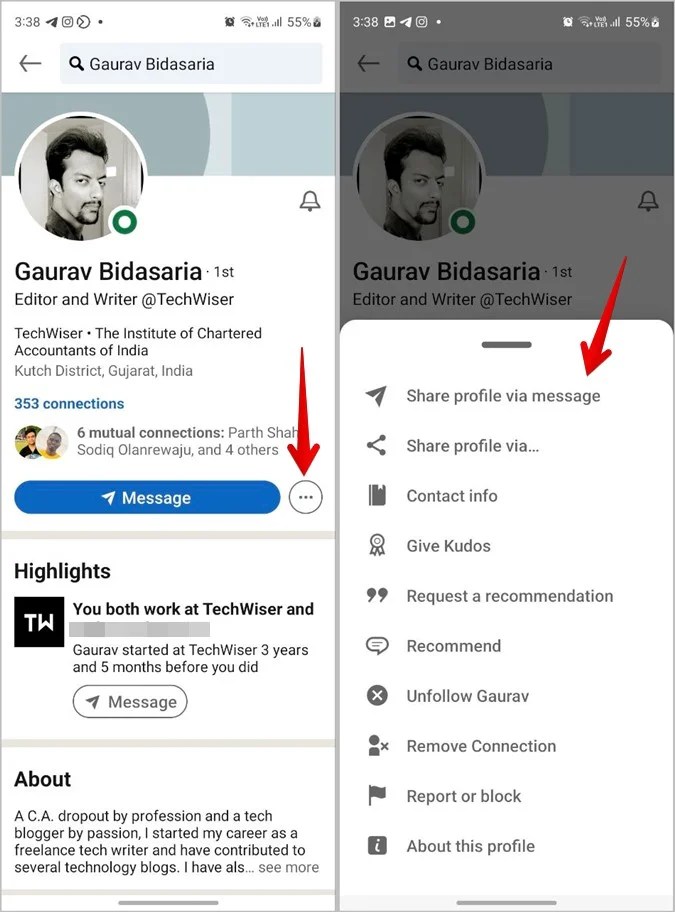
- Tap the More button (three dots or the "..." icon) below your profile headline
- Tap Contact info
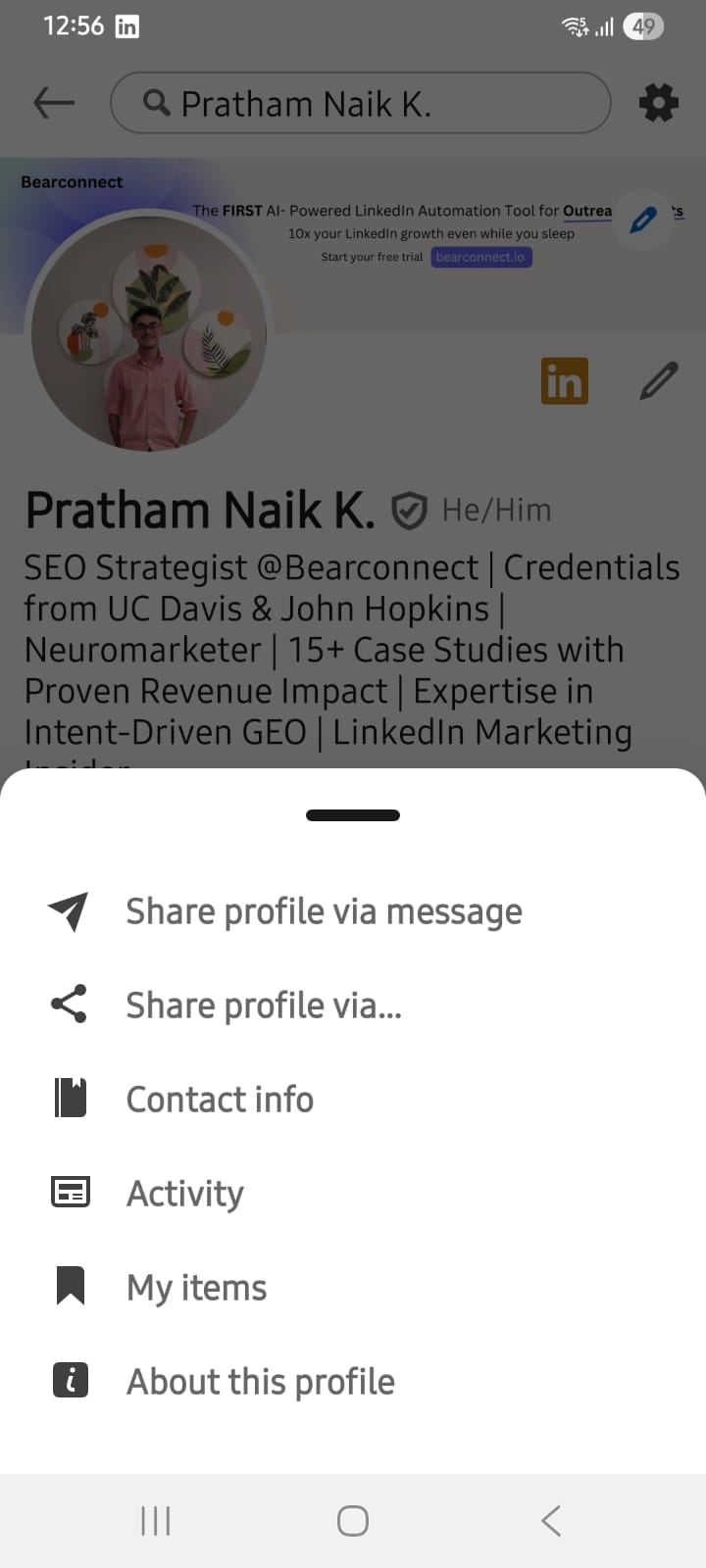
- Your LinkedIn URL appears listed there as a clickable link
- Tap and hold the URL to copy it
Alternative path on mobile:
- Open your profile
- Scroll down to the Contact and Personal Info section on your profile page
- Tap See contact info
- Copy the LinkedIn URL shown there
Pro Tip: On older versions of the LinkedIn app, the layout may differ slightly. If you cannot find "More," look for a pencil edit icon near your profile header, then check the intro or contact section.
How To Find Your LinkedIn Profile URL on Mobile Browser
If you use LinkedIn in a mobile browser (Chrome, Safari), the process is faster than the app.
Steps:
- Open your mobile browser and go to linkedin.com
- Log in and tap your profile photo
- Tap View Profile
- Tap Edit public profile & URL from the profile page
- Your custom URL appears in the right panel
- Copy directly from the URL bar or from the panel
The mobile browser version mirrors the desktop experience almost exactly, so it is often the quickest path when you need the URL in a hurry.
How To Customize Your LinkedIn Profile URL
A custom LinkedIn URL removes the random numbers and makes your profile link shareable and professional.
Before you start sharing your URL anywhere, it is worth spending two minutes optimizing your LinkedIn profile so the page people land on actually converts.
Why this matters:
- A clean URL like
linkedin.com/in/johnsmithis easier to remember - It looks better in email signatures, business cards, and resumes
- It signals attention to detail, which matters to recruiters and prospects
Steps to customize your LinkedIn URL on desktop:
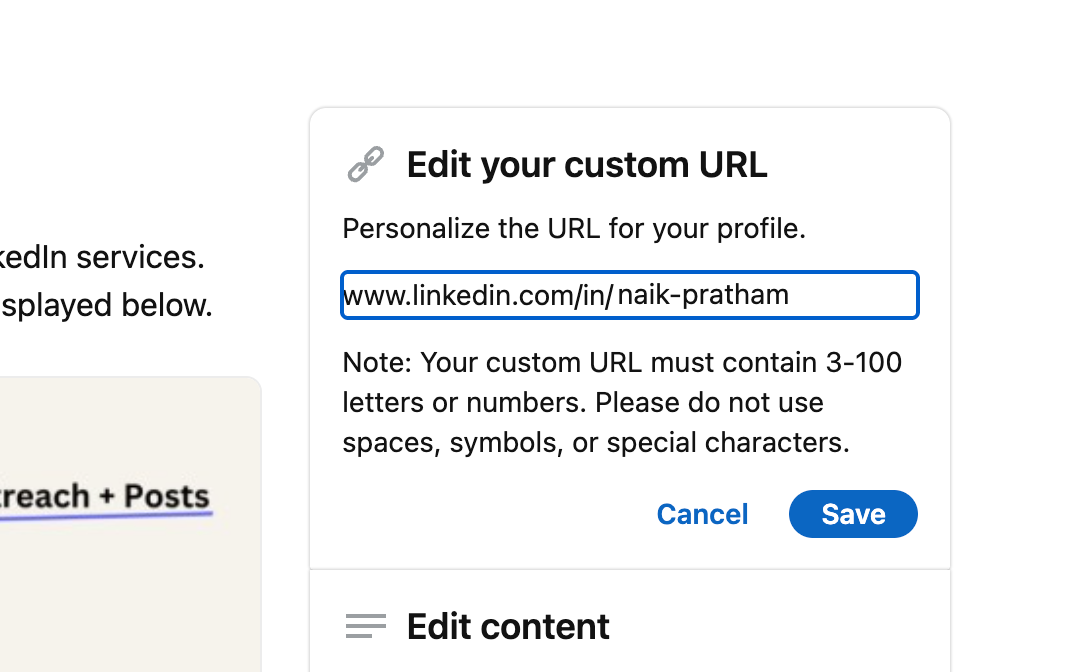
- Go to Me > View Profile > Edit public profile & URL
- On the right panel, click the pencil/edit icon next to your current URL
- Type your preferred custom URL (letters and numbers only, no spaces)
- Click Save
Rules for custom LinkedIn URLs:
- 3 to 100 characters allowed
- Letters and numbers only
- No spaces, symbols, or special characters
- Each custom URL must be unique across all LinkedIn users
You can change your custom URL up to five times in a six-month window
Example: If your name is Sarah Kumar, your custom URL could belinkedin.com/in/sarahkumarorlinkedin.com/in/sarahkumar-sales.
Keep it simple and close to your real name for best recall.
How To Share Your LinkedIn Profile URL
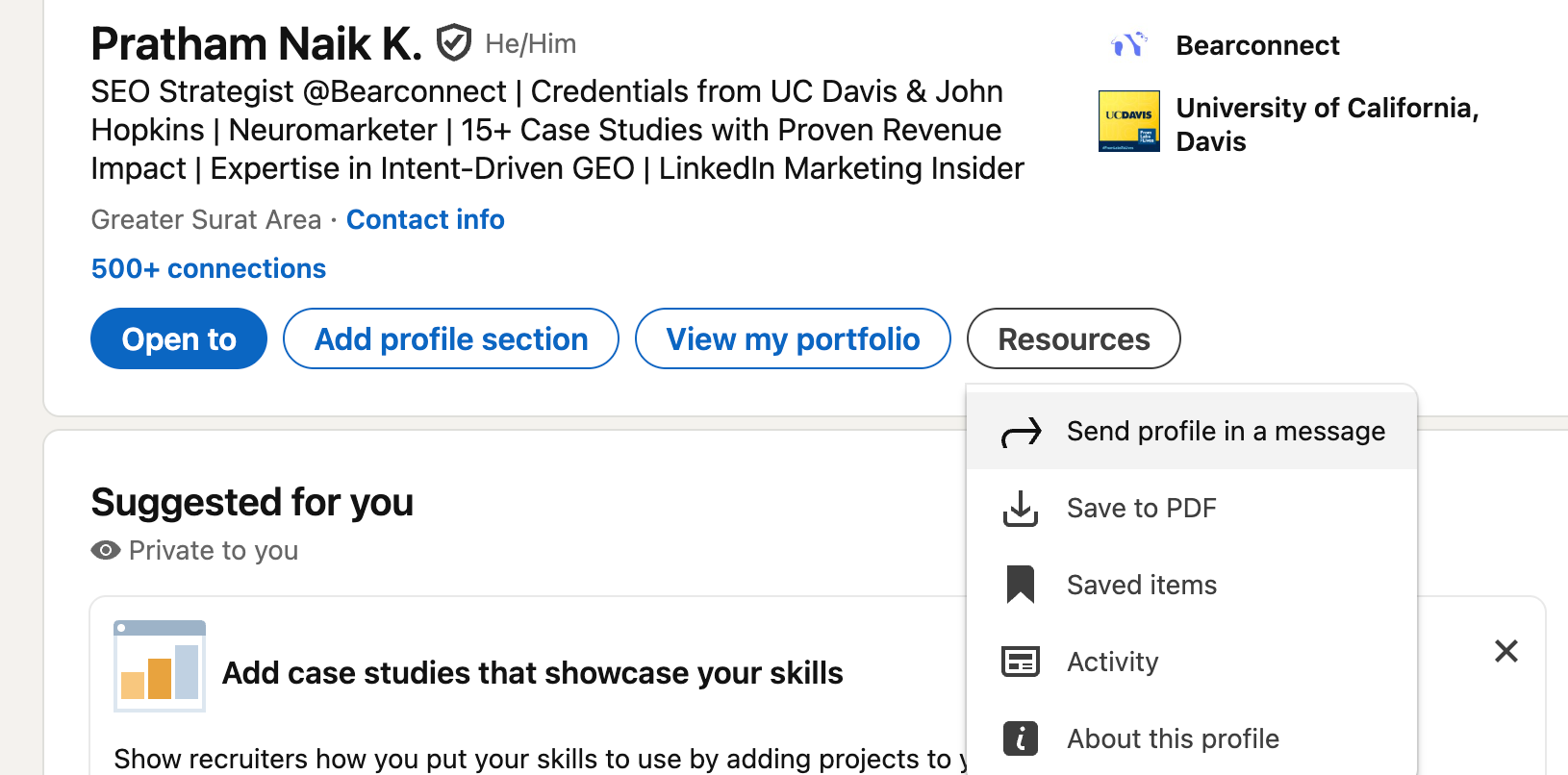
Once you have your URL, the right sharing method depends on where you use it.
1. In an Email Signature
Add your LinkedIn URL as a clickable hyperlink in your email signature. Format it like this:
Connect with me on LinkedIn: linkedin.com/in/yourname
Most email clients (Gmail, Outlook) let you hyperlink text so the full URL does not clutter the signature. Use the text "LinkedIn Profile" or your name as the anchor text.
2. In a Resume or CV
Place your LinkedIn URL in the header section of your resume next to your email and phone number. Use the short custom URL, not the long default one with random numbers.
Example resume header format:
John Smith | john@email.com | +91 98765 43210 | linkedin.com/in/johnsmith
3. In a LinkedIn Connection Request or Message
When you send a connection request to someone on another platform (email, Twitter, Slack), include your LinkedIn URL so they can verify who you are before accepting.
Read our guide on writing LinkedIn connection requests that don't get ignored to pair your URL with a message that actually gets accepted.
Example message:
"Hi Sarah, I'm John from [Company]. Here's my LinkedIn profile so you can see my background: linkedin.com/in/johnsmith. Would love to connect."
4. In a Bio or Social Media Profile
- Add your LinkedIn URL to your Twitter/X bio, Instagram bio, or any platform where you want people to find your professional profile.
- Shorten it visually by removing the
https://www.prefix, so it reads aslinkedin.com/in/yourname.
Why Your LinkedIn URL Is Not Showing or Working
A hidden or broken LinkedIn URL almost always comes down to privacy settings.
Common issues and fixes:
| Issue | Cause | Fix |
|---|---|---|
| URL shows a blank page | Profile set to private | Go to Settings > Visibility > Edit your public profile, turn it ON |
| URL has random numbers | No custom URL set yet | Edit public profile and set a custom URL |
| Link returns 404 error | Custom URL was changed or deleted | Log in and check your current URL under Edit public profile & URL |
| Others cannot view your profile | Network visibility settings | Set profile to "Public" for all visitors |
Pro Tip: Before you send your LinkedIn URL in any outreach or resume, open it in an incognito/private browser window. This lets you see exactly what others see when they visit your profile. If you see a "Create a profile" page instead of your profile, your visibility is turned off.
How To Use Your LinkedIn Profile URL in Outreach
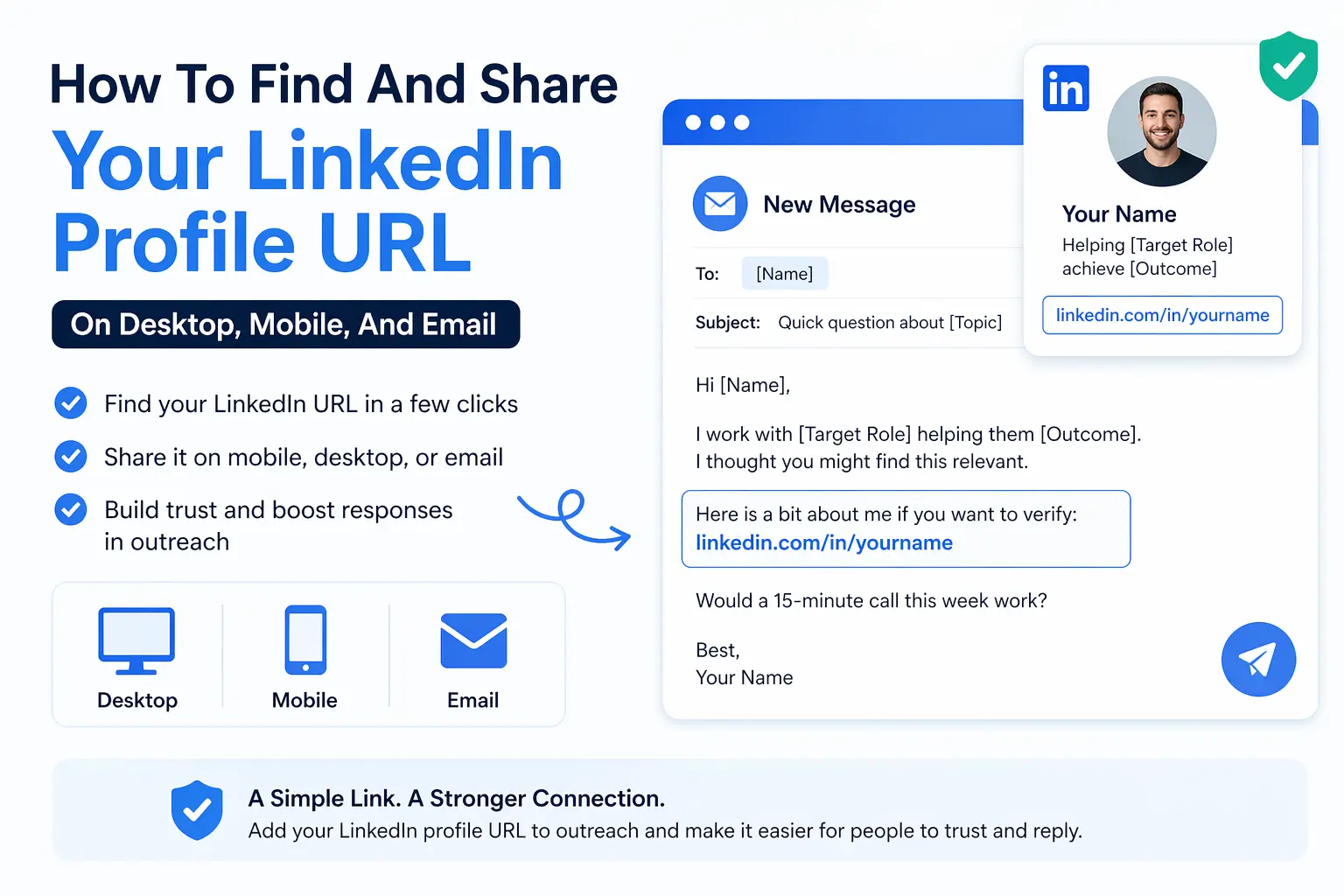
Your LinkedIn URL becomes a trust signal when you use it correctly in outreach.
Sales reps and founders skip this step constantly. When your profile link is in a cold email or follow-up, the recipient checks your background, sees you are real, and the friction to reply drops.
If you are new to this, start with our LinkedIn outreach guide for beginners before scaling up.
Here is how smart outreach looks with a LinkedIn URL included:
Cold email example:
Subject: Quick question about [Topic]
Hi [Name], I work with [Target Role] helping them [Outcome]. I thought you might find this relevant.
Here is a bit about me if you want to verify: linkedin.com/in/yourname
Would a 15-minute call this week work?
This works because it removes the "who is this person?" objection immediately. Pair this with personalized LinkedIn outreach messages and your reply rate climbs further.
Running Outreach at Scale? Bearconnect Keeps Your Profile Link in Every Message
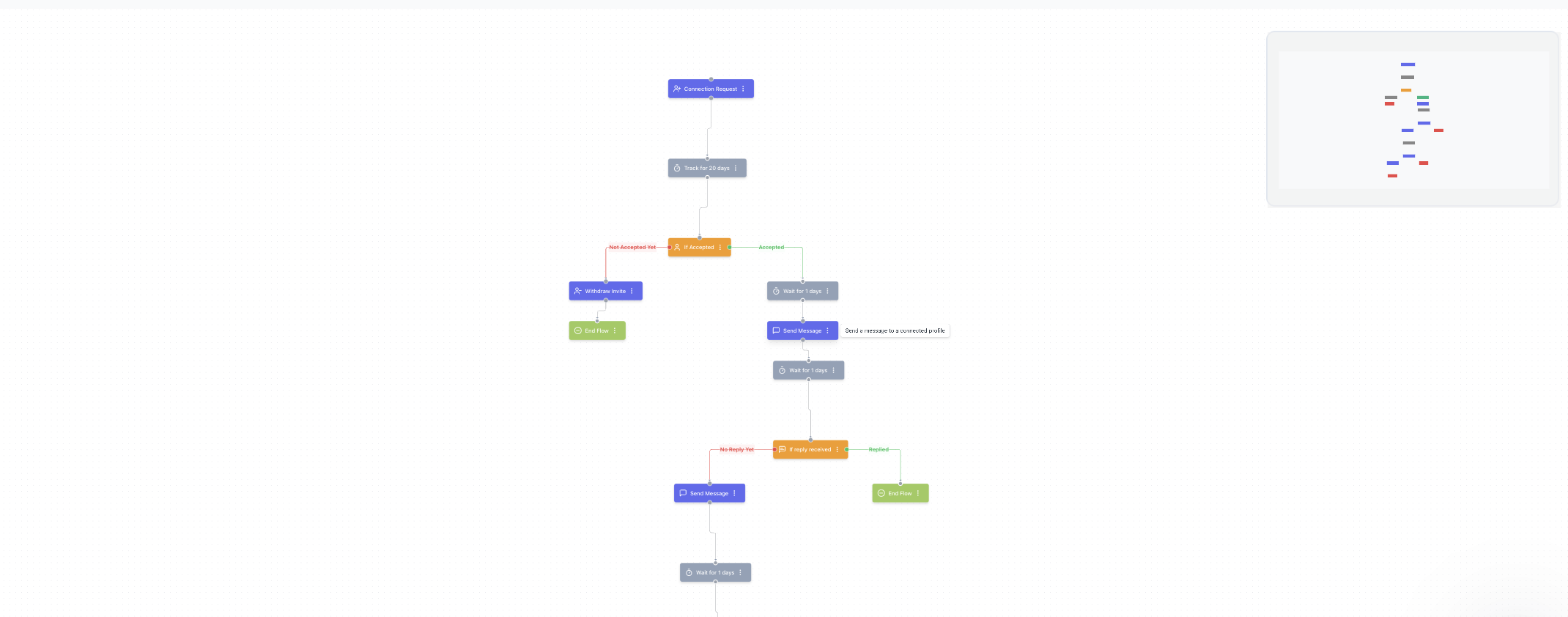
If you send more than 20 to 30 connection requests or follow-ups per week, doing this manually breaks down fast.
Bearconnect automates LinkedIn connection requests, follow-up sequences, and DMs across multiple LinkedIn accounts from one dashboard.
Your profile URL stays consistent in every message automatically. No copy-paste. No missed touchpoints.
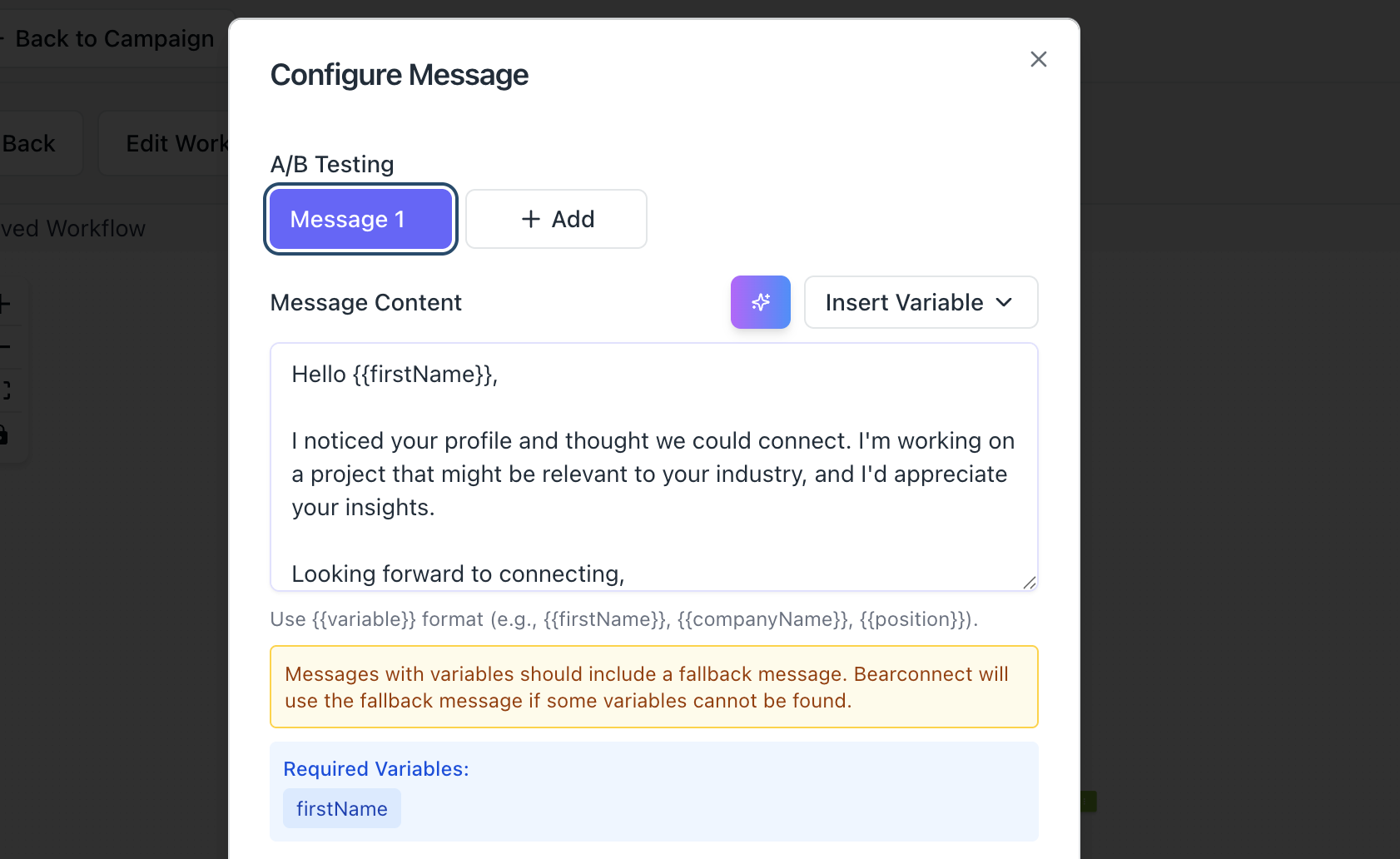
- Automate LinkedIn connections and multi-step follow-up sequences
- Manage replies from all your LinkedIn accounts in one unified inbox
- Starts at $67/month per LinkedIn account, with a volume rate of $57/month per account when you connect five or more
See how Bearconnect handles LinkedIn outreach at bearconnect.io
Quick Reference: LinkedIn URL Paths by Device
| Device | Path to LinkedIn URL |
|---|---|
| Desktop | Me > View Profile > Edit public profile & URL |
| Mobile App | Profile > More > Contact Info |
| Mobile Browser | Me > View Profile > Edit public profile & URL |
| Direct URL format | linkedin.com/in/yourcustomname |
5 Frequently Asked Questions
1. Where exactly is my LinkedIn profile URL?
On desktop, go to Me > View Profile, then click Edit public profile & URL on the top right. Your URL appears in the right panel. On mobile, go to your profile, tap More, then Contact info to find it.
2. Can I change my LinkedIn profile URL?
Yes. You can edit it under Edit public profile & URL on desktop. LinkedIn allows up to five URL changes within any six-month period. Choose a name-based URL and keep it consistent to avoid breaking old links.
3. Why is my LinkedIn URL showing random numbers?
LinkedIn auto-generates a default URL with your name plus random numbers when you first create an account. You need to manually set a custom URL to remove those numbers. Go to your public profile settings and edit the URL field.
4. Does my LinkedIn URL work if my profile is private?
No. If your profile visibility is set to private or limited, people visiting your URL will not see your full profile. Set your profile to Public under Settings > Visibility > Edit your public profile so the link works for everyone.
5. What is the best format for a LinkedIn URL in an email signature?
Use your short custom URL without https://www., for example linkedin.com/in/yourname. Hyperlink it to the full URL so it stays clickable. This keeps your signature clean and professional.
Ready To Put Your LinkedIn Profile to Work?
Now that your URL is set, the next step is building an outreach system around it.
Start with how to generate LinkedIn leads to see how profile links, connection requests, and follow-ups work together as a full pipeline.
If you want to automate that entire workflow, explore Bearconnect at bearconnect.io.
About the Author
Mona Juneja is the founder of Bearconnect and a B2B sales professional with 20+ years of experience at Microsoft, Oracle, and Dell.
After two decades of watching lead generation stay manual and broken for most businesses, she built Bearconnect in May 2024, an AI-powered LinkedIn automation platform that handles outreach, messaging, and content scheduling from one place.
Connect on LinkedIn: Mona Juneja
Ready to Transform Your LinkedIn Strategy?
Join thousands of professionals already using Bearconnect to automate their outreach and grow their network.
7-day free trial • Cancel anytime
Related Articles

LinkedIn Automation: The Complete Guide for 2026
What LinkedIn automation is, how it works, what LinkedIn allows, safe limits, how to choose a tool and how to run your first campaign.
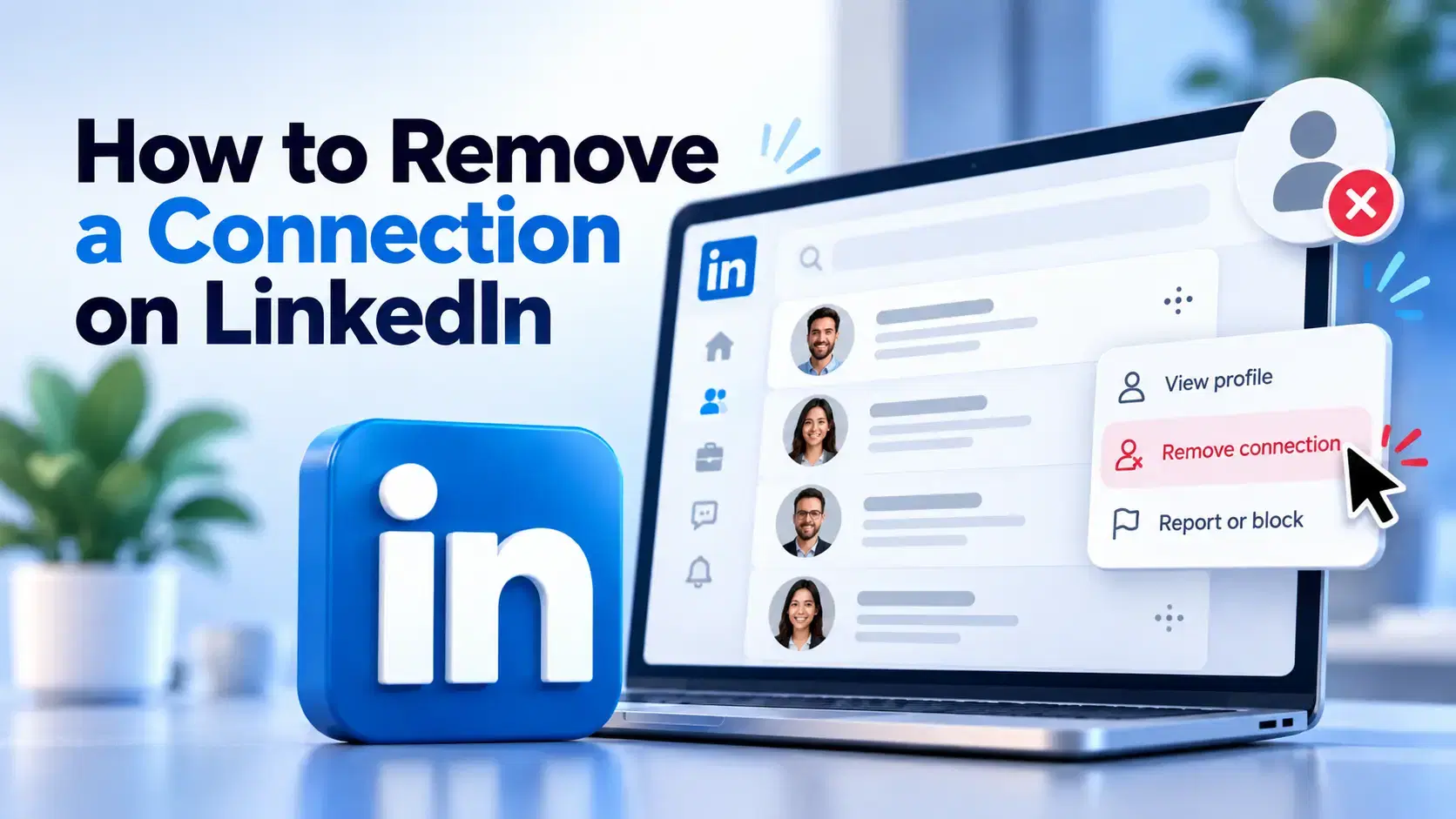
How to Remove a Connection on LinkedIn (Do They Get Notified?)
Removing a LinkedIn connection takes a few clicks, but most people want to know one thing first: does the other person get notified? This guide covers the steps on desktop and mobile, and what changes afterward.
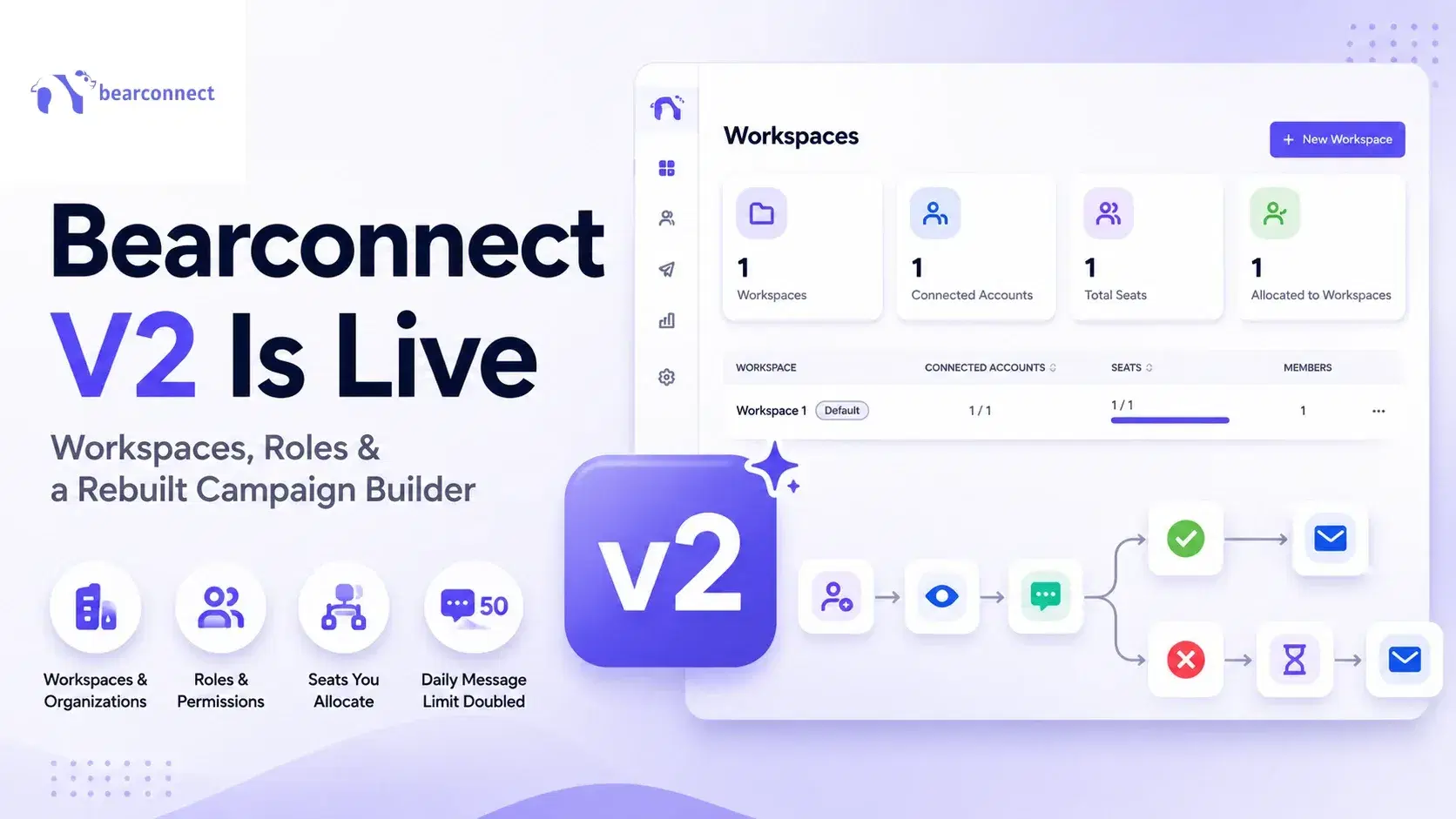
Bearconnect V2 Is Live: Workspaces, Roles and a Rebuilt Campaign Builder
Bearconnect V2 introduces dedicated workspaces, flexible roles, and a rebuilt campaign builder, giving agencies and sales teams more control over every LinkedIn account they manage.