How to Remove a Connection on LinkedIn (Do They Get Notified?)

To remove a connection on LinkedIn, go to My Network, open your Connections list, click the three dots next to the person and select Remove connection.
LinkedIn does not notify them, so the removal stays quiet unless they check your profile later.
TL;DR
- Desktop: My Network → Connections → three dots → Remove connection.
- Mobile app: open their profile → three dots (More) → Remove connection.
- No notification: LinkedIn does not tell the person you removed them.
- No native bulk option: you remove connections one at a time.
- Pending requests are different: you withdraw those from Sent invitations.
Picture this. You accept a request from someone who seems useful. Two days later, your inbox has three pitch messages from them.
Is that the network you want to sell into?
Me neither. Here is how to clean it up quietly.
How to remove a connection on LinkedIn (desktop)
On desktop, you can remove a connection in two ways: from your connections list or from their profile.
The list method is faster, and you never open their profile.
Method 1: From your connections list (without opening their profile)
This is the method I use for cleanup sessions.
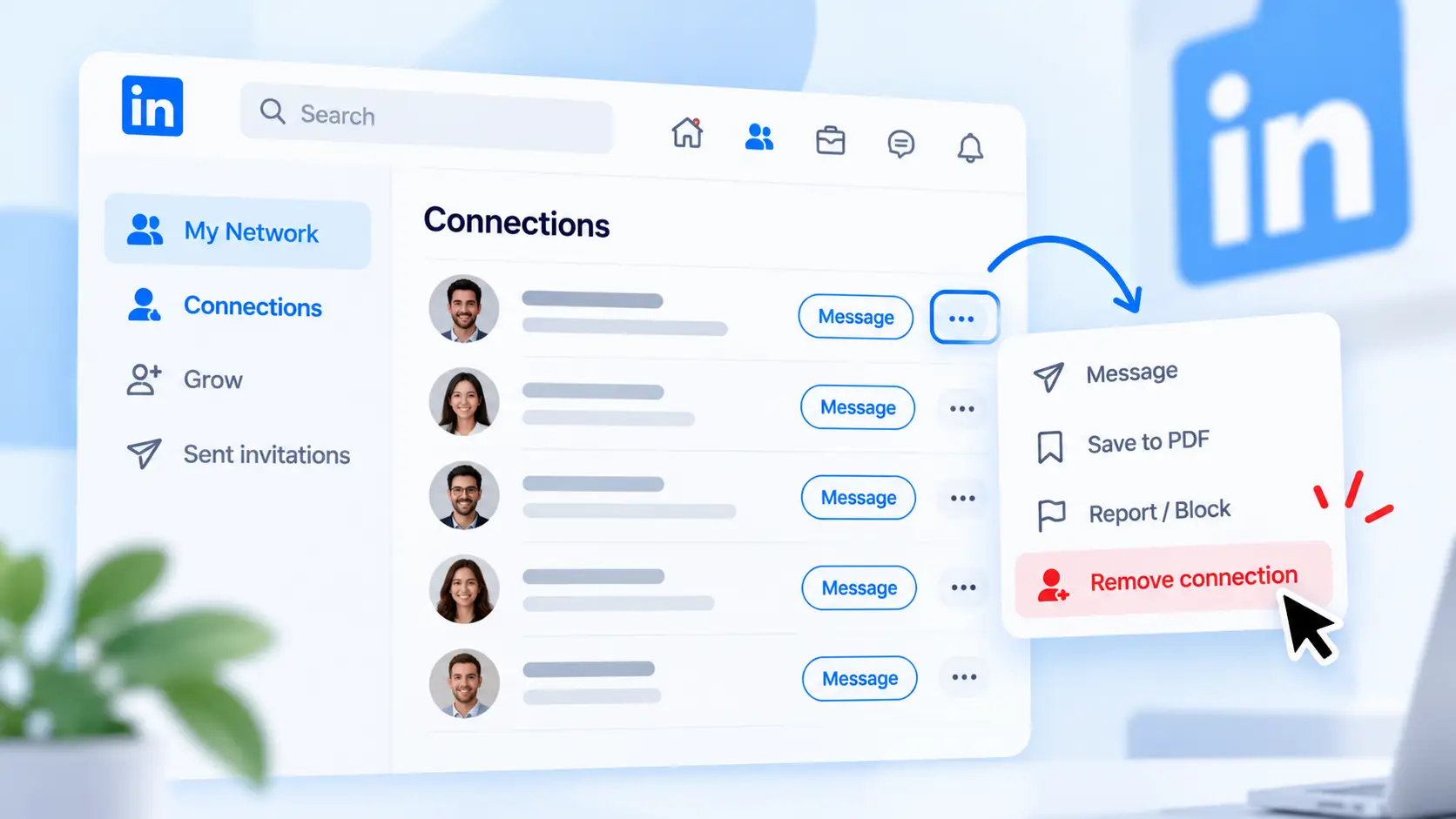
- Click My Network in the top menu.
- Search for the person by name, or scroll the list.
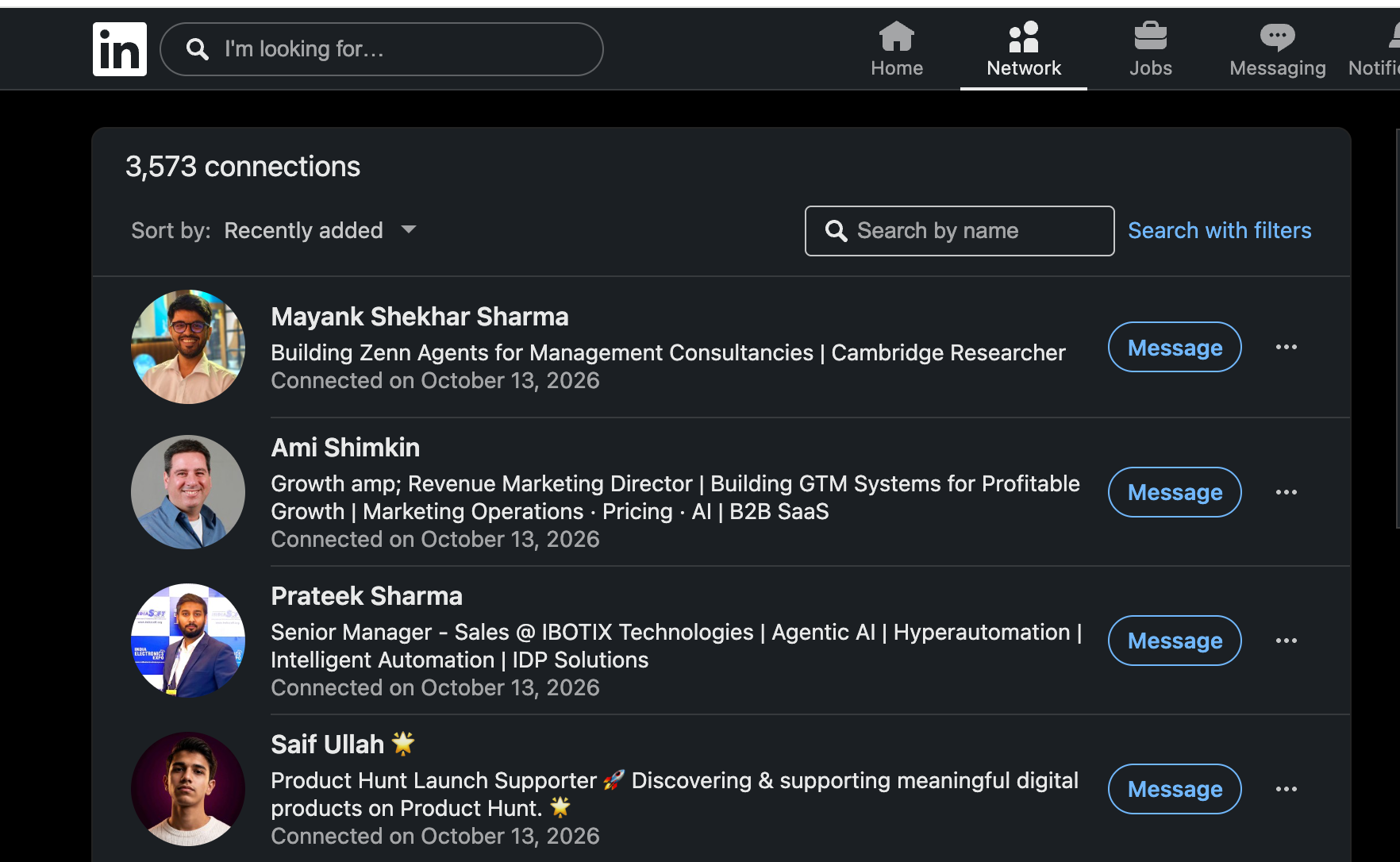
- Click the three dots (More) next to the Message button.
- Select Remove connection.
- Click Remove in the confirmation pop-up.
Method 2: From their profile
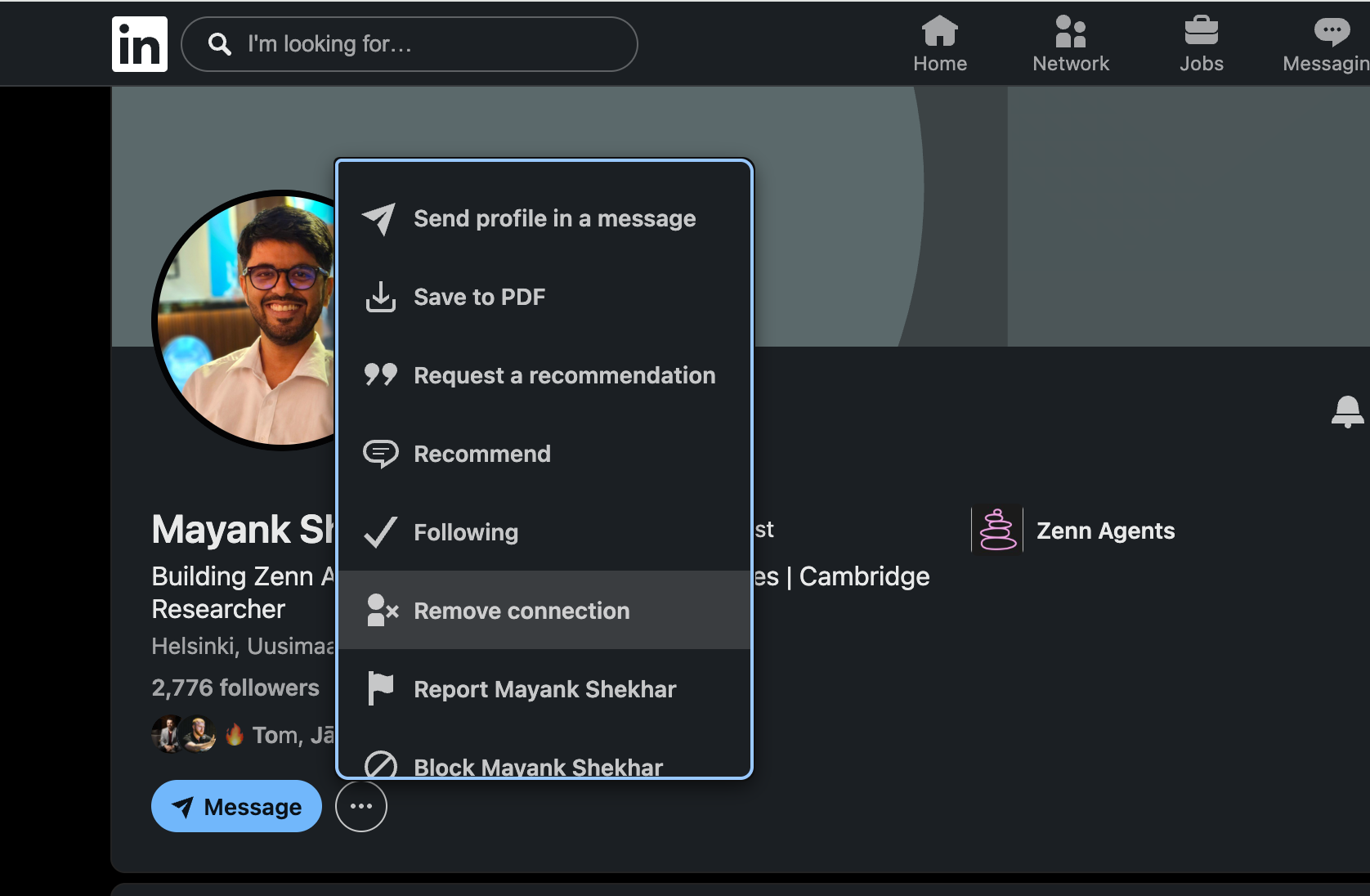
Use this when you are already on their page.
- Open the person's profile.
- Click More under their headline.
- Select Remove connection.
- Confirm in the pop-up.
Opening their profile can show up in their "Who viewed your profile" list, depending on your privacy settings. If you want zero trace, use Method 1.
How to delete connections on the LinkedIn app (iPhone and Android)
On the LinkedIn app, you delete a connection from their profile in about four taps. The steps match on iPhone and Android.
| Step | iPhone | Android |
|---|---|---|
| 1 | Open the person's profile | Open the person's profile |
| 2 | Tap the three dots (More) | Tap the three dots (More) |
| 3 | Tap Remove connection | Tap Remove connection |
| 4 | Confirm | Confirm |
If you cannot find the option, update the app first. Most "missing button" problems come from an old version.
Removing connections on client or team accounts
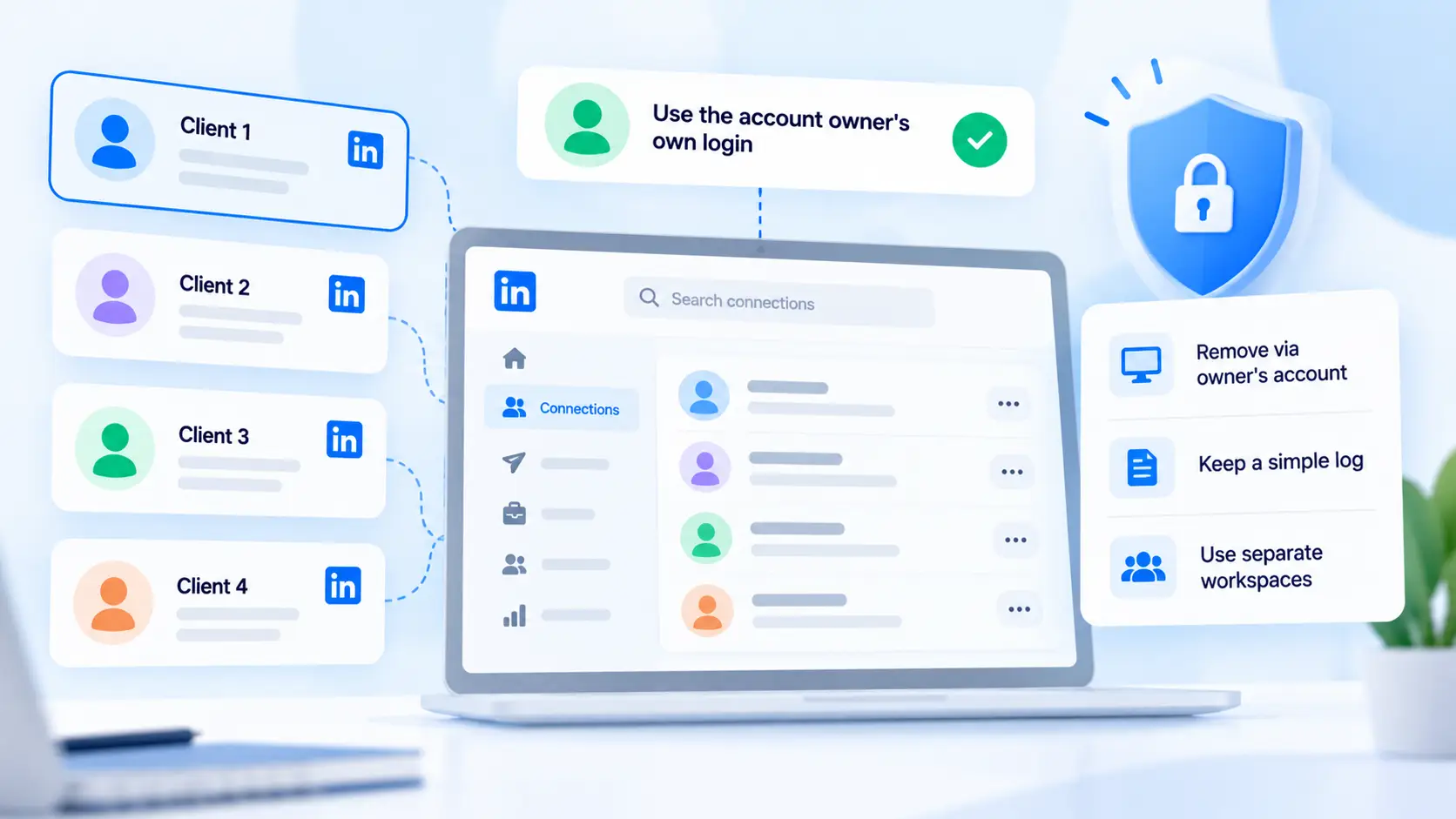
Agencies and sales teams should remove connections only from the account owner's own login, never from a shared password.
Shared logins from new locations can trigger LinkedIn security checks.
- Ask the account owner to run the cleanup, or do it on a screen share.
- Keep a simple log of who you removed and why, so the client can review it.
- Run outreach for each client from a separate workspace, so lists never mix.
My guide on how agencies manage multiple LinkedIn accounts covers the safe setup.
Do they get notified when you remove a connection on LinkedIn?
No. LinkedIn does not send a notification when you remove a connection. Per LinkedIn's own help page on removing connections, the removal is silent.
They can only notice it if:
- they visit your profile and see "Connect" instead of "Message"
- they try to message you and the conversation looks different
- they check their connections list and you are missing
What happens after you remove someone
| Item | Before removal | After removal |
|---|---|---|
| Notification to them | None | None |
| Connection degree | 1st | 2nd or 3rd |
| Message history | Visible | Usually stays visible |
| Endorsements between you | Visible | Removed |
| Recommendations between you | Visible | Removed |
| Your posts in their feed | Shown as a connection | Only if they follow you or engage |
| Reconnecting later | Not needed | Possible with a new request |
Will they notice if they visit your profile?
Possibly. Their view of your profile changes in small ways:
- The Message button turns into Connect or Follow.
- The "1st" badge next to your name becomes "2nd" or "3rd".
- Shared connections may still show, so it rarely looks dramatic.
Most people never check. The ones who do usually assume LinkedIn tidied something up.
If the degree change confuses you, read my guide on what 1st, 2nd and 3rd mean on LinkedIn.
How to remove a LinkedIn connection without them knowing
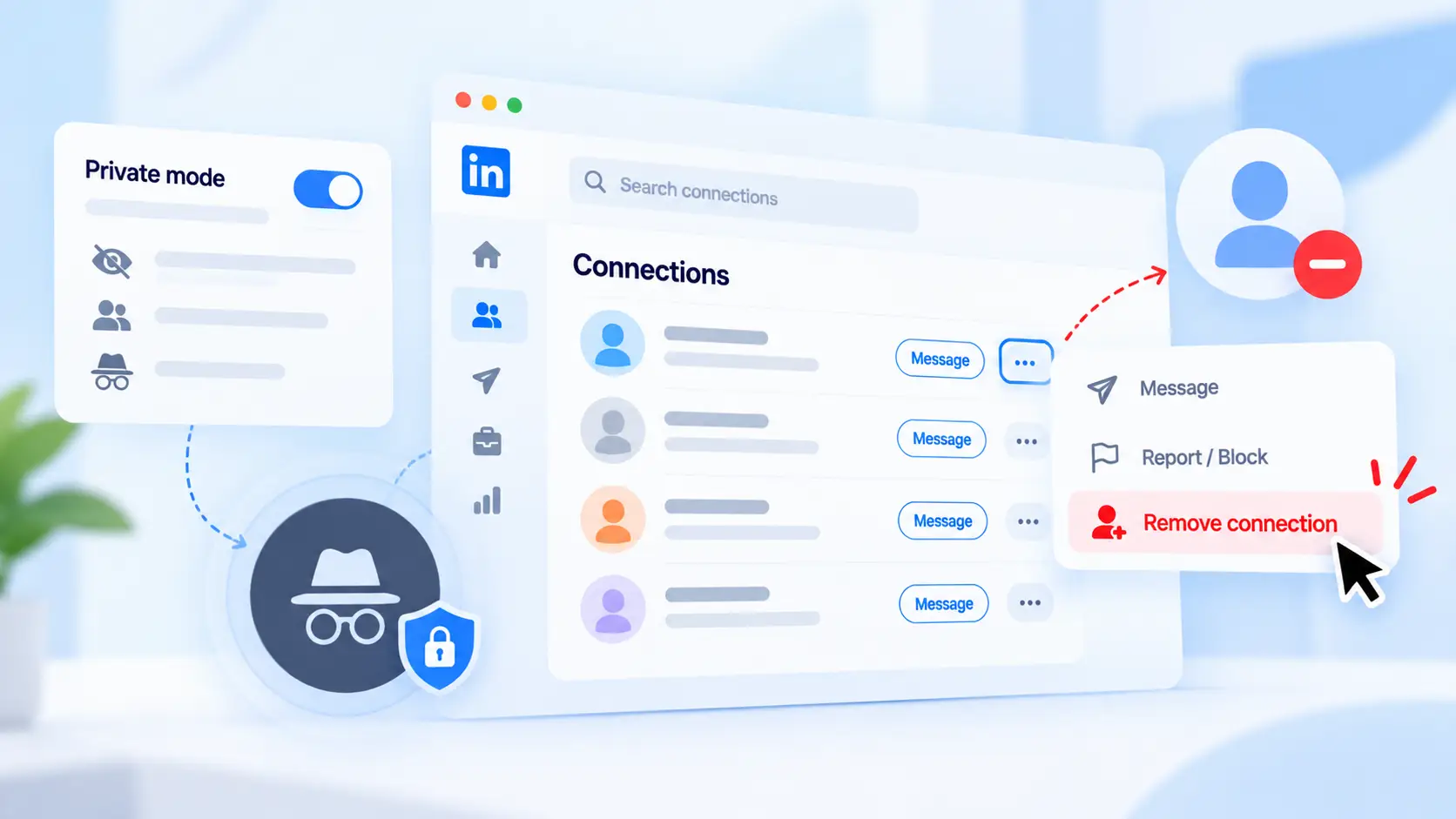
The quietest way to remove a connection is to do it from your connections list, with private mode on, and without engaging with their content first.
LinkedIn sends no alert, so the only traces are the ones you create.
Here is my quiet-removal checklist:
| # | Step | Why it helps |
|---|---|---|
| 1 | Switch profile viewing to private mode | Any accidental profile visit stays anonymous |
| 2 | Use Method 1 (connections list) | You never open their profile |
| 3 | Do not like or comment on their posts that day | No fresh activity links you together |
| 4 | Skip messaging them before removal | No awkward "last message" in their inbox |
| 5 | Remove in a calm batch, not mid-argument | Timing makes removals less noticeable |
→ Private mode + list method = no profile view, no alert.
If you want the full picture on profile views, my guide on whether LinkedIn shows who viewed your profile explains each privacy setting.
Remove vs block vs unfollow vs mute: which one do you need?
Remove a connection when you want distance, block when you want no contact, and unfollow when you only want a quieter feed.
Most people remove when unfollow would do the job.
| Action | They are notified? | You stay connected? | They can message you? | They can see your profile? | Best for |
|---|---|---|---|---|---|
| Remove connection | No | No | Only with InMail or a new request | Yes | Spam, irrelevant contacts |
| Block | No | No | No | No | Harassment, stalking |
| Unfollow | No | Yes | Yes | Yes | Noisy posters you still value |
| Mute | No | Yes | Yes | Yes | Short breaks from someone |
→ Annoying posts = unfollow.
→ Annoying pitches = remove.
→ Unsafe behavior = block.
For the full blocking walkthrough, read how to block someone on LinkedIn. The difference between following and connecting is in LinkedIn follow vs connect.
Wait, you might be thinking: can you remove LinkedIn connections in bulk?
No. LinkedIn has no native way to remove connections in bulk, so every removal happens one by one.
Removing 2,000 connections sounds hard. Not impossible.
A safer routine:
- Export your connections: Settings & Privacy → Data privacy → Get a copy of your data → Connections.
- Sort them in a spreadsheet by company, title and date connected.
- Mark who to remove.
- Remove a small batch each day using Method 1.
Bulk deletion scripts promise a clean network in five minutes. They also tend to deliver a restricted account in about the same time.
Read how to avoid LinkedIn jail before you try any third-party cleanup tool.
How to cancel a connection request you already sent
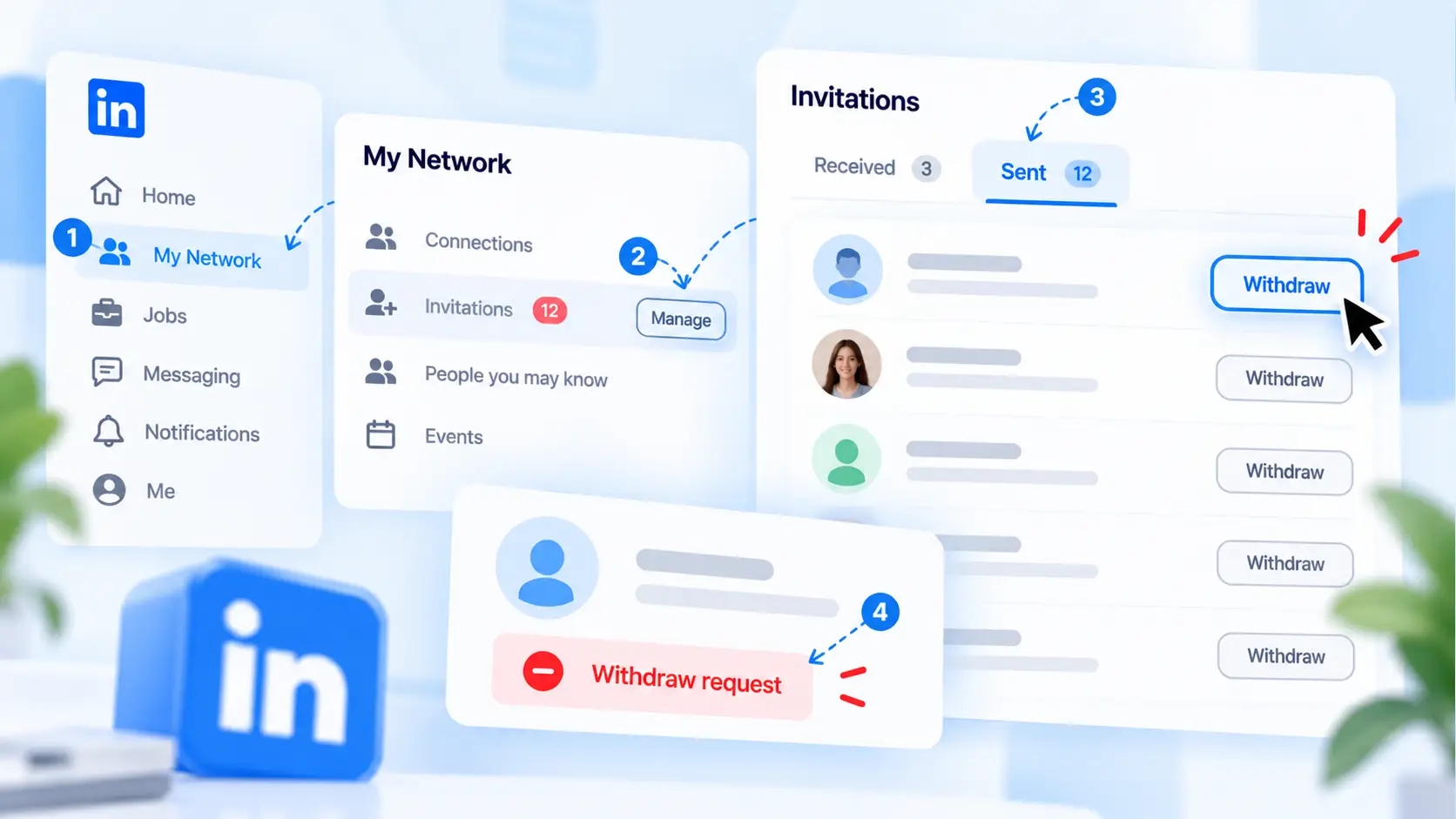
A pending request is not a connection yet, so you withdraw it instead of removing it. Many people search "remove connection request" when this is what they need.
- Go to My Network.
- Open Manage next to Invitations.
- Switch to the Sent tab.
- Click Withdraw next to the person.
LinkedIn's help page on withdrawing an invitation notes you may have to wait before you can invite the same person again.
For large backlogs, see how to withdraw LinkedIn connection requests and how to auto-withdraw pending requests.
When should you remove a LinkedIn connection?
Remove a connection when it hurts your feed, your safety or your outreach targeting more than it helps your network. I use this six-point check before removing anyone.
| # | Signal | Remove? |
|---|---|---|
| 1 | Fake or empty profile (no photo, no history) | Yes |
| 2 | Sends repeated sales pitches you never asked for | Yes |
| 3 | Direct competitor watching your posts and clients | Usually |
| 4 | Inactive for years, no shared context | Optional |
| 5 | Outside your ideal customer profile, no relationship | Optional |
| 6 | Your network is close to LinkedIn's connection cap (30,000) | Yes, start with 1 and 2 |
How to spot fake or scraper accounts
Fake profiles often connect in waves to scrape contact data. Watch for:
- a stock or AI-generated photo
- a job title with no company page behind it
- 500+ connections but no posts, no activity and no recommendations
- a profile created recently that messages you within minutes of connecting
Two or more of these signs is enough reason to remove the account.
Remove or keep? Four real-world scenarios
| Scenario | My call | Why |
|---|---|---|
| A vendor who connected only to pitch you every week | Remove | No relationship, pure noise |
| An ex-colleague who now works in your target industry | Keep | Warm intro path to future buyers |
| A recruiter you met once, now inactive | Optional | Low cost to keep, low value too |
| A fake profile with a stock photo and no history | Remove | Possible scraper, adds risk |
If someone is simply quiet but fits your audience, keep them. A quiet connection today can still become a buyer next quarter.
Before outreach, I also check my own profile. My guide on LinkedIn profile optimization before automation covers that side.
A 15-minute monthly LinkedIn network cleanup routine
A short monthly routine keeps your network clean without ever needing a risky bulk tool. I split it into four weekly blocks.
| Week | Task | Time |
|---|---|---|
| 1 | Withdraw pending requests older than three weeks | 5 min |
| 2 | Remove obvious spam and fake profiles | 5 min |
| 3 | Review recent connections against your ideal customer profile | 5 min |
| 4 | Re-engage the people you kept with a short, personal message | 5 to 10 min |
Small and steady beats one giant purge. It also looks far more natural to LinkedIn than removing hundreds of people in one afternoon.
What I found when I removed a real LinkedIn connection
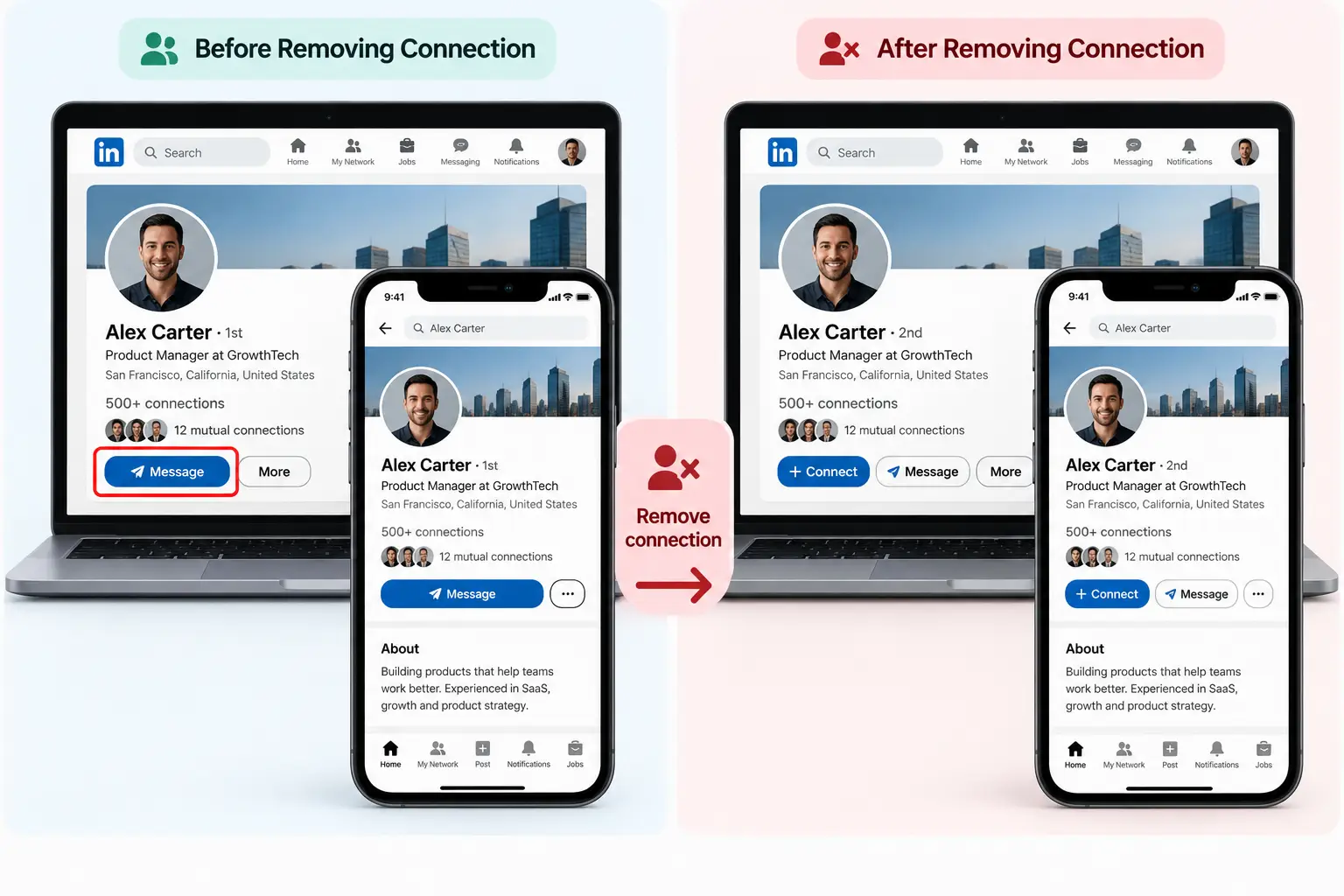
The best way to answer "will they know?" is to test it on two accounts you control. Here is the test I recommend, and where I will add our results.
| Check | What to look for | Expected result |
|---|---|---|
| Notification on the removed account | Any alert or email | LinkedIn generally does not notify someone when you remove them as a connection. |
| Message thread | Still visible on both sides? | Existing conversations generally remain accessible to both people. |
| Endorsements | Gone from both profiles? | Recommendations and endorsements associated with the connection may no longer be displayed. Verify the specific profile changes. |
| Connection degree | Changed to 2nd or 3rd? | The person is no longer a 1st-degree connection. They may appear as 2nd or 3rd degree, depending on mutual connections. |
| Reconnecting | Could we send a new request right away? | You can generally visit their profile and send a new connection request, subject to LinkedIn's restrictions and available controls. |
Clean your network before your next outreach campaign
A cleaner network gives you a better outreach list, because every connection you keep becomes a warm lead you can re-engage. This is the step most removal guides skip.
Why a cleaner network means better outreach lists
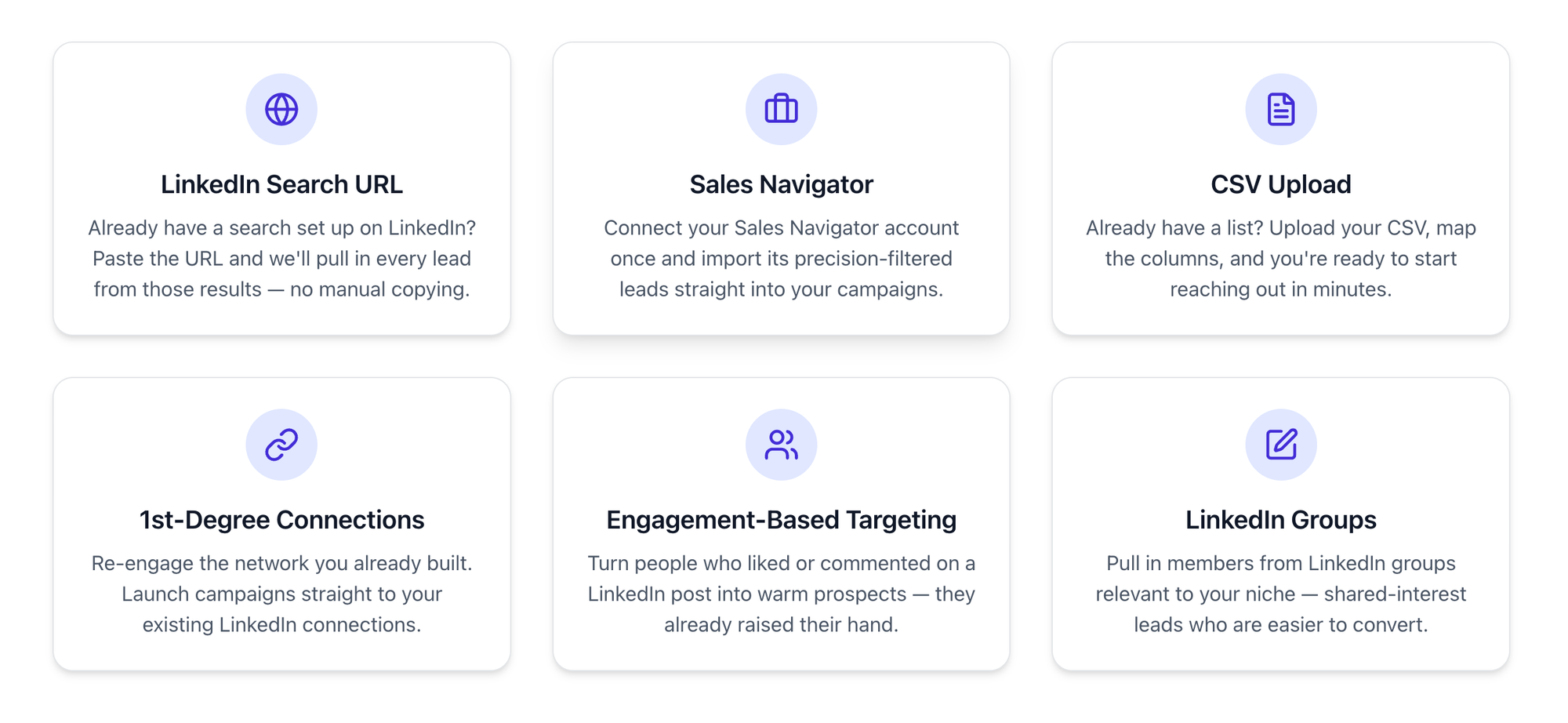
When I build a campaign in Bearconnect, "My Connections" is one of six lead sources:
- CSV Upload
- Search URL
- Sales Navigator
- LinkedIn Group
- My Connections
- Post Engagers
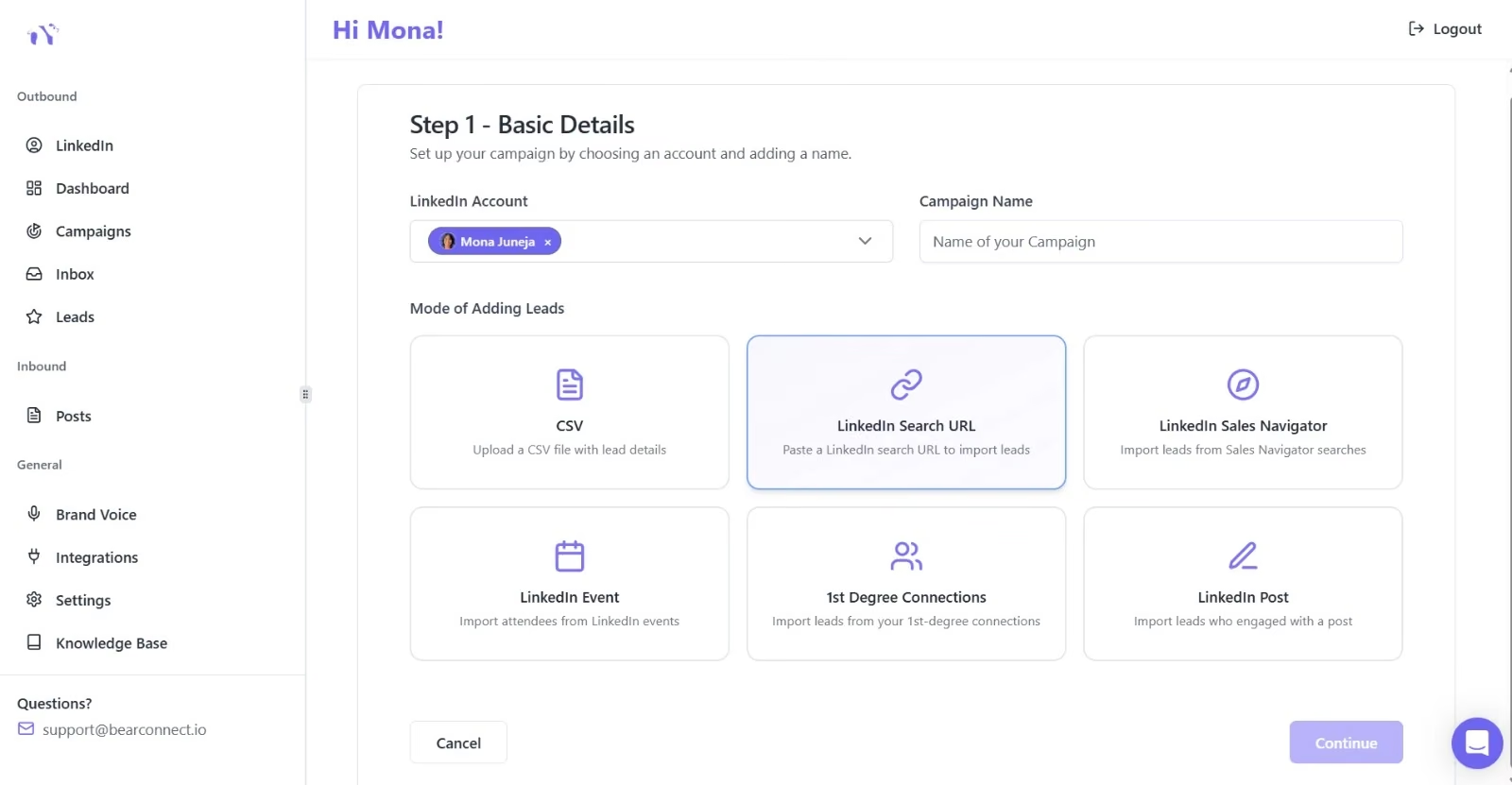
If half your connections are spam accounts, half your "My Connections" campaign is wasted.
Our own numbers: why warm lists win
Here is one of our live campaigns, the Group Outreach campaign for the USA:
| Metric | Number |
|---|---|
| Total leads imported | 735 |
| Connection requests sent | 474 |
| Accepted | 225 (47.5%) |
| Messages sent | 210 |
| Replies | 45 (21.4%) |
Our cold search campaign accepted at 34.8%. Warm sources like groups (47.5%) and post engagers (49.5%) did better.
These are small samples from one account, so treat them as a direction, not a benchmark.
Manual cleanup vs Bearconnect filters
You still remove bad connections by hand. Bearconnect filters stop them from entering a campaign in the first place.
| Task | Manual on LinkedIn | In Bearconnect |
|---|---|---|
| Skip people already connected | Check each profile | "Exclude existing connections" toggle |
| Skip empty or fake profiles | Check each photo | "Exclude profiles without a picture" toggle |
| Avoid messaging someone twice | Track in a spreadsheet | "Exclude leads already in another campaign" |
| Remove duplicates | Manual | De-duplicates profiles during import |
| Choose list size | Guesswork | 250 leads recommended, up to 1,000 per campaign |
Once the list is clean, you can import leads from your data and follow up with drip campaigns.
What to send the connections you kept
Once the list is clean, a short, specific message works better than a pitch. Three openers I use:
| Situation | Opener |
|---|---|
| Ex-colleague now in your target market | "Saw you moved to [company]. How is the new role treating you?" |
| Someone who liked your recent post | "Thanks for the like on my post about [topic]. Curious how you handle that at [company]." |
| A quiet connection in your ICP | "We connected a while back and never talked. What are you focused on this quarter?" |
Why can't I remove a connection on LinkedIn? (troubleshooting)
If "Remove connection" is missing, the person is usually not a 1st-degree connection. Check these four causes in order.
| Problem | Why it happens | Fix |
|---|---|---|
| No "Remove connection" option | They are a follower or 2nd-degree, not a connection | Unfollow or block instead |
| Request still pending | You never connected | Withdraw it from Sent invitations |
| Button missing in the app | Old app version | Update the app, or use desktop |
| Count did not drop | LinkedIn updates counts with a delay | Refresh after a few minutes |
FAQs
1. Can I reconnect with someone after removing them?
Yes. Send them a new connection request. They will see it like any other invitation, so add a short note explaining why you are reconnecting.
2. Does removing a connection delete our message history?
In most cases the conversation stays in both inboxes. You can still read past messages, but new messages may need InMail or a fresh connection.
3. Will they still see my posts after I remove them?
Only if they follow you, or your post reaches them through someone else's engagement. Your posts no longer show up for them as a connection's posts.
4. Does removing connections hurt my LinkedIn reach?
Removing spam or inactive accounts rarely hurts reach, because they seldom engage. Removing active, relevant people can lower the engagement your posts get early on.
5. Is there a limit to how many LinkedIn connections I can have?
Yes. LinkedIn caps 1st-degree connections at 30,000 . People near the cap often remove inactive or spam connections to make room for new ones.
Conclusion
Removing a LinkedIn connection takes under a minute, and the person does not get notified. Use the connections list on desktop, the profile menu on mobile, and withdraw pending requests from Sent invitations.
The bigger win comes after the cleanup.
A smaller, relevant network gives you a warmer outreach list. Run your next campaign on it and manage every reply in one unified inbox.

About the author
Mona Juneja
Mona spent 20+ years in sales at Microsoft, Oracle and Dell before founding Bearconnect in 2024. She writes about LinkedIn outreach, automation safety and the tools sales teams use.
Ready to Transform Your LinkedIn Strategy?
Join thousands of professionals already using Bearconnect to automate their outreach and grow their network.
7-day free trial • Cancel anytime
Related Articles
LinkedIn recommendation templates: 30+ examples you can copy and personalize
Writing a LinkedIn recommendation is harder than it sounds. Here are 30+ ready-to-use templates for managers, coworkers, clients, and mentors, plus tips to personalize each one so it doesn't read like a template.
Is LinkedIn Premium Worth It in 2026? (Honest Answer + What Most People Buy Instead)
Most people don't need LinkedIn Premium. Here's what it actually gets you, who should skip it, and what to buy instead in 2026.
How to write a LinkedIn recommendation (with templates for every relationship)
Writing a LinkedIn recommendation can feel harder than it should. This guide breaks down exactly what to say, how to structure it, and how long it should be, with copy-paste templates for managers, colleagues, clients, and more.