How To Set Up An AI-Assisted LinkedIn Outreach System From Scratch
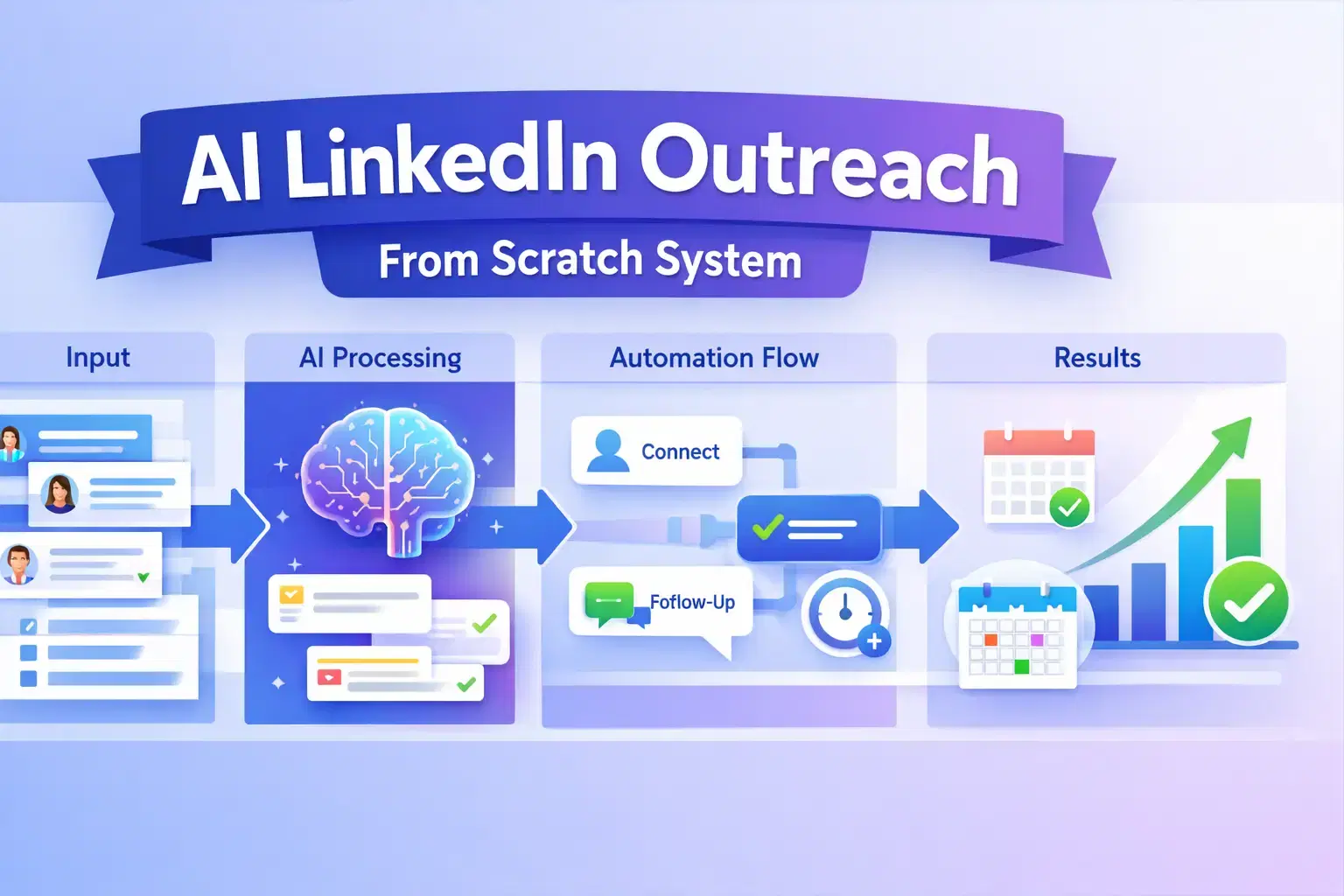
You can set up an AI-assisted LinkedIn outreach system in 6 steps: define your ICP, import leads from LinkedIn Search or events, train the AI on your messaging tone, build a connection and follow-up sequence, sync leads to your CRM, and track results through your analytics dashboard.
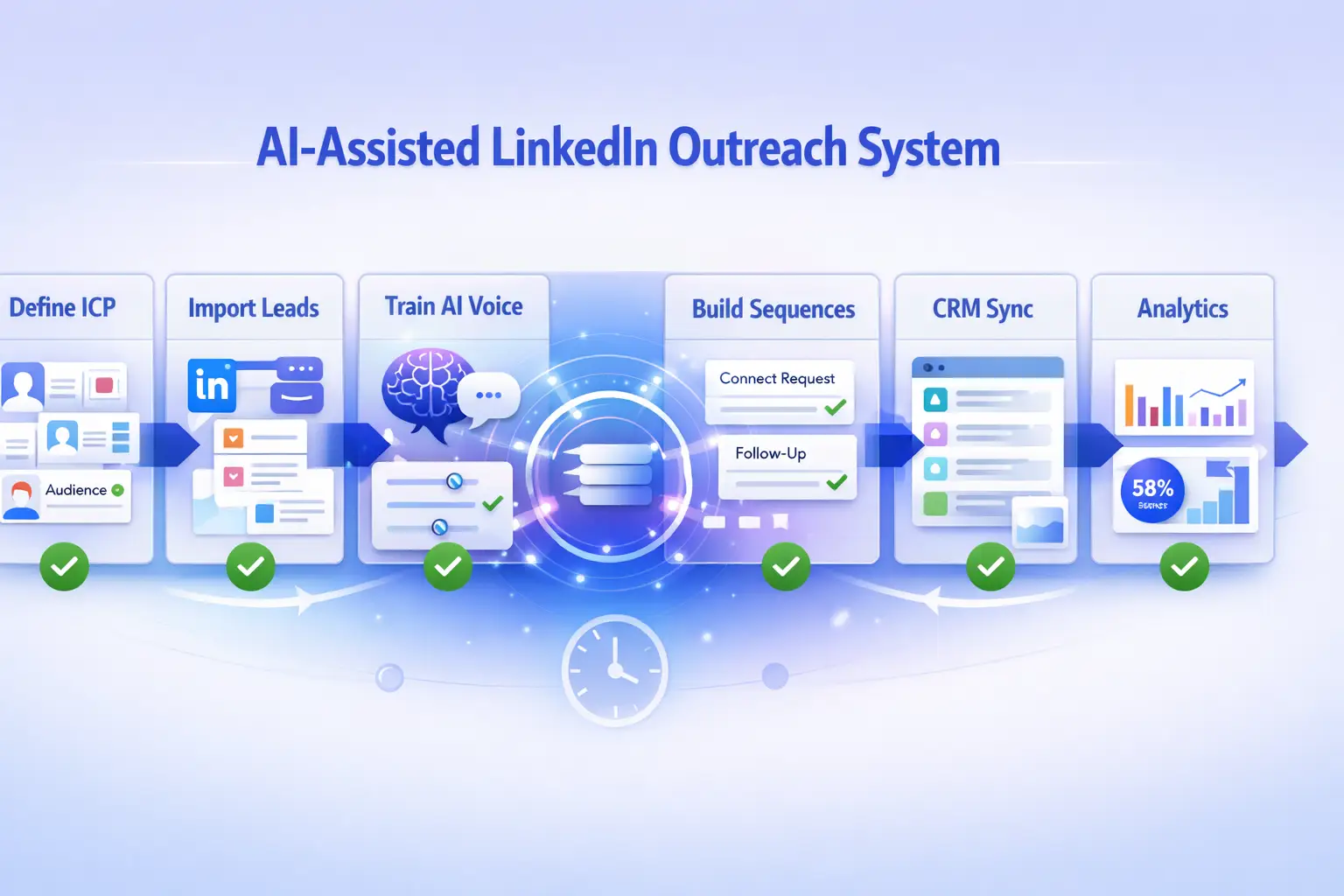
The full system runs without daily manual input. You handle strategy. The automation handles execution, follow-ups, and data sync.
Tools like Bearconnect let you manage every one of these steps inside one platform, from lead import to reply tracking, without switching between five different apps.
Setting this up now puts you ahead of the LinkedIn outreach trends for 2026 and 2027 that most teams are still ignoring.
TL;DR
- Manual LinkedIn outreach maxes out at 20 to 30 touchpoints per day. Automation removes that ceiling.
- Before you start, you need a lead source, a clear ICP, and a CRM.
- Brand Voice is the most skipped step and the main reason most automated messages fail.
- A complete system runs connection requests, follow-ups, CRM sync, and analytics without daily manual input.
- Bearconnect starts at $67/month per LinkedIn account with a team rate of $57/month when you connect 5 or more accounts.
Why Manual LinkedIn Outreach Does Not Scale
Manual outreach stops working the moment you need consistent pipeline. You send 20 to 30 connection requests by hand, forget to follow up, miss replies, and start the whole cycle again next Monday.
- The problem is not effort. The problem is that manual outreach is a system built on memory, and memory breaks at scale.
- An AI-assisted system removes you from every repetitive step while keeping your voice inside every message. You set it up once, and it runs around the clock.
What You Need Before You Start Your LinkedIn Automation Setup
Get these four things in place before you open any automation tool. Starting without them adds friction and wastes your first campaigns.
1. A LinkedIn account in good standing
- Your account needs at least 30 days of recent activity before you add automation. Start with a warm account, not a brand new one.
- Make sure your LinkedIn profile is optimized before you turn on automation. A complete, credible profile directly improves your connection acceptance rate.
2. A clear ICP (Ideal Customer Profile)
- Define exactly who you are targeting: job title, company size, industry, seniority level, and geography. Vague targeting means wasted sends and low acceptance rates.
- If you have not built your ICP yet, HubSpot's persona tool is a free resource worth using before you write a single message.
3. A lead source
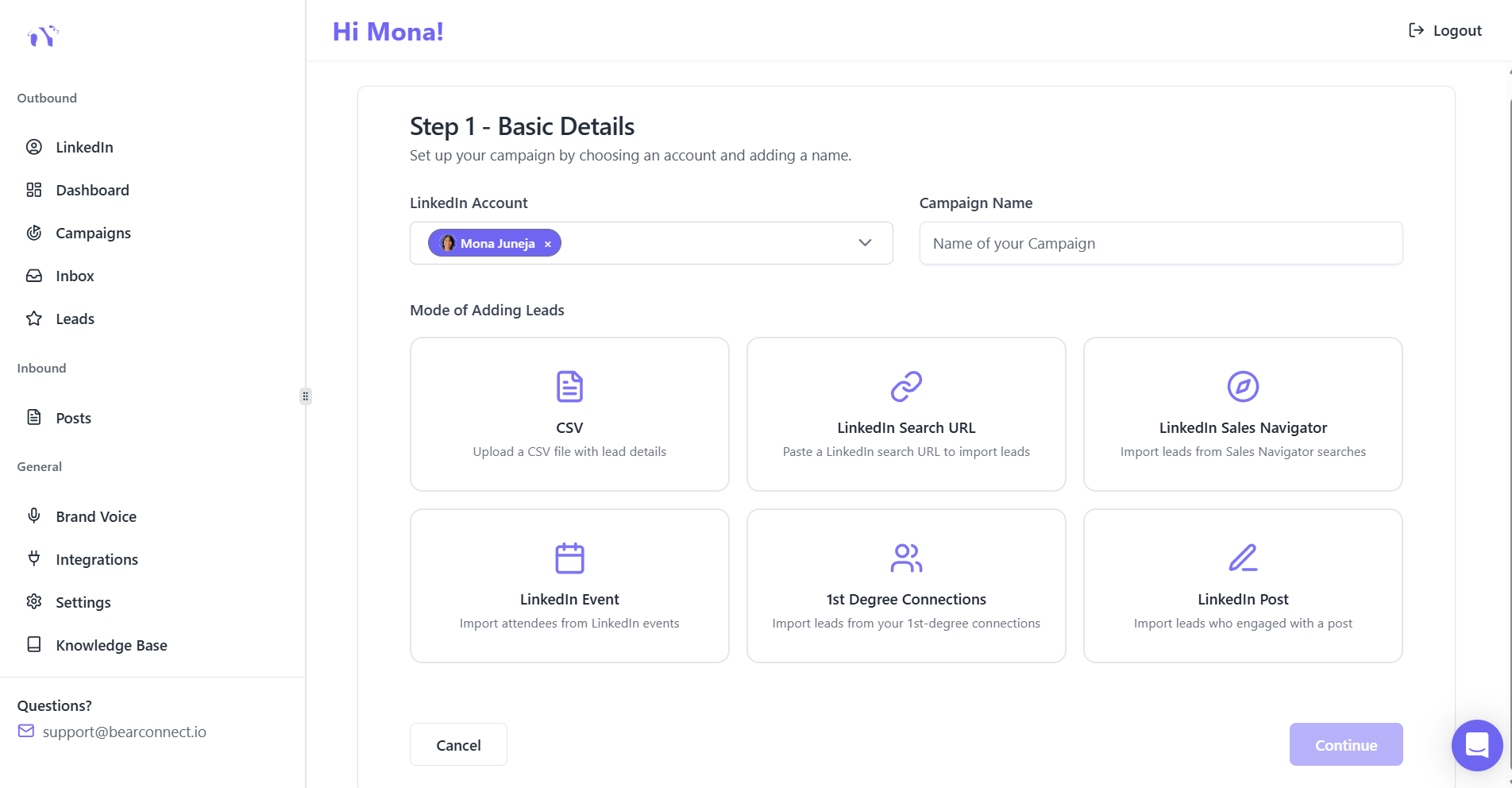
Choose one to start:
- A LinkedIn Search URL
- A LinkedIn Sales Navigator search
- A CSV file of existing prospects
- A LinkedIn event attendee list
- Your existing 1st degree connections
- A LinkedIn post URL
Need help choosing the right source? Read the LinkedIn Sales Navigator beginner guide to understand when it is worth the upgrade.
4. A CRM
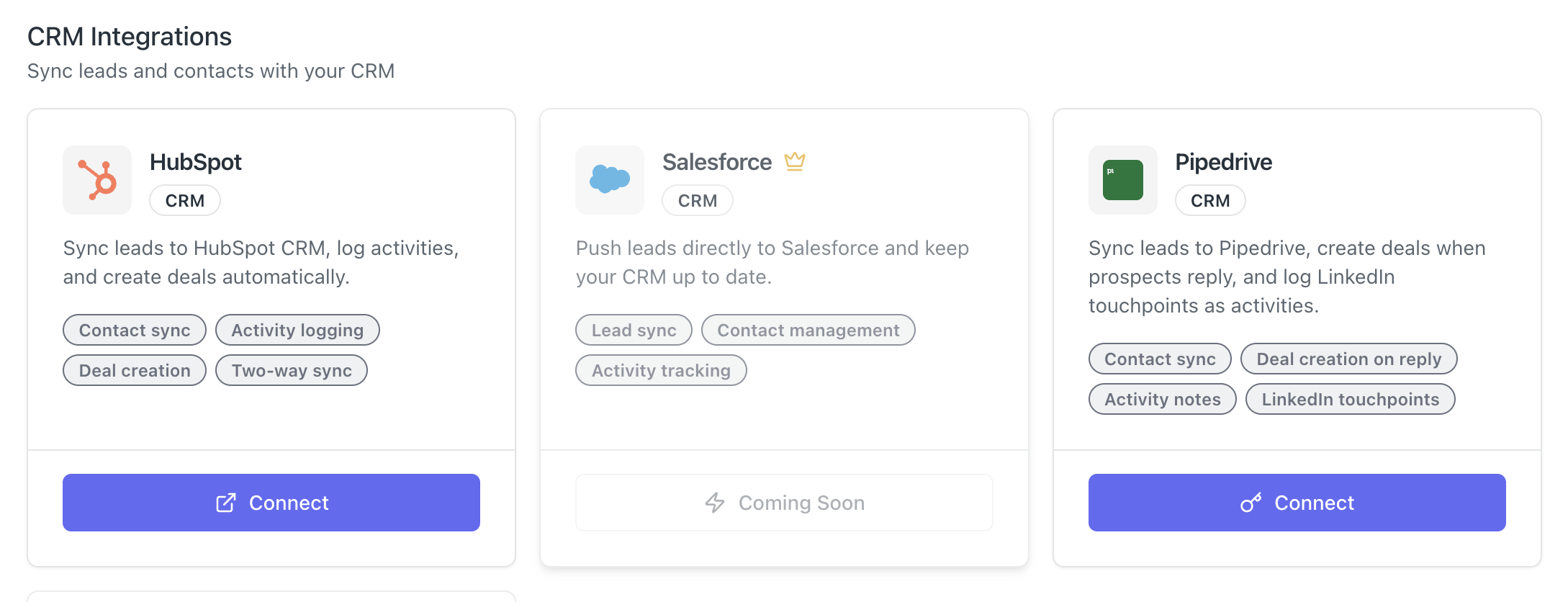
HubSpot or Pipedrive connects directly with Bearconnect. You need a place to push leads the moment a reply comes in. No CRM means no follow-up system.
Pro Tip: Write your positioning statement before you write a single message. One sentence: who you help, what problem you solve, and why it matters to them. Every message in your sequence flows from this statement.
The 6-Step AI LinkedIn Outreach System Setup
Step 1: Import Your Leads Into Bearconnect
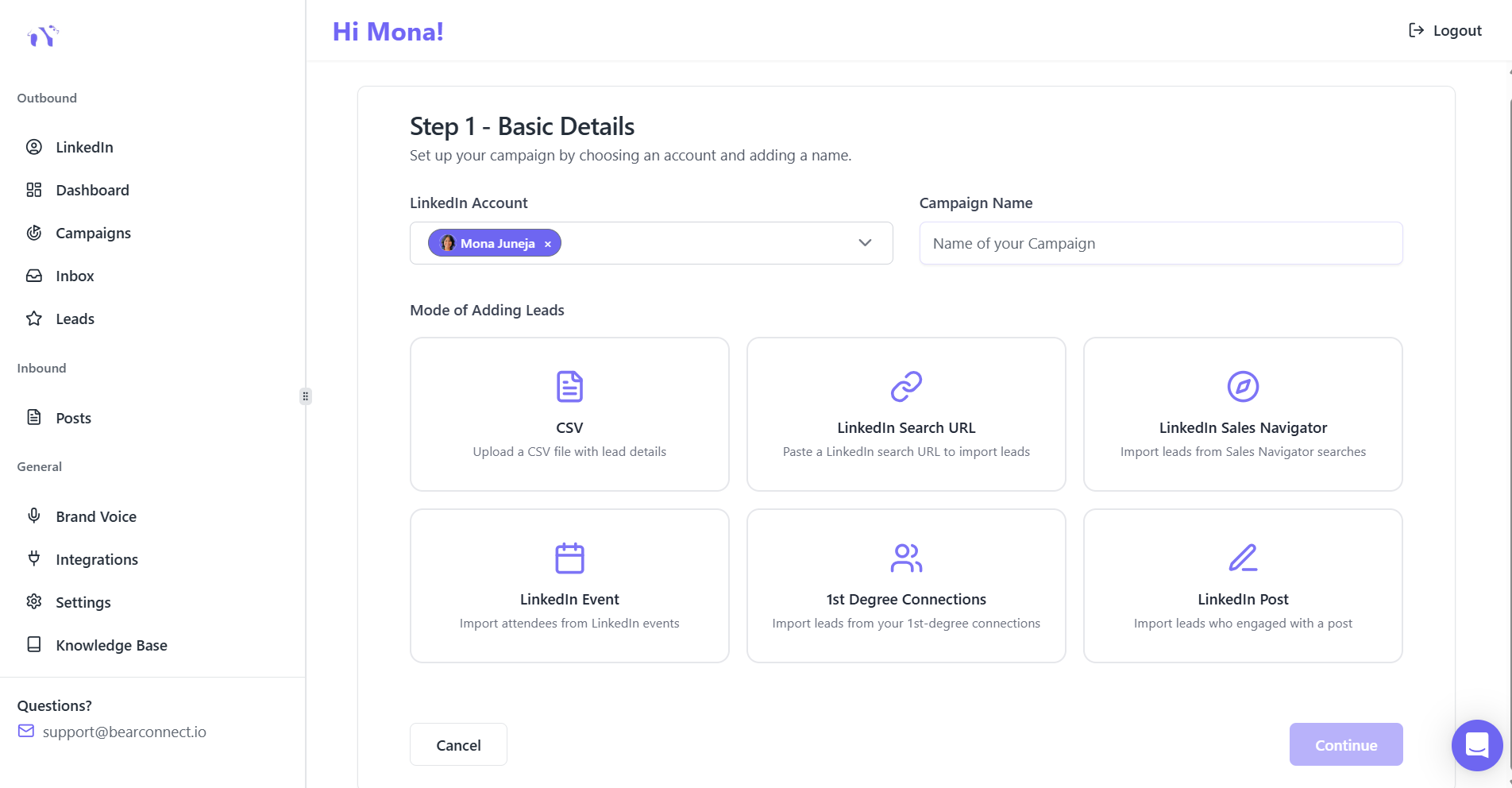
Your outreach system is only as strong as your lead list. Import clean, targeted leads before you build anything else.
This tool gives you multiple ways to import leads:
- LinkedIn Search URL: Paste any standard LinkedIn search URL. This tool pulls matching profiles directly into your campaign.
- LinkedIn Sales Navigator: Paste a Sales Navigator search URL to import filtered, high-intent leads.
- CSV Upload: Upload a CSV with mapped fields for leads you already have sourced.
- LinkedIn Events: Import attendees from a specific LinkedIn event you want to target.
- 1st Degree Connections: Pull your existing connections into a nurture or upsell sequence.
- LinkedIn Post URL: Pulls the list of people who liked or commented your post or your competitors post.
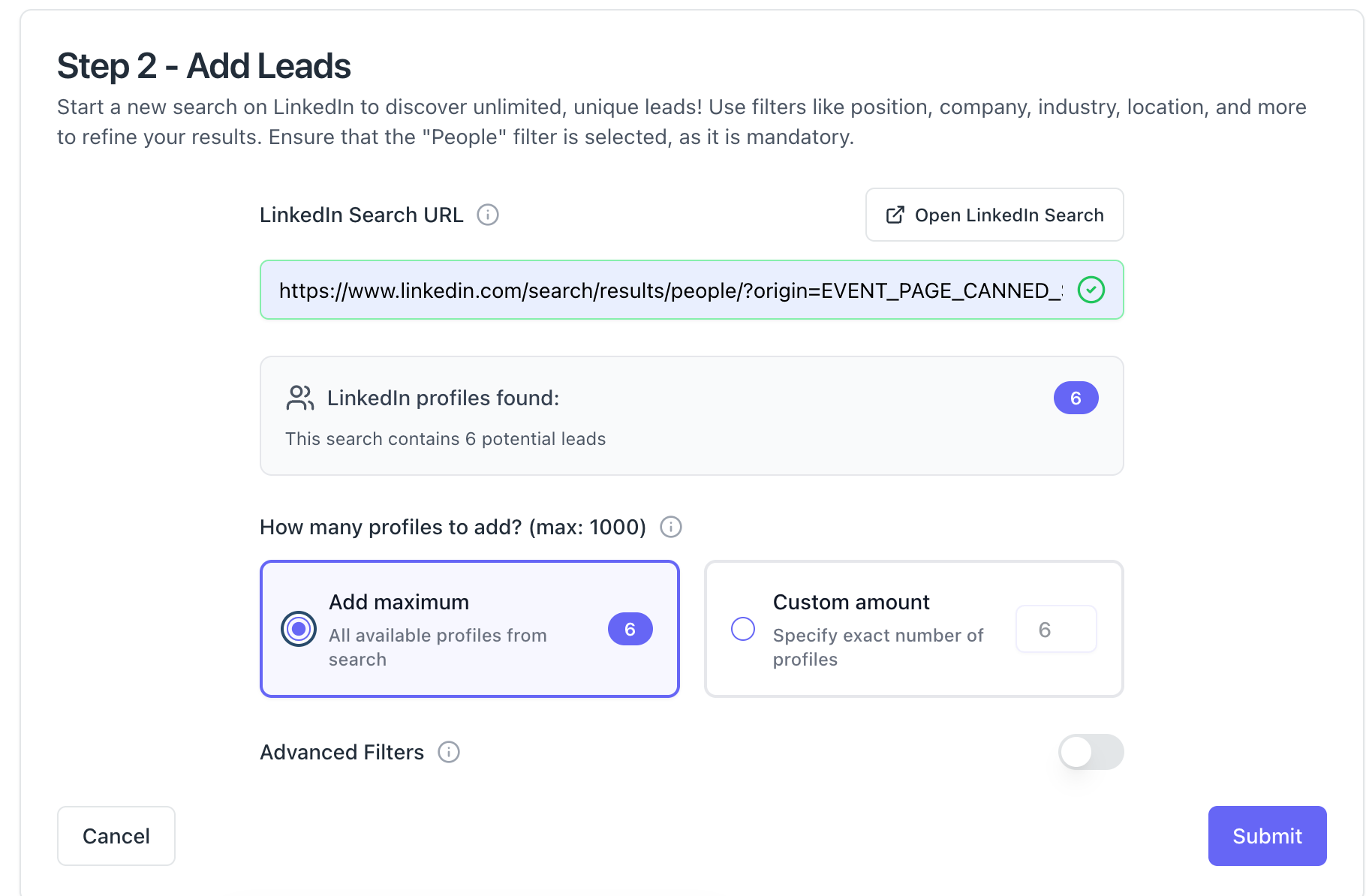
Start with one lead source. Get your first campaign live before you expand to more sources.
Pro Tip: Event attendee imports give you the warmest leads in any list. These people already engaged with a specific topic or industry. Connection acceptance rates from event lists run noticeably higher than cold search results.
Step 2: Configure Your Brand Voice
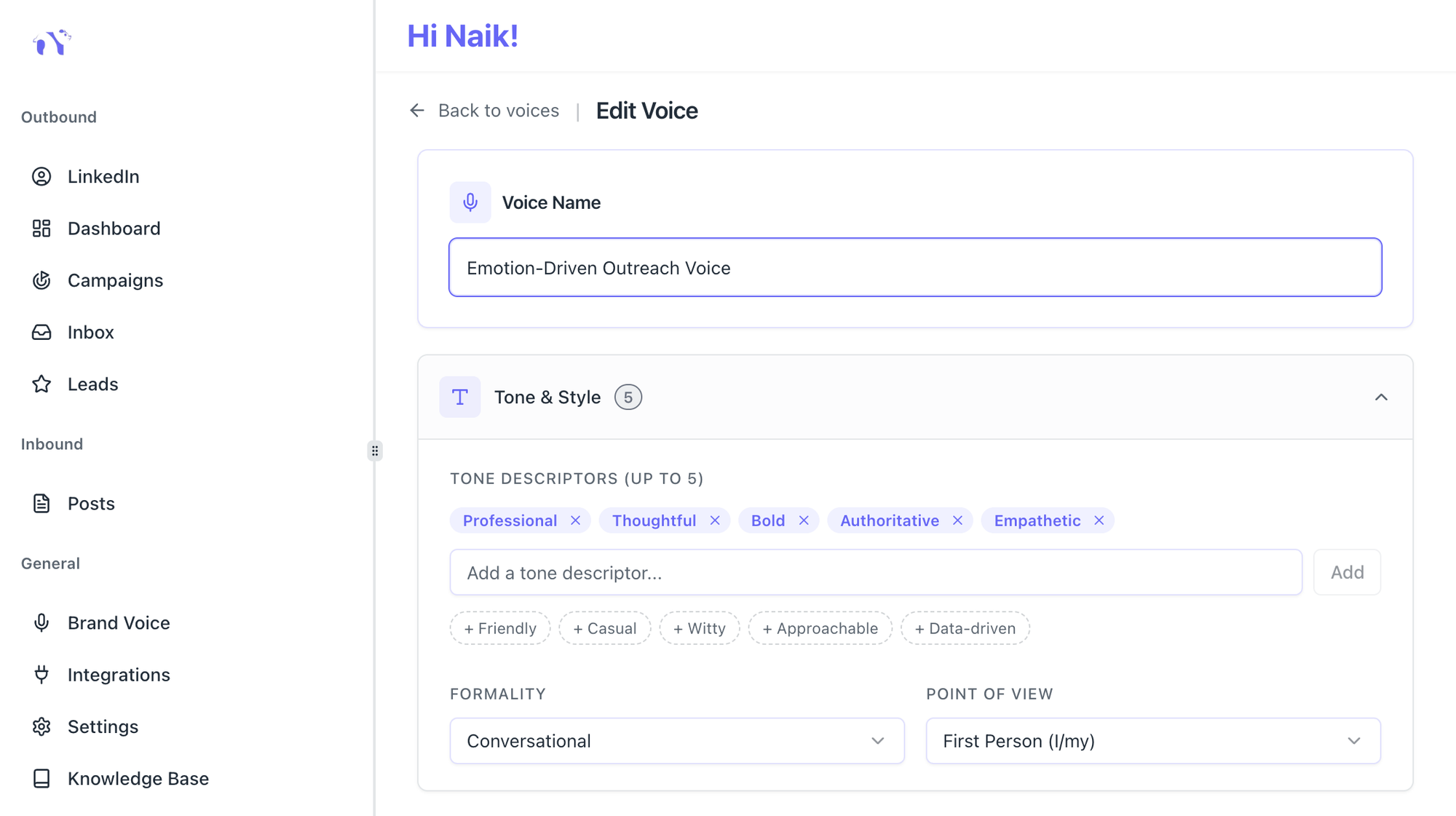
Brand Voice is the single most important step in the entire setup. Most people skip it. That is exactly why their automated messages sound like copy-paste templates.
The Brand Voice feature trains Bearconnect's AI on how you communicate specifically. It stores:
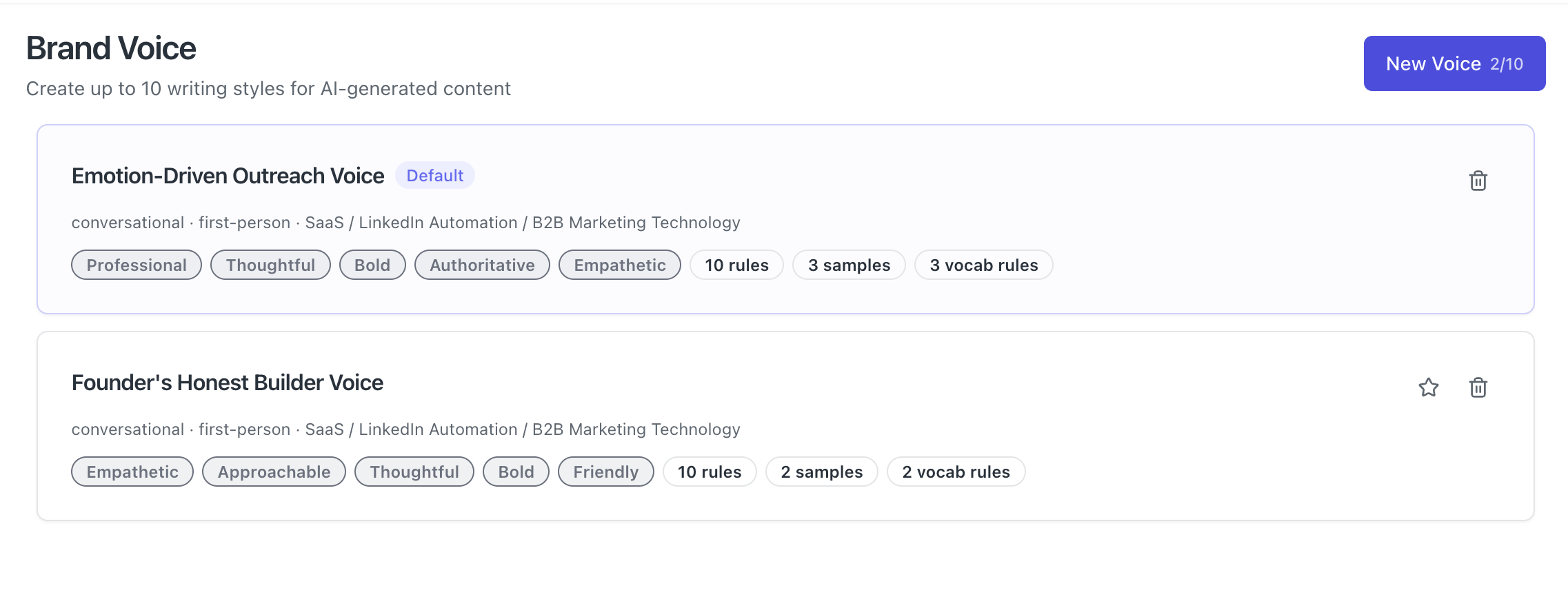
- Up to 5 tone descriptors (Professional, Direct, Warm, Bold, Empathetic)
- Formality level: Conversational, Semi-Formal, or Formal
- Vocabulary rules: terms to avoid and preferred replacements
- Custom writing rules: up to 10 non-negotiable style guardrails
- Writing samples: paste 5 examples of your best-performing messages or posts
- Professional context: your industry, target audience, and core topics
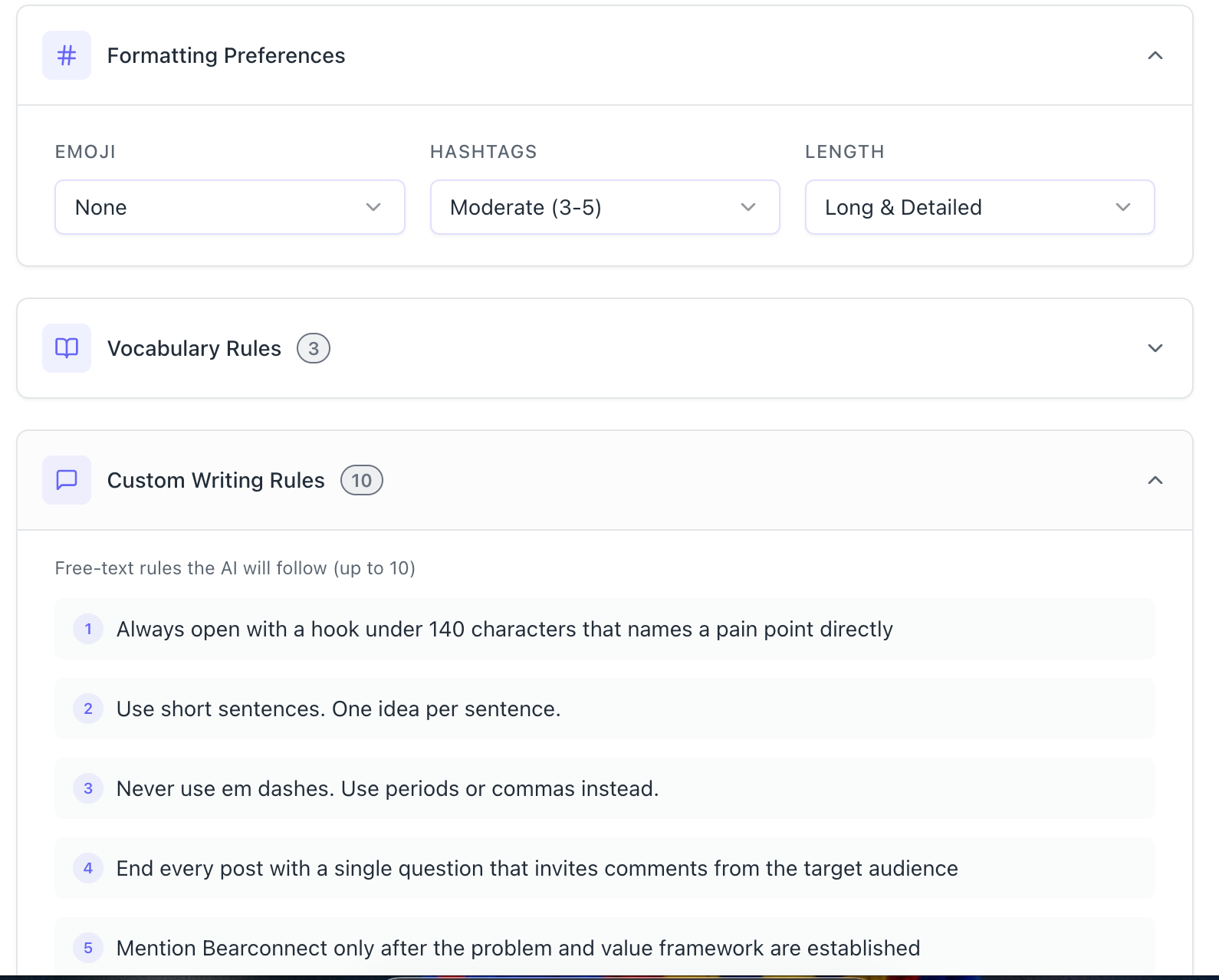
Once configured, every connection request, follow-up message, and inbox reply follows this profile automatically.
Why this matters:
People accept connection requests from people who sound human. They reply to messages that feel like they came from an actual person. Brand Voice gives your automation the human layer that generic templates never deliver.
You can configure your Brand Voice feature in Bearconnect in under 10 minutes.
Pro Tip: Paste your 3 best-performing cold messages as writing samples in your Brand Voice setup. The AI learns from what already works for you, not from generic internet templates.
Step 3: Build Your Outreach Sequence
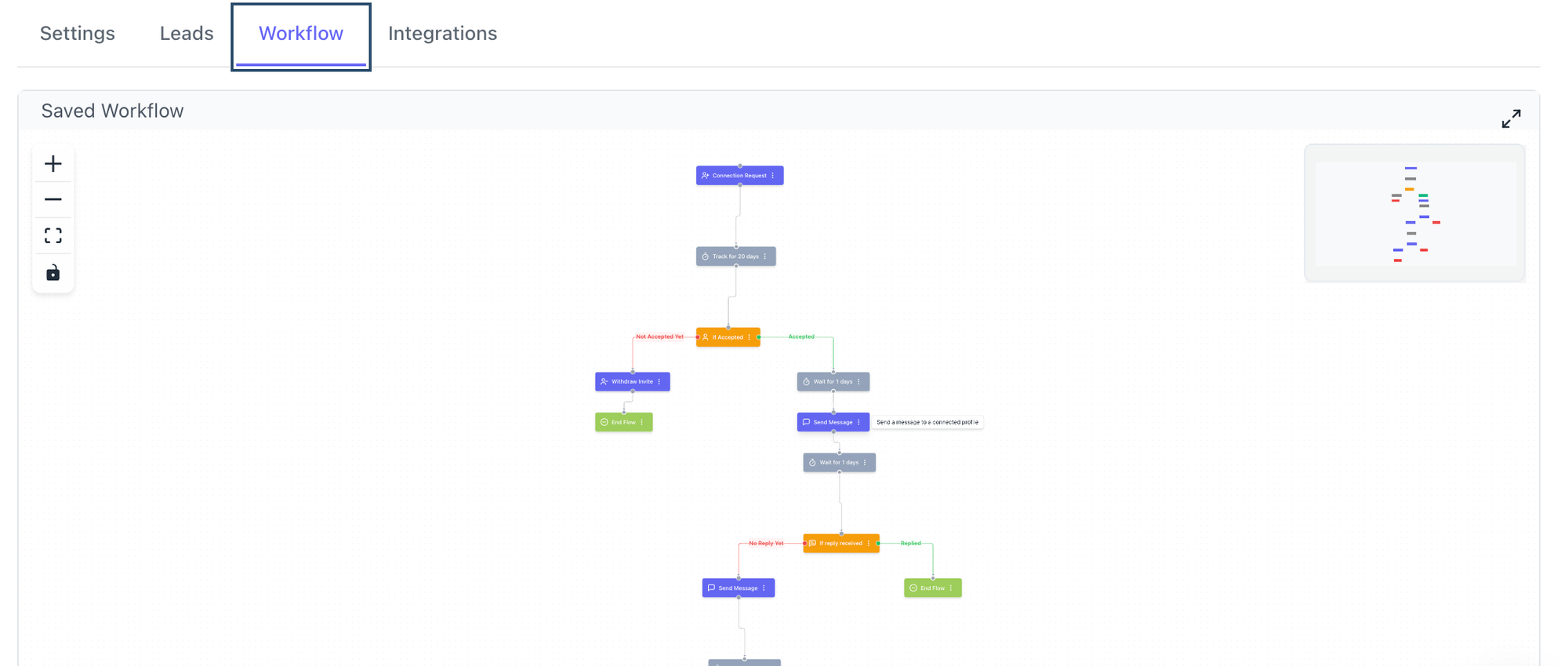
A LinkedIn outreach sequence has two components: the connection request and the follow-up messages. Build both before you launch.
Connection Request (Day 1)
- Keep it under 150 characters. Reference something specific: their role, a recent post, a shared event, or a relevant industry context.
- This tool generates this message using your Brand Voice settings so it matches your tone, not a mass-send template.
- Not sure what makes a connection request work? Read the guide on connection requests that do not get ignored.
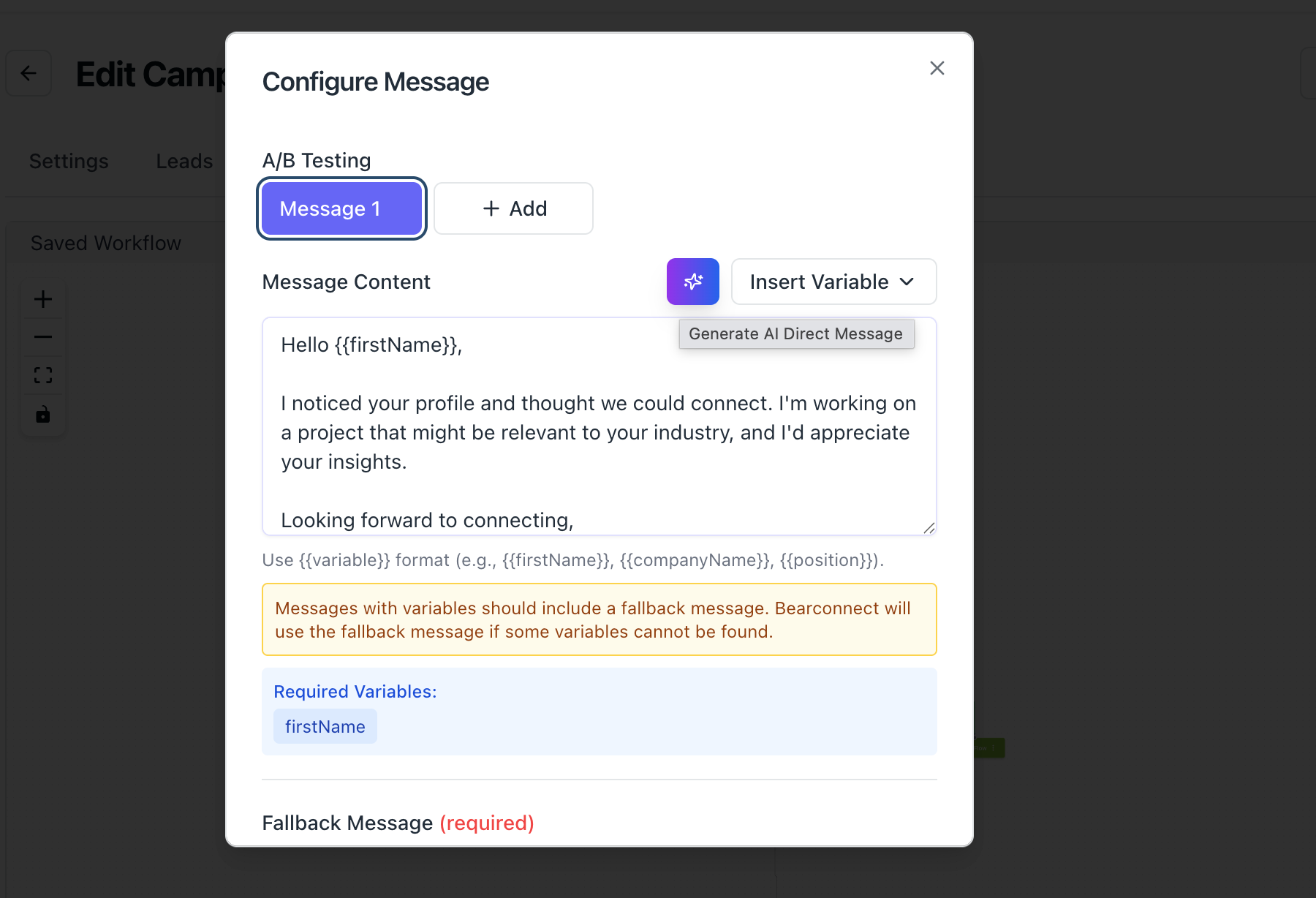
Follow-Up Sequence (Days 3 to 14)
Here is a simple 4-message structure that works for B2B outreach:
- Day 3 (after connection accepted): Short intro. One sentence on what you do. End with one direct question.
- Day 7: Add value. Share a relevant insight, resource, or observation. No ask in this message.
- Day 10: Light follow-up. Reference your Day 3 message briefly. Invite a reply or a short call.
- Day 14: Final message. Keep it simple. Open the door and leave it there.
Bearconnect's sequence builder handles delays, conditions, and personalization tokens automatically. You build the structure once, and it runs for every lead in the campaign.
Pro Tip: Use conditional steps in your sequence. If a lead replies at Day 3, stops the sequence automatically and moves the conversation to your unified inbox. You never send a follow-up to someone who already responded.
Step 4: Connect Your CRM
Every reply needs to land in your CRM, not get lost in a LinkedIn notifications tab. CRM connection is what turns LinkedIn outreach into a trackable pipeline.
This LinkedIn Automation tool connects natively with:
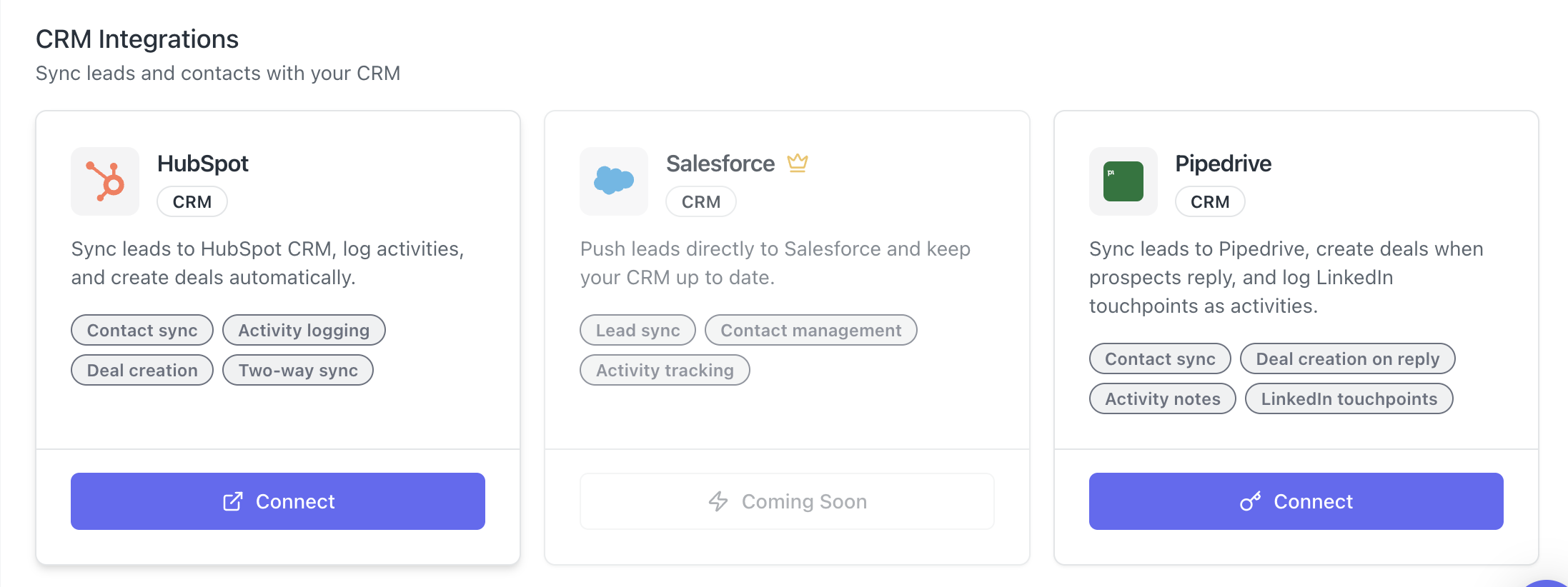
- HubSpot: Sync leads, update contact properties, and track deal stages based on LinkedIn campaign outcomes.
- Pipedrive: Push leads into pipeline stages and keep LinkedIn activity aligned with your active deals.
The setup takes under 5 minutes. Connect your CRM inside Bearconnect's integration settings, map your fields, and every lead event syncs automatically from that point forward.
For teams that need custom workflows, This LinkedIn Outreach tool also connects with Make, n8n, Zapier, and webhooks. You can route lead data into Slack, Google Sheets, or any custom internal system.
Example workflow in practice:
A prospect accepts your connection request on Day 1. They reply on Day 3. Bearconnect detects the reply, pauses the sequence, routes the conversation to your unified inbox, and pushes the contact into HubSpot with the campaign source tagged automatically.
You open HubSpot in the morning and see exactly who replied, from which campaign, and at which step in the sequence.
Pro Tip: Create a dedicated pipeline stage in HubSpot called "LinkedIn Reply." Your sales team will instantly know which leads came from LinkedIn automation and exactly how warm they are before picking up the phone.
Step 5: Set Safety Limits and Launch
LinkedIn automation safety is not optional. Run within safe daily limits from day one or risk losing your account.
LinkedIn monitors behavior patterns. Sudden spikes in activity, connection requests sent at inhuman speed, or messages with identical content trigger restrictions.
Read the full guide on how to avoid LinkedIn restrictions before you launch your first campaign.
This LinkedIn lead gen tool protects your account with:
- Behavior mimicry: Actions happen at randomized intervals to simulate natural human usage.
- Smart throttling: Daily action limits stay within LinkedIn's accepted thresholds.
- Gradual warmup: New accounts start at lower volumes and increase slowly over two to three weeks.
Step 6: Track Results With the Analytics Dashboard
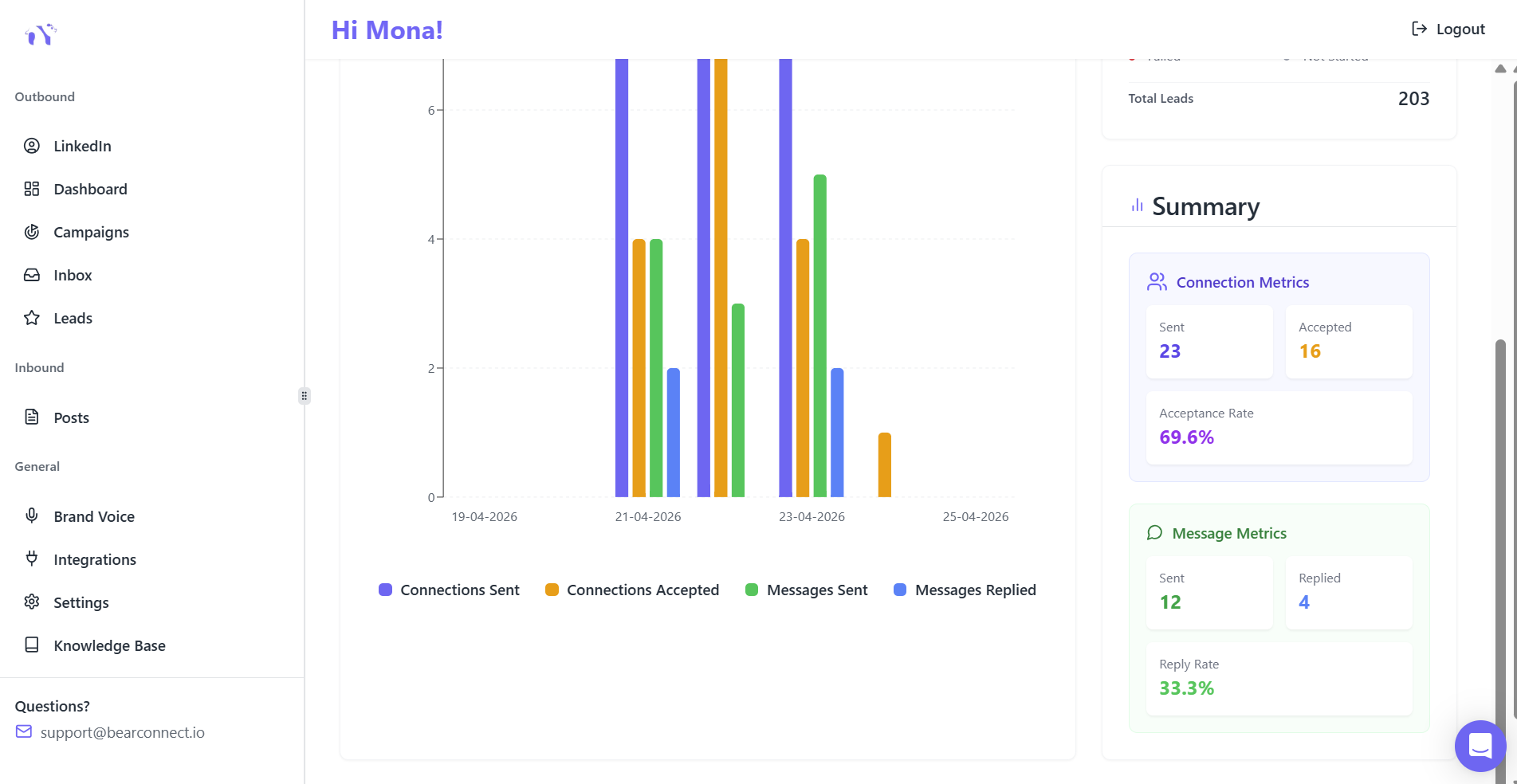
You cannot improve a system you cannot see. Check your analytics dashboard after the first 7 days and use the data to optimize.
Bearconnect tracks:
- Connection acceptance rate by campaign
- Reply rate per message step in the sequence
- Conversion rate from connection to meaningful reply
- Campaign performance comparison across time periods
Benchmarks to target:
- Connection acceptance rate: 25 to 40% is a strong result
- First message reply rate: 5 to 15% is realistic for cold outreach
- Qualified lead conversion: 2 to 8% of total leads contacted
If your acceptance rate sits below 20%, the issue is targeting. Review your ICP filters and search criteria.
If your reply rate is below 5%, the issue is messaging. Go back to your Brand Voice settings and rewrite your sequence opener.
Pro Tip: Run two versions of the same campaign with one variable changed, such as two different opening message angles. Compare reply rates after 50 sends each. Keep the winner and pause the other. This is the fastest way to improve your system without guessing.
Message Personalization at Scale
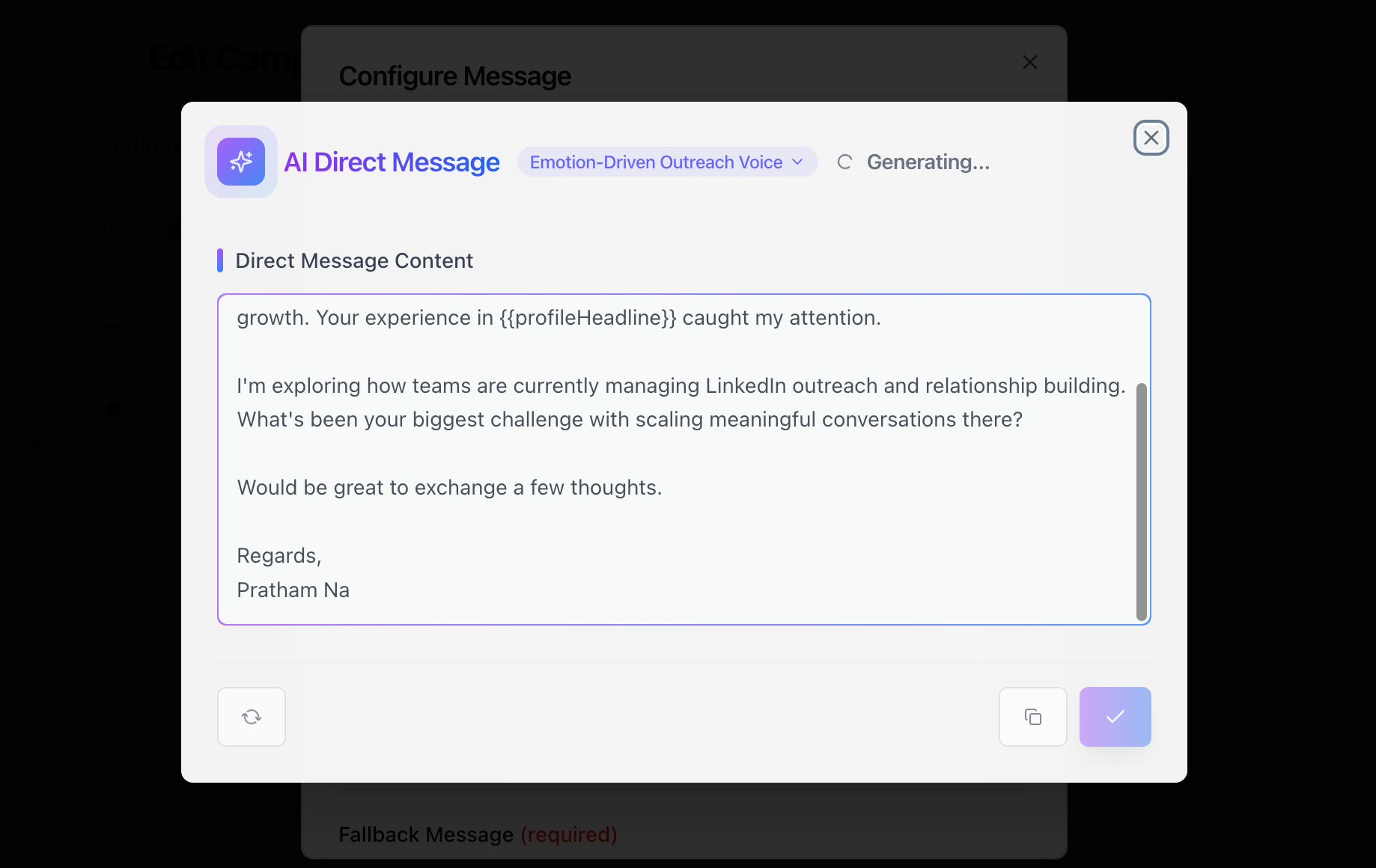
Real personalization at scale works when the AI learns from your actual communication style, not from a shared template bank.
Most tools add {{first_name}} and call it personalization. That is a mail merge, not personalization.
Genuine personalization at scale means:
- The message sounds like you wrote it
- The tone matches how you actually communicate with people
- The content feels relevant to the specific recipient
Bearconnect's Brand Voice feature handles all three. The AI generates each message variation using your tone settings, vocabulary rules, and writing samples.
Add dynamic fields on top for extra relevance:
{{first_name}}for their name{{company}}for their organization{{job_title}}for their role
The combination of Brand Voice tone and dynamic fields gives you personalized LinkedIn messages that work across 500 leads without feeling like a broadcast.
Full Setup Checklist
Here is your complete system in one view:
- Import leads from LinkedIn Search, Events, or 1st Degree Connections
- Configure Brand Voice with your tone, vocabulary, and writing samples
- Build a 4-step sequence: connection request plus 3 follow-up messages
- Connect HubSpot or Pipedrive through Bearconnect's integrations
- Set daily limits and enable behavior mimicry for account safety
- Launch your campaign and review the analytics dashboard after day 7
The full setup takes under 2 hours the first time. After that, the system runs while you focus on actual conversations.
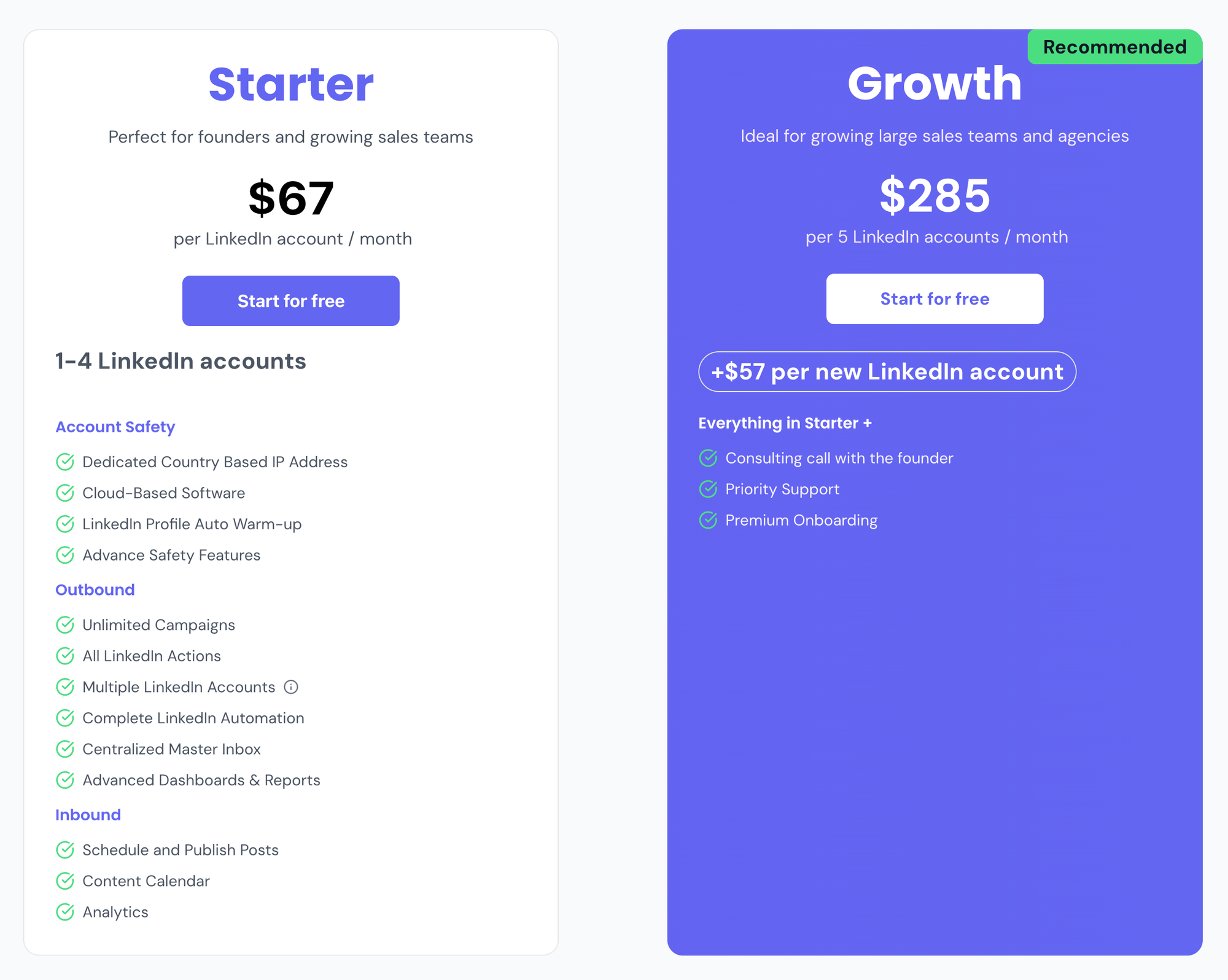
Bearconnect starts at $67/month per LinkedIn account, with a team rate of $57/month per account when you connect 5 or more accounts.
Ready to Build Your LinkedIn Outreach System?
You now have the exact framework to stop doing LinkedIn outreach manually and build a system that works around the clock.
Set up your first campaign on Bearconnect today, configure your Brand Voice in under 10 minutes, and start generating consistent pipeline from LinkedIn without spending hours on it every day.
See Bearconnect pricing and get started
Frequently Asked Questions
Q1. Is LinkedIn automation safe to use in 2026?
Yes, when you stay within safe daily limits and use a tool that mimics natural human behavior. Bearconnect uses behavior mimicry, smart throttling, and gradual account warmup to keep your account protected while running automated outreach.
Q2. How many connection requests can I send per day without getting banned?
For accounts under 3 months old, keep it at 5 to 10 per day. For established accounts, 20 to 25 per day is a safe range. Bearconnect enforces these limits automatically so you do not need to track them manually.
Q3. Do I need LinkedIn Sales Navigator to use Bearconnect?
No. Bearconnect works with standard LinkedIn Search URLs, CSV uploads, event attendee imports, and 1st degree connections. Sales Navigator is an optional upgrade for more precise filtering but is not required to get started.
Q4. How long does the initial setup take?
The full setup, including lead import, Brand Voice configuration, sequence build, and CRM connection, takes under 1 hour the first time. Once your Brand Voice and CRM are connected, launching a new campaign takes 15 to 20 minutes.
Q5. What makes Brand Voice different from just writing your own message templates?
Brand Voice trains the AI on your specific tone, vocabulary rules, and writing style using your own examples. When the AI generates messages, it applies your style consistently across every send, not just a saved template. The result is every automated message sounds like you wrote it, which is what drives replies.
Ready to Transform Your LinkedIn Strategy?
Join thousands of professionals already using Bearconnect to automate their outreach and grow their network.
7-day free trial • Cancel anytime
Related Articles
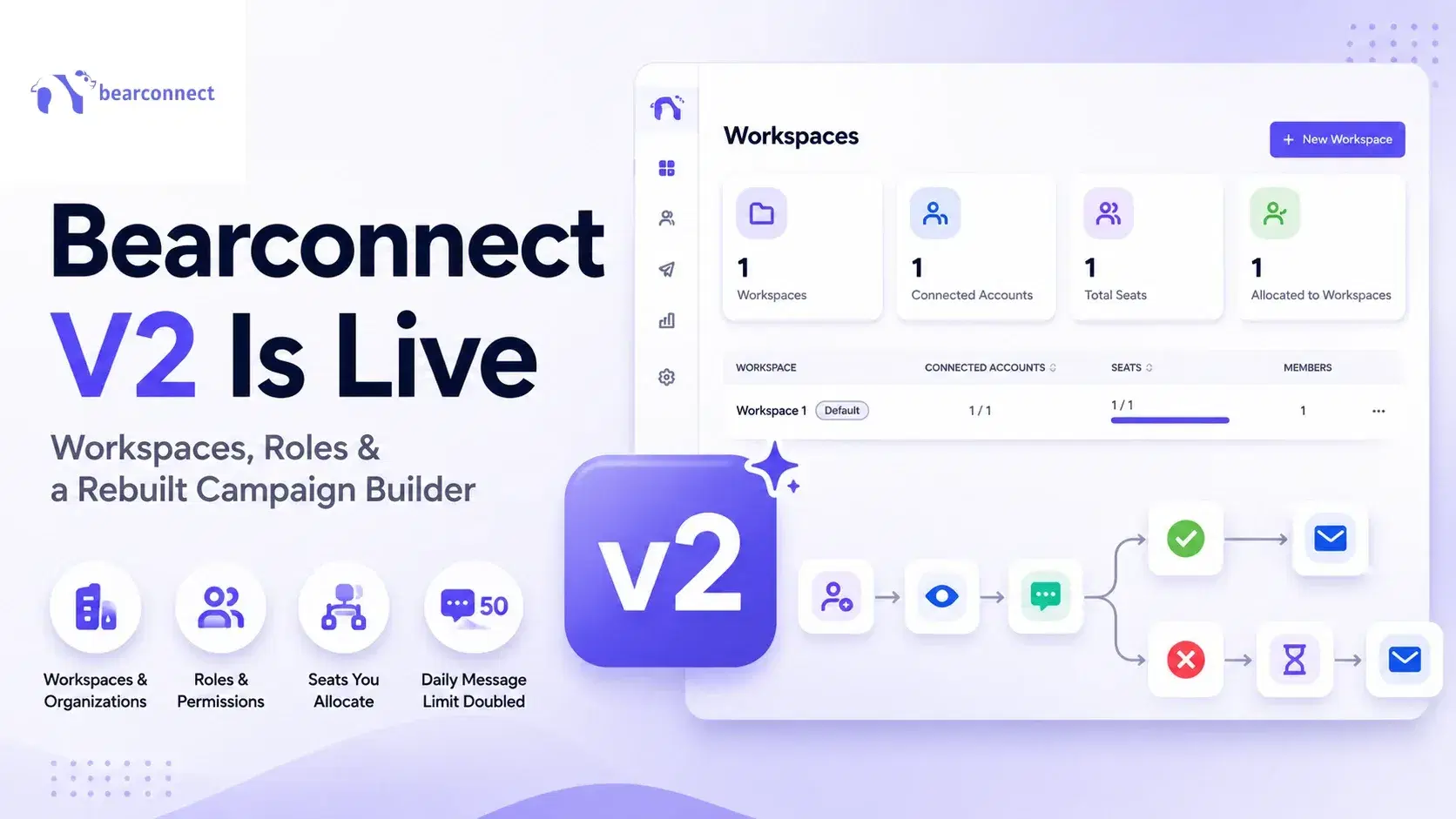
Bearconnect V2 Is Live: Workspaces, Roles and a Rebuilt Campaign Builder
Bearconnect V2 introduces dedicated workspaces, flexible roles, and a rebuilt campaign builder, giving agencies and sales teams more control over every LinkedIn account they manage.
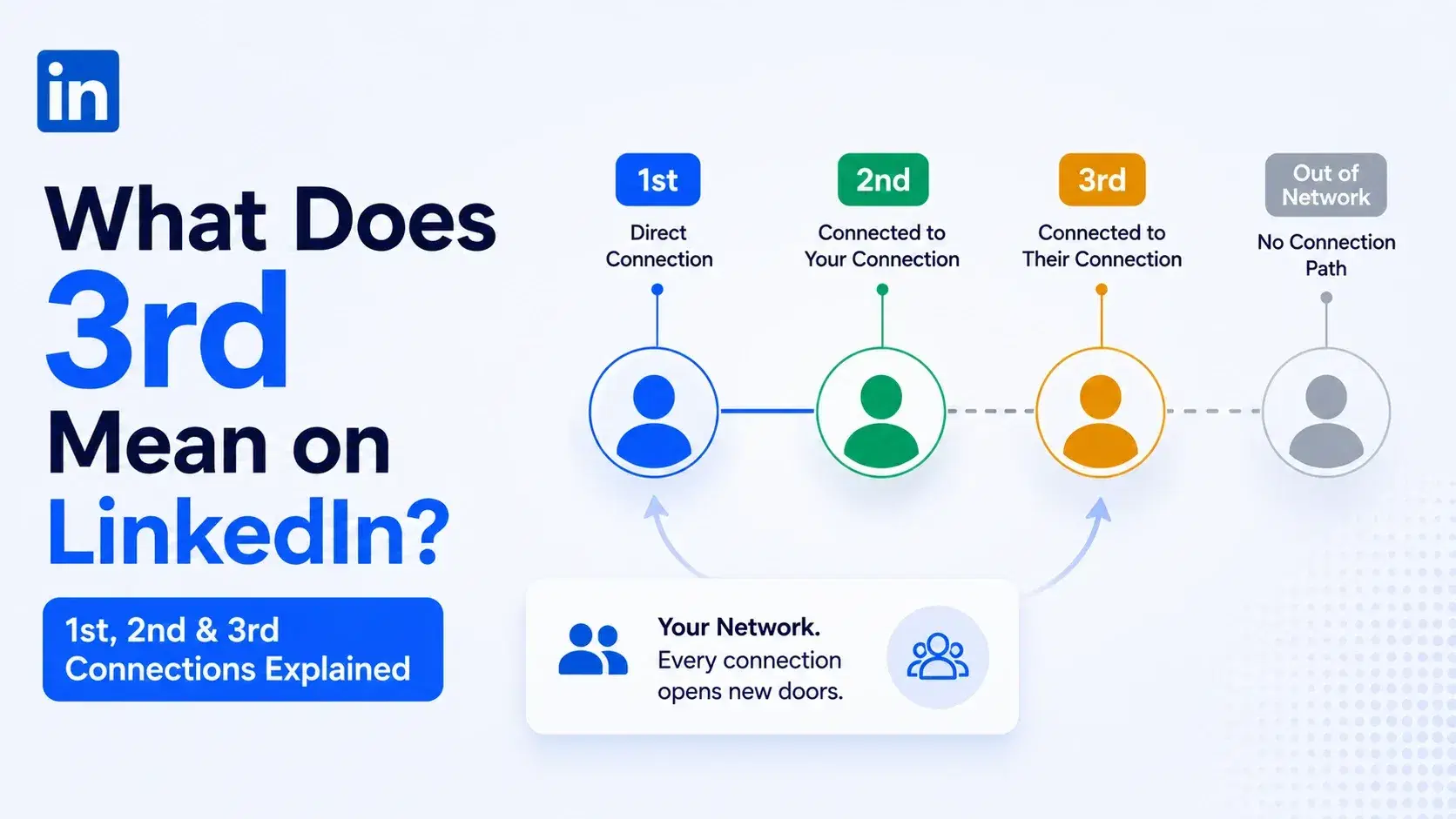
What Does 3rd Mean on LinkedIn? 1st, 2nd and 3rd Connections Explained
That gray 3rd next to a name is not a wall, it is a puzzle. Here is what 1st, 2nd, and 3rd degree connections mean, and how to reach any of them.
Dripify vs Waalaxy: Which LinkedIn Tool Should You Pick in 2026?
Compare Dripify vs Waalaxy on features, pricing, safety, and performance. Find the right LinkedIn outreach tool and discover a smarter alternative.