LinkedIn Automation: The Complete Guide for 2026

LinkedIn automation means using software to carry out repetitive LinkedIn actions for you: sending connection requests, following up with messages, visiting profiles and scheduling posts. The software works within limits you set, so you reach more of the right people without spending hours clicking. Used carefully, it saves time. Used aggressively, it can get your account restricted.
This guide explains how LinkedIn automation works, what LinkedIn allows, the limits to stay within, how to choose a tool and how to run your first campaign safely.
TL;DR
- LinkedIn automation tools send connection requests, messages and follow-ups for you, and stop automatically when someone replies.
- LinkedIn's User Agreement does not allow third-party tools that automate activity on its site, so every tool carries some risk. Slow, human-like activity keeps that risk low.
- Stay well under LinkedIn's limits: around 100 connection requests a week is the commonly reported ceiling, and new accounts should start much lower.
- Cloud-based tools with a dedicated IP per account are generally lower-risk than browser extensions.
- Automate the repetitive steps (first touch, reminders, follow-ups). Keep real conversations human.
What is LinkedIn automation?
LinkedIn automation is software that performs LinkedIn actions on your behalf, following rules you set: who to contact, what to say, when to follow up and how many actions to take each day.
The most common things people automate are:
- Connection requests to a list of people who match your ideal customer profile
- Message sequences: a first message after someone accepts, then follow-ups a few days apart
- Profile visits, which often prompt people to look back at your profile
- Lead import from LinkedIn search, Sales Navigator, a CSV file or the people who engaged with a post
- Post scheduling, so your content goes out consistently
- Inbox management: all replies, from one or several LinkedIn accounts, in one place
What it should not automate is the conversation itself. Once someone replies, a good tool stops the sequence and a person takes over.
How does LinkedIn automation work?
Most tools follow the same basic flow:
- You connect your LinkedIn account to the tool.
- You build a lead list, usually from a LinkedIn or Sales Navigator search, a CSV, or post engagers.
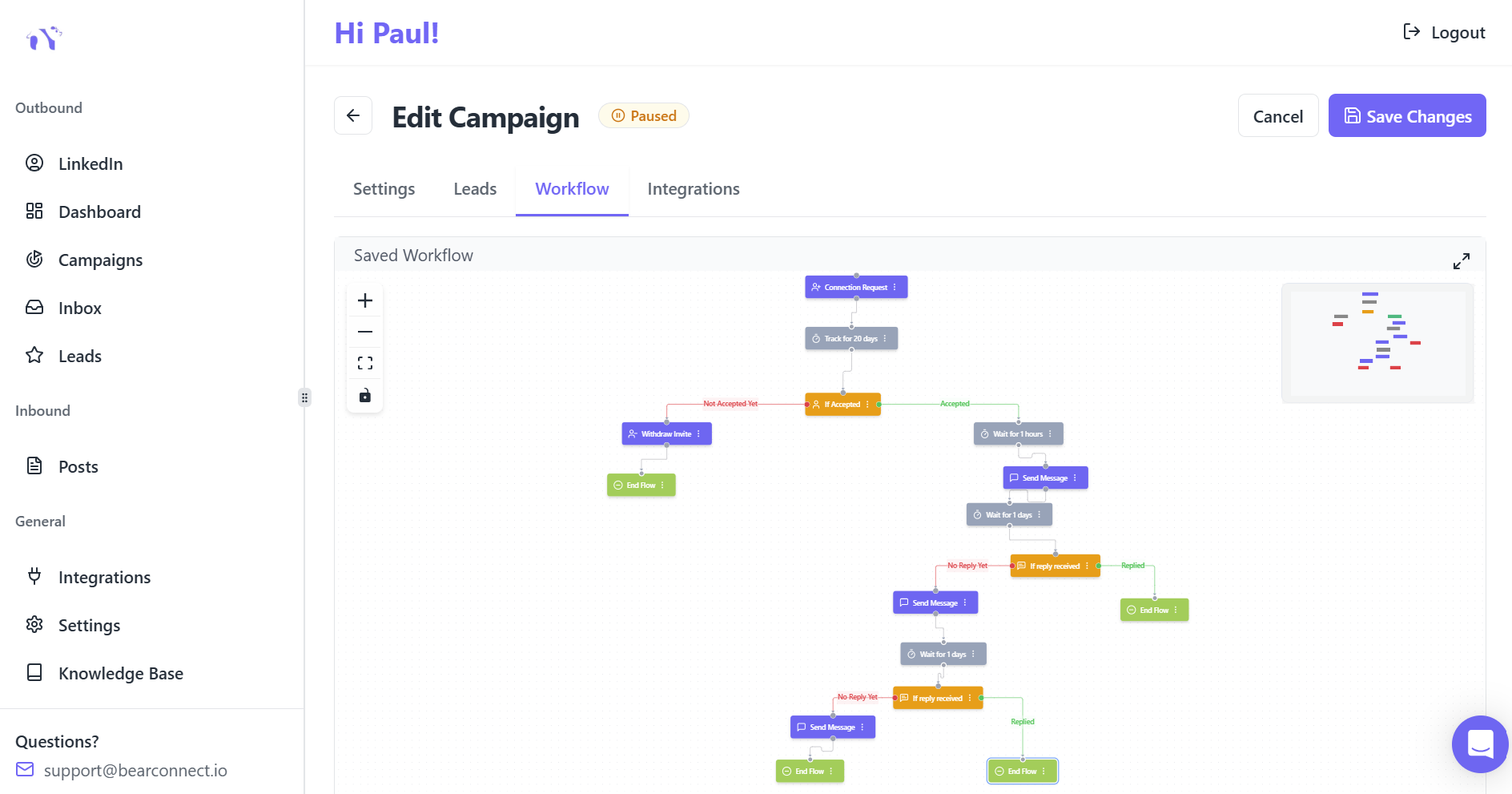
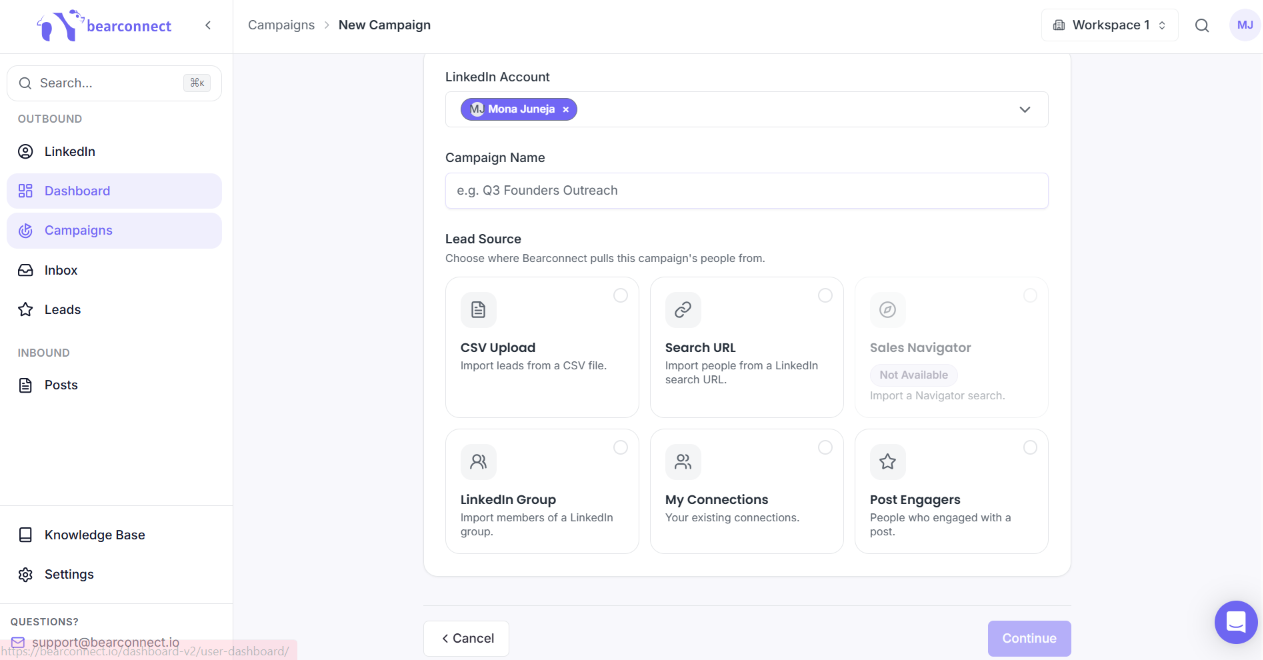
- You create a sequence: for example, visit profile, then send a connection request, then a message once accepted, then a follow-up after a few days.
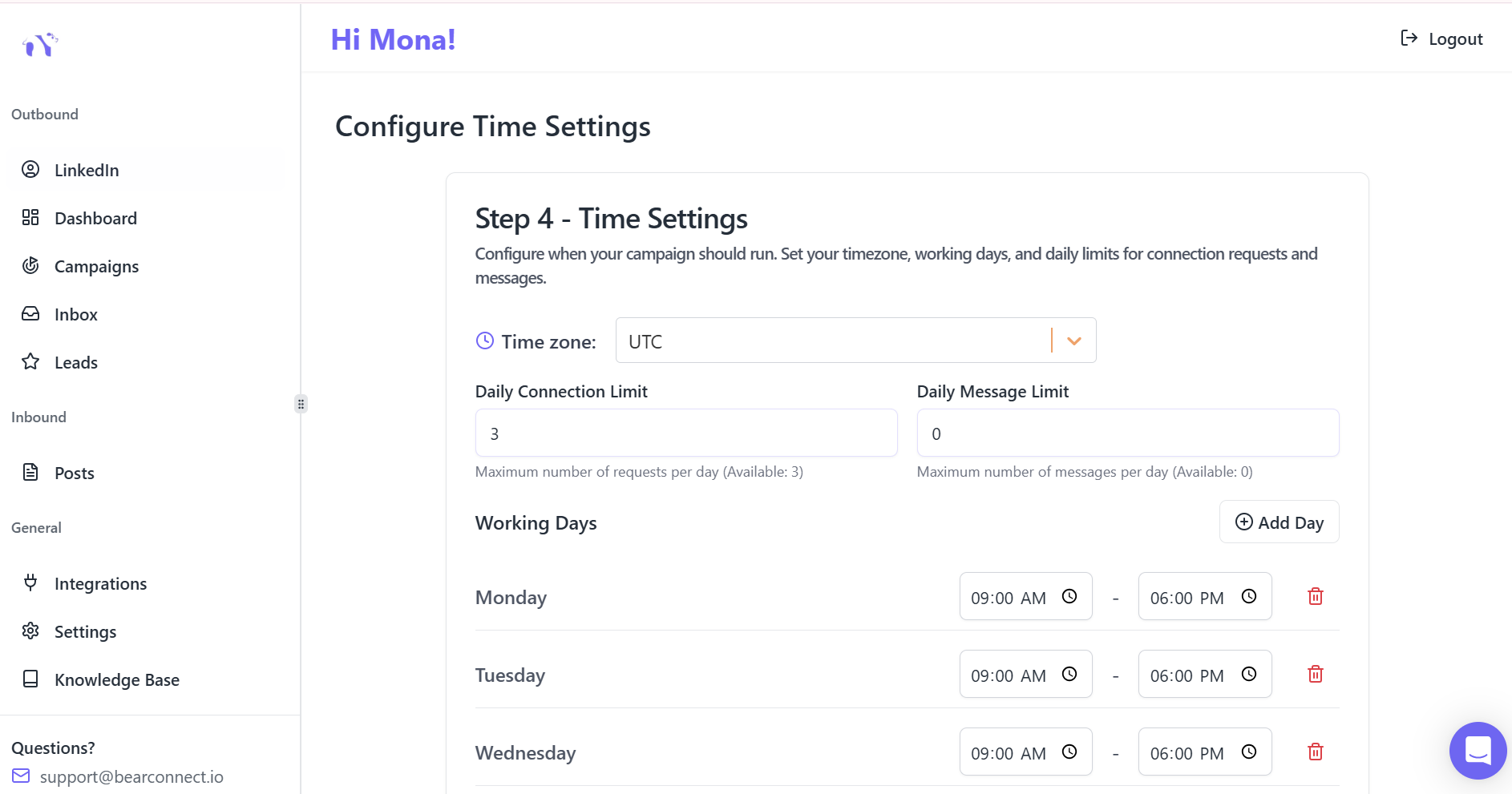
- You set limits and working hours, such as a maximum number of requests per day and only during business hours in your time zone.
- The tool runs the sequence at a human-like pace, with random delays between actions.
- When someone replies, the sequence stops for that person and the conversation lands in your inbox.
Cloud-based vs browser extension tools
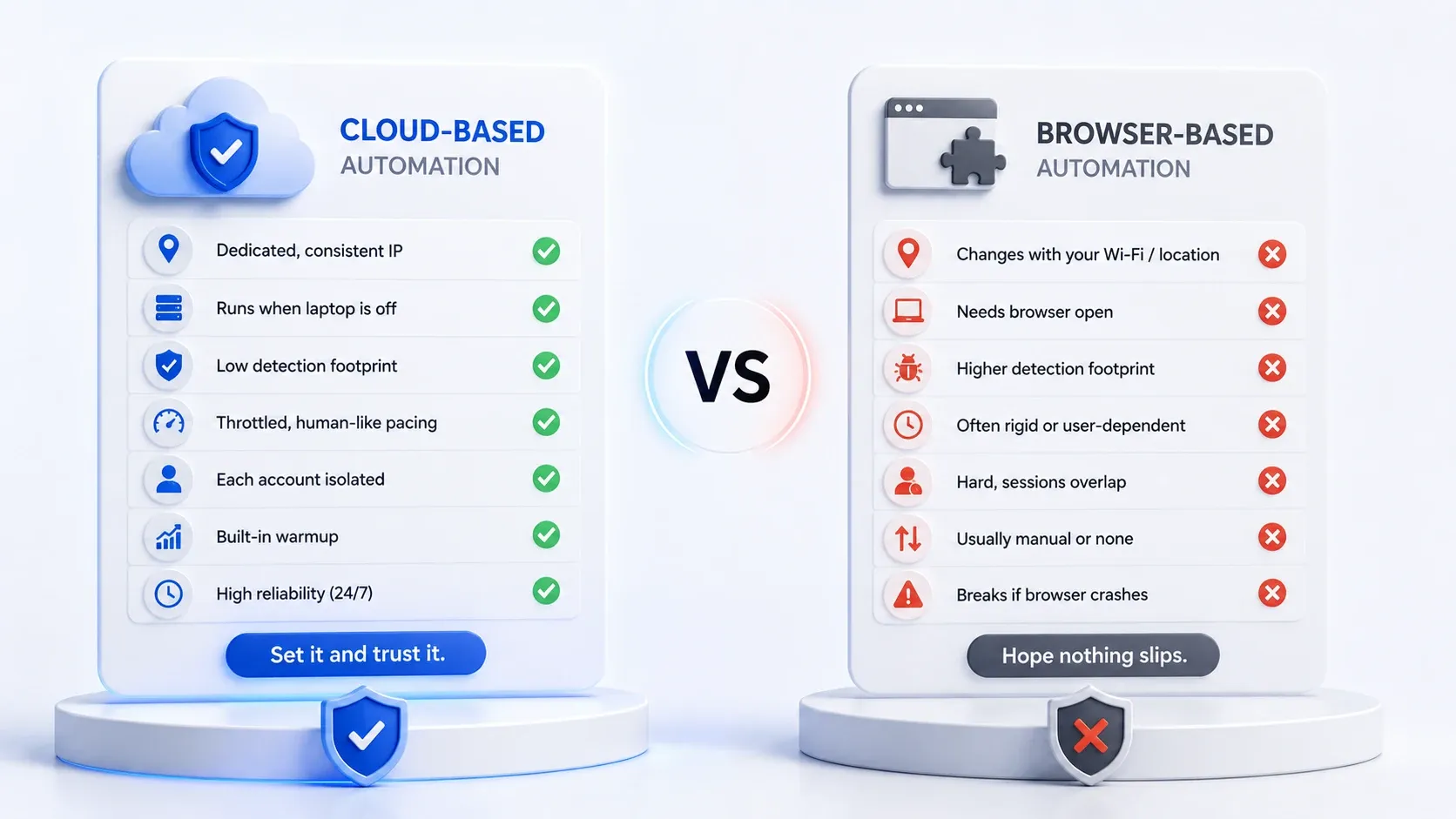
There are two main types of LinkedIn automation tool, and the difference matters for safety.
| Cloud-based tools | Browser extensions / desktop apps | |
|---|---|---|
| Where it runs | On the tool's servers | In your browser or on your computer |
| Does your computer need to stay on? | No | Usually yes |
| IP address | Often a dedicated IP per account, ideally in your country | Your own internet connection |
| Detection risk | Generally lower: nothing is injected into the LinkedIn page | Generally higher: extensions run inside LinkedIn's pages, where they can be detected |
| Multiple accounts | Easy to manage from one dashboard | Usually one account per browser profile |
For more detail, see cloud-based vs browser LinkedIn automation.
Is LinkedIn automation allowed?
Strictly speaking, no. LinkedIn's User Agreement does not allow third-party software or browser extensions that automate activity on LinkedIn, and LinkedIn can restrict accounts it believes are using them. That is the honest answer, and any tool that tells you otherwise is overselling.
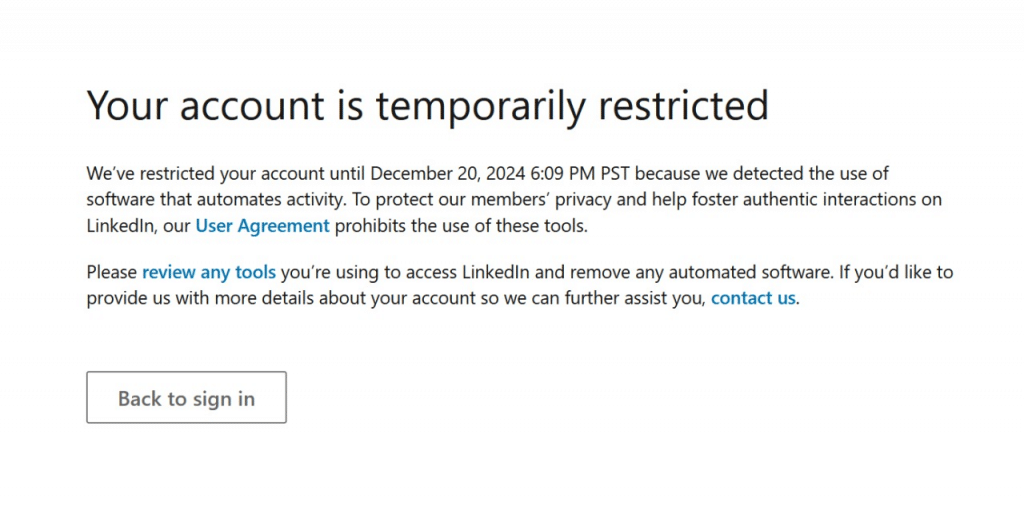
In practice, many sales teams, recruiters and agencies still use automation, and LinkedIn mostly acts on behaviour that looks unnatural: large bursts of activity, very high volumes, identical messages and lots of ignored or reported invitations. Most restrictions are temporary and start with a warning. Read how LinkedIn detects automation and how to avoid LinkedIn jail before you start.
How to keep the risk low
- Warm up new or quiet accounts. Start with a handful of actions a day and increase slowly over two or three weeks.
- Stay well under the limits in the next section, and spread activity through the working day.
- Personalise and target tightly. Relevant requests get accepted; random ones get ignored or reported, and that is what triggers restrictions.
- Withdraw old pending invitations regularly so they don't pile up.
- Use a cloud-based tool with a dedicated IP rather than an extension running inside LinkedIn.
- Complete your profile first. A real photo, a clear headline and an active history make your requests look trustworthy.
LinkedIn limits to stay within
LinkedIn does not publish exact numbers, and limits vary by account age, activity and whether you have Premium or Sales Navigator. The figures below are the ranges most commonly reported and used by automation tools. Treat them as ceilings, not targets.
| Action | Established account | New or warming-up account |
|---|---|---|
| Connection requests | About 100 per week (around 20 per working day) | Start at 5–10 per day and build up over 2–3 weeks |
| Messages to existing connections | Keep to a natural daily pace; avoid sending dozens in a burst | Start low and increase gradually |
| Profile visits | Moderate daily volumes, spread through the day | Start low |
| Pending invitations | Withdraw requests older than 2–3 weeks | Same |
If you get a warning from LinkedIn, pause all automation for a few days, then restart at a lower volume.
What to automate, and what to keep human
| Automate | Keep human |
|---|---|
| Finding and importing leads that match your criteria | Deciding who your ideal customer is |
| Sending connection requests at a steady pace | Writing the message templates and personal touches |
| Follow-up reminders when someone hasn't replied | Replying once someone responds |
| Withdrawing old pending invitations | Handling objections and booking the call |
| Scheduling posts and first comments | Your opinions, stories and expertise in those posts |
| Collecting replies into one inbox | Relationship-building with high-value prospects |
How to choose a LinkedIn automation tool
Ask these questions before you sign up:
- Is it cloud-based? Cloud tools keep working when your laptop is closed and don't run inside LinkedIn's pages.
- Does each account get its own IP? Ideally a dedicated IP in your own country.
- Can you control limits and working hours? You should decide the daily volume, not the tool.
- Does it stop when someone replies? This is essential, and you should be able to see it happen.
- How is it priced? Per seat, per account or with credits? Credit systems and add-ons can make the real monthly cost much higher than the advertised price.
- Do you manage more than one account? If so, look for a unified inbox and a single dashboard for all accounts.
- Does it connect to your CRM? HubSpot, Pipedrive, or a connector like Zapier, Make or n8n.
- Do you also need content? Some tools also write and schedule posts, so you don't need a second tool.
LinkedIn automation tools compared
Here is how some of the best-known tools compare on the basics. Full disclosure: Bearconnect is our product. Prices are starting prices per LinkedIn account or seat at the time of writing; check each vendor's pricing page before you buy.
| Tool | Type | Starting price | Best for |
|---|---|---|---|
| Bearconnect | Cloud | $67/month per account ($56 billed annually); $57 per account at 5+ accounts | Outreach plus AI content and scheduling in one tool; teams and agencies running several accounts |
| Dripify | Cloud | $79/month per seat ($59 billed annually); email-finder credits extra | Simple drip sequences for a single account |
| HeyReach | Cloud | $79/month per seat; lower per seat at higher volumes | Agencies sending at high volume across many accounts |
| Expandi | Cloud | $99/month per seat | Advanced conditional sequences |
| Linked Helper | Desktop app | From $15/month | Budget users comfortable running software on their own computer |
For a longer list, see our safe LinkedIn automation tools comparison.
Where Bearconnect fits
Bearconnect is a cloud-based LinkedIn automation tool that combines outreach and content in one place:
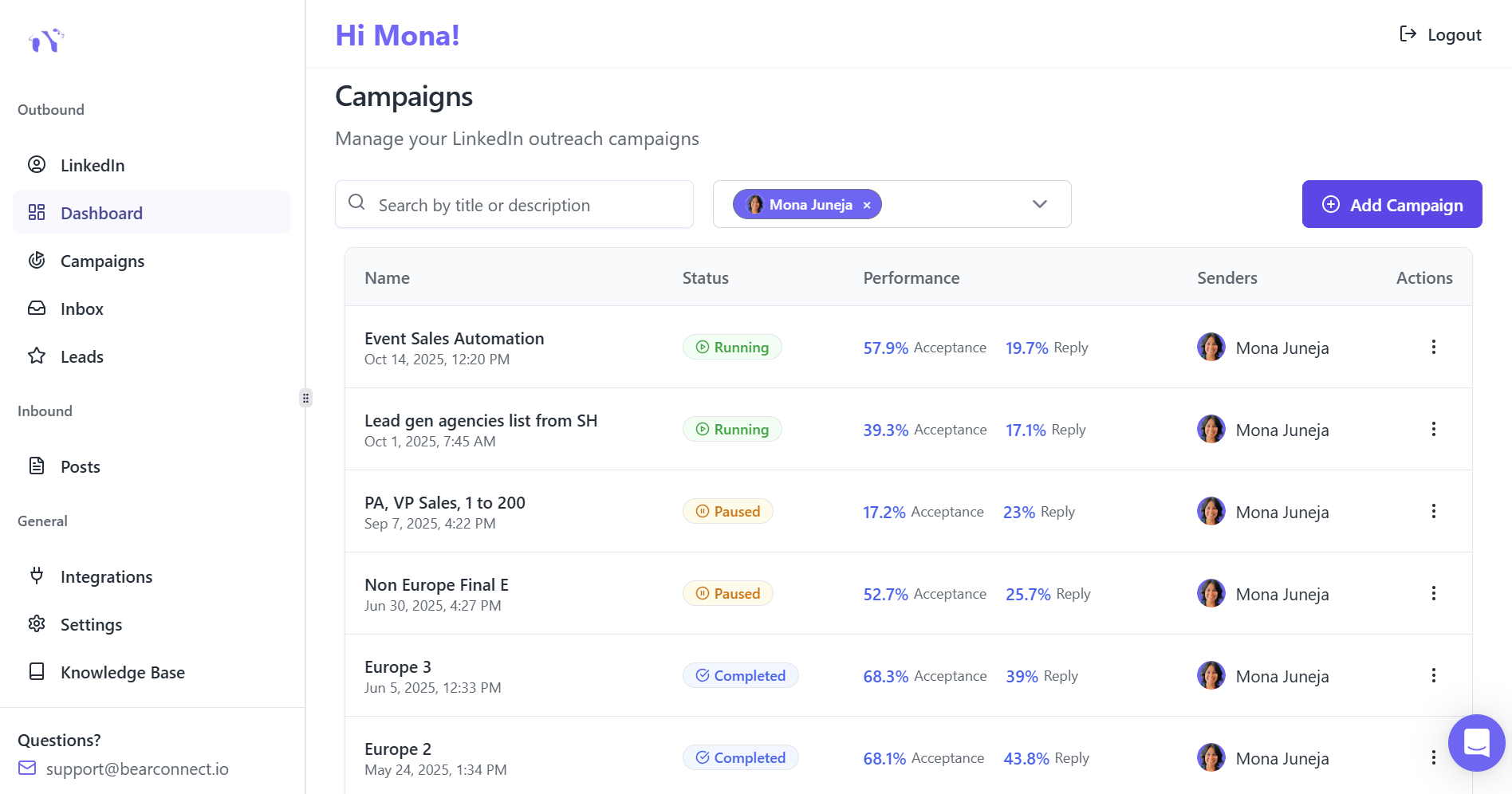
- Account safety: a dedicated country-based IP per account, automatic profile warm-up and human-like pacing with smart limits.
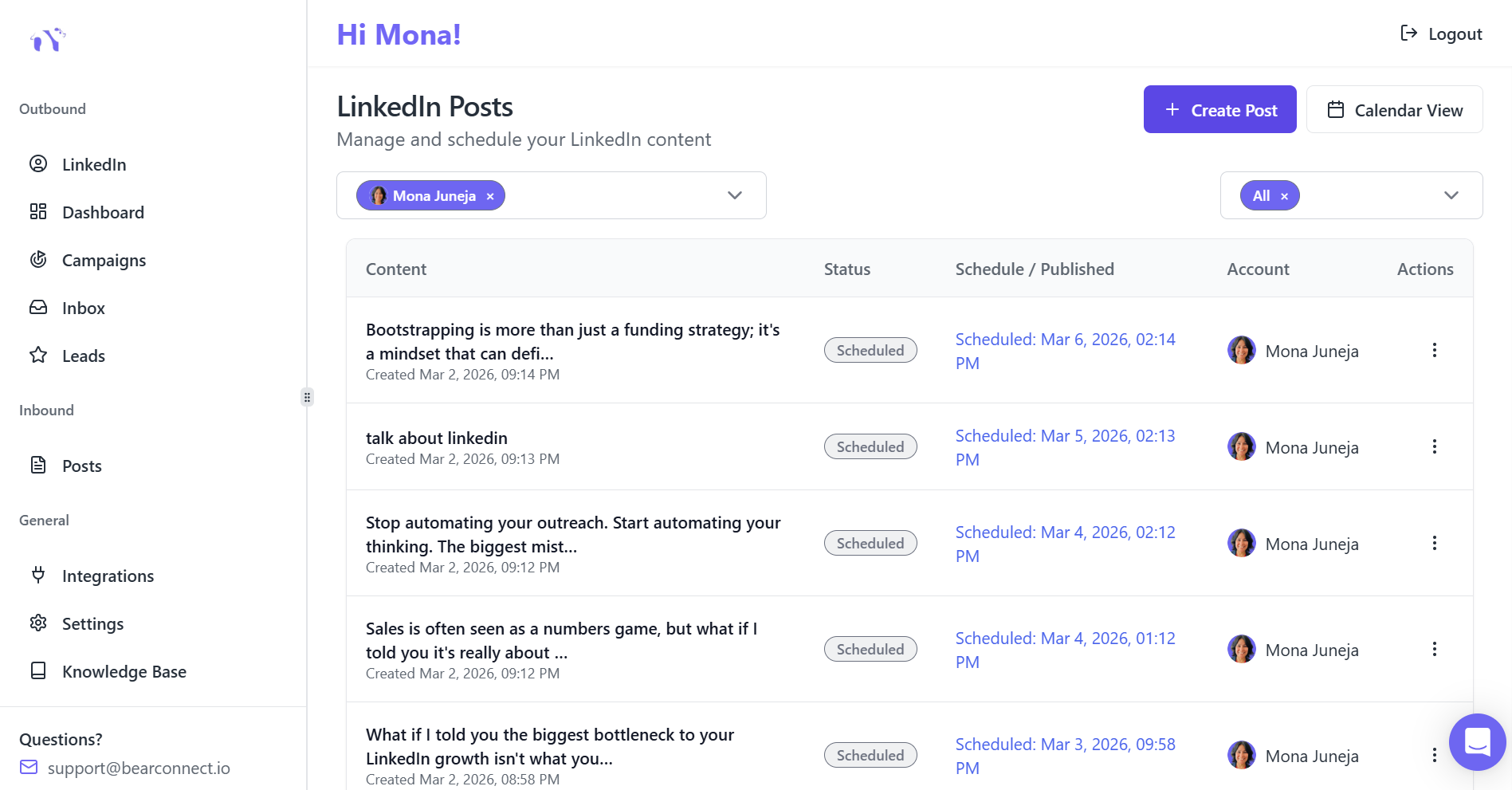
- Outreach: unlimited campaigns with connection requests, messages and follow-ups, and a centralized inbox for all your accounts.
- Content: AI post writing in your own voice, post scheduling and Post Magnet to auto-reply to comments.
- Teams: workspaces, roles and permissions, and unlimited team members.
- Integrations: HubSpot, Pipedrive, Zapier, Make, n8n and webhooks.
- Pricing: flat per-account pricing with no credit system, and a 7-day free trial.
How to set up your first LinkedIn automation campaign
- Optimise your profile. Clear photo, a headline that says who you help, and a short About section. People check your profile before accepting. See LinkedIn profile optimization before automation.
- Define one narrow audience. For example "Heads of Sales at 50–200 person SaaS companies in the UK", not "B2B decision-makers".
- Build your lead list from a LinkedIn or Sales Navigator search, a CSV, or people who engaged with a relevant post.
- Write a short connection note, or send none. A relevant one-line reason to connect beats a sales pitch. Our connection request templates can help.
- Write 2–3 follow-ups spaced a few days apart. Lead with something useful, not a meeting request.
- Set conservative limits and working hours, especially for the first two weeks.
- Launch, then check your inbox daily. Reply quickly and personally once people respond.
Common mistakes to avoid
- Going too fast. High daily volumes on day one are the quickest route to a restriction.
- Pitching in the connection request. It lowers acceptance and gets requests ignored.
- Using one generic message for everyone. Split your audience and write for each segment.
- No follow-up. Many replies come from the second or third message.
- Set and forget. Review acceptance and reply rates every week and adjust your targeting and messages.
- Letting pending invitations pile up. Withdraw old ones regularly.
How to measure results
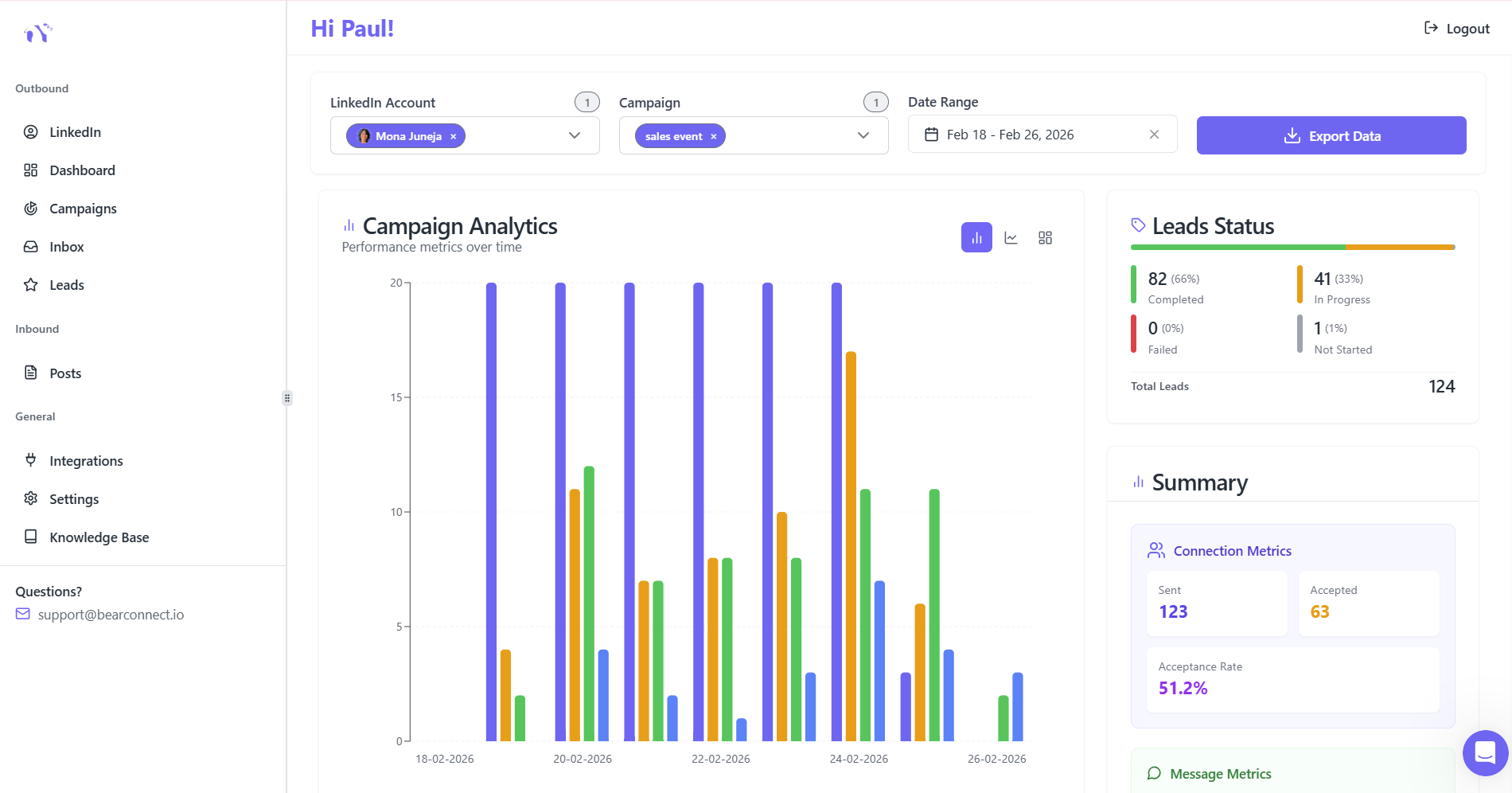
Track these numbers for each campaign, weekly:
- Acceptance rate: connection requests accepted ÷ requests sent. A low rate usually means poor targeting or a weak profile.
- Reply rate: replies ÷ accepted connections. A low rate usually means the messages need work.
- Positive reply rate: replies showing interest ÷ all replies.
- Meetings booked and, eventually, pipeline and revenue from the campaign.
LinkedIn automation glossary
- Sequence (or drip campaign): a series of automated steps, such as visit, connect, message and follow-up, sent over days or weeks.
- Warm-up: gradually increasing activity on a new or inactive account so it builds a natural history.
- Dedicated IP: an internet address used only by your account, ideally in your country, so activity looks consistent.
- Unified inbox: one inbox showing LinkedIn conversations from several accounts.
- Personalisation variables: placeholders like {first name} or {company} filled in automatically for each person.
- Pending invitations: connection requests that haven't been accepted or declined yet.
- Social Selling Index (SSI): LinkedIn's score for how actively you build your brand and network.
- Sales Navigator: LinkedIn's paid prospecting tool with advanced search filters, often used as a lead source.
Frequently asked questions
Is LinkedIn automation allowed?
LinkedIn's User Agreement does not allow third-party tools that automate activity on the site, so there is always some risk. Many professionals use automation anyway; the risk is lowest with cloud-based tools, slow and human-like activity, and well-targeted, personalised outreach.
Will LinkedIn ban my account for using automation?
It can happen, but LinkedIn usually starts with a warning or a temporary restriction when it sees unusual activity. Staying under the limits, warming up new accounts and avoiding mass, generic messages keeps the risk low.
How many connection requests can I send per day?
LinkedIn doesn't publish an exact limit. Around 100 requests per week, roughly 20 per working day, is the commonly reported ceiling for established accounts. New accounts should start at 5–10 a day.
How much does LinkedIn automation cost?
Most cloud-based tools cost between about $60 and $100 per LinkedIn account per month. Watch for credit systems and add-ons that raise the real price. Bearconnect is $67 per account per month ($56 billed annually), with no credits.
Do I need Sales Navigator to use LinkedIn automation?
No. Most tools work with a regular LinkedIn account and LinkedIn search. Sales Navigator gives you better filters for building lead lists, but it isn't required.
Can I automate LinkedIn posts too?
Yes. Many tools can schedule posts, and some, including Bearconnect, can also draft posts with AI in your own voice and auto-reply to comments.
Try LinkedIn automation safely
Start small, target tightly and keep the conversations human. Bearconnect gives you cloud-based outreach with a dedicated IP per account, a unified inbox and AI content tools in one place. Start your 7-day free trial.
Ready to Transform Your LinkedIn Strategy?
Join thousands of professionals already using Bearconnect to automate their outreach and grow their network.
7-day free trial • Cancel anytime
Related Articles
How to Remove a Connection on LinkedIn (Do They Get Notified?)
Removing a LinkedIn connection takes a few clicks, but most people want to know one thing first: does the other person get notified? This guide covers the steps on desktop and mobile, and what changes afterward.
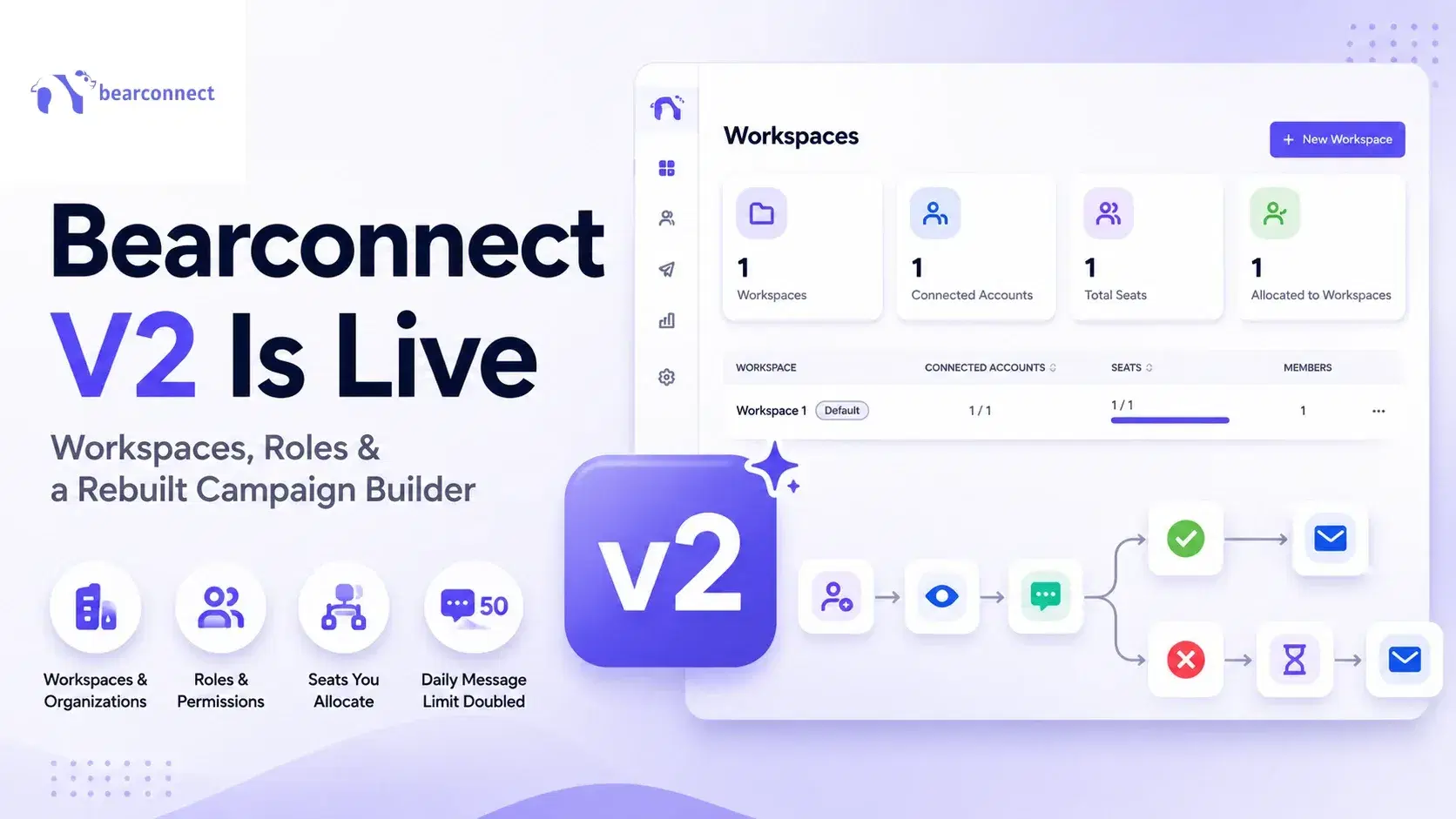
Bearconnect V2 Is Live: Workspaces, Roles and a Rebuilt Campaign Builder
Bearconnect V2 introduces dedicated workspaces, flexible roles, and a rebuilt campaign builder, giving agencies and sales teams more control over every LinkedIn account they manage.
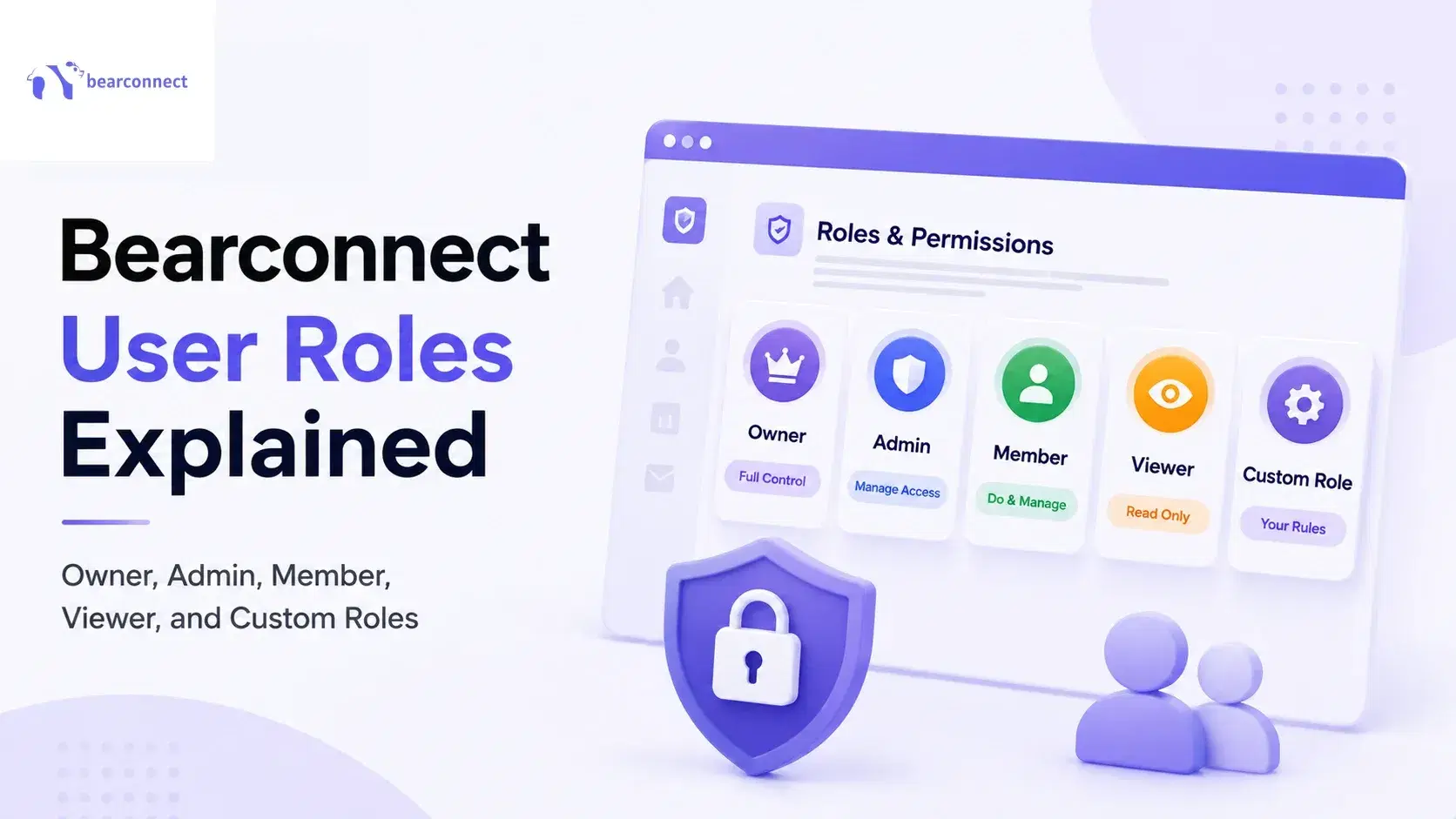
Bearconnect User Roles Explained: Owner, Admin, Member, Viewer, and custom roles
Bearconnect gives you four built-in roles, Owner, Admin, Member and Viewer, plus custom roles you build yourself. This guide breaks down exactly what each role can access,