How to Connect HubSpot With a LinkedIn Automation Tool to Build a Multi-Touch Outbound Journey
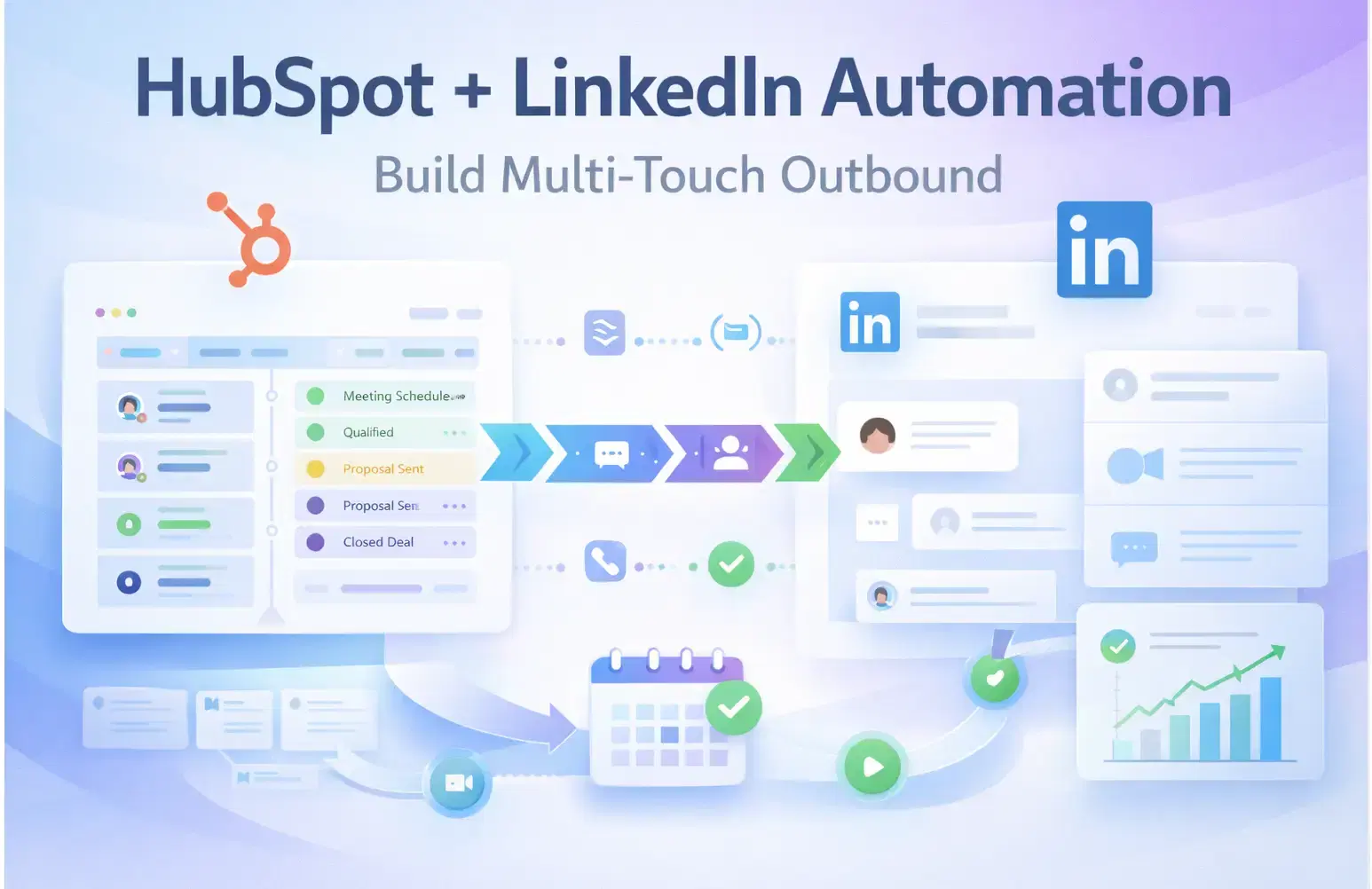
You can connect HubSpot with a LinkedIn automation tool like Bearconnect to build a fully tracked multi-touch outbound journey where every LinkedIn connection, DM reply, and conversation update flows directly into your CRM without manual data entry.
Bearconnect's HubSpot integration creates a live data bridge between both platforms so your pipeline always reflects what is actually happening on LinkedIn.
TL;DR
- Most HubSpot users run LinkedIn outreach completely disconnected from their CRM; leads reply on LinkedIn but never appear in HubSpot.
- Bearconnect's HubSpot integration syncs LinkedIn leads and conversation data into HubSpot automatically, creating contacts and updating deal properties based on campaign outcomes.
- A multi-touch outbound journey covers 5 key touches: connection request, warm DM, value drop, reply trigger, and HubSpot-driven follow-up email.
- You can set this entire workflow up in under an hour with no code required.
- Bearconnect is priced at $67/month per LinkedIn account, dropping to $57/month when you connect 5 or more accounts.
Why Your HubSpot + LinkedIn Stack Has a Costly Data Gap
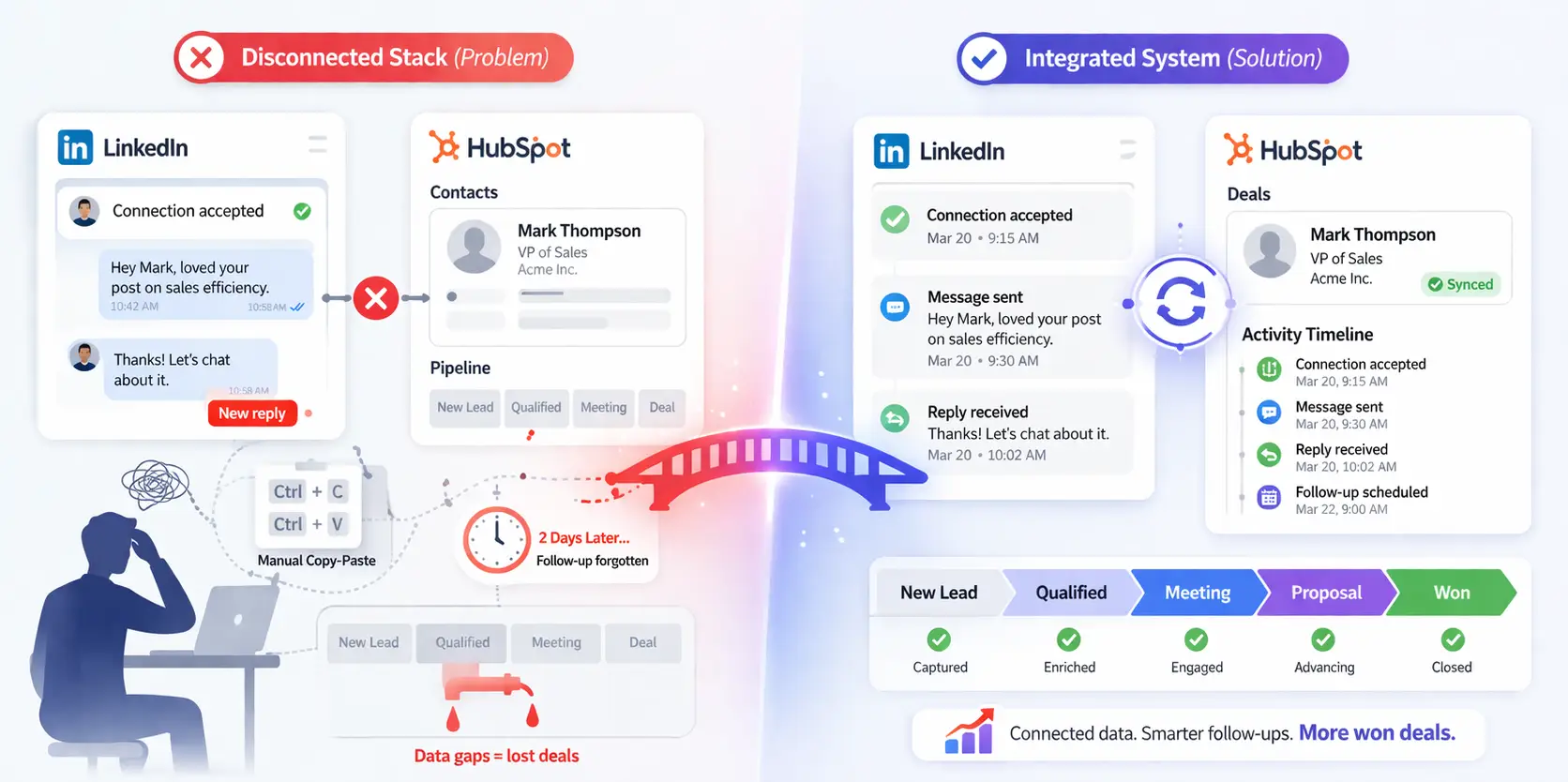
Running LinkedIn outreach without HubSpot sync means your pipeline data is incomplete, and your follow-ups are unreliable.
If you are already working on how to generate LinkedIn leads at volume, the data gap becomes even more expensive. Leads come in faster than you can manually log them.
Here is what typically happens in a disconnected stack:
- A prospect accepts your connection request on LinkedIn.
- You send a DM sequence manually or through a tool that does not talk to HubSpot.
- They reply. You copy their name into HubSpot manually.
- Two days pass. You forget to follow up.
- The deal never moves.
This is not a discipline problem. It is a systems problem. When LinkedIn activity and HubSpot live on separate islands, every gap between them costs you pipeline.
The fix is a direct integration that treats every LinkedIn touchpoint as a CRM event.
What a Multi-Touch Outbound Journey Actually Looks Like
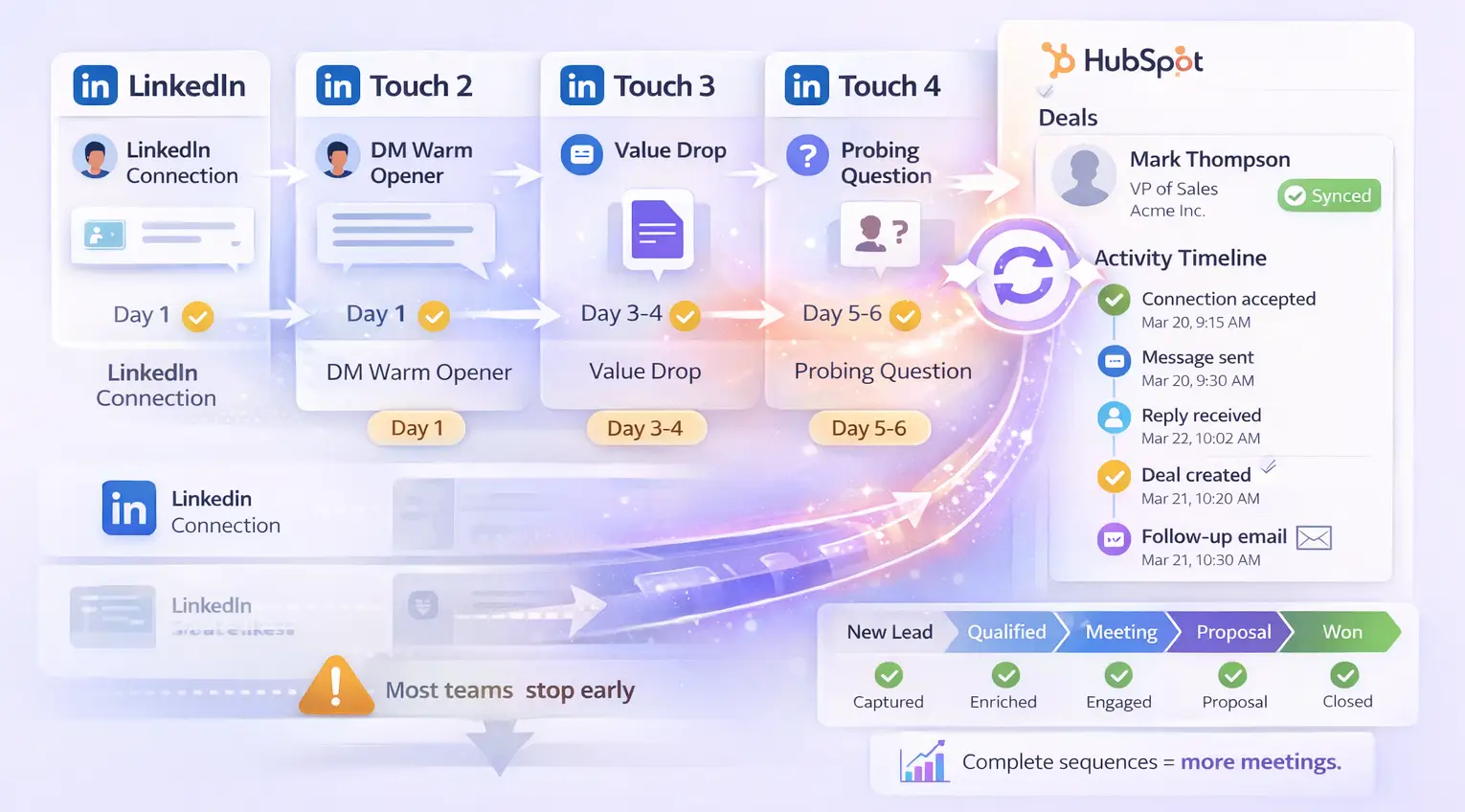
A multi-touch outbound journey is a sequence of coordinated contacts across multiple channels where each touch builds on the previous one and gets logged in your CRM.
For a deeper look at the outreach side of this system, the guide on LinkedIn outreach automation for B2B sales covers how to structure campaigns before you plug them into HubSpot.
For a HubSpot user running LinkedIn outreach, a clean multi-touch journey looks like this:
- Touch 1: LinkedIn connection request with a personalized note.
- Touch 2: DM warm opener within 24 hours of acceptance.
- Touch 3: Value drop message on Day 3-4 with a relevant resource.
- Touch 4: Soft probing question on Day 5-6 to trigger a reply.
- Touch 5: Reply triggers a deal creation in HubSpot and launches an email follow-up sequence.
Most teams only run Touches 1 and 2 before dropping the ball. The ones who consistently book meetings run all 5 in a connected system where HubSpot always knows what happened on LinkedIn.
How to Connect HubSpot With Bearconnect (Step-by-Step Setup)
Setting up the Bearconnect and HubSpot integration takes under 60 minutes and requires no developer.
Step 1: Connect Your LinkedIn Account in Bearconnect
- Log into your Bearconnect dashboard.
- Go to Accounts and connect your LinkedIn profile.
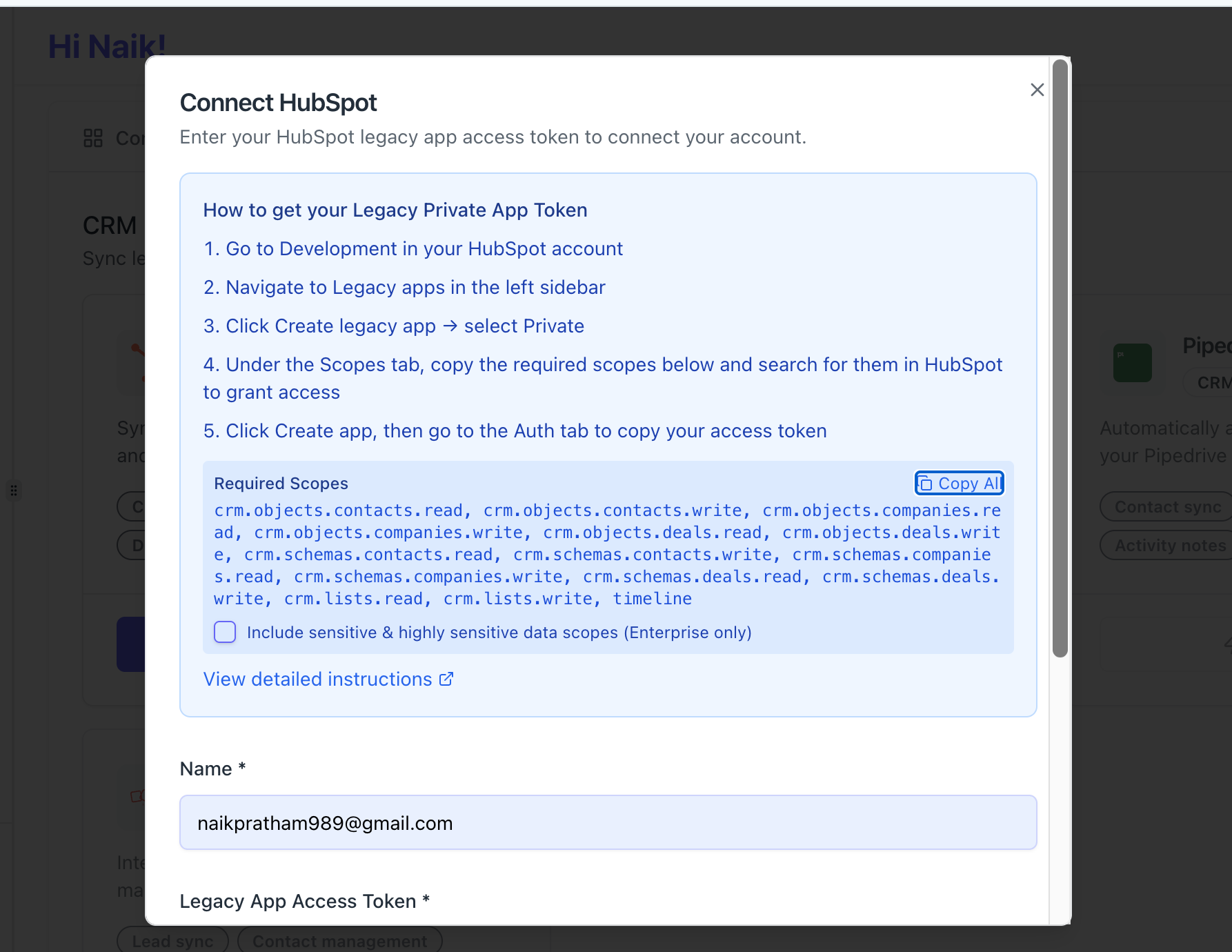
- Bearconnect uses local IPs and behavior mimicry to keep your account safe during this process.
- If you manage multiple LinkedIn profiles, connect all of them. Bearconnect supports unlimited LinkedIn accounts under one seat.
Step 2: Enable the HubSpot Integration
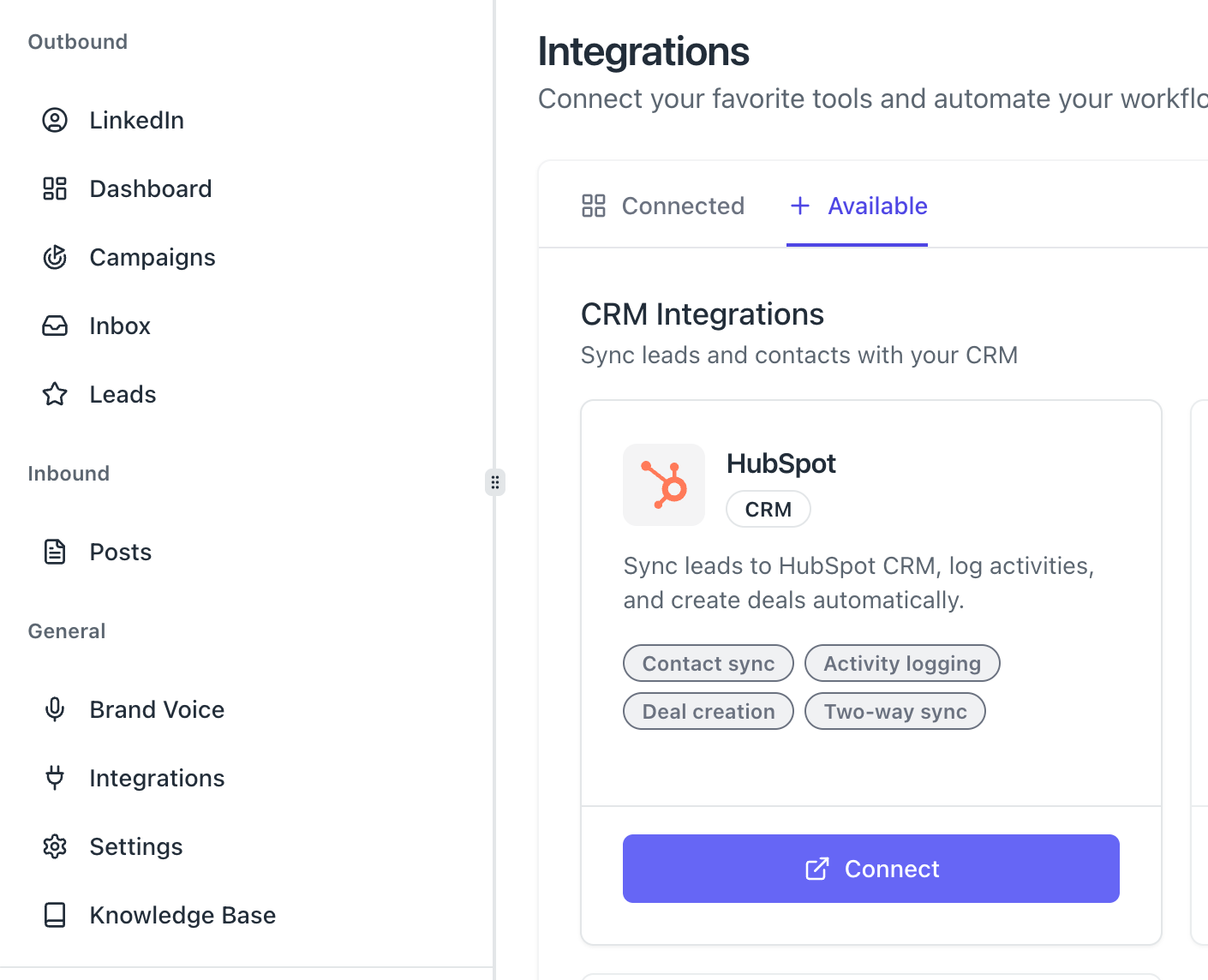
- Navigate to Integrations inside your Bearconnect dashboard.
- Select HubSpot from the integrations list.
- Click Connect and authorize Bearconnect to access your HubSpot workspace.
- This creates a live data bridge between the two platforms.
Step 3: Map Your Lead Fields
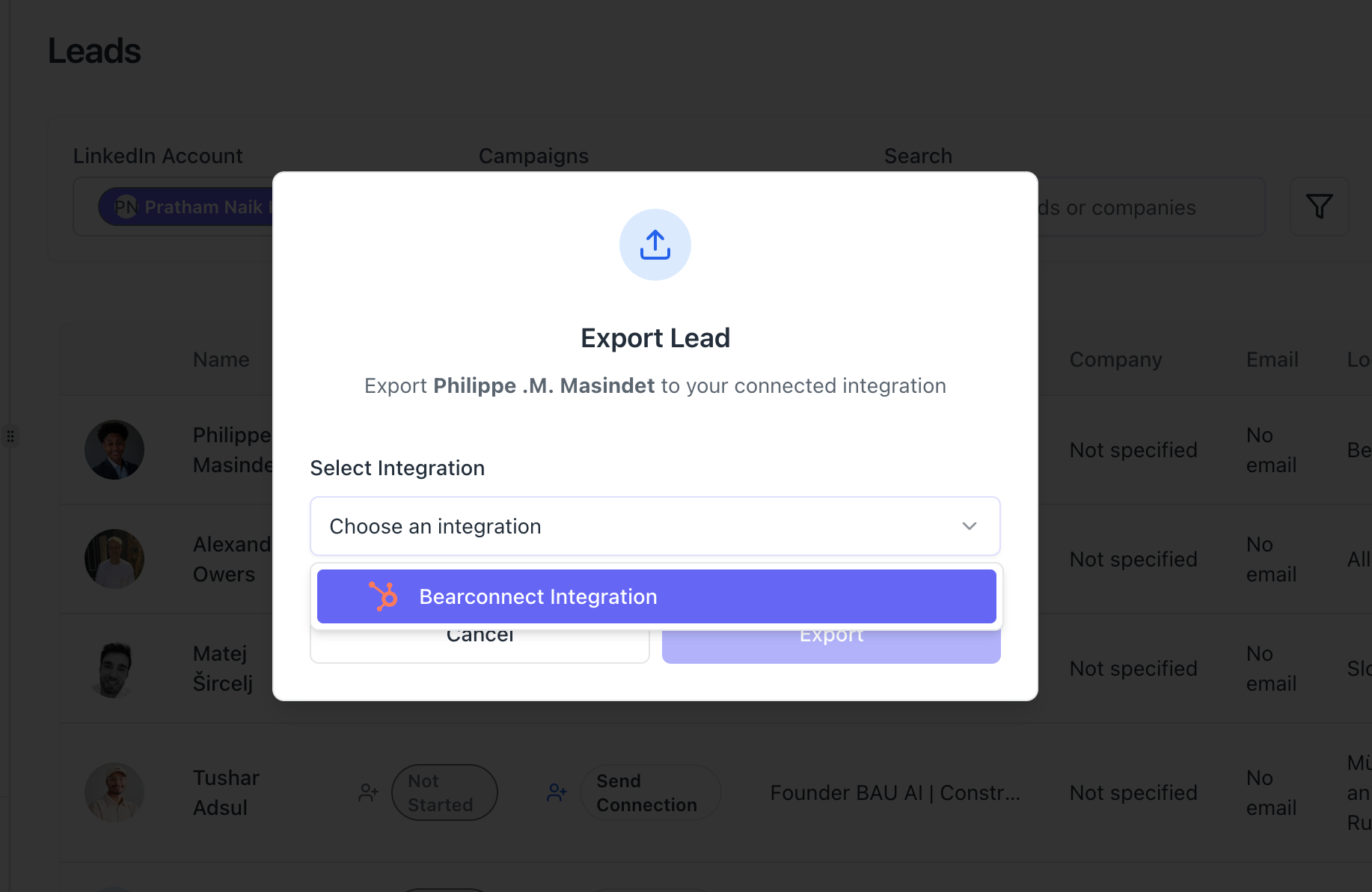
- After connecting, Bearconnect prompts you to map LinkedIn lead data to HubSpot contact fields.
- Standard mappings include: First Name, Last Name, Company, Job Title, LinkedIn Profile URL.
- Add any custom HubSpot properties you use for lead segmentation or deal stage tracking.
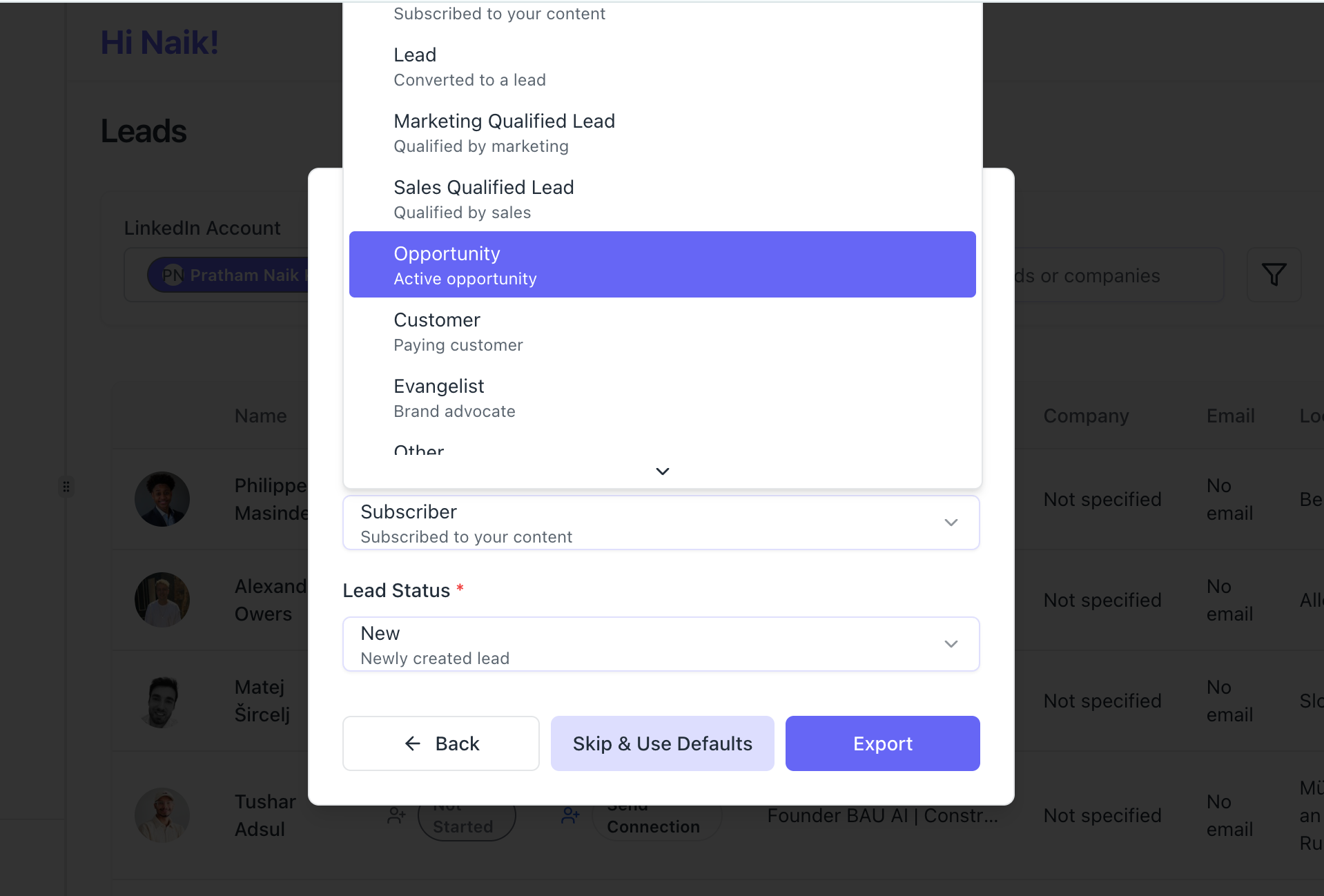
- Save your field mapping. Every lead Bearconnect imports or engages will now create or update a matching contact in HubSpot.
Step 4: Build Your Drip Sequence in Bearconnect
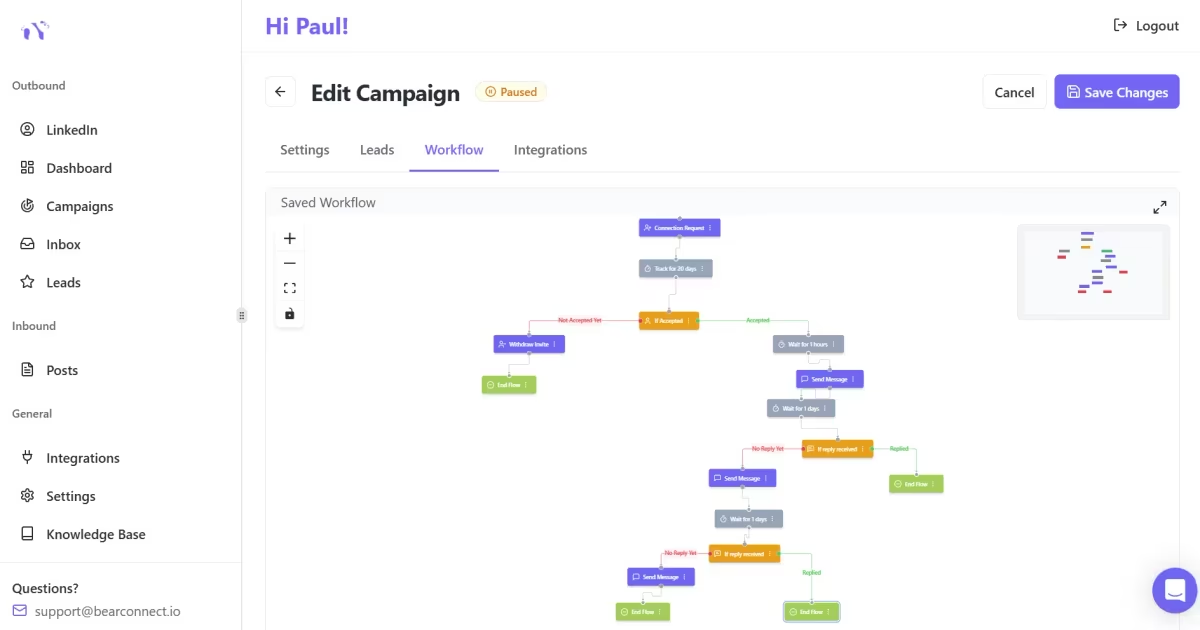
- Go to Campaigns and create a new outreach campaign.
- Use the drip sequence builder to set up your 5-touch message flow with smart delays between each step.
- Pull leads directly from a LinkedIn search URL or Sales Navigator using Bearconnect's import data feature.
- Add personalization tokens so each message pulls in the prospect's name, company, and job title automatically.
- Set reply detection so that when a prospect replies, the sequence pauses and the trigger fires to HubSpot.
Pro Tip: Build your drip sequence once. Bearconnect runs it for every new lead you import, at the right time, with no manual input from you.
The 5-Touch Outbound Journey: LinkedIn + HubSpot Running as One System
Each touch in this journey has a specific job. None of them overlap. Together, they move a cold LinkedIn prospect to a tracked, active deal in HubSpot.
Touch 1: Connection Request (Day 0)
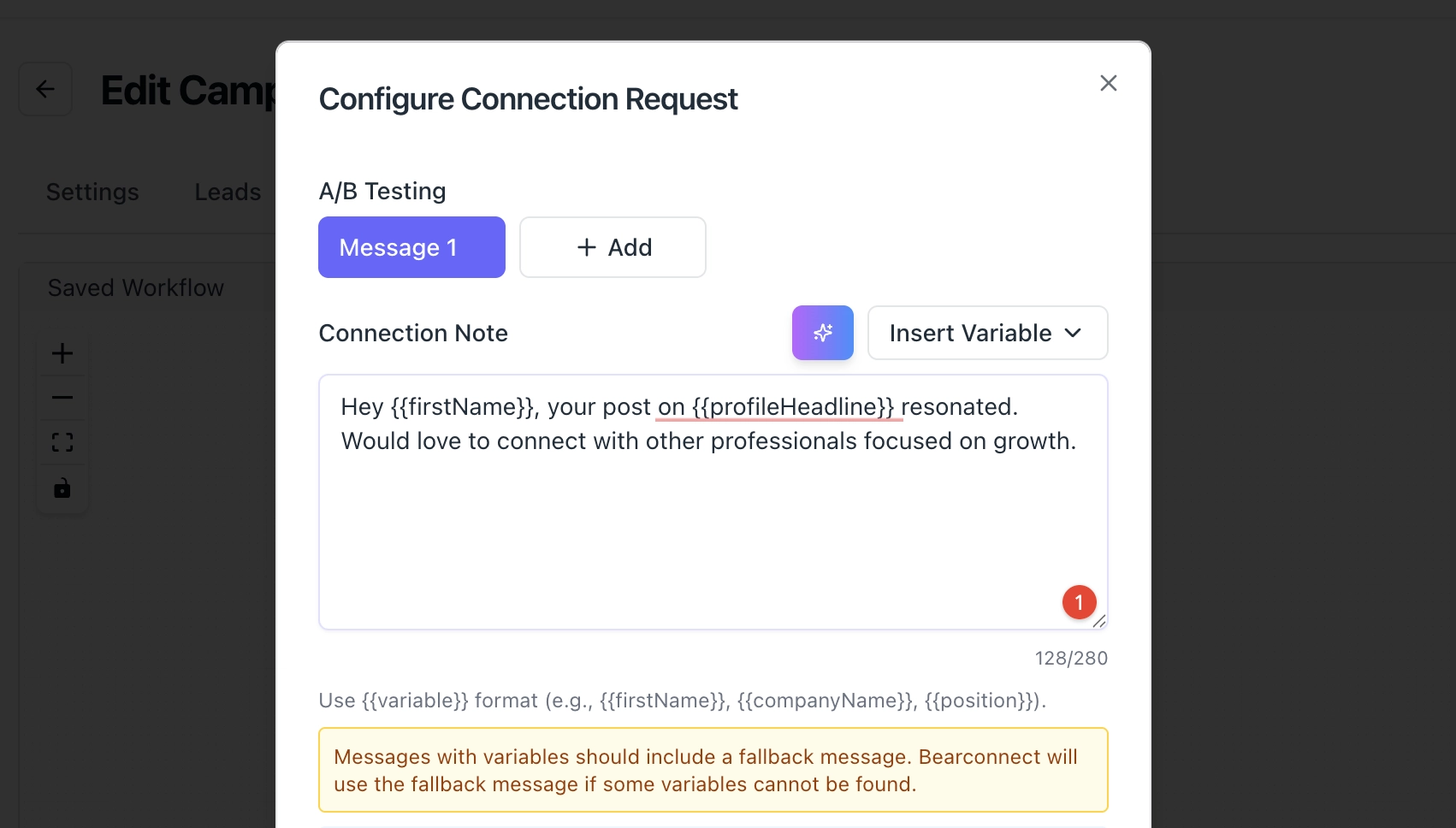
Goal: Get accepted. Nothing else.
- Send a short, personalized connection request note that does not get ignored - keep it under 300 characters.
- Reference their role, a recent post, or a shared industry context.
- Bearconnect sends this automatically to your filtered target audience from a LinkedIn search URL or Sales Navigator import.
- Accepted connections get added as contacts in HubSpot immediately after acceptance.
Example note:
"Hey [Name], came across your work at [Company]. Would love to connect with other [role] focused on [outcome]."
Touch 2: Warm Opener (Day 1)
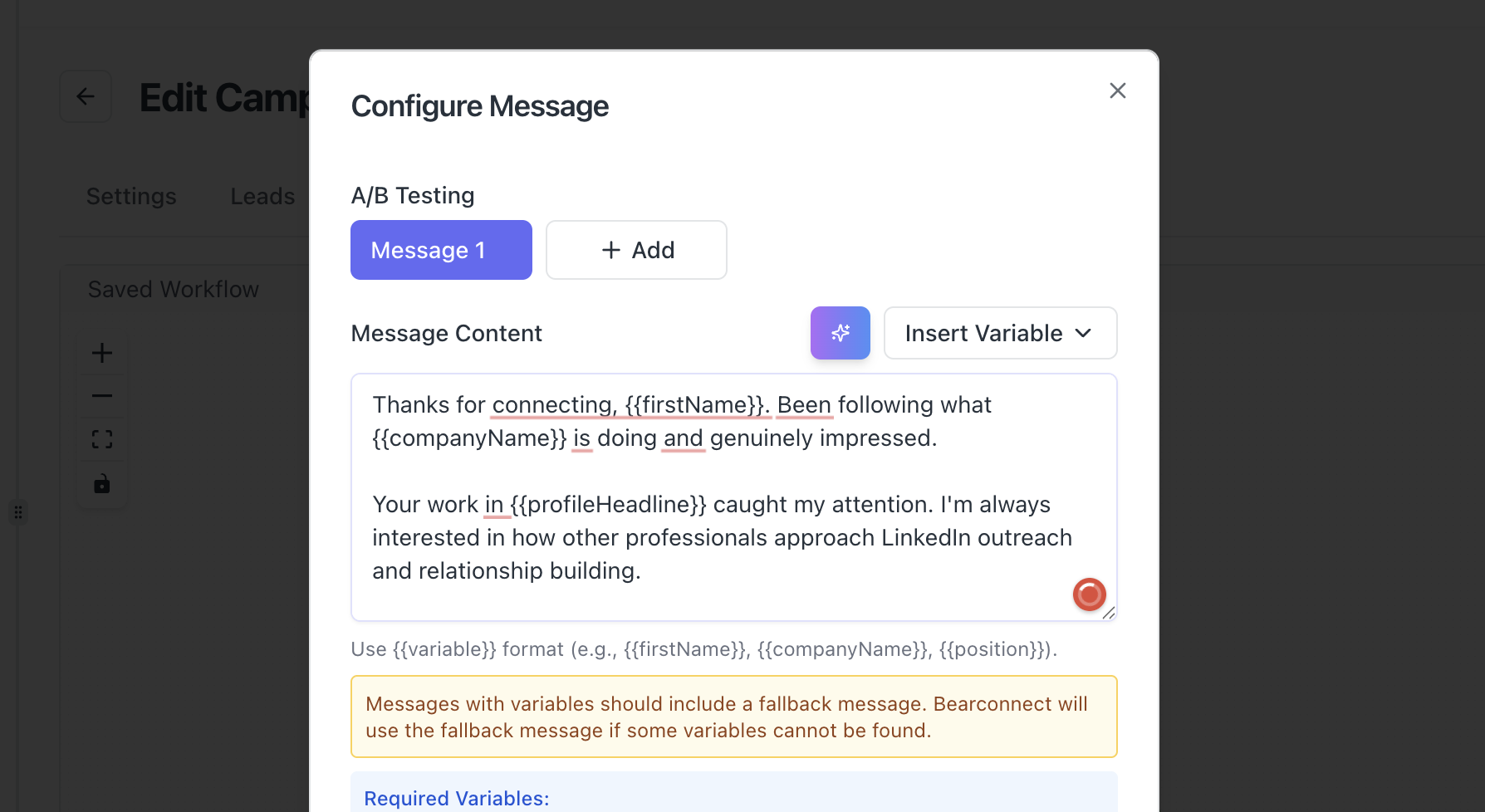
Goal: Start a real conversation, not pitch.
- Send within 24 hours of acceptance while your name is still fresh.
- Keep it under 4 lines. Focus entirely on them.
- Bearconnect fires this automatically once the connection request is accepted.
Example:
"Thanks for connecting, [Name]. Been following what [Company] is doing and genuinely impressed. Hope this connection is useful both ways."
Touch 3: Value Drop (Day 3-4)
Goal: Give something useful before asking for anything.
- Share a relevant resource, a short insight, or a mini framework tied to their industry.
- Need help writing these? The guide on personalized outreach messages covers exactly how to make each message feel 1:1 even at scale.
- Offer it as a question, not a direct attachment. Let them ask for it.
- That reply is a micro-commitment that signals buying intent.
Pro Tip: When a prospect replies to Touch 3 asking for your resource, manually mark them as "Engaged" in HubSpot. This signals to your sales team that this contact is warm and worth a personal follow-up.
Touch 4: Soft Probing Question (Day 5-6)
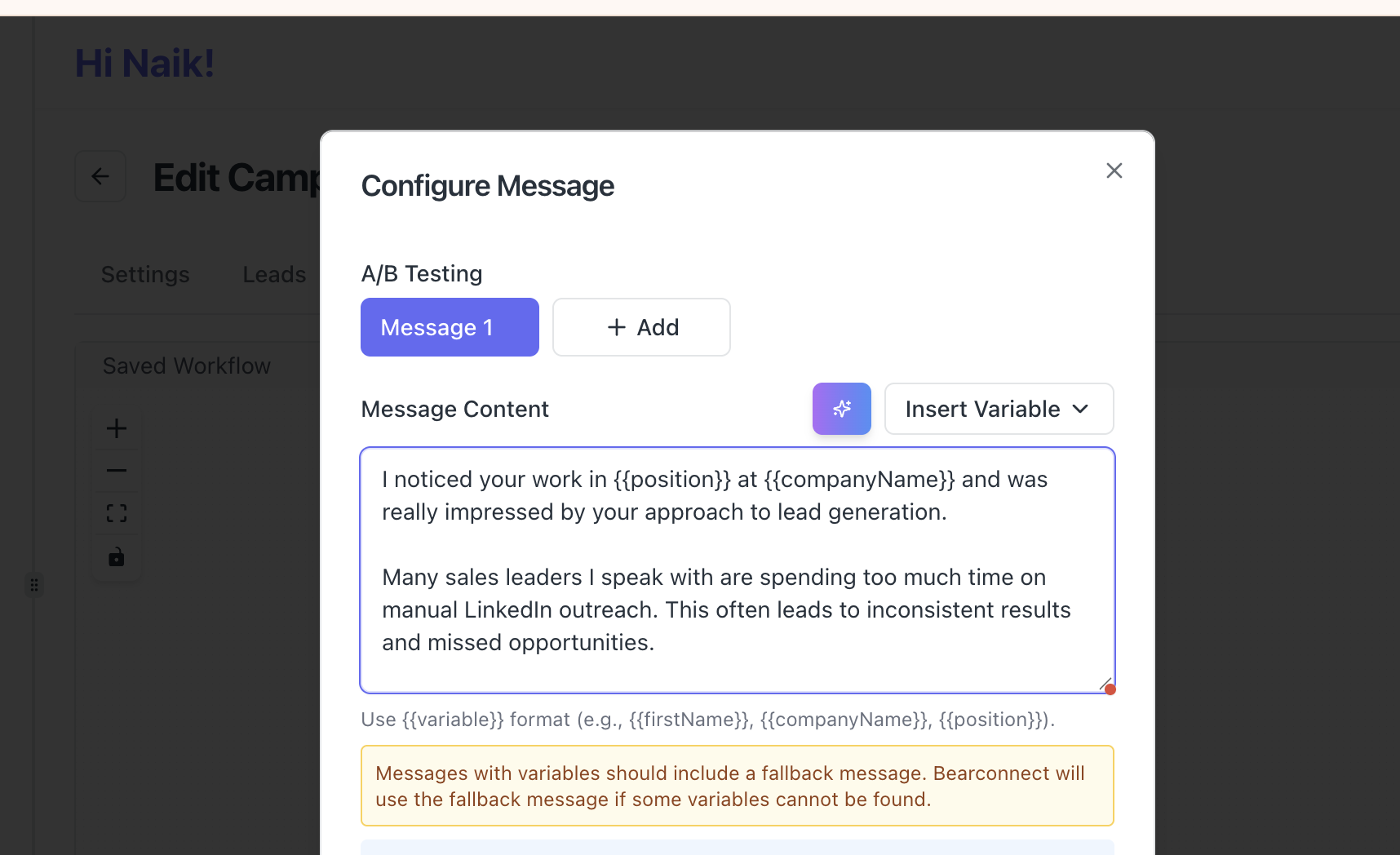
Goal: Qualify the prospect without it feeling like a qualification call.
- One-line question directly tied to the pain point your offer solves.
- Make it feel like genuine curiosity, not a form.
Example:
"Quick question, [Name]: are you managing LinkedIn outreach manually right now, or do you have a system in place for it?"
- When they reply, Bearconnect detects the response and pauses the automated sequence.
- This reply event triggers a webhook to HubSpot, which moves the contact to your "Replied" deal stage automatically.
Touch 5: HubSpot-Driven Follow-Up (Day 7-9)
Goal: Close the loop with a direct, trackable call ask.
- A HubSpot workflow fires an email sequence to the contact once the deal stage updates to "Replied."
- The email picks up where the LinkedIn DM left off.
- It references the LinkedIn conversation and offers a specific, low-friction meeting slot.
Example email subject line: "Following up from LinkedIn, [Name]"
Example body:
"Hey [Name], we were chatting over LinkedIn about your outreach setup. Wanted to send this over with a bit more context. Would a 20-minute call this week make sense? Happy to share what is working for teams in your space."
This is where the full multi-touch journey pays off. The prospect has seen your name 4 times across two channels before you ever ask for a meeting.
What Gets Synced From Bearconnect to HubSpot
Understanding the exact data flow removes the guesswork from your CRM setup. All of this runs through Bearconnect's import data feature and the native HubSpot connector.
| Bearconnect Event | HubSpot Action |
|---|---|
| Connection request accepted | New contact created in HubSpot |
| First DM sent | Activity logged on contact record |
| Prospect replies to DM | Contact moved to "Replied" deal stage |
| Lead imported via LinkedIn search | Contact created with mapped fields |
| Campaign completed with no reply | Contact tagged for email re-engagement |
| Lead data from Sales Navigator | Contact enriched with job title and company |
Pro Tip: Use HubSpot's custom properties to add a "LinkedIn Campaign Source" field. Map this to Bearconnect's campaign name so you always know which sequence generated each contact.
How to Measure the Performance of This Journey
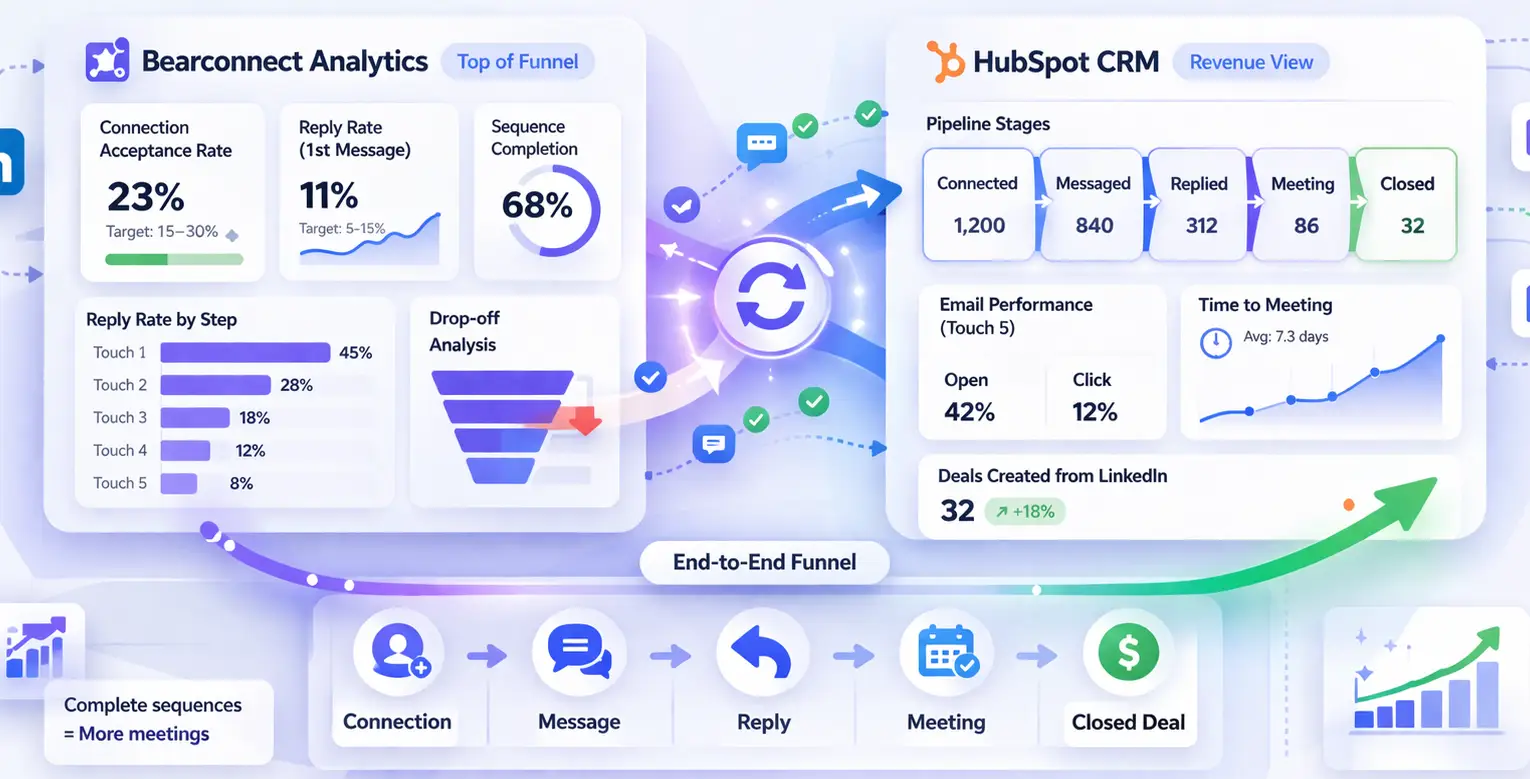
You can track every stage of this outbound journey from two dashboards simultaneously.
Bearconnect's analytics dashboard gives you LinkedIn-specific funnel data, while HubSpot gives you the revenue-level view. Together they show you the full picture from cold prospect to closed deal.
In Bearconnect, track:
- Connection acceptance rate by campaign (benchmark: 15 to 30 percent)
- Reply rate per message step (benchmark: 5 to 15 percent on first message)
- Sequence completion rate: how many leads completed all 5 touches
- Drop-off point: which step loses the most prospects
In HubSpot, track:
- Total contacts created from LinkedIn campaigns
- Contacts by deal stage: Connected, Messaged, Replied, Meeting Booked
- Email open and click rates on Touch 5 follow-up sequence
- Time from first LinkedIn touch to meeting booked
When both dashboards connect, you see the full funnel from cold LinkedIn connection to closed deal, with no data gaps between them.
Real Scenario: A SaaS Sales Team Running This Stack
A 4-person SDR team at a B2B SaaS company runs this exact workflow.
Each SDR connects their LinkedIn account to Bearconnect. All 4 accounts run under one Bearconnect workspace at $57/month per account (5 or more account discount applies).
Read the dedicated guide on how LinkedIn automation helps SDRs book more meetings.
- Week 1: Each SDR imports 200 targeted prospects via LinkedIn search URL.
- Bearconnect auto-sends connection requests to all 200.
- Acceptance rate: 22 percent (44 accepted connections per SDR per week).
- Warm opener and value drop fire automatically on Days 1 and 3.
- Probing question on Day 5-6 generates replies from 8 to 12 prospects per SDR per week.
- Each reply creates a deal in HubSpot and triggers the email follow-up.
- Meetings booked per SDR per week: 4 to 6.
The SDR team went from tracking LinkedIn activity in spreadsheets to having every touch logged and visible in HubSpot within the first week of setup. The manager tracks the full funnel in one HubSpot dashboard instead of chasing status updates in Slack.
Pro Tips for Getting Maximum Value From This Integration
- Do not automate Touch 5. Let HubSpot fire the email, but write it personally. The email landing after 4 LinkedIn touchpoints should feel like a human wrote it for that specific person.
- Import leads from LinkedIn Events. Bearconnect supports importing event attendees as leads. If you speak at or sponsor a LinkedIn event, import attendees and run them through this exact sequence. They are already warm.
- Use Bearconnect's unified inbox for reply management. When prospects reply across multiple LinkedIn accounts, all messages appear in one inbox. You respond from there without switching tabs. Every reply still syncs to HubSpot.
- Set deal stage names that match your sales language. If your team says "Discovery" instead of "Replied," rename the HubSpot stage. The integration supports custom field mapping so your CRM stays clean.
- AB test your value drop message every 4 weeks. Bearconnect's analytics show which message in your sequence gets the highest reply rate. Replace underperforming steps using real data, not guesswork.
5 FAQs: HubSpot + Bearconnect Integration
1. Does Bearconnect integrate directly with HubSpot or does it need a third-party tool like Zapier?
Bearconnect integrates directly with HubSpot. You connect both platforms inside the Bearconnect dashboard without needing Zapier or Make. Leads and conversation data sync automatically based on campaign events.
2. What LinkedIn data gets pushed into HubSpot when a new lead is created?
Bearconnect maps core LinkedIn fields including name, job title, company, and LinkedIn profile URL into HubSpot contact properties. You can also add custom field mappings to match your existing HubSpot contact or deal structure.
3. Will HubSpot create a duplicate contact if the person already exists in my CRM?
Bearconnect checks for existing HubSpot contacts by email or LinkedIn URL before creating a new record. If a match exists, it updates the existing contact rather than creating a duplicate. Always verify your field mapping is set up correctly during initial setup.
4. Can I use this integration to update HubSpot deal stages based on LinkedIn replies?
Yes. When a prospect replies to a Bearconnect DM sequence, that reply event triggers a deal stage update in HubSpot. You configure the trigger and the target stage during the integration setup so the update happens automatically with no manual action.
5. How long does it take to set up the Bearconnect and HubSpot integration and launch a campaign?
Most users complete the full setup including connecting LinkedIn accounts, enabling HubSpot integration, mapping fields, and launching a first campaign in under 60 minutes. Bearconnect's guided setup removes the need for technical configuration or developer support.
Ready to Close the Gap Between LinkedIn and HubSpot?
You now have the exact workflow. LinkedIn outreach and HubSpot CRM do not need to run as separate systems.
Every connection, every DM reply, and every engaged prospect belongs in your pipeline with a tracked deal stage attached to it.
If you are ready to set this up today, start with Bearconnect's HubSpot integration and connect your first LinkedIn account in under 5 minutes.
Want to go deeper on the outreach side first? Read the full guide on how to automate LinkedIn outreach for B2B sales before building your HubSpot workflow.
Ready to Transform Your LinkedIn Strategy?
Join thousands of professionals already using Bearconnect to automate their outreach and grow their network.
7-day free trial • Cancel anytime
Related Articles
LinkedIn Automation: The Complete Guide for 2026
What LinkedIn automation is, how it works, what LinkedIn allows, safe limits, how to choose a tool and how to run your first campaign.
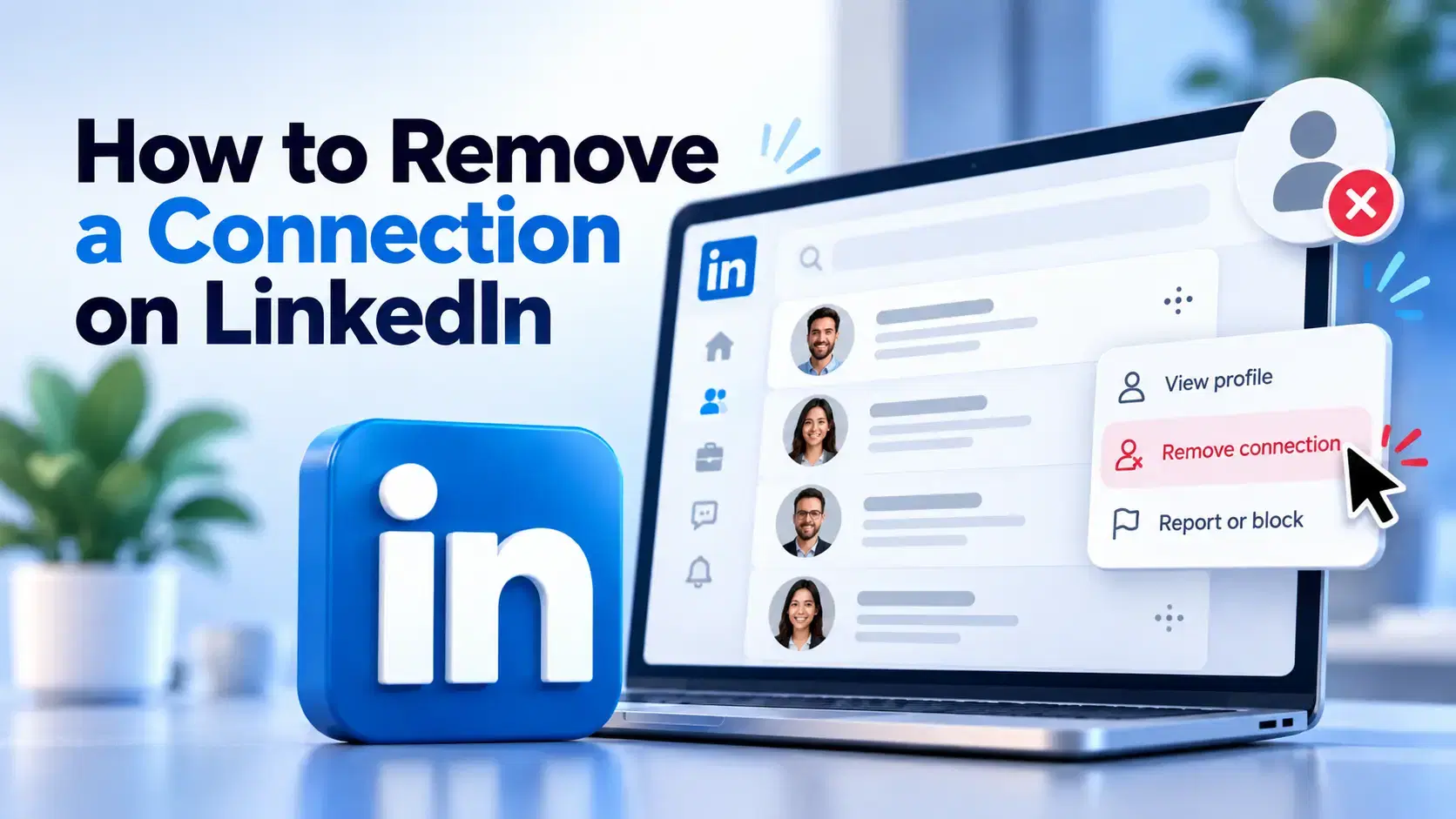
How to Remove a Connection on LinkedIn (Do They Get Notified?)
Removing a LinkedIn connection takes a few clicks, but most people want to know one thing first: does the other person get notified? This guide covers the steps on desktop and mobile, and what changes afterward.
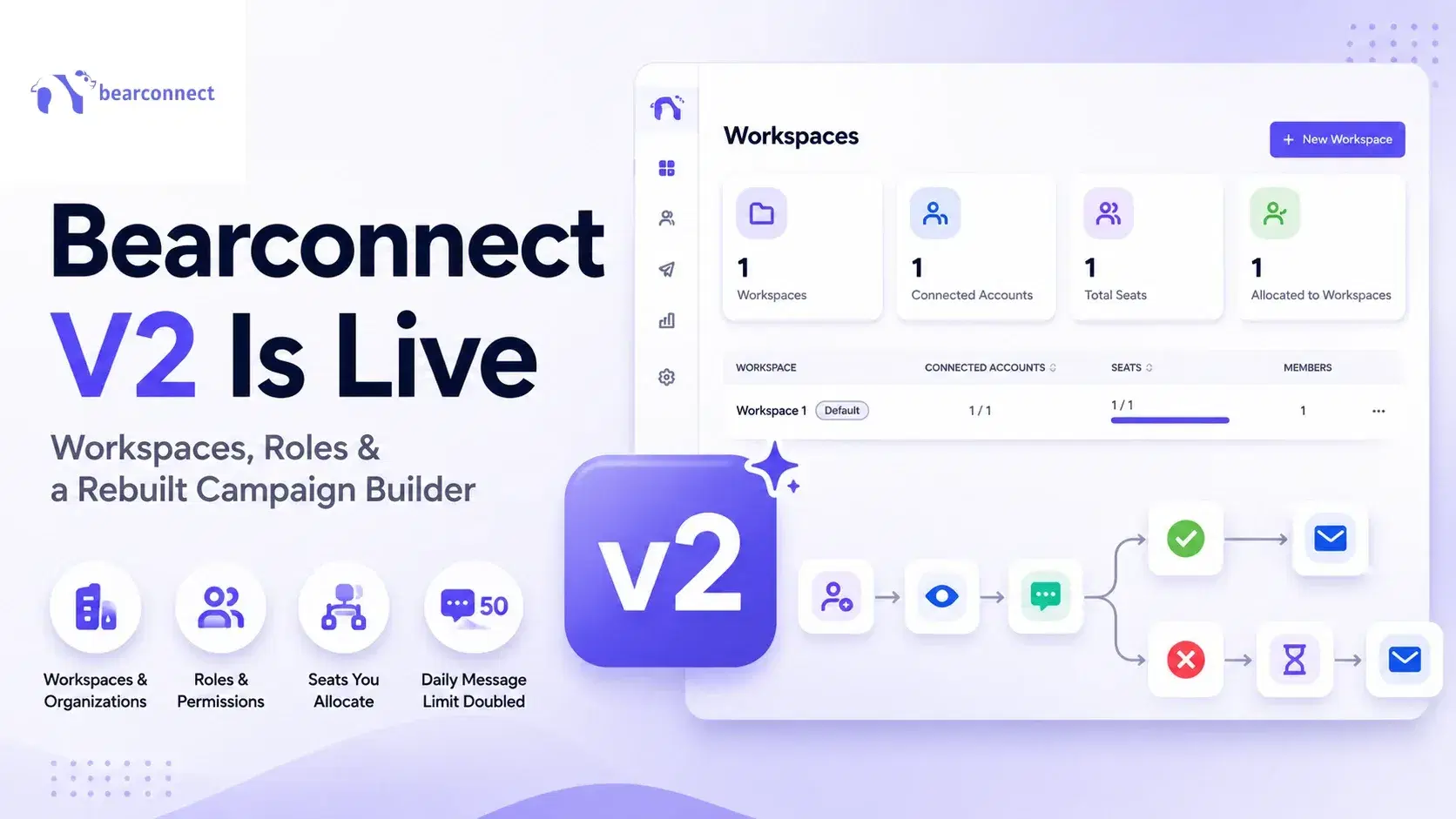
Bearconnect V2 Is Live: Workspaces, Roles and a Rebuilt Campaign Builder
Bearconnect V2 introduces dedicated workspaces, flexible roles, and a rebuilt campaign builder, giving agencies and sales teams more control over every LinkedIn account they manage.